

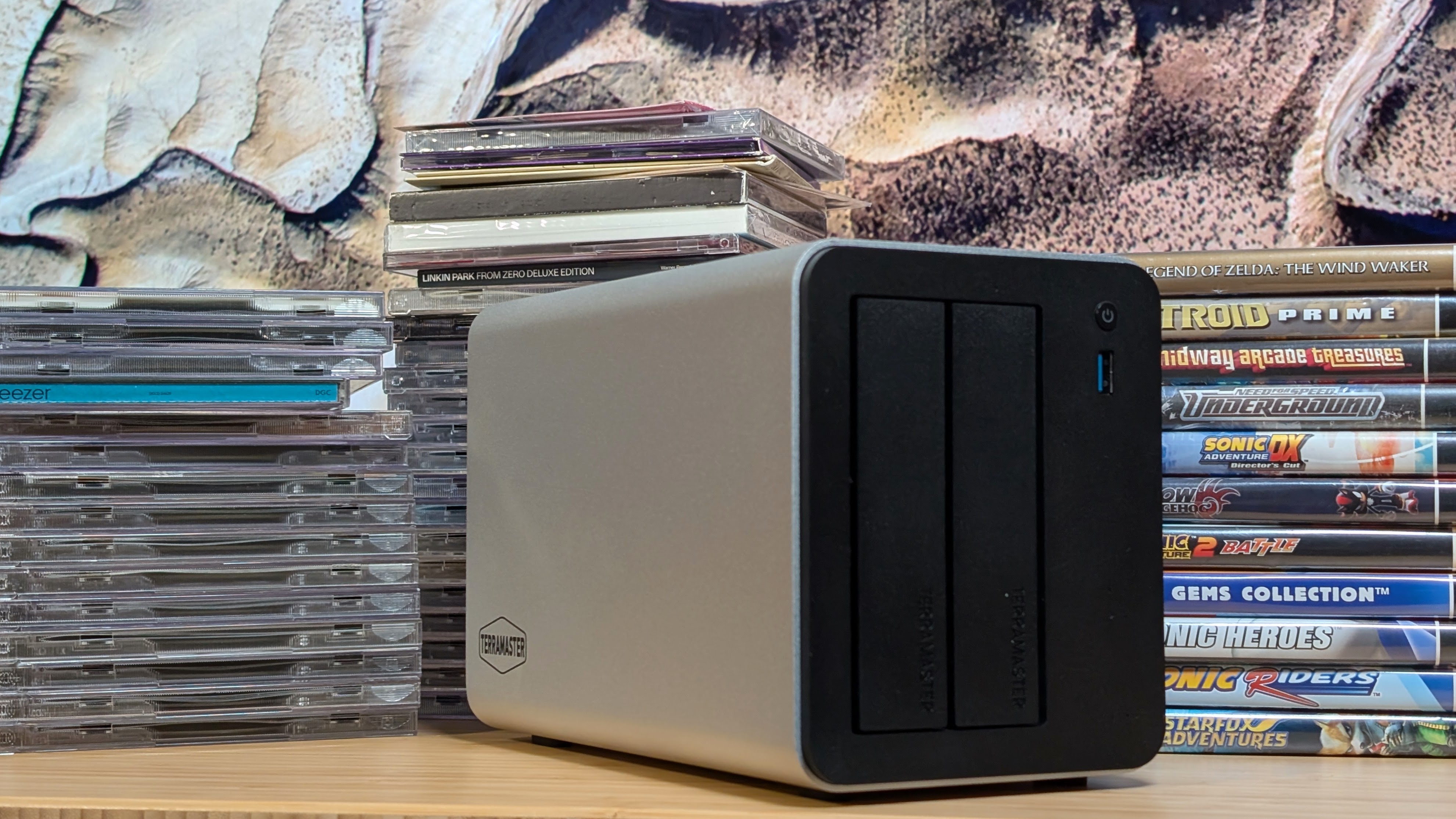
When you’re building your “legally obtained” ROM library, one of the things that eventually comes up is storage space. Do you have enough hard drive space on your computer for that XBOX 360 collection? What about on that external hard drive? Does it fit your entire North American PS2 library?
Well for most, in a time where storage is as expensive as ever, the answer is likely not. And in that case, you may have to risk deleting your copy of Forza Horizon 6 just to save 100GB or so. But if you can afford the cost of entry, getting a NAS or some external way to store your ROMs may be a better idea.
Disclosure:
The device reviewed was provided as a review sample by TerraMaster. This had no bearing on the conclusion of the review, nor did TerraMaster have the opportunity to make edits or changes to the review before publishing.
Affiliate links might be present where applicable, and we may earn a commission on product purchases using those links at no extra cost to you.
That’s why when TerraMaster offered to send over their F2-425 Plus for review, I figured I’d give it a go. I’ve been thinking about using my Mig Dumper again afterall.
TerraMaster F2-425 Plus Specs
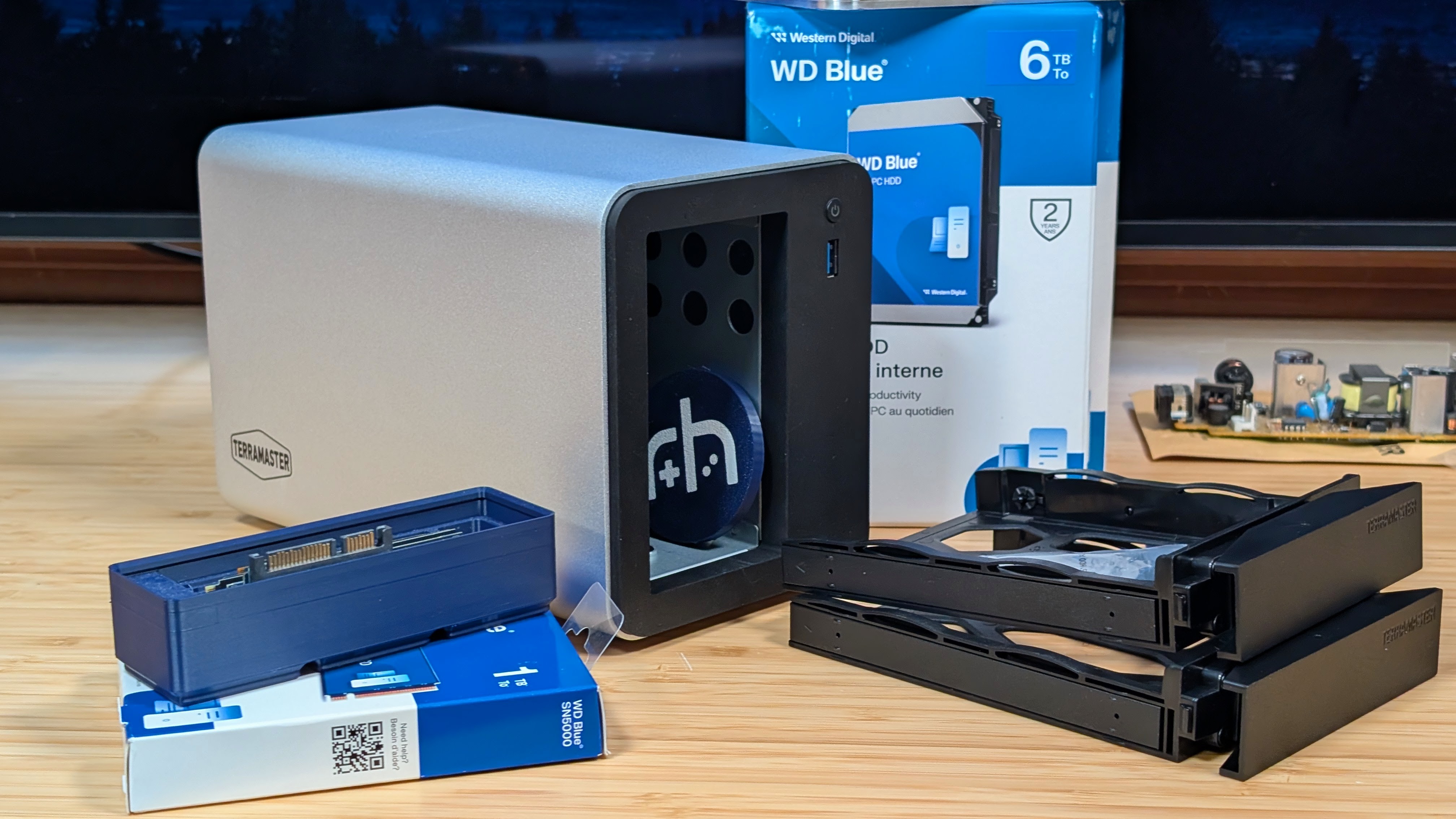
When it comes to picking up the F2-425 Plus, just be aware that there are two models of this. The N95, and the N150 version. The review in question uses the N95, but honestly if you’re like me, using this version of the NAS won’t matter as much since the main goal is storage. As for pricing, the N95 model is $350 at the time of writing, while the N150 is $400. Though the TerraMaster website says their MSRP is closer to $470 for the N95, and $500 for the N150.
- CPU: Intel N95 or N150 (4 Core/4 Thread CPU)
- GPU: Intel XE Graphics 16EU or 24EU
- Ram: 8GB DDR5 @ 4800Mhz
- Storage: 2x 3.5” HDD Bays, 3x M.2 2280 SSD Slots
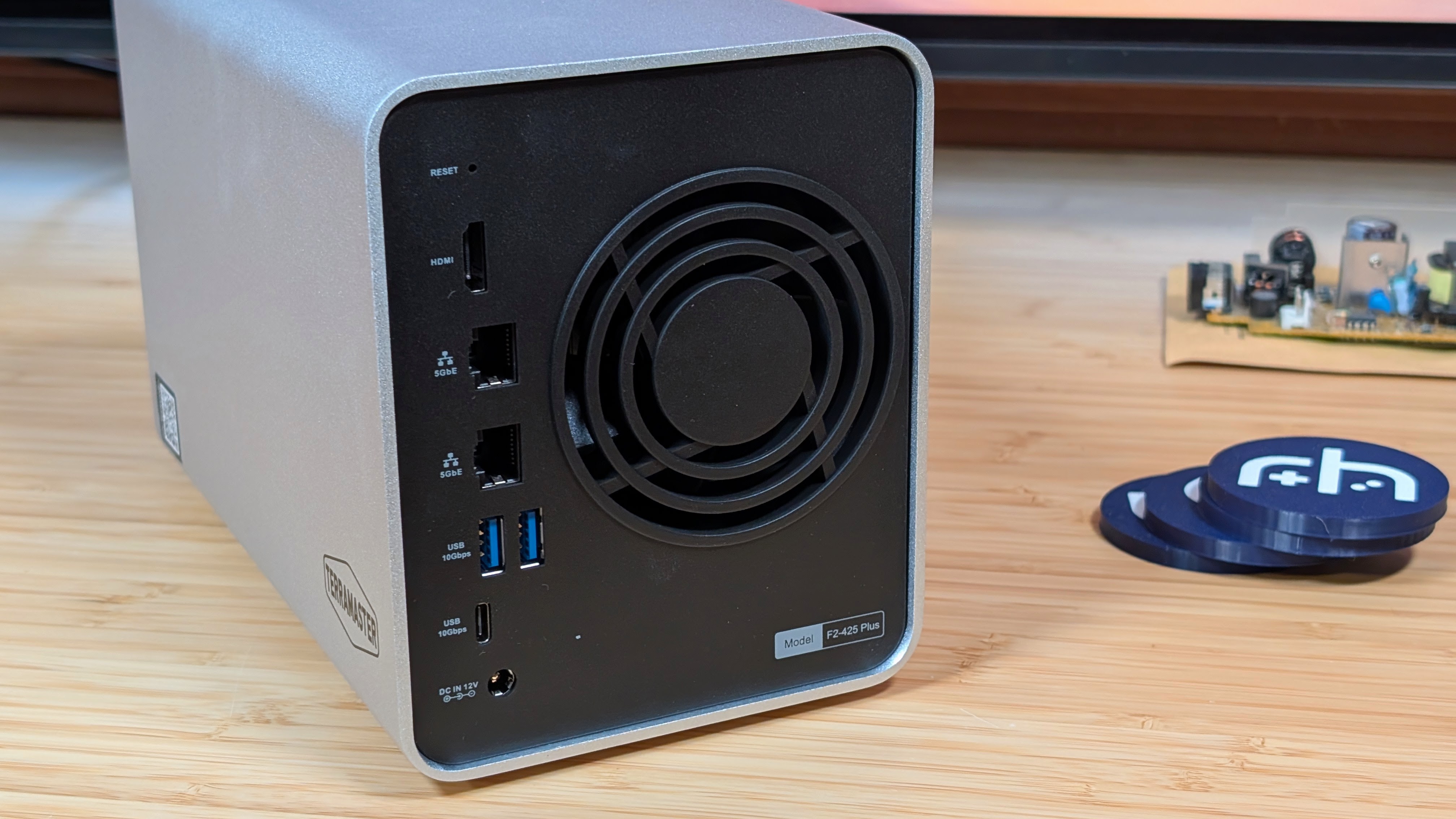
- Connectivity: 1x HDMI, 3x USB 3.2 Type A, 1x USB 3.2 Type C, 2x 5gb Ethernet
- Dimensions: 155x122x219mm
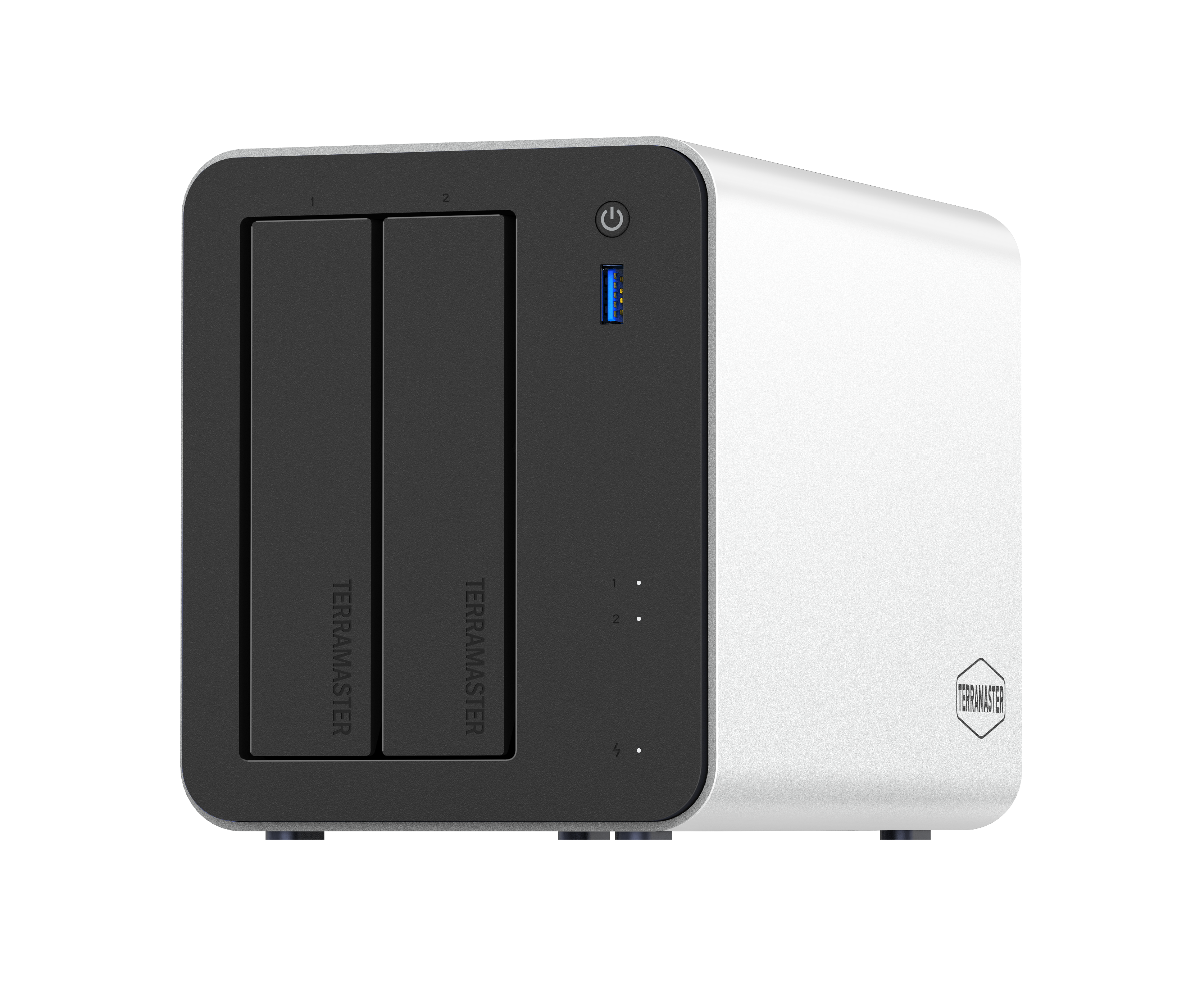
TerraMaster F2-425 Plus
TerraMasterBuild Quality & Expandability
There’s a few ways to talk about the F2-425 Plus in terms of build quality. You can talk about the entirely aluminum outer shell that wraps around the NAS and comes off with just two screws on the bottom. Or you could talk about the plastic front and back panels, with those classic super cheap feeling drive bay sliders that come in and out easily, but feel like you could crush them if you were to squeeze them. Though, that doesn’t matter once we get this setup.
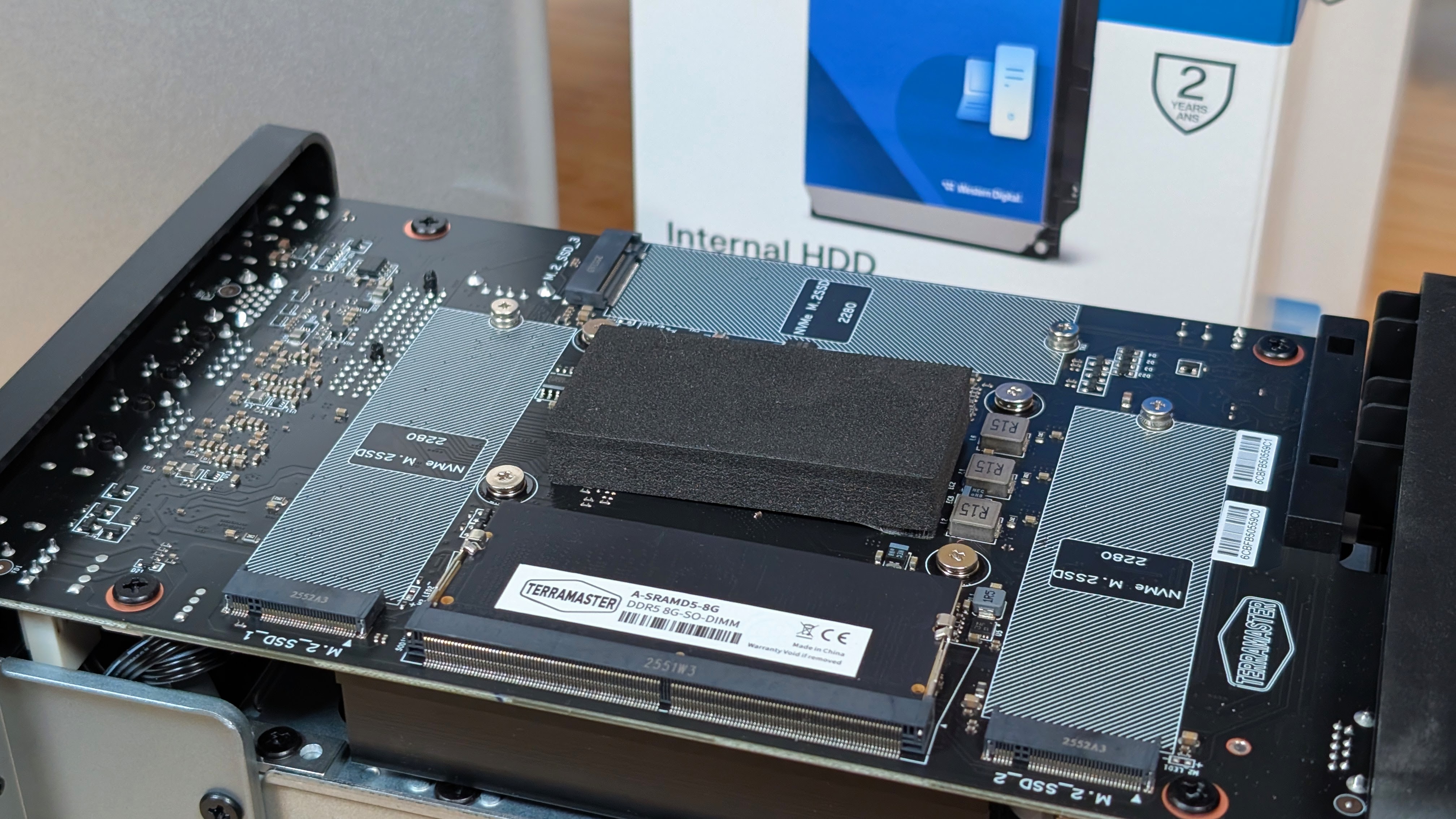
As for expandability, it’s pretty obvious. You’ve got 2 3.5” Drive bays, that I’m sure you could fit a 2.5” drive into as well, but if you want more storage you need to slide the shell off. Thanks to the two screws on bottom, getting in is super easy, and shows you your M.2 Drives arranged in a big ole U shape.
The nice thing is, they include the screws, and if you look in the middle, you can find your single SO-DIMM for upgrading your ram past the initial 8GB. But be aware it’s only a single slot, so you’ll have to replace the full 8GB if you do anything.
Personally for the purposes of this review, I utilized my 2 WD Blue 6TB drives, and a single WD Blue M.2 SSD for the purpose of utilizing the storage space. I know they’re not the best drives in the world, but considering how prices have continued to go up, I’m doing the best that I can here.
Software
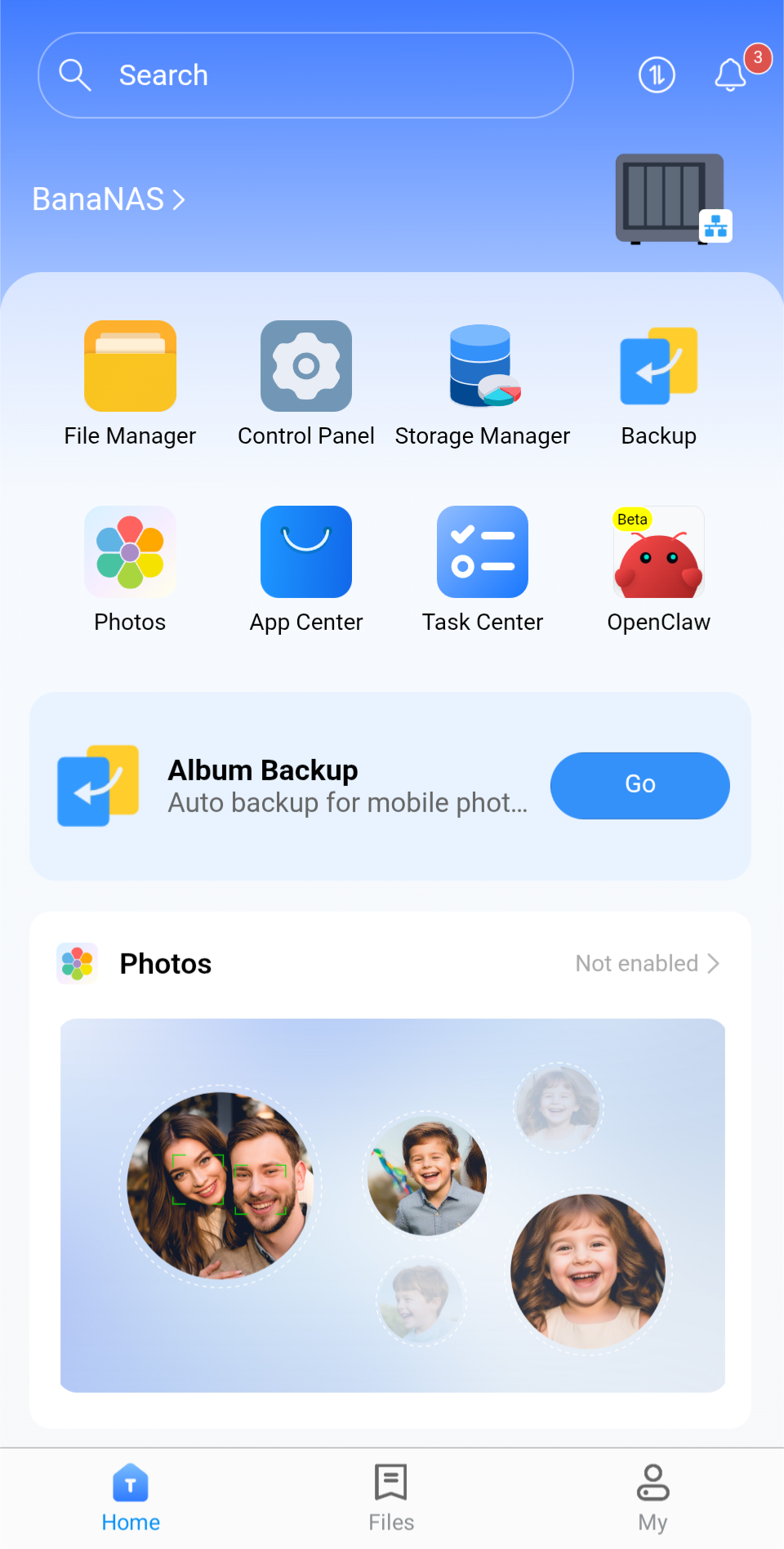
When it comes to software, it feels a bit hit or miss. Booting into TOS on the NAS is super easy, you don’t need to install anything extra, you just add your drives and hit go. Once it connects to your wifi, your next step is to scan that QR code on the side and download TNAS Mobile for the easiest setup. This will get the NAS up and running from your phone, and you can later connect to the TNAS Desktop app as well.
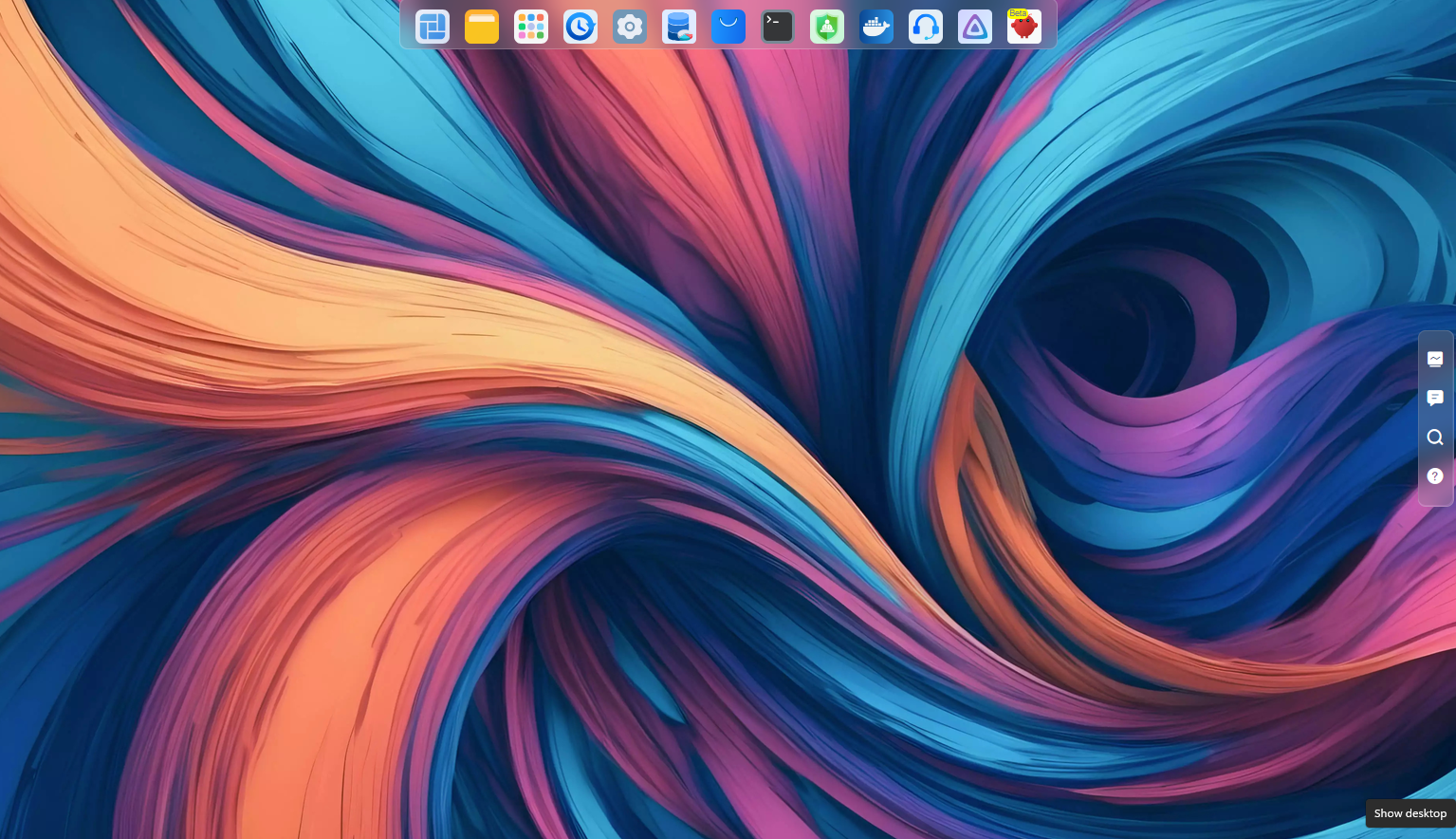
Though; it’s a bit weird since most of the things you can click on in the app will take you to the, much more visually appealing TOS 7. I’ve included screenshots of the very initial look of both OS options so you can see what you’ll get right away, but of the options for access, TOS on the web, and the mobile app should be the easiest things to use.
General Usability & Performance
In terms of what I was using, I pulled down their default photos app, and file manager, but I did pull down a few other apps like Sonarr, and Tailscale to help setup a local VPN. Getting things setup was fairly straightforward, and as someone that’s used a few NAS’s before like the Affiro K100, getting things going has really just become routine.
Unfortunately I’m not a big tester for internet speeds, as my wifi is capped closer to 120mbps, but when utilizing the F2-425 Plus for data transfers, I found myself capping out my Wi-Fi speeds when transferring my Gamecube rom library for example. Automatic uploads through their photos app from my Pixel 9 Pro ran smoothly, and overall, while it doesn’t feel like an utterly polished experience, I’ve had a good time working with the F2-425 Plus.
Final Thoughts
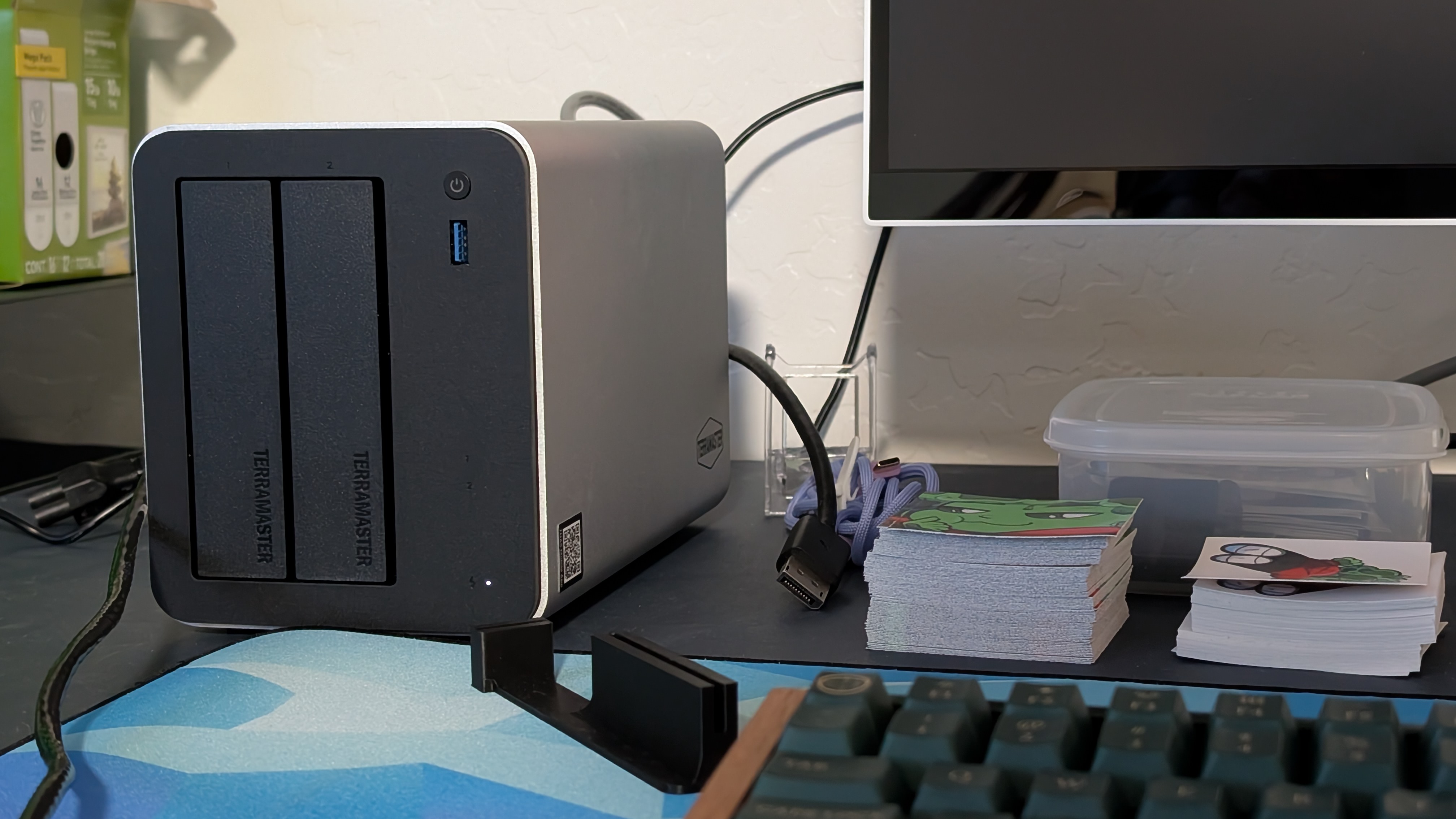
So what’s the end thought? If you only need 2 drive bays, I think the F2-425 Plus is a great way to start off in terms of a “NAS” experience. With how expensive SSDs have gotten, having the option for HDD expansion is great to have. I’ve been debating decommissioning my Affiro K100 due to the fact the 3 4tb SSD’s could probably do something more productive than stay as my ROM library. Luckily, if I really wanted, the 3 additional SSD slots in the F2-425 Plus would house that pretty well.
But as a solid conclusion, in today’s market, I think a 4-hard-drive-bay-based NAS would be the best thing to aim for as a combination of Hard and Solid state storage. Something like the UGREEN DH4300 Plus if you’re okay with an ARM-based NAS, or TerraMaster’s own F4 lineup of NAS options. But if you’re looking to combine the two mediums, the F2-425 Plus is going to be the thing I’ll recommend. Especially since you could just install TrueNAS. It’s just an N95 after all.
