

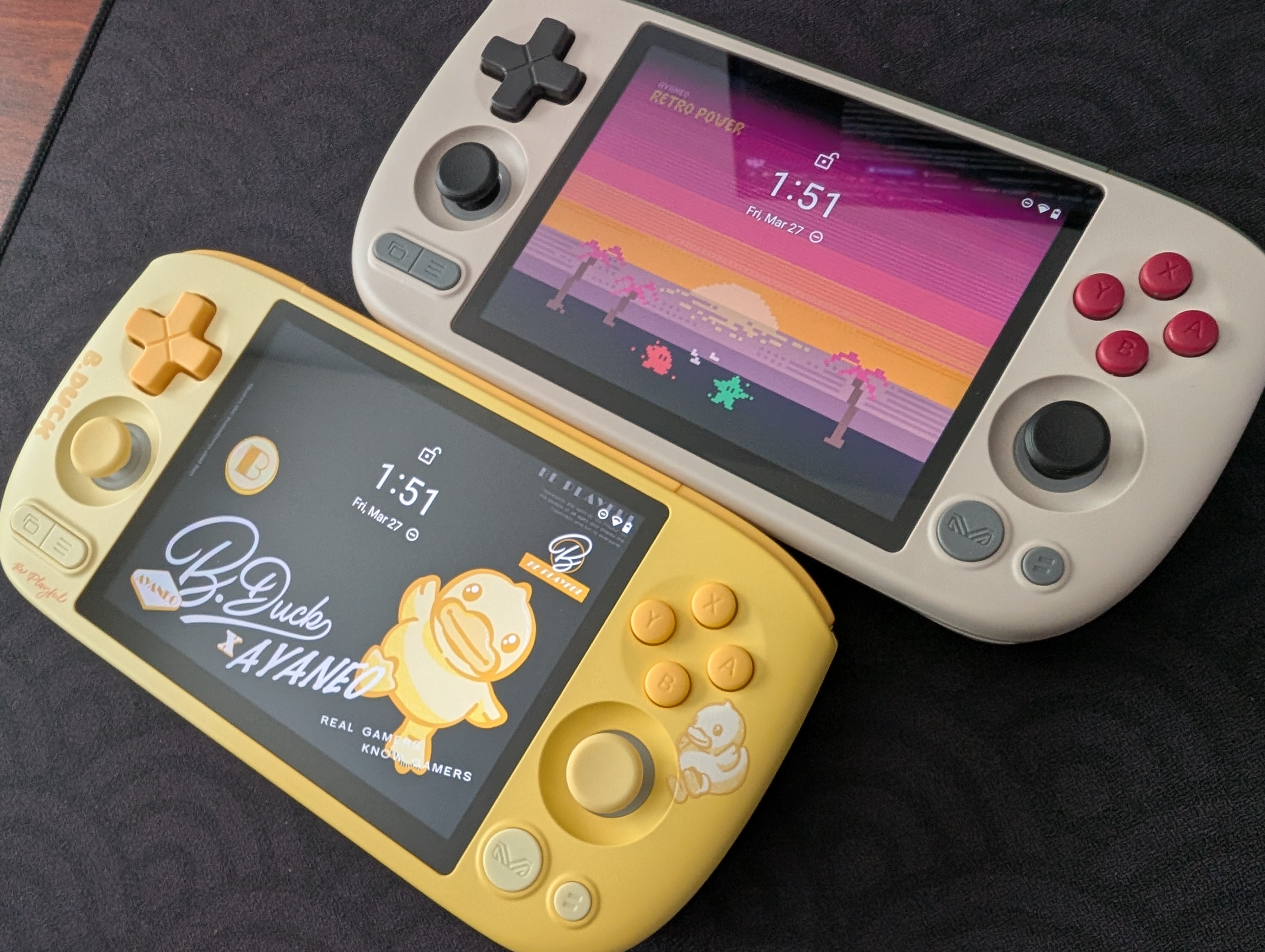
The AYANEO Pocket Air Mini, a rare budget device from the notoriously expensive AYANEO, has proven to be a favorite of the Retro Handheld community. Great build quality, comfy and quiet buttons, and an extremely agreeable price have given this device a fervent fanbase. This guide will help you set up your KONKR Pocket Air Mini to get the most out of your device.
Table of Contents
AYANEO Pocket Air Mini Specs
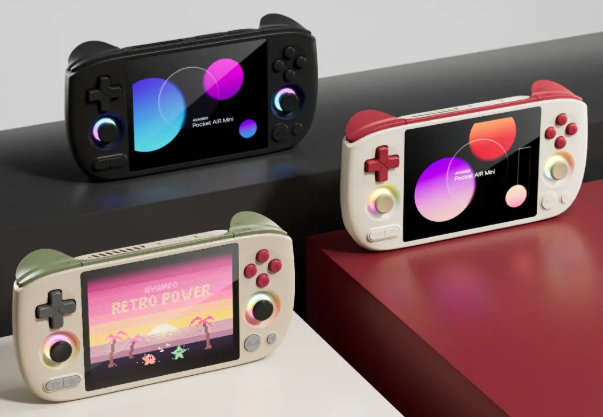
The AYANEO Pocket Air Mini comes in four colors (Aurora Black, Retro White, Retro Power, and a limited edition B. Duck Sunny Pop yellow) and two different RAM and storage configurations. The Retro Power and B. Duck editions are only available in the 3GB/64GB configurations.
The Pocket Air Mini is rocking a MediaTek Helio G90T, which powers a 4.2-inch 1920×960 LCD screen. Additionally, the 4:3 aspect ratio makes the Pocket Air Mini a great fit for many retro gaming systems. The screen has good brightness and color, but has been noted by community members to show ghosting.
Note: Yes, the Pocket Air Mini comes in a version with 2GB RAM. 2GB of RAM is sufficient for anything PlayStation 1 and below and, while indeed cheaper, will start to show signs of struggle with anything above. We recommend the 3GB version (or B. Duck, if you like a splash of color), but the choice is ultimately up to you.
| Specifications | |
|---|---|
| Hardware | |
| CPU | MediaTek Helio G90T |
| GPU | Mali-G76 MP4 |
| RAM | 2GB LPDDR4X, 3GB LPDDR4X |
| Cooling | Active Cooling with Fan |
| Display | |
| Screen Size | 4.2-inch |
| Resolution | 1280 x 960 |
| Aspect Ratio | 4:3 |
| Refresh Rate | 60Hz |
| PPI | 380.95 PPI |
| Storage | |
| Internal Storage | 32GB, 64GB |
| External Storage | microSD |
| Battery | |
| Battery Capacity | 4500mAh |
| Charging Speed | 18W PD |
| Connectivity | |
| Wi-Fi | Wi-Fi 5 |
| Bluetooth | Bluetooth 5.0 |
| Cellular | ❌ |
| Ports | USB-C |
| Controls | |
| Sticks | Hall Effect |
| Triggers | Hall Effect |
| Shoulder Layout | Stacked |
| D-Pad | Top Left |
| Audio | |
| Speakers | Stereo |
| Speaker Location | Front-facing |
| Headphone Jack | Yes |
| Physical | |
| Dimensions | 165.9 x 82.5 x 18.7mm |
| Weight | 269g |
| Form Factor | Horizontal |
| Software | |
| Operating System | Android |

AYANEO Pocket AIR Mini
AYANEORecommended Accessories
When it comes to official accessories available directly from the AYANEO website, you’ve got a hard carrying case and screen protector. Not much here, but it’s a pretty cheap device with not a lot of need for additional accessories. I don’t personally have any accessories for mine, as I find I don’t baby the device, given its solid build and low price.
When it comes to unofficial accessories, you’ve got several options for 3D-printed cases and covers on Etsy.
External Storage
Ah, the age-old question of whether to keep your games and files on the internal storage on the device itself, or external storage in the form of a microSD card or portable SSD? External storage is great for ease of transferring files to and from your device. All my files are kept on a Sharge Disk (external 2230 SSD enclosure), which means I don’t have to constantly involve my computer in the installation process. I can even play games directly from the SSD!
Internal storage is going to be faster and more stable, so plenty of people prefer that option. This is where I would normally recommend you save internal storage for PC Emulation via apps like GameHub Lite or GameNative, but the Pocket Air Mini honestly struggles with PC emulation. If you’re going to try and get it running anyway, save the internal storage for those files, as using external storage for PC emulation on Android can cause performance issues and/or crashes.
Installing Apps and Emulators
Now, it’s time to focus on getting your emulators set up. Remember when we had to find and install each emulator and system separately? Retro Handhelds remembers. Those days are long gone, unless you prefer that sort of journey.
Obtainium
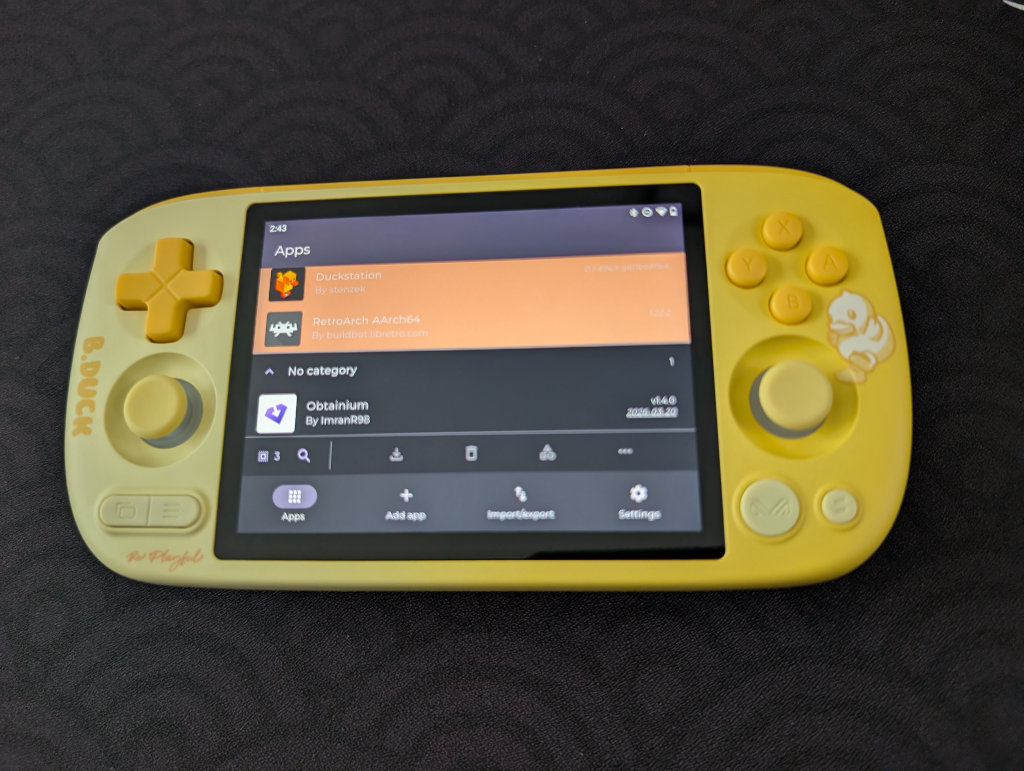
Obtainium has made emulation and gaming software installation on Android an extremely simple process, with the help of the Obtainium Emulation Pack. Obtainium will provide links directly to developer sources and pages, cutting out the need to find and manage them yourself. Additionally, Obtainium will also keep tabs on these programs and alert you of any updates that need to be installed.
For an in-depth guide on Obtainium setup and configuration, please check out our Obtainium guide on our website.
BIOS Files
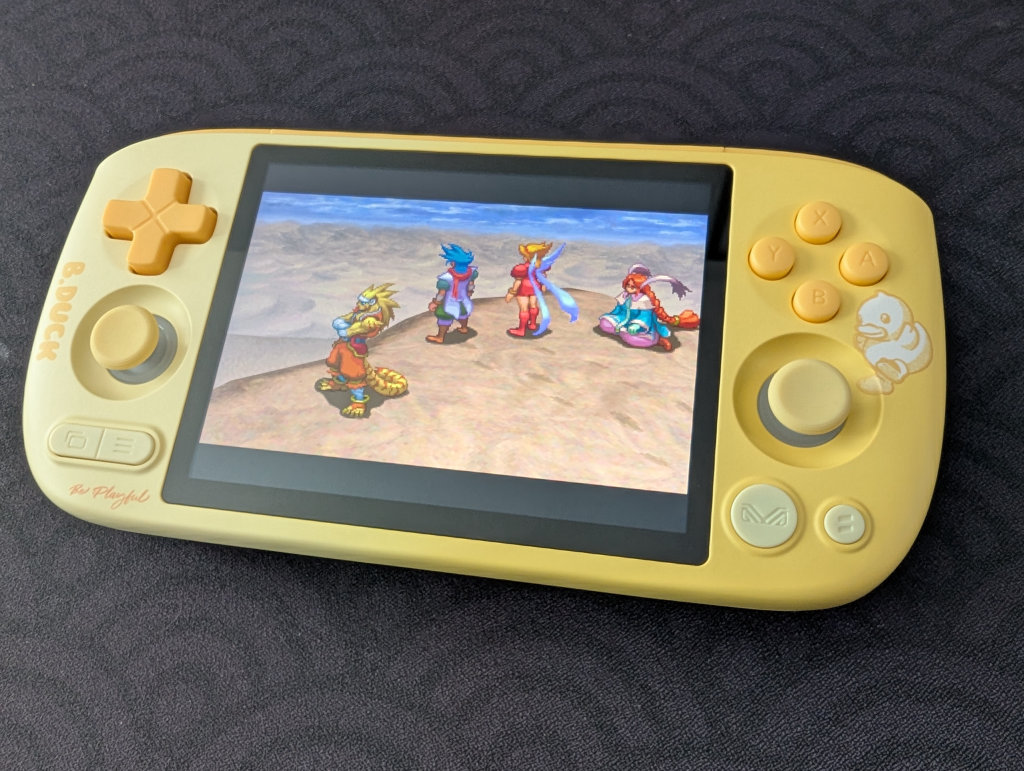
While the installation of emulators on your various handhelds will get you most of the way to your goal of playing games, some systems (most notably disc-based) require a BIOS in order to actually run the games. Systems on RetroArch will be mostly covered, but anything additional (PS2, GameCube, Saturn) will require some additional file placements. The Pocket Air Mini can play a surprising amount of GameCube and PS2 games out-of-the-box, especially at native resolution, but be aware that it can start to struggle when you get to more demanding GameCube and PS2 games, given the limitations of the RAM and that chip.
Copyright law keeps us from telling you where to find these files, but you can refer to our Recommended BIOS Files guide on our website for examples of BIOS files for each system, along with where they should be placed in your file structure.
Choosing a Launcher or Frontend
Choosing a launcher or frontend ultimately comes down to preference. There are several options to choose from, including the AYASPACE launcher built into the AYANEO Pocket Air Mini, but it might be best to try a few different options and see what works best for your needs.
Beacon Game Launcher
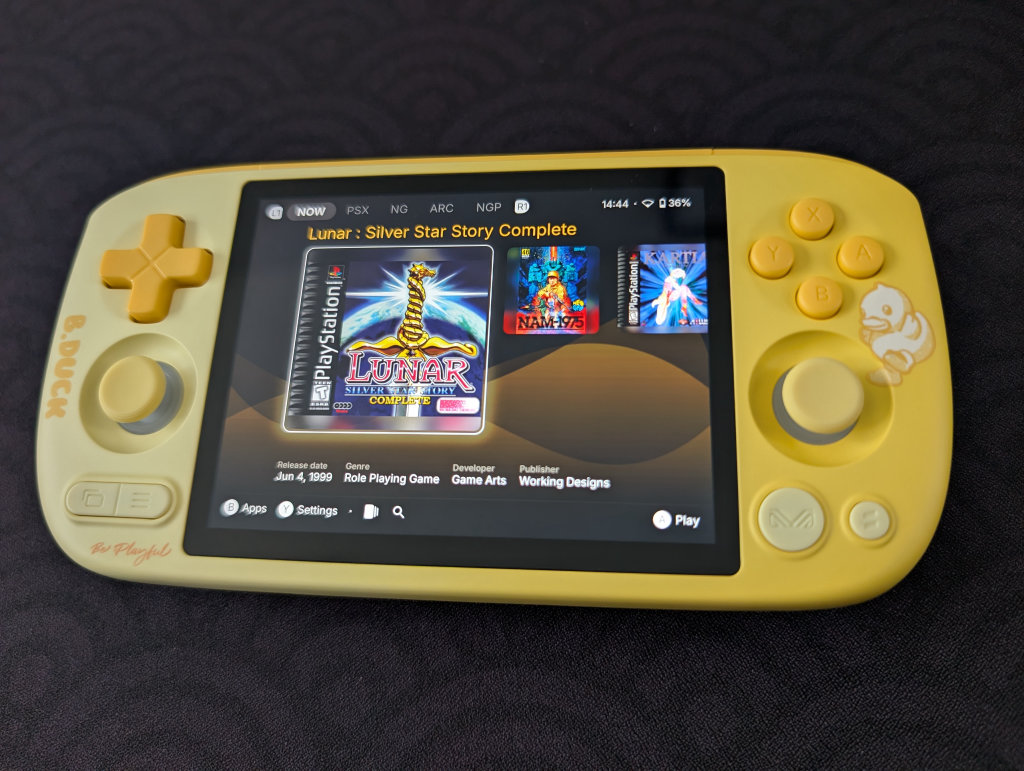
My personal choice for frontend goes to Beacon Game Launcher. While it is a paid app ($2.99), which might turn some people off, it has been the one I consistently install on nearly all my devices. Beacon Game Launcher focuses on a simple, no-fuss setup and configuration, and aesthetically has been my favorite of several options that I’ve explored.
AYASpace Launcher
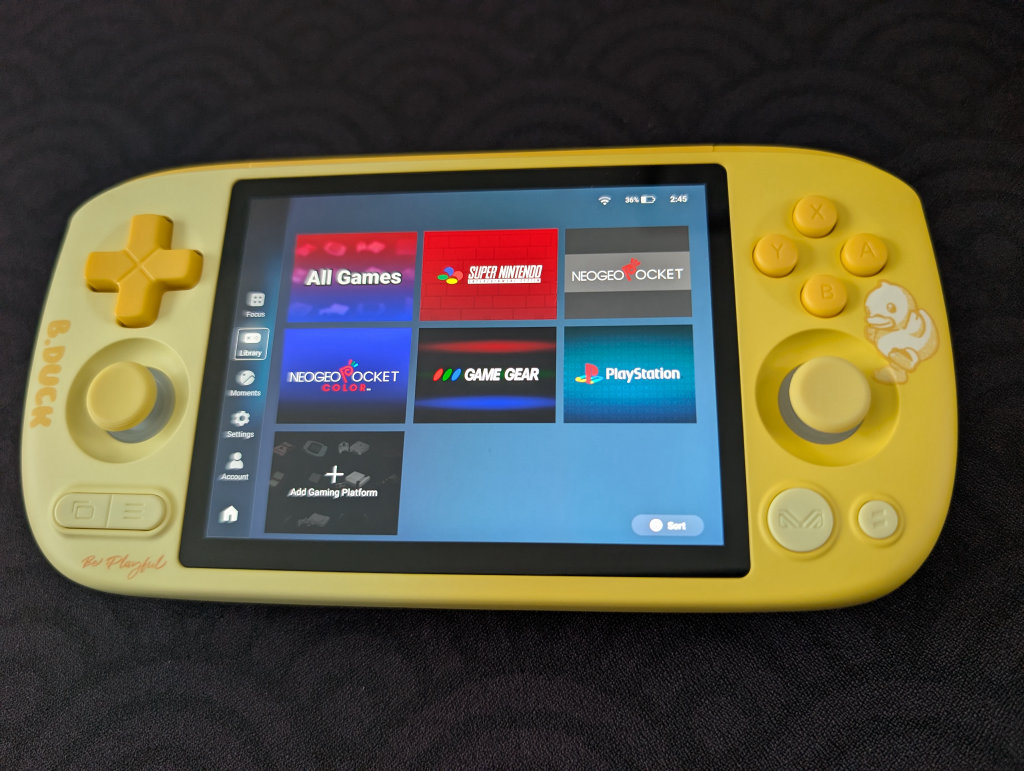
While I don’t personally use or recommend the AYASpace Launcher, it works and provides an option to integrate other frontends and display game libraries. This one feels a bit more DIY than simply choosing a frontend and launching games from that, so know going in that you may be doing a bit more tinkering if you choose this option.
Additional Options
- Daijisho (Free)
- Console Launcher (Free, with optional premium feature support)
- Launchbox (Free version supports up to 100 games. Additional paid packages available)
- Pegasus (Free/Open-source)
- ES-DE ($6.50 on Galaxy Store, Free for Patreon supporters)
Streaming Apps
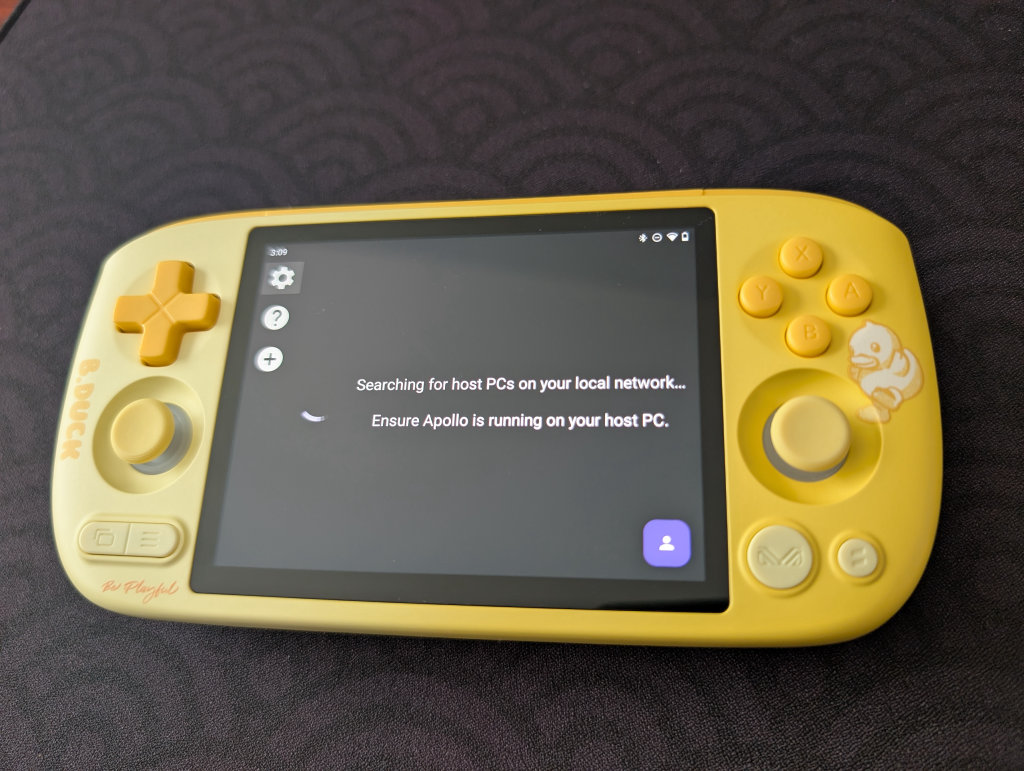
This is where the difference between the 2GB and 3GB RAM versions of the Pocket Air Mini starts becoming more apparent. While streaming is also going to depend entirely on your personal desktop/gaming PC and your home network, the 3GB version is going to give you a more stable experience. That is, if you can get it working.
I couldn’t get Artemis, my preferred streaming option, to run on the Pocket Air Mini, which could completely come down to my own home Wi-Fi setup. Several users on the Retro Handhelds Discord were able to get Moonlight/Sunshine to work well, of which Apollo and Artemis are forks, so that may work better for you depending on your home network situation.
PC Emulation
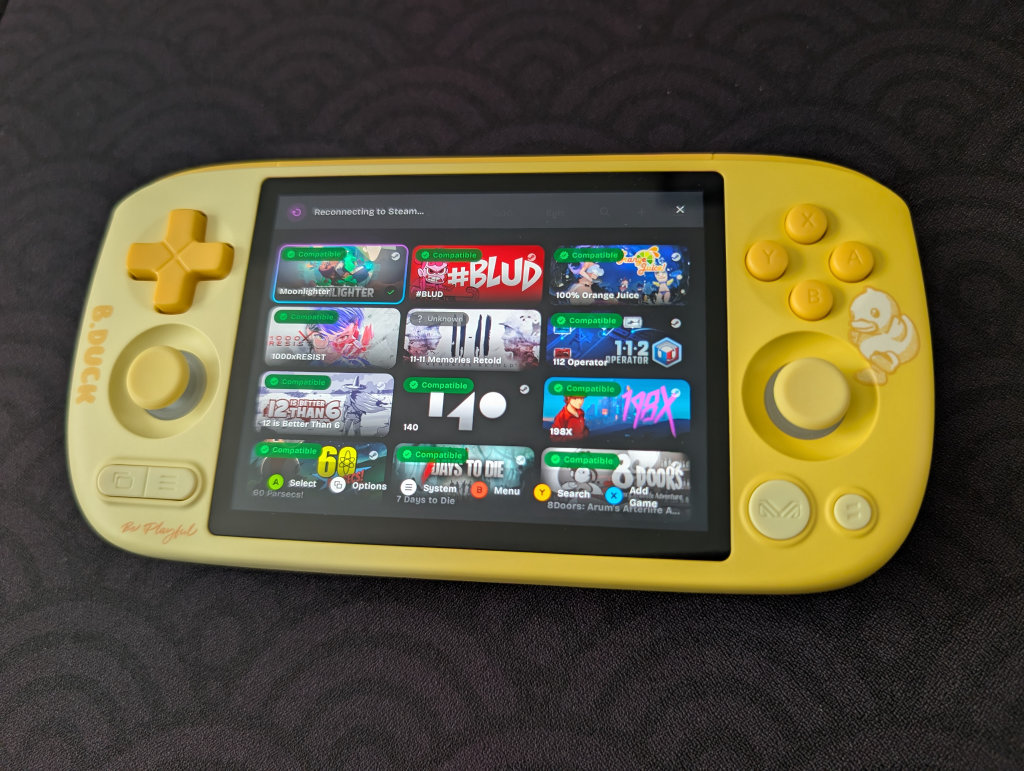
Frankly, the limitations of the device internals as a whole start showing themselves when it comes to emulating PC games on this device. Ultra-light games like Celeste and Moonlighter can be run, but anything beyond that will struggle or simply not run at all. I had a lot of difficulty with the 3GB B. Duck version, so I can’t imagine the 2GB version will do well here.
GameNative, the only one I could get to run on the Pocket Air Mini, gives you access to your entire Steam library, including cloud saves. Our own Jim has an excellent How to Play Steam Games on Android guide if you want to try setting up GameNative on your device. Again, go into this with some low expectations.
Additional Recommended Apps and Options
RetroAchievements is a completely community-driven way to earn achievements in retro video games, essentially giving a modern feel to our games of the past. While they can be a little divisive given their need for an always-online connection, it is a fun way to add a little extra layer of engagement to your gaming.
CHDroid allows you to convert ROM files into a compressed .chd format on the AYANEO Pocket Air Mini itself. Most disc-based games, like PS2, Sega Saturn, Dreamcast, and PC Engine CD, can be converted to .chd and save a ton of space.
The Debloat Guide
One of the wonderful parts of the retro gaming and emulation community is the desire to tinker and get the most out of our devices. On that note, a debloat guide has been circling the Pocket Air Mini channel on the Retro Handhelds Discord. Essentially, this is an optimization and debloat guide that can help squeeze some additional performance out of your Pocket Air Mini. This is especially exciting because many users have reported increased performance when it comes to emulating more demanding systems like PlayStation 2, GameCube, and Wii.
All of the steps are explained in great detail on CyberYellowNinja’s GitHub page, so if you’re interested in trying to accomplish a little more with your Pocket Air Mini, give this program a try!
Quick Tips and Tricks
Pocket Air Mini Buttons
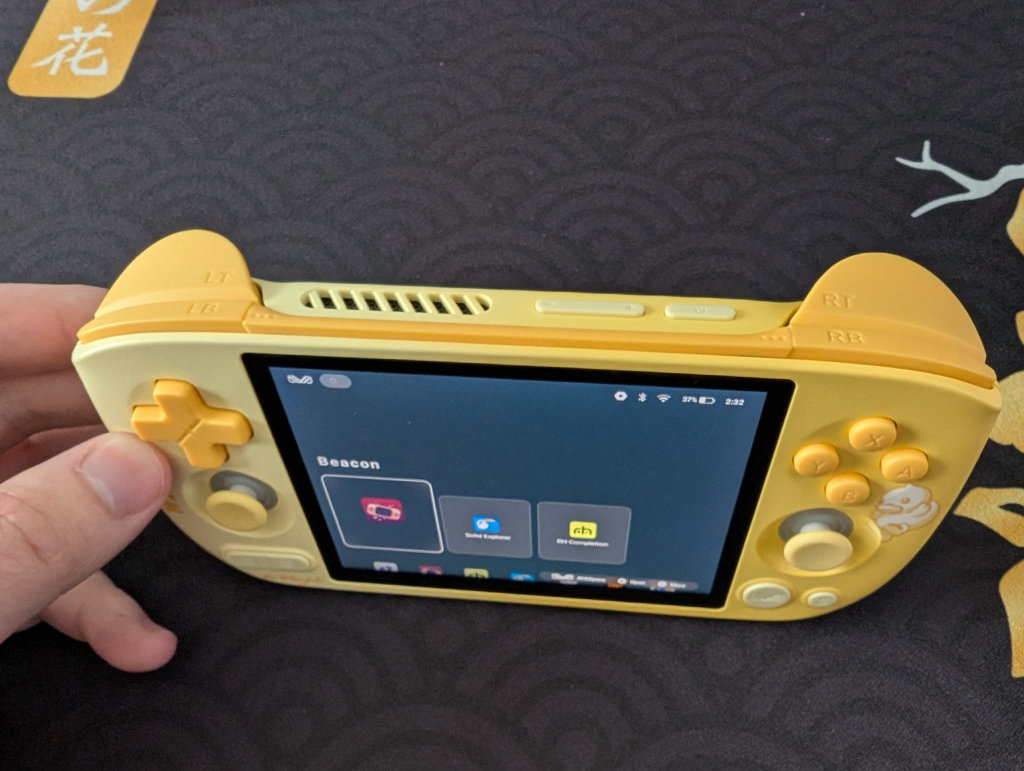
The AYANEO Pocket Air Mini has two function buttons near the left and right shoulder buttons, which can be adjusted via the AYANEO Menu below. Power and Volume +/- are also located along the top of the device.
The two buttons below the left analog stick are our Start and Select buttons, and the two buttons below the right analog stick are the AYANEO “M” button and Back button.
AYANEO Menu
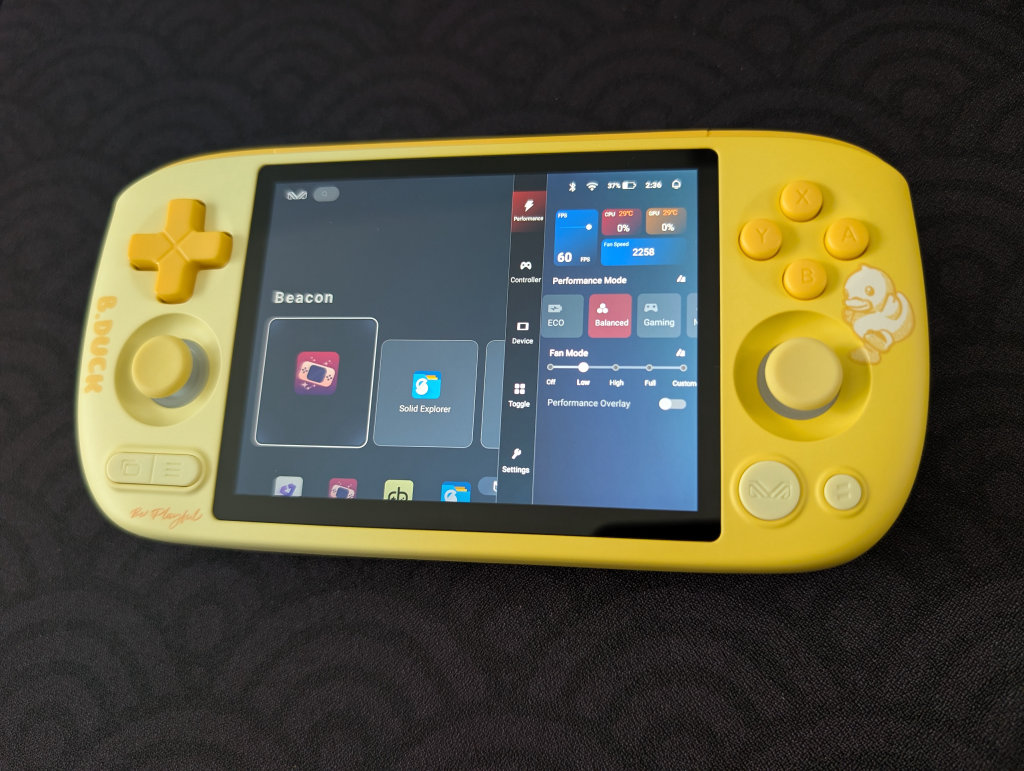
Tapping on the AYANEO “M” button will bring up a menu, where you get a mix of a monitoring and performance panel and quick-hit settings and adjustments.
- Performance
- Performance Selection
- Eco
- Balanced
- Gaming
- Max
- FPS Monitor
- CPU Temperature and Usage Percentage
- GPU Temperature and Usage Percentage
- Fan Speed
- Fan Mode
- Performance Overlay Toggle (shows minimized metrics on top screen)
- Performance Selection
- Controller
- Key Mapping toggle
- Sound Vibration toggle
- Button Vibration toggle
- Trigger Adjustment
- Digital
- Linear
- LT Deadzone Adjustment
- RT Deadzone Adjustment
- Joystick Adjustment
- Left Stick Deadzone Adjustment
- Right Stick Deadzone Adjustment
- Right Stick Maps to D-Pad toggle
- ABXY Layout
- Standard (Xbox)
- Japanese (Nintendo)
- Turbo Button Mapping
- Device
- Brightness Adjustment
- Volume Adjustment
- Airplane Mode toggle
- Bluetooth Toggle
- Wi-Fi toggle
- RGB Effects toggle
- Toggle
- Screenshot
- Wi-Fi
- Bluetooth
- Do Not Disturb
- Force Landscape
- Auto-Rotate
- Airplane Mode
- Night Mode
- Screen Recording
- Hotspot
- Location
- Dark Mode
- Data Saver
- Screen Casting
- Settings
- Check for Updates
- Device Settings
- Android System Settings
How to Update your AYANEO Pocket Air Mini
To update the software on your AYANEO Pocket Air Mini, follow these steps:
- Go to your AYANEO System Settings (steps found below)
- Find the System Update
- Any applicable programs that need to be updated will have a red Update icon next to them
- Once you select Update, a percentage icon will appear in red, showing progress
- Once updated, you will likely be booted from the AYANEO System Settings
- Return to the AYANEO System Settings to update any subsequent programs
- Once all programs are updated, a No Updates Available message will appear
AYANEO System Settings
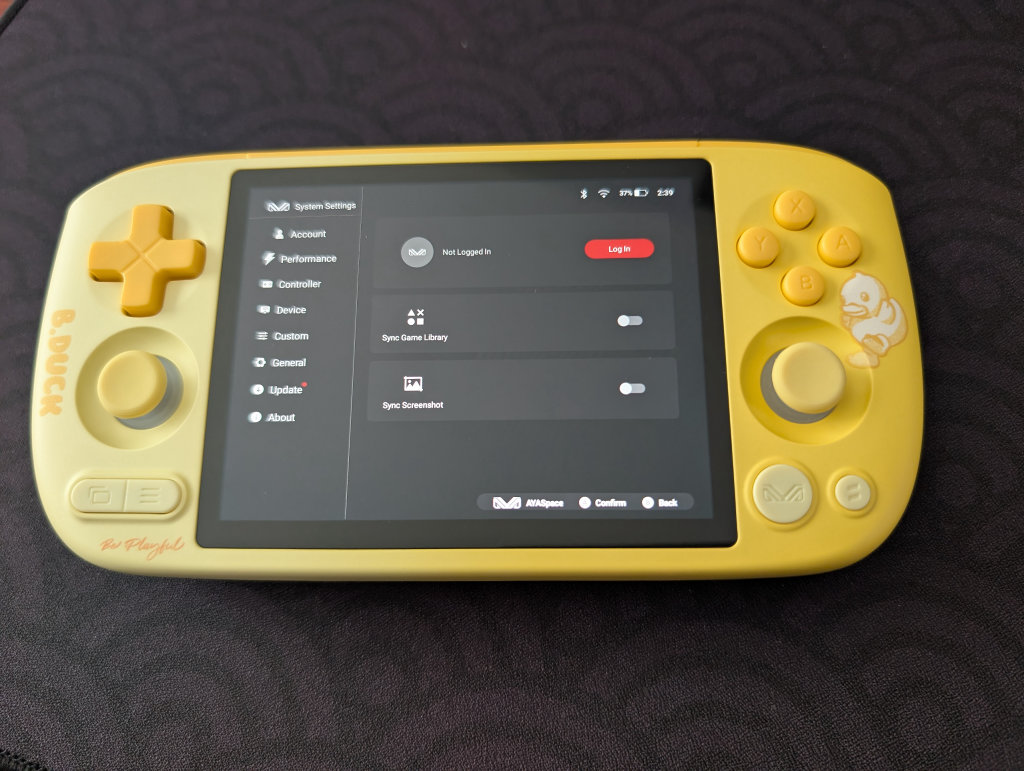
Tapping on the AYASetting icon (it looks like the regular Settings icon, they just threw “AYA” in there) will bring up the AYANEO System Settings. For anyone who’s had an AYANEO device before, you’re likely going to recognize these screens.
- Account
- Log in to your AYANEO Account
- Performance
- Adjust performance modes
- Adjust fan modes
- Adjust CPU scheduling modes
- Adjust CPU limit
- Adjust GPU limit
- Lock GPU at max frequency
- Controller
- Adjust RGB Effects
- Joystick calibration
- Set Custom Button layouts
- Setup custom keys (useful for those function buttons near the shoulder buttons)
- Device
- Root script
- Screen Settings
- Virtual Memory Management
- Fan Settings
- Turn off Wi-Fi while screen is off
- Charging fan speed when screen is off
- Equalizer
- Custom
- Adjust system wallpaper
- Performance mode prompt
- Confirm before returning to desktop
- General
- System language
- Input Method
- Server
- All Settings
- System Update
- As seen in the screenshot above, a red notification icon will appear if an update is available
- About
File Transfer: Solid Explorer
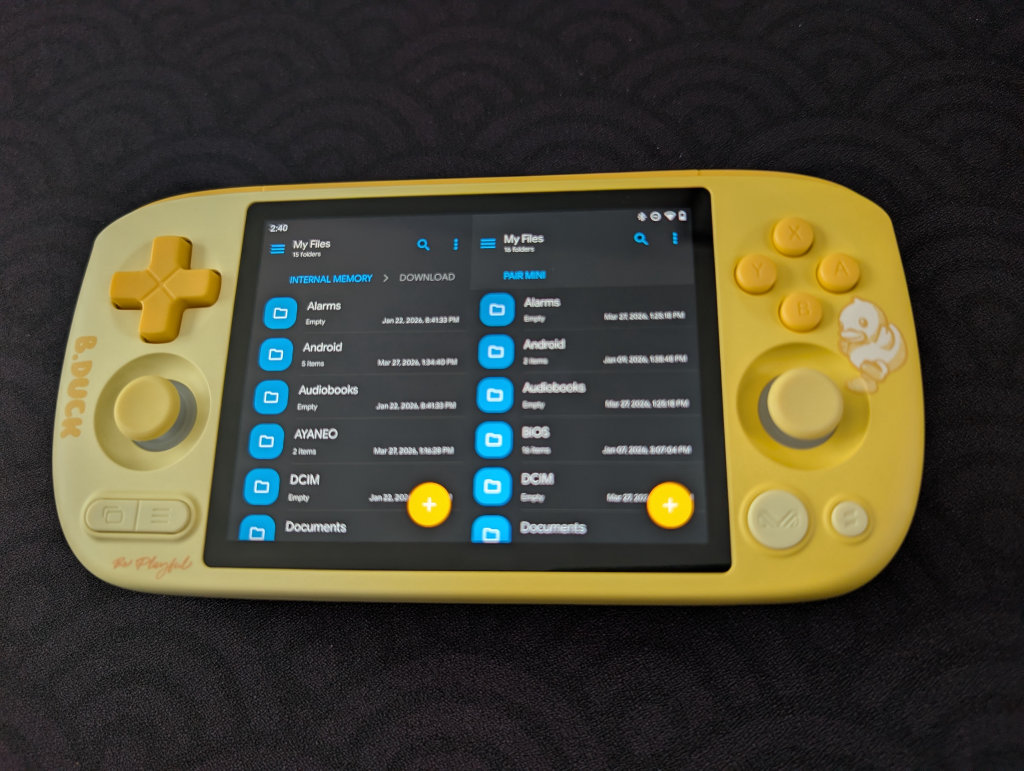
My go-to file transfer program has been Solid Explorer for a long time now. I enjoy the split-screen layout and the ease of copying and moving files. It is worth mentioning that this is a paid app ($5.99, though there is a 14-day free trial), but I’ve simply been unable to go back to other options after using Solid Explorer.
If you prefer a free option, MiXplorer is one that my colleague Nick has recommended before. It’s free, with a premium version called MiX Silver available, and it also works very well.
Conclusion
Impressive build quality and capabilities for roughly $120 makes the AYANEO Pocket Air Mini one of the best values you can get in the handheld market right now. Hopefully, this guide provided you with the tools necessary to enjoy your Pocket Air Mini to the fullest, and we will continue to update this guide with more fun updates and projects as we come across them.
