

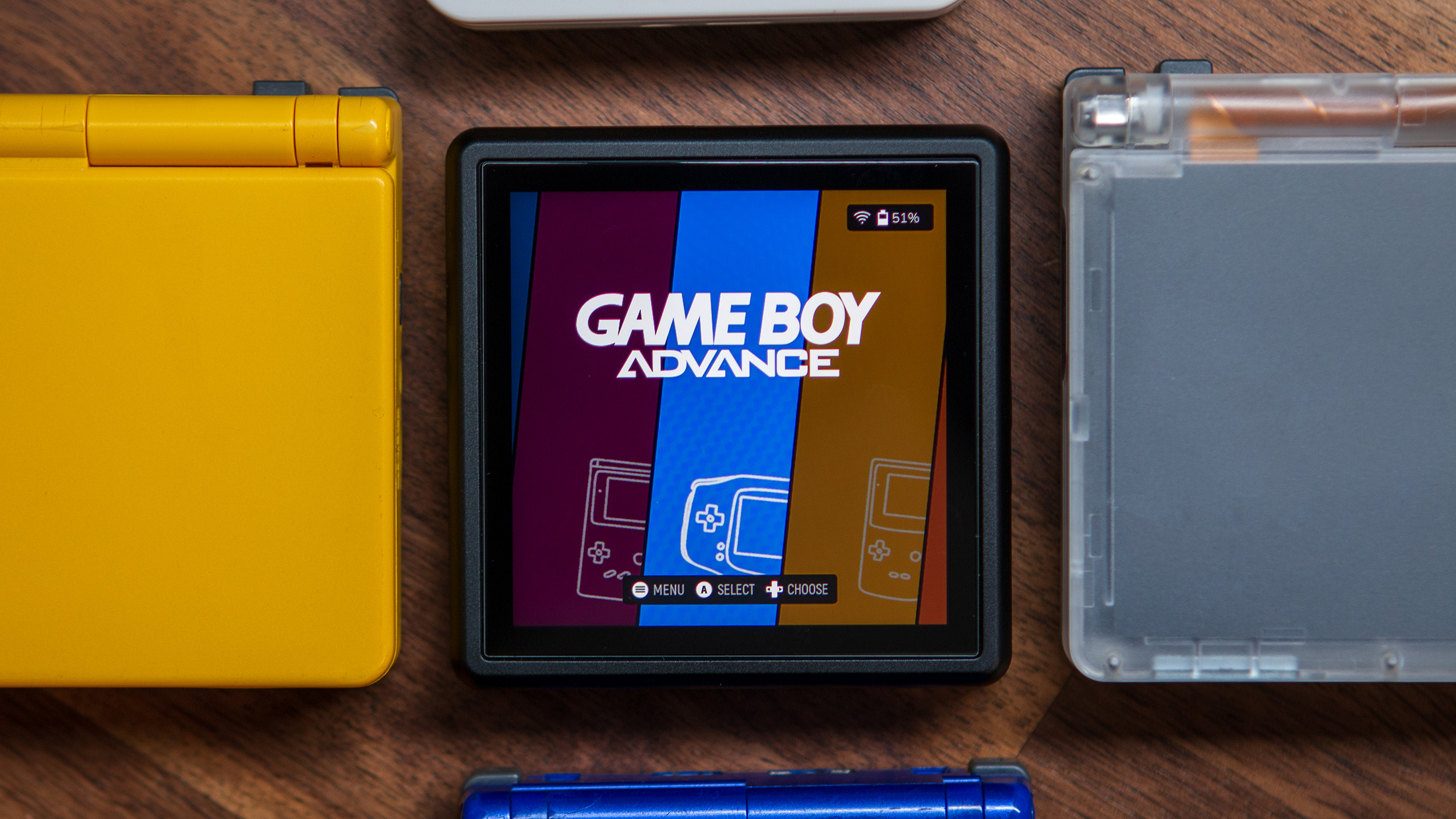
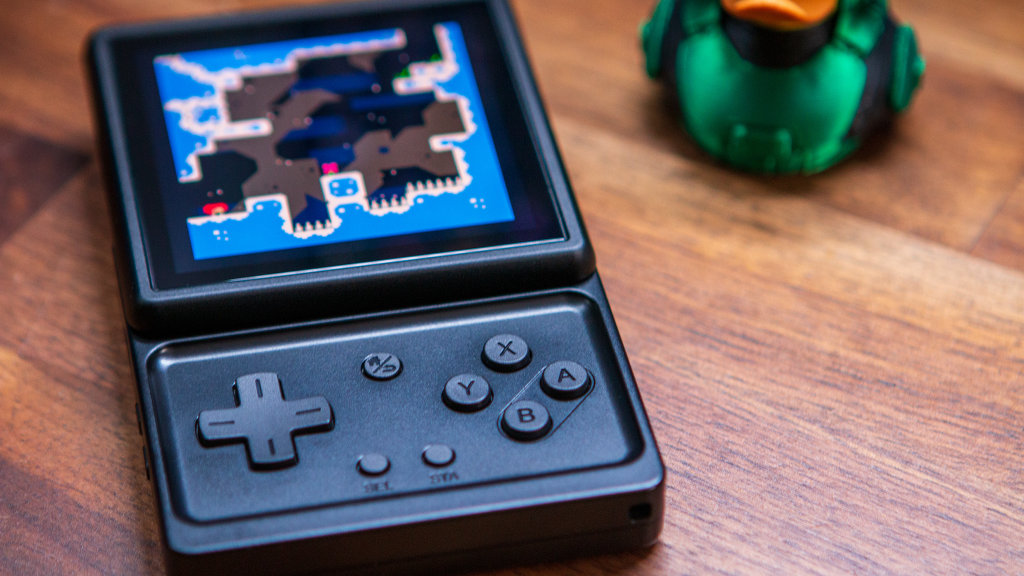
It’s definitely been an odd year for Anbernic, with some questionable device and product releases. However, the company managed to get just about everyone’s attention with the Anbernic RG Rotate. This device doesn’t try to imitate any other retro handheld; instead drawing inspiration from some of the earliest cell phones.
Now that it’s available for pre-order, and after spending some time with it ourselves, we’re here to help you with the Anbernic RG Rotate setup guide.
Table of Contents
Anbernic RG Rotate Specs
| Hardware | |
| CPU | Unisoc T618 |
|---|---|
| GPU | Mali-G52 MP2 |
| RAM | 3GB |
| Display | |
| Screen Size | 3.5-inch |
| Resolution | 720 x 720 |
| Aspect Ratio | 1:1 |
| Refresh Rate | 60Hz |
| PPI | 290.92 |
| Storage | |
| Internal Storage | 32GB |
| External Storage | microSD |
| Battery | |
| Battery Capacity | 2000mAh |
| Est. Battery Life | 5 Hours |
| Connectivity | |
| Wi-Fi | Wi-Fi 5 |
| Bluetooth | Bluetooth 5.0 |
| Ports | USB-C |
| Controls | |
| Triggers | Analog |
| Shoulder Layout | Shelf |
| D-Pad | Top Left |
| Audio | |
| Speakers | Mono |
| Speaker Location | Rear-facing |
| Audio Notes | USB-C Audio |
| Physical | |
| Dimensions | 80 x 80 x 21mm |
| Weight | 167g (Polar Black) | 204g (Aurora Silver) |
| Form Factor | Vertical |
| Software | |
| Operating System | Android |
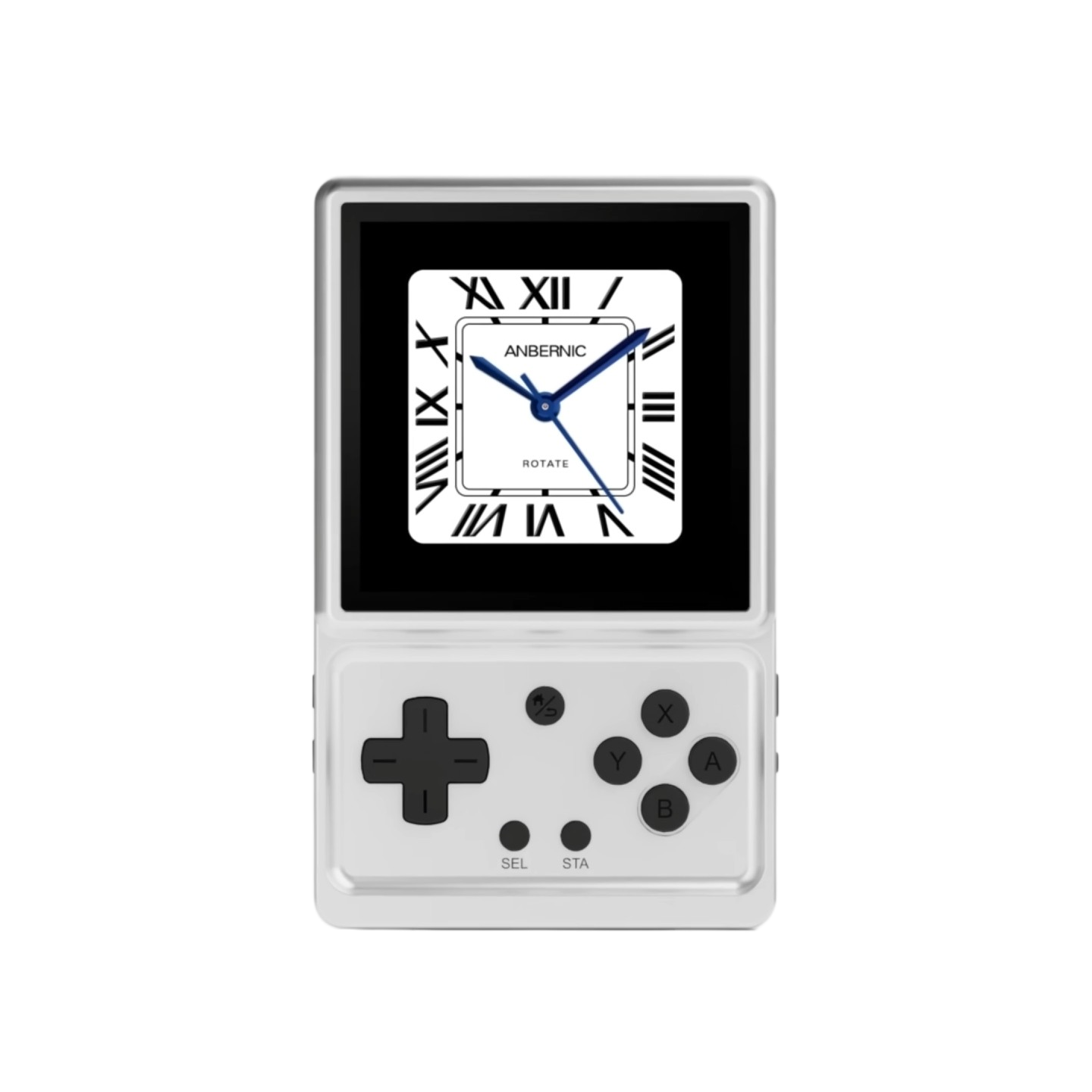
Anbernic RG Rotate
AnbernicRecommended Accessories
microSD Cards
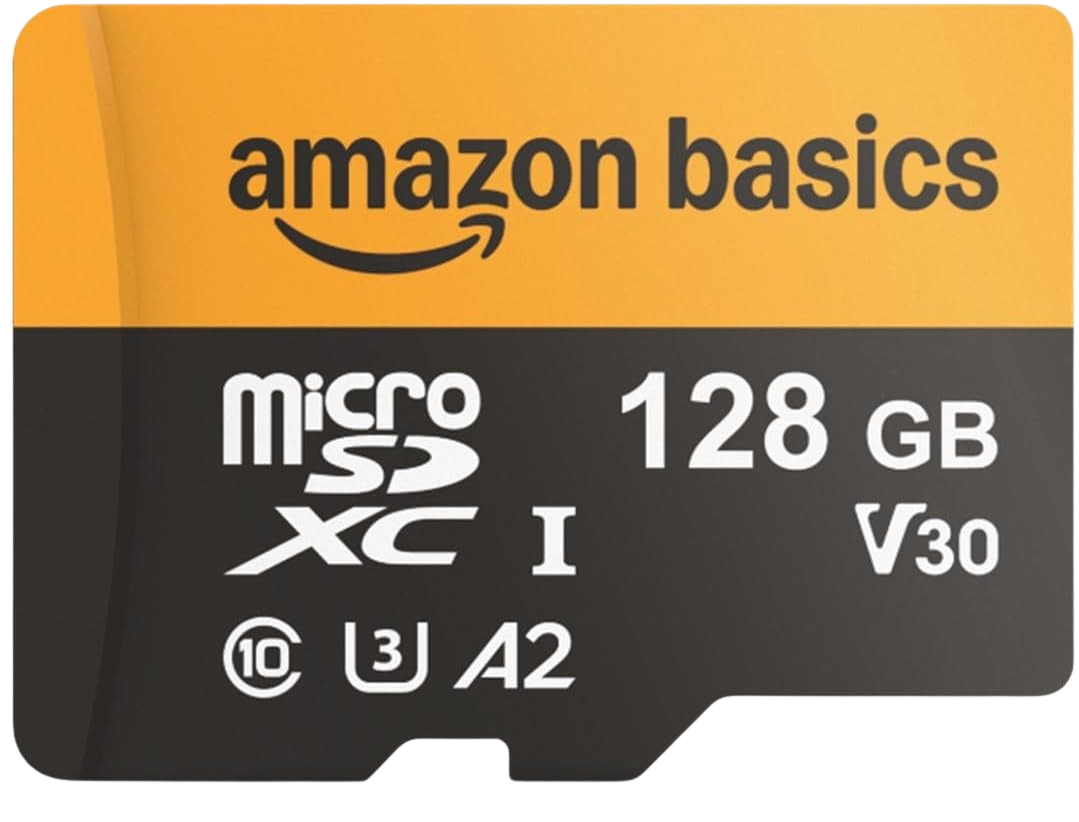
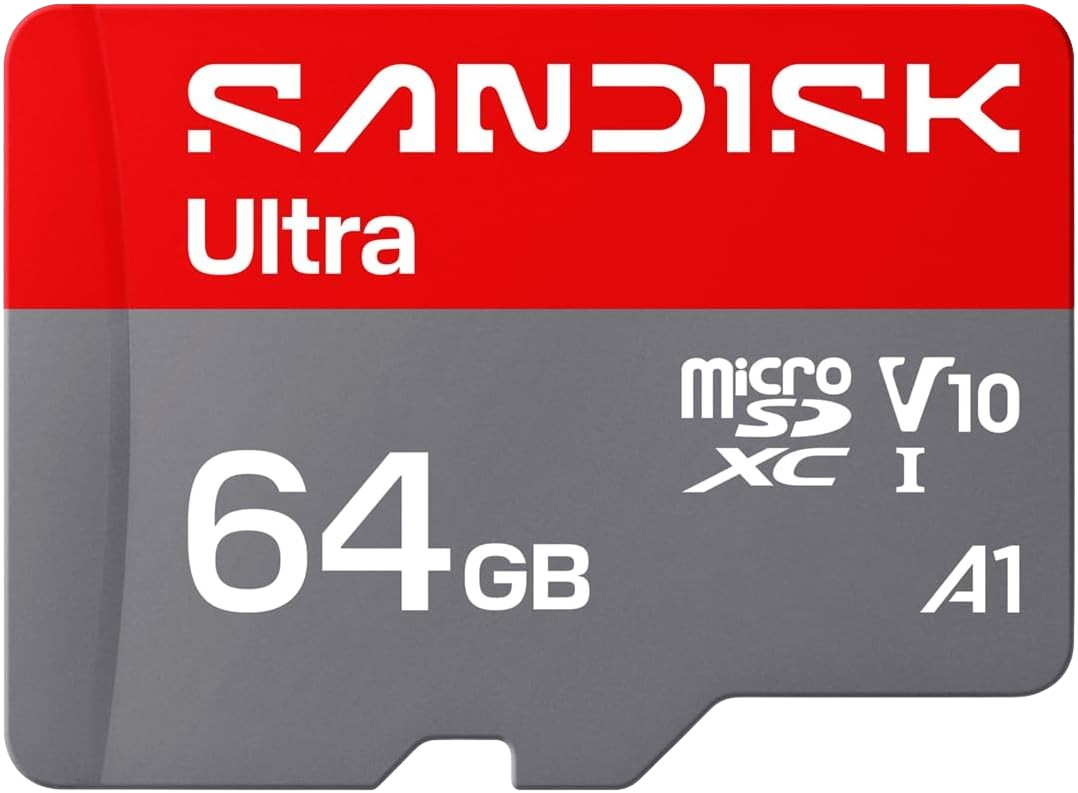
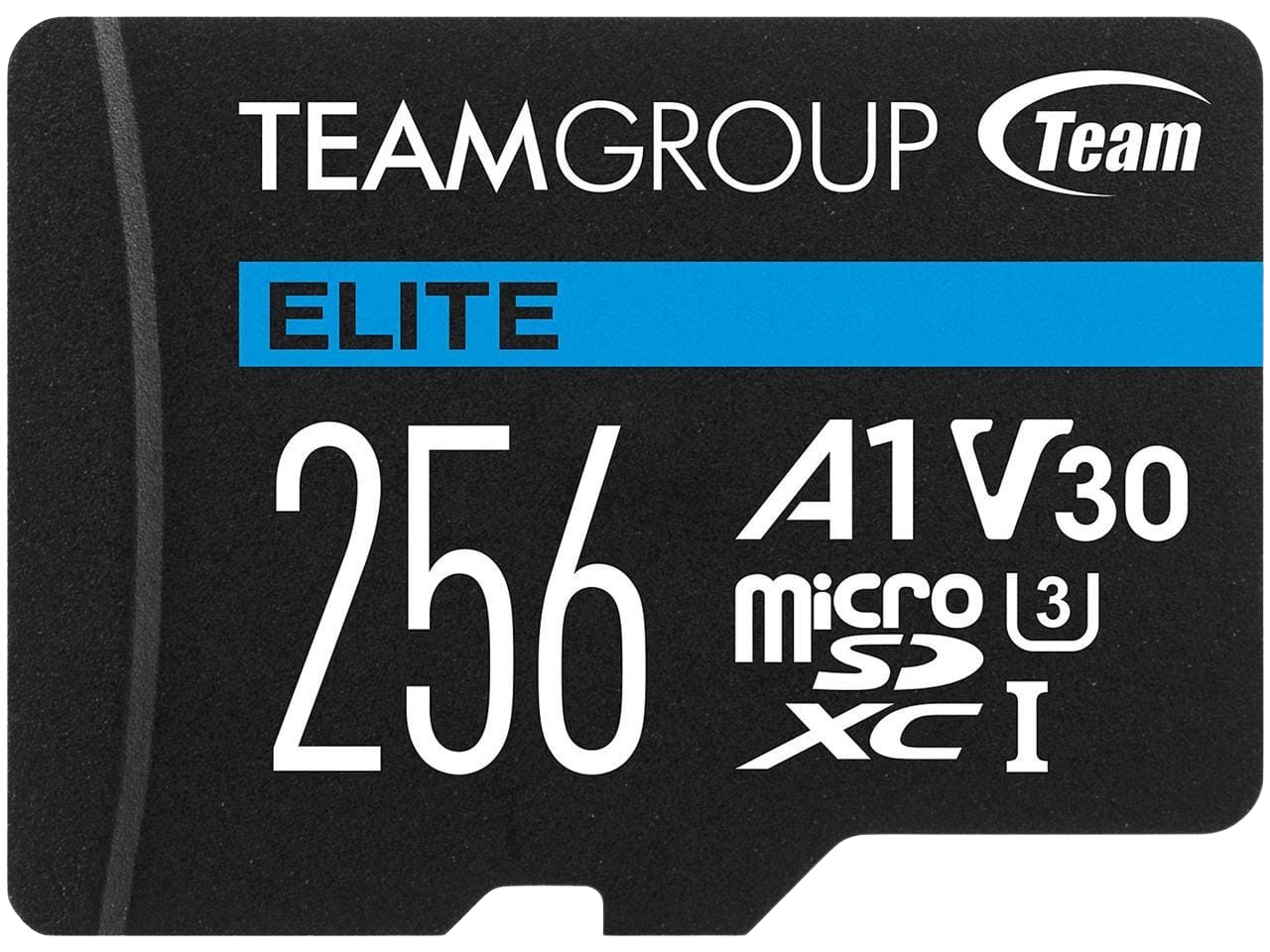
If there’s one major gripe that pretty much everyone can agree on with the RG Rotate, it’s that the 32GB of internal storage is laughable. Anbernic is pretty much forcing you to buy a microSD card, which is definitely a bummer, especially given the ongoing memory shortage. On the other hand, since the Rotate is a D-pad-only handheld, it’s not like you’re going to be playing a lot of newer systems that require dual joysticks.
Headphone Jack Adapters
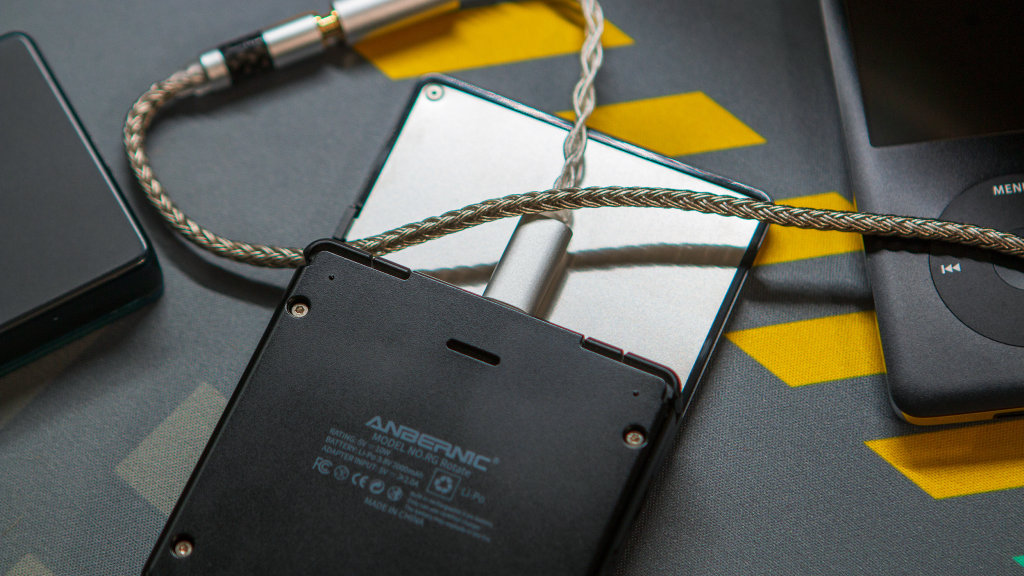
Likely because of the limited internal space, Anbernic decided against including a 3.5mm headphone jack with the RG Rotate. This is definitely going to be a bummer for those who rely on wired headphones, but as long as you’re okay with “living that dongle life,” these are the adapters we’d recommend.


Protect the Rotate
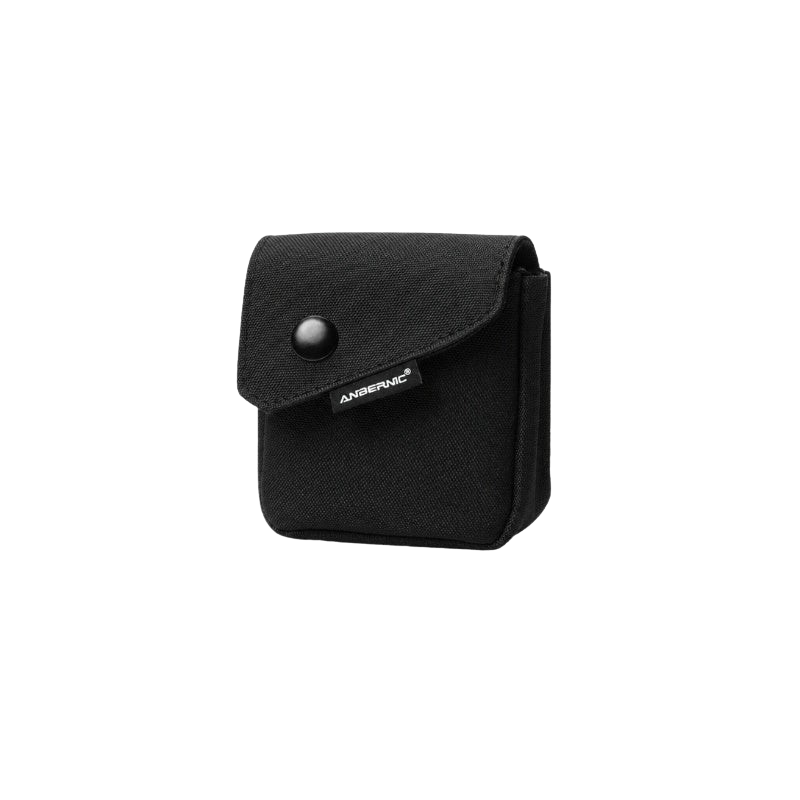
It might seem trivial to get a case for the RG Rotate, especially if you’re just going to be tossing it in your pocket anyway. However, those who plan to make the Rotate their “daily gaming handheld,” will want to try and keep it from getting all scratched up.
Apps/Obtainium
The release of the RG Rotate gave us a chance to do something that we’ve yet to do. Normally, we would just point you towards the excellent Obtainium Emulation Pack from RJNY. However, what you’ll find below is a curated pack of apps, games, emulators, and utilities for the RG Rotate.
If this is something you’d like to see for more handhelds in the future, drop us a line and let us know!
Music Players
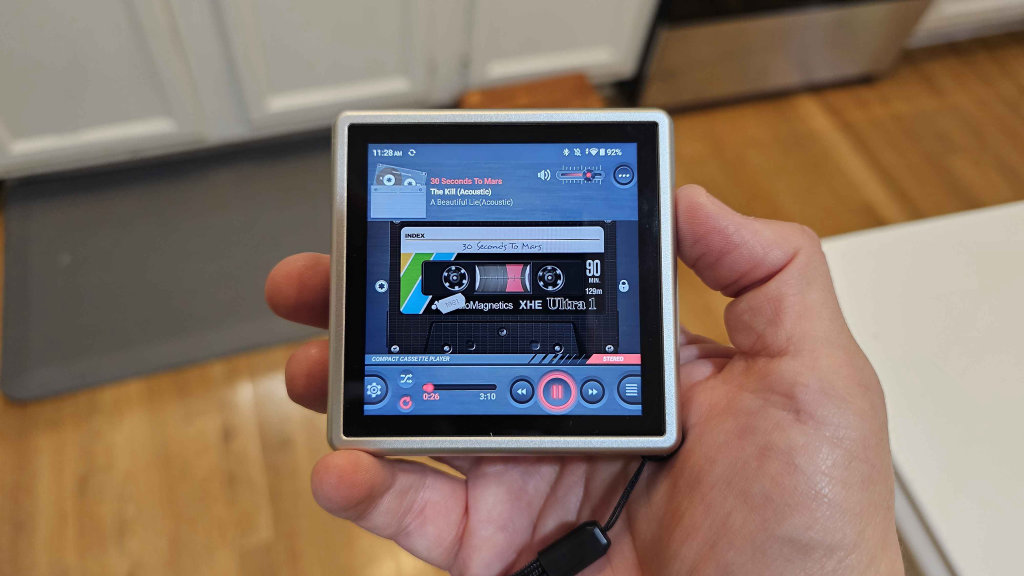
For some, the RG Rotate is suffering from a bit of an identity crisis. On one hand, it’s a pocketable retro gaming handheld; on the other, it’s an Android-powered DAP with a cool hinge. And for others, like Zu, it’s both, even if that means picking up a USB-C adapter so you can plug in your favorite wired earbuds since the Rotate lacks a 3.5mm Audio Jack.
The music player included with the RG Rotate is pretty cool in its own right, replicating the look of old cassette tapes while you listen to music. However, the beauty of Android is that you’re not limited to just the “stock” option, and there are a lot of other great music player apps out there.
Emulators / Games
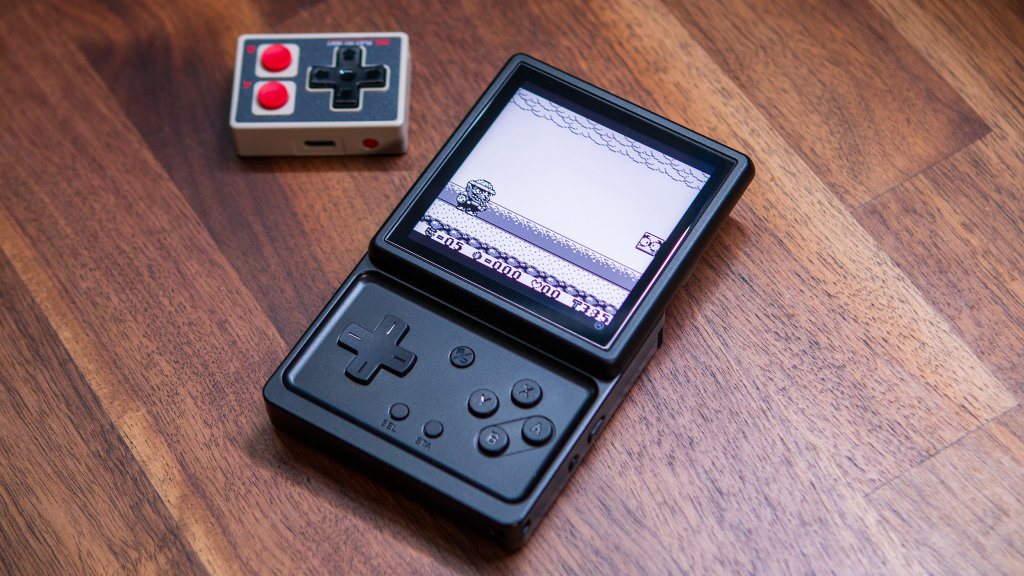
Unlike a lot of other Android gaming handhelds, the Unisoc T618 is capable, but you won’t be trying to fire up GameNative or Eden on here. As such, the list below is comprised of what we think are the best emulators to pair with the RG Rotate.
BIOS Files
This one is pretty self-explanatory, but unless you pick up the RG Rotate with one of Anbernic’s microSD cards, you’ll have to rely on your own sources. If you fall into that camp, but aren’t sure what systems require BIOS files to run, or even what those files are, hit the button below.
Launchers
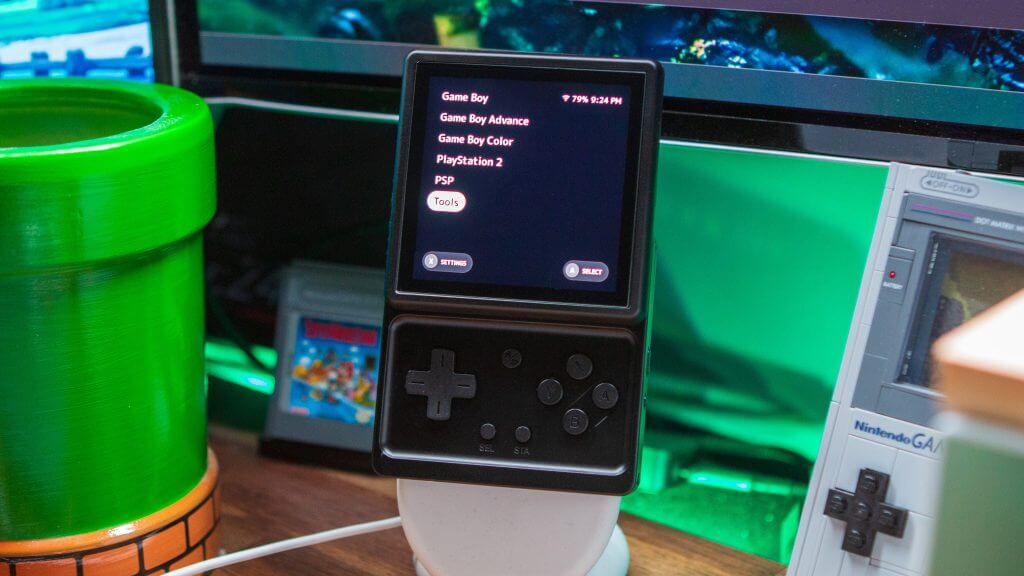
Some might want to pick a launcher first before even opening an emulator, especially if you want to avoid using either the basic Android launcher or Anbernic’s RG Launcher. These are some of our favorites for the RG Rotate, although there really are a plethora of alternatives out there.




Anbernic Settings
- Key Test
- Quick Launcher
- Rotate Setting
- Slide out Setting
- Wake Up
- Wake Up and Unlock
- Slide into Setting
- No Operation
- Lock Screen
- Hibernation
- Slide out Setting
- Run Shell
RG Launcher Settings
- Swipe down twice to reveal the Notification Toggles.
- Tap RG Launcher.
- Once loaded, press the SE button.
- From the side panel, select Settings.
- Theme Style
- Media
- Emulator Selection
- Exit Menu
- When you’re finished, press the SE button again.
- Scan ROM on TF card
- Fix front-end theme style
- Reinstall RetroArch
- Repair EMU configuration
- RetroArch add overlays
- RetroArch remove overlays
- Select the console.
- Press the SE button.
- Tap ROM setting panel
- Tap the + button under Game path
- Navigate to where your ROMs are located for the console you’re editing.
- Tap the Checkbox to the right of the folder name.
- Tap the Select button.
- At the bottom of the screen, tap the Start searching for games button.
- Repeat when needed.
- Select the console.
- Press the SE button.
- Select Current Emulator Launch Options.
- Choose the emulator that you would prefer to use.
- Highlight and select Save.
- Repeat for other consoles, if necessary.
- Make sure the script you want to use is downloaded and in an accessible location. (i.e. Downloads)
- Open the Settings app.
- Scroll down and tap Handheld Game Console Settings.
- Scroll to the bottom and tap Run Shell.
- Tap the + button.
- Locate and select the script.
- Tap the Run button.
- Open the game.
- Swipe down twice to reveal the Notification Toggles
- Long-press the “Keymapp” button
- Tap one of the buttons so that it’s “Blue” (selected).
- Press the corresponding button on the handheld.
- Repeat for the rest of the controls.
- Tap Save.
Update Anbernic RG Rotate
- Swipe down to reveal the notification shade.
- Tap the “Update Available” notification.
- Follow the on-screen steps.
- Locate and open the FOTA Update app.
- Tap the Check Version button.
- Follow the on-screen steps to install the update.
- Download the update ZIP file to a memorable location on your RG557.
- Locate and open the FOTA Update app.
- Tap the three vertical dots in the top right corner.
- Select Local update.
- Locate and select the downloaded update ZIP file.
- Wait for the update to finish installing, then reboot.
Customize Lock Screen Clock on Anbernic RG Rotate
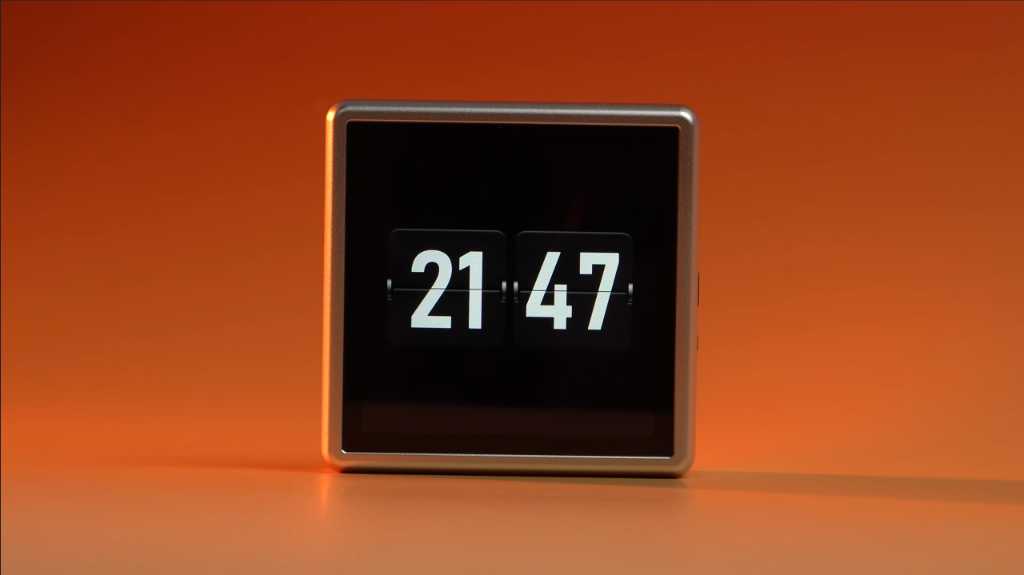
- Open the Settings app.
- Scroll down and tap Wallpaper & style.
- Swipe down and tap Lock clock.
- Select one of the pre-populated options.
With the update released in late June, Anbernic added the ability to create and use a custom Lock Screen Clock. Here’s what the files will need to be named:
-
clock_background.png clock_hour.pngclock_minute.pngclock_second.png
Once the files are gathered and named accordingly, place them all in: Internal shared storage/customize_clock.
From there, go back to the Lock clock settings, swipe down, and select the Customize option. Then press the Refresh button to make sure the files are properly selected by the system.
More RG Rotate Content
- Anbernic RG Rotate First Impressions: Refreshingly Odd, But Not Perfect
- Right Angle: The Games Best Suited for the RG Rotate’s Unique Design
Updates
- 6/24/2026: Updated with new Lock clock customization section.

5 Comments
What is the NES controller object in the picture next to the RG Rotate in the Emulators/Games section?
Retro Mini Controller Gamebrick IINE /Portable controller/10-hour long battery life/Multi-platform compatibility/Supports mouse – AliExpress https://share.google/2MTSPsnWG9VD9KF8C
How well would it handle a 200k music library?
My CX31993-based dacs do not work with the Rotate. The Nicechk NK1 Max and Kiwi Soul x b_media Terras iem cable produce no audio when connected.
This is the best introduction to the device, I actually bought the device right after reading this post 😀
I saw the device from techdweeb’s channel, the rotate stop structure at the back of the screen is a thing on aluminum version but ABS version I just don’t feel it and the black diffuse texture is fantastic retro