

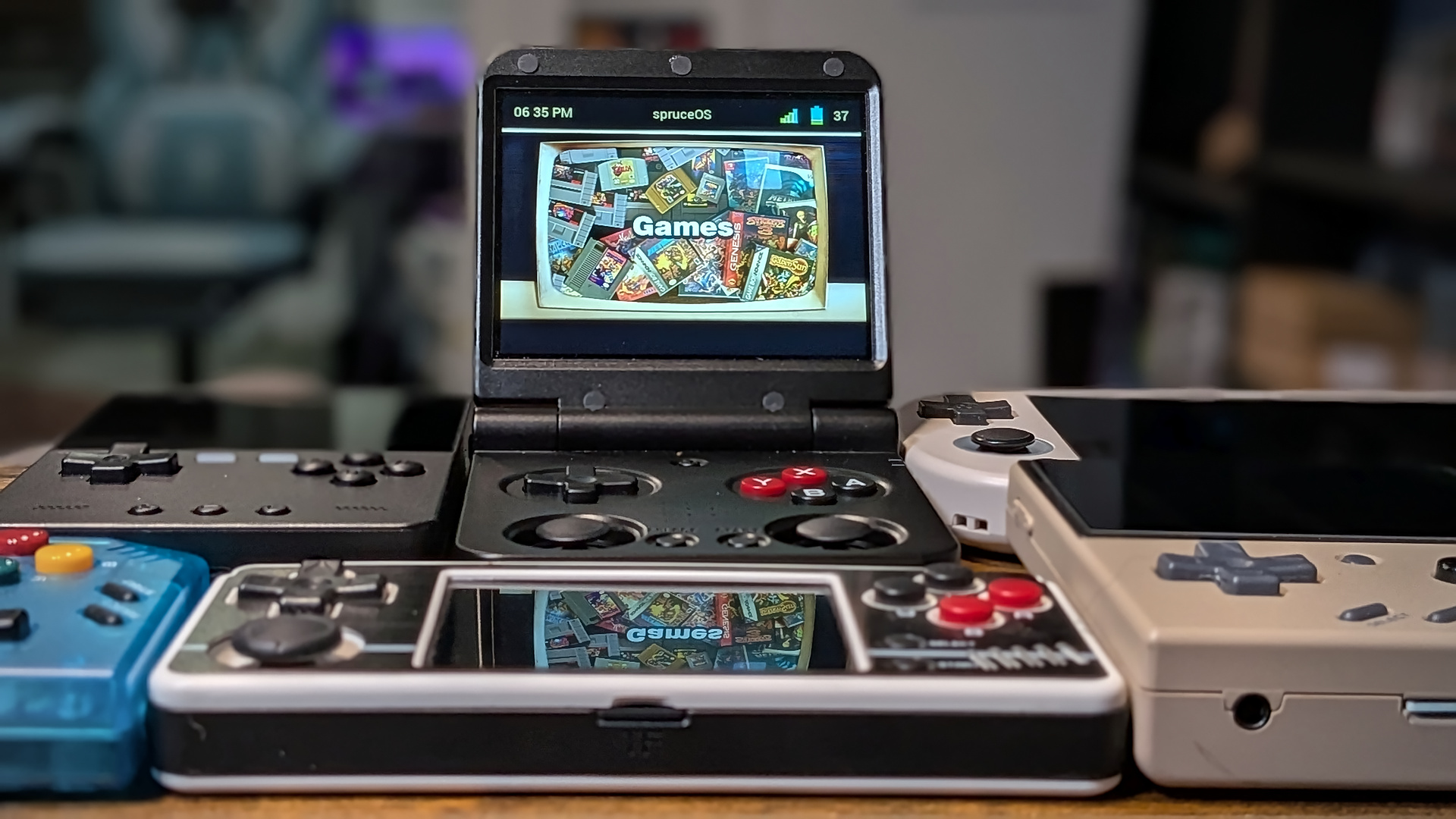
As much as I enjoy the process of setting up emulation handhelds to be the best versions of themselves, sometimes things can wear a bit thin. It hinders my actual playing of games when I often forget what I’ve been playing where. Right now, I probably have at least two dozen active game saves spread across as many devices.
I know that cloud save solutions exist that would facilitate me putting down my progress in a game on one handheld and picking it up on another. Even as someone who feels fairly confident with homelabbing projects, I just find that I can’t really get motivated to take the next step. Messy though it may be sometimes, I’m still mostly fine with how I operate. Locally saving games is fine 90% of the time.
Occasionally, being glued to a device via a save even forces me to finish a game on a handheld that I determined would be the best experience for that title. That’s a good thing. Otherwise, I’d just play everything on the Odin 3 forever, and you guys would never have anything to read about ever again.
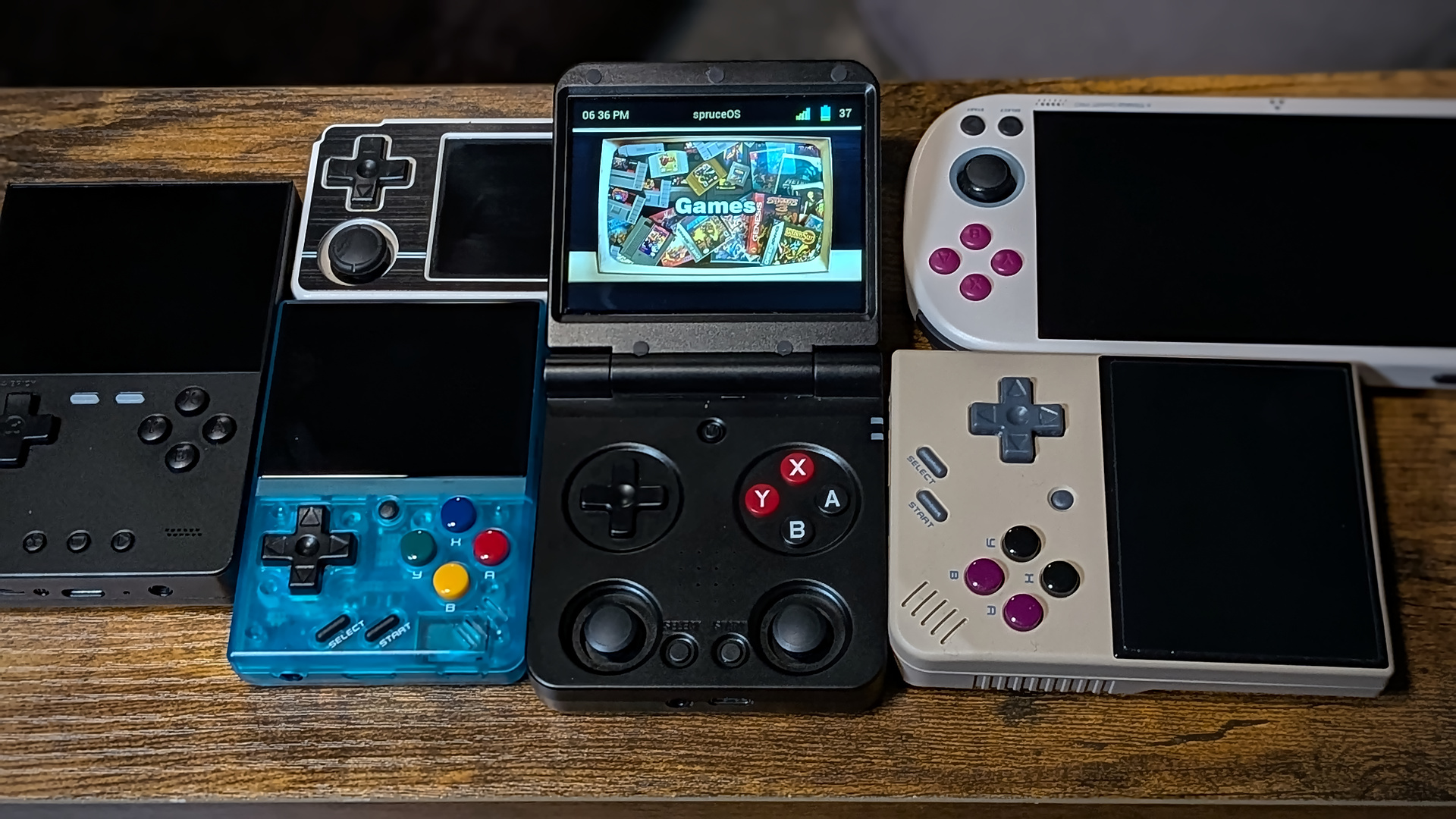
SpruceOS offers functionality that’s something of a middle ground. I’ve never particularly gotten along with the ecosystems of TrimUI or Miyoo devices. Save for the classic Miyoo Mini + and the standard-setting OnionOS CFW that goes with it, I don’t use devices from Miyoo or TrimUI very often. They always seem moody.
But if I can take one SD card of a just works solution and move freely among several different neglected handhelds, then maybe that’s two birds with one stone. Neglected devices get a boost from some better software, so they aren’t so cumbersome, and I get to keep everything I want to play in one place. Win-win.
So if you’re like me and want a single solution to carry you across a bevy of devices, or you just want a better solution for a single device, SpruceOS 4.0 should cover us both.
[button link=”https://rh-go.link/Miyoo-Flip-V2_MDIY” color=”red” newwindow=”yes”] Miyoo Flipv2 @ MechDIY[/button][button link=”https://rh-go.link/5l1hzf” color=”red” newwindow=”yes”] Smart Pro @ TrimUI Direct[/button][button link=”https://rh-go.link/TrimUI-Brick” color=”red” newwindow=”yes”] TrimUI Brick @ TrimUI Direct[/button][button link=”https://rh-go.link/MM_Plus_Amzn” color=”red” newwindow=”yes”] Miyoo Mini Plus @ Amazon[/button]
SpruceOS v4.0 Compatible Devices
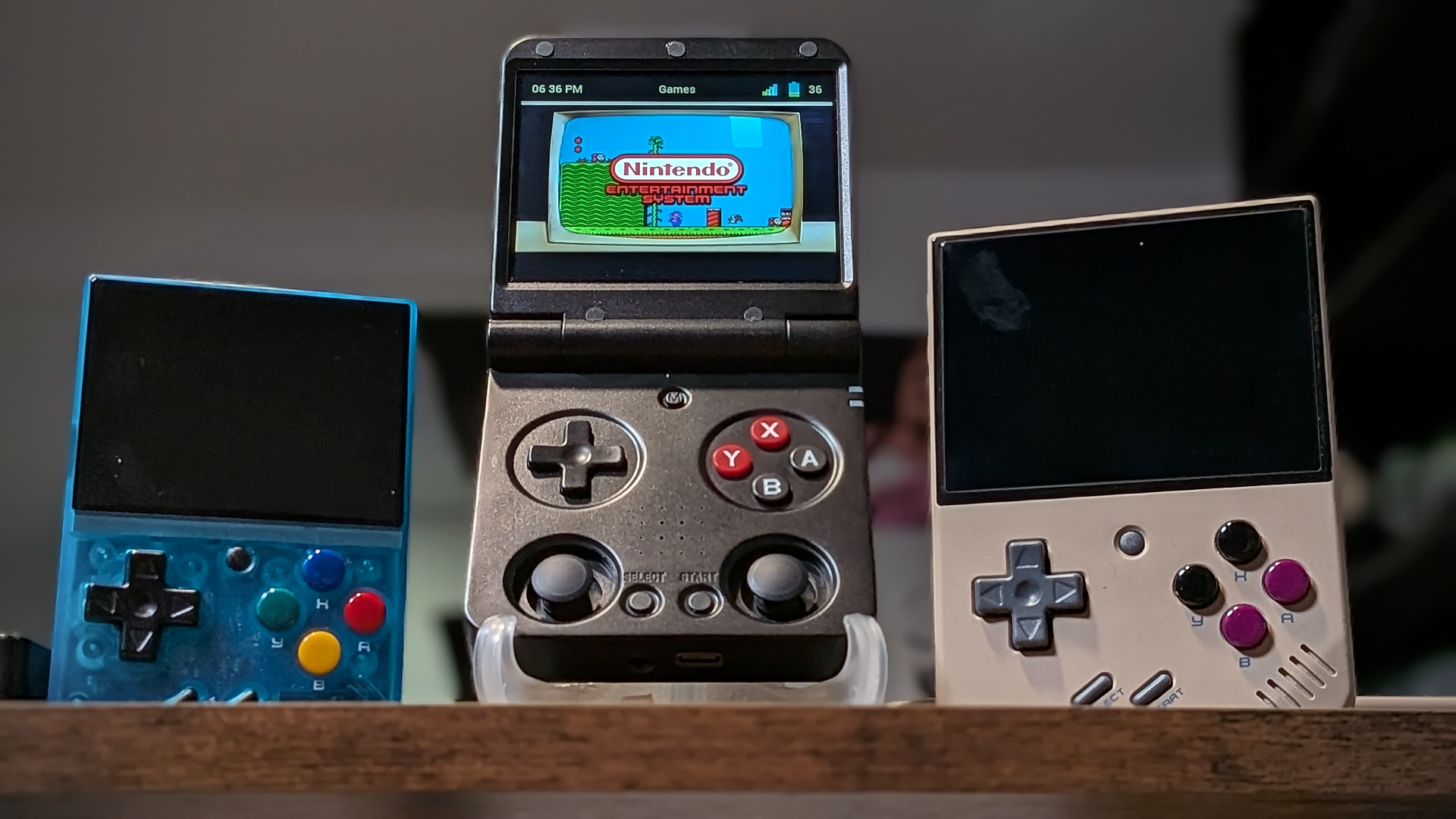
All this talk of cross-functionality isn’t much good if we don’t start things off by covering the devices that are compatible with SpruceOS. A single SD card should be able to travel freely among all of the listed devices below. Support should only continue to improve over time.
| Device | Support Status |
|---|---|
| Miyoo Flip/Flip v2 | Stable |
| Miyoo A30 | Stable |
| Miyoo Mini Flip | Mostly Stable |
| Trimui Smart Pro | Mostly Stable |
| Trimui Brick/Hammer | Mostly Stable |
| Trimui Smart Pro S | Mostly Stable |
| Miyoo Mini Plus | In Active Development |
| Miyoo Mini v1-4 | In Active Development |
Manual Installation
As handheld custom firmware installations go, this is certainly one of the easier processes out there.
- Download the latest release of SpruceOS to your PC and extract the files to a local directory on your PC.
- Do not extract the files directly to the blank SD card. For whatever reason, this seems to cause a hiccup where the package fails to unpack when inserted into the handheld.
- Copy the entire contents to a blank, freshly FAT32-formatted SD card.
- Per the project Github – “_Seriously, use 7zip to extract onto your PC THEN copy the files. IDK why, but Windows breaks stuff if you use its built in extraction tool._” I used Peazip in Linux Mint, and it worked just fine. I’m sure WinRAR would make short work of it as well. Just extract the files locally on your PC, then move them over to the SD card.
[button link=”https://github.com/spruceUI/spruceOS/releases” color=”red” newwindow=”yes”] spruceOS Releases[/button]
SpruceOS Installer App
The All-In-One installer App takes what could be an intimidating process and streamlines it for newbies. Given that users don’t have to worry about writing an .img file or the like with Spruce installation, I’m not sure how much hobbyists will really need this software, but it’s certainly an appreciated gesture from the developers of Spruce.
If you’re someone who is a little concerned about screwing something up with the install process of custom firmware, the SpruceOS Installer takes the reins for you. The developers have thoughtfully included versions of the installer that run natively on Windows, Mac, or whatever flavor of Linux you may currently have installed.
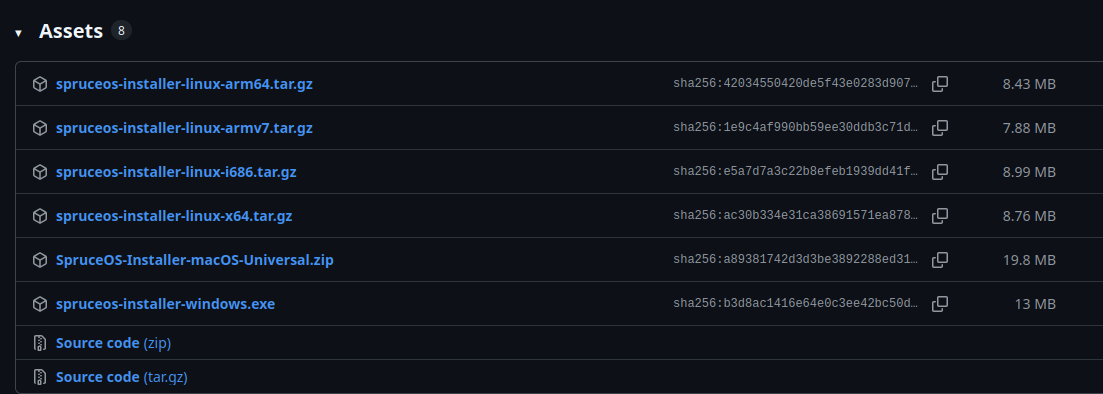
Simply download the latest package for your PC’s operating system, run the program, and let it take care of everything else.
Firmware Updates
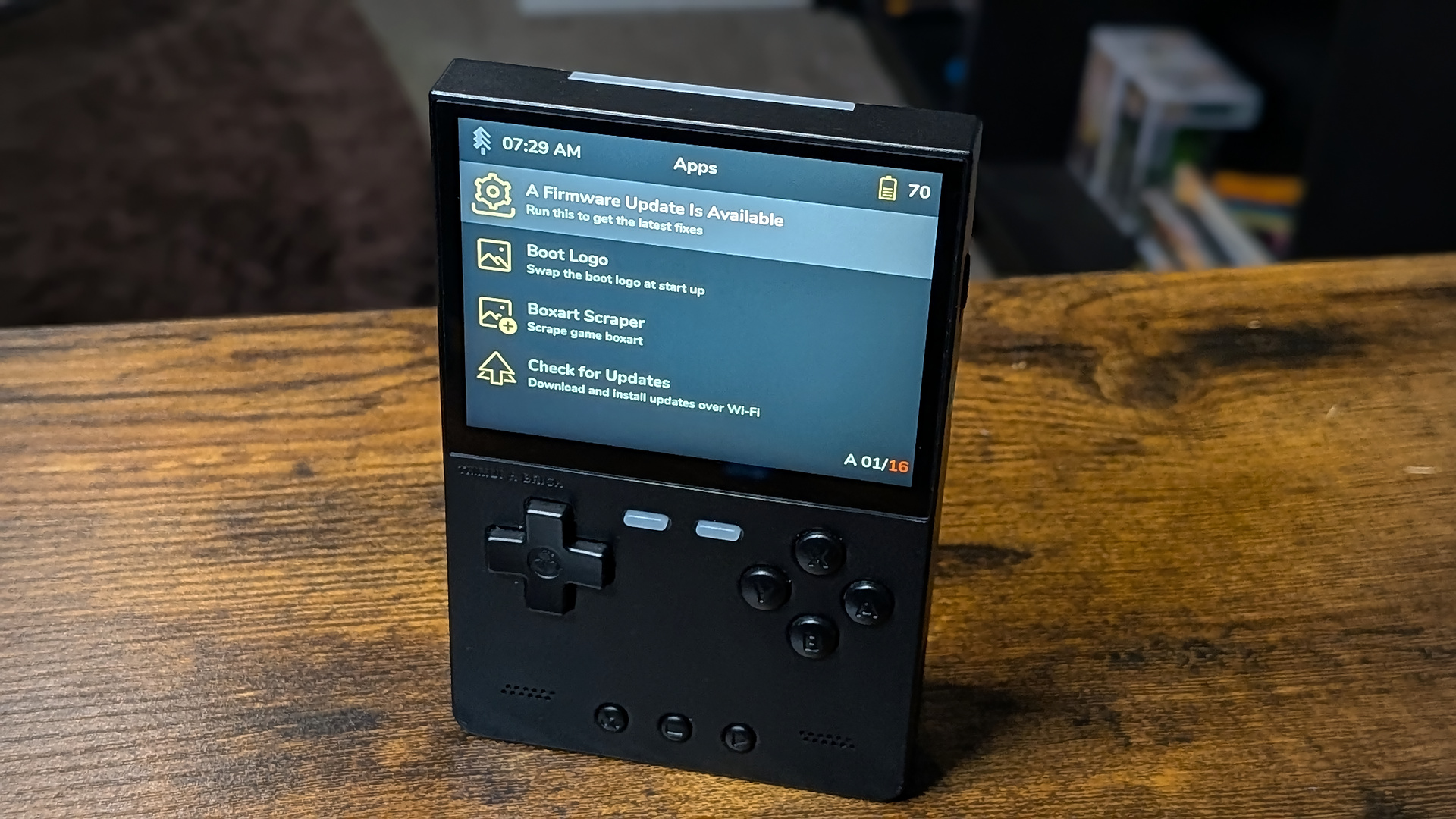
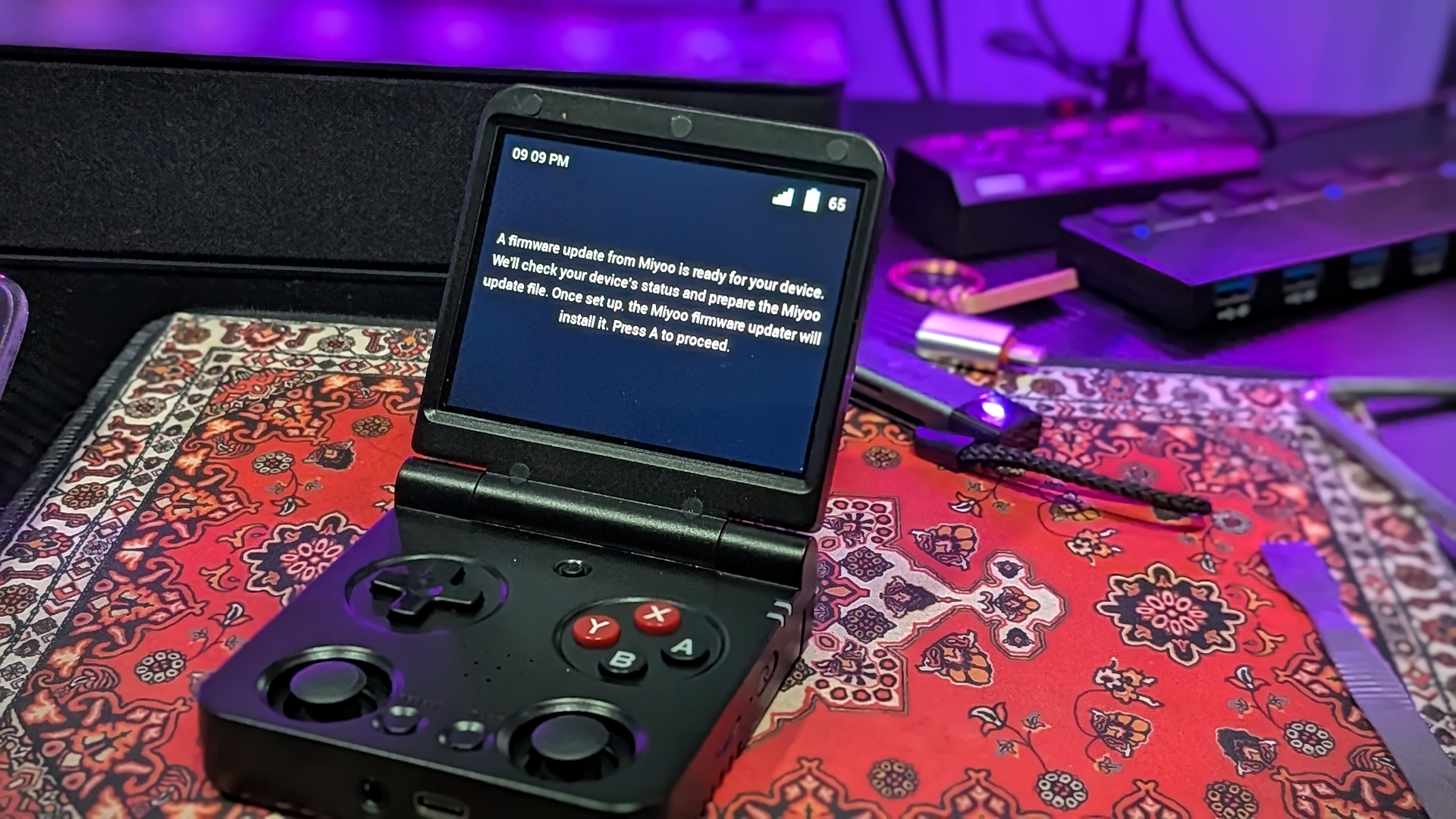
A handy feature built into Spruce lets you install any pending firmware updates from Miyoo. I apparently had one that I wasn’t made aware of by the stock OS. This is why we like custom firmware from the community.
Boot Logo
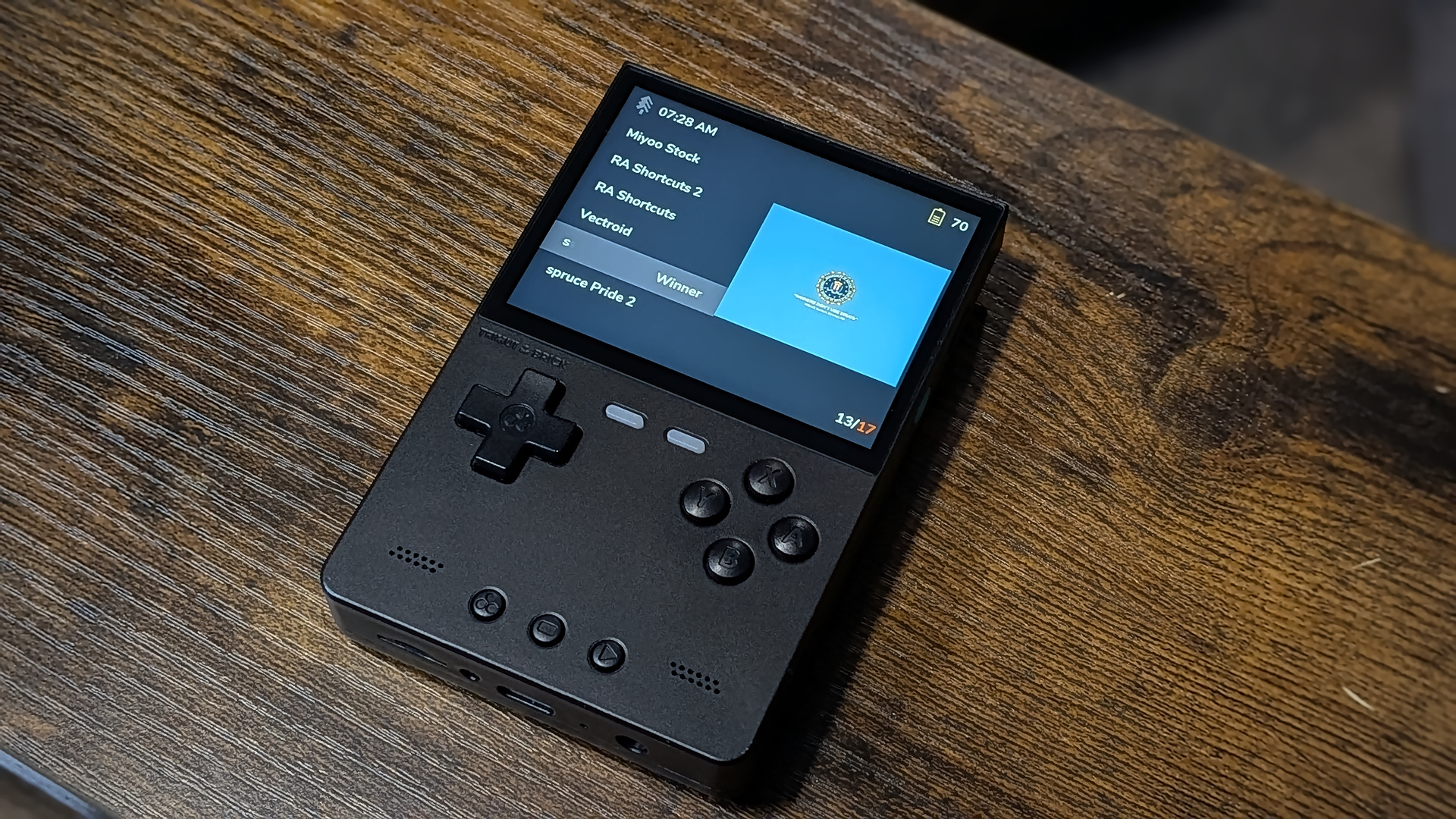
A fun addition added to Spruce allows users to change their device boot logo that displays at post. You can choose from several Miyoo logos, a custom choice of your own, or maybe something like the “Winners Don’t Use Drugs” banner for a cheeky nod to the arcades of the 90s.
Spruce Game Nursery
The Game Nursery is an online portal made by the Spruce team that gives users direct download access to a curated selection of homebrew software compatible with the Spruce suite of devices.
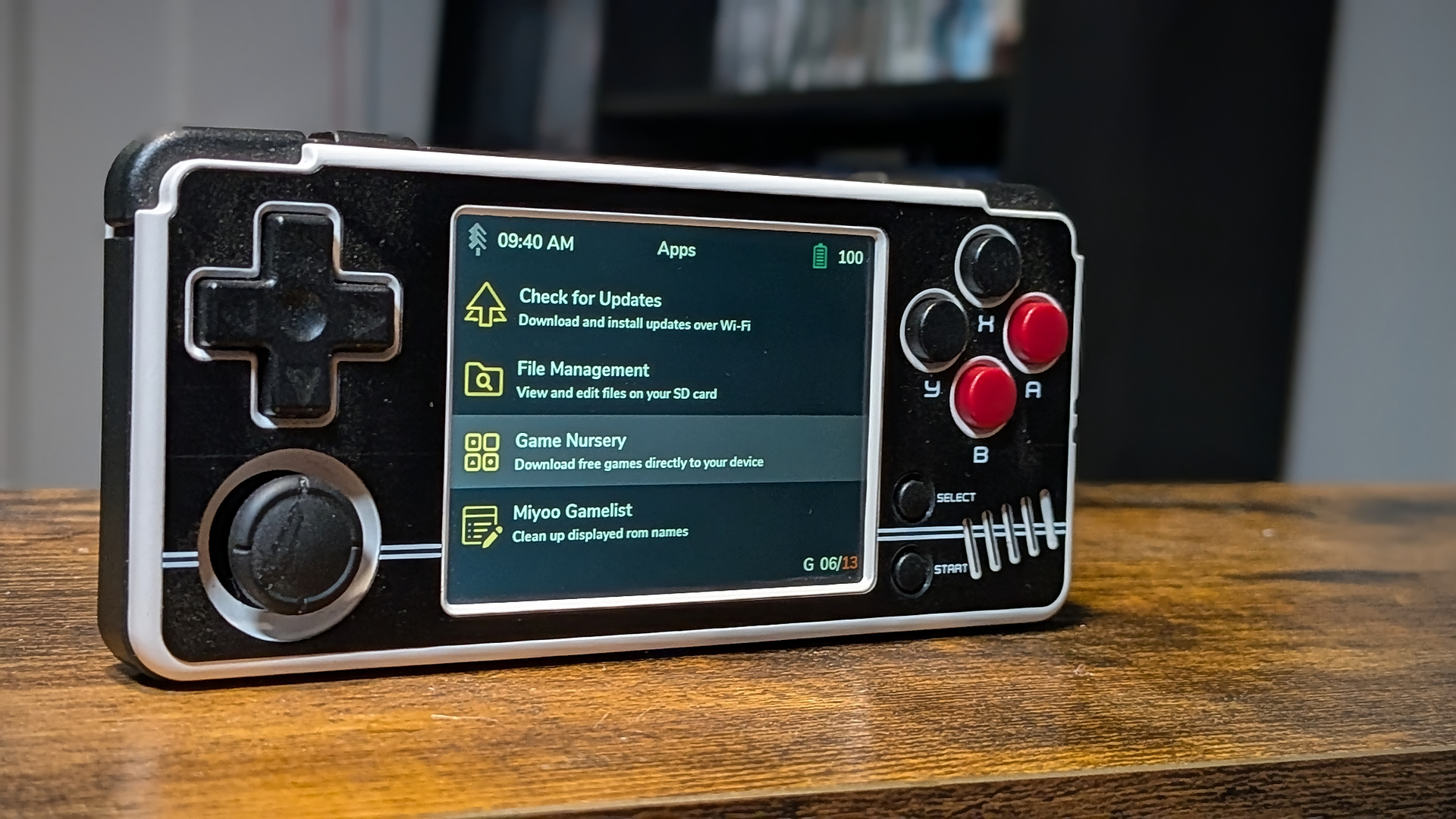
I tip my cap to the Spruce developers for offering users a way to discover new games while still respecting the licenses and copyrights of creators. In a world where a lot of companies are offering direct download access to materials that they have neither the rights nor the legal ability to distribute, it’s a pleasant change of pace to see developers committed to shining a light on the work being done by hobbyist creators.
Loading ROMS/USB Mass Storage Mode
The Spruce SD card will auto-populate console folders during the initial unpack/install operations. To load your ROMs onto the device, you can either eject the SD card from your handheld and insert it into the SD reader on your PC or use the USB Mass Storage Mode.
Both processes are as simple as dragging and dropping the game ROMs into their respective system folder. Just remember that we’re dealing with international system names. So NES = FC, Genesis = Megadrive, etc, etc.
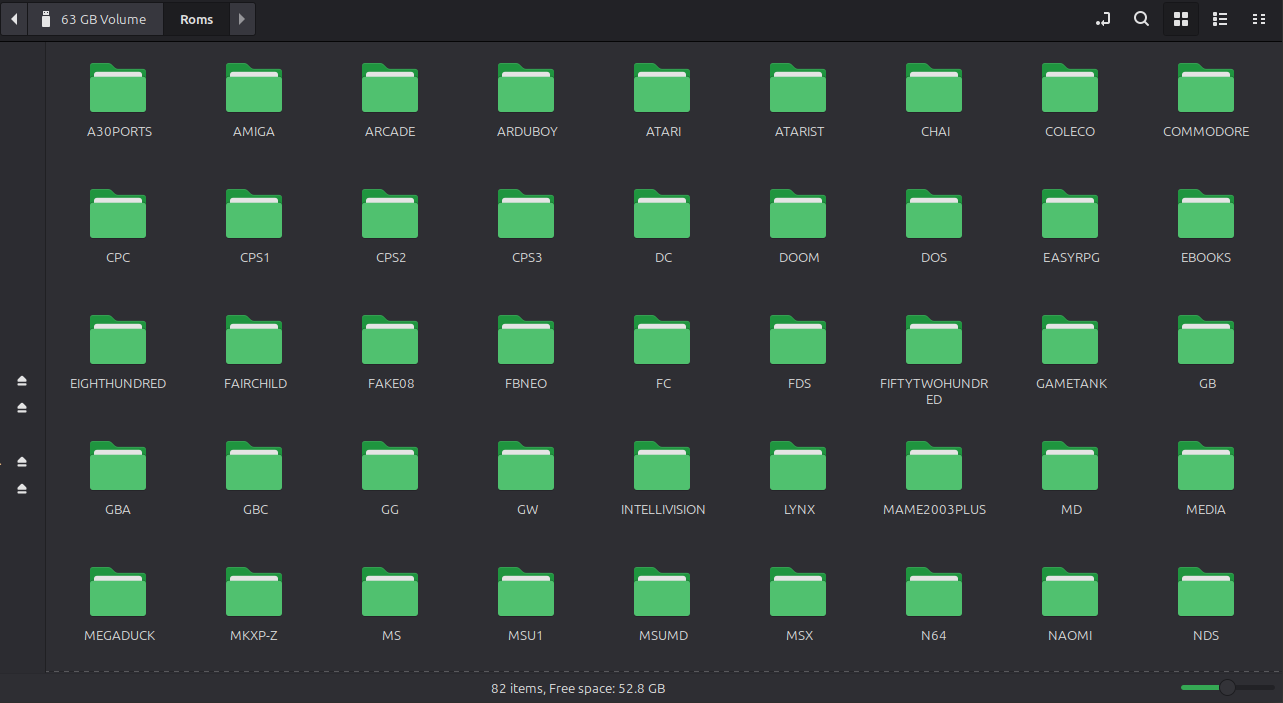
If you don’t want to remove the SD card, load USB Mass Storage Mode from the Apps list in Spruce after connecting the handheld via USB. You want to make sure to use the USB port intended for charging and data transfer, vs any additional USB-C ports used for things like video out. For example, on the Miyoo Flip, you want to make sure that the cable is plugged into the port on the bottom of the device.
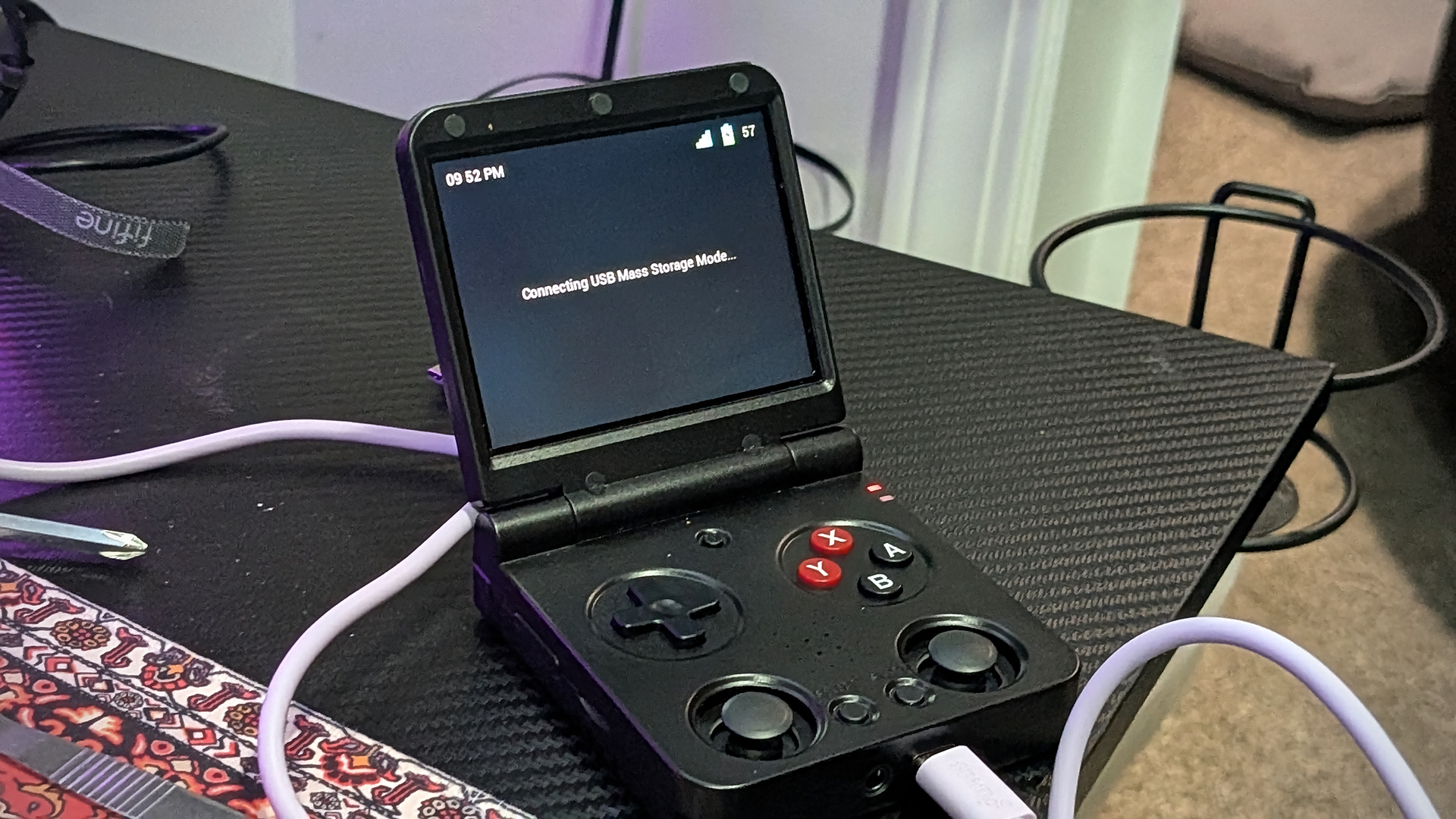
When you’ve finished loading your collection onto the storage media, reboot the device and explore your new library.
[button link=”https://rh-go.link/Miyoo-Flip-V2_MDIY” color=”red” newwindow=”yes”] Miyoo Flipv2 @ MechDIY[/button][button link=”https://rh-go.link/5l1hzf” color=”red” newwindow=”yes”] Smart Pro @ TrimUI Direct[/button][button link=”https://rh-go.link/TrimUI-Brick” color=”red” newwindow=”yes”] TrimUI Brick @ TrimUI Direct[/button][button link=”https://rh-go.link/MM_Plus_Amzn” color=”red” newwindow=”yes”] Miyoo Mini Plus @ Amazon[/button]
What did you think of this article? Let us know in the comments below, and chat with us in our Discord!
This page may contain affiliate links, by purchasing something through a link, Retro Handhelds may earn a small commission on the sale at no additional cost to you.
