

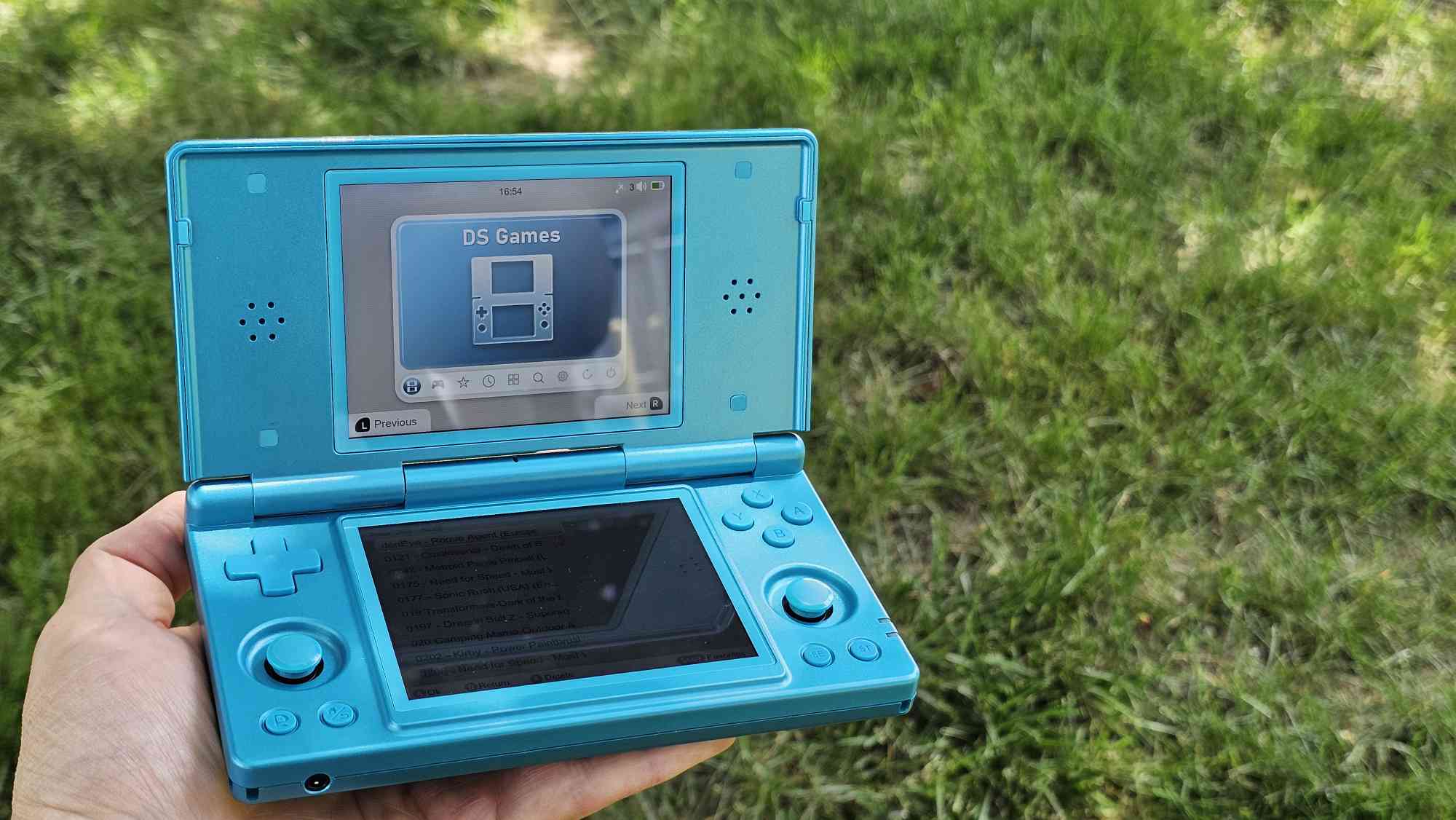
Since its lukewarm launch back in December, the Anbernic RG DS has been slowly growing in popularity. The idea of a budget alternative to the AYN Thor and AYANEO Pocket DS was an intriguing idea, but the stock software experience left a lot to be desired.
As has become tradition with Anbernic handheld releases, the community has come to the rescue, offering a few different custom firmware solutions. GammaOS Next provides an optimized Android build, while ROCKNIX and KNULLI give us two Linux solutions. More recently, Anbernic surprised everyone with a new Linux build of its own, which can be installed on a microSD card.
Today, we’re going to take you through the steps to get your own RG DS set up with the best firmware solution possible.
How to Install GammaOS Next on Anbernic RG DS
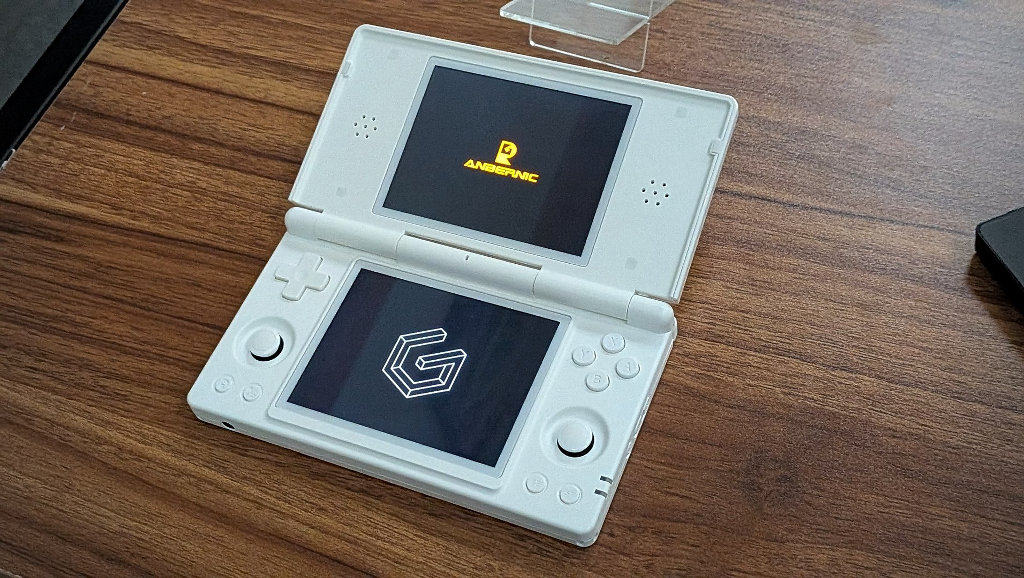
- Download the following files from the GammaOS Next Releases GitHub page:
- RG_DS_GammaOS_v1.2.2_SDCARDINSTALL.7z.001
- RG_DS_GammaOS_v1.2.2_SDCARDINSTALL.7z.002
- RG_DS_GammaOS_v1.2.2_SDCARDINSTALL.7z.003
- Place all three files within the same folder on your computer.
- Highlight and right-click all three files, then select 7-Zip > Extract Here.
- When prompted, enter the password
b2fc6ffcb76fabc91024563a0b94f83be089c60aac4aa8f1a540a11d463d6bfc
- Connect your microSD card to your computer.
- If necessary, back up and format the microSD card.
- Use Rufus or your preferred image burner app of choice, and flash the downloaded preferred GammaOS Next build to the microSD card.
- Make sure your RG DS is powered off.
- Eject the card from your computer and insert it into your handheld.
- With the card inserted, turn on the RG DS.
- Once complete, turn off the device and remove the microSD card.
- Power on the RG DS, then proceed with the standard GammaOS Next/Android setup process.
How to Install Anbernic Linux
- Download and extract the RG DS Linux file.
- Connect your microSD card to your computer.
- Backup and format the card if necessary.
- Using Rufus, flash the Anbernic Linux firmware to the microSD card.
- Make sure your RG DS is powered off.
- Once complete, eject the card from your computer and insert it into the RG DS.
- Power on the RG DS and wait for the installation process to finish.
- After successfully booting into the Linux interface, power off the RG DS.
- Remove the microSD card and connect it to your PC.
- Open the RG DS Linux folder from before.
- Locate the mod_20260508 folder.
- Move the contents of the folder to the Roms/APPS folder.
- Eject the microSD card from your computer, insert it into the RG DS, and power on the handheld.
- From the main screen, navigate to the
Applications>Appssection. - Select the
mod_20260508.shfile. - Make any necessary changes you would like.
- Press the SE button to save and quit.
- From there, your RG DS will reboot.
After it’s finished rebooting, the RG DS will have two new apps listed in the Applications > Apps section: Modified_System_Settings and Modified_System_Tools.
How to Install ROCKNIX on the Anbernic RG DS
- Download the
ROCKNIX-RK3566.aarch64-20260517-Specific.img.gzfile from the ROCKNIX Nightly GitHub (or ROCKNIX Nightly). - Extract the img.gz file so you get the
ROCKNIX-RK3566.aarch64-20260517-Specific.imgimage. - Connect your microSD card to your computer.
- If necessary, back up and format the microSD card.
- Use Rufus or your preferred image burner app of choice, and flash the downloaded ROCKNIX build to the microSD card.
- Eject the card from your computer and insert it into your RG DS.
- Turn on the RG DS and let ROCKNIX finish installing.
How to Install KNULLI on the Anbernic RG DS
- Download the
knulli-rk3568-rg-ds-scarab-20260510.img.gzfile from the link provided in the KNULLI Discord.- As a reminder, this is only an Alpha build, which is only available if you are a KNULLI supporter.
- Extract the img.gz file so you get the
knulli-rk3568-rg-ds-scarab-20260510.imgimage. - Connect your microSD card to your computer.
- If necessary, back up and format the microSD card.
- Use Rufus or your preferred image burner app of choice, and flash the downloaded KNULLI build to the microSD card.
- Eject the card from your computer and insert it into your RG DS.
- Turn on the RG DS and let KNULLI finish installing.
Can You Dual-Boot Android and ROCKNIX/KNULLI/Linux?
This is one of the coolest “features” of some of these dual-boot retro handhelds like the Anbernic RG DS. It’s actually possible to dual-boot both operating systems, giving you the best of Android/GammaOS and ROCKNIX/KNULLI/Anbernic Linux. In some instances, you might want to jump over to the Android side of things to play some games, but if a new game lands on PortMaster, you don’t need to pick up a different handheld.
All you need to do is turn off the RG DS, pop out the microSD card, and you’ll be booted right into Android. Then, power off the RG DS, put the microSD card back in, and enjoy whatever custom flavor of Linux you prefer.


1 Comment
Would love to know what sort of performance uplift (if any) the new OS’s provide!
And details?