

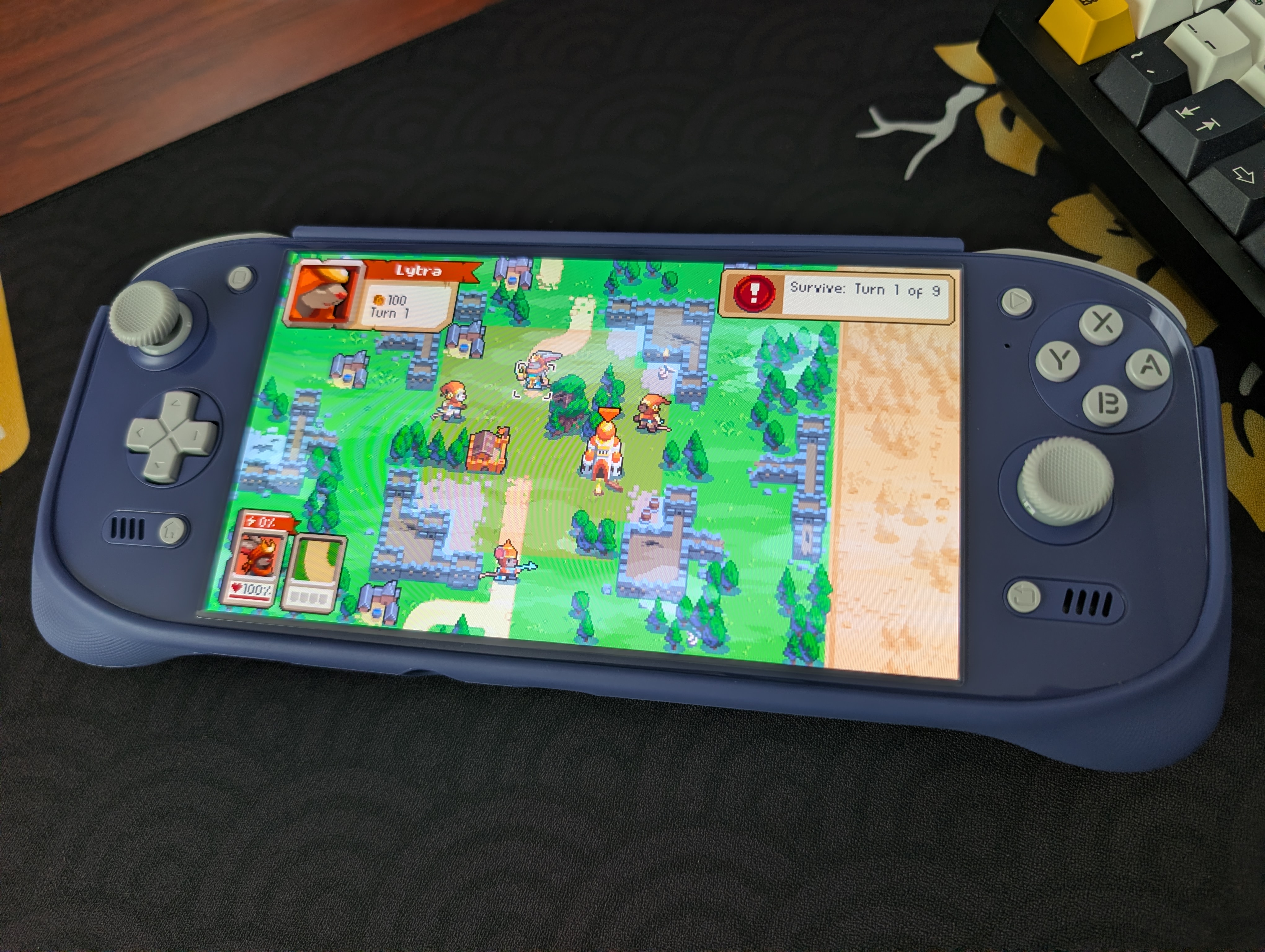
The AYN Odin 2 Portal, the successor to the wildly popular AYN Odin 2 and predecessor to the recent AYN Odin 3, continues to be a beloved device in the retro gaming community. That 7-inch, 120Hz OLED screen is a boon for many of us older gamers hoping to avoid squinting at our devices, especially when it comes to streaming and emulating PC games. This guide will help you set up your AYN Odin 2 Portal to get the most out of your device.
Table of Contents
AYN Odin 2 Portal Specs
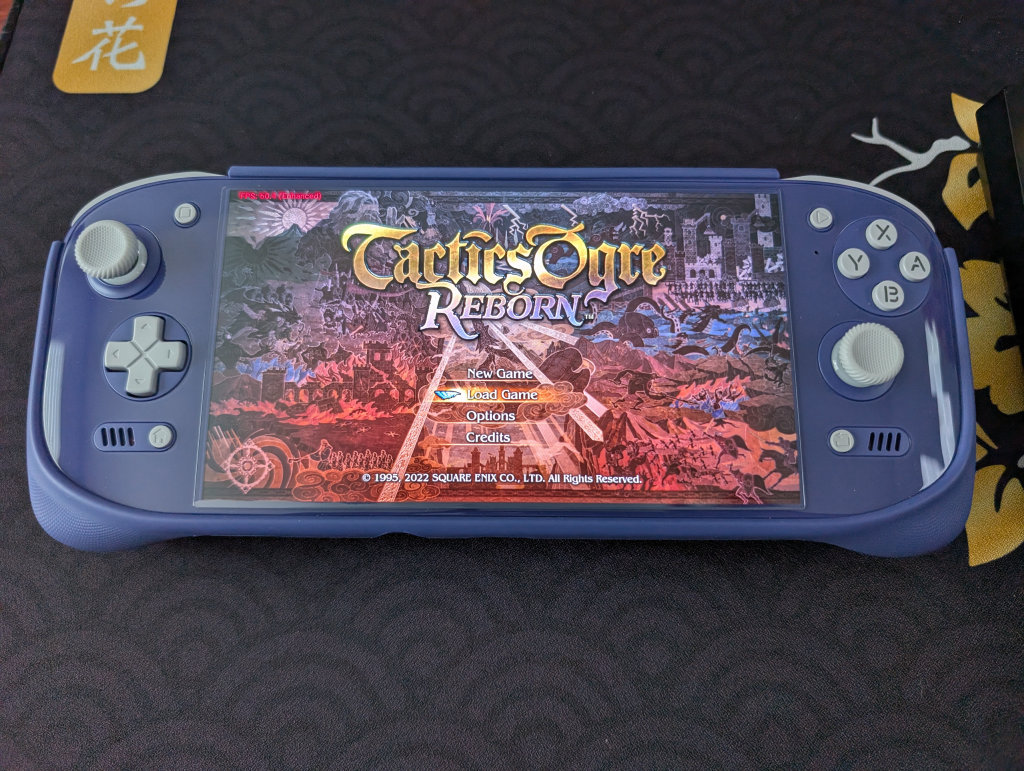
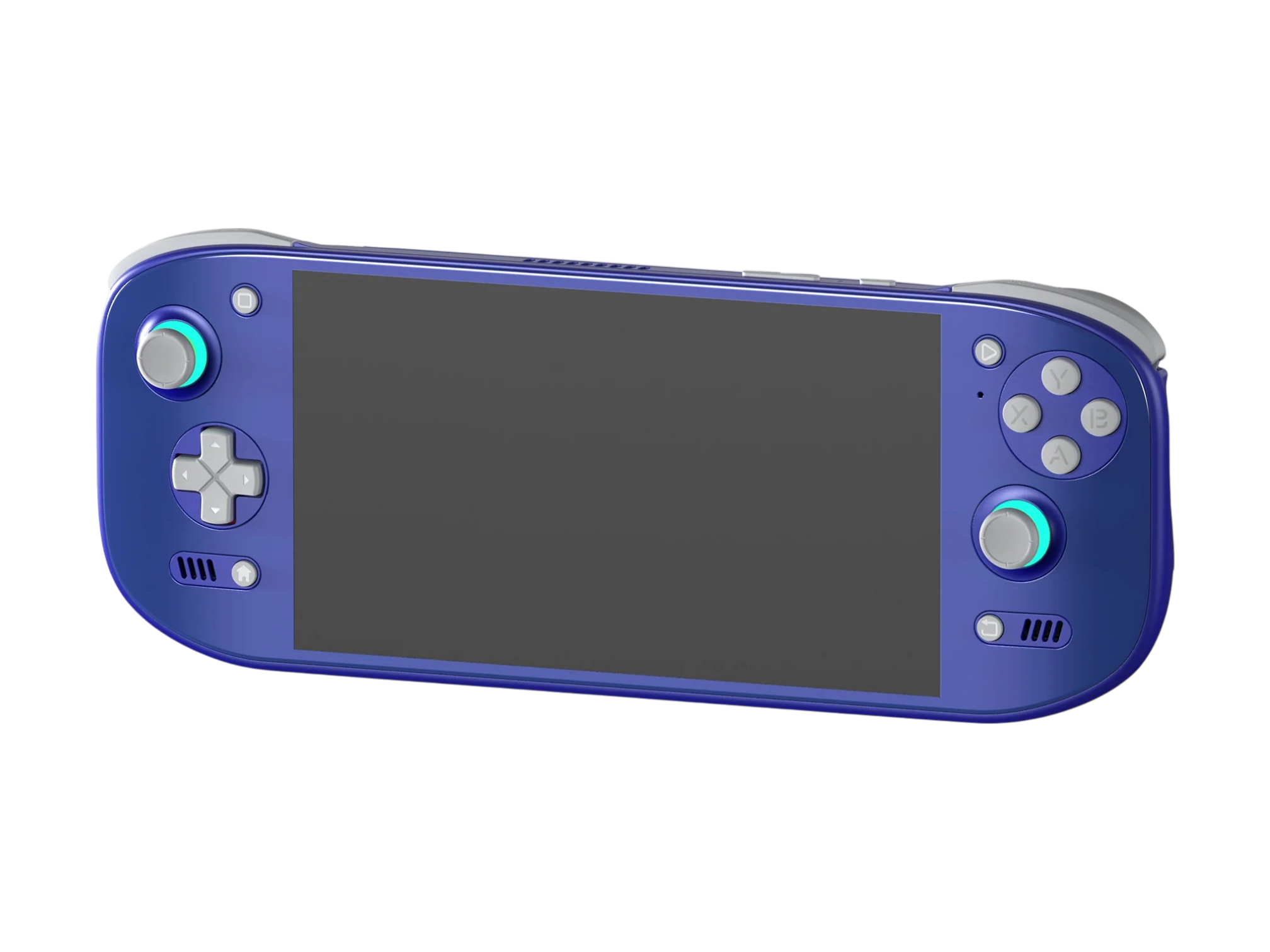
The AYN Odin 2 Portal comes in Black, White, and Indigo, with three different RAM and Storage Configurations. Higher RAM and storage options will be beneficial for those looking to dive into PC emulation on Android, but the “Pro” model (12GB/512GB) is generally considered a sweet spot that can handle pretty much any emulation demands you throw at it outside of higher-end Switch and PC emulation.
Boasting the same Snapdragon 8 Gen 2 found in the Odin 2 and the Odin 2 Mini, there is no performance gain versus its predecessors. The main difference is in that big, beautiful 7-inch, 120Hz OLED screen. While I still consider the original Odin 2 to be the comfiest handheld I’ve ever owned, that old IPS is pretty quickly outshone next to the Odin 2 Portal screen.
| Specifications | |
|---|---|
| Hardware | |
| CPU | Qualcomm Snapdragon 8 Gen 2 |
| GPU | Qualcomm Adreno 740 |
| RAM | 8GB, 12GB, 16GB |
| Display | |
| Screen Size | 7-inch |
| Resolution | 1920 x 1080 |
| Aspect Ratio | 16:9 |
| Refresh Rate | 120Hz |
| PPI | 314.70 PPI |
| Storage | |
| Internal Storage | 128GB, 512GB, 1TB |
| External Storage | microSD |
| Battery | |
| Battery Capacity | 8000mAh |
| Charging Speed | 27W |
| Connectivity | |
| Wi-Fi | Wi-Fi 7 |
| Bluetooth | Bluetooth 5.3 |
| Cellular | ❌ |
| Ports | 3.5mm Audio Jack, USB-C |
| Video Out | Yes |
| Controls | |
| Sticks | Hall Effect |
| Triggers | Hall Effect |
| Shoulder Layout | Stacked |
| D-Pad | Bottom Left |
| Audio | |
| Speakers | Stereo |
| Speaker Location | Front-facing |
| Headphone Jack | Yes |
| Physical | |
| Dimensions | 257 x 98.6 x 17.2mm |
| Weight | 430g |
| Form Factor | Horizontal |
| Software | |
| Operating System | Android |
| Custom Firmware | ROCKNIX, Batocera |
Recommended Accessories
When it comes to official accessories available directly from the AYN website, there are several options to choose from. We’ve got a hard carrying case, screen protector, TPU Grip, and some ABXY Buttons and Joystick Caps. Be aware that the official screen protector is notorious for peeling up towards the bottom edge, and the case doesn’t accommodate both the device and the TPU Grip.
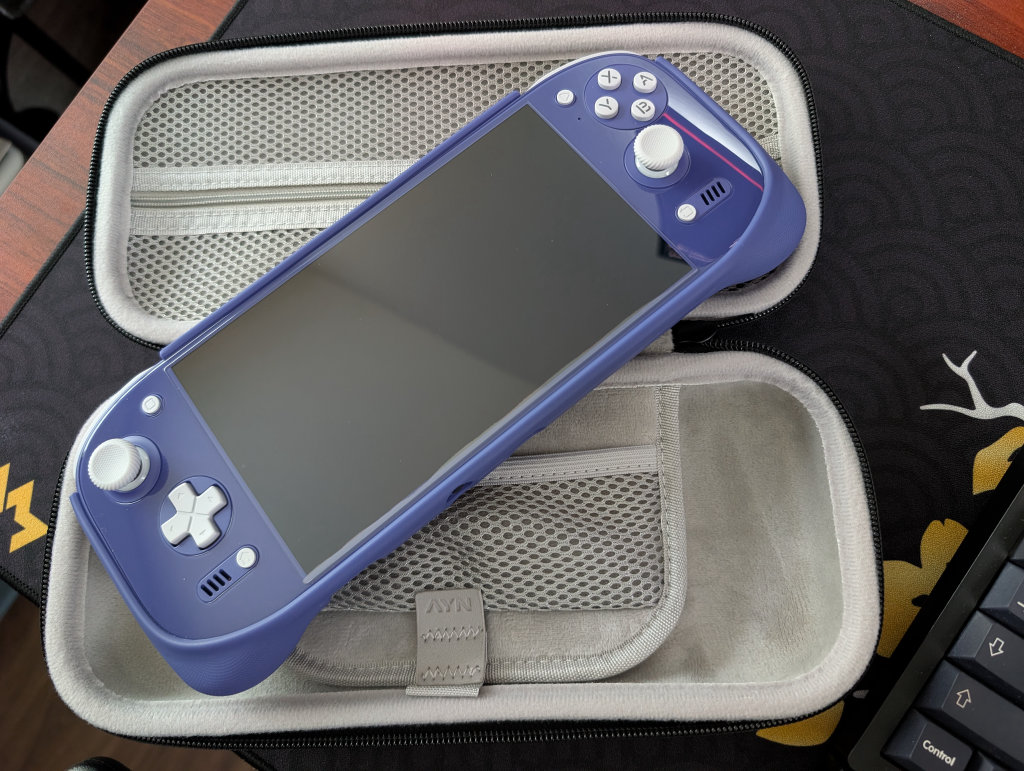
When it comes to unofficial accessories, there are several options for 3D-printed cases and covers on Etsy. As a reminder, if you’ve got any larger replacement sticks or caps for your Retroid Pocket devices, the Odin 2 Portal uses the same stem for its analog sticks.
- Odin 2 Portal Skin
- Odin 2 Portal Gripshield
- Odin 2 Portal Ergonomic Grip
- Hype Stix Replacement Thumbsticks
External Storage
Ah, the age-old question of whether to keep your games and files on the internal storage on the device itself, or external storage in the form of a microSD card or portable SSD? External storage is great for ease of transferring files to and from your device. All my files are kept on a Sharge Disk (external 2230 SSD enclosure), which means I don’t have to constantly involve my computer in the installation process. I can even play games directly from the SSD!
Internal storage is going to be faster and more stable, so plenty of people prefer that option. However, if you’re interested in something like PC emulation through GameNative or GameHub, then you might want to reserve that internal storage for those purposes, as using external storage for PC emulation on Android can cause performance issues and/or crashes.
Installing Apps and Emulators
Now, it’s time to focus on getting your emulators set up. Remember when we had to find and install each emulator and system separately? Retro Handhelds remembers. Those days are long gone, unless you prefer that sort of journey.
Obtainium
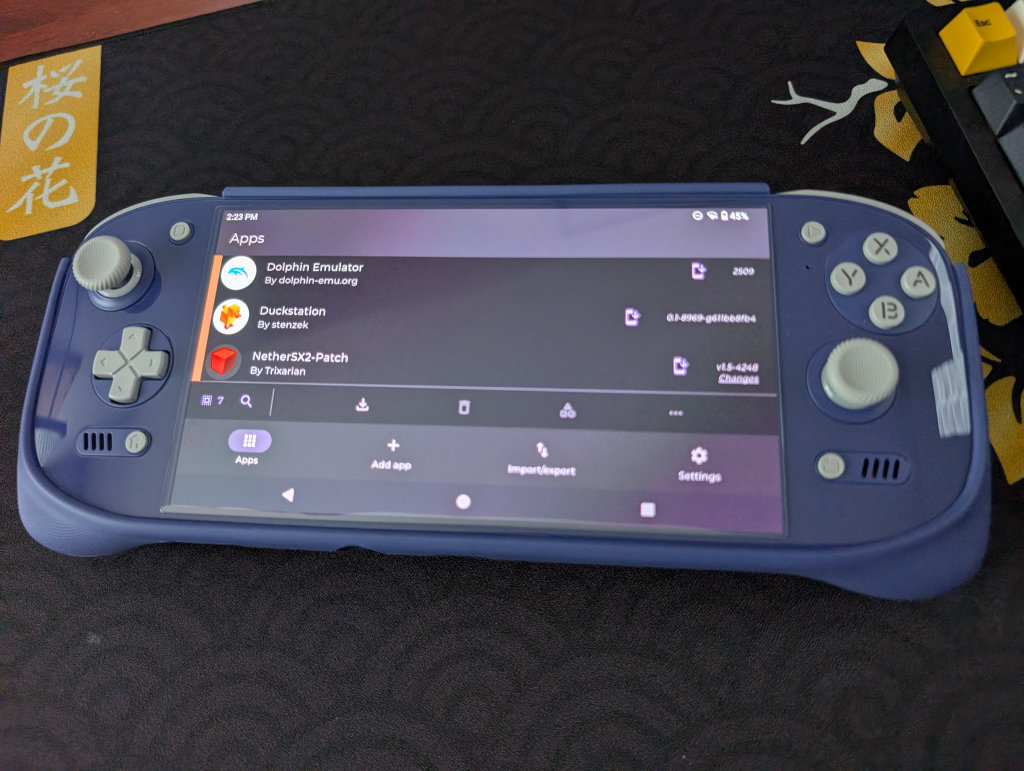
Obtainium has made emulation and gaming software installation on Android an extremely simple process, with the help of the Obtainium Emulation Pack. Obtainium will provide links directly to developer sources and pages, cutting out the need to find and manage them yourself. Additionally, Obtainium will also keep tabs on these programs and alert you of any updates that need to be installed.
For an in-depth guide on Obtainium setup and configuration, please check out our Obtainium guide on our website.
BIOS Files
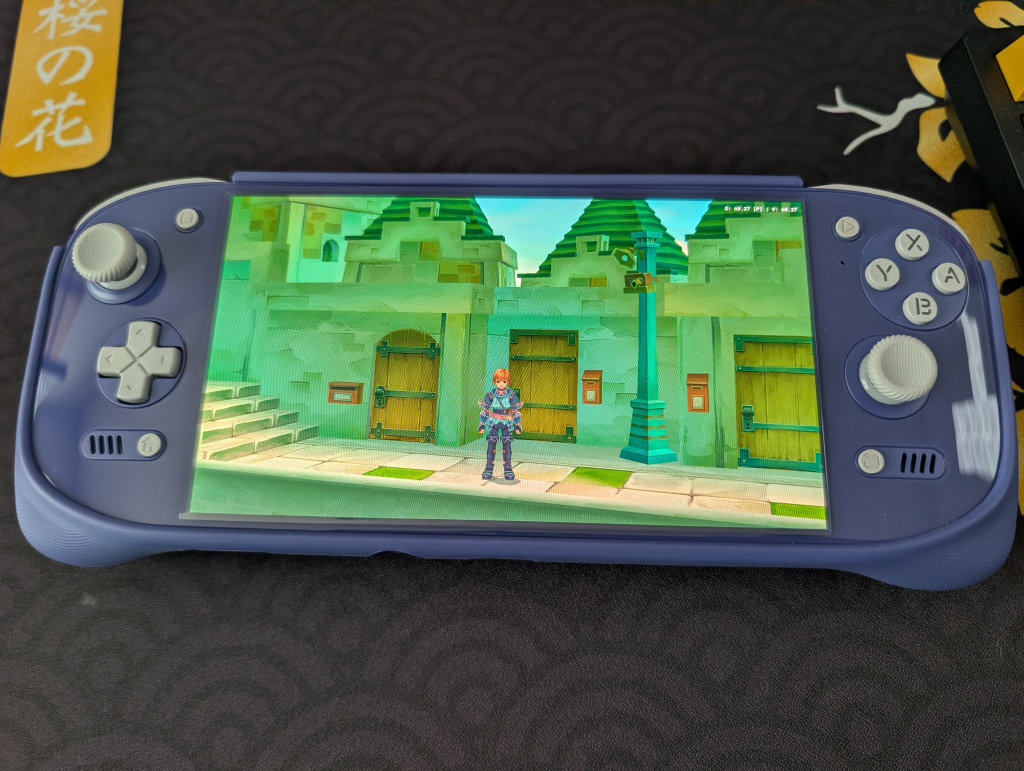
While the installation of emulators on your various handhelds will get you most of the way to your goal of playing games, some systems (most notably disc-based) require a BIOS in order to actually run the games. Systems on RetroArch will be mostly covered, but anything additional (PS2, GameCube, Saturn, Switch) will require some additional file placements.
While copyright law keeps us from telling you where to find these files, you can refer to our Recommended BIOS Files article for examples of BIOS files for each system, along with where they should be placed in your file structure.
Choosing a Launcher or Frontend
Choosing a launcher or frontend ultimately comes down to preference. There are several options to choose from, including the Odin Launcher built into the AYN Odin 2 Portal, but it might be best to try a few different options and see what works best for your needs.
Beacon Game Launcher
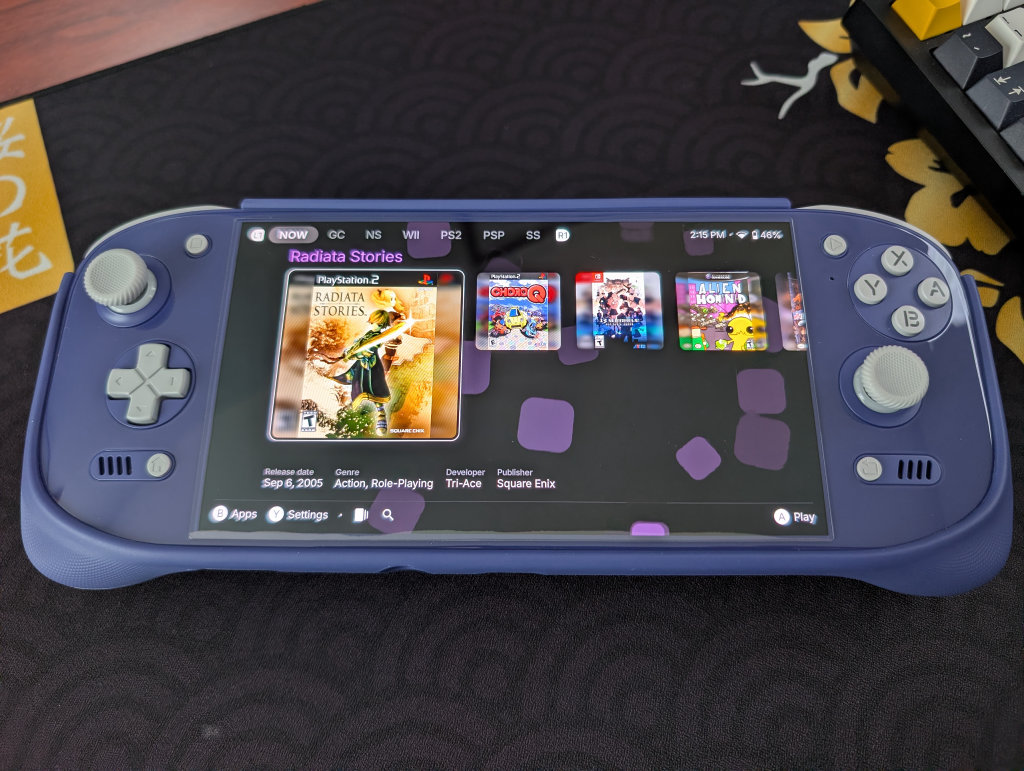
My personal choice for frontend goes to Beacon Game Launcher. While it is a paid app ($2.99), which might turn some people off, it has been the one I consistently install on nearly all my devices. Beacon Game Launcher focuses on a simple, no-fuss setup and configuration, and aesthetically has been my favorite of several options that I’ve explored.
Odin Launcher
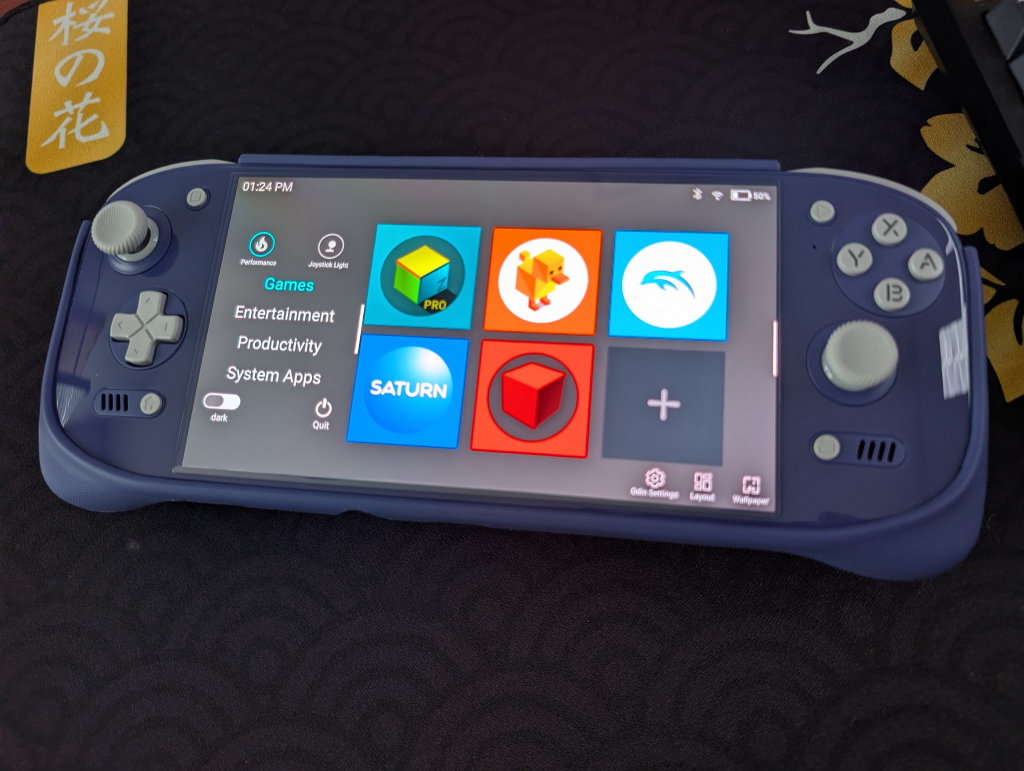
While I don’t personally use Odin Launcher, it works as a simple frontend that allows you to install your specific emulation and productivity apps and launch them from the home panel. There is a floating bar on the left and right side of the screen that allows you to pull up specific apps based on category, adjust performance and RGB lighting, and even adjust some system apps like brightness, Wi-Fi, and monitor storage capacity and internal temperature.
Additional Options
- Daijisho (Free)
- Console Launcher (Free, with optional premium feature support)
- Launchbox (Free version supports up to 100 games. Additional paid packages available)
- Pegasus (Free/Open-source)
- ES-DE ($6.50 on Galaxy Store, Free for Patreon supporters)
Streaming Apps
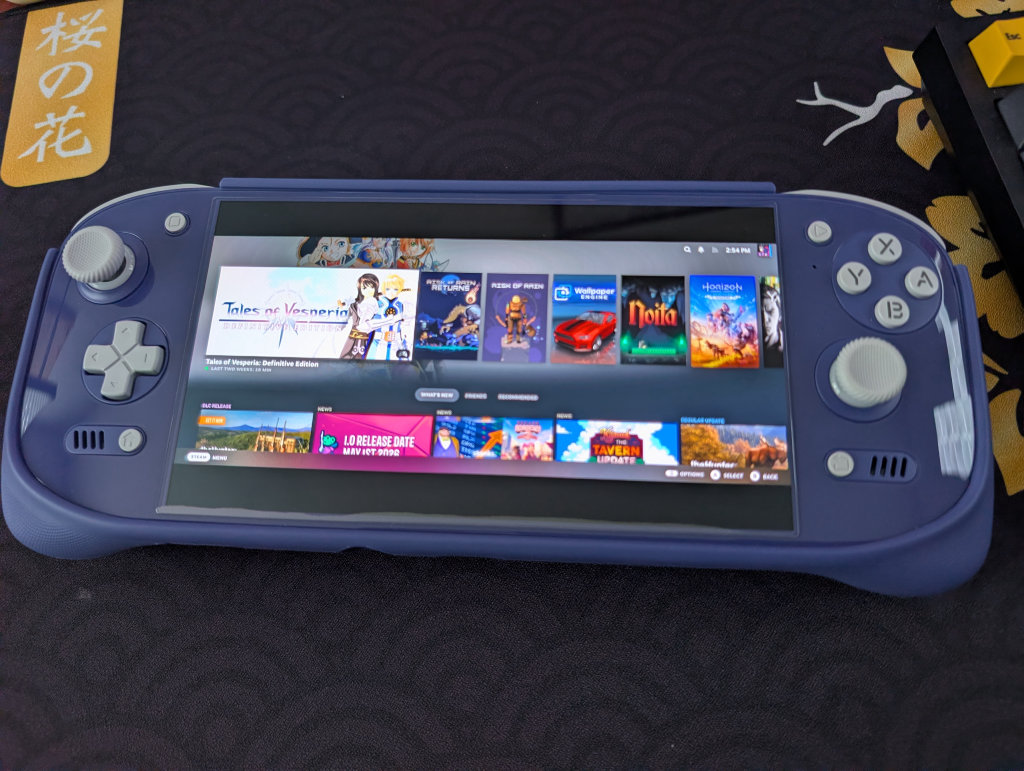
Streaming is a particularly favorite use case of those in the Retro Handheld community that use the Odin 2 Portal. That 120Hz refresh rate really shines with PC gaming and streaming, coupled with the larger screen size that helps with seeing all the dialogue and menu options that are often too small when streaming on handhelds with smaller screens.
This is going to depend entirely on your personal desktop/gaming PC and your home network, but the one that works the best for me is Artemis. Install Apollo on your streaming PC, and Artemis on your Odin 2 Portal, and follow this guide from Retro Game Corps to get things running.
Moonlight/Sunshine is also an option, of which Apollo and Artemis are forks, and may work better for you depending on your home network situation. I just prefer and have had better experiences with Apollo and Artemis.
PC Emulation
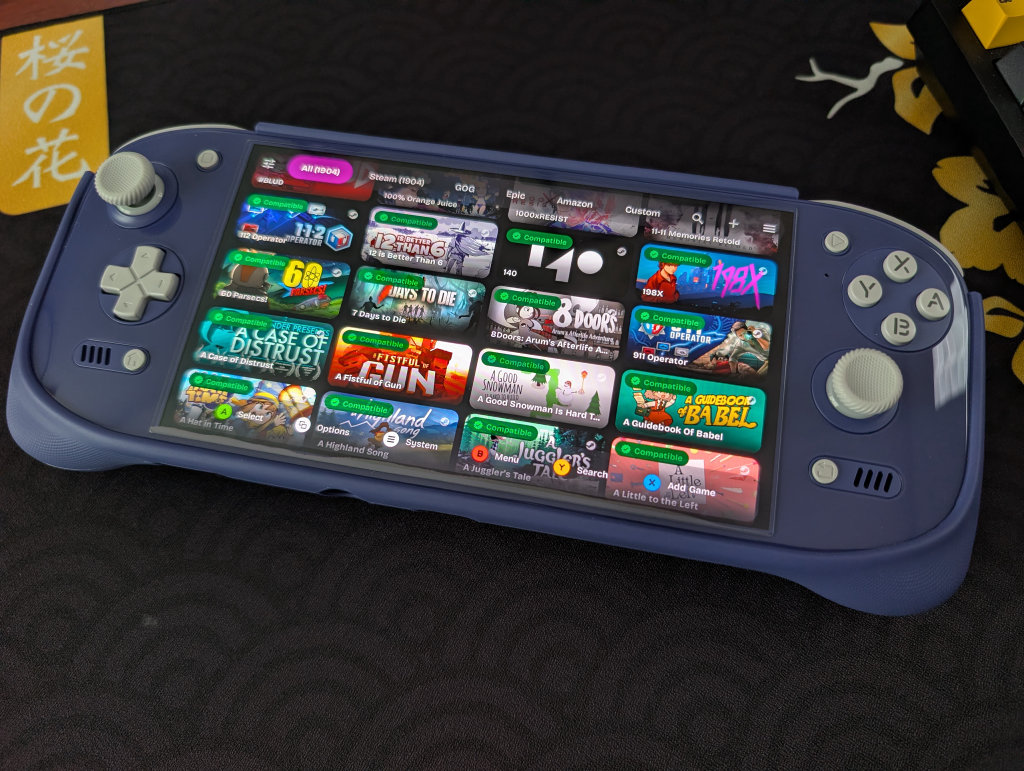
If you followed the previous Obtainium section, you’ll have access to both GameHub Lite and GameNative. These are the two biggest apps in the Android PC Emulation space right now. GameNative, which is my preferred PC emulator, gives you access to your entire Steam library, including cloud saves. Our own Jim has an excellent How to Play Steam Games on Android guide if you want to set up GameNative on your Odin 2 Portal.
Some people have more success with some games in GameHub Lite than GameNative, and vice versa, so feel free to download both and play around to see what works for you. As mentioned previously, the high 120Hz refresh rate and larger size of the Odin 2 Portal screen are especially great for PC gaming, which makes the Odin 2 Portal a great option for those interested in PC emulation on Android.
Additional Recommended Apps and Options
OdinTools is a collection of utilities for the AYN Odin 2, and thus the Odin 2 Mini and Odin 2 Portal can use it as well. You’ve got app overrides, button utilities, quick setting options, and more! Oh, it also comes in the Obtainium Emulation pack we mentioned earlier.
AmbiLuma (previously AmbiOdin) is an app that allows you to synchronize the RGB lighting effects for your Odin 2 Portal. Essentially, this app uses the background colors on the Odin 2 Portal screen to dynamically adapt your RGB lighting to match the colors on the screen.
RetroAchievements is a completely community-driven way to earn achievements in retro video games, essentially giving a modern feel to our games of the past. While they can be a little divisive given their need for an always-online connection, it is a fun way to add a little extra layer of engagement to your gaming.
CHDroid allows you to convert ROM files into a compressed .chd format on the AYN Odin 2 Portal itself. Most disc-based games, like PS2, Sega Saturn, Dreamcast, and PC Engine CD, can be converted to .chd and save a ton of space.
Quick Tips and Tricks
AYN Odin 2 Portal Buttons
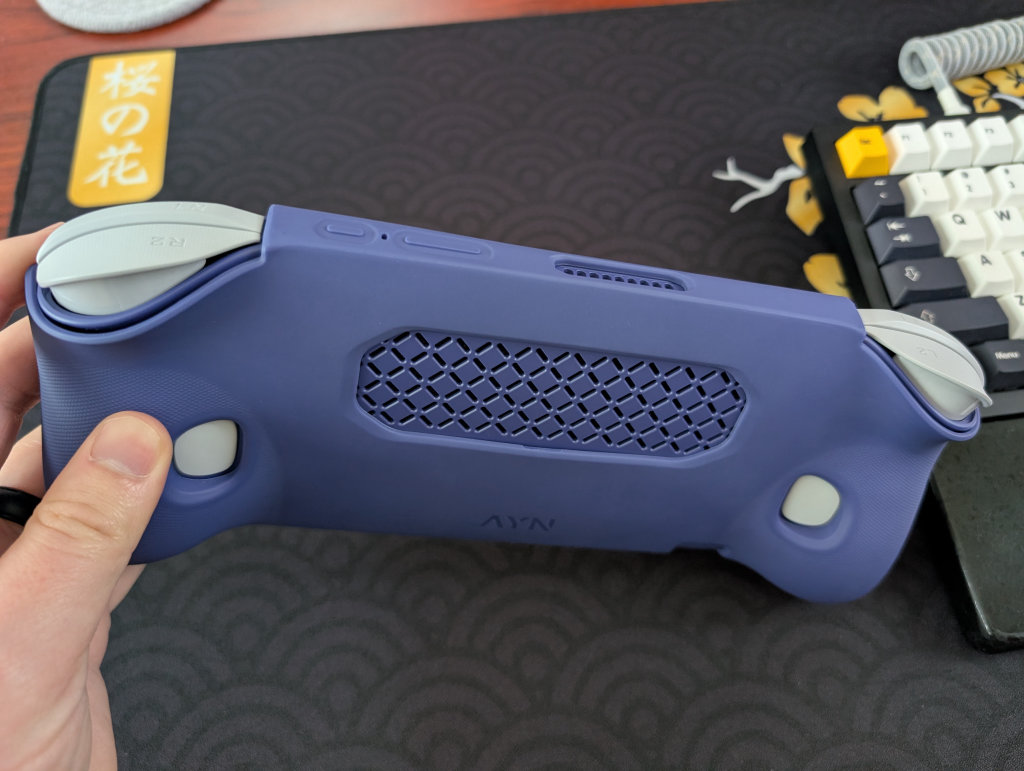
The AYN Odin 2 Portal has two function buttons on the back of the device (M1 and M2), a welcome carryover from the original Odin 2. We’ve got Power and Volume +\- buttons along the top of the device, which can be a bit hard to press with the TPU Grip on. We’ve got our Start and Select buttons at the top-right and top-left of the screen, our Home button beneath the D-Pad, and a Return button under the right analog stick.
How to Update Your AYN Odin 2 Portal
To process an OTA (Over-the-Air) update for your AYN Odin 2 Portal, follow these steps:
- Go to your general Settings menu
- Scroll down and find System
- Scroll down and find Odin FOTA
- If a new version is available, click the large, circular Download icon
- If a new version is not available, when you click Check Version, it will tell you that you’re on the latest version
- Your download will start (this can often take several minutes)
- Once complete, it will ask if you want to restart immediately. Select OK.
- Your Odin 2 Portal will restart, and you’re on the newest software!
Quick Settings Adjustments
By swiping down from the top of the screen, you can access the standard quick settings options found on many devices (including your phone). Additionally, you can alter a few Odin-specific settings from this menu:
- Smooth Display
- Toggle between 60Hz and 120Hz
- Performance
- Standard
- Performance
- High Performance
- Fan
- Quiet / Smart / Sport
- Controller Style
- Odin / Xbox
- L2/R2 Mode
- Analog / Digital / Both
- Joystick LED
- On / Off
- Color Selection
- Floating Icon (the vertical white line along the right edge of the screen)
- On / Off
- Transparency percentage
Odin Settings
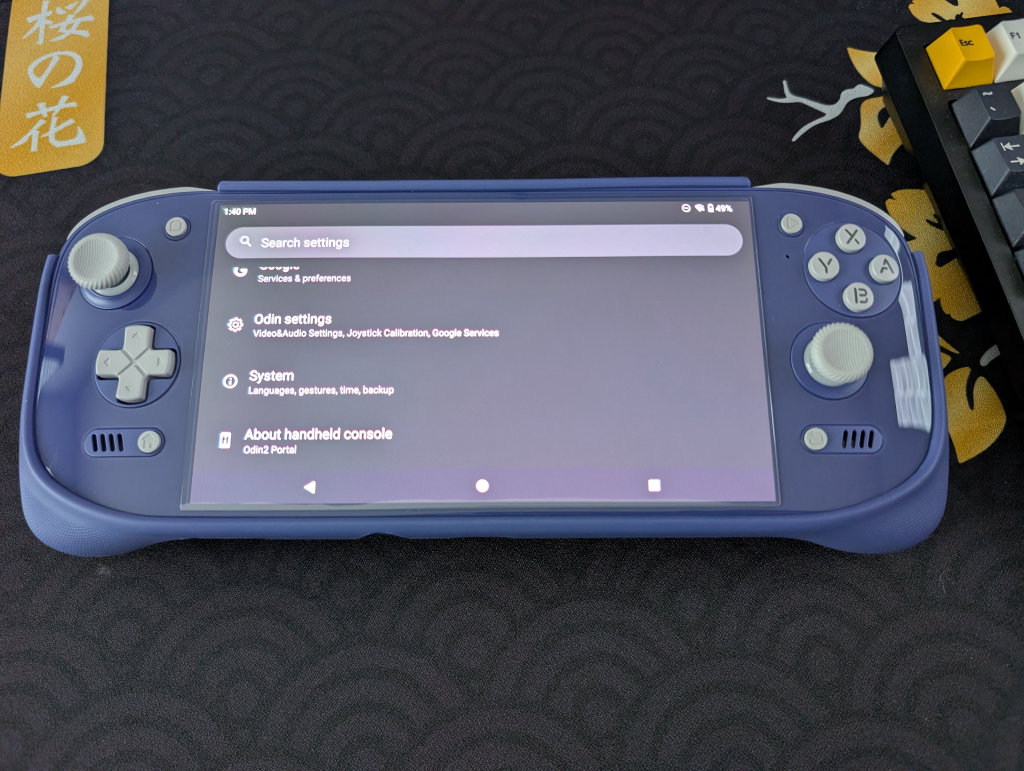
To find the Odin Settings, pull up your device settings (Swipe down from the top of the screen twice and select the gear icon, or select the gear icon app from your app drawer), then scroll all the way to the bottom. Odin Settings will be third from the bottom.
- Vibrator Strength Settings
- Highest / High / Medium / Low
- Charging Settings
- Charging LED indicator toggle
- Video Output
- Video output mode
- DisplayMode (DisplayPort over Type-C)
- Adaptive
- 4K (60Hz)
- 2.5K (144Hz)
- 2K (120Hz)
- 1080p (60Hz / 120Hz / 240Hz)
- DisplayMode (DisplayPort over Type-C)
- Turn off handheld console’s screen
- No auto sleep
- Sound output when connected
- Video output mode
- USB Setting
- USB Connection Notification
- Network
- Status Bar Shows Current Internet Speed
- Controller Settings
- Controller Style
- Xbox / Standard / Ban On Use
- L2/R2 Mode
- Analog / Digital / Both
- M1 Key Mapping
- Mode / App Switch / Home / Select / Start
- A / B / X / Y / L1 / L2 / L3 / R1 / R2 / R3
- Up / Down / Left / Right
- None
- M2 Key Mapping
- Mode / App Switch / Home / Select / Start
- A / B / X / Y / L1 / L2 / L3 / R1 / R2 / R3
- Up / Down / Left / Right
- None
- BACK Key Mapping
- Mode / App Switch / Home / Select / Start
- A / B / X / Y / L1 / L2 / L3 / R1 / R2 / R3
- Up / Down / Left / Right
- None
- Joystick Calibration & Gamepad Test
- Prevent Accidental Home Button Press
- Controller Style
- Virtual Mouse
- Enable / Disable
- Google Services
- Register Google Services
- Advanced Settings
- Virtual RAM Swap
- Disable Apps
- App Auto Launch Manage
- Whitelist Application
- Exclude Key Focus Application
- Enter Setup Wizard
- Enter Factory Test
- Forse Start selinux
- Run Script as Root
- Factory Settings
File Transfer: Solid Explorer
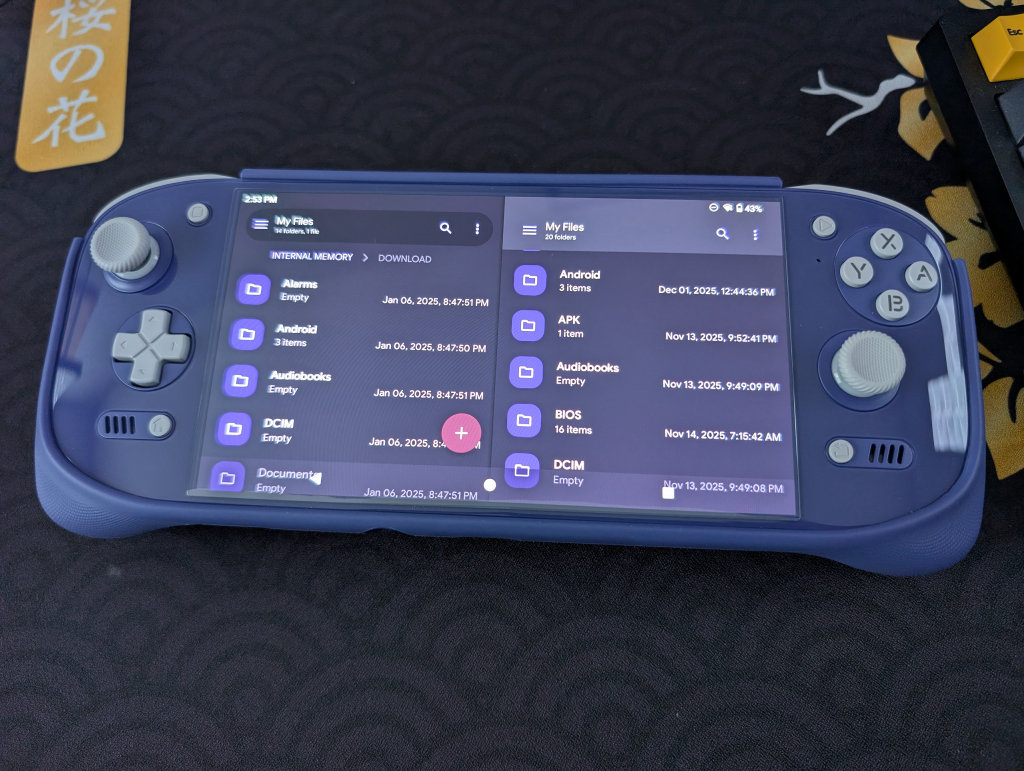
My go-to file transfer program has been Solid Explorer for a long time now. I enjoy the split-screen layout and the ease of copying and moving files. It is worth mentioning that this is a paid app ($5.99, though there is a 14-day free trial), but I’ve simply been unable to go back to other options after using Solid Explorer.
If you prefer a free option, MiXplorer is one that my colleague Nick has recommended before. It’s free, with a premium version called MiX Silver available, and it also works very well.
Conclusion
While a great emulation device in its own right, the AYN Odin 2 Portal is especially excellent for PC streaming and emulation, thanks to its 7-inch, 120Hz OLED screen. Hopefully, this guide provided you with the tools necessary to enjoy your Odin 2 Portal to the fullest, and we will continue to update this guide with more fun updates and projects as we come across them.

2 Comments
I enjoyed reading this article about the Odin Portal 2. It was very easy to understand.
God bless you all very much.
Thank you so much for the feedback, we’re glad this guide was helpful!