

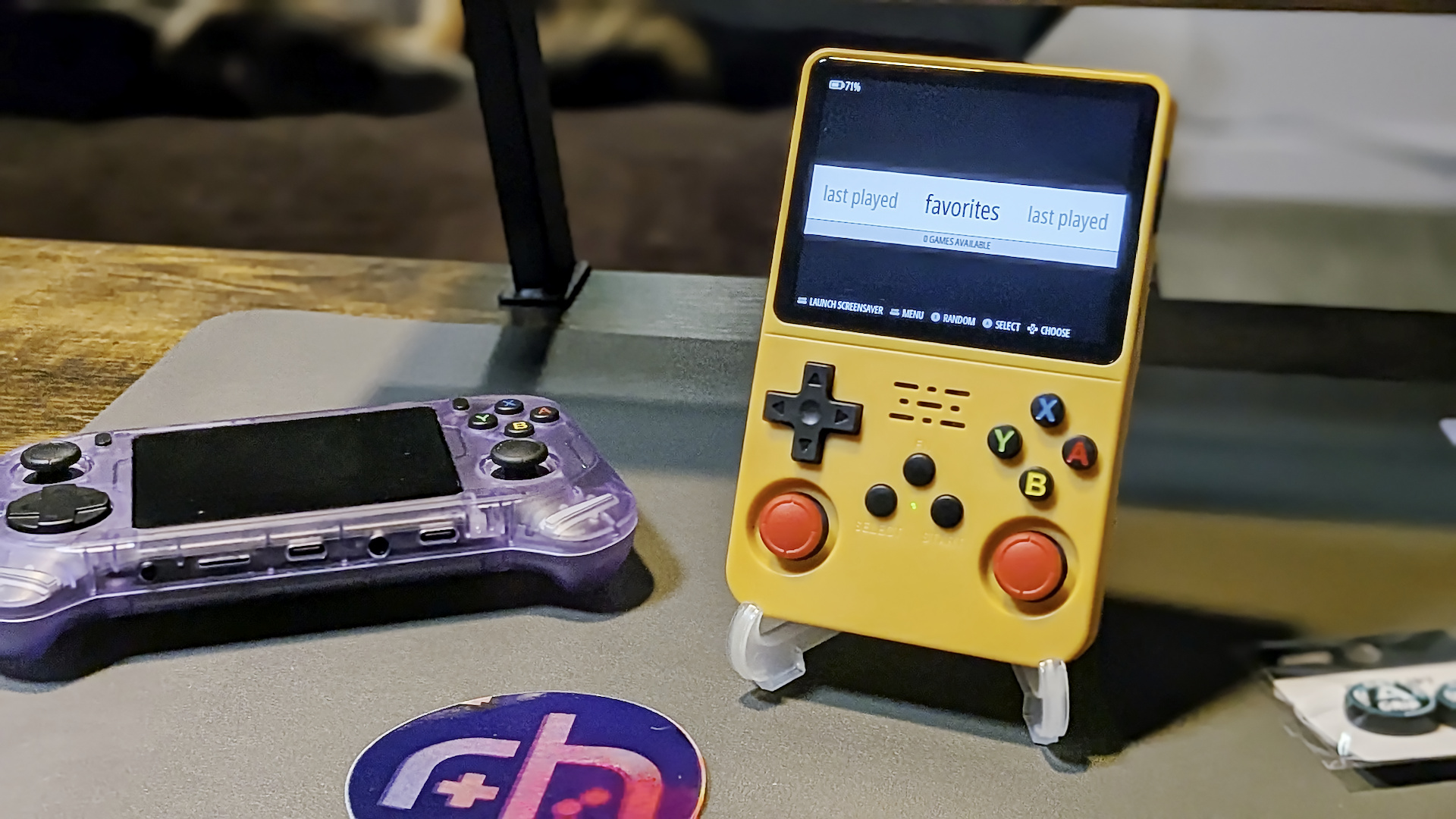
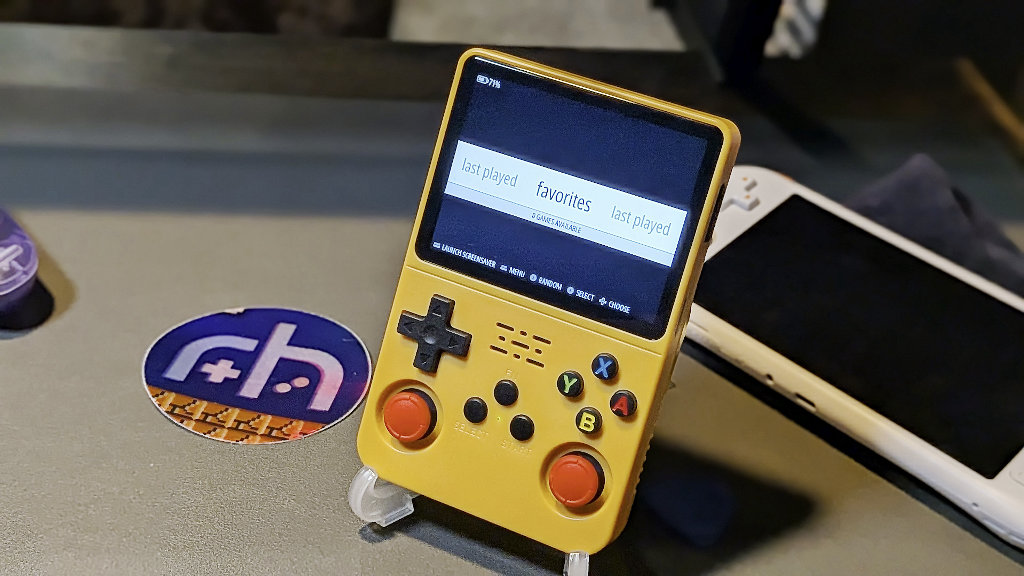
New handhelds come and go from the emulation scene all the time, but the Game Console R36S has managed to remain nearly ubiquitous throughout the hobby since it first appeared on the scene a few years back. I think that this can be attributed to two things: affordability and adaptability. The little starter-handheld that could punches above its weight class by offering users a simple way to step into the pool, or a deep dive into custom tinkering.
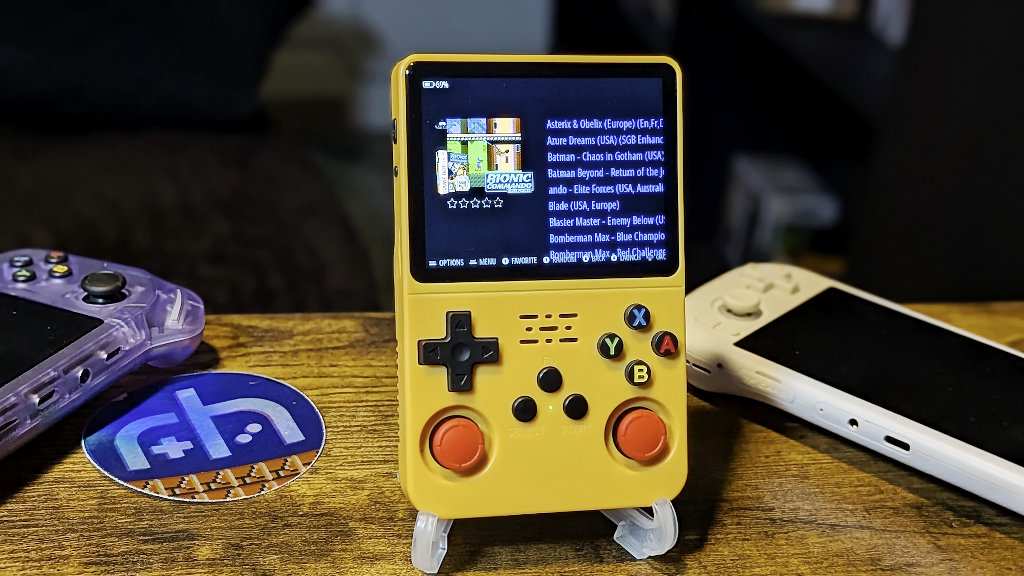
Fans of Arch Linux may now rejoice, as Arch R brings the popular Linux distribution to everyone’s (my) favorite affordable entry into emulation.
Arch R is a custom Linux distribution built from scratch for the R36S handheld gaming console. It supports all R36S variants and clones with 18 different display panels.
So, if you’re anything like me, you’ll want to take a peek at what this latest CFW addition has to offer, and decide whether it deserves the coveted space of R36S daily driver. So far, things are looking positive.
Game Console R36S Specs
| Display | |
| Screen Size | 3.5-inch |
|---|---|
| Resolution | 640 x 480 |
| Aspect Ratio | 4:3 |
| PPI | 228.57 |
| Hardware | |
| CPU | RockChip RK3326 |
| GPU | Mali-G31 MP2 |
| RAM | 1GB DDR3L |
| Storage | |
| Internal | ❌ |
| External | 2x microSD |
| Battery | |
| Size | 3000mAh |
| Connectivity | |
| Wi-Fi | ❌ |
| Bluetooth | ❌ |
| Ports | 2x USB-C, 2x microSD, 3.5mm Audio Jack |
| Audio | |
| Speakers | Mono |
| Speaker Location | Front-facing |
| 3.5mm Audio Jack | ✅ |
| Physical | |
| Dimensions | 130mm x 83mm x 35mm |
| Weight | 187g |
| Form Factor | Vertical |
Game Console R36S
What You’ll Need

- R36S console
- PC
- MicroSD reader and cards (recommended: 16GB for CFW, 128GB for ROMs). Ditch the (in)famous unbranded 36 cards.
- Image writing software of your choice: On this image, I used Balena Etcher.
- The latest image release of Arch-R
- Your ROMs and BIOS collection
Flashing Arch R CFW
- Open your downloaded ArchR-R36S-xxx.img.xz file with your extraction tool of choice. I prefer WinRAR.
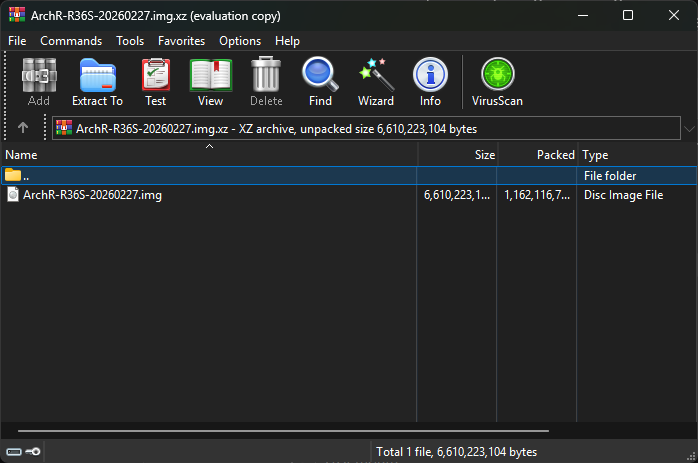
- Extract the .img file from the .img.xz package, and place it somewhere you’ll be able to remember on your PC
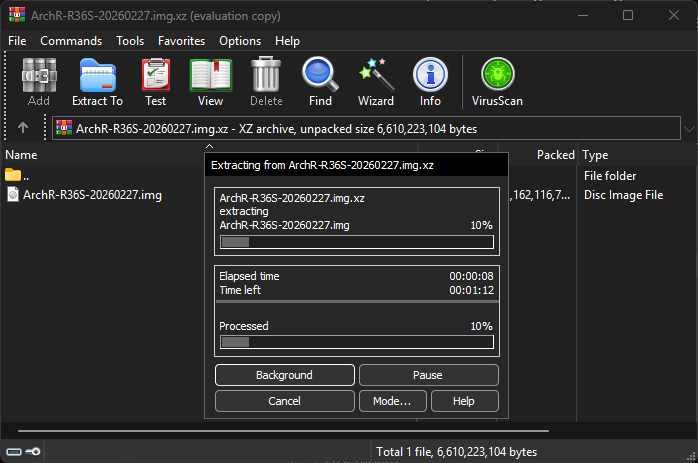
- Now that we have our fully extracted ArchR-R36S-xxx.img file, it’s time to get it written onto an SD card for the handheld.
- Insert your fresh SD card into your PC and open your writing software of choice. For this example, we’ll be using Balena Etcher.
- Select “Flash from file” and navigate to your recently extracted ArchR-R36S-xxx.img. Hopefully, you remember where you put it.
- Now, click the center button labeled “Select Target/Drive” and navigate to your SD card. Take extra caution to ensure you have selected only your blank SD card; this process will wipe the contents of the destination drive.
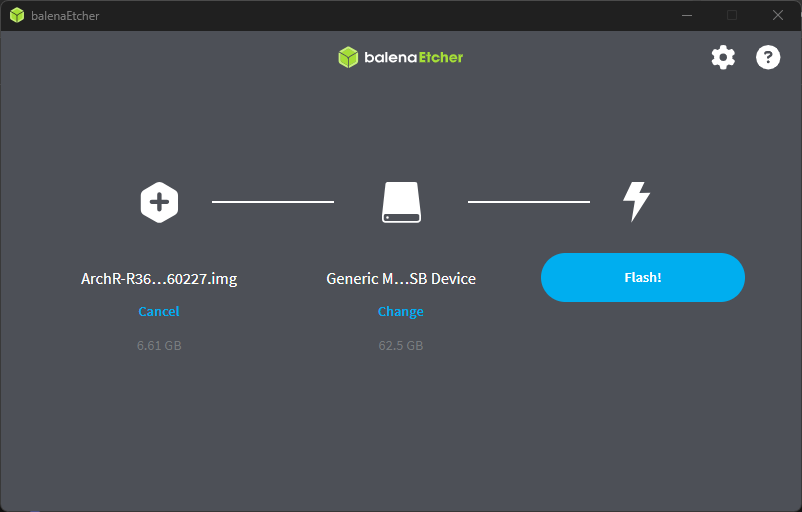
- Balena Etcher will now begin writing the extracted .img file to your SD card. The whole process should take approximately 5-10 minutes, depending on the speed of your PC.
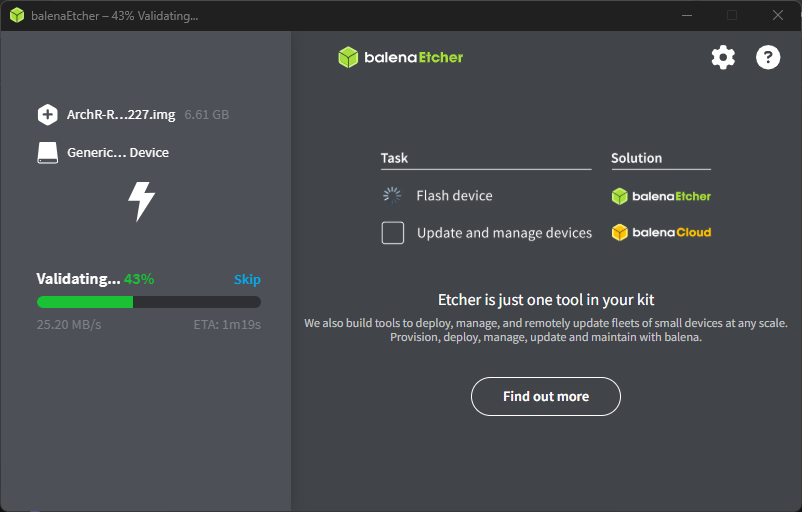
- After writing and verifying the .img contents, Balena Etcher will let you know if the process has been completed successfully. If you have any failures, you can try a different SD card orwriting software of your choice. Alternatively, you can do what I usually do, and just try the whole thing over again. I’ve had plenty of packages that failed on the first go-round for whatever reason. You’ll get there.
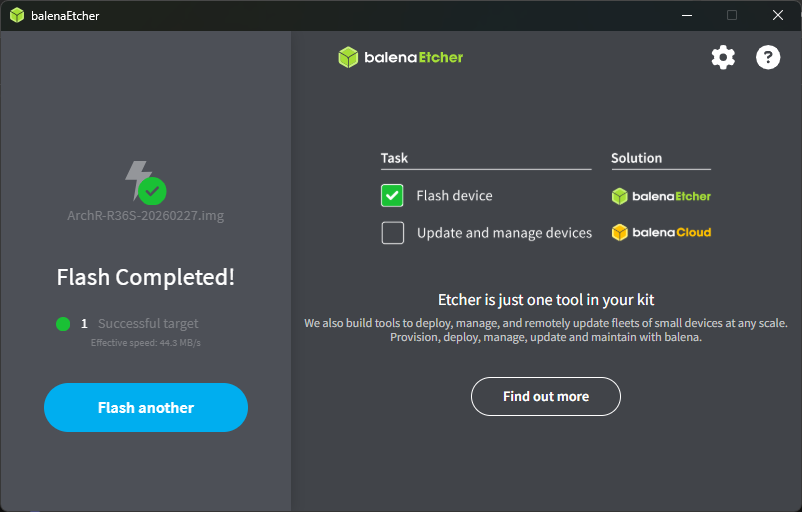
- You’ve done it! We’re not quite done yet, though. Exit out of Balena Etcher and safely eject your SD card from the PC.
- Place the card into your R36S to unpack and install on your handheld. There’s just one more hurdle left to clear, and that’s…
Finding Your Panel
The Game Console R36S has had as many as six official panel variants, and even more in the clone arena. In order to get Arch R up and running, we first need to get it in tune with the screen panel on your device.
Your experience in this process may differ slightly from mine did. It all depends on which version of the device you own.
When I first booted the R36S with the Arch R card inserted, I was greeted with a blank screen, before a series of beeps started coming from the device. I quickly realized that we were going through testing if each panel variant worked on my device. The handheld would beep once for panel 1, then twice for panel 2, and so on. A look at the project GitHub confirmed my suspicions that I was intended to press A after the number of beeps that corresponded with my panel were heard.
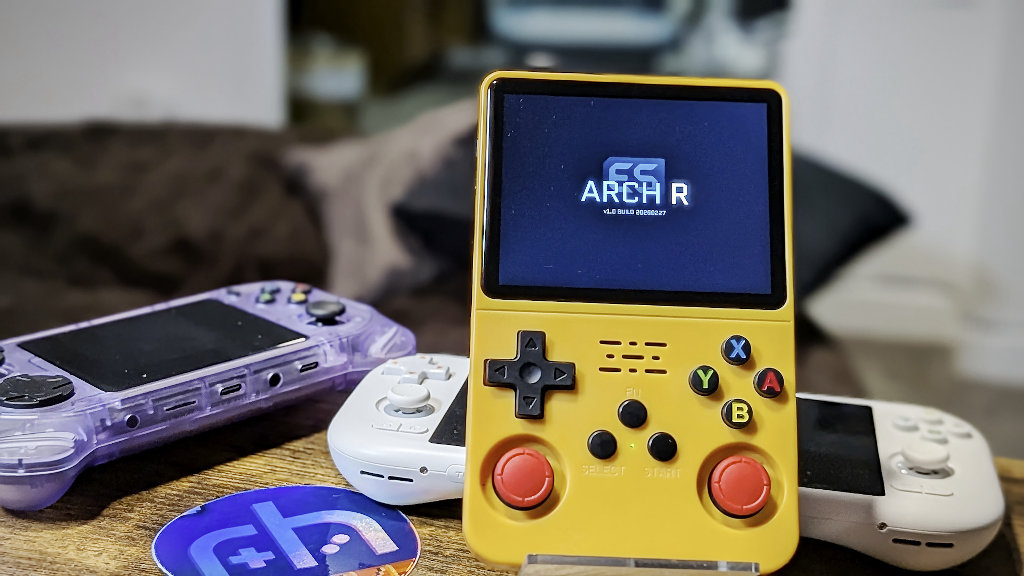
Before I actually had a chance to go look up which panel this R36S (yes, I have a bunch) was, the device had already figured things out for itself, and I was booting into Emulation Station with a fully functional screen.
If you are having trouble with the screen selection process on first boot, project developer dgateles has added a helpful tool with the latest beta release that should make things smoother:
On first boot, if your screen is garbled or blank, hold X during the panel wizard to cycle through panels. The selected panel persists across reboots.
Default user:
archr/ password:archr
Loading Your Games
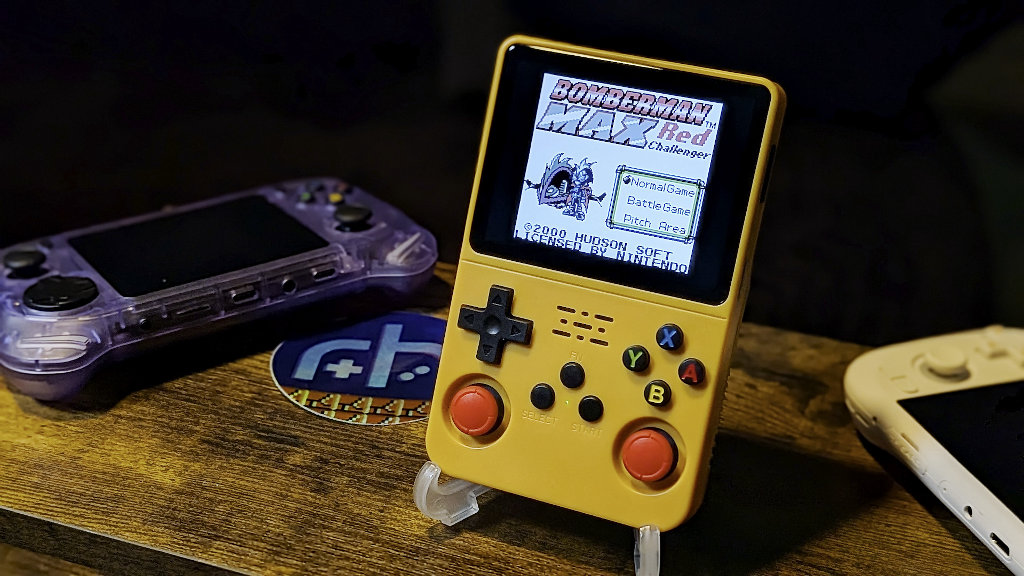
Ok, so now that you’ve got Arch R up and running, you’ll be wanting to play some games. This is, after all, why we’re supposed to be here, right? Sometimes I have to remind myself. Anyways, after the Linux install is complete, remove the SD card from your R36S and re-insert it into your PC SD card reader.
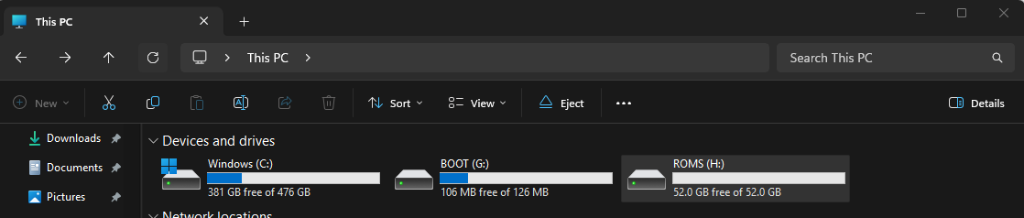
The card should now have expanded to two distinct partitions, as shown on your PC. BOOT and ROMS. You can probably guess which one we’re going to be concerned with for this portion.
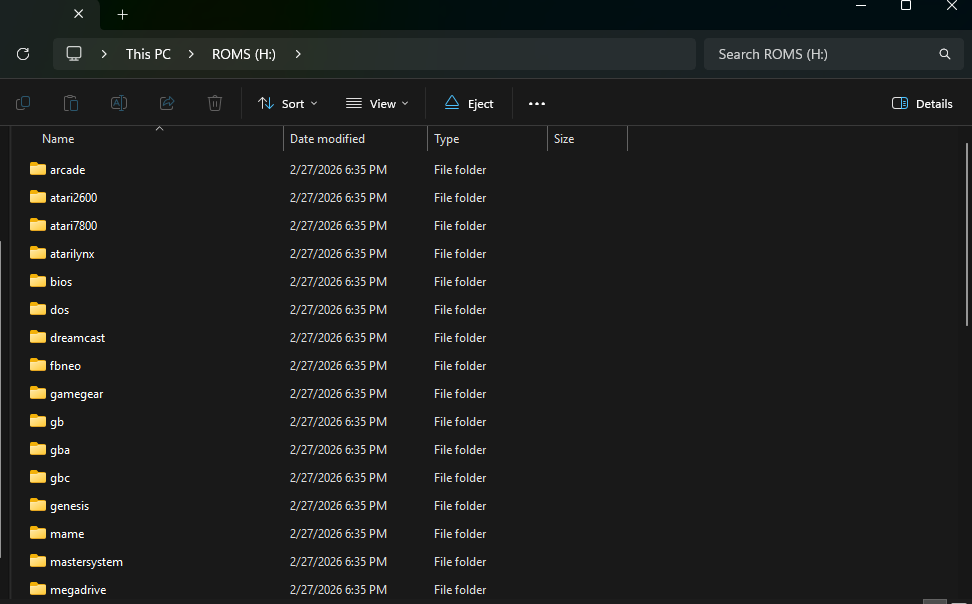
Inside the SD partition labeled ROMS, you’ll find a whole collection of pre-made folders with various gaming console names. All you need to do now is drag and drop your ROM files to their corresponding console. Just keep in mind that we’re going by the international console names here, so think Megadrive, not Genesis.
Arch R and Emulation Station will automatically scan and populate your games/consoles collection lists when the drive is back in the R36S and booted. Beyond any personal preference tweaks, you’re now ready to game.
Wrapping Up
So there you have it, another Linux play-land for the world’s most adaptable budget behemoth: The Game Console R36S.
If you have a clone variant of the R36S, you should be able to follow these instructions very similarly to the Arch R-clone release, but I hope to test it out with a separate guide down the road.
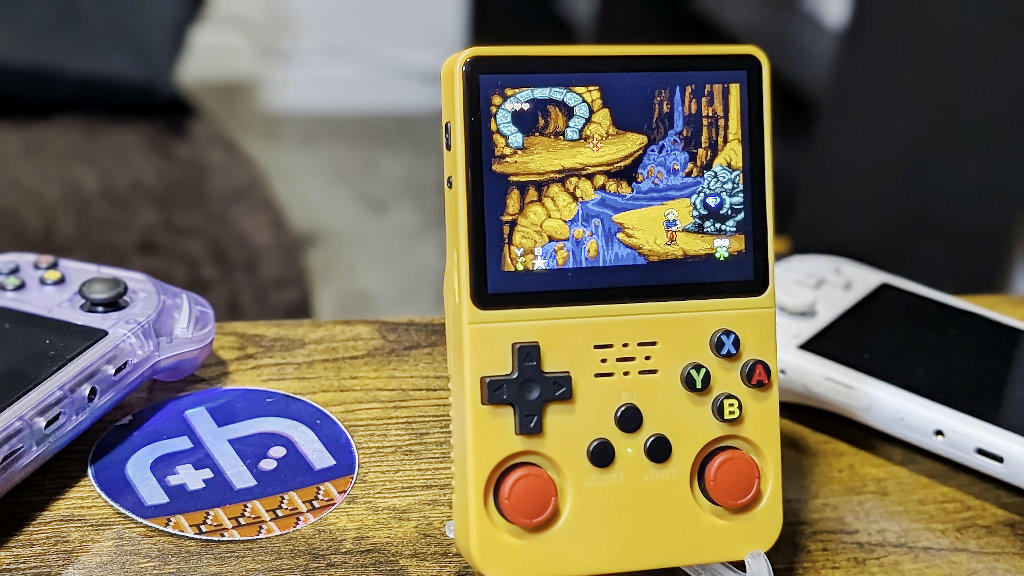
I’ve only had time to poke around and test a few games on each system, but so far the build seems stable and runs well. Open options in Emulation Station are abundant, so you can tinker and tweak things down to every tiny detail that matters to you.
Arch R is a worthy addition to a handheld that already punches beyond its budget weight class, and another Linux distro option is never a bad thing, regardless of platform. If you’ve been thinking about trying something new on your own device, this one is certainly worth a look.
