

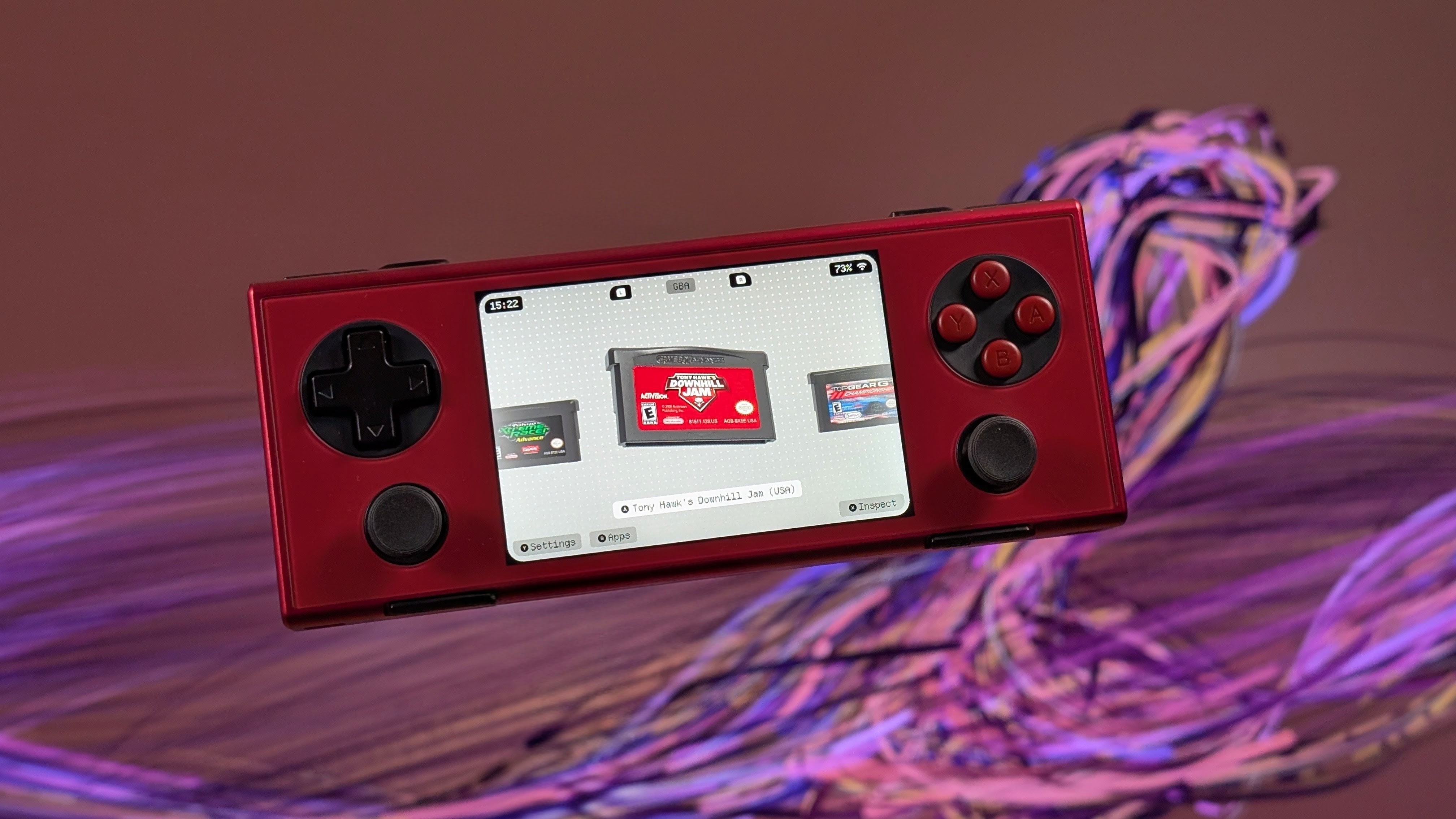
There are no shortage of excellent launchers to pair with your Android handhelds, with the list growing exponentially over the last year or so. Socket is just one example, but has quickly become a favorite among the Retro Handhelds team.
Earlier this morning, Socket v0.9.0 was released, and with it comes quite a few features that might make it your next preferred launcher. The biggest change is the addition of RomM support, making it extremely easy to download games from your personal server if you get the itch to play something new. It’s really convenient for when a new series of Game of the Month games is announced, so you can just get them loaded up in no time.
This latest build also adds support for PlayStation Vita games, which might be something that was overlooked, as I didn’t even know it didn’t support those games to begin with. On top of that, a couple of new features for dual-screen handhelds have been added, such as being able to choose which screen to launch a game on. There’s even a new option in the Settings menu to automatically dim the bottom display, or just have the “title and timer” appear.
Socket continues to implement major improvements with every release, and if you want to see the entire changelog, check below the button or head over to the Patreon page to download the latest build.
Added
- RomM support (Settings > RomM): pair Socket with your RomM server using a code, or paste an API token. Browse your library by platform and download games straight into the platform’s ROM folder, ready to scrape. Set a “Saves Folder (RomM sync)” when editing a platform to sync saves: Socket pulls the latest save before a game starts and uploads it when you come back.
- Sony PS Vita platform support.
- Dual screen: choose which screen a game or app opens on. “Open on Bottom Screen” toggle in a game’s Customize panel, and “Open on Bottom/Top Screen” when holding an app in Apps or on the bottom screen.
- Dual screen: “Bottom Screen While Playing” under Settings > Dual Screen: dimmed snapshot, minimal (title and timer on black) or black.
- Dual screen: the on-screen keyboard opens on the bottom screen and takes focus; closing it returns focus to the top screen. “Keyboard on Bottom Screen” toggle under Settings > Dual Screen.
- Background music: choose your own OGG, MP3 or WAV file under Settings > Audio. The “Music Volume” slider sits right under it and only shows once a track is chosen. It loops while you browse and stops when a game starts.
- “Track Playtime” toggle under Settings > Games. Turning it off hides playtime and stops counting it.
- After a scan that adds 10 or more new games, Socket offers to mark them all as seen, skipping the new game reveal for each.
Changed
- Settings: the long “Tweaks” page is split into Appearance, Display, Carousel, Games, Audio, Controls and Dual Screen tabs (Dual Screen only on dual-screen devices).
- Random game now always takes about a second, however big the library.
- The list of supported emulators now ships with the app, so games launch even when it can’t be downloaded. The first launch no longer waits for the download, and “Update Supported Emulators” still fetches the newest list.
Fixed
- Settings (Platforms, RomM and all toggles), Customize, Edit Platform, Inspect, Apps and dialogs spilled off screen at large UI scales and on 3:2 or 4:3 screens (Konkr Pocket). Long labels now wrap and button rows move to a second line instead.
- Leaving RetroArch a few seconds after launching a game restarted it instead of returning to Socket.
- The selection outline was hidden in Apps, Settings and other menus when using a controller.
- “Scan” in Edit Platform could not be reached with a controller, and pressing up from the bottom buttons didn’t go back to the options.
- A, B, X and Y could stop working after the device booted straight into Socket (Konkr Pocket Advance).
- Playtime kept counting while the device was asleep.
