

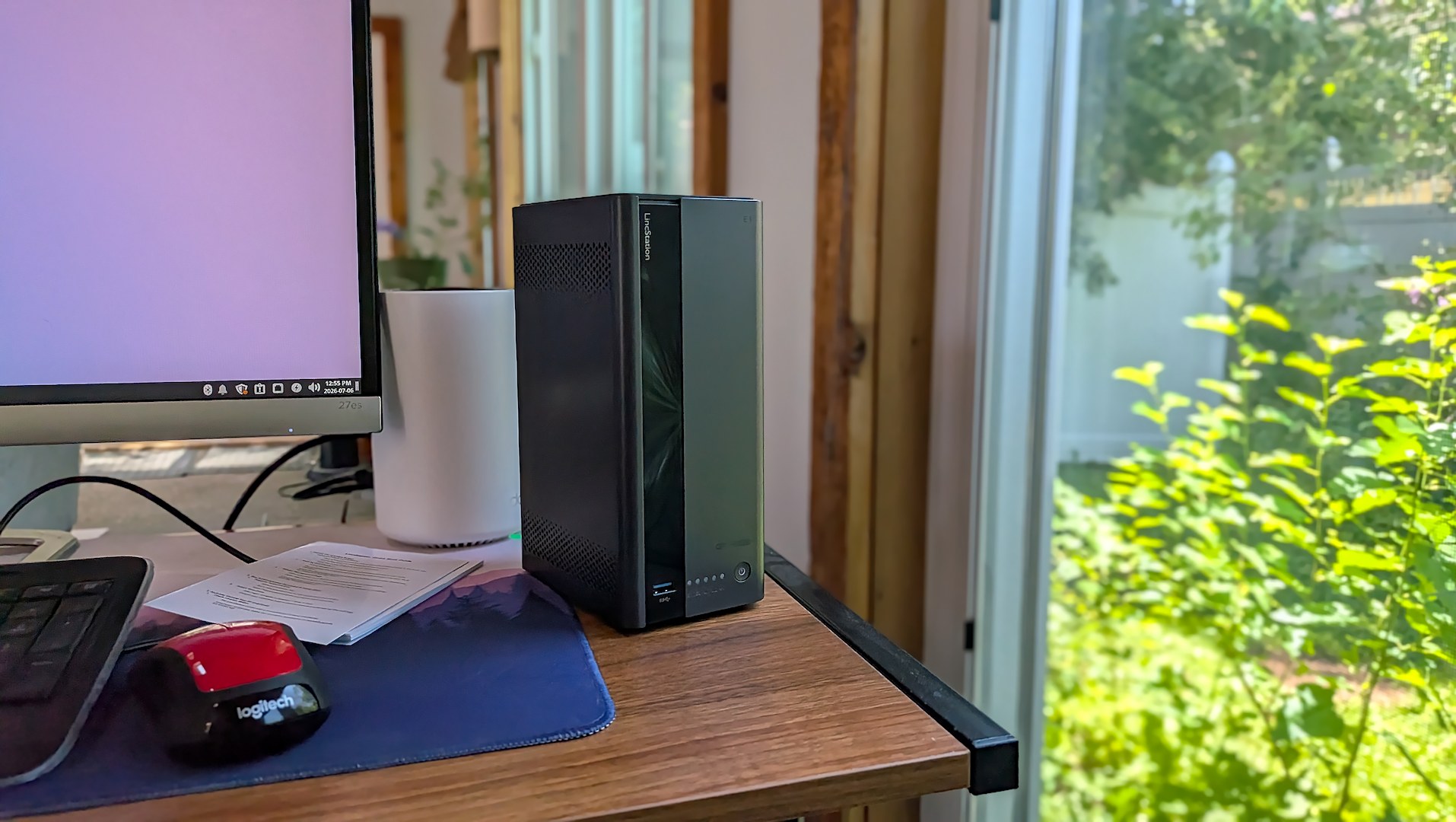
The LincStation E1 comes out of its successful Kickstarter campaign and launches into something of an unfortunate time in the space. Storage prices are already astronomical and only seem to be going up. When I assembled my first NAS (Network Attached Storage), a Synology DS413j, all the way back in 2011, I bought four Western Digital 4TB Red drives for $115 each on sale.
Today, 15 years later, those same 3.5″ hard drives are $200 each or more. Moore’s law is dead, and our AI overlords killed it good. When I was offered to review the LincStation E1, it came with a proposed hard drive budget of $150. A kind gesture, but when that won’t even buy me one of the drives I used in 2011, I thought it best to politely decline the added budget and just try the E1 out with what I had on hand.
Disclosure:
The device reviewed was provided as a review sample by LincPlus. This had no bearing on the conclusion of the review, nor did LincPlus have the opportunity to make edits or changes to the review before publishing.
Affiliate links might be present where applicable, and we may earn a commission on product purchases using those links at no extra cost to you.
LincStation E1 Specs
Retro Handheld fans with a sharp eye will immediately notice the processor on the LincStation E1. This NAS is running on the Rockchip RK3568, the very same chip found in handheld emulation units like the Anbernic RG DS.
| LincStation E1 | |
|---|---|
| Hardware | |
| CPU | Rockchip RK3568, Quad-core Cortex-A55 up to 2.0GHz, TDP 6W |
| GPU | Mali-G52 GPU |
| RAM | 4GB DDR4 (On-board, non-upgradable) |
| Internal Storage (For OS) | 64GB eMMC Flash |
| Drive Slots | “2+2″ Layout: 2x 3.5″ / 2.5” SATA Bays + 2x M.2 NVMe 2280 Slots |
| Connectivity | |
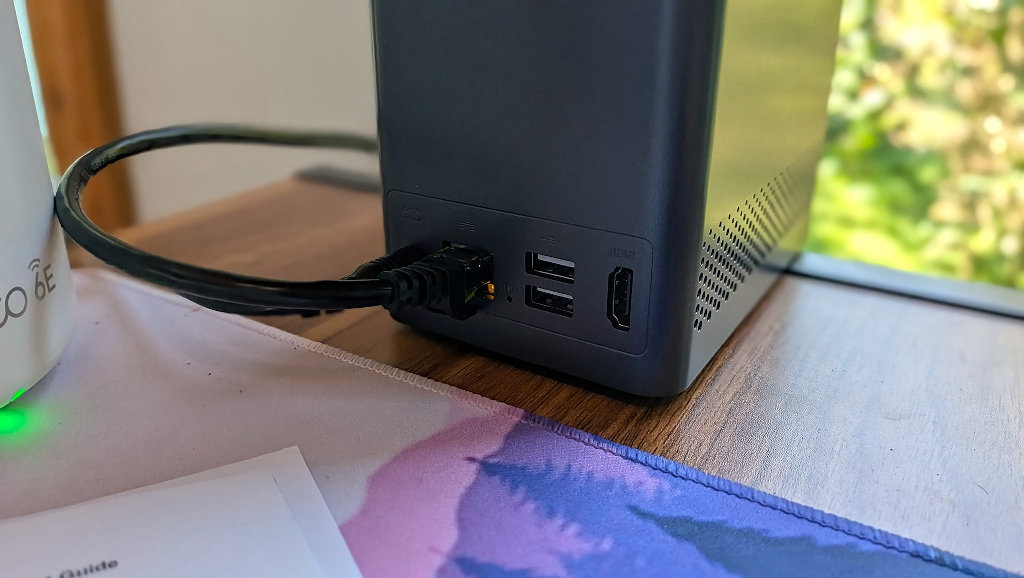
| Networking | 1x 2.5 Gigabit Ethernet (RJ45) + Dual-Band Wi-Fi 5 |
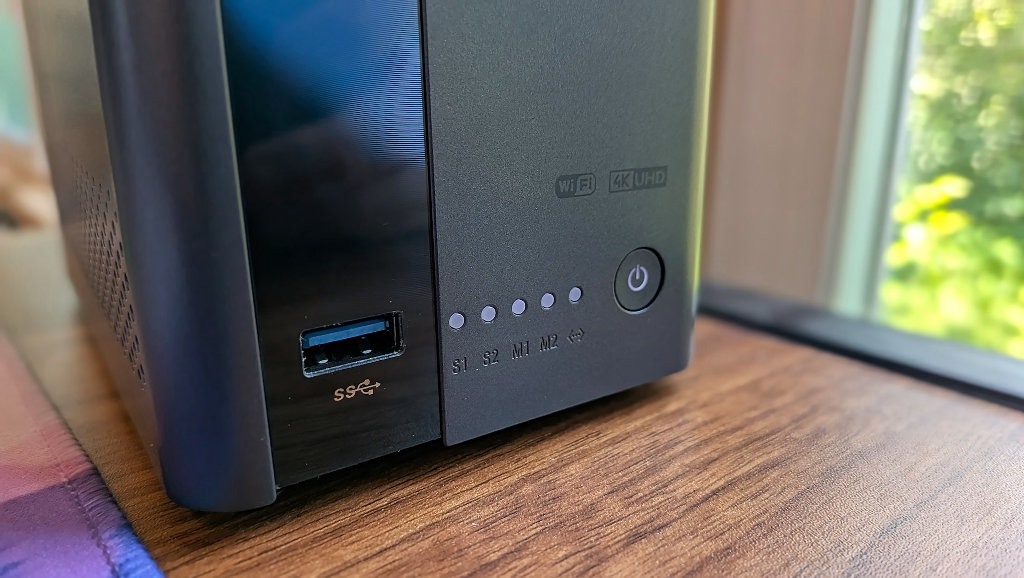
| Ports | 1x HDMI 2.0 (4K @ 60Hz), 1x USB 3.2 Gen 1, 2x USB 2.0 |
| Physical | |
| Weight | 2 lbs (diskless) |
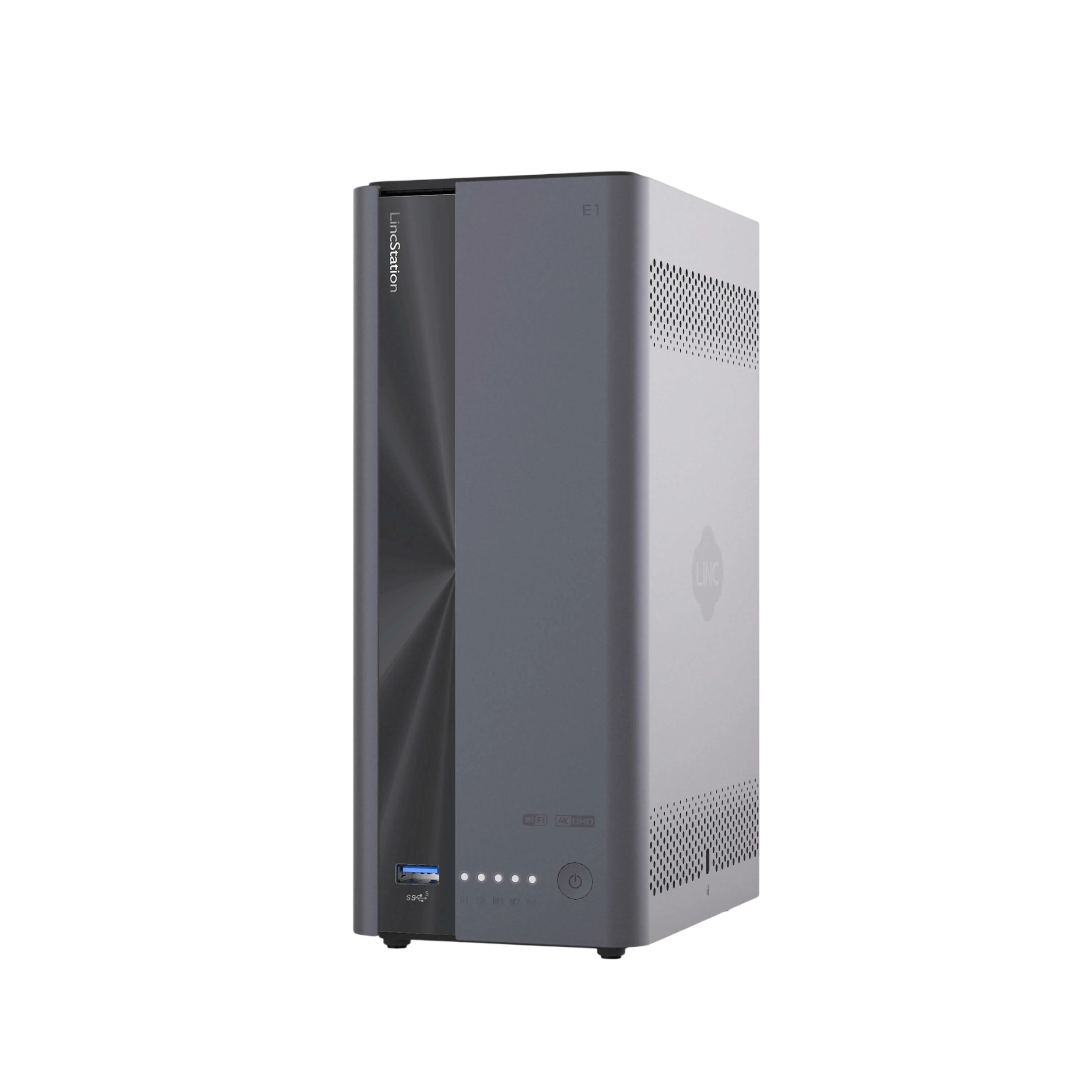
LincStation E1
LincPlusSome Background
I jumped at the opportunity to review the E1 when it came across my inbox, because I truly believe that the only way out from under the nonstop assault of subscription service hell is to host your own files and media. I still have those 4 WD Red drives (one is a replacement after a death in the line of duty), and they’re currently in a powered RAID enclosure being managed by a Proxmox machine.
I keep my main storage array running on an Unraid server, and I have the AceMagic 2254 K1 running ZimaOS for my Proxy Manager and RomM host. Repurposing hardware for homelab purposes has become something of a hobby of mine, but my setup is admittedly anything but professional, and largely held together with sticks and glue. The opportunity to try out a new NAS like the LincStation E1, with features like NVMe support and 2.5 gigabit networking, was too much to resist.
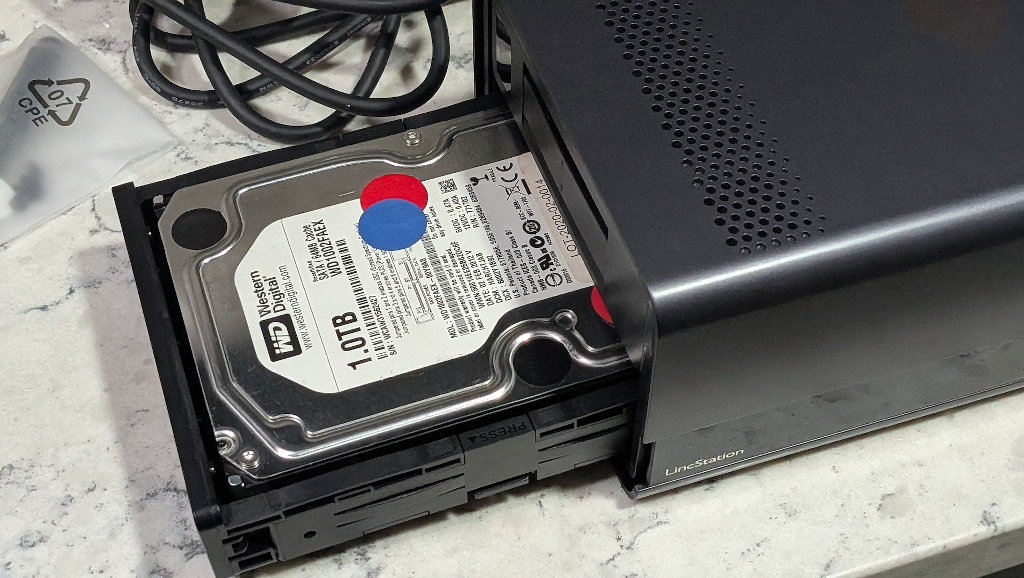
As I wanted to get a real-world consumer experience on a shoestring budget, I went into the LincStation review with, shall we say, modest drives: two 512GB M.2 NVMe solid-state drives and two legacy 1TB 3.5″ mechanical platter drives.
Unboxing and Drive Installation
The LincStation E1’s unique selling point is that it can hold up to 72TB of storage via four drives (2x 3.5″ and 2x NVMe), with minimal desk footprint. The E1 sits on (or perhaps under) your desk and is about the size of an old paperback dictionary. People still know what a dictionary looks like, right?
In the box, besides the unit itself, is a power brick and cable, thermal pads for NVMe drives, an Ethernet cord, and an HDMI cable in case you need to plug the E1 into an external display. NASes generally run headless, but it’s a handy addition if you need it.
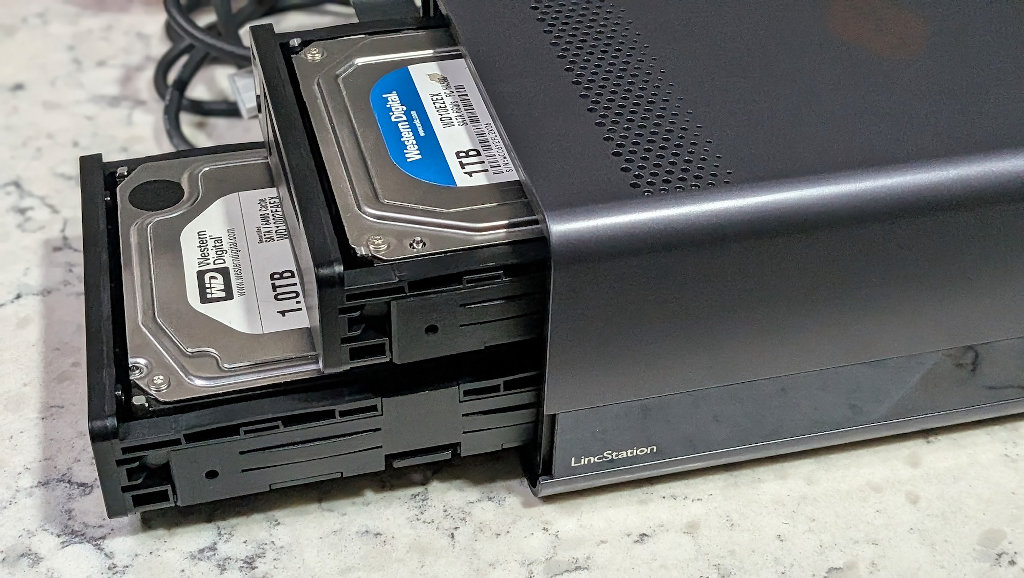
One of the big selling points of the E1 is “tool-free installation”, and I think they’ve delivered. The E1 unit itself feels of decent quality, and reminds me of a miniature version of something like a Dell office PC. Sliding off a slick top cover unveils two drive trays that are compatible with 2.5″ or 3.5″ drives. A similar plate on the bottom of the NAS uncovers dual M.2 slots for solid-state storage.
The M.2 drives are held in place by a spring-loaded mechanism vs screws, and the included thermal pad was a welcome addition as the drives I had to use were still naked until that moment. The whole process couldn’t have taken me more than 5 minutes total.
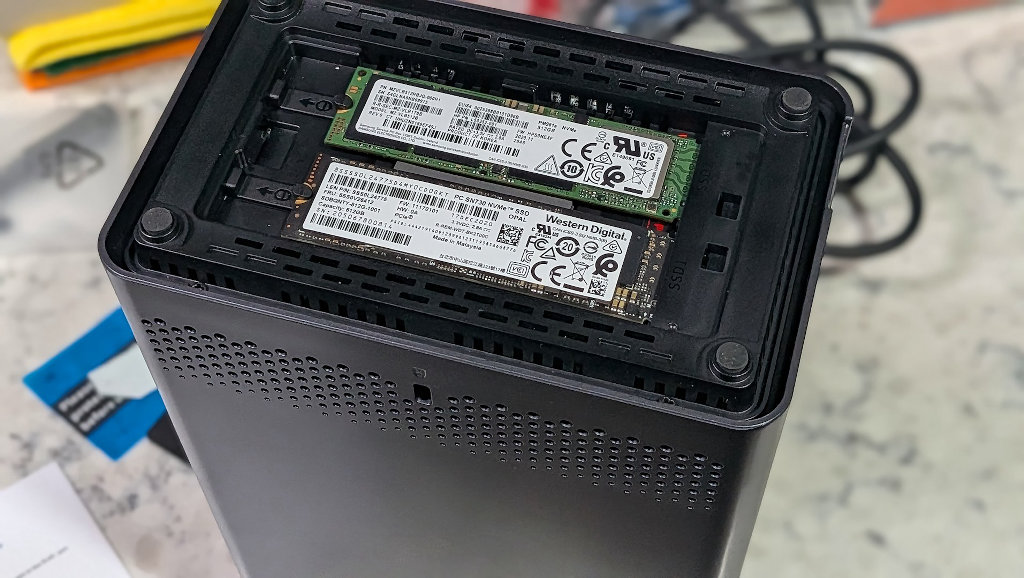
LincStation has nailed the hardware design on the E1. A sleek, compact, modern offering for those looking to expand their local storage and dip their toes into the world of self-hosted storage. Unfortunately, the rest of the package isn’t so rosy.
Gates and Walls
The LincStation E1 runs on a proprietary in-house designed operating system. I assumed this was something akin to DiskStation Manager in the Synology world, and didn’t really think much of it until I actually went to set up the NAS. I should note that I am a Linux fan.
As Windows 11 has continued circling the drain and Microsoft was threatening EoL for Windows 10, I finally threw in the towel and walked away permanently. Well, the LincStation doesn’t like that very much, and thus begins my gripes about the E1’s software package.
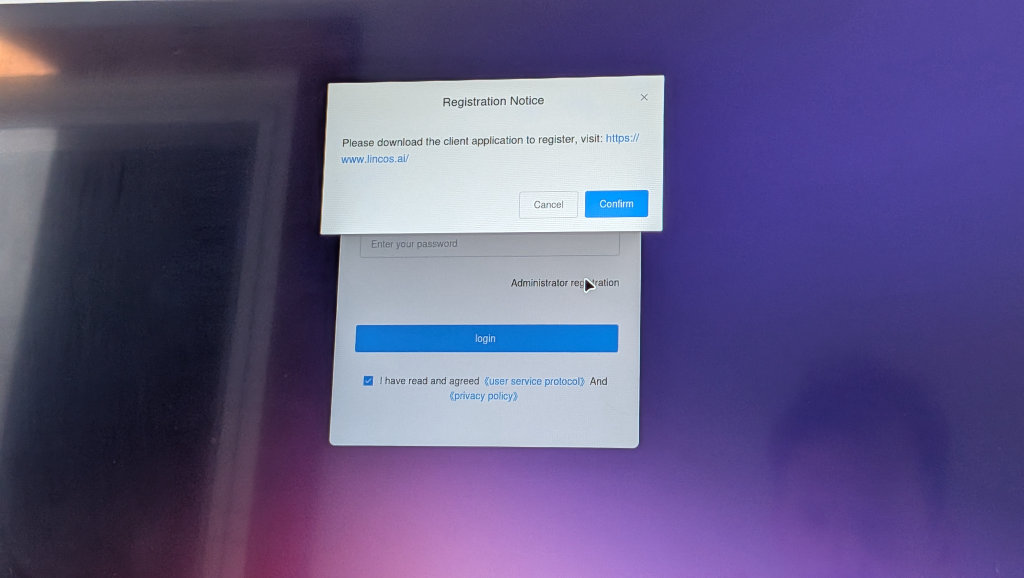
You might ask yourself, quite logically as I did, “Why would my desktop client matter to a headless browser-based NAS OS?”, and you’d be right to do so. Despite any marketing to the contrary, my unit refused to initialize without me spinning up a Windows machine and installing a desktop execution tool. My other option was a mobile app, but more on that later. Once you install the LincStation Windows application, you’re forced to map the device to a central cloud portal on lincos.ai.
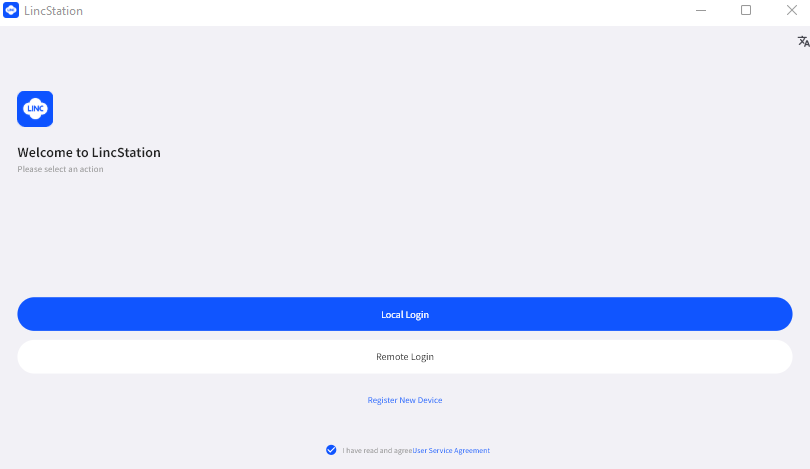
So now that I’ve moved to a Windows PC and initialized the device setup, I was brought to a desktop-like interface in my browser, very similar to the Synology Diskstation OS I mentioned earlier. Now I knew that software development was still early on the E1, with mention of functionality like Plex coming down the pipe in Q3, but this software isn’t close to ready for prime time.
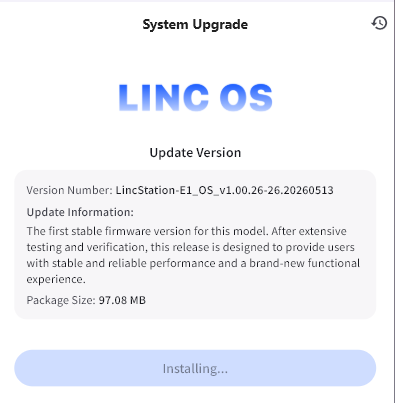
The fact that the company chose to ship the E1 with this in-house software is concerning. It suggests priorities that extend beyond hardware sales alone, and they don’t care if it impacts your experience. There’s nothing here. And, yes, I updated to the newest OS version available at the time of writing.
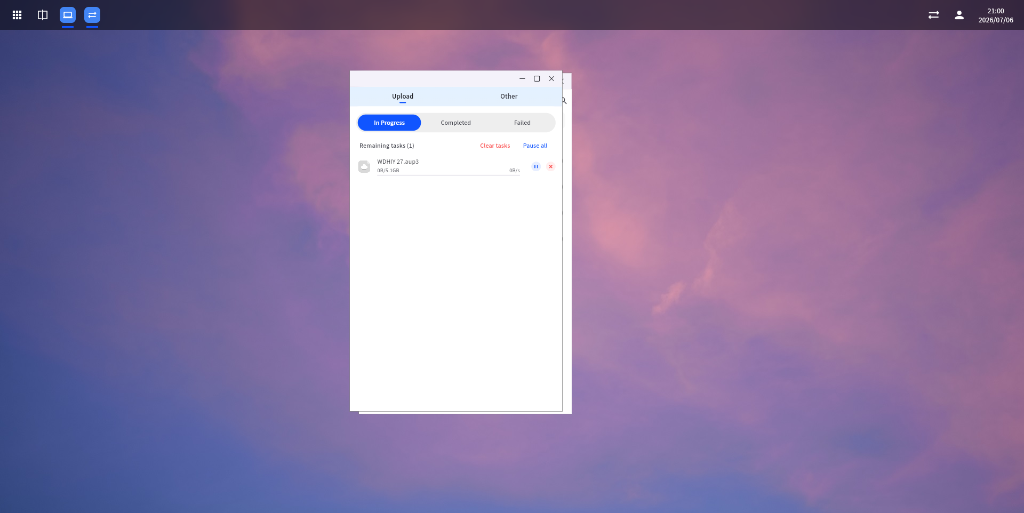
The OS UI populates with a few basic shortcuts. Personal Space is a simple file manager, Task Center (in-progress transfers and the like), and a Recycle Bin. That’s it. When I clicked Settings up in the right-hand corner of the desktop, I was greeted by a window where I could click on “Set Wallpaper” or “About Us”. Nowhere was there anything about formatting my drives and creating a storage pool. Ya know, basic functionality type stuff….
Some internet digging revealed that even though I’d spun up a Windows PC and downloaded the specific software to get things up and running, I’d need to go download the Android app if I wanted to be able to actually use administrator functions.
Just to repeat that point: you cannot manage your disks from a desktop or laptop client.
You have to use a mobile app that’s tied to LincStation servers. I hate mobile-first bottlenecks, and the idea of tying personal file hosting to an external, vendor-managed registration server gate is the antithesis of self-hosting and digital sovereignty.
Building A Monster
As I had installed old hard drives, there was data on all of them. Three out of the four contained Windows installations, and the LincOS file manager automatically mounted them as read-only separate volumes. Since I had no option to manage or even view the drives via the browser-based OS, I had to depend on the Android app. Sensible right? I was able to get into the app and find the NAS on my network, as well as see all the installed drives reporting correctly, but that’s when things started to get amusing.
When I tried to format the installed hard drives via the Android app, the software spat back an “Execution Exception” error at me. No error codes or diagnostics, just a Linux exception. The software team appears to have compiled a simplified GUI wrapping mdadm (Linux software RAID) functionality into the mobile interface, complete with options for RAID 0, 1, 10, 5, and 6, without writing basic logical verification scripts.
The system threw a generic exception when I attempted RAID 0 with only one drive selected. What’s worse, offering complex parity options like RAID 5 or RAID 6 on a device that structurally maps its layout across completely different hardware buses is nothing short of lazy programming that could scare off newcomers.
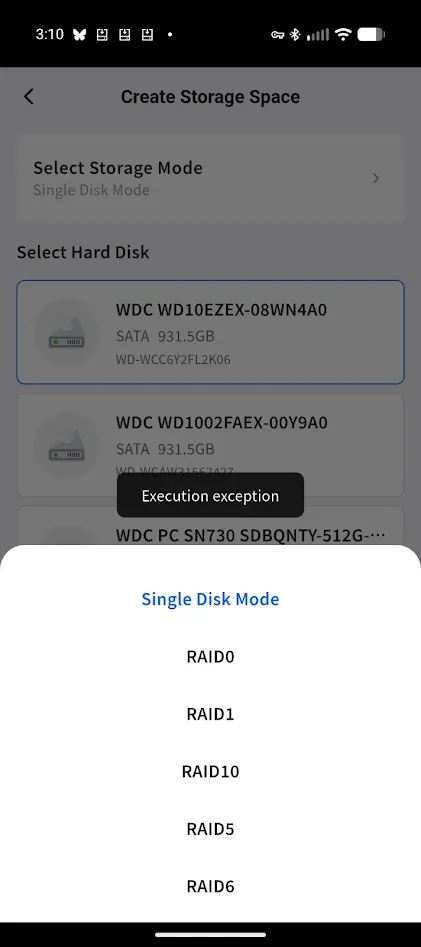
Once I circumvented the buggy user interface constraints by selecting all four installed disks simultaneously, the backend finally executed the command. LincOS allowed me to combine two 1TB 3.5″ mechanical SATA platters and two 512GB M.2 NVMe solid-state drives into one singular, unified RAID 0 storage pool, yielding roughly 2.75TB of usable local space.
From a benchmarking and engineering perspective, this pool is a hilarious, unstable monster. Traditional NAS operating systems (like Unraid) segment or tier these storage types for a reason. Standard RAID 0 stripes data blocks evenly across every member drive in the pool, so the overall throughput of the entire system is instantly dragged down to the slowest common denominator – the physical, spinning mechanical hard drives.
My solid-state NVMe drives are structurally forced to operate at the speed of old platter drives. Worse yet, because it is an unprotected RAID 0 stripe across mismatched hardware buses, if a single sector chokes on one of those salvaged components, the entire 2.75TB volume may become corrupted.

Now I’m not suggesting that anyone do what I’ve done here, but I didn’t have a whole lot of options. The idea of mirroring a pair of 1TB drives with a separate 1TB on the NVMes for cache didn’t make a whole lot of sense. I could have split them into two pools, but where’s the fun in that? But there are more limiting things here than just old storage technology. Waking the NAS up via LAN by just attempting to log in to the Web UI saw me waiting and staring at a spinning icon for minutes at a time.
Testing and Performance
After using the mobile app to create my storage pool, it appeared as though I would be able to manage file transfers and the storage pool via the browser-based OS. Uploads of local files were snappy, with transfer speeds somewhere in the neighborhood of 30MBps, likely limited by the gigabit NIC on my client Windows PC.
Transfers across the network from my server capped out at similar speeds, though, and that’s with them both connected to the same 2.5GbE switch. I also noticed that any file over about 2 gigs can take a long time (multiple minutes) to initialize, regardless of its origin.
I have no doubt that this is another software oversight that needs to be addressed. During one transfer, the entire OS seemed to crash, and when I logged back in, I had more applications that weren’t there before, despite a hard reset post-update.
Once I was able to get files uploaded, the built-in media players all automatically recognized the uploaded file formats and performed reasonably well, except those times when it crashed my Firefox tab…
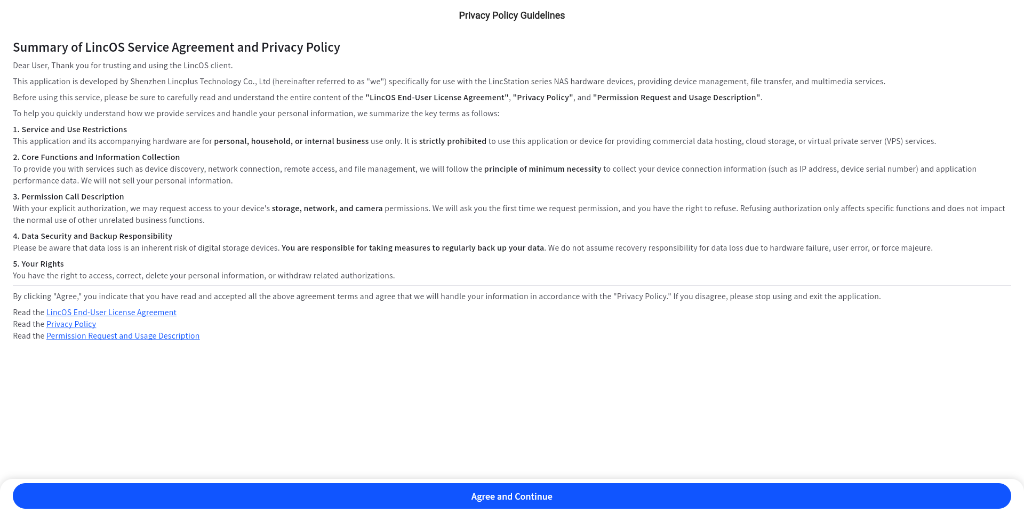
Everything about this software feels janky. I hate to rip it so much as I’m sure it will get better, but it’s in rough shape as it stands.
Conclusions
The LincStation E1 is capable hardware that seems to be hamstrung by an insistence on a proprietary operating system. The mandatory client download to register the device as an administrator is going to be a mismatch for those joining the homelab community to avoid walled gardens. Lack of Linux software support (or forcing software client use period), while making that software mandatory to initialize the NAS, is an additional annoyance.
At $200, the E1 is solid hardware; whether you can afford to fill it with storage in the current market is another story. If you’re a budget-conscious consumer who has wanted to dip your toes into the pool, I’d say wait for now. Keep an eye on the software progression before you commit to the hardware. Seasoned enthusiasts may feel limited by the forced software package.
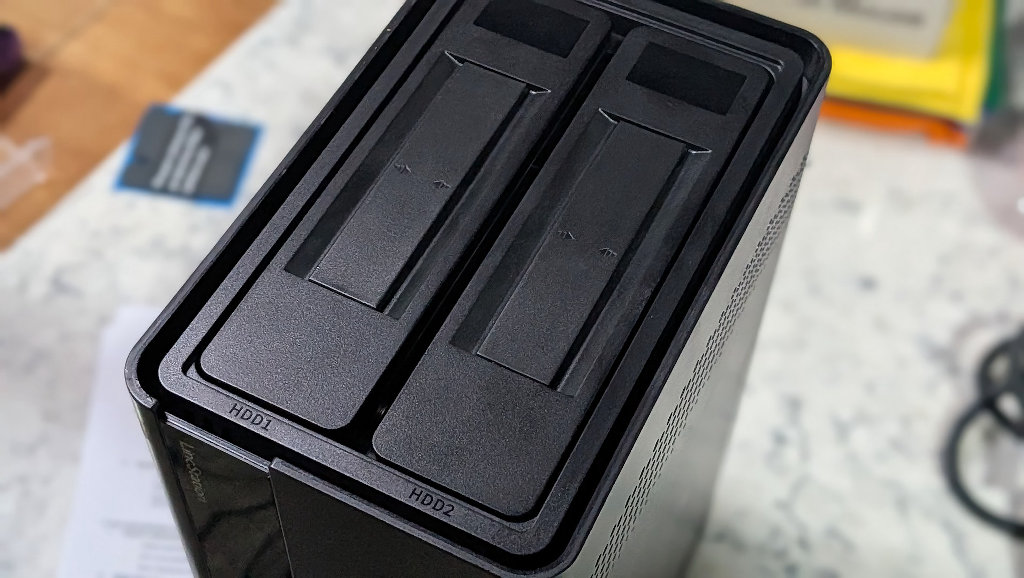
The NAS makes use of a clever design to pack as much network-attached storage as possible into a minimal footprint. Its features like 2.5 GbE and tool-free installation are great, but they’re held back by software annoyances. I can’t help but be reminded of our own retro handheld world in earlier years, where forced implementation of manufacturer-developed operating systems dragged down capable hardware. Maybe the community can step in and help the LincOS too.

1 Comment
One of the best known consumer grade NAS products, made by Buffalo, is the LinkStation, and they decided to name theirs “LincStation”?
How long is this thing going to be available for?