

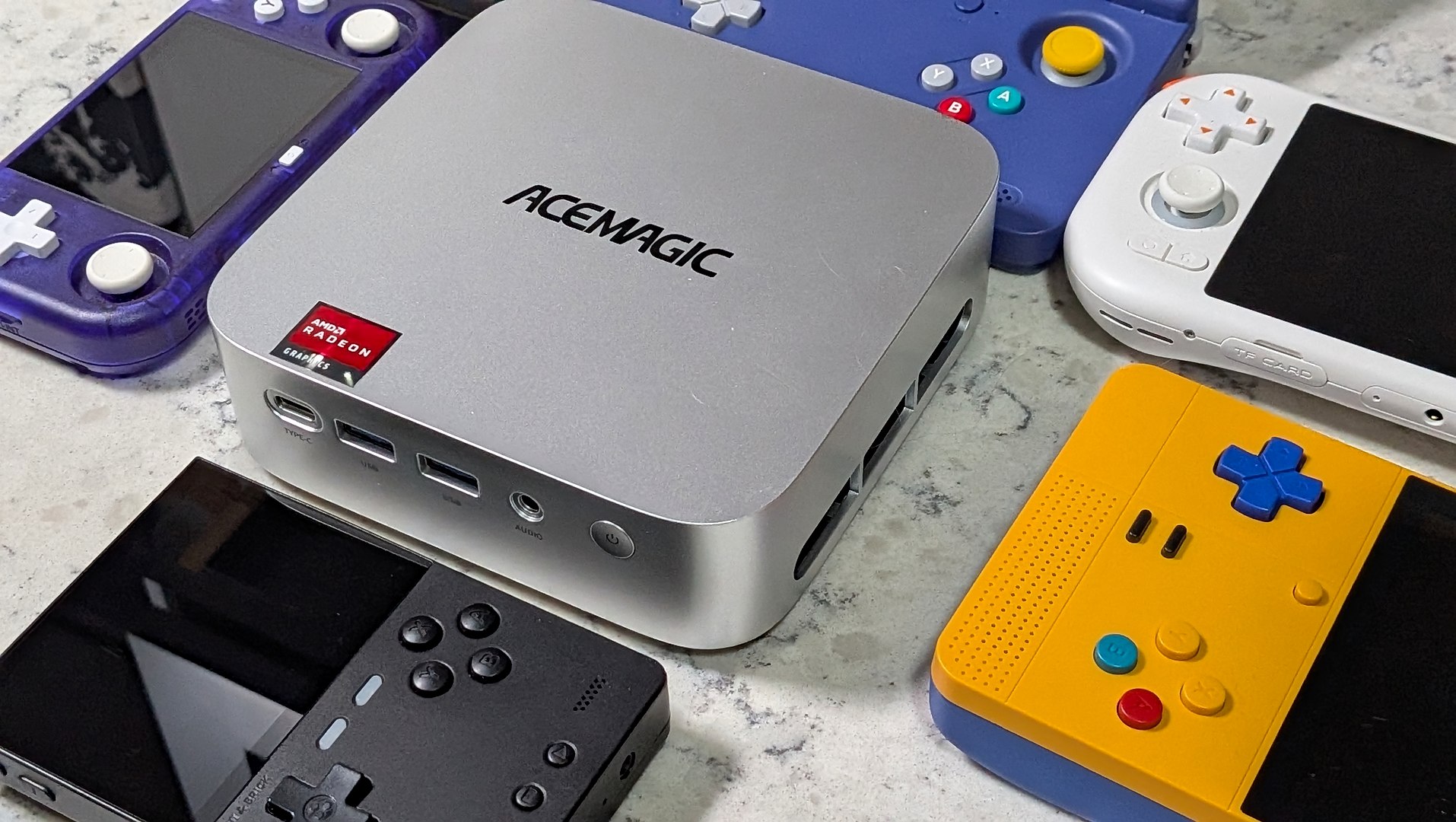
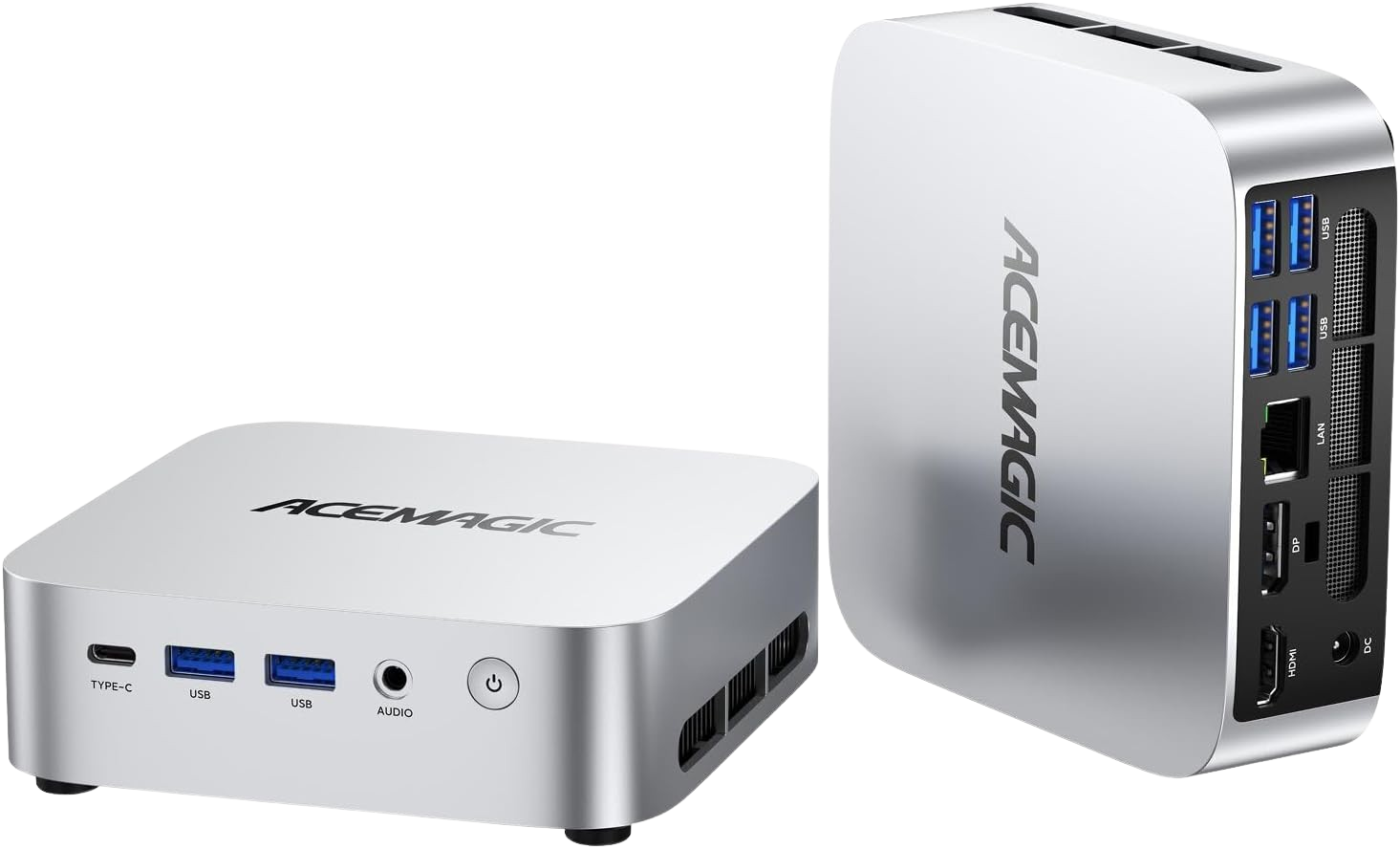
I love mini-PCs. Having grown up in the age of the full tower 386, it never ceases to amaze me how far we’ve come. To use the eternal Marge Simpson quote – “I just think they’re neat”. The ACEMAGIC Kron Mini K1 is barely larger than a few decks of playing cards, and yet it’s capable of things I could have never dreamed of back in my early computing days.
Tech today is too often broken down into raw numbers and thrown into the pile if it’s deemed “less capable”, but this is the wrong way to look at things in my view. The current RAMpocalypse and spurious AI tech takeover have sent PC component prices into the stratosphere.
This has created a ripple effect that sees many manufacturers scrambling to try to do more with less. Brute force hardware is off the table right now. We need to concentrate on the right tools for the job, and sometimes the right jobs for the tool.
Now, a lot of you might roll your eyes and scroll right past yet another mini-PC emulation review, but that’s not why we’re here. I want to show how these capable little devices can offer big-time 24/7 function while only sipping on your home’s power. Tons of potential function for pennies in energy cost.
A Coverage Conundrum
I could write yet another article telling you how this PC will emulate each console, but that’s been done. The fact is that after Windows 11 steals ~4GB of the 8GB of RAM that the unit came with, and the iGPU on the AMD R2544 chipset takes another 2GB for VRAM, we’re left with just 2GB of memory to pass around in a Windows environment. Not a lot to go around…but such is the story of RAM these days!
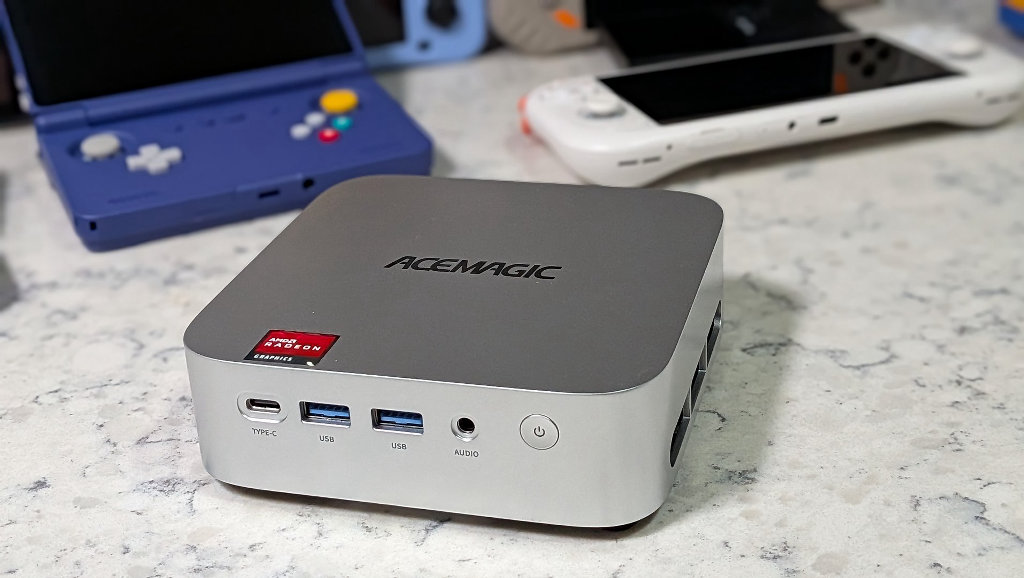
If you’re running this PC lean and mean with no background processes on, it’d be reasonable to expect full library support and even 1080P upscaling into the Dreamcast and PSP levels, and 1x GameCube and PS2 titles would also be on the table. Demanding titles like F-Zero X or God of War 2 is where things will start to get tricky, and anything beyond that is going to likely be a chore.
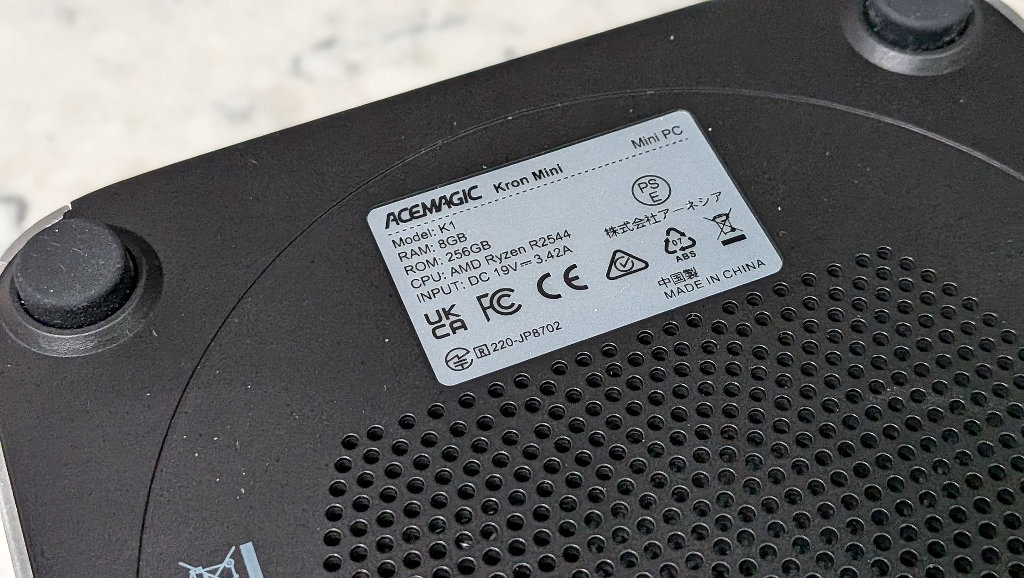
To be fair, this is a perfectly functional PC for daily office use. If you’re just looking for something to act as a daily driver for web browsing and spreadsheets, you’ll be in good shape. But you likely already knew that. I don’t need to write about that.
What we can do, though, is explore how valuable a little PC like the ACEMAGIC Kron K1 Mini PC can be when freed from the shackles of Windows bloat and given a dedicated task as a 24/7 network pal that’s always there when you need it.
AceMagic Kron Mini K1 Specs
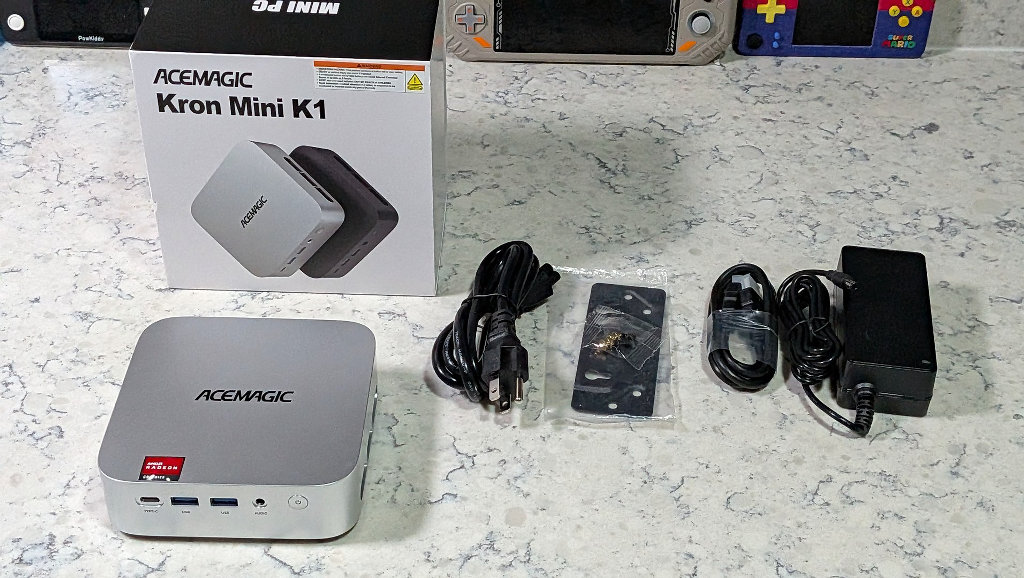
Customers have the option of beefing up the RAM and storage to something that fits their use cases, but for our purposes today, I’ll be using the PC as it was sent from AceMagic. Coincidentally, AceMagic uses this same R2544 Ryzen chipset in their N3A NAS system. That’s funny, because the chipset is very well suited to that application, and we’re going to be taking advantage of that fact with our mini-PC project here.
| Specifications | |
|---|---|
| Hardware | |
| Processor | AMD Ryzen Embedded R2544 (4 Cores / 8 Threads, up to 3.7 GHz Turbo) |
| iGPU | AMD Radeon Vega 8 Integrated Graphics |
| RAM | 8GB DDR4-3200 Single-Channel (Upgradeable to 64GB via 2x SO-DIMM slots) |
| Power Supply | External DC 19V/3.42A Power Brick |
| Storage | |
| Hard Drive | 256GB M.2 2280 NVMe (Upgradeable up to 4TB total via dual M.2 slots) |
| Software | |
| OS | Windows 11 Pro |
| Connectivity | |
| Internet | 1x RJ45 Gigabit Ethernet, Wi-Fi 5, Bluetooth 4.2 |
| I/O | 6x USB 3.2 Gen1 Type-A, 1x USB-C, 3.5mm Audio Jack |
The Ryzen R2544 is technically an APU/SoC (system-on-chip) similar to those powering your favorite retro handhelds – though they are purpose-built with very different workloads in mind. Given the PC’s dual M.2 slots and additional DIMM slot, this Acemagic mini-PC is perfectly suited for homelabbing purposes. Rid yourself of the vision of a whirring server tower humming 24/7 in your home.
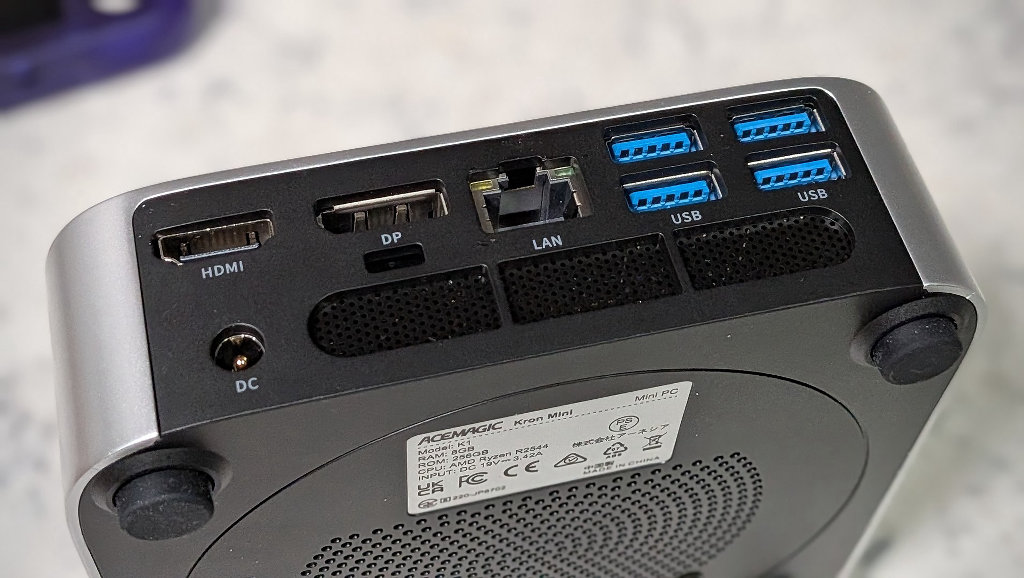
The Acemagic K1 can live in a closet for its entire life without anyone ever likely to notice it was there. All it needs is power and an internet connection, and you’ve got yourself a home server you can log into from anywhere in the world. Which means your ROM and BIOS collections are available to you from everywhere, too.
24/7 Appliance Math
So if we aren’t going to use this PC as a middling Windows emulation system, what’s the best move? We’re going to turn this scrappy little AMD machine into a ZimaOS server running RomM. This will require the PC to be at least idling all the time. This sounds scary, but with an idle power draw of ~12-15 watts, the math is reassuring. My local electrical provider is hovering around 16.5c per kilowatt-hour (kWh), the last time I checked my usage stats. Let’s call it 17c per kWh and a 15-watt constant draw to be fair.
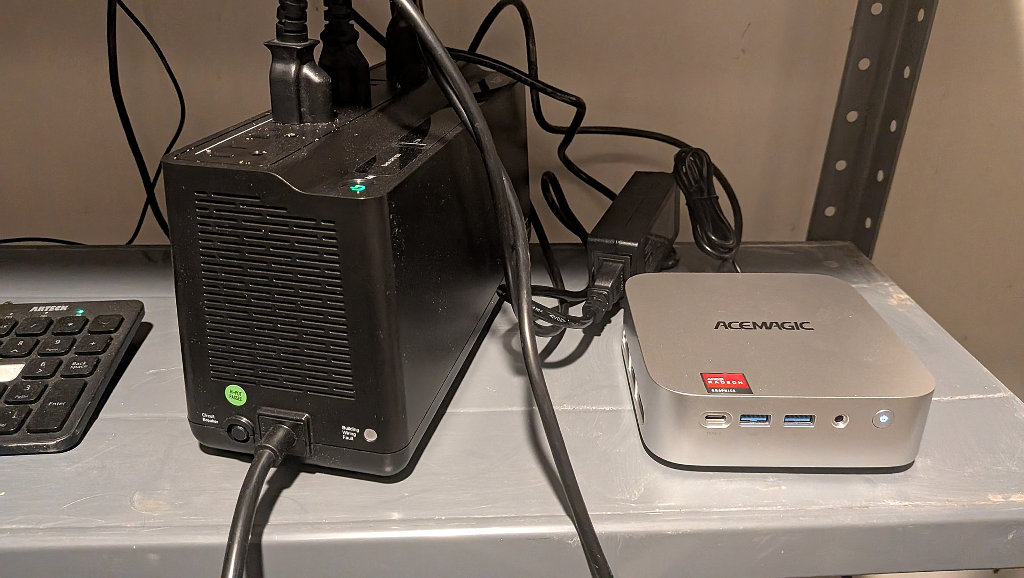
I’ve spent the last 6 months working on a DIY solar/battery setup to power my house, so electrical idle draw has been something of an obsession around here lately. You can lose money in some surprising places, but modern PCs (especially of the mini variety like what we have here) are marvels of efficiency.
15 Watts X 24 hours a day running x 365 days per year = 131.4 kWh
131.4 kWh x $0.17 = $22.34 approximate annual operating cost
Now, of course, this is just a loose estimate, and if your homelab server spends its life transcoding 4k video all day long, your costs would be higher, but for our purposes here today, they should remain fairly minimal.
That’s a whole lot of functional value for 22 bucks per year. You can leave this PC powered on for a year for roughly the same cost as eating lunch at Five Guys these days.
The Backbone: ZimaOS
Ditching the bloat of Windows 11 is our first order of business, and ZimaOS is here to make running a homelab server as intuitive and friendly for newbies to the hosting world as is probably possible, and it’s free! It’s a no-nonsense approach that keeps you out of the terminal window and inside a comfy browser-based UI.
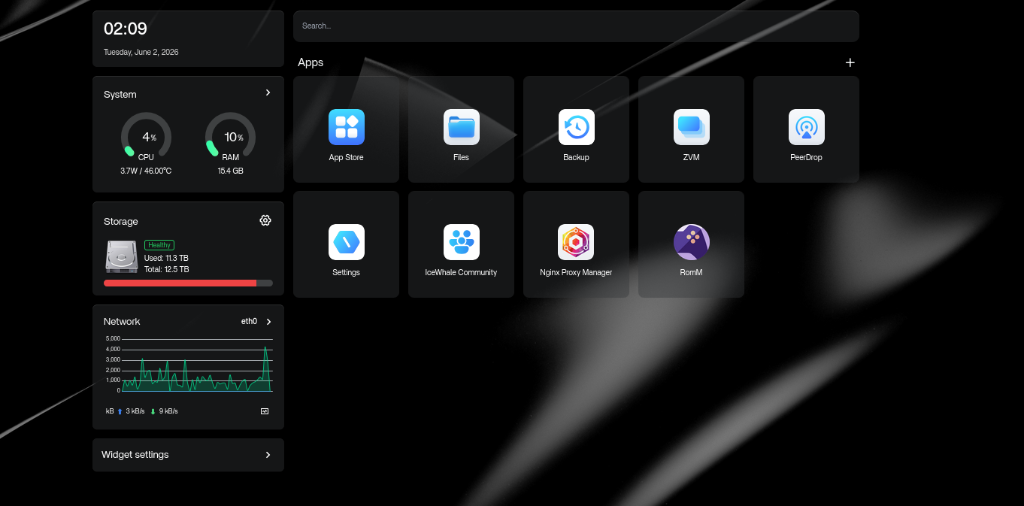
If you’ve ever installed CFW on a retro handheld or replaced Windows on a standard PC, you should have no problems setting up ZimaOS and any Docker packages you might be interested in. Just write the downloaded image to an external USB, insert it, and install. If there’s interest in ZimaOS and RomM out there, maybe I can write up a more in-depth tutorial in the future, but it’s pretty straightforward. Don’t be scared.
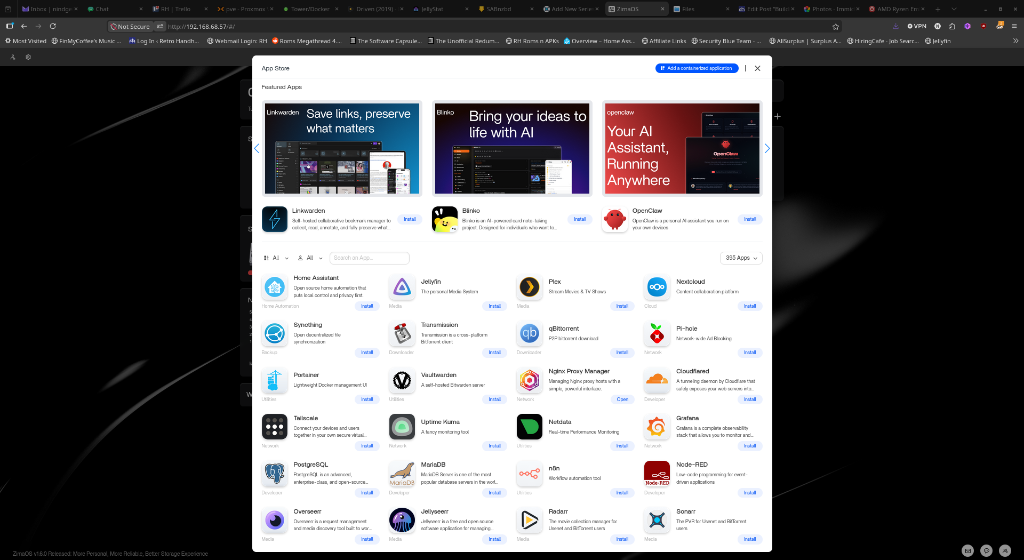
At its core, ZimaOS is a graphical UI for Docker management. It strips the intimidating bits of Linux out and offers a simple user experience that anyone familiar with a mobile app store can navigate with ease.
Your ROMs, Anywhere: RomM
We are very spoiled and fortunate that this hobby has so many talented developers willing to create awesome projects for the community, and The RomM Project definitely qualifies as awesome. Having a central repository of ROMs and BIOS available eliminates the regular pain of playing the micro-SD shuffle. Eject the card from the device and take it back over to the PC to drag and drop that one game that you realized you wanted to try on this device. Now, something that felt like a pain can be accomplished without sitting on the couch.
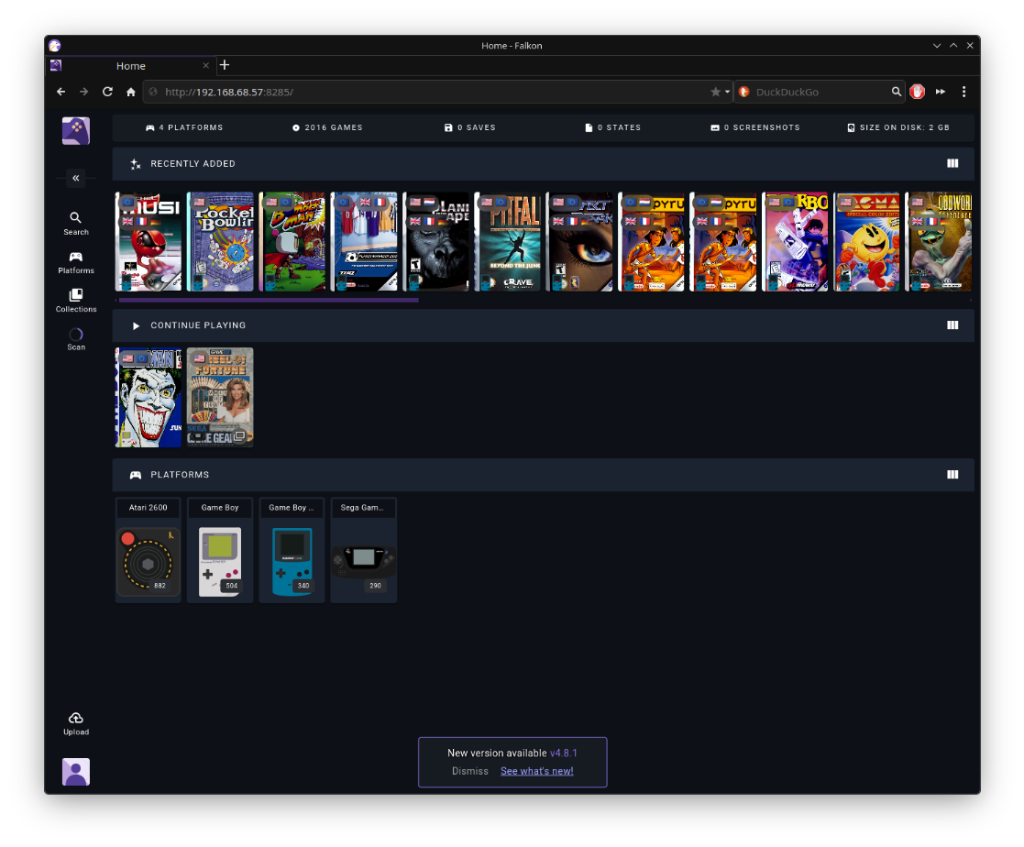
Basically, it works like this: You point RomM at your ROMs directory, be it on internal storage of the host PC, an external hard drive, or another storage pool on the network. The software then scrapes all of your ROM collection and matches the metadata with the information on IGDB or ScreenScraper.
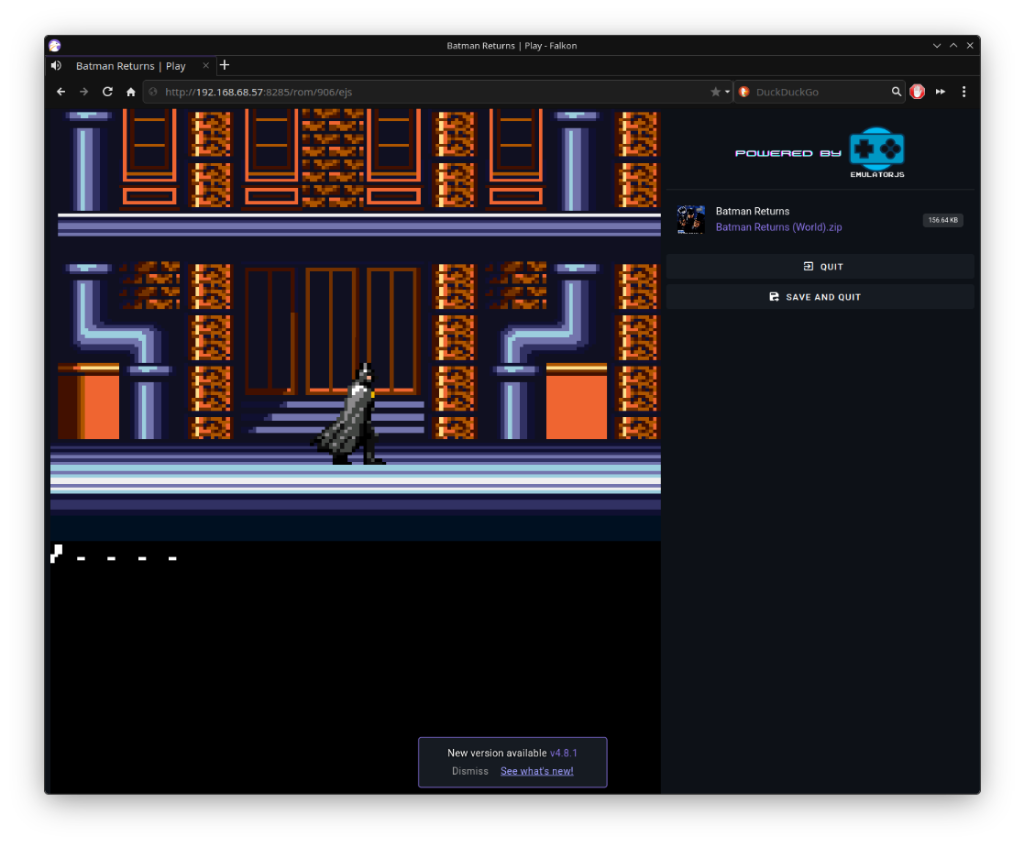
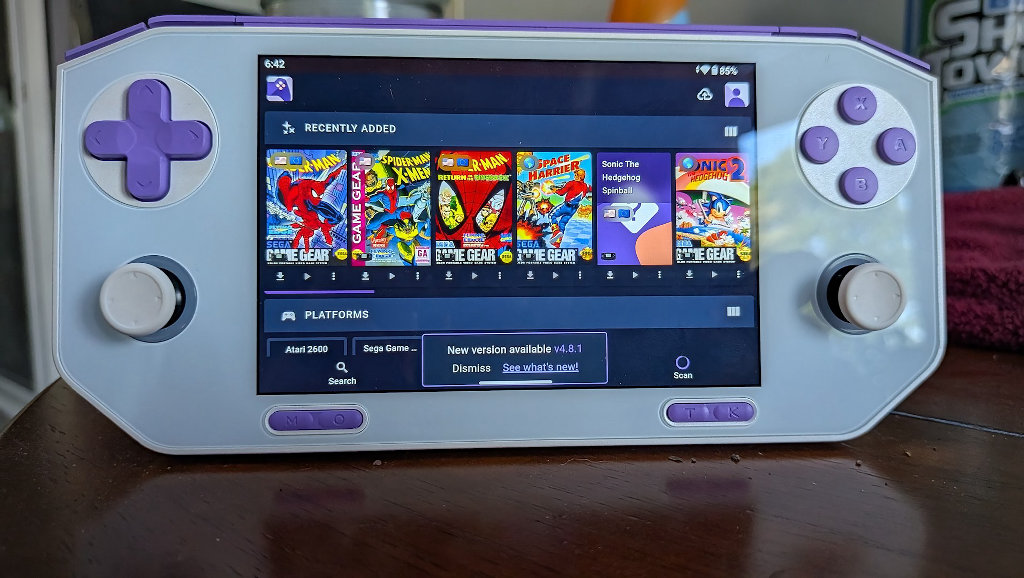
Once RomM has your library information, it caches the database information and associated media centrally and creates a library of games now accessible (and even playable) from anywhere. MuOS users now have the option of a dedicated client app!
RomM’s (Coming Soon) Killer Feature: Save State Sync
Note: At the time of writing, the save sync feature has not been natively implemented into RomM, yet. The feature is currently available via 3rd party client Grout for those who might be interested in skipping the wait. As it stands, you can still store and pull save files from your RomM library, but you will have to do it manually for the time being with the native version of the app. In-browser gaming sessions will automatically detect any associated saves, also on the server.
Anyone who has ever used a Steam Deck or something like the Odin 3 running GameNative will be familiar with save syncs. After clicking launch on a title, users are presented with a choice. Should the game use the save data stored locally on the machine, or the one that was last backed up to the cloud? Presumably, RomM save sync will work just like that.
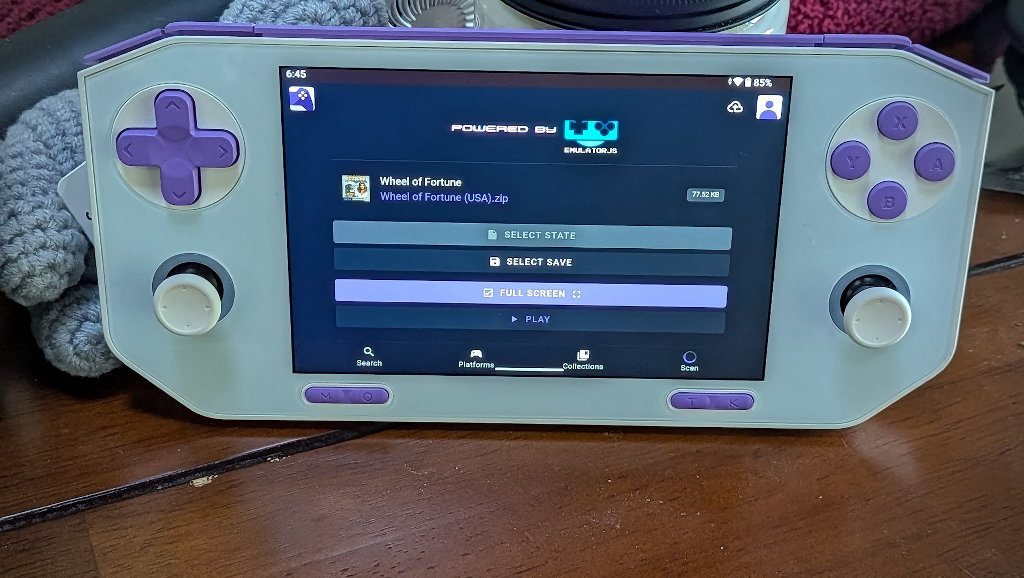
Once you’ve synced a device with the RomM server, the software will compare any save file timestamps on the handheld and compare them to any that may already exist on the server. You can then turn on another handheld in your collection, sync with your server, and voilà – Mario is right back in the exact same place you left him when playing on a different handheld.
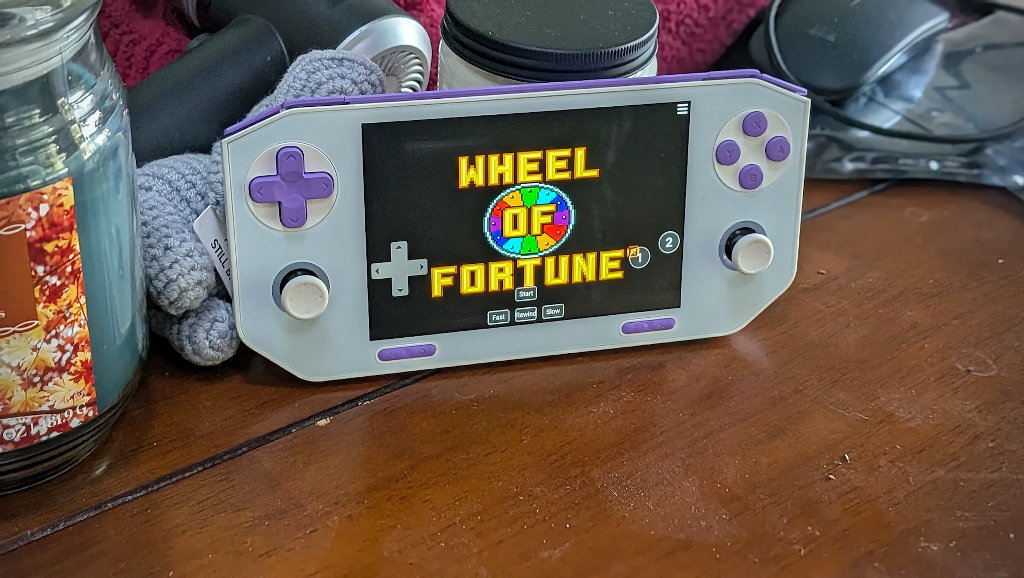
The only difference is that, here, you’re the cloud admin, and all this data lives somewhere in your house where you can access it at any time for any reason. Your collection and saves are yours, and can remain backed up indefinitely on your own hardware. That’s a perk.
Get Hosting
In a world where PC components are growing less affordable by the day, and every service you’ve ever interacted with in your digital life is attempting to turn out your pockets with yet another forever subscription, self-hosting is the answer.
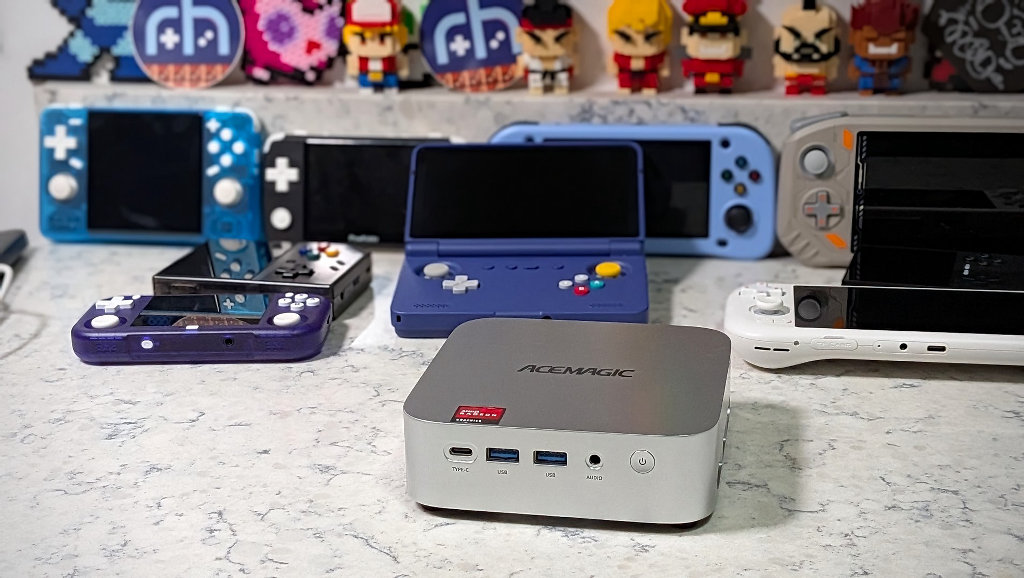
Streaming your own music, shows, and movies with software like Jellyfin (Plex’s new lifetime licensing fees for hosting are an absolute joke) and Emby is just the beginning. RomM now brings retro-gaming anywhere you are with in-browser playable games (cartridge-based systems) and your ROM collection, direct to any internet-connected handheld, on demand. It’s your media. You own it. You should have access to it.
If everything goes as it should (and very much has so far), the AceMagic Kron Mini K1 should live out its days on a utility rack in my back-basement next to the furnace and water heater. It has no monitor, keyboard, or mouse plugged in, but it should now serve an important function every time I set up a new handheld or need quick access to that game from 1992 that I forgot existed until that very moment.
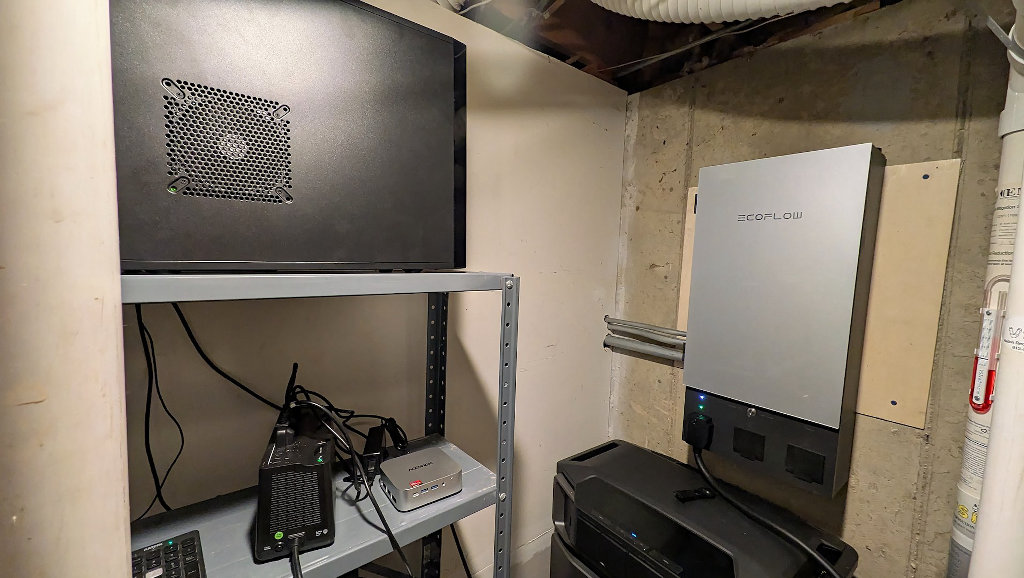
Maybe it wouldn’t be great at trying to emulate PS3 games, but the Kron Mini K1 mini-PC is the right tool for the job when it comes to stealthy power-sipping homelabbing. The ZimaOS app store has enough fun projects to keep even the most obsessive tinkerer busy for the rest of their days, and the added power of the R2544 chip over its counterparts like the Intel N150 makes this AceMagic PC the perfect choice for a versatile project like this. Now, get out there and find some cool Docker projects!
