

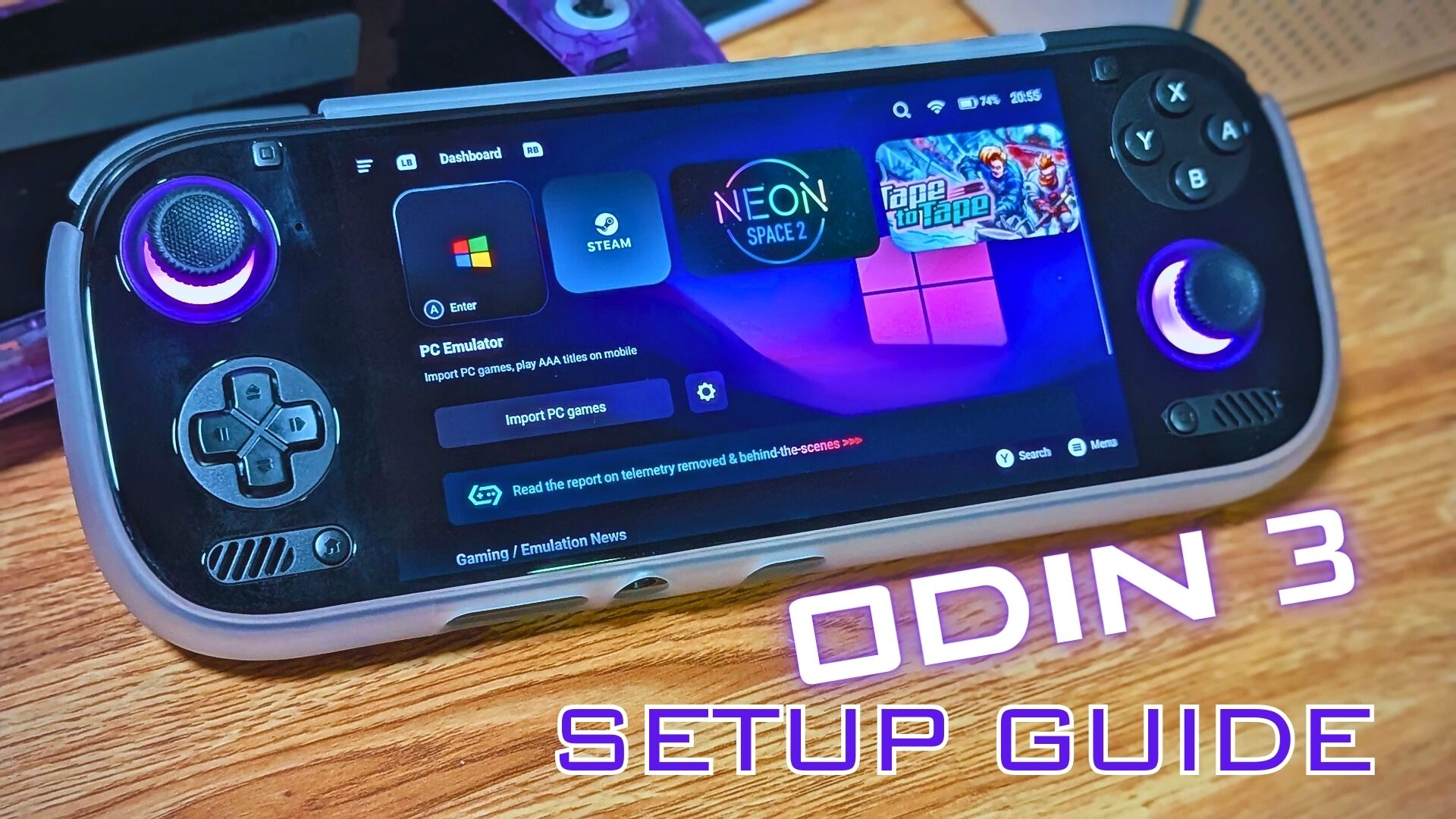
The reigning king of Android power, the great Odin 2, has been dethroned by his own son. The latest heavy hitter from AYN has finally arrived and has more power than I currently know what to do with.
I’m a few days in with the AYN Odin 3, and even without full community driver support, it seems to absolutely chomp on whatever I throw at it. The future for the Odin 3 will be very bright, and I cannot wait to follow the progress. For now, though, let’s get you up and running.
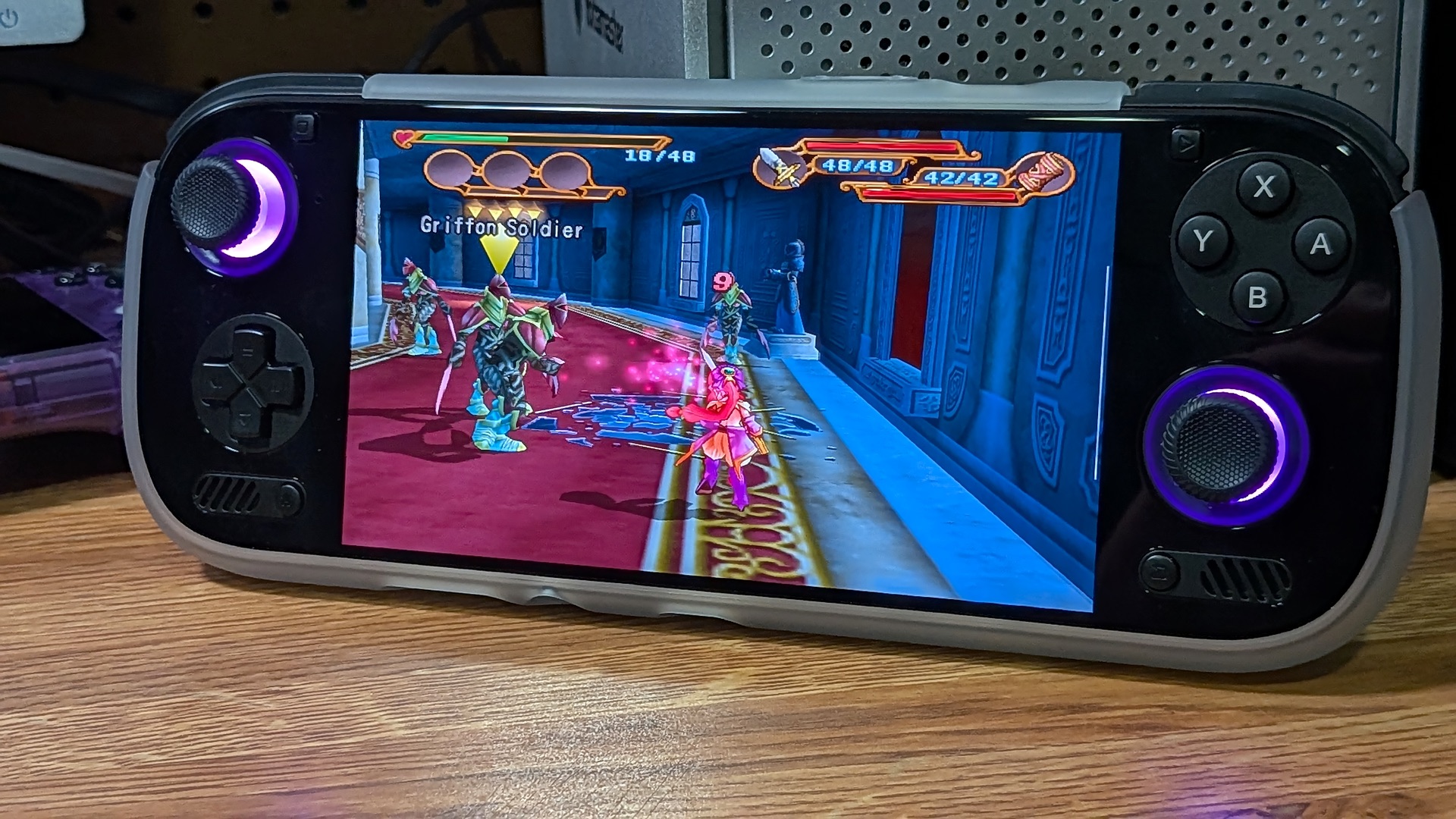
The AYN Odin 3 ships bare bones in the software department. This is not an Anbernic Android device loaded to the gills with questionably licensed software pre-installed. This is a premium device, but it’s going to be up to you to get it running to its full potential. Fear not, for we’ve got you covered. Here is everything I’ve done to get my Odin 3 in gaming shape.
As more users get their hands on the device in the community, it is inevitable that we will see a flurry of new releases catering to the Odin 3 and its Snapdragon 8 Elite chipset. This device is still as new as they come, so hopefully we’ll be able to update this guide over time as things progress.
Table of Contents
Choose the Install to Rule Them All
Which Odin 3 Model for Me?
If you’re still debating which version of the Odin 3 to go for, consider your own needs. All versions of the Odin 3 will come with the brand new Qualcomm Snapdragon 8 Elite chipset and hardware. The differences between models come in the form of RAM and storage upgrades. The Odin 3 is offered in Base, Pro, Max, and Ultra (currently not available) versions.
Each step up the ladder will see a boost in RAM and internal storage. I opted for the Pro model for the Odin 3, just like I did with its predecessor. If you think you’re going to be someone who is looking to push the boundaries of PC emulation on Android, then maybe it’s worth considering the Max or Ultra (if it’s still available with the hardware market going insane).
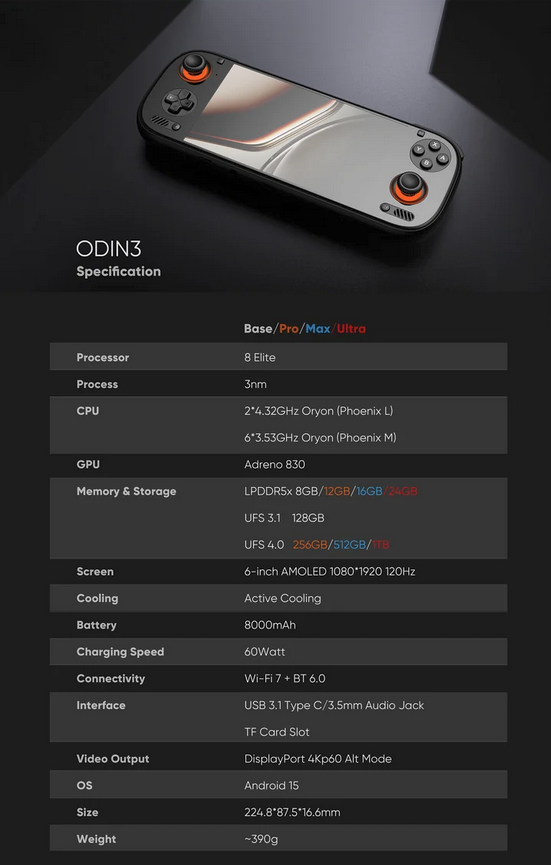
The 12GB of RAM and 256GB of onboard storage in the Pro model are sufficient for my needs. As much as I enjoy native PC gaming on these devices, once I get up into more demanding titles, I’m more inclined to stream the game from my dedicated gaming desktop.
Artemis has local PC streaming to a point where it’s so good I can barely tell the difference between that and games running native sometimes. If you want the extra horsepower, by all means go for it, but I’m not convinced there is a need for all the extra beef and the costs associated with it, yet.
[button link=”https://rh-go.link/AYN-Odin-3″ color=”red” newwindow=”yes”] Buy the Odin 3 @ AYN [/button]
AYN Odin 3 Accessories
Case/Shell
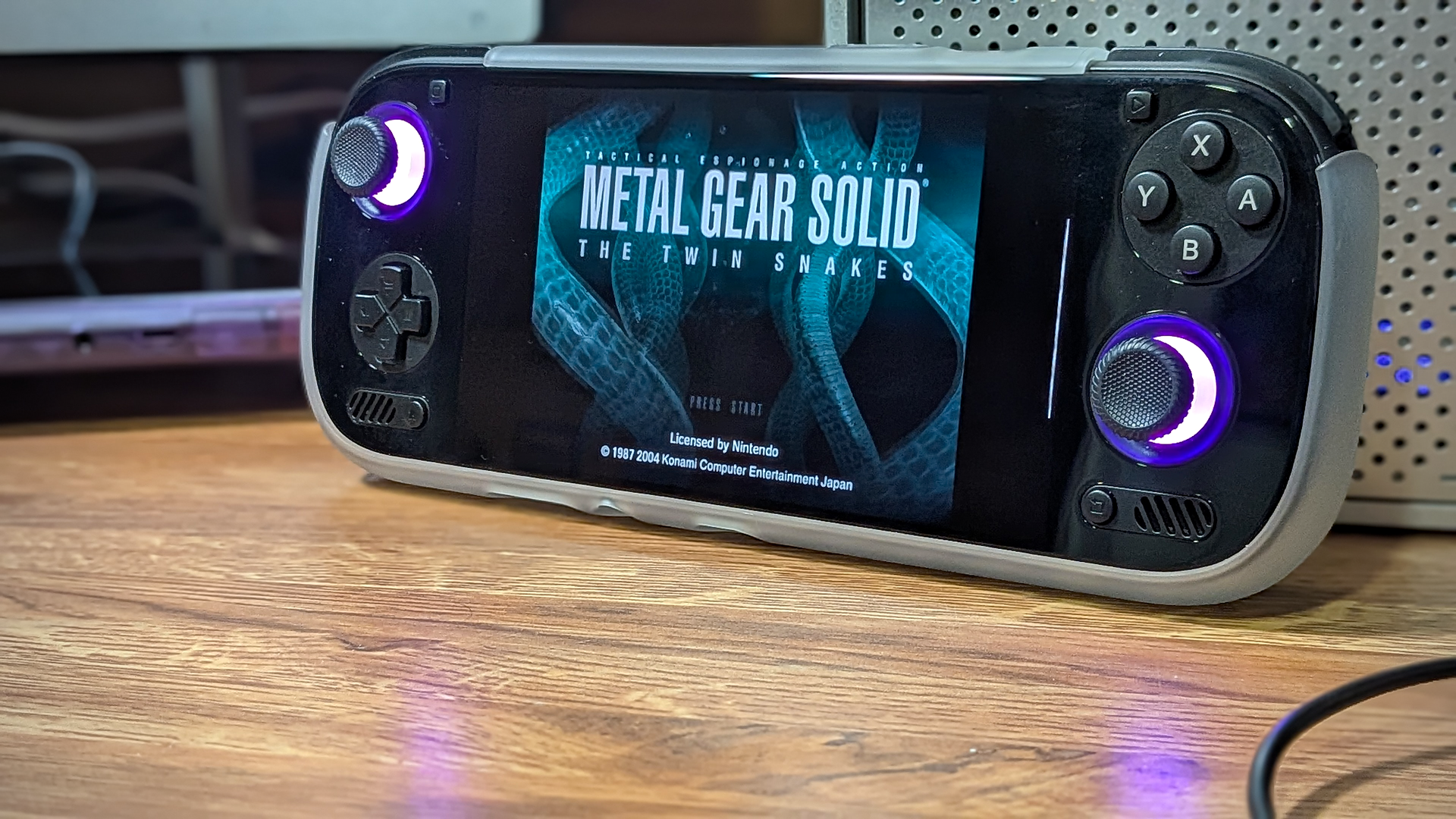
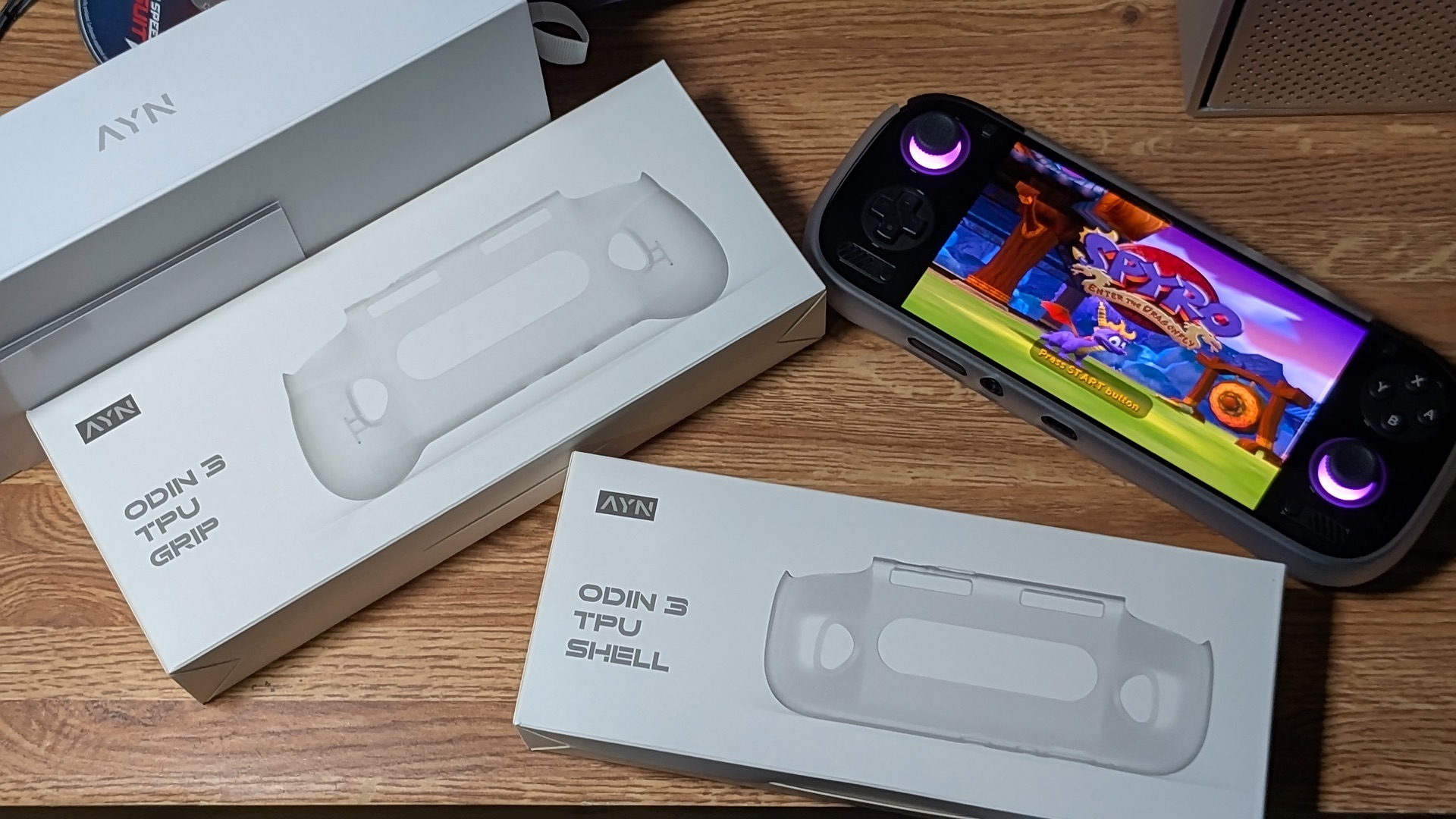
If you are in the market for a shiny new Odin 3, there are a few extra things you’ll probably want to consider adding to your order. While the pre-order stage is still open, users can expect their device to ship with a free TPU protective case. Although that will protect the device in transport, you’ll probably want to consider a shell as well for protection from drops, and/or improved ergonomics.
My unit came with the TPU shell as well as the TPU grip. The shell is more or less just a protective shell that matches the existing contours of the device design, whereas the grip adds some additional handle girth to the total package. It’ll have to be up to your own preferences to decide whether either of these will be for you, but I found the slight increase in bulk from the TPU shell to be the perfect comfort level for my hands.
Official AYN Odin 3 Accessories
External Storage
Depending on the level of internal storage you’ve selected, or if you’re anything like me, regardless of it, you’ll probably want to pick up an external micro SD card. External storage solutions are a lot easier on the wallet when compared to internal increases.
If you’re going to be using the Odin 3 for PC emulation purposes, you may want to save as much of that internal storage as possible and keep all of your emulation ROMs on an external card.
Docks
The Odin 3 can make for just as great a hybrid console experience as something like a Nintendo Switch or the Steam Deck; perhaps even more so when you consider the device’s extreme versatility. For this reason, I think it’s well worth considering a dock to go with the handheld. I love having a dedicated cradle for my No. 1 handheld right there on my desk. I can plop the device in to charge, and have it ready to go on the TV if I so choose.
Cards on the table: I’ve never used one of the official docks from AYN. I’m sure they work as advertised, as this isn’t a company known for shoddy hardware. Plus, it’s still the same Odin 2 Super Dock that was sold with the previous generation of units. This is great for two reasons from my view.
First, if you already own a dock for your Odin 2, you can be sure that it will probably work just fine with your Odin 3. Secondly, it means that we know there’s nothing proprietary about docking with the Odin 3 vs the 2, which means an entire range of 3rd party docks are available. To wit. The Skull & Co Jumpgate Dock that I reviewed for the Odin 2 still works great with my shiny new Odin 3.
- AYN Super Dock
- Razer Dock Chroma
- Anker Steam Deck Dock
- JSAUX M.2 Docking Station
- JSAUX Docking Station (HB0609)
Choose The Install to Rule Them All
Either of the below-listed options makes for a great way to simplify the setup process on your new Odin 3. Back in the before-times, in the long-long ago, we had to do everything step by step manually.
If you’re a seasoned pro in the Android space and already know what you want, go out and get it, but for those who may be a little intimidated by the blank slate they just received in the mailbox, there are simple options now to get you gaming ASAP.
Obtainium
I’m a huge fan of Obtainium and the Obtainium Emulation Pack. Many thanks to the fantastic developers making my life easier every time I need to set up a new Android device. Obtainium will provide direct download links to almost everything you could want or need for a fresh Android install. Straight from the dev sources; no middlemen.
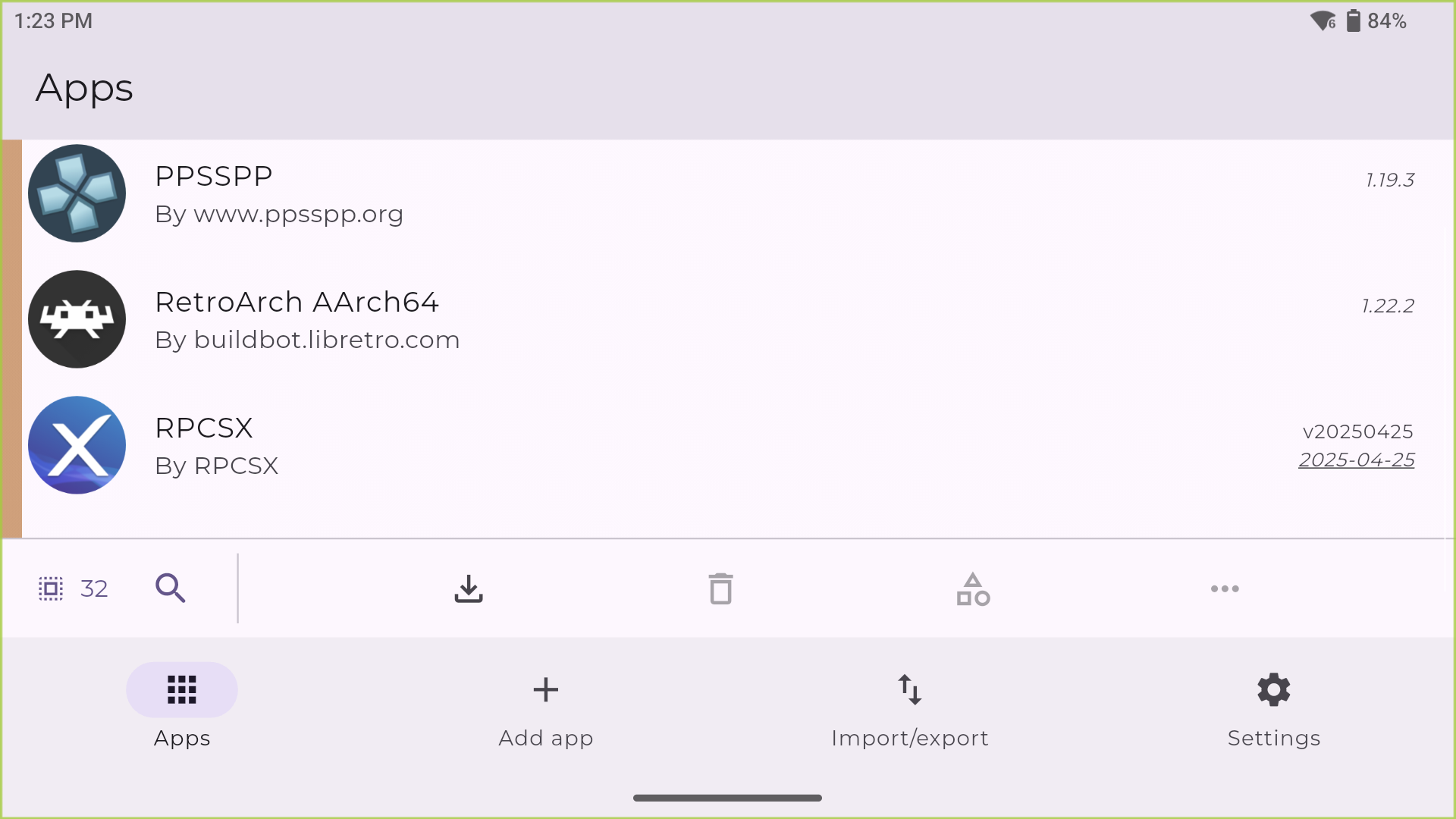
You can choose to add any programs you’d like to have on hand to Obtainium to make sure that you get the latest updates as soon as they appear on GitHub, but importing the Obtainium Emulation Pack will get you 95% of the way there by importing a single file into Obtainium. Here’s how to do it.
- Download the latest Obtainium release APK from the browser on your Odin 3 device (this saves us having to transfer files back and forth from a PC). Since we’re running the new Snapdragon 8 Elite, you’ll want to make sure you select the arm64-v8a release to make sure we’re taking advantage of all that processing power. And unless you want the F-droid “de-googled” package, I’d opt for the base release APK.

- Run the downloaded APK file and follow the prompts to install Obtainium on your Odin 3 device. If you need to enable Developer Mode on an Android, go to “Settings,” then tap “About device.” Find the “Build number” and tap it seven times. Congratulations, you’re now a developer with full device permissions.
- Now, also directly via your device browser, you want to grab the latest release of the Obtainium Emulation Pack. Save the downloaded file in your Downloads directory or anywhere else you can remember on the device. We’re going to need to know where it is in just a second.

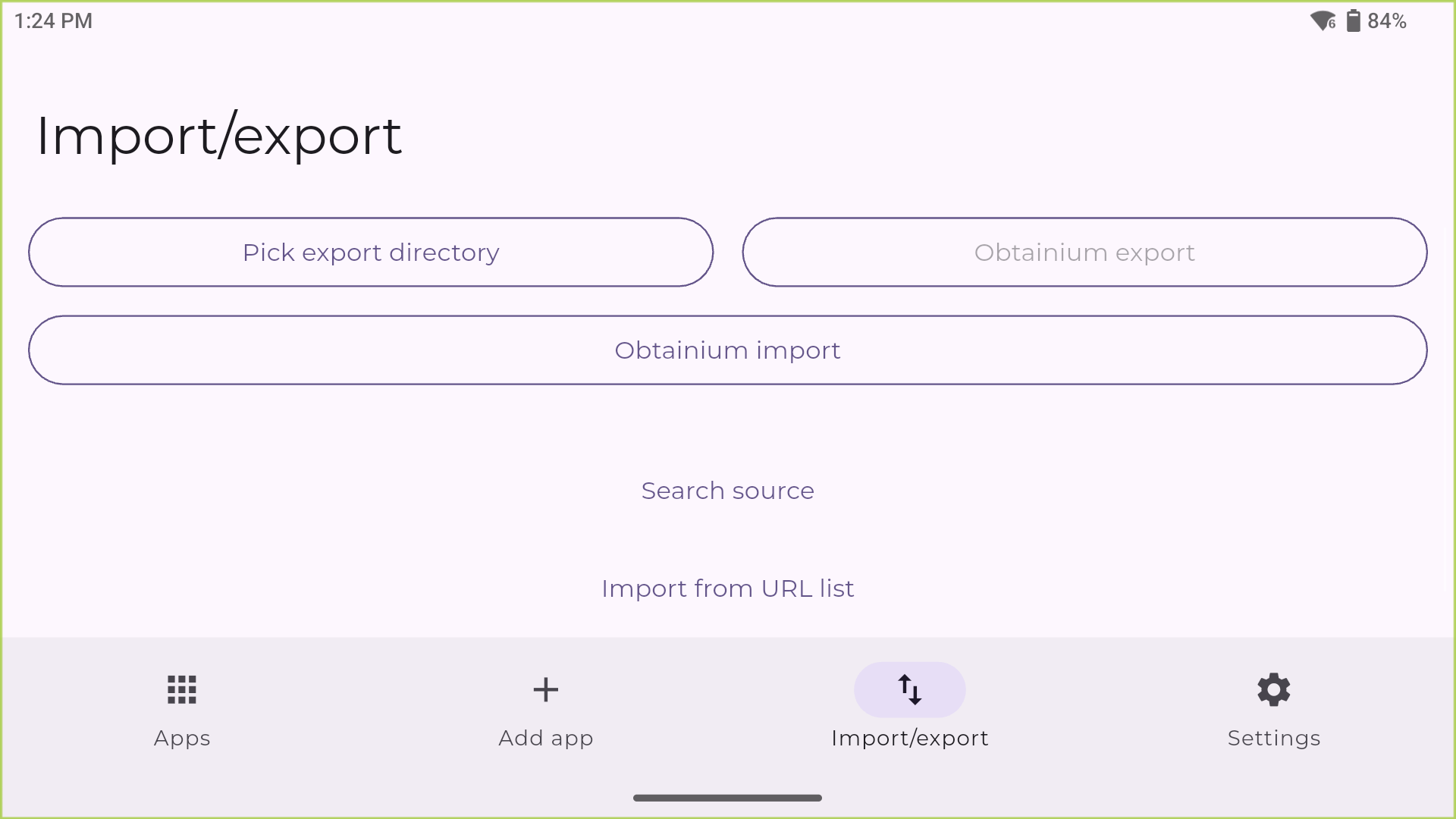
- Navigate back into the Obtainium app, and from the bottom menu of options on the main screen, click on the Import/Export button. Then, hit the Obtainium Import button right there in the center.
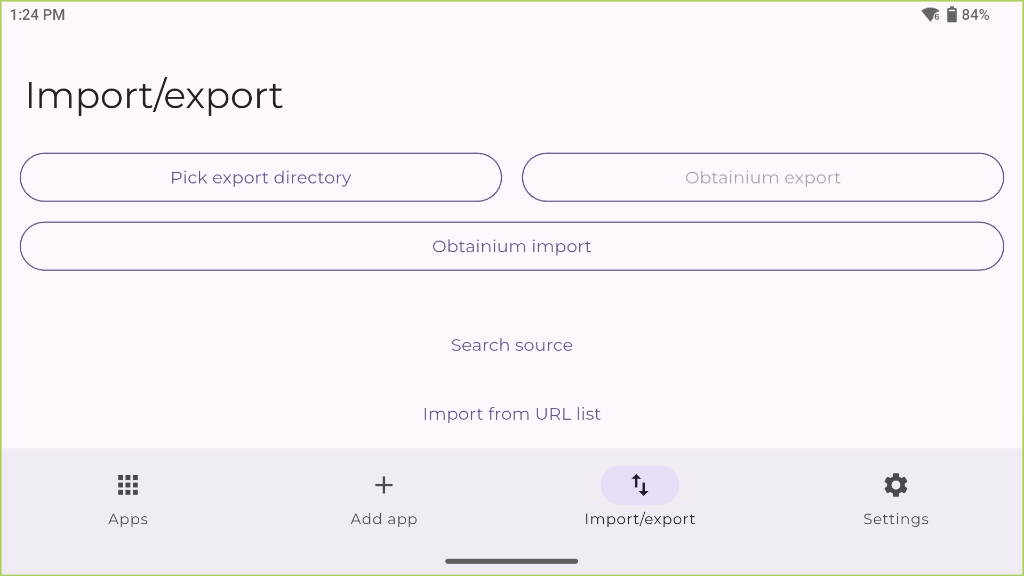
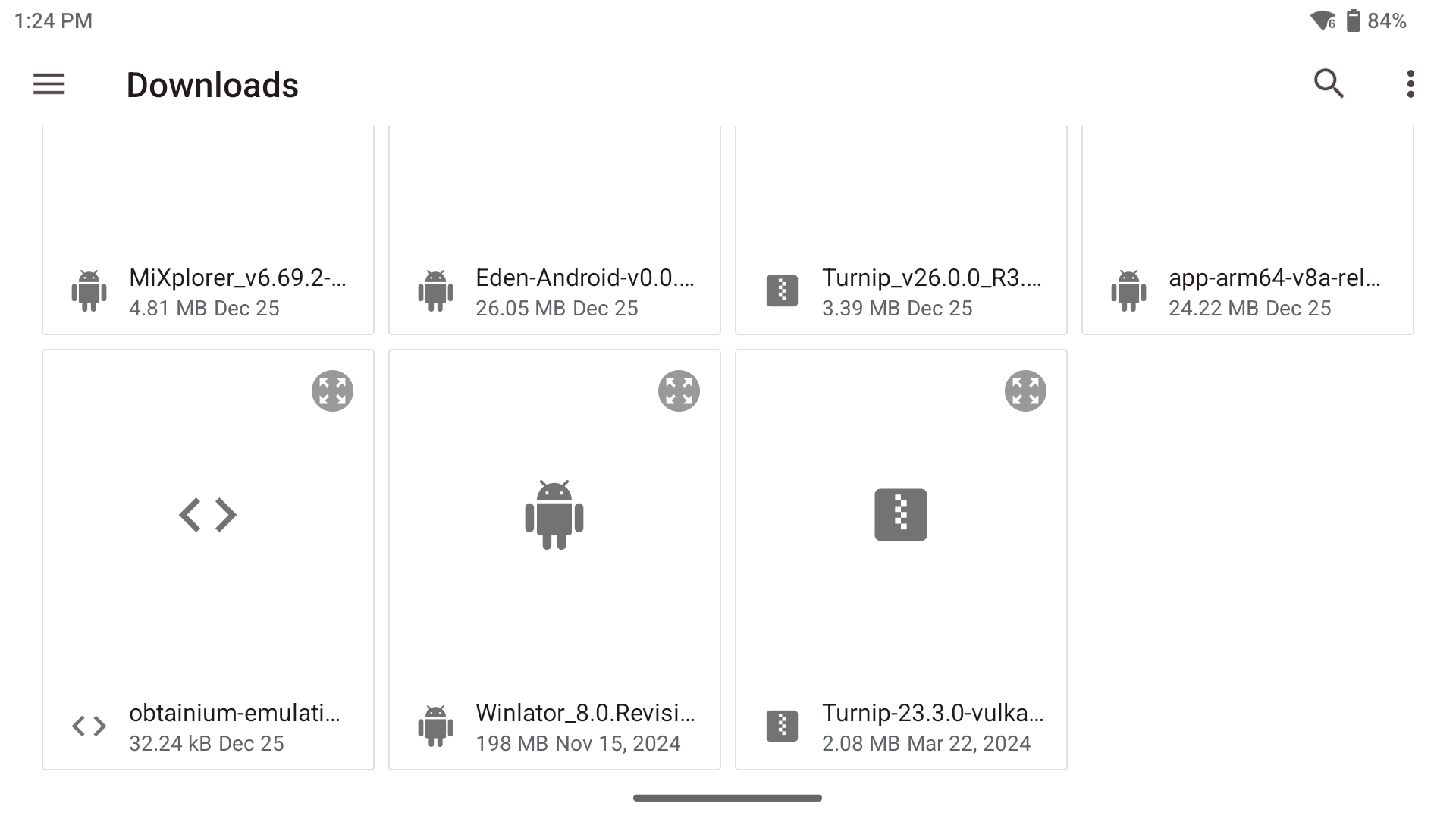
Click Obtainium Import and choose the downloaded Emulation Pack json - After clicking Obtainium Import, navigate to the folder where you downloaded the obtainium-emulation-pack.json file.
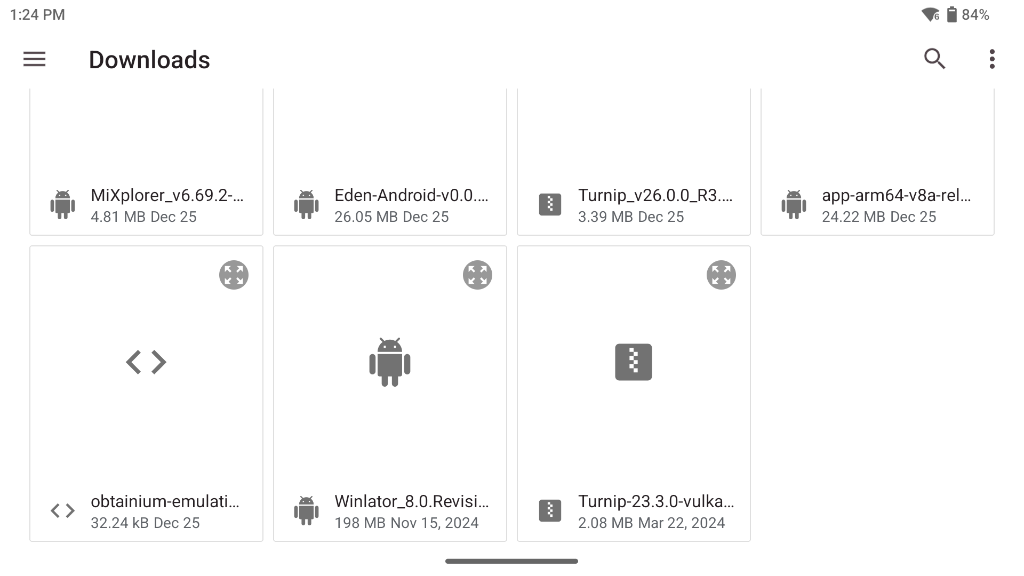
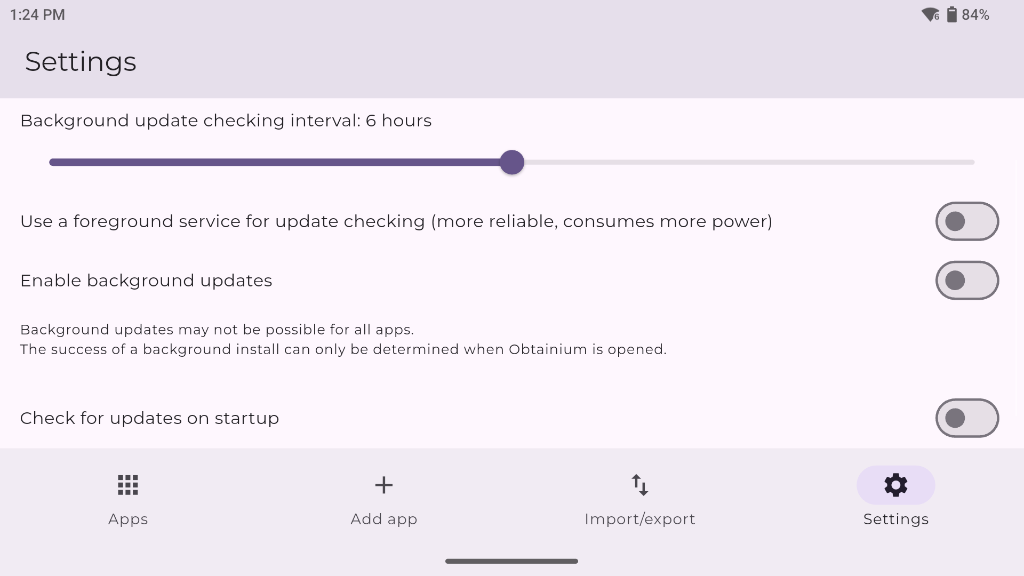
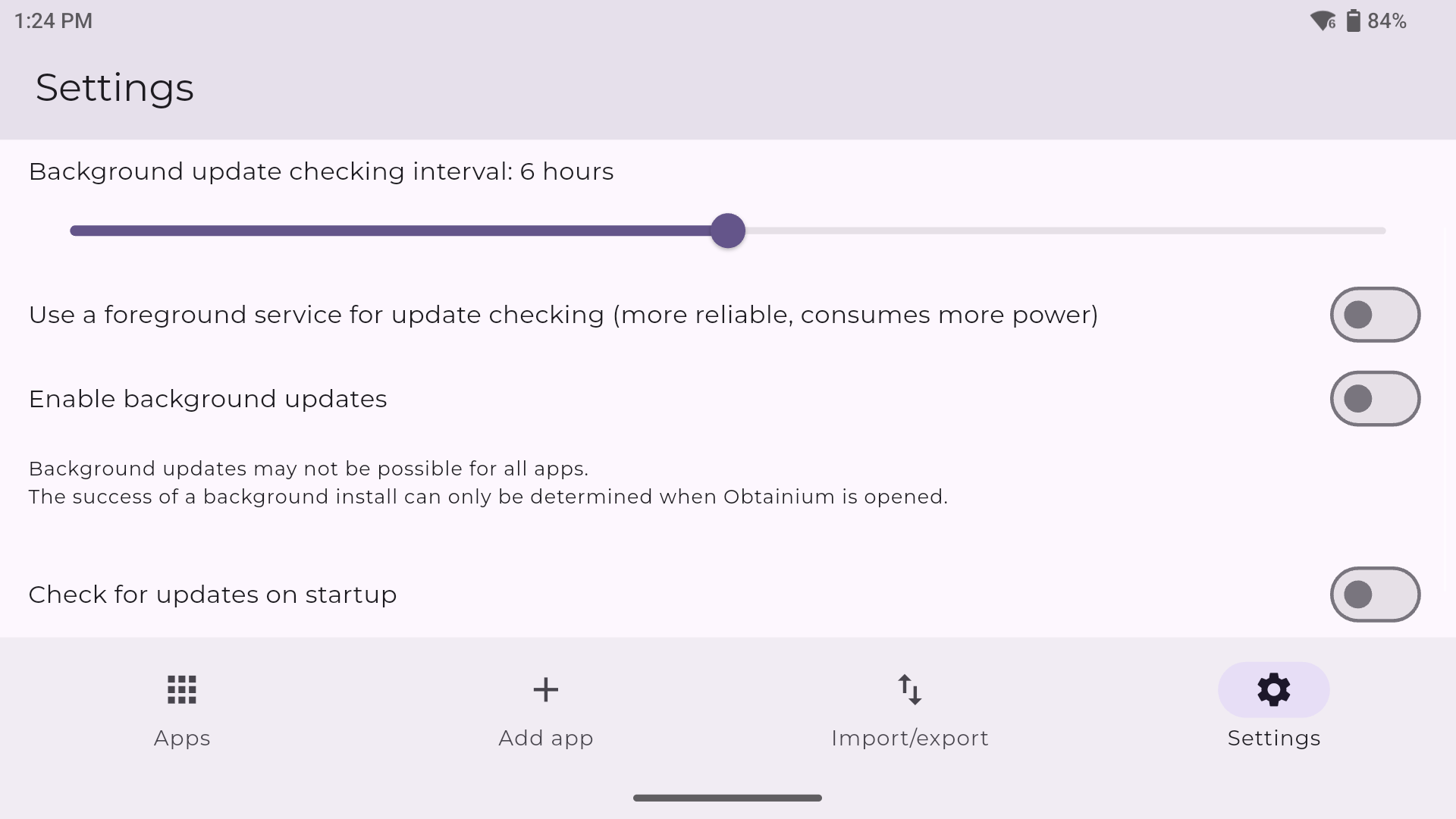
Import the Obtainium Emulation Pack file you downloaded - From here, it’s just a matter of selecting the emulators and programs that you’d like from the main Apps section of Obtainium and hitting the install button. Configuration options within Obtainium allow you to set how you’d like the program to handle updates. You can set update check intervals, background installations, and much more.

If you have any interest in additional community configurations for Obtainium (beyond just gaming), you can check out the community configs page of the Obtanium project.
EmuDeck
The other option for a one-and-done setup process is EmuDeck. If you’re at all familiar with emulation on the Steam Deck, then you’re likely already familiar with this brilliant piece of software. Emudeck will ease you into the emulation configuration pool with a guided install process that lets you cater to your own wants on the installed device.
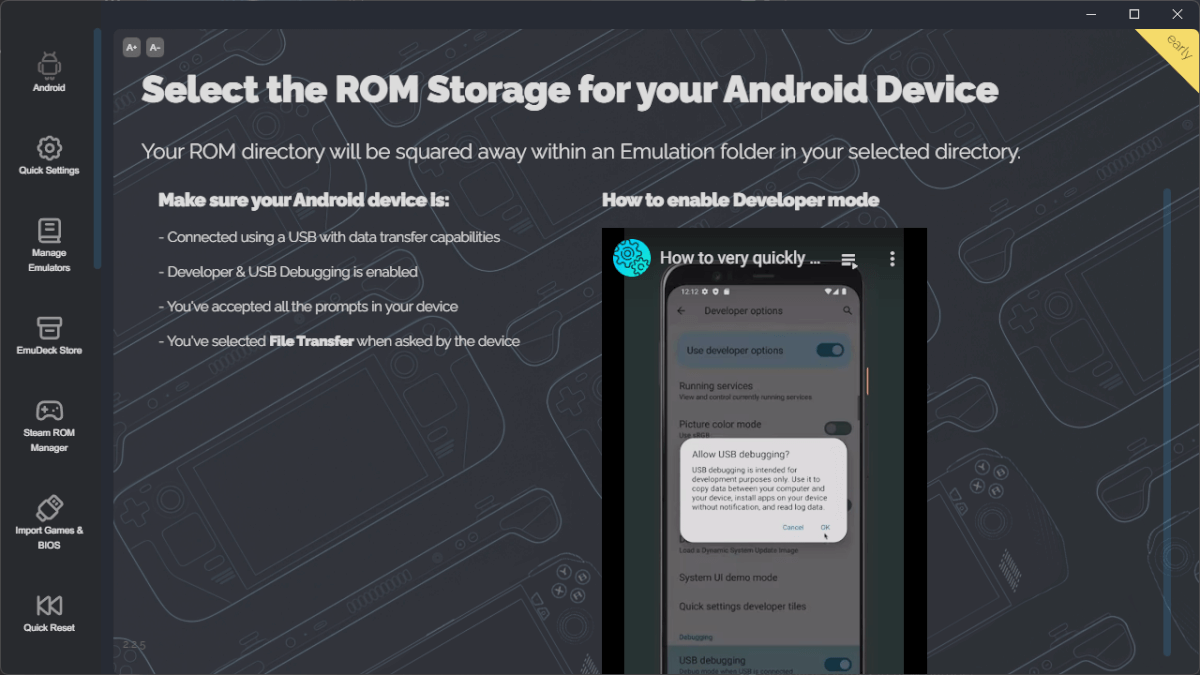
Note: As the Odin 3 is an Android device, you will need to be a Patreon supporter to unlock access to the Android version of the EmuDeck installer (for now). As a paid supporter of the EmuDeck project, you’ll be given exclusive early access to their PC based installer. If you’re looking for the simplest route possible, this is likely it, but you will have to be willing to pay for the privilege.
BIOS Files
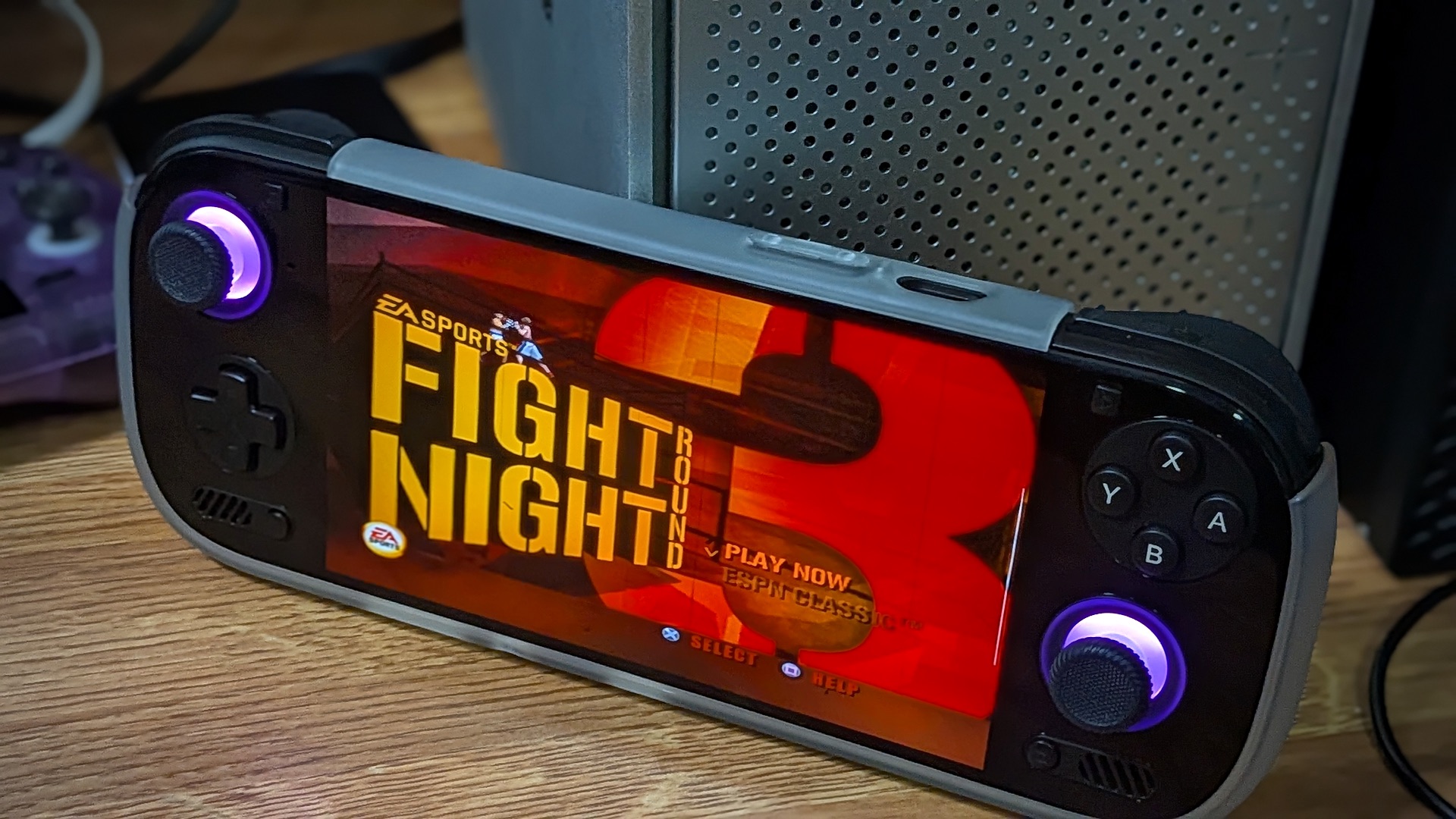
Now, I mentioned that the Obtanium Emulation Pack would get you 95% of the way there, but there are some minor holes to fill to take advantage of everything the Odin 3 is capable of playing. The systems available under RetroArch will include enough to get you gaming, but anything beyond that, and you’re going to be on your own.
I cannot tell you where to find the BIOS files you need to run systems like PS2/PS3/Switch, etc, but with the slightest of Google sleuthing, you shouldn’t have any problems finding what you might be looking for. You see examples of BIOS files for various systems below:
Sony PlayStation (PSX)
PSX emulators often require BIOS files to simulate different regions (NTSC-U, NTSC-J, PAL). There are various versions of each BIOS firmware for each region, but the formatting will be similar to those listed below. BIOS ending in 00= Japan, 01 = North America, 02= Europe.
-
scph1001.bin(USA) -
scph7502.bin(Europe) -
scph1000.bin(Japan)
Sony PlayStation 2 (PS2)
PS2 BIOS files usually come in a set, but the main file usually follows the scphXXXXX.bin format.
-
scph39001.bin(USA) -
scph30004R.bin(Europe) -
scph-70012.bin(Slim models)
Sega Saturn
Saturn BIOS files are strictly region-locked, so you usually need the specific BIOS for the game you are trying to play.
-
sega_101.bin(Japan) -
mpr-17933.bin(USA/Europe)
Nintendo Game Boy Advance (GBA)
While some emulators emulate the BIOS via high-level emulation (HLE), using the actual file increases accuracy.
-
gba_bios.bin
Nintendo Switch
Switch emulation relies entirely on decryption keys and firmware files dumped from a Switch console. Without the keys, the emulator cannot read dumped games.
-
prod.keys(The keys to the console) -
Firmware(Obtained from official Nintendo servers).
Nintendo GameCube (Dolphin)
Dolphin does not strictly require a BIOS to play games (it simulates the OS). However, if you want the nostalgic spinning cube startup animation or the system menu, you need the IPL (Initial Program Loader).
Sony PlayStation 3 (RPCS3)
The PS3 emulator doesn’t use a dumped .bin file. Instead, it uses the official system update file provided by Sony, which the emulator “installs.”
-
PS3UPDAT.PUP-
You can actually download this legally from the official PlayStation website (it is the standard system PS3UPDATXX.bin file).
-
Sony PS Vita (Vita3K)
Similar to the PS3, Vita3K requires you to install the official firmware. It also requires a separate “Font Package” to render text correctly.
-
PSVUPDAT.PUP(System Firmware) -
PSP2UPDAT.PUP(Font Package)-
Also downloadable from official Sony servers.
-
If you’re interested in dumping the BIOS from your own console, there are linked instructions on the EmuDeck site.
Launcher/Frontend Selection
AYN hasn’t left the Odin 3 totally bare bones. A litany of tweakable device options has been built into the Android build offered here, and there is an official Odin launcher tool installed as well. Everything involving launchers and frontends will come down to your personal device needs and what you plan to be doing with it. Some folks like booting directly into something like ES-DE for a fully “consolized” look.
Daijisho
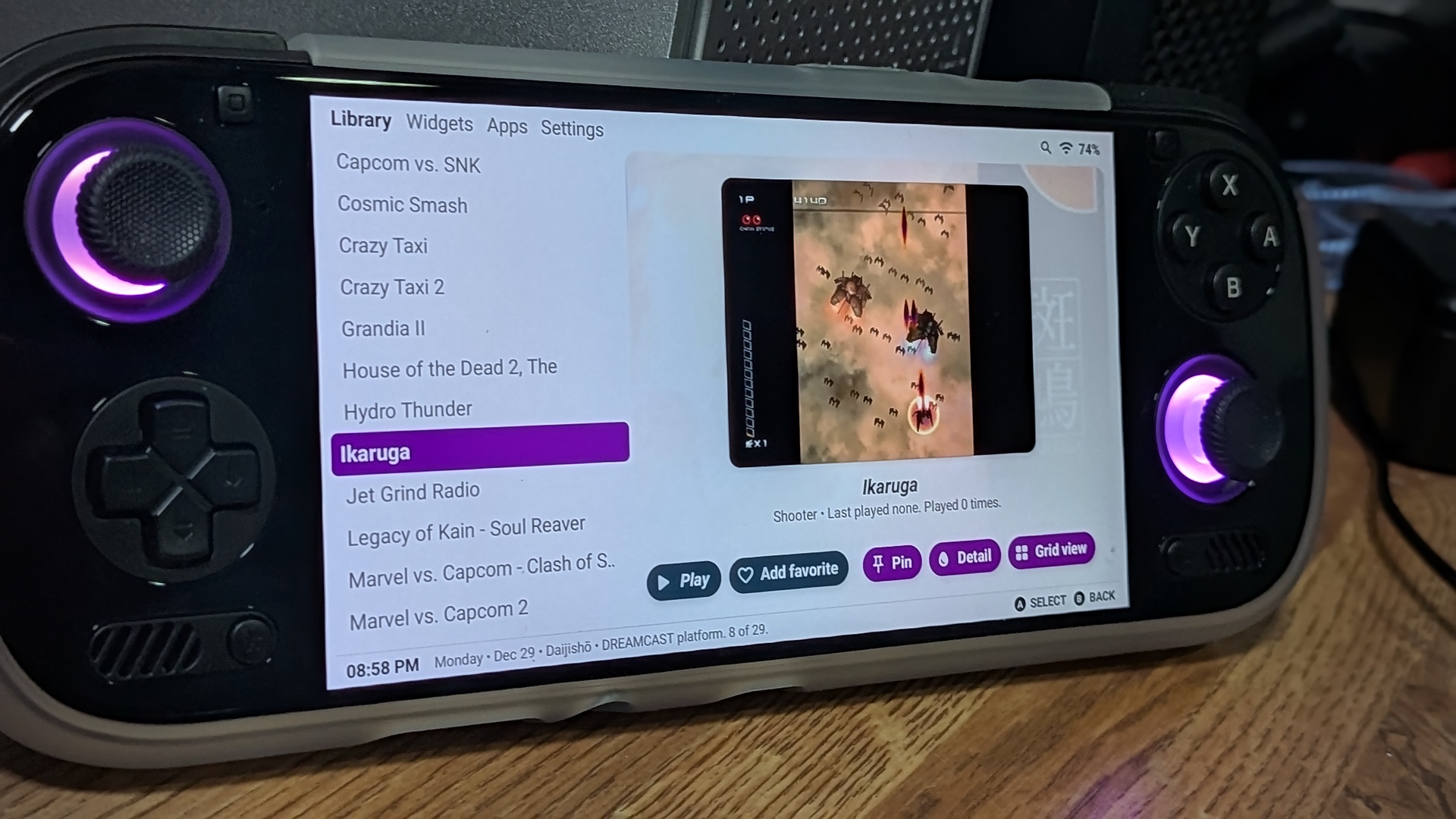
Personally, I prefer the hybrid approach of Daijisho. It’s not the hot new launcher on the block, but I’ve loved it for Android since I first installed the app on my Retroid Pocket 3 a few years back. It looks great, it’s free, and it just works. If it’s good enough for GammaOS, it’s good enough for me.
Odin Launcher
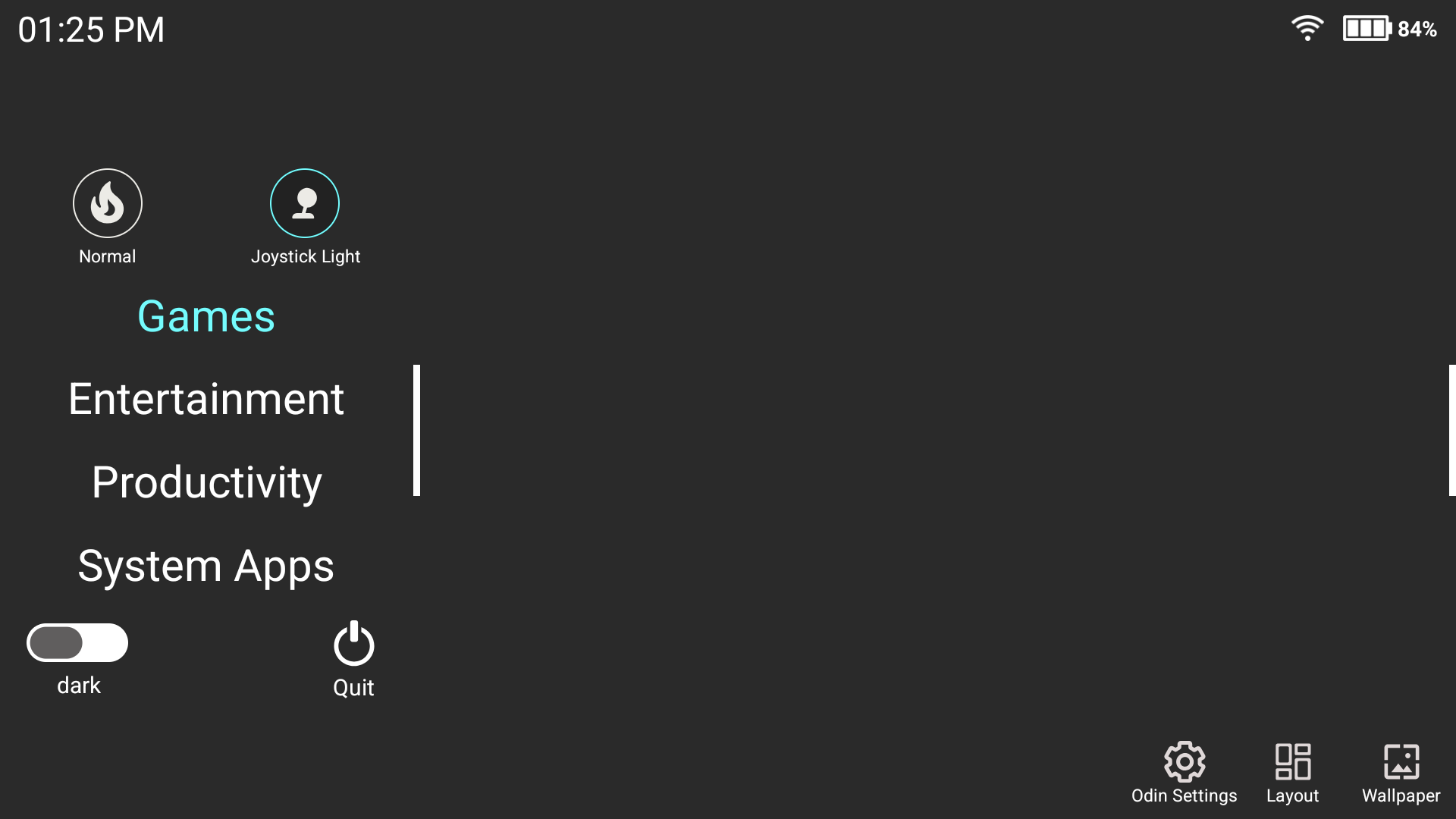
The Odin Launcher works just fine and gives you swipable, easy-access menus on the left and right sides of the screen to quickly change things on the fly. It’s truly going to be a build-from-scratch experience. You can make it your own, but it’s going to take some tinkering. I’d only venture down this path if I were bored with the community options.
Additional Options
- Console Launcher (Free, with optional premium feature support)
- Launchbox (Free version supports up to 100 games. Additional paid packages available)
- Pegasus (Free/Open-source)
- ES-DE ($6.50 on Galaxy Store, Free for Patreon supporters)
- Beacon Game Launcher ($2.99 Google App Store)
PC Emulation
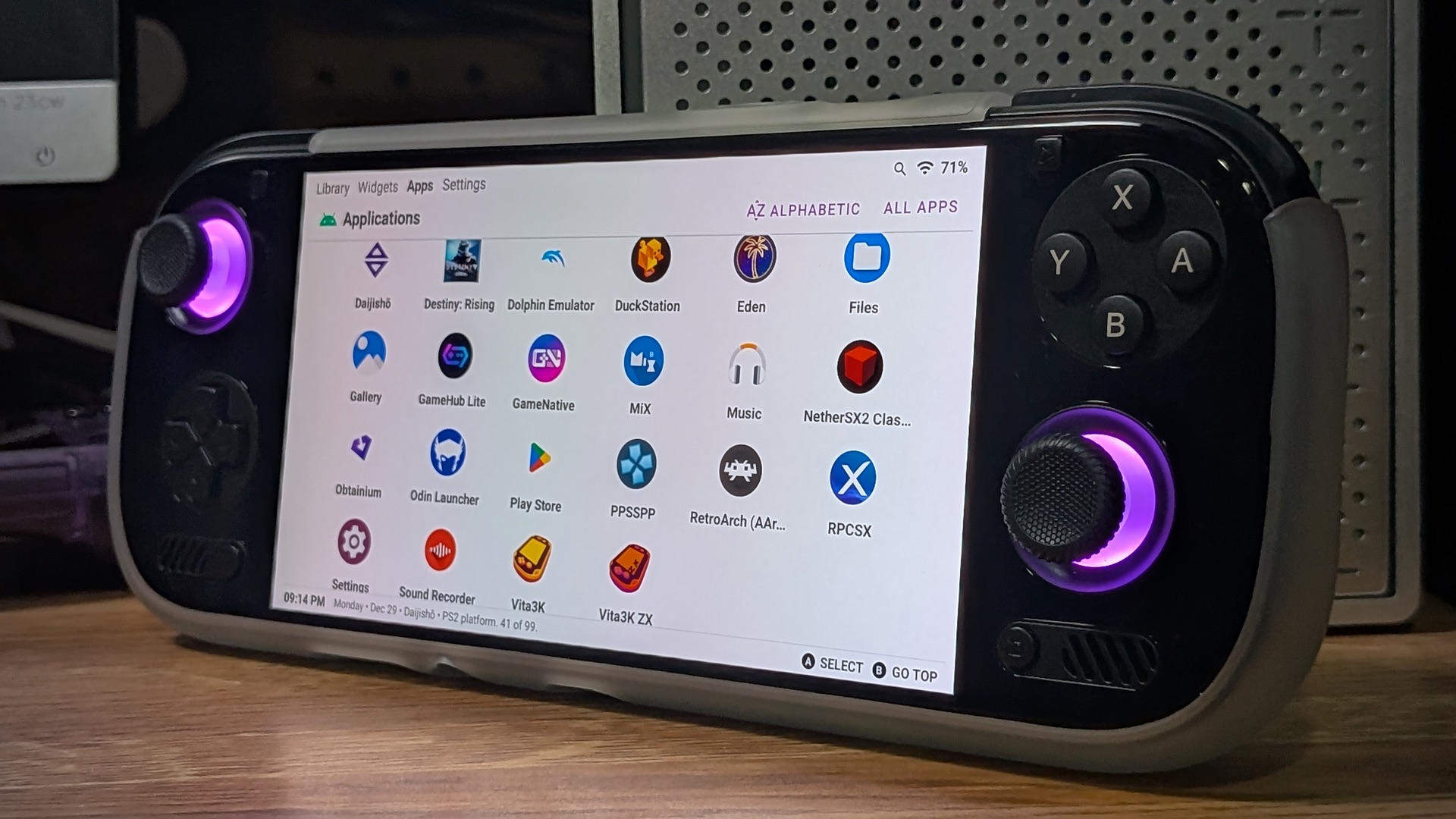
If you’ve gone with the Obtanium Emulation Pack method for easy-install, then you should have options already for PC emulation apps. The big two in the space currently are GameNative and GameHub Lite. The “main” version of GameHub does work, but is loaded to the hilt with trackers and other various nasty things crawling beneath the surface.
It should be avoided, and isn’t included in the Obtanium Emulation Pack for good reason. GameHub Lite is a community version that strips out all the trackers and unwanted bloat.
Getting access to your full Steam library with either app is as simple as scanning a QR code with the Steam app from your phone. From there, it’s as simple as clicking to download, and the software takes care of the rest.
GameNative
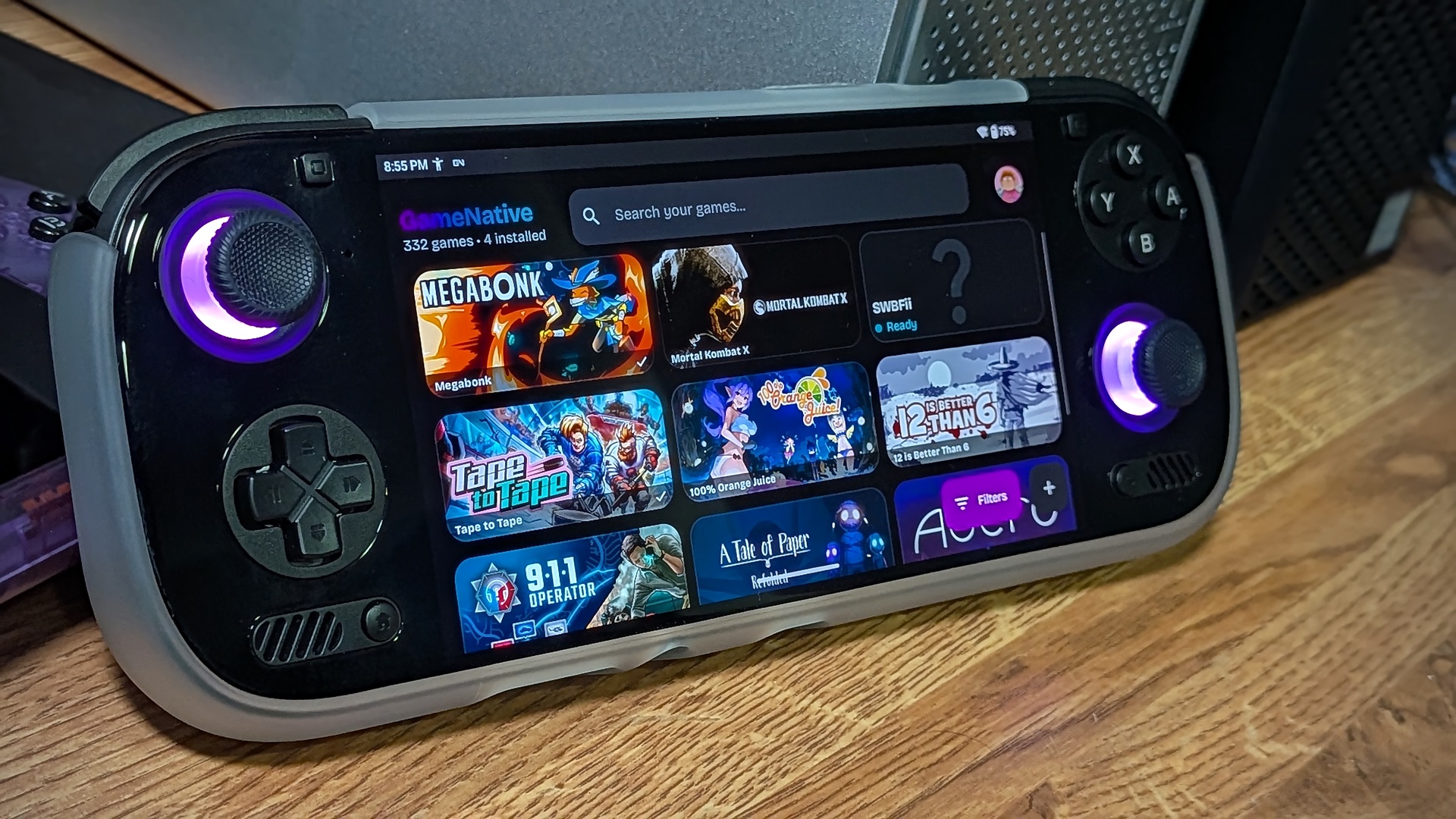
GameNative is an excellent way to access your Steam library directly from your handheld. Emulating games on a handheld is one thing, but having full access to your entire Steam library and, more importantly, cloud save data, truly turns the Odin 3 into something of a Steam Deck Mini. If you’d like a detailed guide on setting up GameNative, you can read Jim’s excellent How to Play Steam Games on Android guide.
GameHub Lite
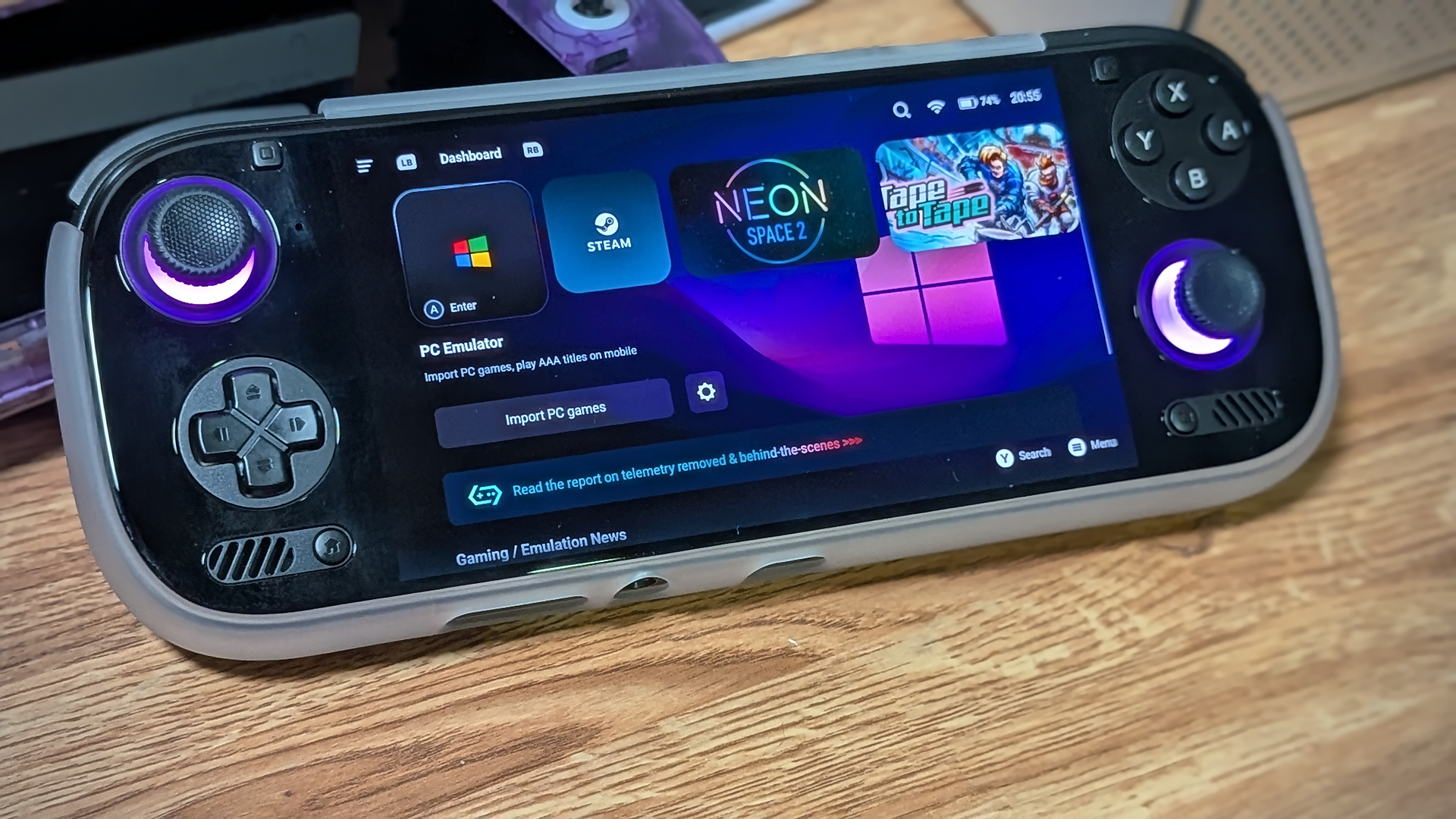
GameHub proper is a product of GameSir, the Chinese accessories company. For better or worse, like many commercially released apps these days, it’s loaded with tracking bots. If you want to go the GameHub route, make sure to make it the community stripped-down GameHubLite.
This and GameNative are something of competing projects in the space, and they both have their own strengths. If you find something isn’t working as well as you might have hoped in GameNative, give it a try in GameHub Lite, and vice versa. FEX translation is still on the bleeding edge of new tech.
Things aren’t all there yet, but they also move with lightning speed. It’s a fun time to be an Odin 3 owner.
Streaming Apps
Better xCloud
This FOSS solution to streaming everything Xbox has become a standard install on any new Android handheld that comes my way. It’s free, so that’s a big win out of the gate for me, and it fully supports Xbox Cloud and local console streaming with minimal lag.
[button link=”https://better-xcloud.github.io/” color=”red” newwindow=”yes”] Download Better xCloud[/button]
Artemis/Apollo
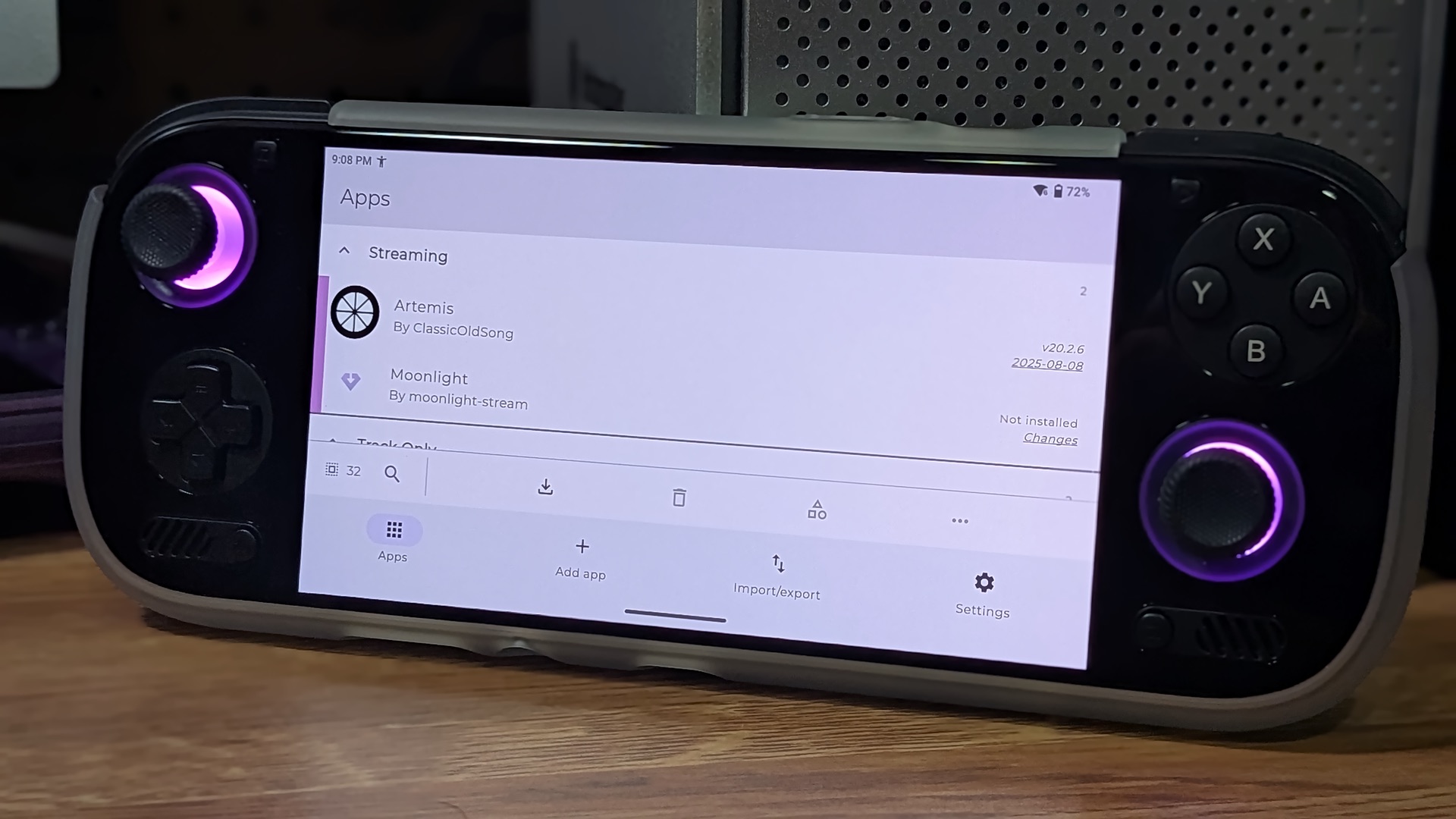
There are a ton of options for streaming games from your desktop gaming PC these days. What works best for your own home network setup might take some trial and error, but after a lot of frustration over the years with Steam Link and lag issues, I finally found a solution that works perfectly for me in Artemis.
A community fork of the Moonlight/Sunshine project, Artemis has quickly found a lot of deserved love in the handheld community for a streaming experience that feels nearly native thanks to adjustments made for the client device’s native resolution.
[button link=”https://github.com/ClassicOldSong/Apollo” color=”red” newwindow=”yes”] Download Artemis/Apollo[/button]
File Transfer: MiXplorer
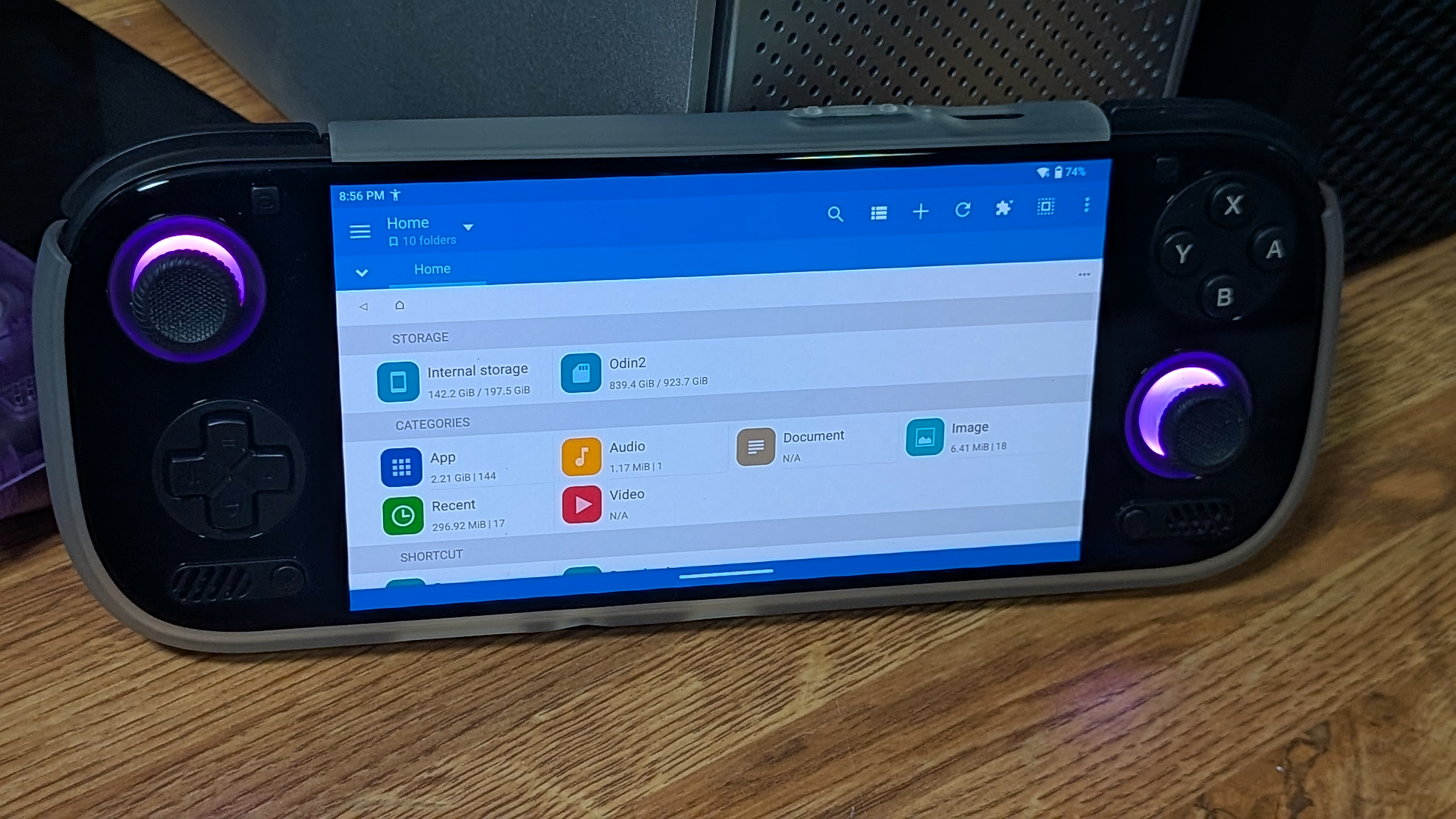
You can always go the old plug-and-play SD card route to move your games and files around, but I find that process antiquated when we’re dealing with a capable Android device.
Enter MiXplorer. There is a paid version called MiX Silver available on the Google Play Store, but the developer has kindly linked a free APK download over on the XDA Forums for enthusiasts. If you enjoy using the program as much as I do, I’d encourage you to support the developers in any way you choose.w
MiXplorer (SD, FTP, LAN, Cloud, and other storage explorers) is a fast, smooth, beautiful, reliable, and full-featured Android file manager with a simple and intuitive user interface. This app has no ads, is and will always remain free
Closing Notes
So I hope this gives you a good launching pad to get gaming with your new AYN Odin 3. This is a fantastic device and has easily shot to the top of my favorite handhelds list. As things continue to develop and more users in the community get their hands on the device, we will continue to update this guide with more fun projects the Odin 3 will no doubt be capable of running.
[button link=”https://rh-go.link/AYN-Odin-3″ color=”red” newwindow=”yes”] Buy the Odin 3 @ AYN [/button]
As always, you can head over to our Discord with any questions.
This page may contain affiliate links, by purchasing something through a link, Retro Handhelds may earn a small commission on the sale at no additional cost to you.


2 Comments
You or odin just forgot to mention ways to install all cloud options via script.. amazon luna / boosteroid / geforce now / blacknut..
All them websapps need an android feature script maybe.
Thank you very much for your PROFESSIONAL help!