


Just get an ASUS ROG Xbox Ally or ROG Xbox Ally X For Christmas? Well you’ve come to the right place as we’re going to go over some quick setup and tips for the ROG Xbox Ally. This came out about two months ago, but they recently dropped the price down to $490 just in time for Christmas. I was assuming there would be a big influx of new users from this thing in general, but with the new price, I think even more people will be getting one of these on Christmas morning.
With that in mind, I decided to make a quick guide on how to set this thing up, some quick tips to improve performance from stock, and how to set this thing up for emulation in addition to playing a ton of x86 games through Xbox or Steam. This thing isn’t as simple as something like a Steam Deck or a Legion Go S right out of the box.
Setting up Windows
If you’re a long time reader, you probably know how to do all of these things, but if this is your first x86 handheld, or you opened up a present from Santa expecting a mobile Xbox experience, you’ll be in for a surprise. You can get there, and I’ll show you, but it takes an hour or three to run a bunch of disconnected updates.
So if you’re getting this from scratch, you’ll need to do all of the normal Windows setup stuff. Set your language, Wi-Fi, location, keyboard setup, plug in an email, all that jazz. I already did that months ago when I got this, so I’m not going to do step by step, but it’s pretty easy. Microsoft TurboTaxed the process so you can’t mess it up.
Update Your ROG Xbox Ally
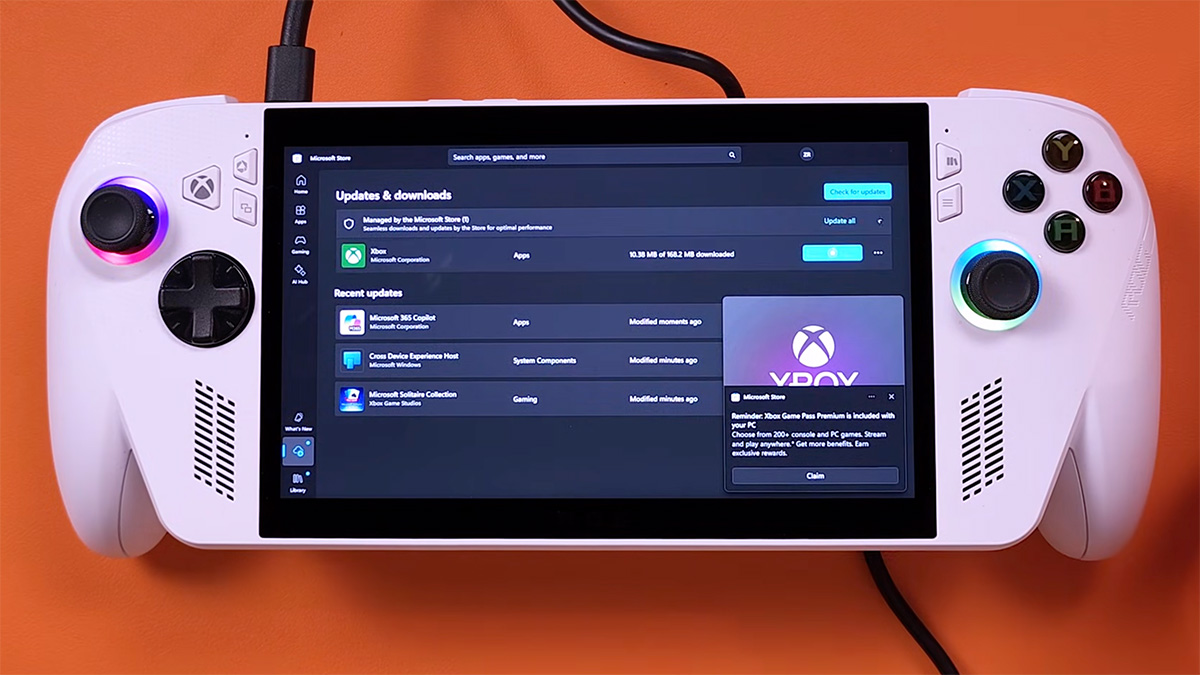
Once you’re into Windows on the Ally, you’ll need to update from at least FOUR different locations, which is kind of stupid. In comparison, a SteamOS device just updates from the Settings. Badda Bing, Badda boom.
So for the Ally, you can generally do these in any order you want, but you’ll want to check for updates in Windows itself, Armoury Crate, the MYASUS system, and the Microsoft Store/Xbox app. So ideally, if you start this up and there are updates, then you’ll get some pop-ups. These pop-ups will typically take you to the correct location to do the update, but that’s not always the case, so let’s do examples of the different updates.
Armoury Crate Updates
First off let’s go with the Armoury Crate updates. And you’ll want to have the Ally plugged in for all of these, but especially for Armoury Crate. If you run out of power while updating firmware, that would be bad.
Anyway, Armoury Crate updates your drivers, Bios, and firmware, which is why I’d suggest doing it first.
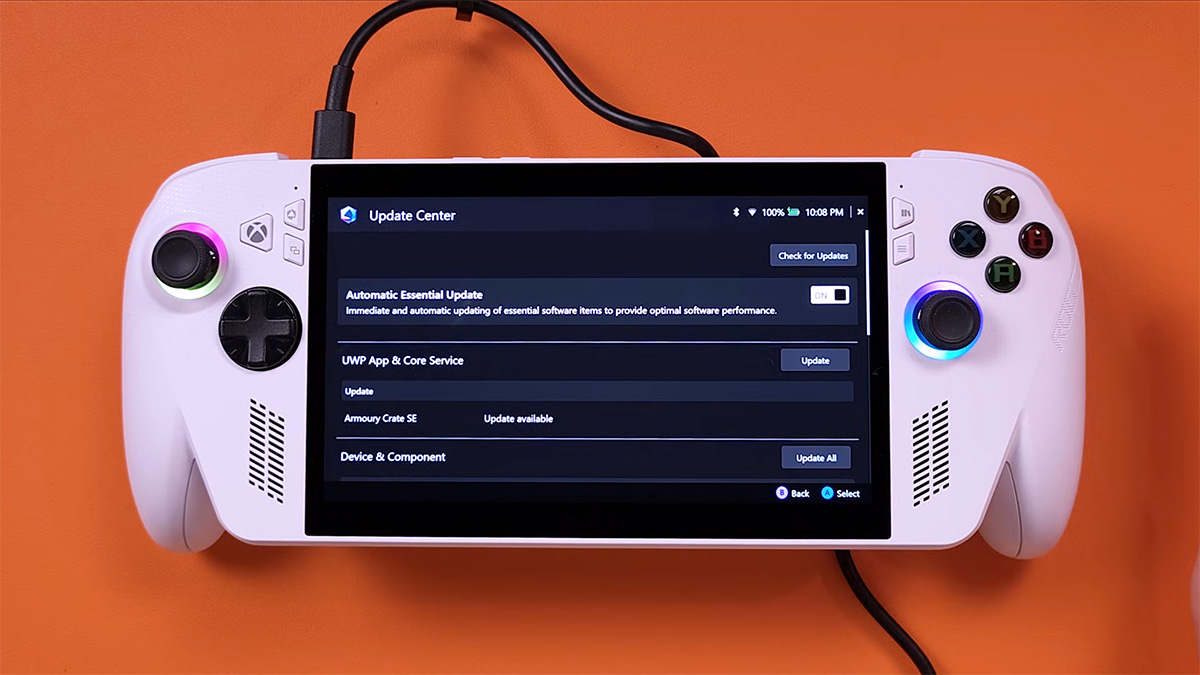
- To get to Armoury Crate, press the Command Center button (looks like an open book), on the left side of your Ally.
- Tap Open Armoury Crate SE.
- Go to the Settings tab and select Update Center.
- From Update Center, tap Check for Updates.
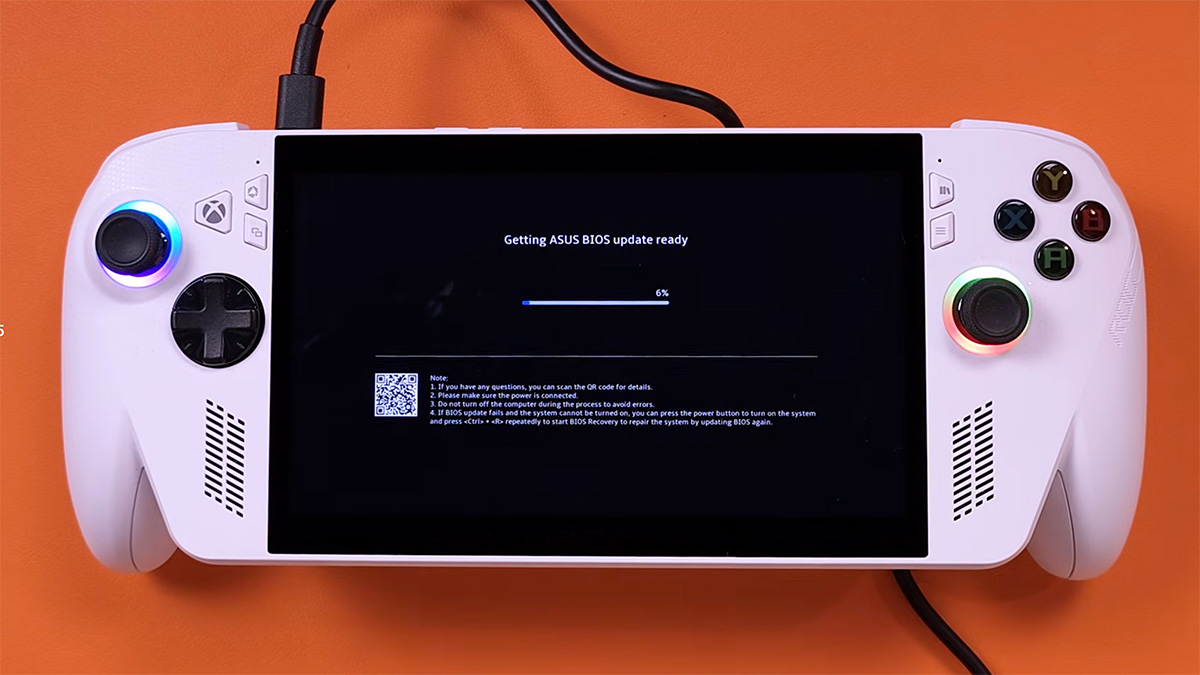
- Install all of the listed updates. It could be GPU drivers, BIOS updates, firmware, whatever.
Windows Updates
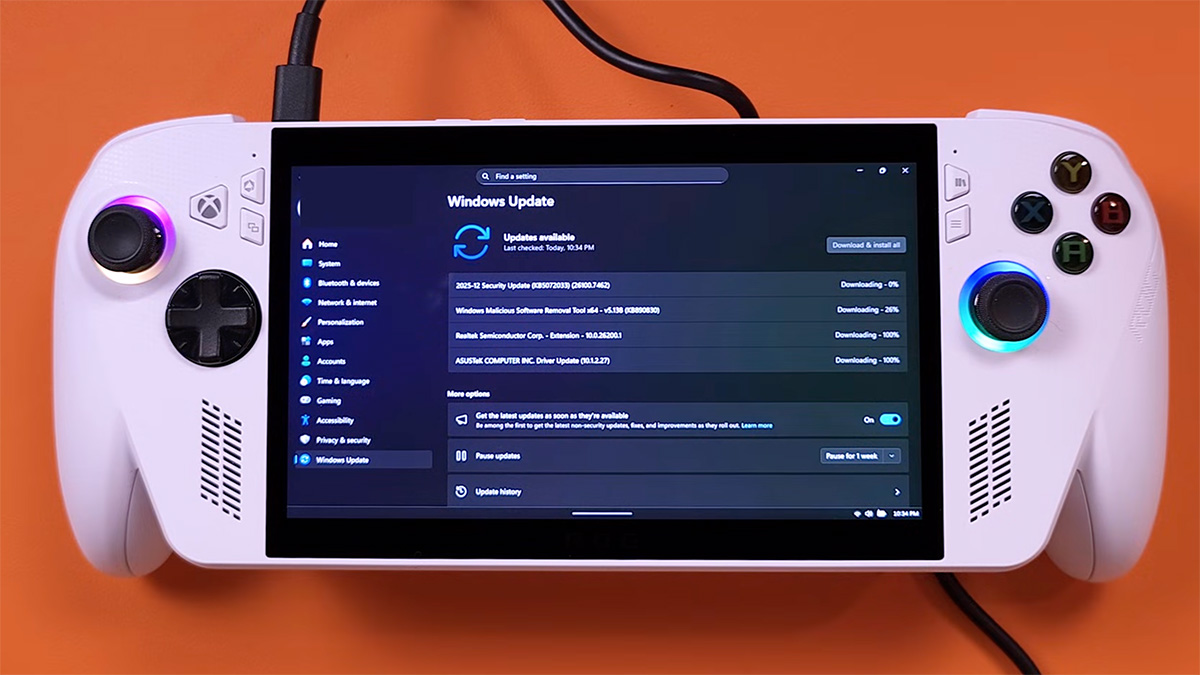
Up next, let’s update Windows.
- Press the Xbox Button.
- Switch to Desktop Mode.
- Open your Settings app.
- Tap WIndows Update and Check for Updates.
- Select all of the available updates, including the ones marked as “Optional.”
Next, we’ll go to the Microsoft Store and Xbox app updates.
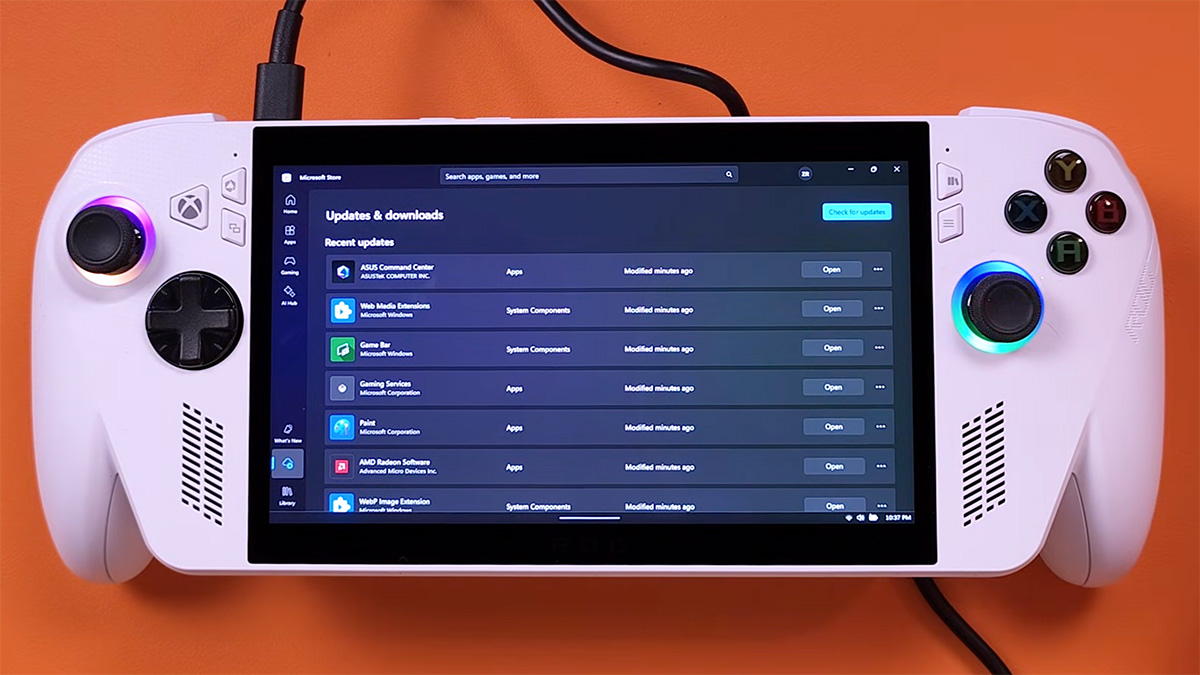
- Open the Start Menu and select the Microsoft Store.
- Select the Downloads icon in the bottom left corner.
- Tap Get Updates.
You’ll update additional apps, and if you do have an Xbox update, it will update the Xbox app and any related dependencies. The Microsoft Store should also cover the MYASUS app, and it’s important to check in there and make sure you push any updates that live in there.
Now as you do all of these updates, again, make sure you’re plugged in, and make sure you’re using the charging brick that came with the Xbox Ally. If you have one that pushes more power, then fine, but you don’t want to grab a power brick that can’t keep up with the power draw of the Ally. You don’t want to walk away thinking you’re almost done only to come back to a partially bricked device.
Calibrate Your Controls
So now that we’ve got all of our updates, let’s talk about how to get your games. Xbox, Steam, and Game Pass streaming.
If you’re playing games and things seem a bit off, you can also calibrate your controls. Mine worked fine out of the box, but Stubbs had some issues with his analog sticks, and this is a way to try to fix them before you take it back to Best Buy in disappointment.
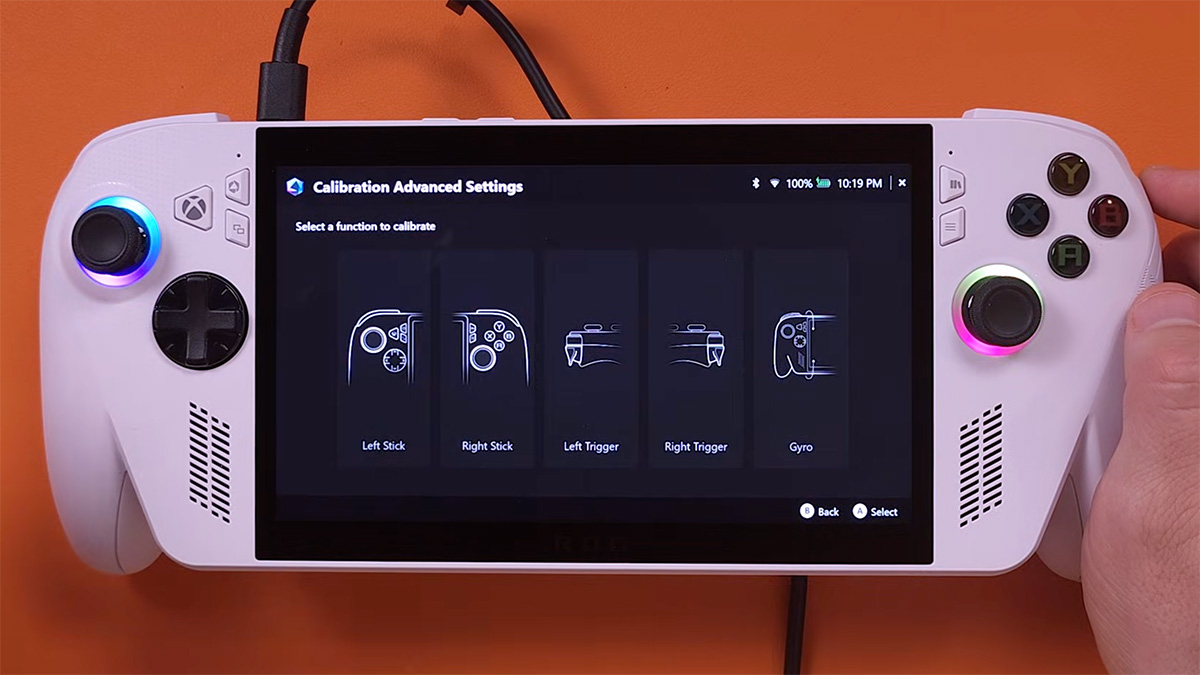
- Open Armoury Crate.
- Select Calibration.
- Follow the instructions on the screen.
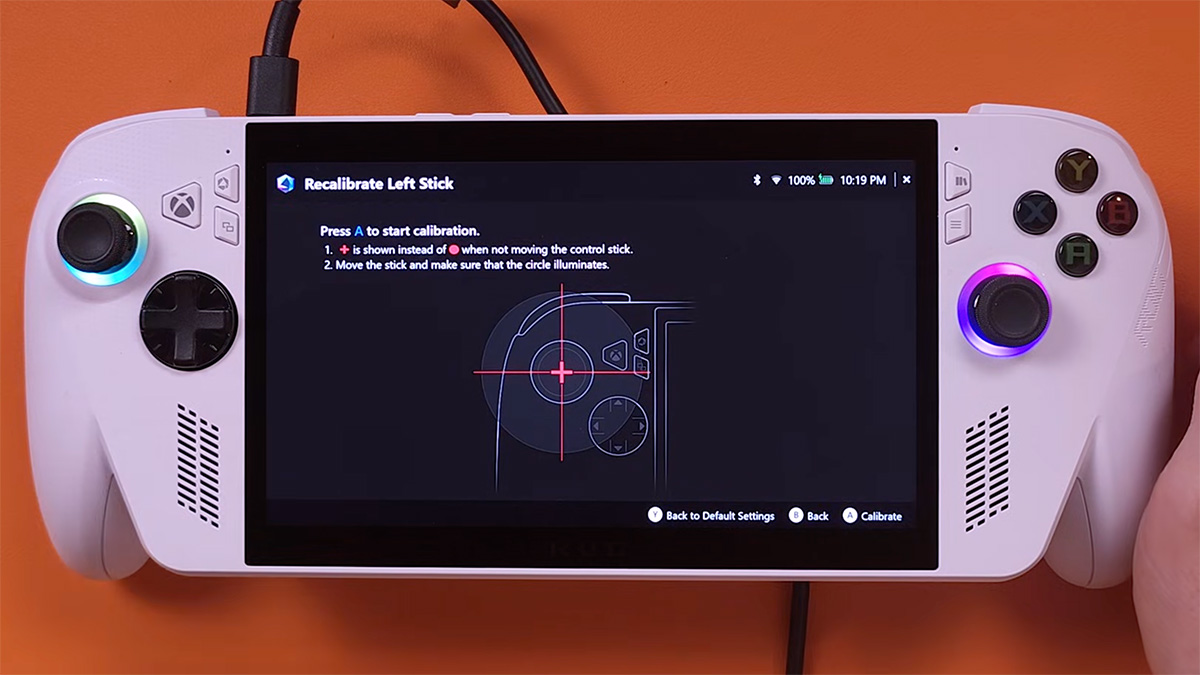
It’ll probably ask you to do things like moving the stick to one side, then the next, then spinning it around three times, then you’re done with the Electric Slide. Hopefully this can solve any minor issues you might notice with precision or stick drifting.
Xbox Full Screen Experience
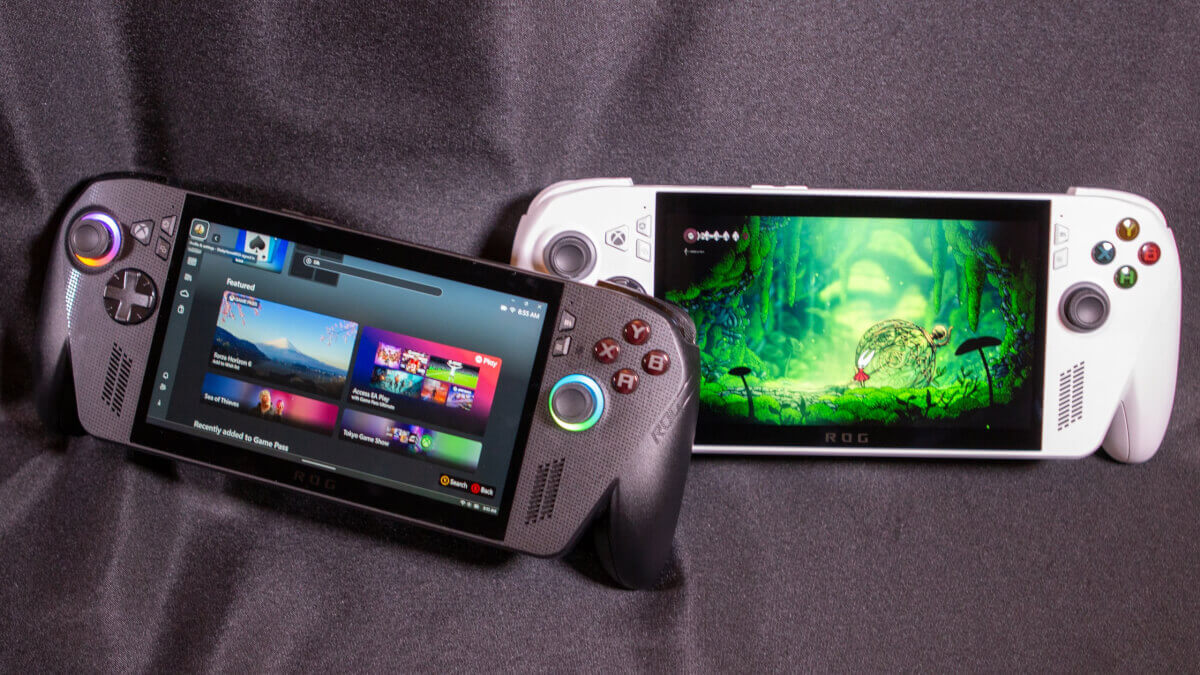
Alright, let’s talk about maximizing your Full Screen Experience. From the get go, I was honestly expecting more from this. I kind of assumed it would be a Microsoft version of Steam Big Picture mode, and it was, but it also wasn’t. A lot of it came down to the fact that you can only de-Windows a Windows device so much.
ASUS and Microsoft have continued to push out fixes, and with some tweaks here and there, you can get pretty close to a console-esque experience. It’s good, it’s not great, and honestly, I’m kind of mad that they haven’t added the Xbox 360 blade interface on here, but that’s just something I’m going to have to keep bringing up to our ASUS contacts.
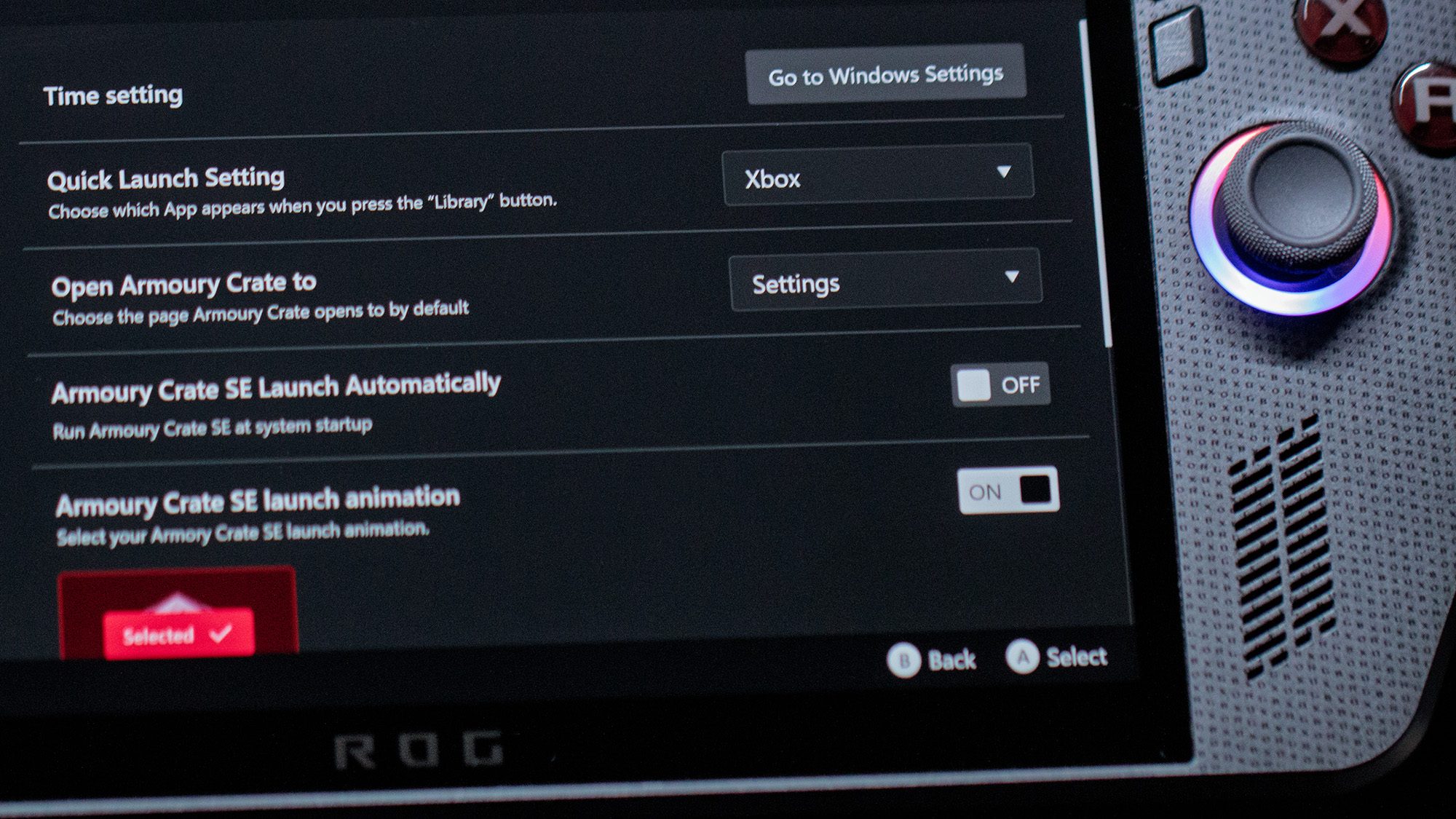
One of the things that bugs me about FSE and the Ally in general is that the Xbox button here seems to be double-mapped. So when I try to go into Xbox experience, it’ll launch Armoury Crate. I want to use Armoury Crate sometimes, but not always. It’s possible to change this behavior though, and here’s how:
- From Armoury Crate, select Options.
- Select General.
- Change Armoury Crate Startup Launching to Off.
This will let you power on the Ally and use the Xbox button for a single unified purpose. That being said, I do like Armory Crate, so if I do need it, I can always just launch it from the start menu. I think this is situational, especially if you just want to run games from Game Pass and don’t need to mess with settings.
I honestly go back and forth on this. I have it turned on for the video because I’m in Armory Crate so much, but I do turn it off if I’m just playing games and don’t want to mess around.
Non-Xbox Games in FSE
Another thing that might not be configured from the drop is non-Xbox games. So if you have Steam games on here or stuff from Epic, they might not be showing up in your full screen experience.
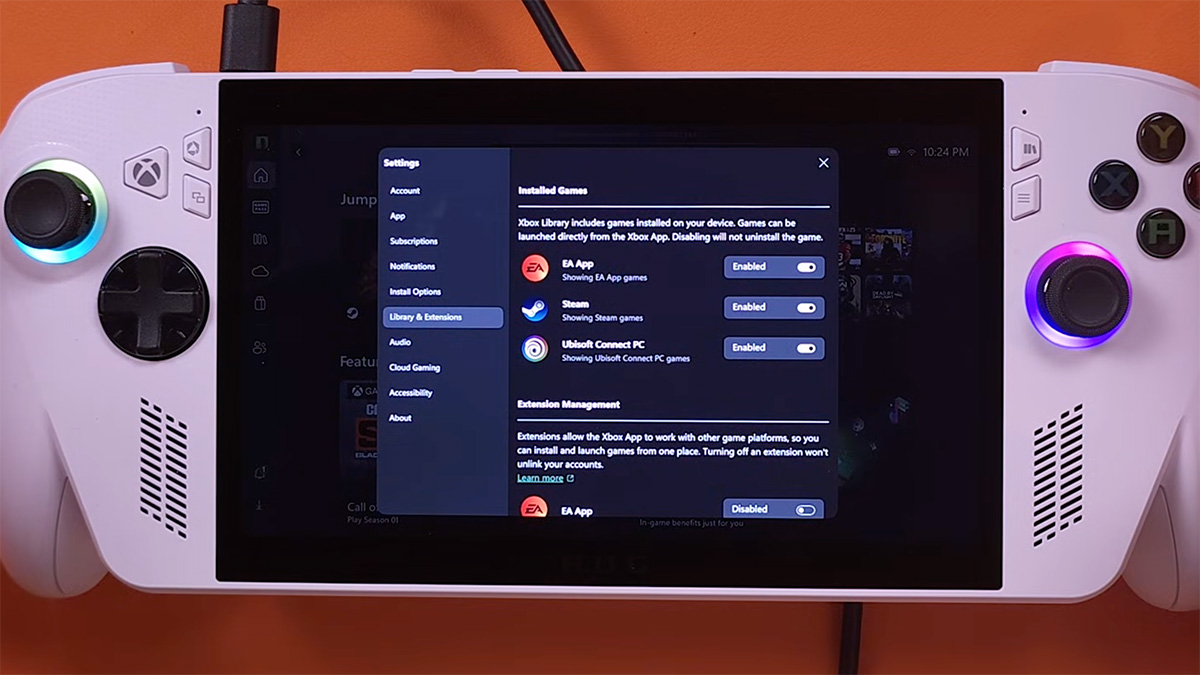
- Select your profile picture in the top left.
- Select Settings > Library and Extensions.
- Verify that third-party games are enabled.
Then your non-Xbox games will show up alongside the other games in FSE.
Along the same lines, there’s a widget called One Game Launcher, and I recommend it if you’re going to be playing any sort of standalone Windows games or programs or emulators that don’t come through a storefront.
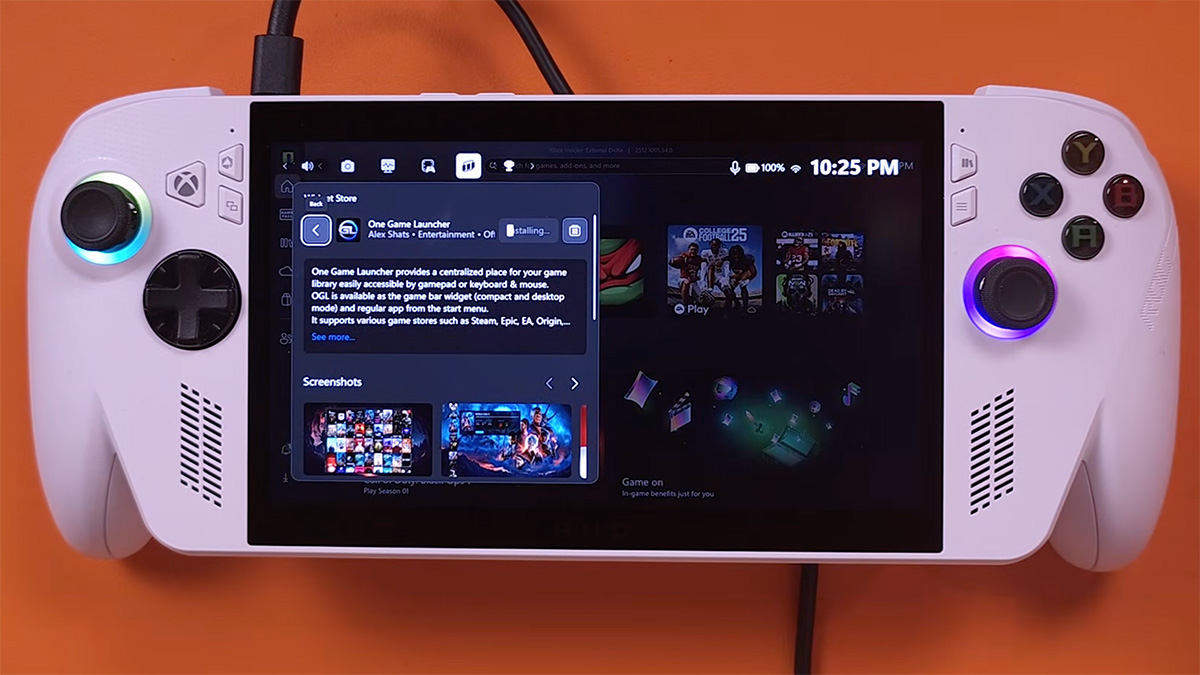
- Open Command Center.
- Select Widgets > Widget Store.
- Search for and install One Game Launcher.
- Once it installs, it should be in your widget menu.
- Open the One Game Launcher widget.
- Select Open Navigation at the top. You’ll see your normal storefronts, but there’s also the Custom on the bottom.
- Select Custom, then ADD.
- Enter the path to whatever .exe file you want to run.
- Add a title, parameters, cover art, and categorize it.
I think it tries to pop up a message and FSE kills it, but it will keep advancing the process as you relaunch it. Now it’s not seamless. It doesn’t add it to the list of the other games, like you’d see on SteamOS, which is kind of a pain, but it is easier than bouncing out to Desktop mode.
To launch a game using One Game Launcher:
- Click the Command Center button.
- Switch over to the Widgets tab.
- Select One Game Launcher.
- Pick the game or app from your list.
It’s kind of cool, sort of workaround, and I hope this gets incorporated into the default FSE as we go forward.
Gaming Copilot
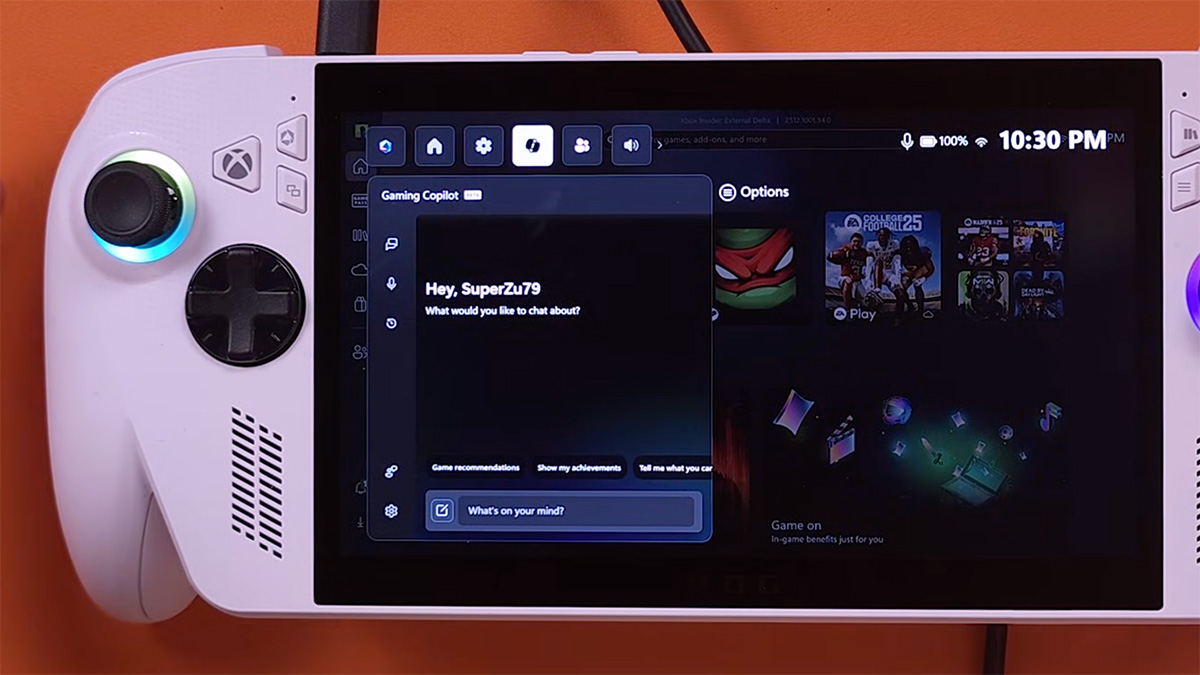
One last thing is Gaming Copilot. I thought it was stupid as hell, but you can actually ask it questions about your games.
- While in game, open Command Center.
- Go all the way to the right,
- Choose Gaming Copilot.
- It’ll launch, and then you can verbally ask it questions.
Say you’re bouncing off a boss in an RPG but you don’t want to stop what you’re doing and get out your phone and look up a guide. You can just ask it questions like, “Hey, in Final Fantasy Six, what is Dadaluma weak against?”
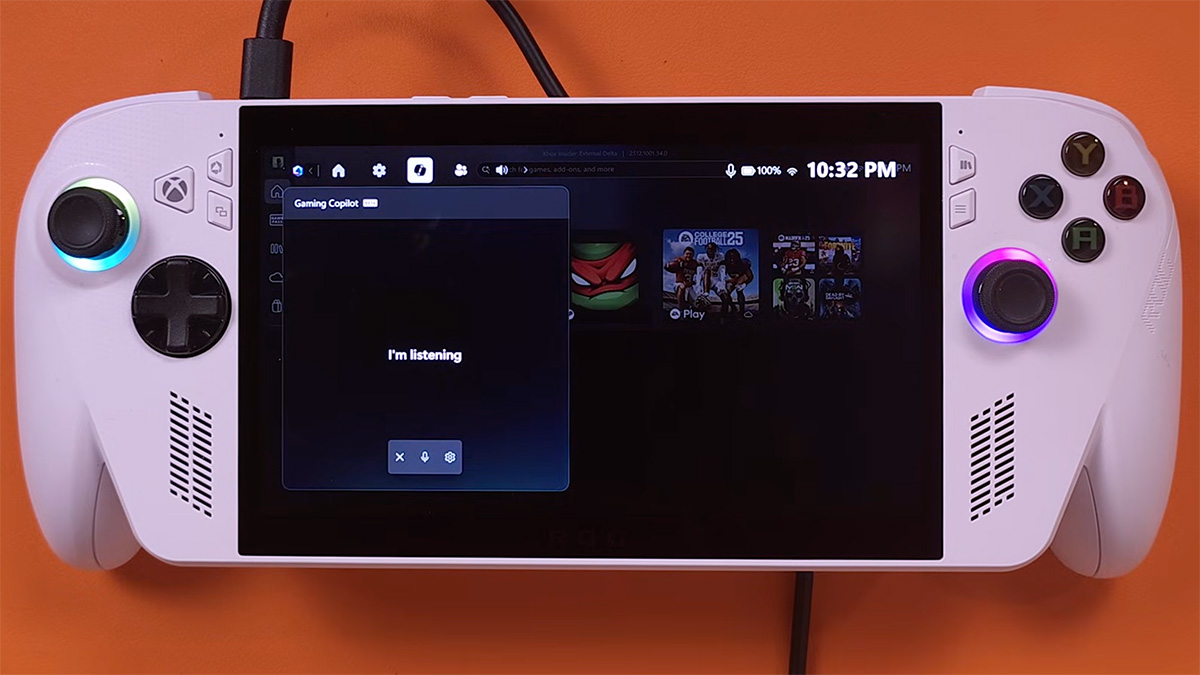
You can also ask it for help with settings. So say I’m playing this game, and it’s chugging. I can ask “Hey, what are the best settings for 60 fps on [INSERT GAME] on the Xbox Ally?” It’ll do a quick search and let you know. So you can just go into the configuration on the fly and make the changes.
Performance Tweaks
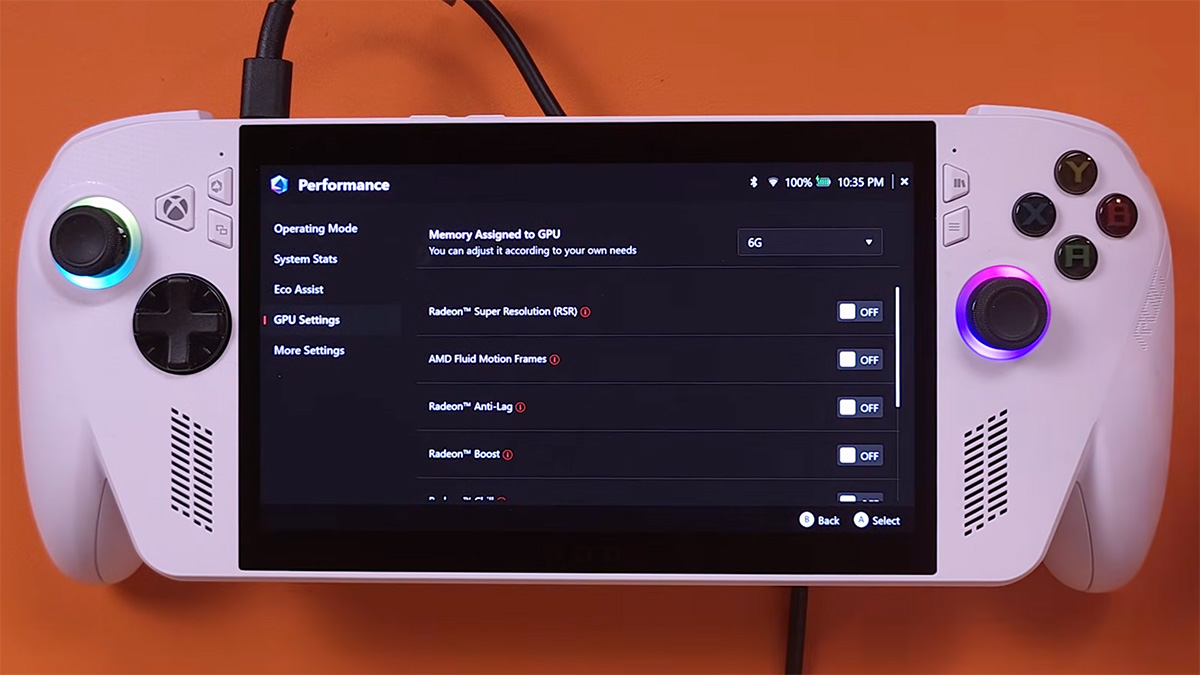
There are a few things you can do to maximize your performance as well. Luckily, they’re nested in Armory Crate and don’t need a lot of hackerman overclocking or editing ini files. So first off, I would recommend reallocating a bit of virtual RAM. This helps with games that are at the cusp on basic settings.
- Open Armoury Crate.
- Switch to the Performance tab.
- Select GPU Settings.
- If you have the standard ROG Xbox Ally, you’ll see 4GB as the default, but it can be comfortably increased to 6GB.
- Those with the ROG Xbox Ally X will see 8GB, but it too can be increased to 10GB.
Another thing you can do in this Performance tab, under Eco Assist, is to mess with CPU Boost and TDP profiles. I would recommend leaving this off if a game is running fine. Having it turned on draws a lot more power and drains the battery. However, if you’re struggling with something, you can push more power at the cost of battery life using CPU boost.
And if you’re docked or sitting with a plug nearby, then turn it on and don’t worry about it. I pinned CPU boost in my command center quick settings so I can toggle it off and on as needed.
Performance Profiles
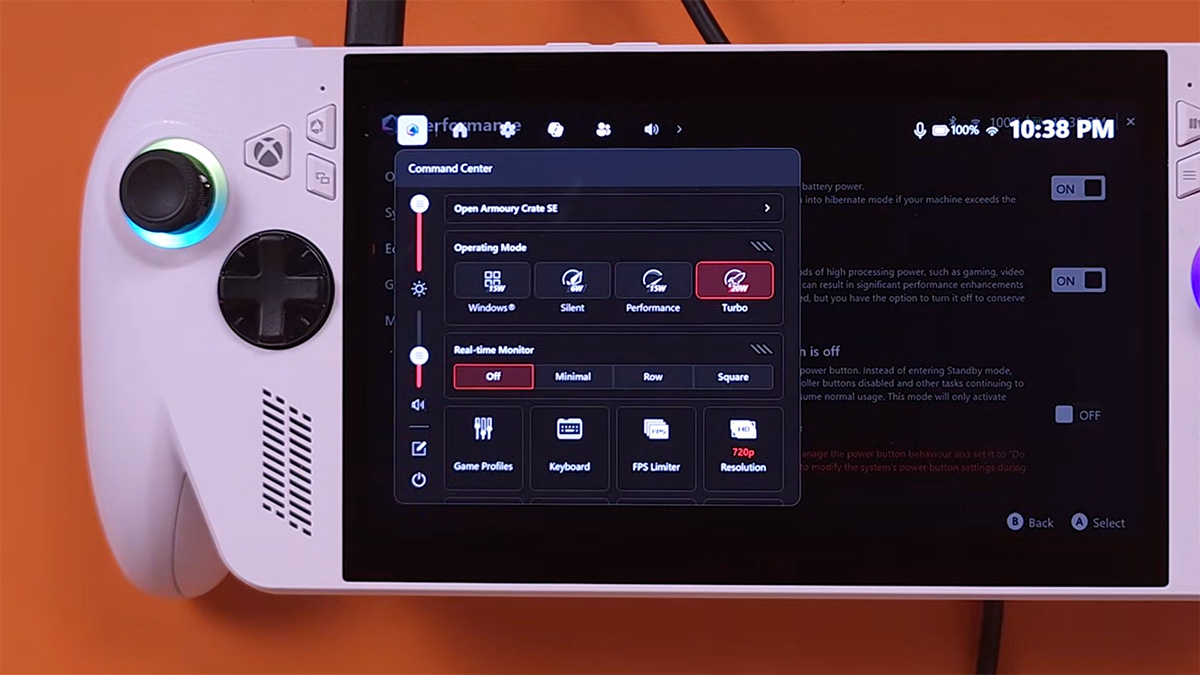
By default, you get a couple of Performance Profiles, Windows, Silent, Performance and Turbo mode, but you can use the Eco Assist menu to make custom ones as well. So if you’re playing old NES games on here like a lunatic, you can set up a super low power draw profile, although you can’t get super low without making Windows itself kind of crap the bed.
Conversely, if you’re playing something that’s chugging a bit at 17 TDP but going wild at the Turbo setting, you can fine tune it to maybe a 20 or 25 TDP preset, and you’ll get that better framerate, or push better graphics, but won’t draw as much battery life as if you were on full blown turbo mode.
This one is highly situational depending on what you’re playing, but regardless of what you’re planning, the way to do it is:
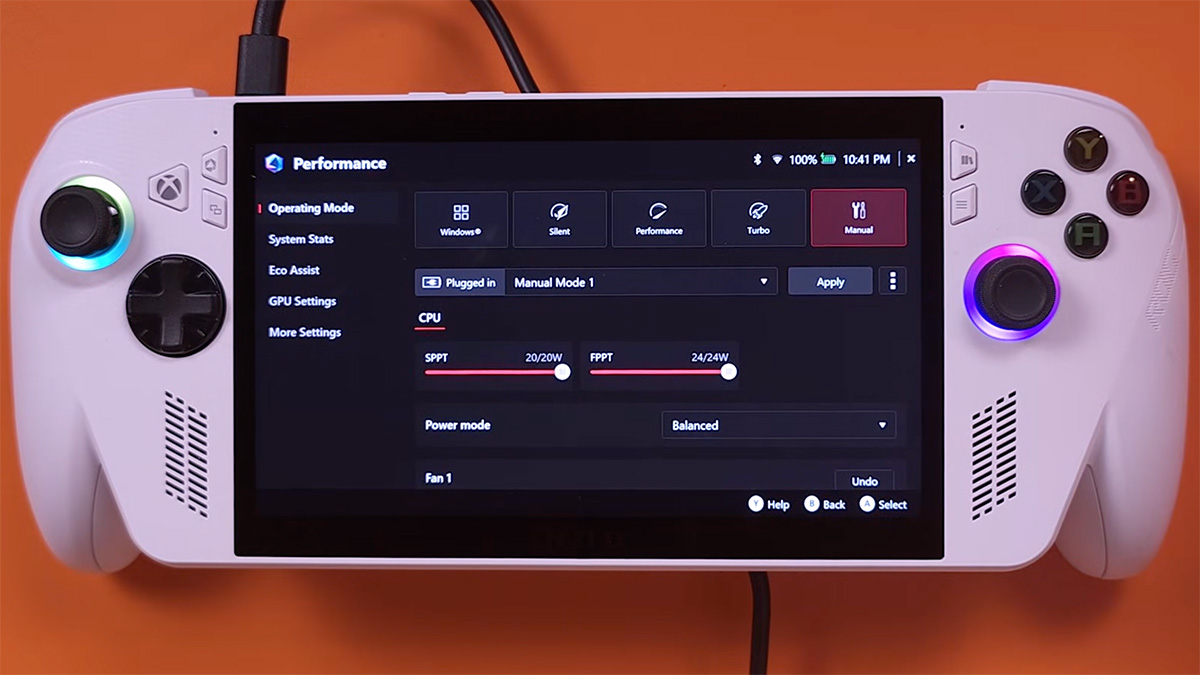
- From the Eco Boost tab, tap Manual Mode.
- There are three bars with the first one being Standard power draw, so set it to 25.
- Set the second bar (Temporary Boost) to 27 or 30 if you want this mode to scale up as needed.
- The third one is like “Emergency power,” so you can scale this all the way up if you want, and it will push the Ally to max throttle for 10 seconds or so as needed.
- After you’ve set everything up, hit the Apply button and ignore the warning.
- Rename it, if you so choose.
This is useful if you’re playing a game that runs fine except for random parts of a map with a lot of buildings or trees or something, this war emergency power setting will let you power through those areas as needed but then throttle back down to 25 for other areas.
Battery Life
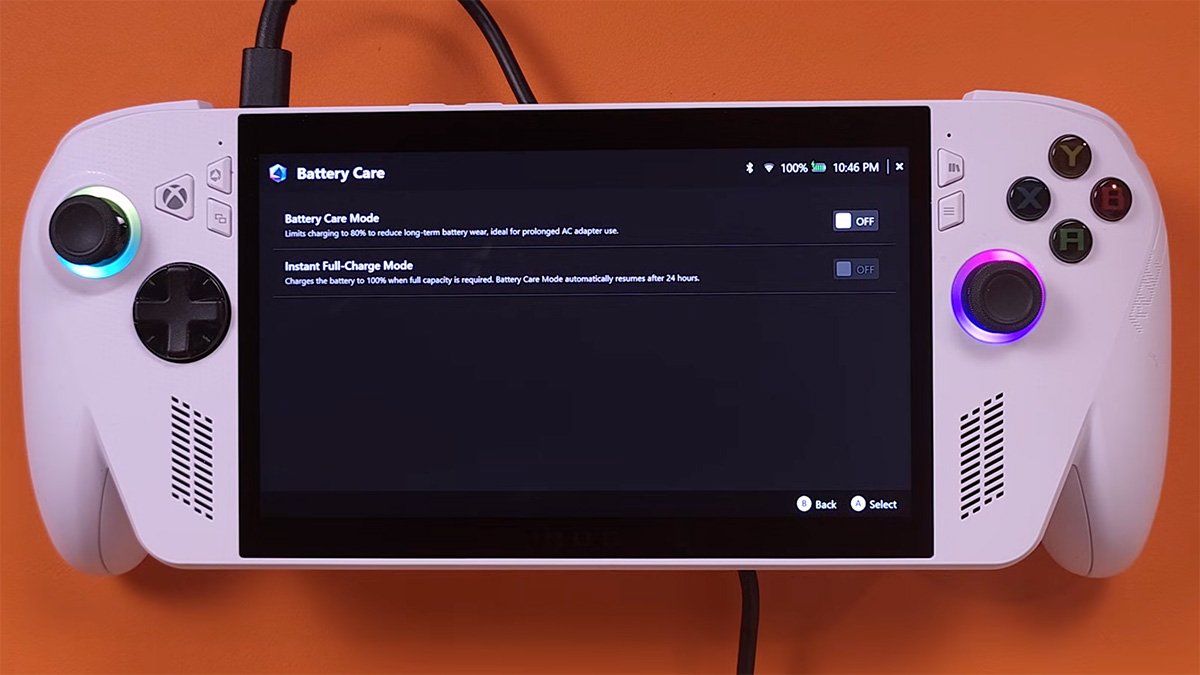
Speaking of battery life, there is one more setting here in Eco Mode, and it can cap the battery charge to 80% to prolong the life of the battery. Now I’m probably going to get a new version of this before the battery on here can completely crap out, so I’ll opt for more battery life over the short run, but if this is going to be a 5 year device for you, it’s something to think about.
This tech isn’t new, as it’s been on laptops and phones for a while, and it does help extend the life of a device. All that being said, iFixit already has a guide on how to replace the battery in these things, so if you do end up pushing it too far, you can always just replace it.
There’s a lot more you can do in Armory Crate, and we already have a video going into further detail that you can find below.
Emulation on the ROG Xbox Ally
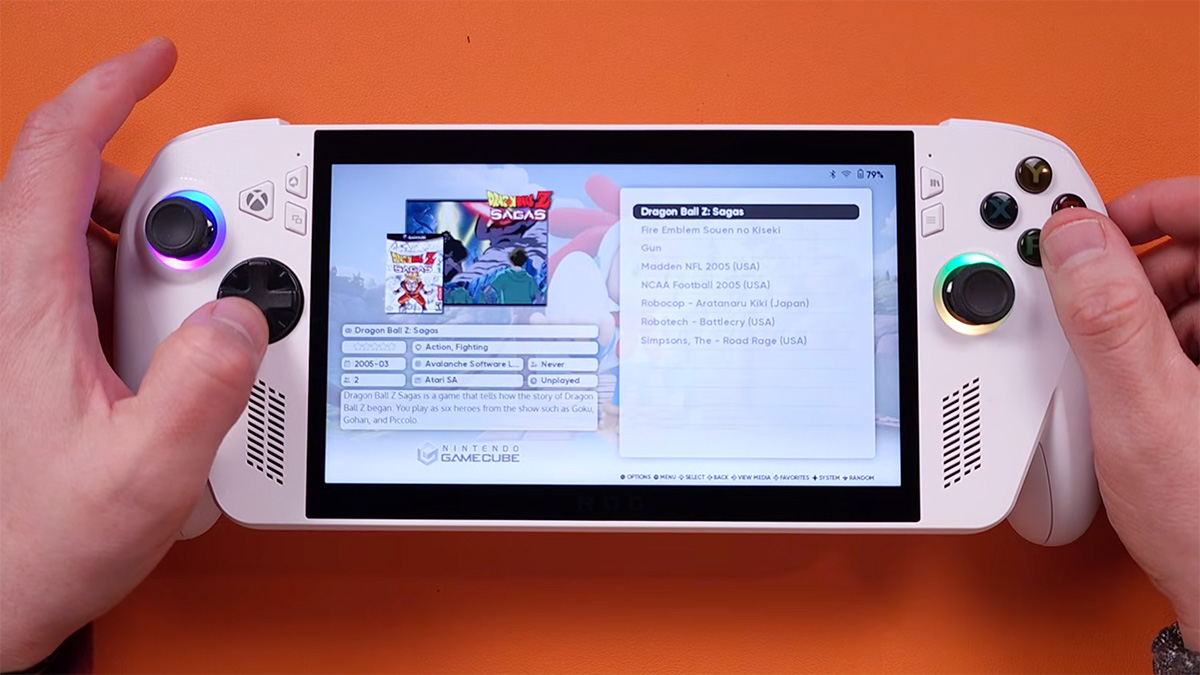
Okay, so there are two main ways to set this up as an emulation device, and they’re kind of similar to what you’d do with a Steam Deck. You can have an all-around emulation experience with EmuDeck, and I’ll show you how to do that, and then since it’s Windows, you can just install separate emulators. I’ll show how to do that with Eden as well.
EmuDeck
This is going to be a pretty basic tutorial on EmuDeck that will show you what you need to do to get EmuDeck up and running on your ROG Xbox Ally or Ally X. Installing EmuDeck is pretty easy, especially since the Xbox Ally is a Windows PC, meaning you can do it all on the device itself.
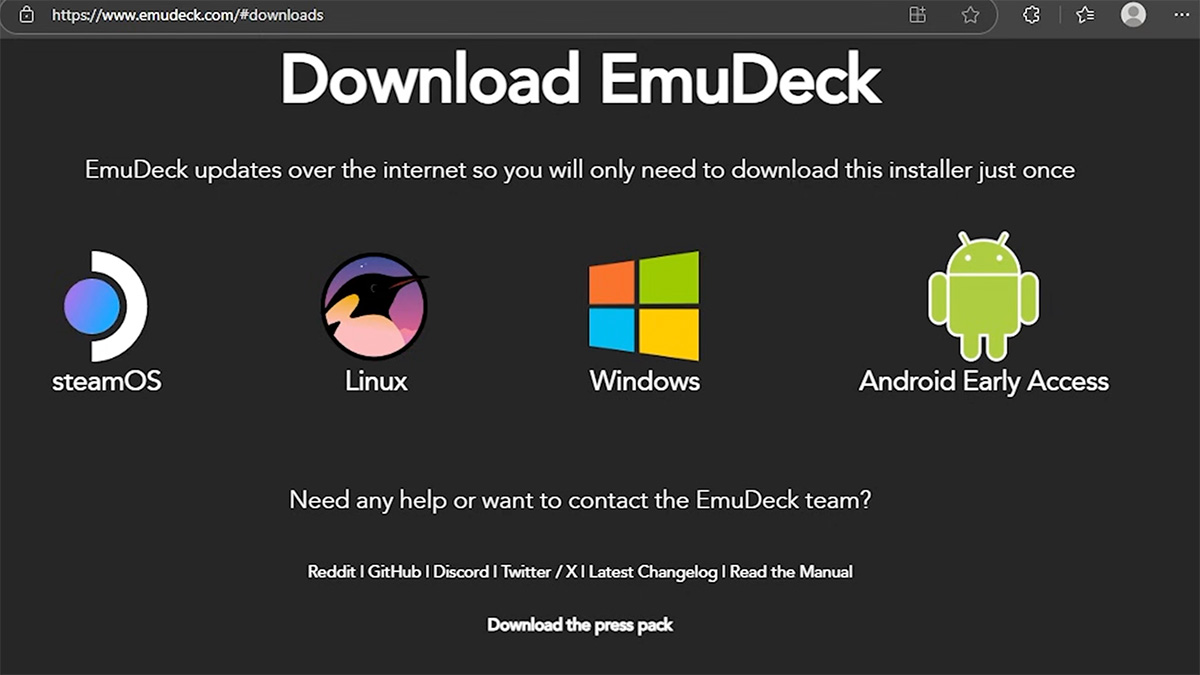
- If you want to speed up the process a bit, you might want to connect a USB-C keyboard to the ROG Xbox Ally.
- Open your browser and go to the EmuDeck website.
- Select Windows from the list of options.
- Download the latest executable.
- Windows might try to stop you from running this. Just click More Info and then Allow.
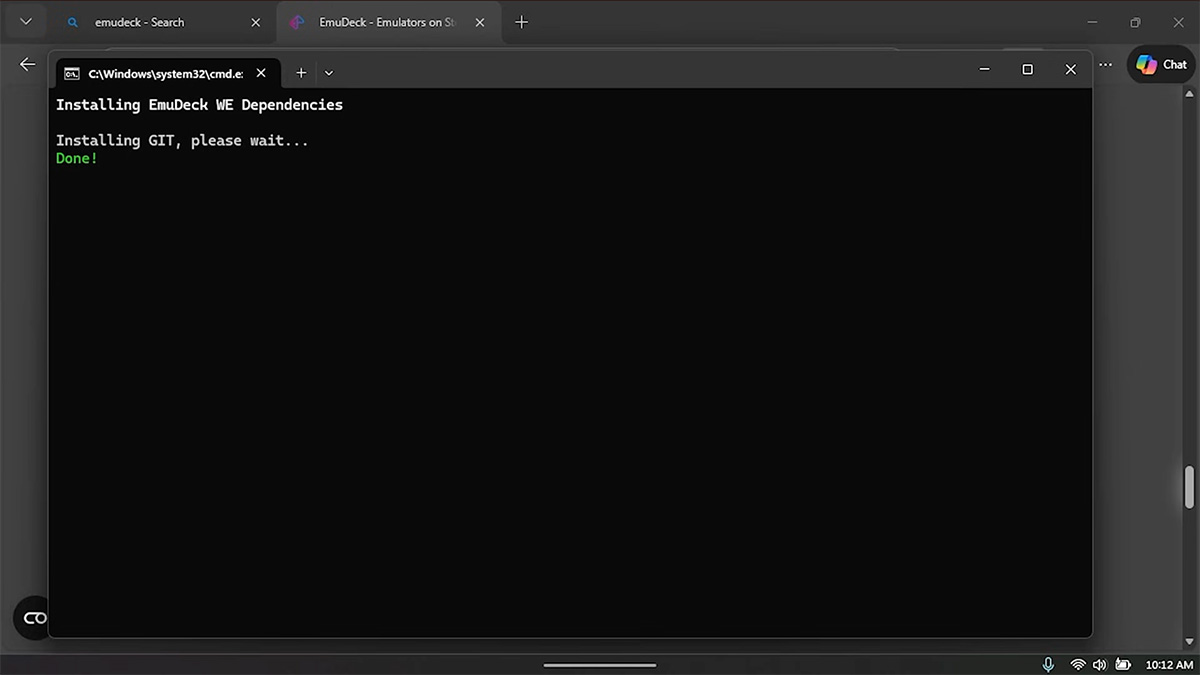
It’ll pop around a bit, potentially installing any dependencies you might have been missing from the Microsoft Store, and then it’ll finally just install EmuDeck.
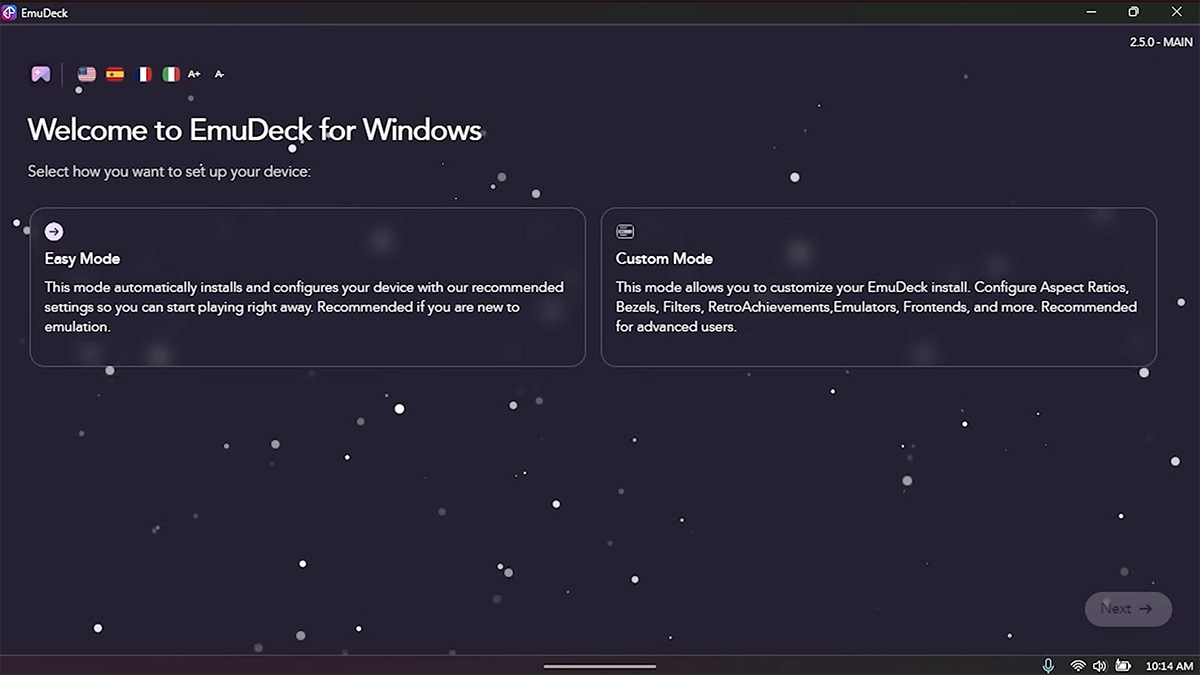
You’ll eventually get to a “Welcome to EmuDeck” window with an Easy Mode or Custom Mode option. If you’re just looking to set this thing up to play games without a lot of messing around, go with Easy Mode. But Custom Mode isn’t super complicated, and it also lets you set up aspect ratios, bezels, and cool stuff like cloud saves and RetroAchievements.
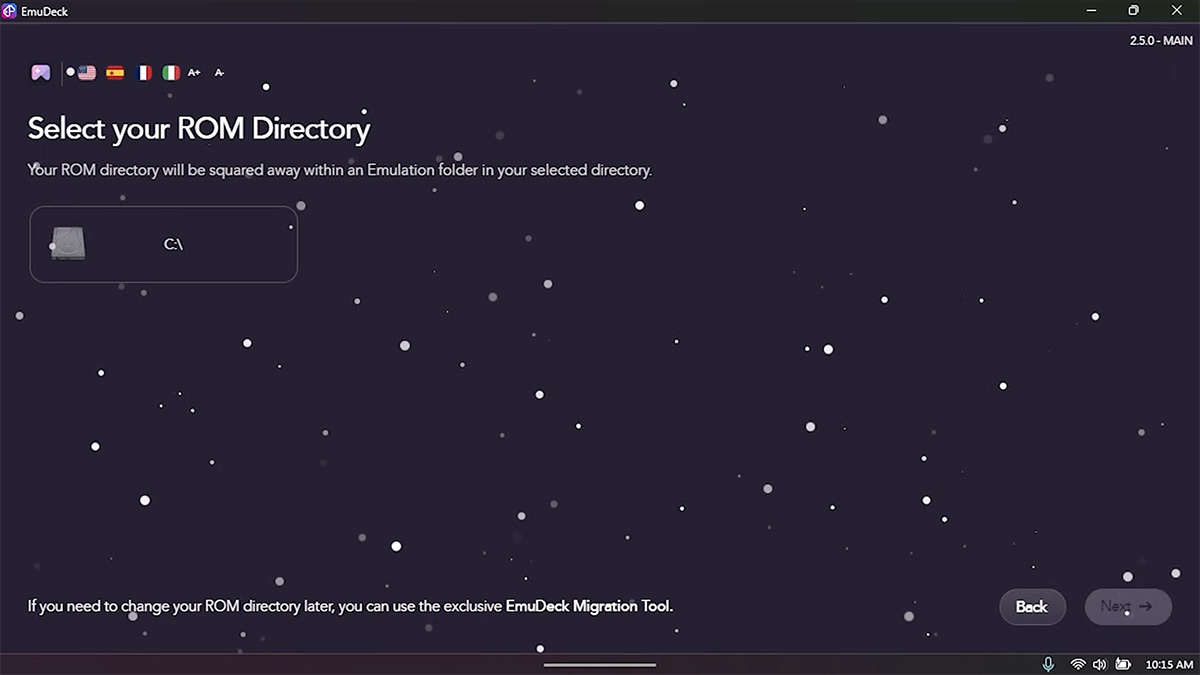
- When prompted, select a ROM directory.
- If you have an EmuDeck SD card, then be sure to select that, and it’ll bring over all your files quite easily.
- Next it will ask you what device you’re using, and you’ll select ROG Ally.
- Choose one of the following:
- Low: EmulationStation (ES-DE)
- Highest: Steam ROM Manager
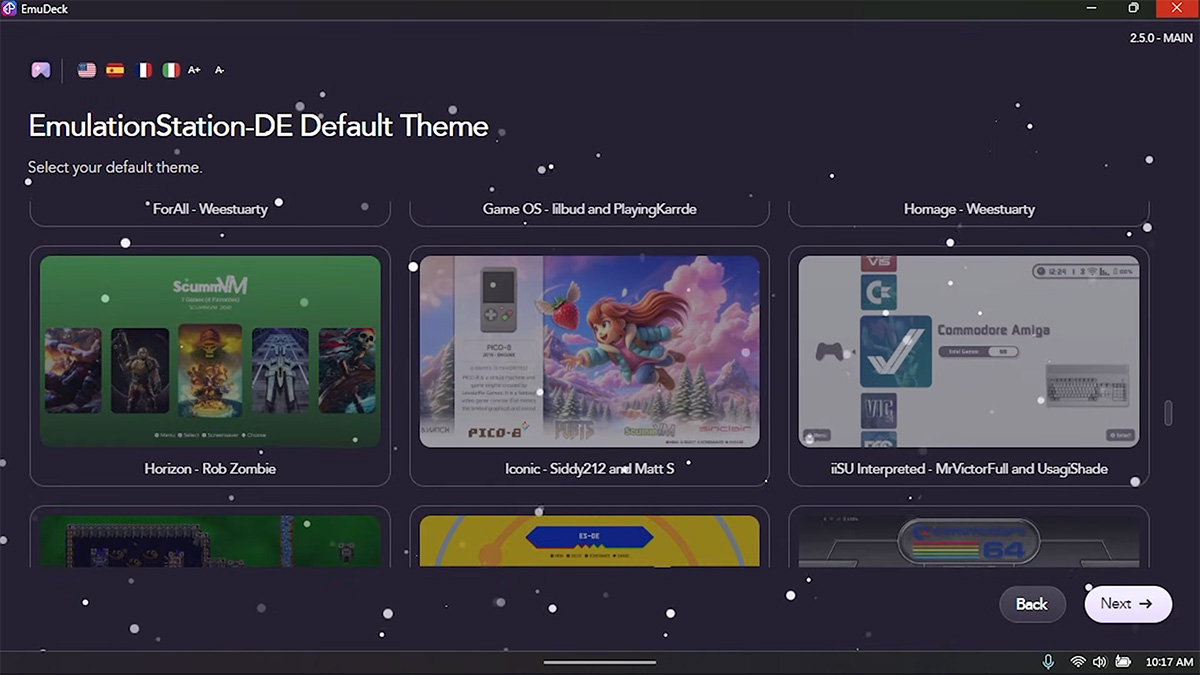
- If you choose EmulationStation (ES-DE), select a theme. You can download more later.
- Select the emulators that you want to have installed, then tap Next.
- Configure Auto Save > Next.
- Log into RetroAchievements.

- Configure Aspect Ratio:
- Classic Sega Systems
- Classic Nintendo
- LCD Shader for Handheld Systems
- Verify everything that EmuDeck will do, then tap the Finish button.
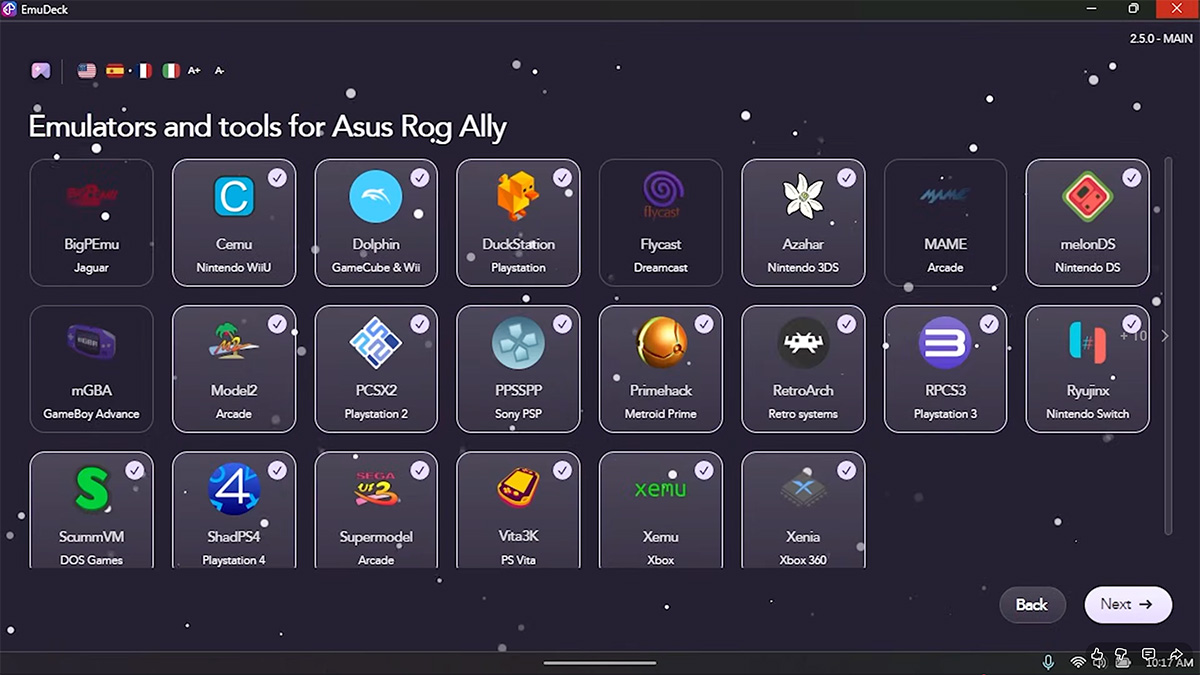
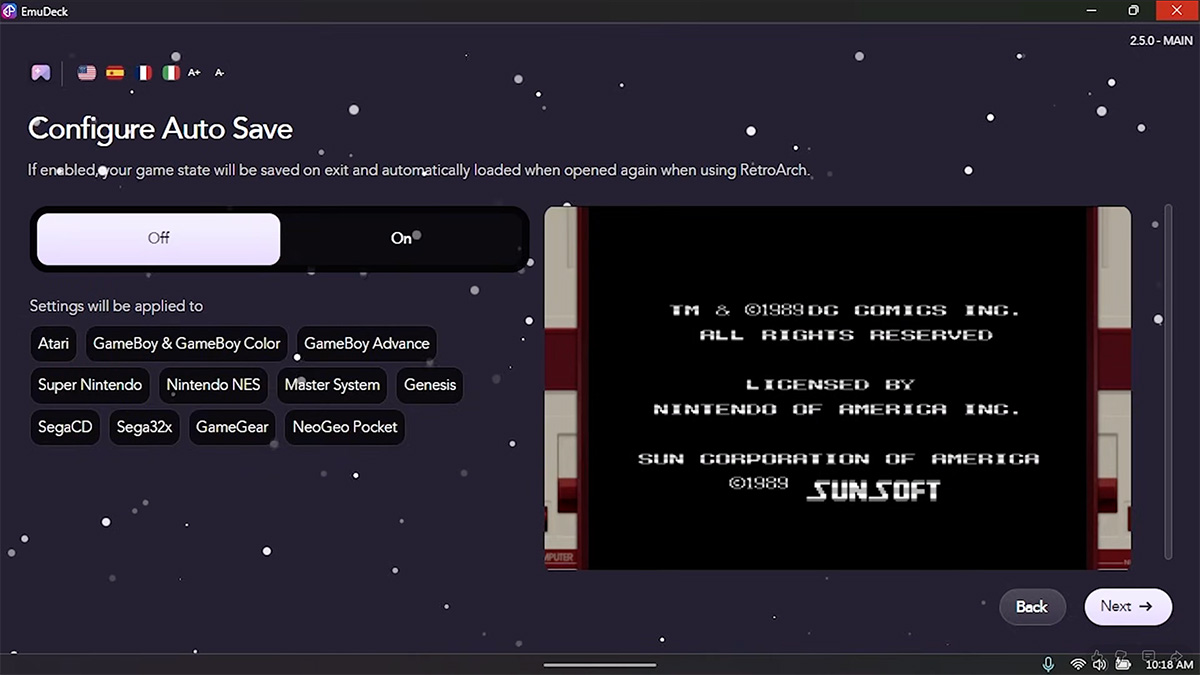
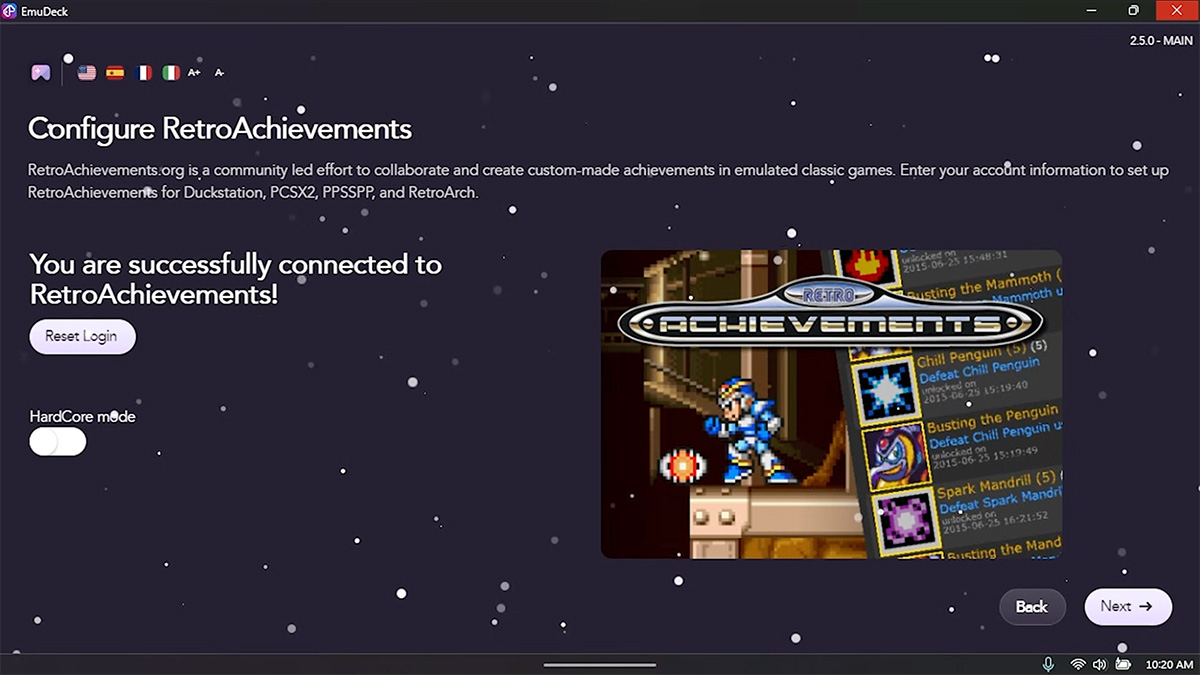
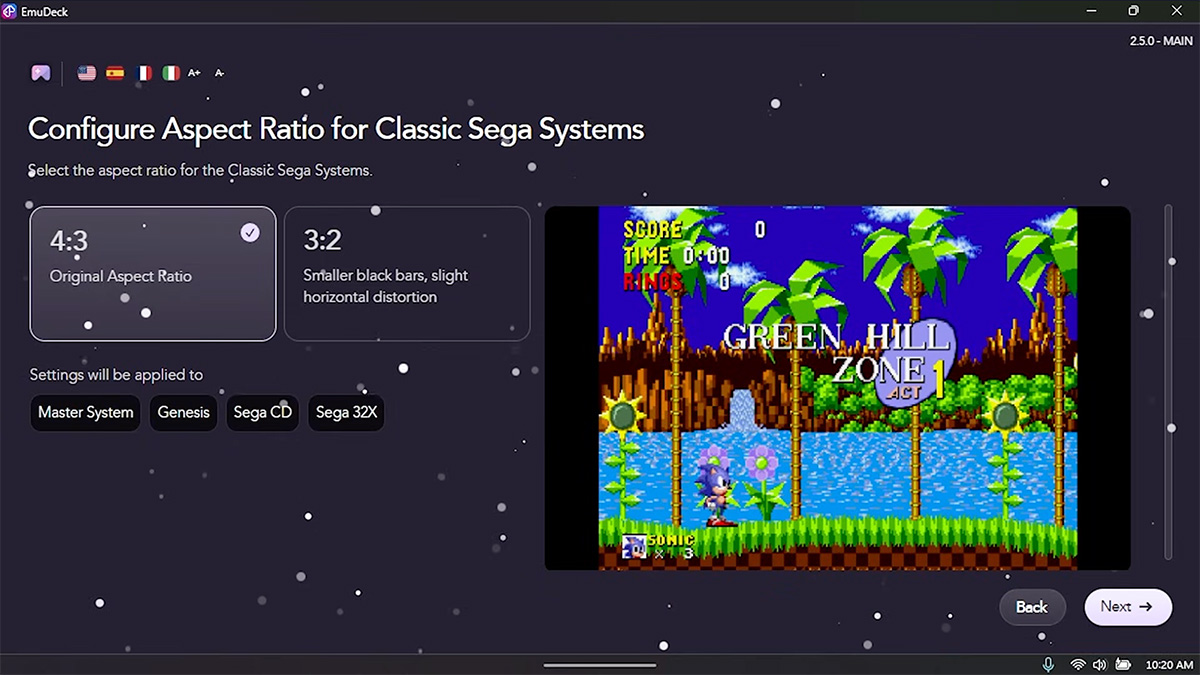
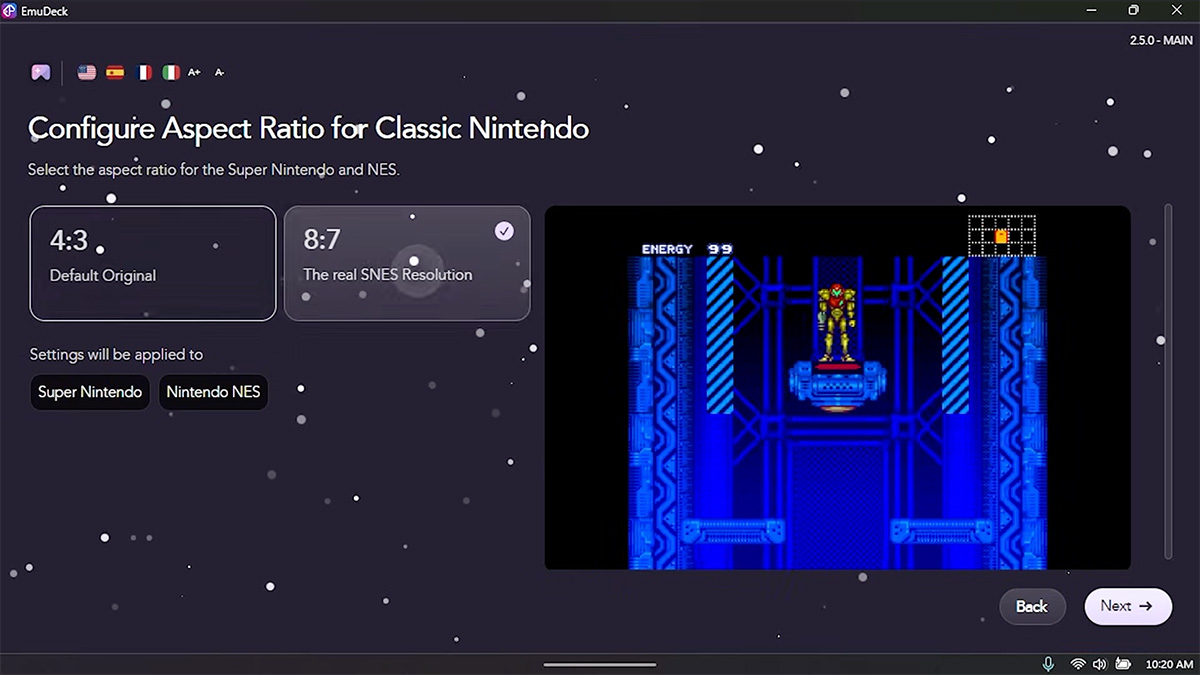
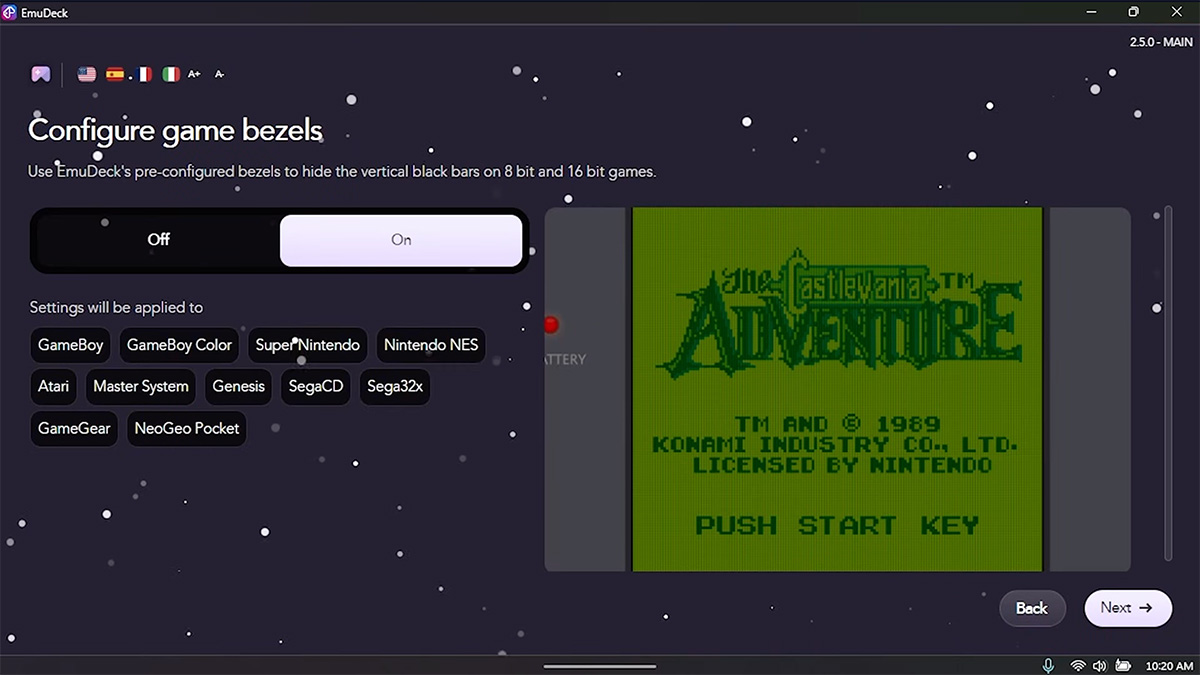
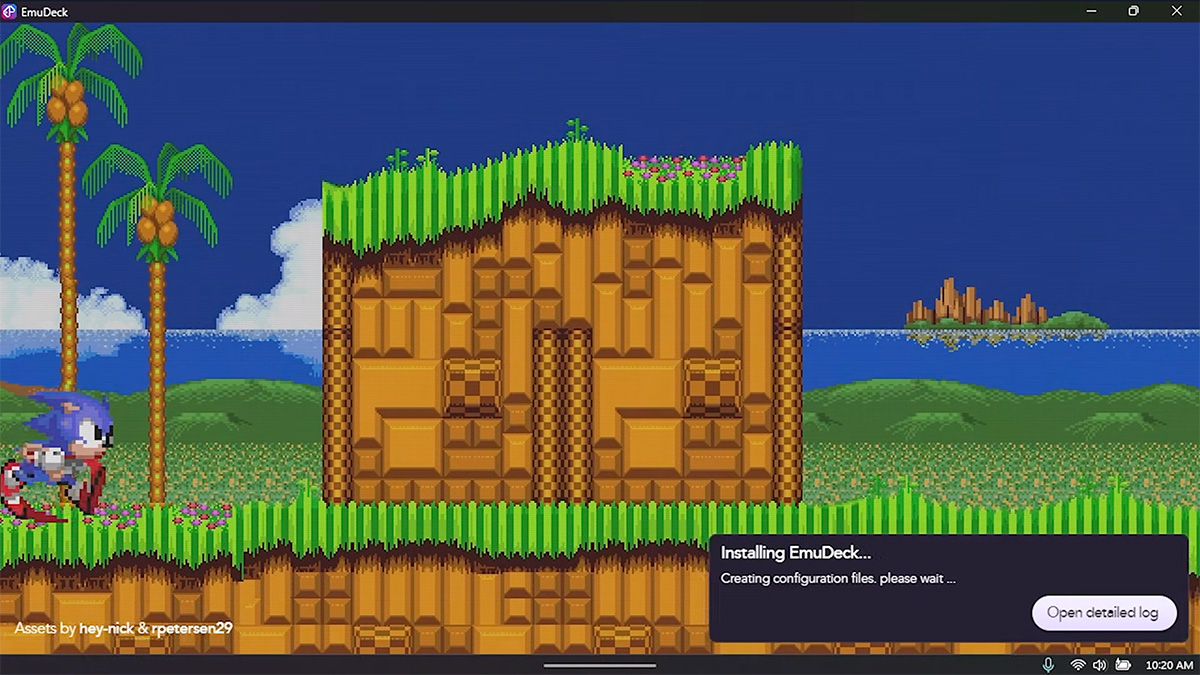
Installation can take a while, depending on if you already have certain stuff installed on your machine. Assuming you’re starting from scratch, it will download all the emulators, some visual basic C++ stuff, themes, and configuration files.
Add ROMs and BIOS Files
Once the installation is over, you’ll need to add your ROMs and BIOS files. Now, I’m reusing an SD card that already has all that stuff, but if you need to start from scratch, be sure to back up all your old games onto some sort of digital media. You can also back them up to your personal cloud, effectively creating some sort of internet archive of all your legally acquired old games.
Once you have all those games, drop them into the corresponding folders that EmuDeck set up for you. Same thing goes for the BIOS files. If you’re not sure what files go where, there are written guides on the EmuDeck site.
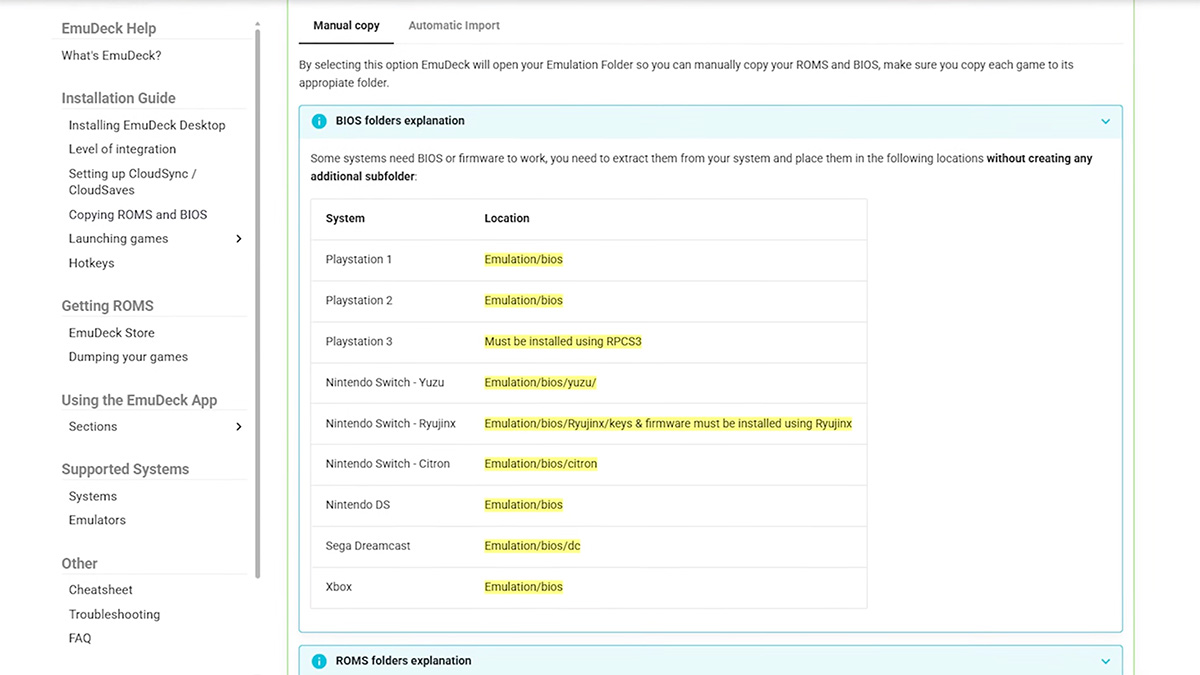
After you get all your files onto the Ally, then you can open Emulation Station and it’ll have all of your games in an easy to navigate format that will be very familiar to anyone who ever messed around with Raspberry Pi’s or Linux handhelds, or even Android devices with the ESDE frontend.
You can load Emulation Station through Steam, or you can add it to One Game Launcher by navigating to the ES-DS executable. It’s not super apparent, it’s hidden in:
AppData\Roaming\EmuDeck\EmulationStation-DE
I prefer this way rather than loading Steam just because I don’t want to open a frontend to open a frontend to open a game. This is a hair cleaner. I wish they’d just allow you to throw the .exe files into the Full Screen Experience directly, but we’ll just have to wait for them to add that.
Installing Standalone Emulators
Installing a standalone emulator like Eden is even easier than EmuDeck.
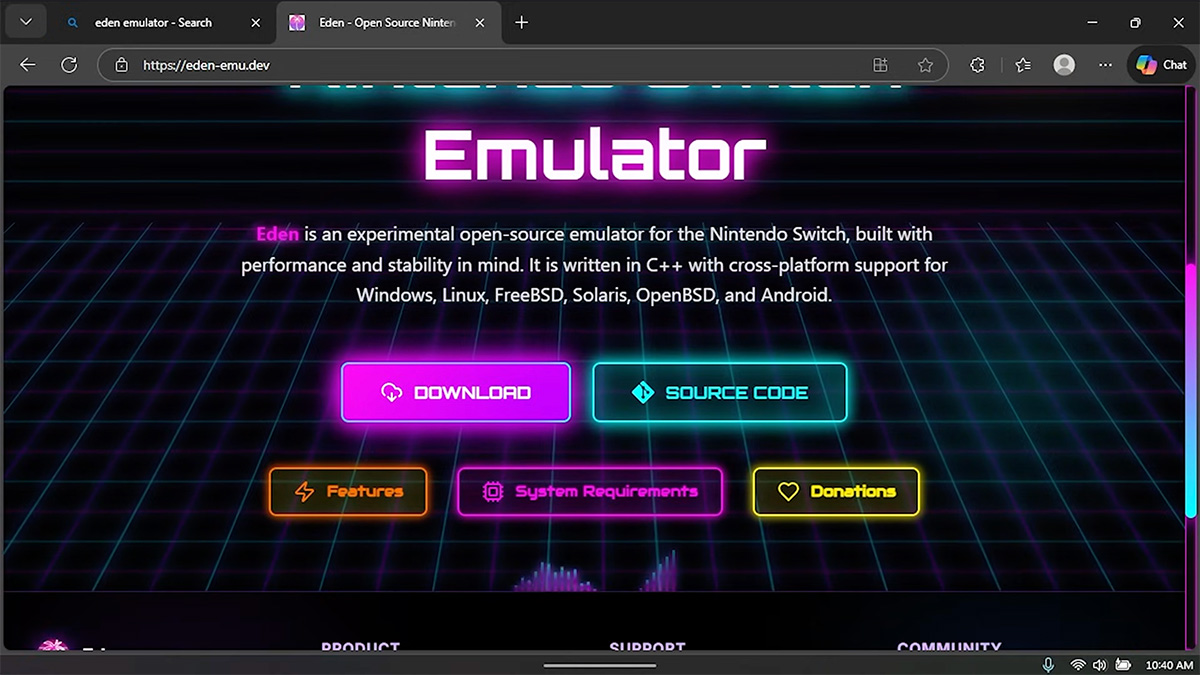
- Navigate to the emulator’s website or GitHub page.
- Download the file and unzip it to a folder.
- Double-tap/click to open the executable file.
- Be sure to do your initial controller and graphics configurations,
- Add the location of your ROMs so the emulator knows where to look, and you’re done.
If you want to add a standalone emulator like Eden into the Full Screen Experience, you can do it using that widget we installed earlier in the video, One Game Launcher.
Alternatives to Windows
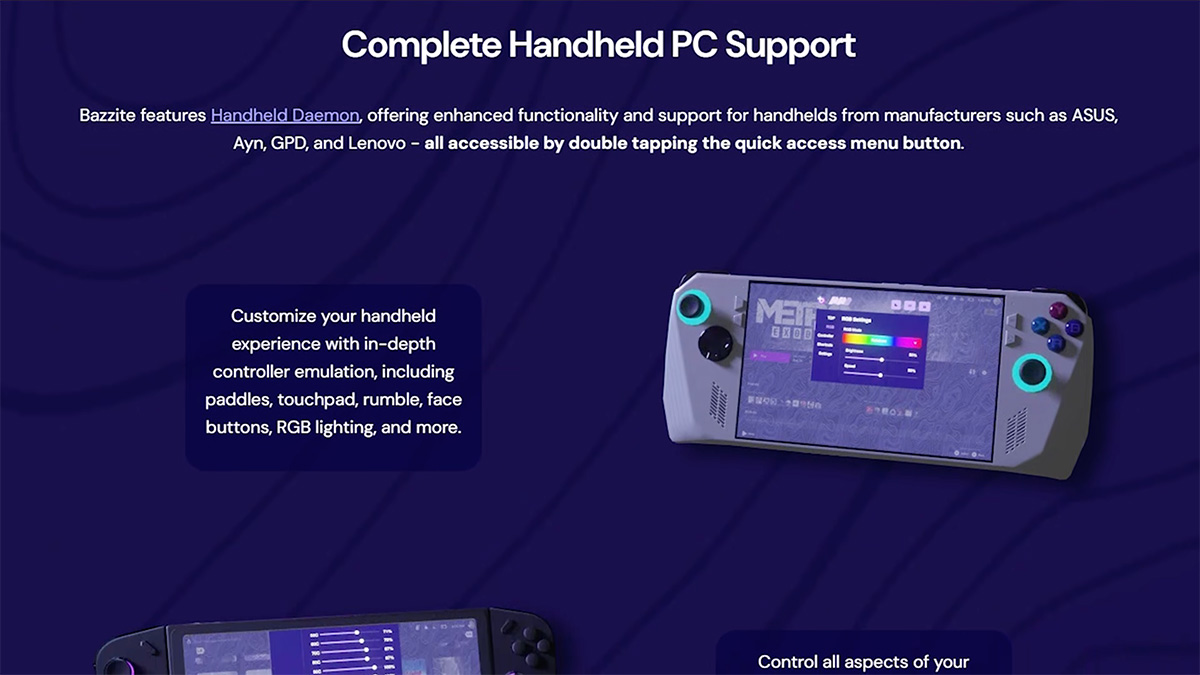
Let’s talk about alternatives to Windows real quick. Unlike Lenovo’s handhelds, you won’t find SteamOS versions of the ROG Xbox Ally or ROG Xbox Ally X available for purchase. But that doesn’t mean you can’t just install something like Bazzite or CachyOS onto the handheld anyways.
And if you have a large enough hard drive, you can even go so far as to dual-boot between Bazzite and Windows. If you go down this path, you can still enjoy the benefits of Linux, while also switching over to play some Game Pass games when the mood strikes. It’s fairly easy to do, as long as you have a solid USB-C flash drive and know how to use Balena Etcher, and you can basically turn this into an Xbox-branded Steam Deck.
Conclusion
Well Gary, the clock on the wall says it’s time for What Did We Learn. With the recent price drop down to under $500, the Xbox Ally might have been an attractve enough value proposition to end up under your Christmas tree this year. And with a new and powerful device like this in your hands, you probably have a lot of questions about how to set it up.
Hopefully you learned some quick hints for setting up Armoury Crate, how to make sure you’ve got ALL your updates, how to grab games from a variety of sources, and how to add all your favorite old and not so old games on here with EmuDeck.
[button link=”https://rh-go.link/ASUS-ROG-Xbox-Ally_Amzn” color=”red” newwindow=”yes”] ASUS ROG Xbox Ally at Amazon[/button][button link=”https://rh-go.link/ASUS-ROG-Xbox-Ally_BB” color=”red” newwindow=”yes”] ASUS ROG Xbox Ally at Best Buy[/button][button link=”https://rh-go.link/ASUS-ROG-Xbox-Ally_WM” color=”red” newwindow=”yes”] ASUS ROG Xbox Ally at Walmart[/button]
What did you think of this article? Let us know in the comments below, and chat with us in our Discord!
This page may contain affiliate links, by purchasing something through a link, Retro Handhelds may earn a small commission on the sale at no additional cost to you.
