

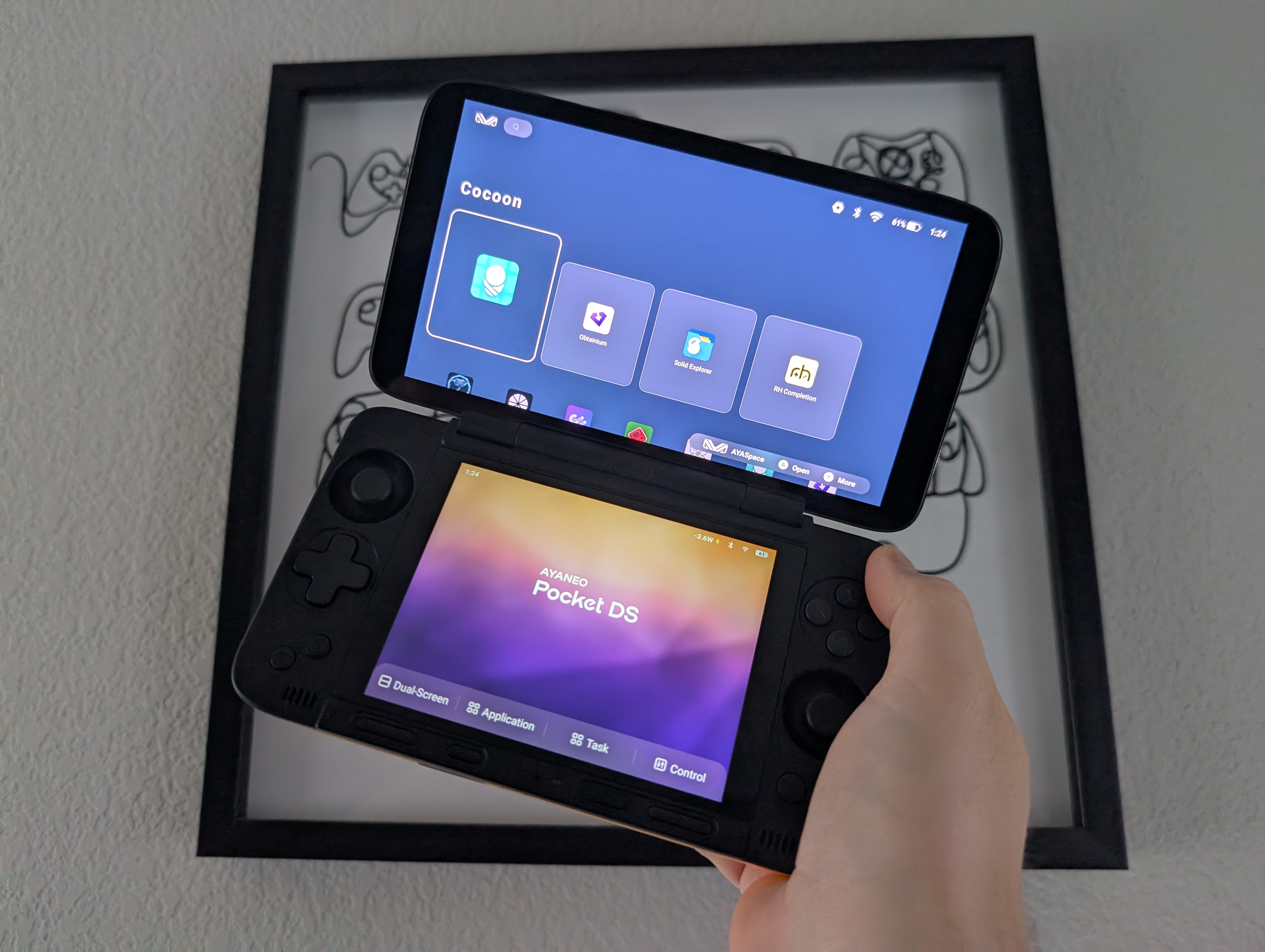
I already own an AYN Thor Pro that I quite enjoy, but I always find myself drawn to AYANEO devices. I currently own a Pocket Ace, Pocket DMG, and Pocket Air Mini (AYANEO certainly likes pockets, huh?). I decided to snag an AYANEO Pocket DS to try out, and thought this was as good a time as any to put together an out-of-the-box setup guide. This guide will help you set up your AYANEO Pocket DS to get the most out of your dual-screen device.
Table of Contents
AYANEO Pocket DS Specs
For the AYANEO Pocket DS, you’re looking at all three configurations available in black, or the 16GB + 1TB options only available in a Starry Yellow, or the limited edition Retro Gray. They’ve locked both fun colors behind the max SKU this time. Do also keep in mind that the bottom screen is not OLED on the Pocket DS, but instead an LCD screen.
| AYANEO Pocket DS | |
|---|---|
| Display | |
| Size (Top) | 7-inch |
| Screen Type (Top) | OLED |
| Resolution (Top) | 1920 x 1080 |
| Refresh Rate (Top) | 165Hz |
| Size (Bottom) | 5-inch |
| Screen Type (Bottom) | LCD |
| Resolution (Bottom) | 1024 x 768 |
| Refresh Rate (Bottom) | 60Hz |
| Hardware | |
| CPU | Qualcomm Snapdragon G3x Gen 2 |
| GPU | Adreno A32 |
| RAM | 8GB | 12GB | 16GB LPDDR5X |
| Storage | |
| Internal | 128GB (UFS 3.1) | 256GB | 512GB | 1TB UFS 4.0 |
| External | microSD |
| Battery | |
| Size | 8000mAh |
| Connectivity | |
| Wi-Fi | Wi-Fi 6 |
| Bluetooth | Bluetooth 5.3 |
| Ports | USB-C, microSD |
| Video Out | Yes, via USB-C |
| Physical | |
| Dimensions | 179.8 x 101.8 x 25mm |
| Weight | 540g |

Recommended Accessories
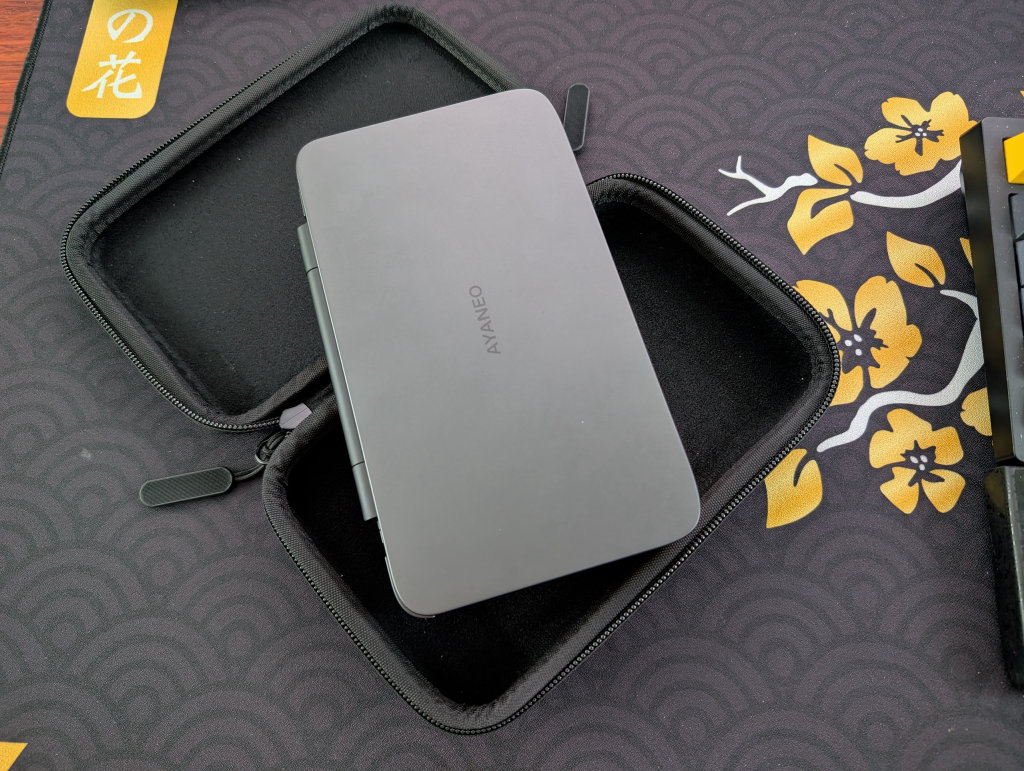
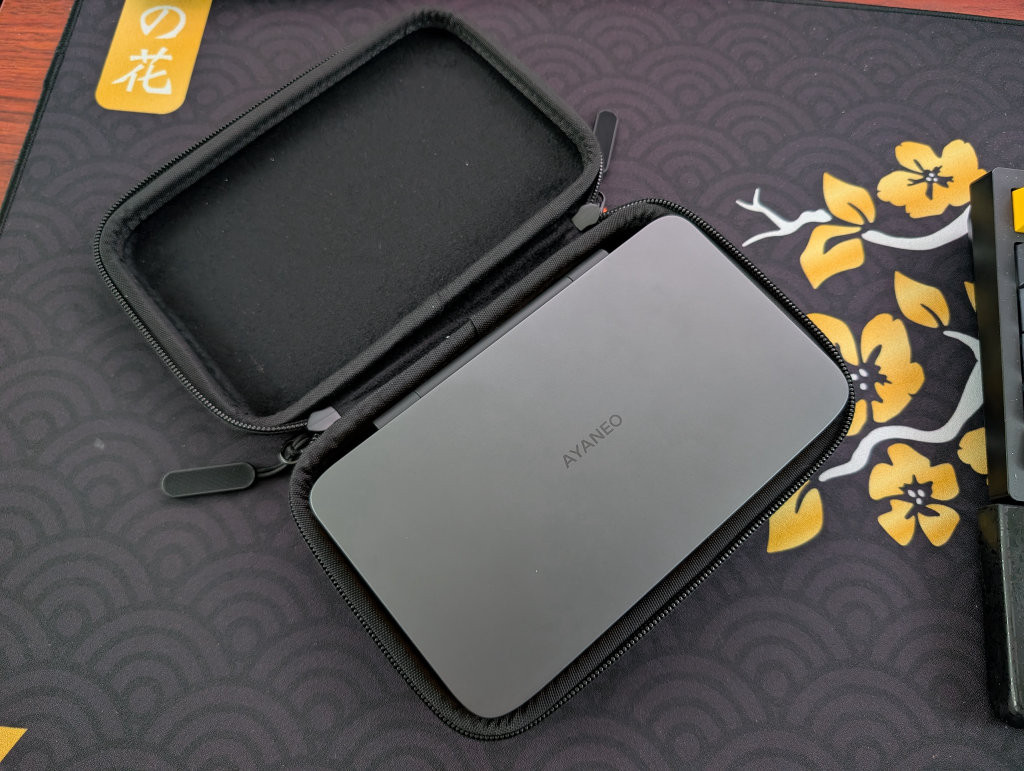
As far as official accessories go for the Pocket DS, you’ve got the official carrying case and screen protector for the top and bottom screens offered on AYANEO’s official website. These were included in some of the Kickstarter preorders, so you may already have them. I only have the official AYANEO Pocket DS case, but it’s a really good one that fits the device perfectly, including grooves on the bottom for the contoured backside of the device.
As far as unofficial goes, you’ve got a set of 3D-printed grips from JCSFY on Etsy that work well with the Pocket DS.
External Storage
Ah, the age-old question of whether to keep your games and files on the internal storage on the device itself, or the external storage in the form of a microSD card or portable SSD? All my files are kept on a Sharge Disk (external 2230 SSD enclosure), as I find it makes it so that I don’t have to constantly involve my computer in the installation process and I can even use it to house and play games.
Internal storage is going to be faster and more stable, so plenty of people prefer that option. However, if you’re interested in something like PC emulation through GameNative or GameHub, then you might want to reserve that internal storage for those purposes, as using external storage for PC emulation on Android can cause performance issues and/or crashes.
Installing Apps and Emulators
Now, it’s time to focus on getting your emulators set up. Remember when we had to find and install each emulator and system separately? Retro Handhelds remembers. Those days are long gone, unless you prefer that sort of journey.
Obtainium
Obtainium has made emulation and gaming software installation on Android an extremely simple process, with the help of the Obtainium Emulation Pack. Obtainium will provide links directly to developer sources and pages, cutting out the need to find and manage them yourself. Additionally, Obtainium will also keeps tabs on these programs and alert you of any updates that need to be installed.
For an in-depth guide on Obtainium setup and configuration, please check out our Obtainium guide on our website.
Dual-Screen Emulators
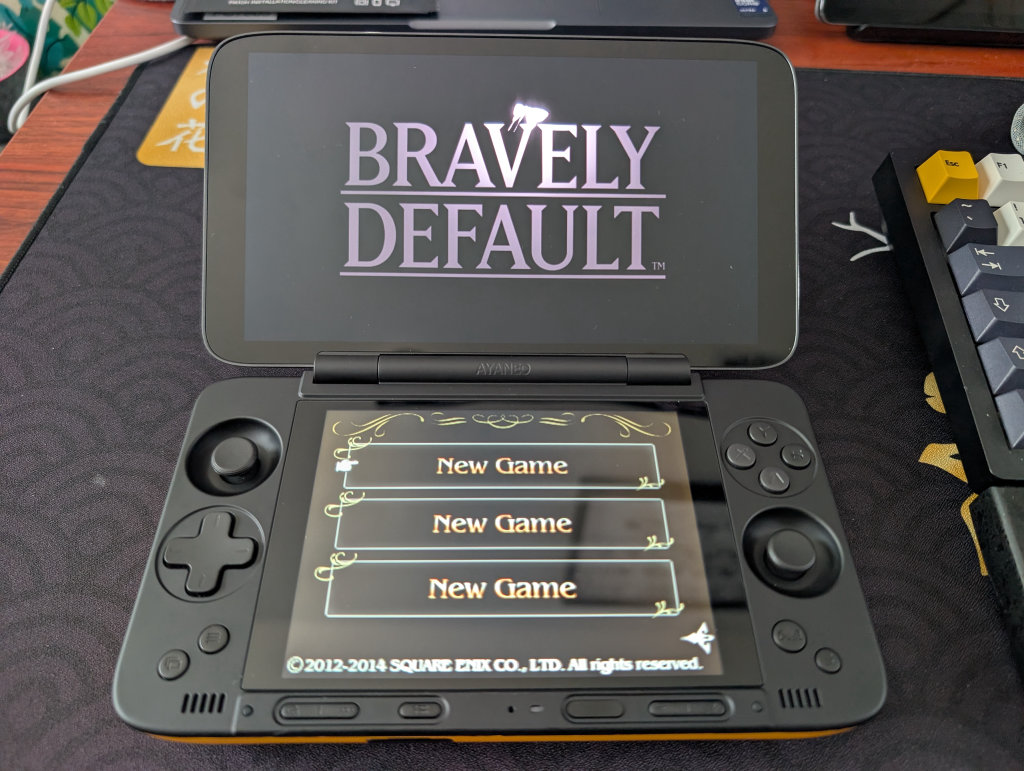
Now, following the steps for Obtainium above, you’ve got a horde of emulators and apps. Apps like melonDS, Azahar, and Cemu will be on that list, but I’m going to mention a couple of forks and alternatives below. Namely, because they’re ones that take advantage of both screens:
Nintendo DS
When it comes to DS emulation, melonDS is the favorite by far, and the DualDS link below was created by user SapphireRhodonite and supports dual-screen devices like AYN Thor and AYANEO Pocket DS. This is the recommended version to snag if you’re using this guide. DraStic is also an option, and works well enough, but support dried up for this app a long time ago. Again, the specialized build below provides support for dual-screen devices.
Nintendo 3DS
When it comes to 3DS, Azahar is the current favorite. Azahar was created by merging a fork of Citra and Lime3DS to become the (arguably) definitive 3DS emulation platform. Azahar Plus is a fork with some extra features (like compatibility with more file types), AzaharDS is a fork made by the same user who did the melonDualDS above, and Citra MMJ is an older 3DS emulator that still provides better performance for some users.
Wii U
While I personally don’t use Wii U emulation (seriously, outside of Wind Waker HD, they’ve all been ported as better versions to the Nintendo Switch), some users love it. Cemu is the emulator of choice here, with CemuDS being yet another brought to you by SapphireRhodonite, and the recommended choice if you’re following this guide.
BIOS Files
While the installation of emulators on your various handhelds will get you most of the way to your goal of playing games, some systems (most notably disc-based) require a BIOS in order to actually run the games. Systems on RetroArch will be mostly covered, but anything additional (PS2, GameCube, Saturn, Switch) will require some additional file placements.
While copyright law keeps us from telling you where to find these files, you can refer to our Recommended BIOS Files for examples of BIOS files for each system, along with where they should be placed in your file structure.
Choosing a Launcher or Frontend
This one comes down to preference; do you want a launcher that uses both screens on your Pocket DS, or a launcher that just uses one? There are plenty of solid options for a single-screen frontend like Daijisho or Beacon Game Launcher, but it feels right to focus on frontends with dual-screen support for this guide.
Note: Yes, the device comes with AYASPACE as a frontend option. No, I don’t recommend it.
Cocoon
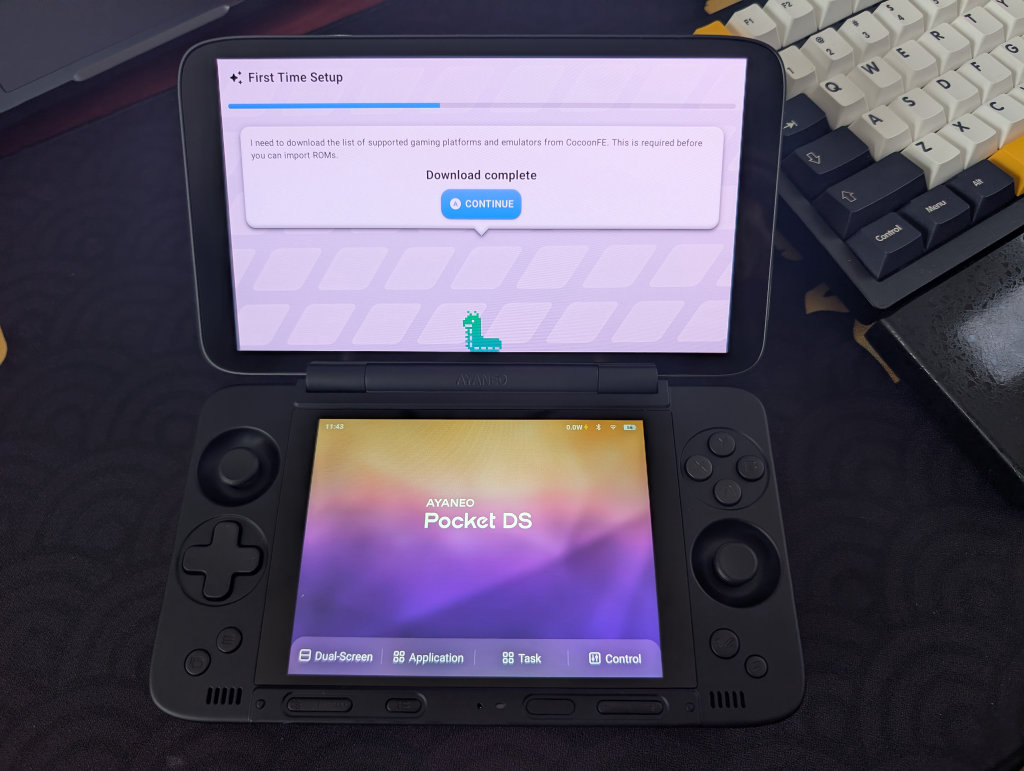
Cocoon Frontend (or Cocoon FE) is the new kid on the block, a frontend that specializes in dual-screen devices but is still in a beta phase. It’s pretty awesome, especially if you’re willing to take the time to set it all up with custom designs and looks. I enjoyed the frontend on my AYN Thor, and promptly put it on the AYANEO Pocket DS.
Additional Options (Dual-Screen)
- iiSU (Free, currently in Alpha)
- Console Launcher (Free, dual-screen support starting with beta 7.0)
- ES-DE Companion (in development)
Streaming Apps
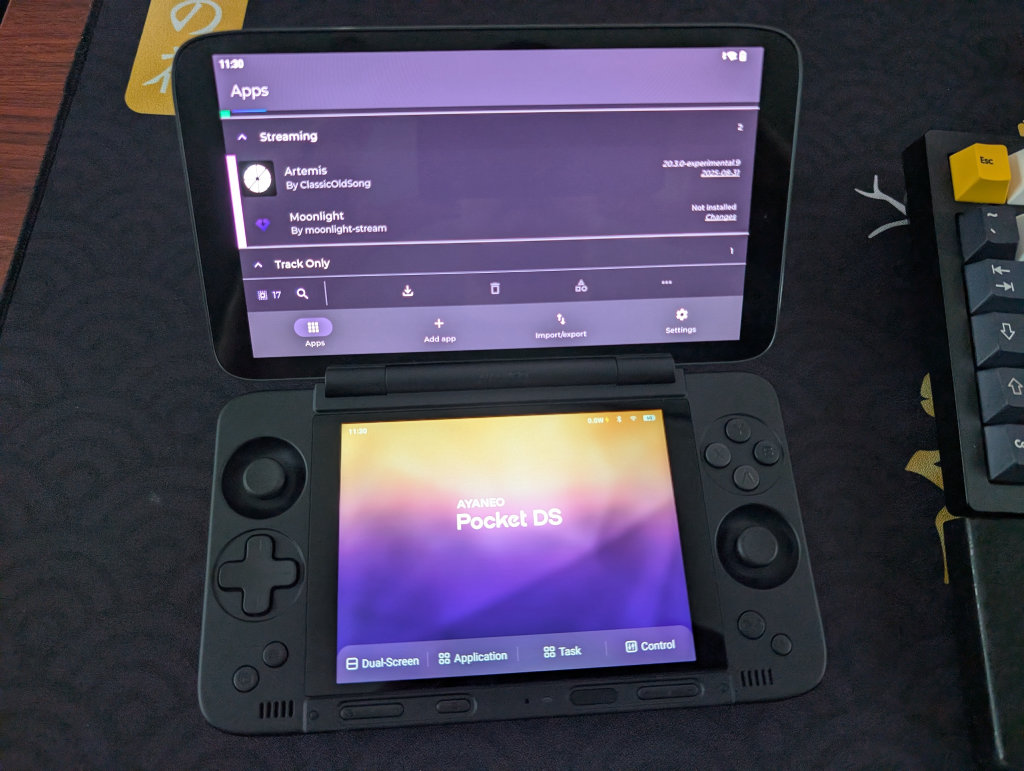
This is going to depend entirely on your personal desktop/gaming PC and your home network, but the one that works the best for me is Artemis. Install Apollo on your streaming PC, and Artemis on your AYANEO Pocket DS, and follow this guide to get things running.
Moonlight/Sunshine is also an option, of which Apollo and Artemis are forks, and may work better for you depending on your home network situation. I just prefer and have had better experiences with Apollo and Artemis.
PC Emulation
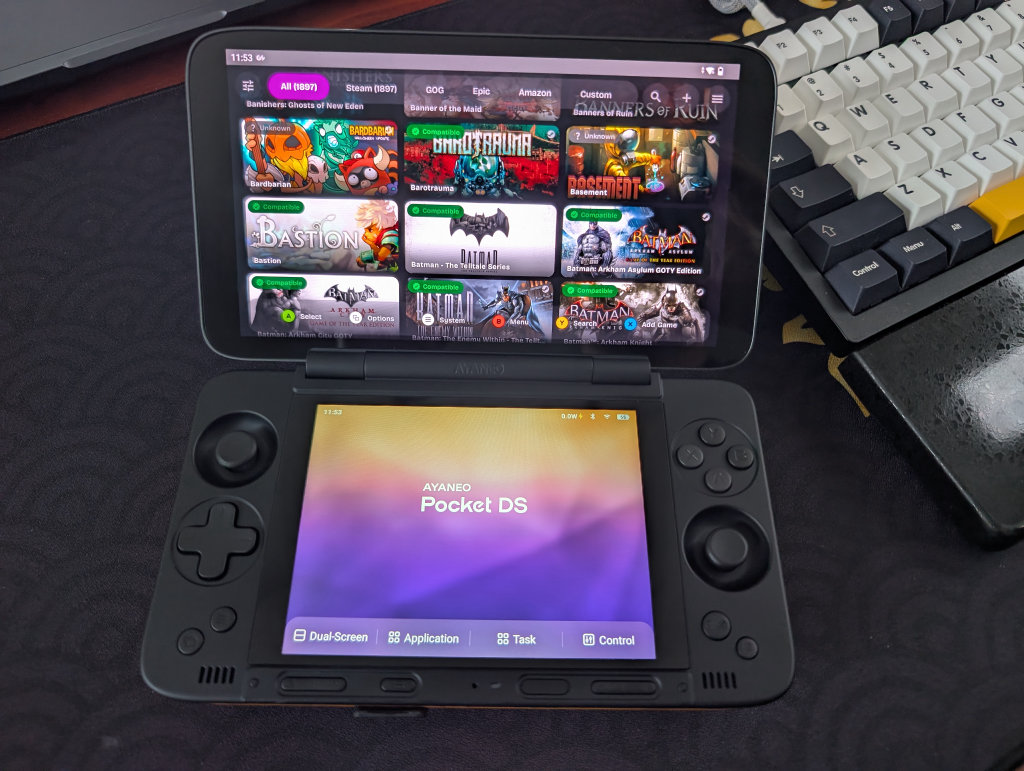
If you followed the previous Obtainium section, you’ll have access to both GameHub Lite and GameNative. These are the two biggest apps in the Android PC Emulation space right now. GameNative, which is my preferred PC emulator, gives you access to your entire Steam library, including cloud saves. Our own Jim has an excellent How to Play Steam Games on Android guide if you want to set up GameNative.
Some people have more success with some games in GameHub Lite than GameNative, and vice versa, so feel free to download both and play around to see what works for you.
Additional Recommended Apps
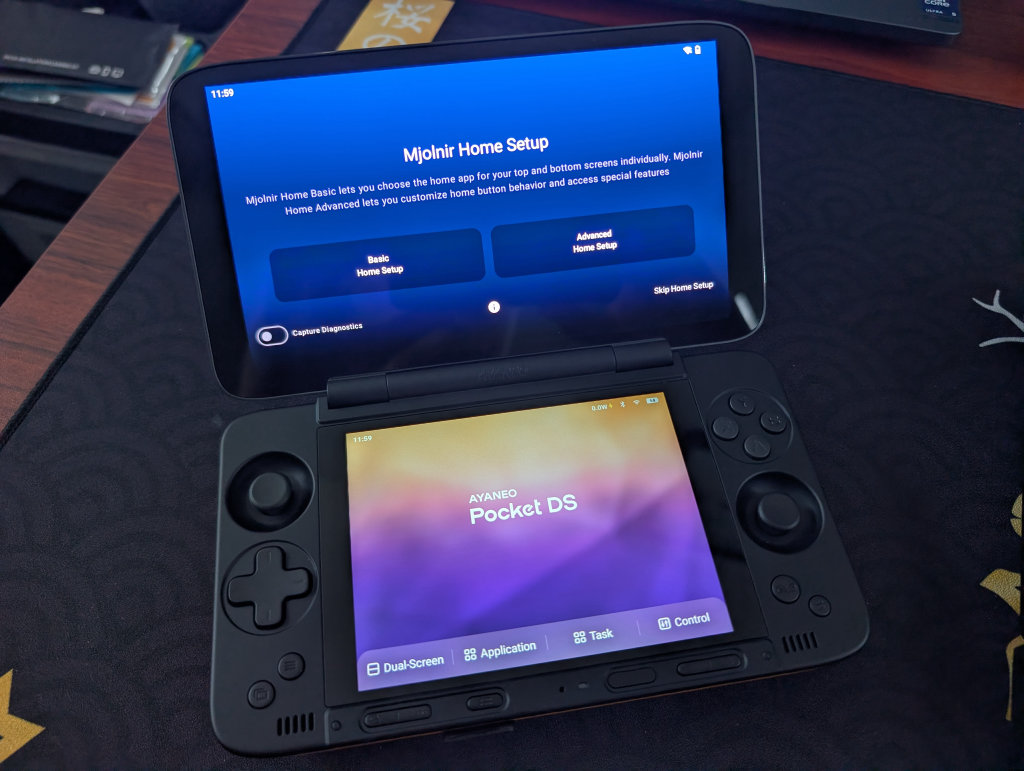
Mjolnir is a functionality app that allows you to customize what happens when you press the Home button on the AYANEO Pocket DS. You can set certain button presses to open specific apps or frontends, take pictures of both screens at once, and many other things. This one comes with the dual-screen version of that Obtainium Emulation Pack from before. Despite the awesome naming synergy, Mjolnir works on the AYANEO Pocket DS as well as the AYN Thor.
CHDroid allows you to convert ROM files into a compressed .chd format on the AYANEO Pocket DS itself. Most disc-based games, like PS2, Sega Saturn, Dreamcast, and PC Engine CD, can be converted to .chd and save a ton of space.
Quick Tips and Tricks
Opening Apps on the Bottom Screen
More often than not, the bottom screen will have the AYANEO Menu open. If you want to open an app on the bottom screen, try the following:
- Long-press an app from either the Home Screen or App Drawer
- Tap Open on Secondary Screen
AYANEO Buttons
You may have noticed that the AYANEO DS has several buttons along the bottom and chin of the device. From bottom-left to bottom-right, we have:
- Display
- Menu Selection
- AYANEO Menu
- Dual-Screen Management
- Application Drawer
- Task Management
- Quick Control
- Performance Selection
- Eco
- Balanced
- Streaming
- Gaming
- Max
- Power Button
- Volume Up / Volume Down
- Adjusts based on which screen is selected
- AYANEO Performance Panel
- Back / Return
Let’s dig into a couple of these options, shall we?
AYANEO Menu
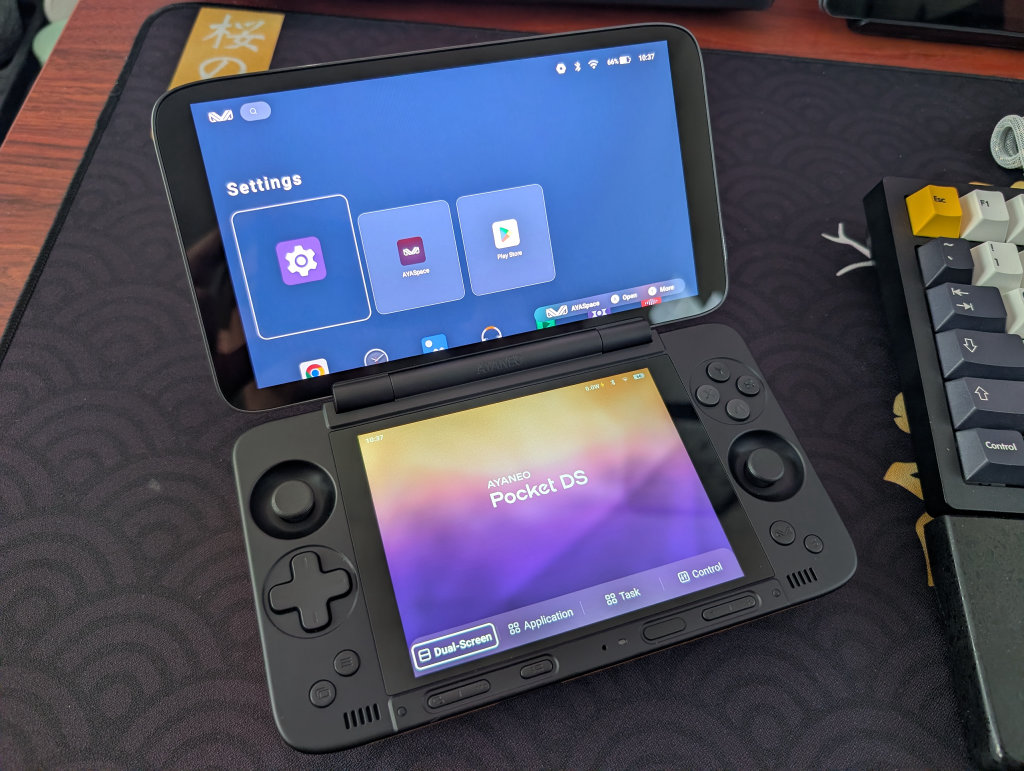
The AYANEO Menu is the default application you’ll see on the bottom screen of your Pocket DS. This screen houses a software suite of four applications related to your device. The four main options can be selected by touching them.
Dual-Screen Management
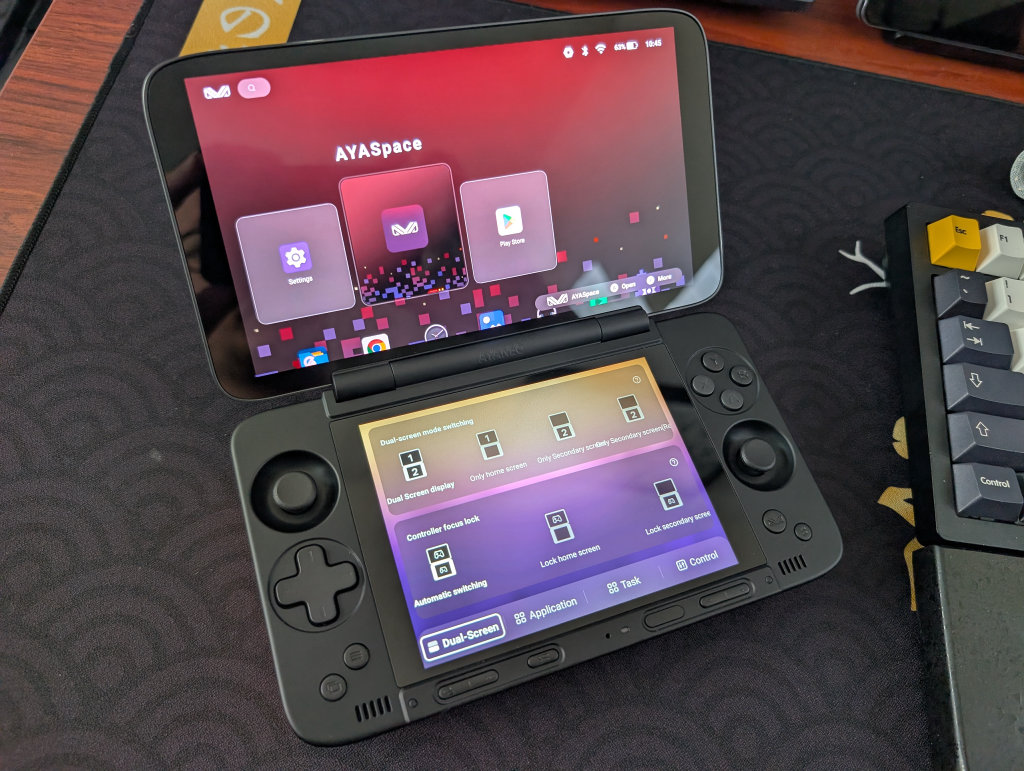
Dual-Screen allows you to adjust if the top screen, bottom screen, or both screens are displaying content, as well as lock content to a specific screen.
Application Drawer
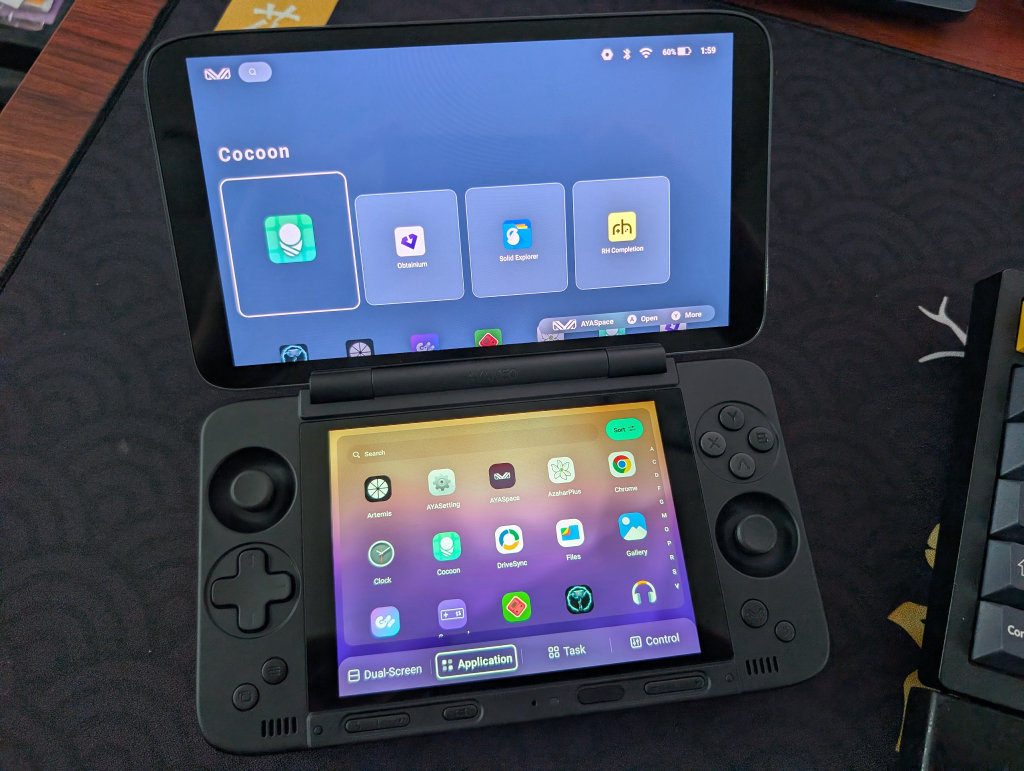
Application pulls up a list of all the applications currently on your Pocket DS, in a searchable and sortable format.
Task Management
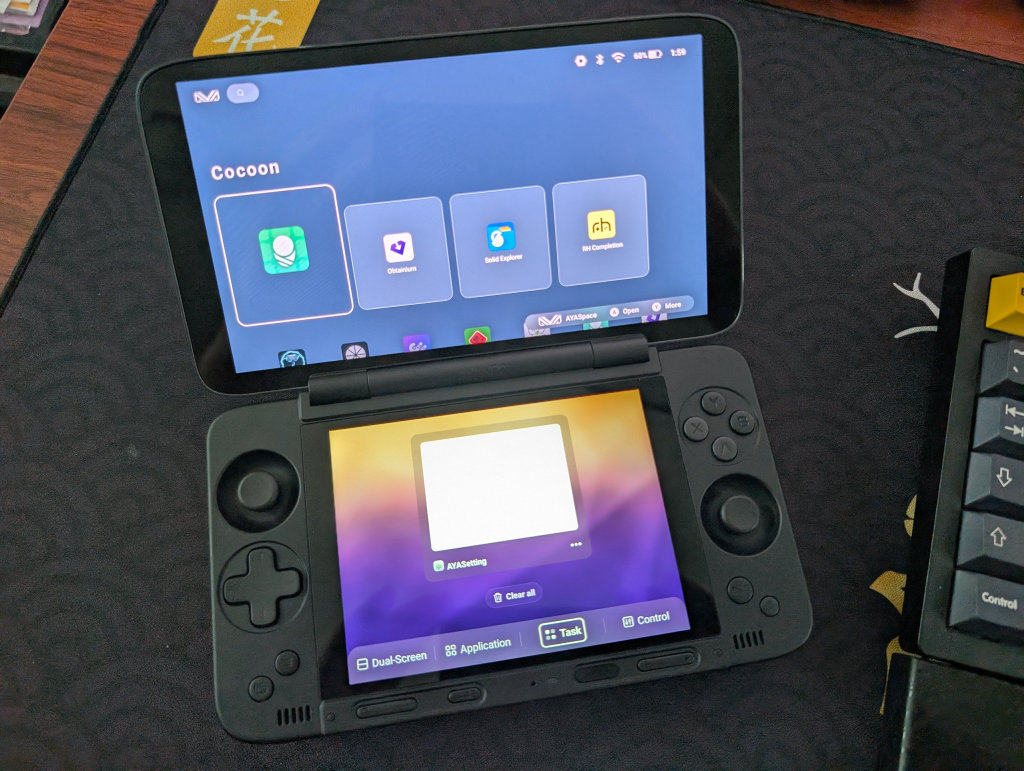
Task shows active applications for the bottom screen, and gives you the ability to close one or all of them, or push them to the top screen
Quick Control
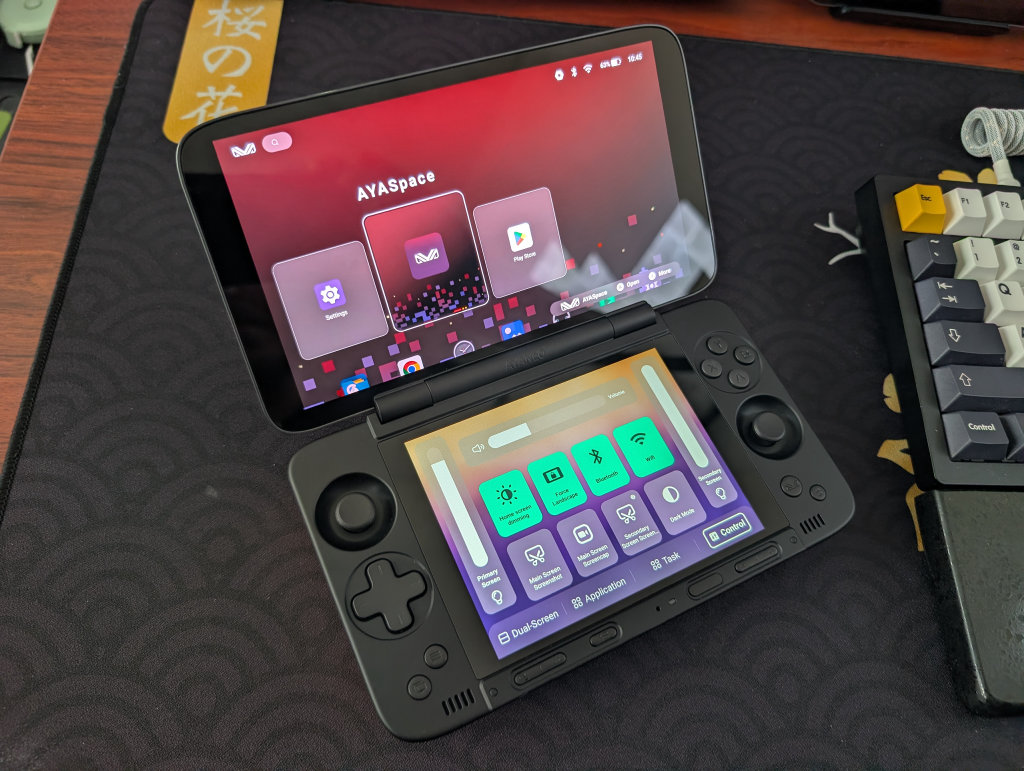
Control allows you to pull up a quick settings menu that includes:
- Brightness Adjustment
- Volume Adjustment
- Wi-Fi Toggle
- Bluetooth Toggle
- Primary and Secondary Screenshot
- Main Screen Screencap
- Screen Dimming
- Force Landscape
- Dark Mode
AYANEO Performance Panel
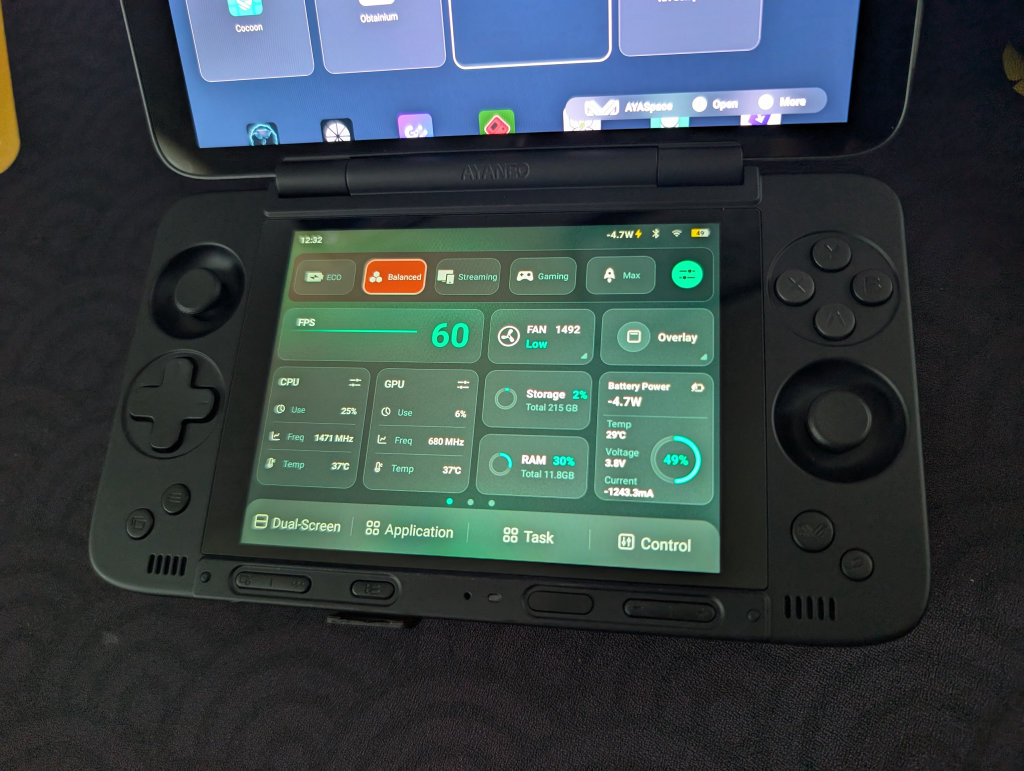
Clicking on the AYANEO “M” logo will bring up a Monitoring and Performance Panel for your Pocket DS. You can see several useful pieces of data here across three screens (swipe left to see the other screens):
- Performance Selection
- Eco
- Balanced
- Streaming
- Gaming
- Max
- AYANEO System Settings
- FPS Monitor
- CPU Temperature, Usage Percentage, and Frequency
- GPU Temperature, Usage Percentage, and Frequency
- Fan Speed
- Storage Capacity (in GBs)
- Ram Load (in GBs)
- Overlay Toggle (shows minimized metrics on top screen)
- Battery Draw, Percentage, Temperature, Voltage, and Current
On the second page, you can find:
- ABXY Layout
- Standard (Xbox)
- Japanese (Nintendo)
- Joystick Sensitivity and Dead Zone
- Key Mapping
- Vibration Adjustment
- Off
- Low
- Middle
- High
- Trigger Adjustment
- Turbo Button Mapping
On the third page, you can find:
- Screenshot
- Bluetooth
- Force Landscape
- Auto-Rotat
- Do Not Disturb
- Screen Recording
- Dark Mode
- Wi-Fi
- Airplane Mode
- Alarm
- Screen CASting
- Location
- Hotspot
- Data Saver
How to Update Your Pocket DS
To update the software on your AYANEO Pocket DS, follow these steps:
- Go to your AYANEO System Settings (steps found below)
- Find the System Update
- Any applicable programs that need to be updated will have a red Update icon next to them
- Once you select Update, a percentage icon will appear in red, showing progress
- Once updated, you will likely be booted from the AYANEO System Settings
- Return to the AYANE System Settings to update any subsequent programs
- Once all programs are updated, a No Updates Available message will appear
AYANEO System Settings
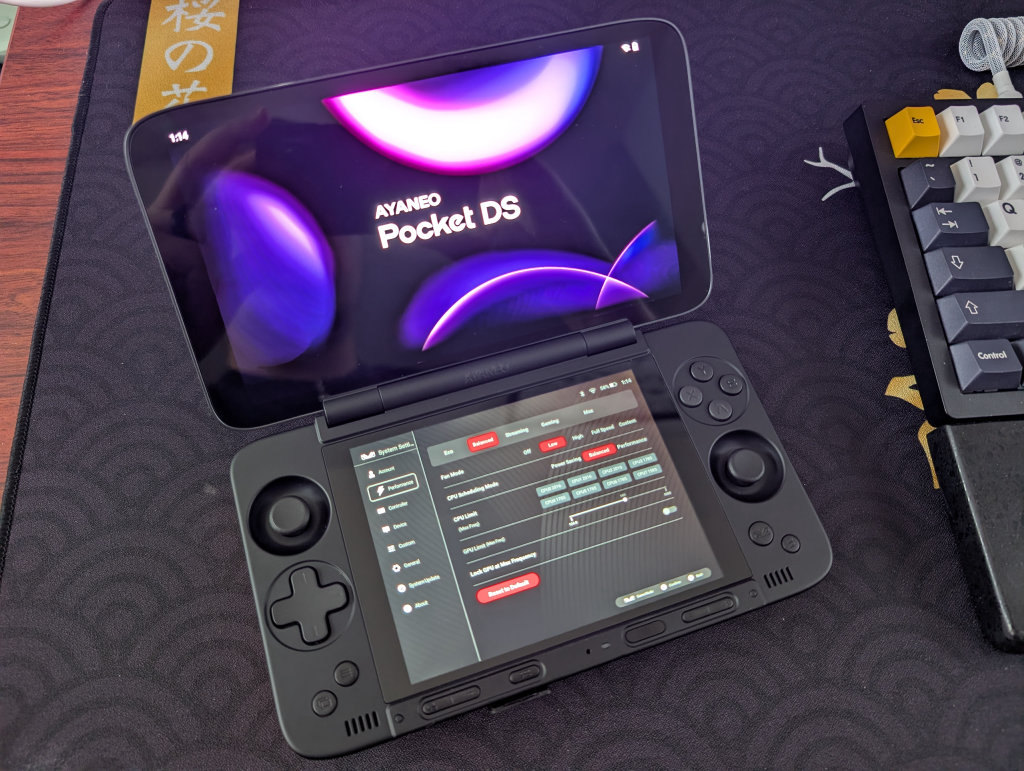
This option is a little buried in the above Performance Panel, but can be found by clicking on the slider icon next to the Max performance selection. For anyone who’s had an AYANEO device before, you’re likely going to recognize these screens.
- Account
- Log in to your AYANEO Account
- Performance
- Adjust performance modes
- Adjust fan modes
- Adjust CPU scheduling modes
- Adjust CPU limit
- Adjust GPU limit
- Lock GPU at max frequence
- Controller
- Joystick calibration
- Adjust controller mode
- Adjust keyboard and mouse mode
- Setup custom keys (useful for those LC and RC function buttons near the shoulder buttons)
- Device
- Root script
- Device spoofing
- Screen Settings
- Fan Settings
- Casting Settings
- Turn off Wi-Fi while screen is off
- Charging fan speed when screen is off
- Equalizer
- Custom
- Adjust system wallpaper
- Performance mode prompt
- Confirm before returning to desktop
- General
- System language
- Input Method
- Server
- System Update
- About
- Device Name
- Serial Number
- Device Storage
- RAM
- Android Version
- Version Code
- App versions of the various AYANEO software
File Transfer: Solid Explorer
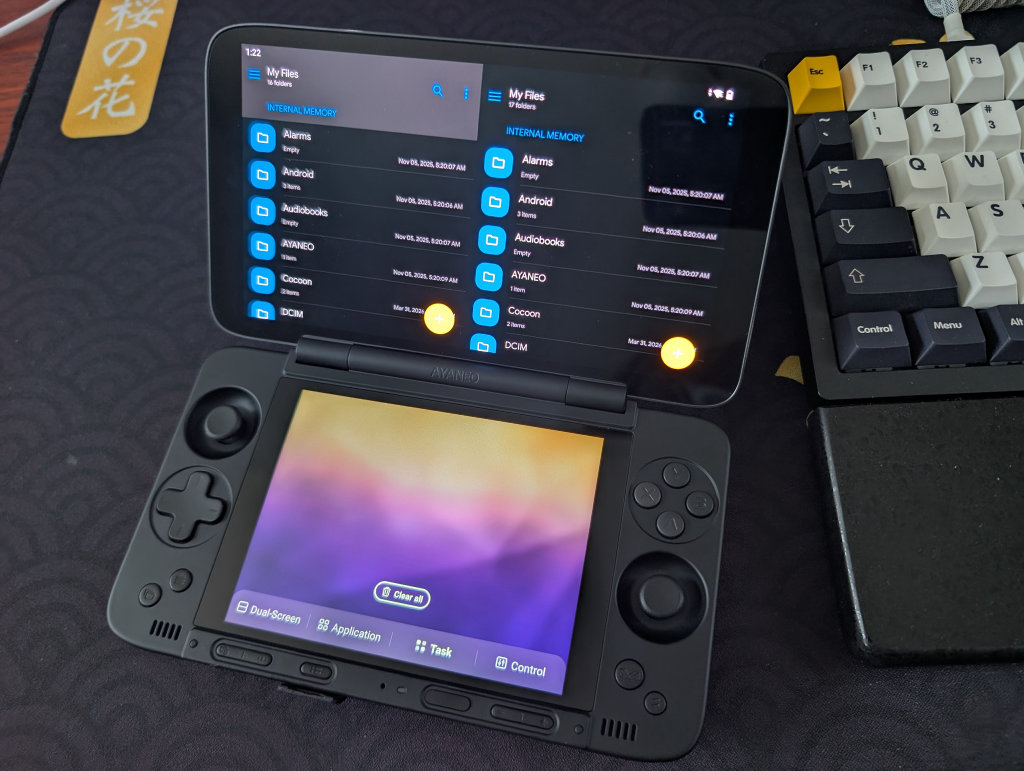
My go-to file transfer program has been Solid Explorer for a long time now. I enjoy the split-screen layout and the ease of copying and moving files. This one is not optimized for dual-screen devices, so you’ll just have it displaying on the top or bottom screen. Worth mentioning that this is a paid app ($5.99, though there is a 14-day free trial).
If you prefer a free option, MiXplorer is one that my colleague Nick has recommended before. It’s free, with a premium version called MiX Silver available, and it also works very well.
Conclusion
The AYANEO Pocket DS is an excellent alternative to the AYN Thor, what with its larger screens/footprint and more premium feel. Hopefully, this guide provided you with the tools necessary to enjoy your Pocket DS to the fullest, and we will continue to update this guide with more fun updates and projects as we come across them.
