

Ingenuity in burgeoning technologies can be a funny thing. The biggest companies and their unlimited resources can attack a problem from every angle and provide services that increase performance, that is, if you use their products or are willing to pay to play in their ecosystems.
Every so often, though, a small developer will achieve what the big boys couldn’t quite manage to pull off just yet. Enter Lossless Scaling.
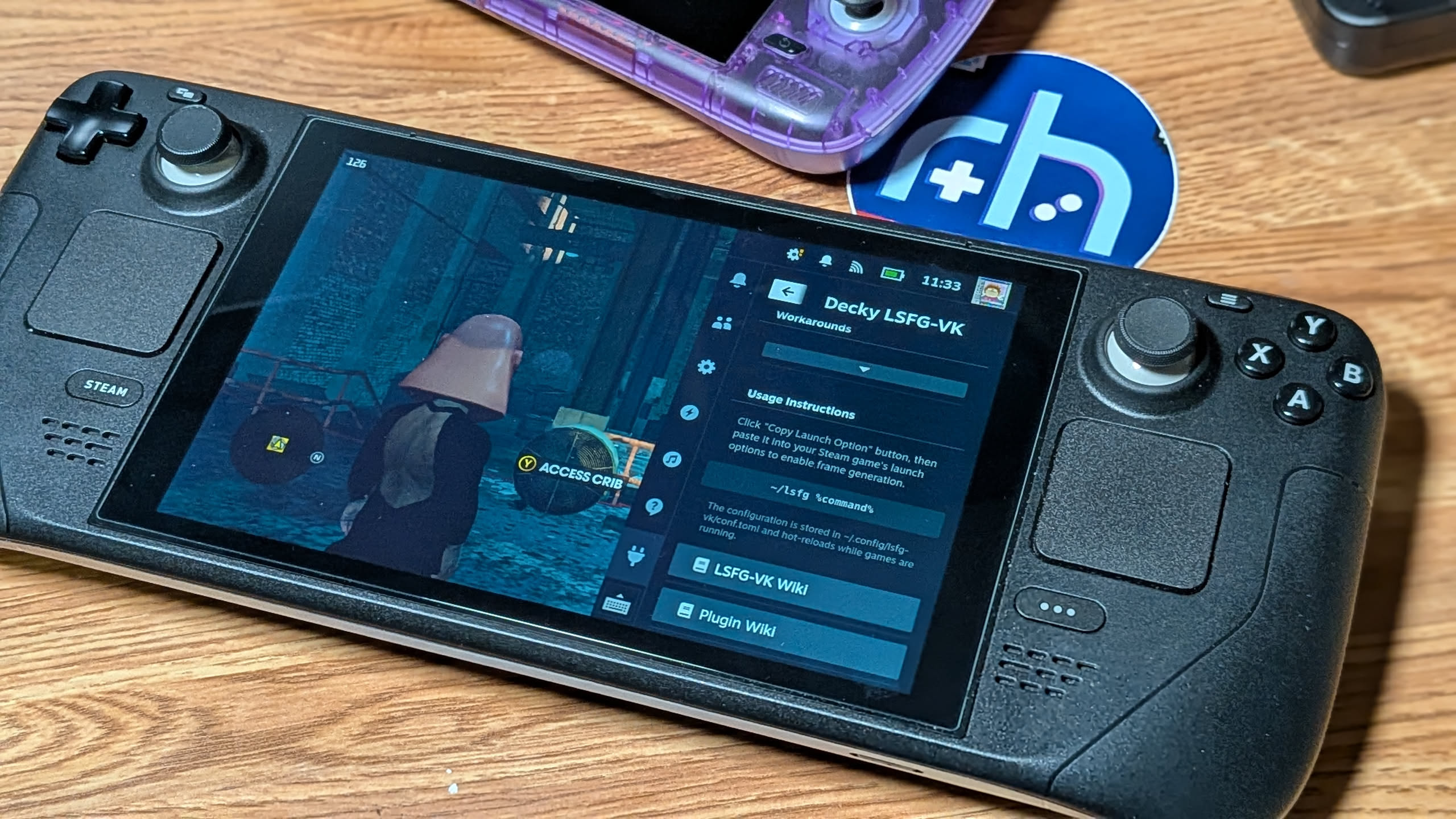
This magical program will take games that the Steam Deck struggled to keep up with and turn them into fluid experiences that rival those found on much more capable hardware. Sometimes even exceeding it. With an asking price of only $7 (even less during sales), it’s impossible for me not to recommend that everyone with a Steam Deck install this app. I have regularly been blown away by just how capable this technology is, and that the developer is willing to share it with the world for a reasonable price.
Now, Lossless Scaling proper is a Windows exclusive program, but thanks to diligent community efforts and the creation of LSFG-VK, there’s a way to harness this power on the Steam Deck.
Some Background
The Lossless Scaling App has been around since 2018, according to its Steam listing. I only became aware of it via a hardware YouTuber talking about solutions to increase performance on lower-spec’d PCs (my bread and butter) and how Lossless Scaling exceeded all their expectations. If you’re into that world, there was a whole wave of videos on the subject at the time. You may recall seeing a great deal of “Double Your PC Performance for $7!” videos in your feed. I initially brushed these off as clickbait, but I’m certainly glad that I dove a little deeper. Lossless Scaling does it better, across platforms and hardware, for less.
Lossless Scaling is a powerful tool that enhances your gaming experience by making games smoother with LSFG frame generation and optionally improving quality or performance with various scaling algorithms and machine learning models like LS1. It’s compatible with most games, even those that don’t have built-in frame generation or scaling, as well as with other applications and a wide range of hardware.
[button link=”https://losslessscaling.com/” color=”red” newwindow=”yes”] Lossless Scaling (Direct)[/button] [button link=”https://store.steampowered.com/app/993090/Lossless_Scaling/” color=”red” newwindow=”yes”] Lossless Scaling (Steam)[/button]
The Future?
Everything exciting me in the gaming, PC, and handheld space has to do with things like FEX translation (Native PC applications on Android) and programs like Lossless Scaling translating over to different environments. Enter the Lossless Frame Generation Vulkan Project. Does adding Linux and Vulkan support mean we could be seeing frame generation in emulated PC games on Android handhelds in the future? Could the power of LLS software be used to apply shaders to retro games that may have been out of reach before? I’m not smart enough to be able to tell you, but I love to think about the what-ifs.
It’s an exciting time to follow developments in software like LLS. As the AI boom has led to obscene sticker shock across the PC gaming landscape, and now into anything with RAM and a chip, it’s reasonable to assume that people are going to have to start learning to do more with less when it comes to brute force power. LLS takes a “playable” gaming experience and lets it sing. I can now get 90FPS on my Steam Deck in Helldivers 2, which looks amazing, where the game was barely playable on the lowest settings before.
LSFG 3 vs Scaling
You can choose how you’d like to take advantage of Lossless Scaling on a per-game basis. Lossless Scaling Frame Generation 3 (LSFG 3) uses a proprietary machine learning model (note they’re careful not to describe how it works with a different current buzzword for machine learning algorithms). As described above, it can take a game that ran so-so and make it sing in the frame-rate department with up 4x frame generation. The tech even works on emulated systems of old that were capped at 30fps. You can crank up the frame rate to weird levels on old games. It makes for some fun experimentation.
On the other half of the performance coin is the scaling tech. Scaling takes an image that might lack modern fidelity and bumps up the visual quality. Older games can be made to appear in HD, or just shine their pixels brightest.
You can use settings and sliders on a per-game basis to decide what works best for each title. If something already runs quite well on the Deck, you can choose to bump up the visual fidelity. If it could use some help in the FPS department, that’s on the table too.
How To Install Lossless Scaling (LSFG-VK) as a Steam Deck Plugin
- First things first. You’re going to need the Lossless Scaling Software. At $7, it’s hard to argue about value for money, but if you’re feeling especially strapped at the moment, it does go on sale for under $5 during most Steam Sales.
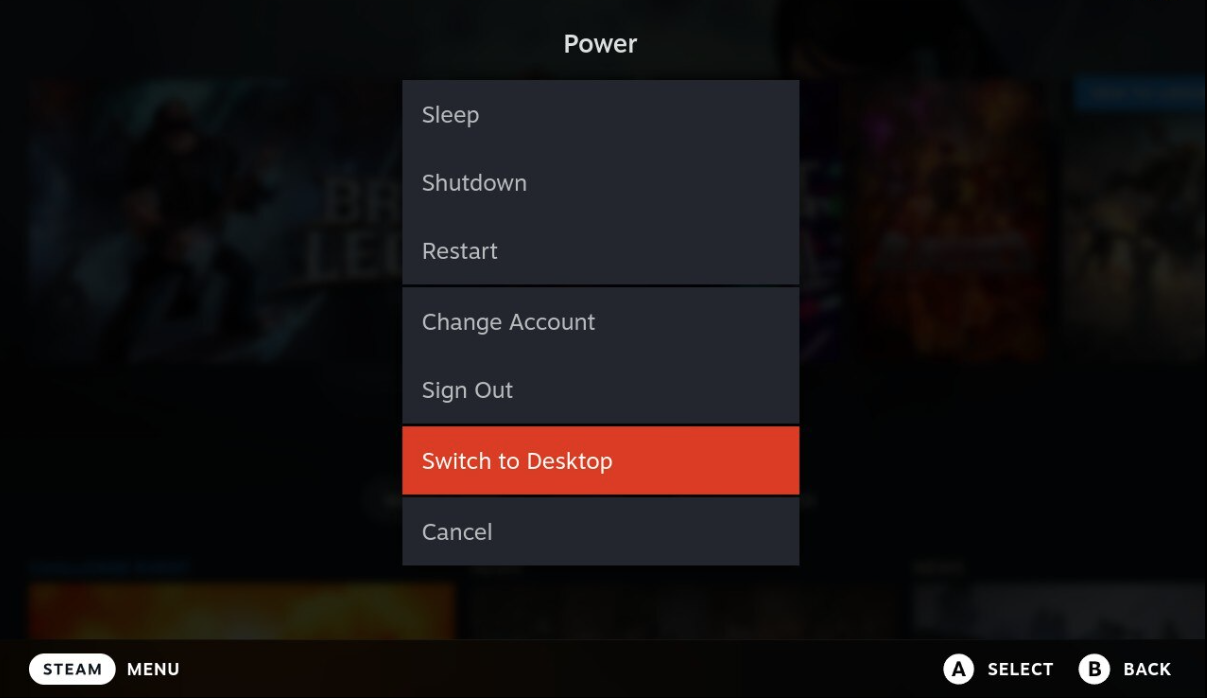
- Fire up your Steam Deck and switch it over to Desktop Mode. We’re going to need to do some minor file stuffs.
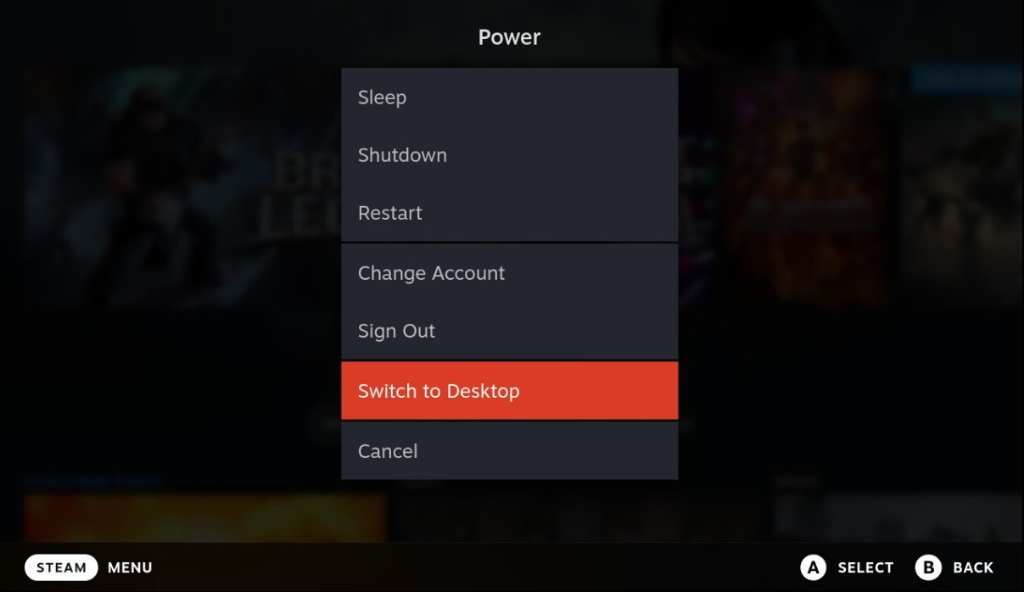
Only for a moment - Head over to the Decky Loader Site on your Steam Deck. Click the giant Download button in the center of the page below the coffee mug logo. Save the file to your Downloads directory on the Steam Deck.

Click download and save the file to your Steam Deck desktop - From there, navigate to the Downloads directory on your device and run the decky_installer script. You will be asked to provide your SteamOS sudo password to confirm the installation. Sudo commands give you root access to the OS, not unlike running a program as an administrator in Windows. If you have never set the sudo password on your device, it’s a very simple process.
- Now that we have Decky installed, switch your Steam Deck back to Gaming Mode.
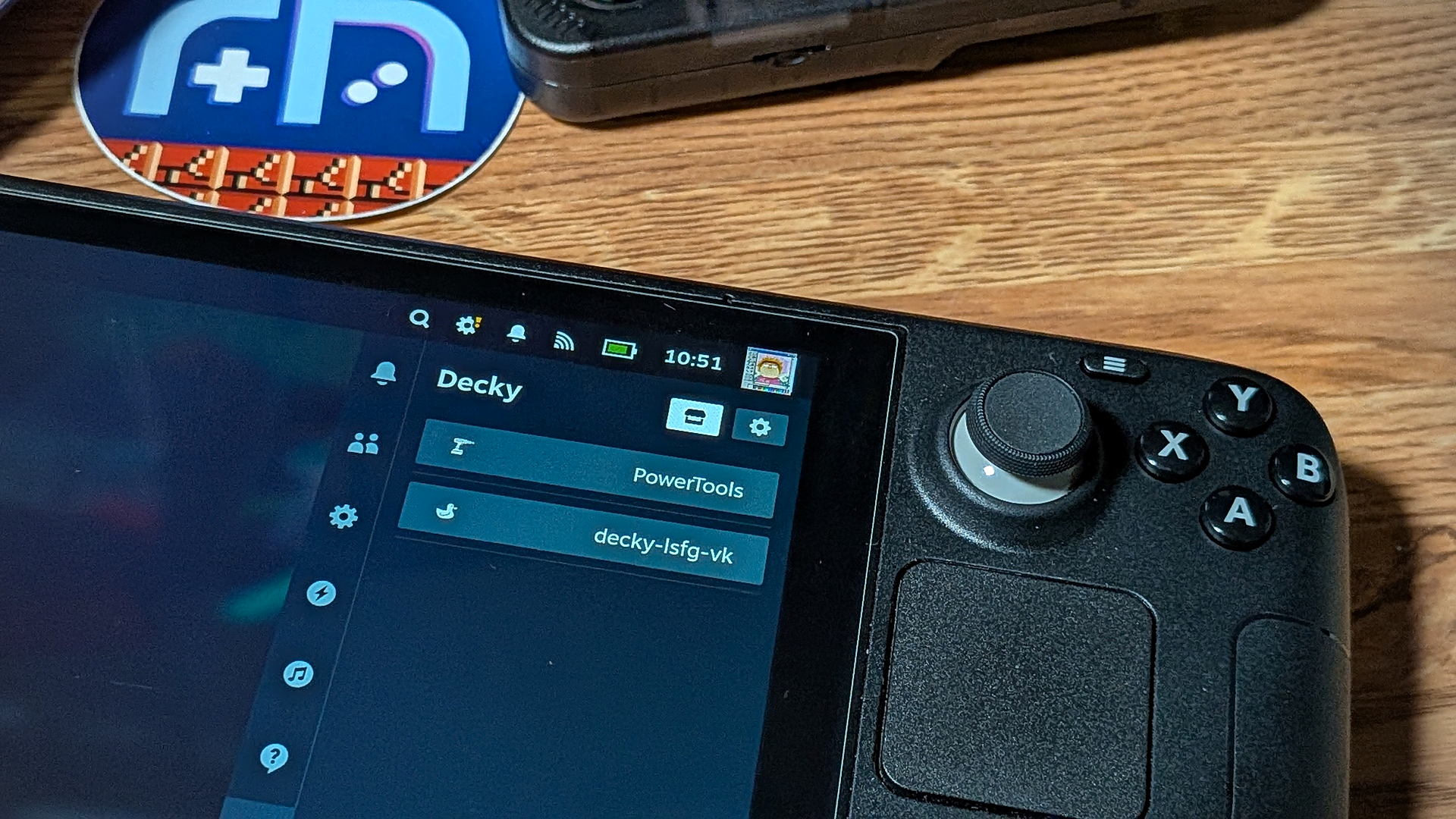
- Click on the ••• button on the right of the Steam Deck to bring up the quick menu. Navigate down to the newly installed Decky under plugins. From there, click on the Store icon at the top right of the screen. You should then be able to navigate the list of available programs until you find the LSFG-VK listing. Download and install the plugin.
- Hit the store icon in the Decky Loader plugin

Hit the store icon in the Decky Loader plugin
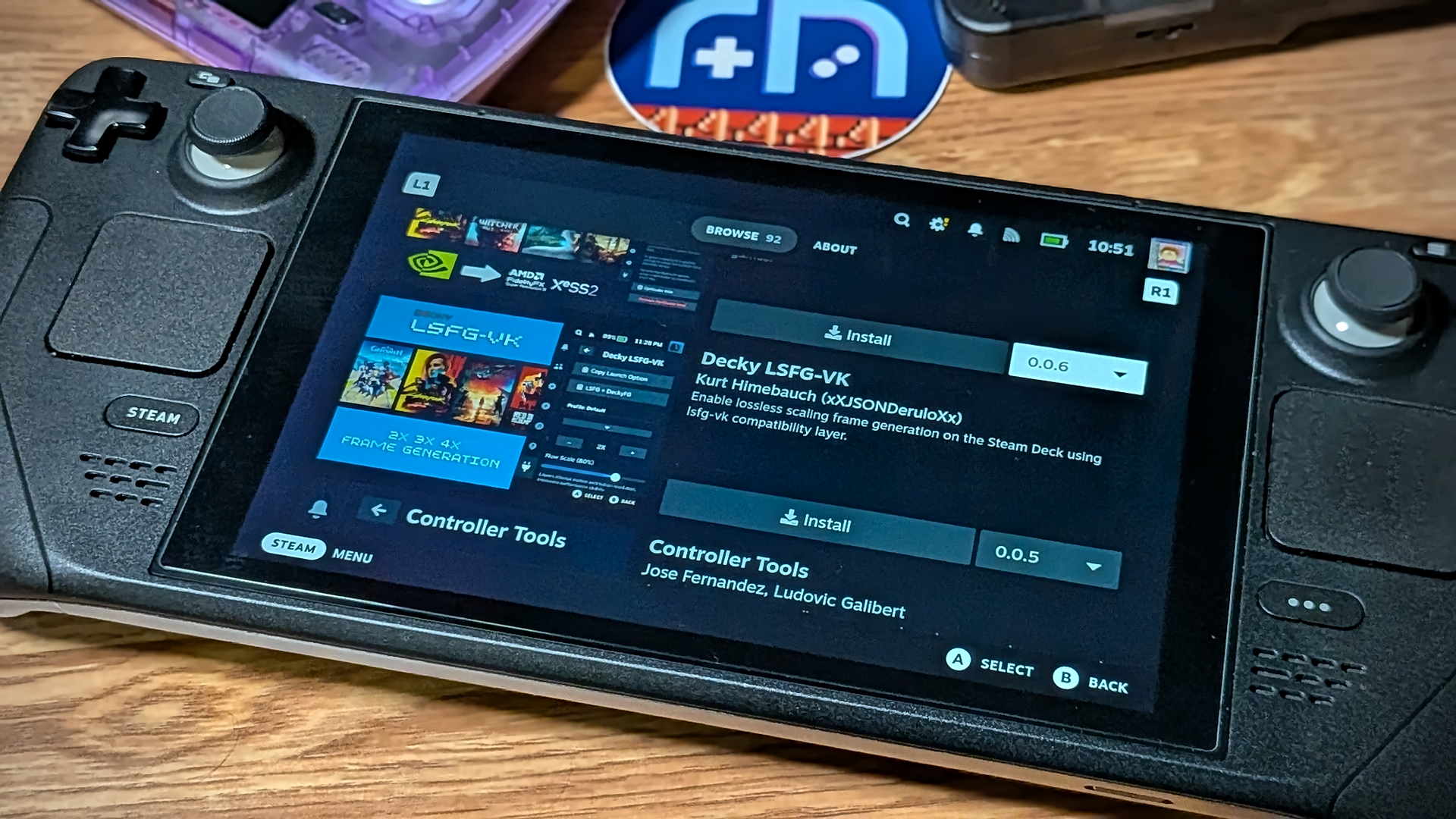
Find and Install the Decky LSFG-VK compatibility layer -
Reboot your Steam Deck and let all the new frame-generating goodness flow throughout the system.
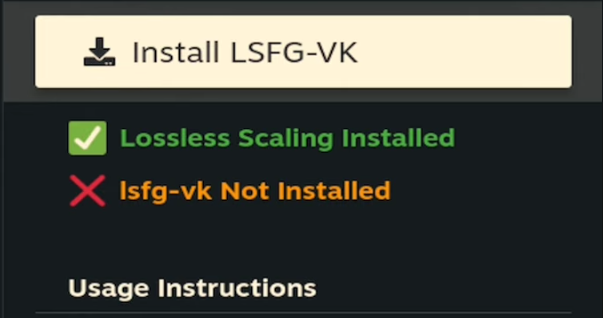
You will be informed that LSFG VK is not installed Hit the install button - Congrats! You now have the Decky LSFG-VK plugin installed on your Steam Deck.
Adding Lossless Scaling to Game Launch
We’re almost there! Just a few more simple steps to launch any game on your Steam Deck with the wonderful addition of Lossless Scaling and LSFG-VK.
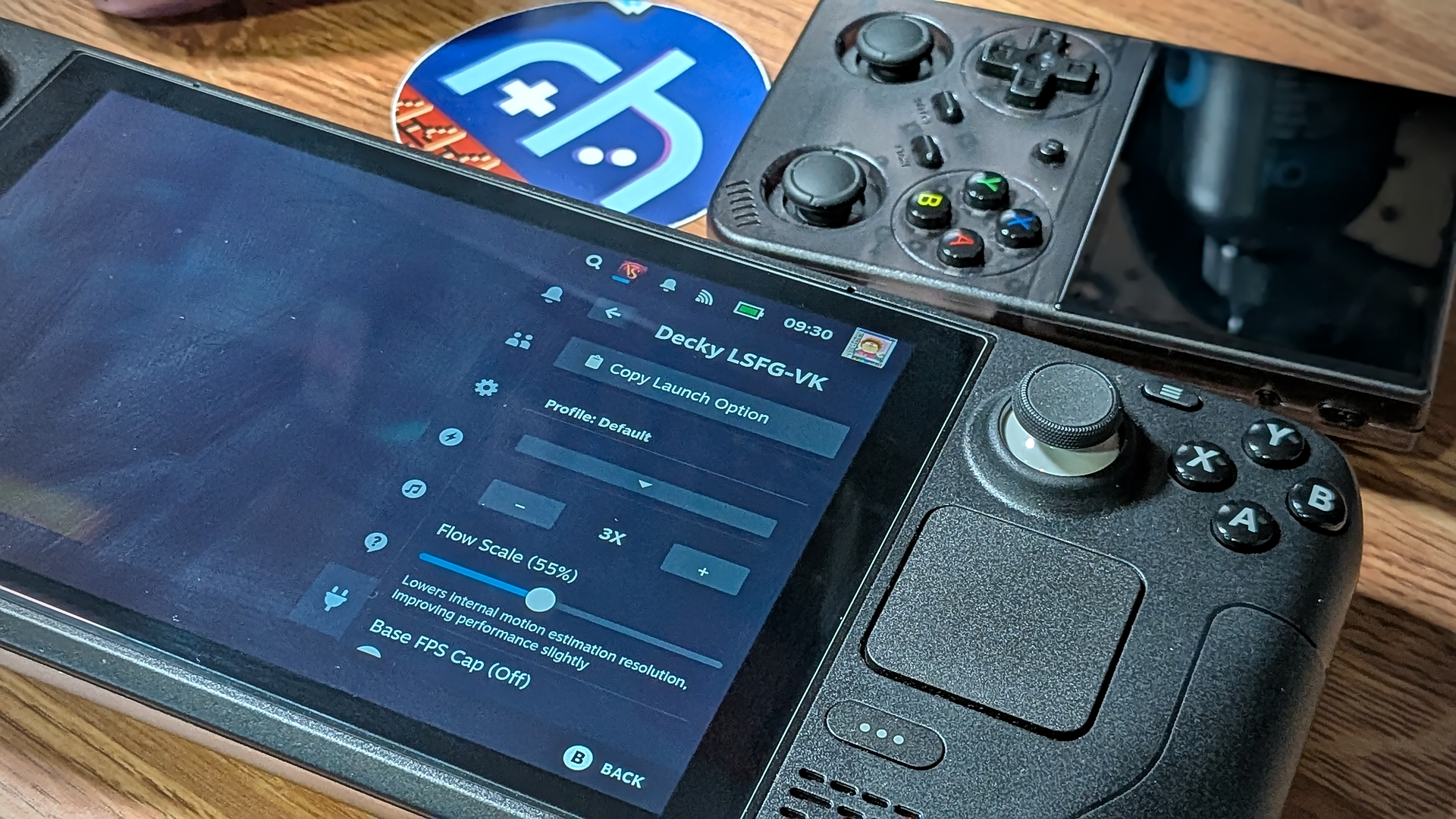
With the new LSFG-VK quick menu open, copy the launch option command for titles you’d like to run with Lossless Scaling.
Now, under the General settings of Game Properties for the title you’d like to improve, scroll down to Launch Options and paste the copied command.
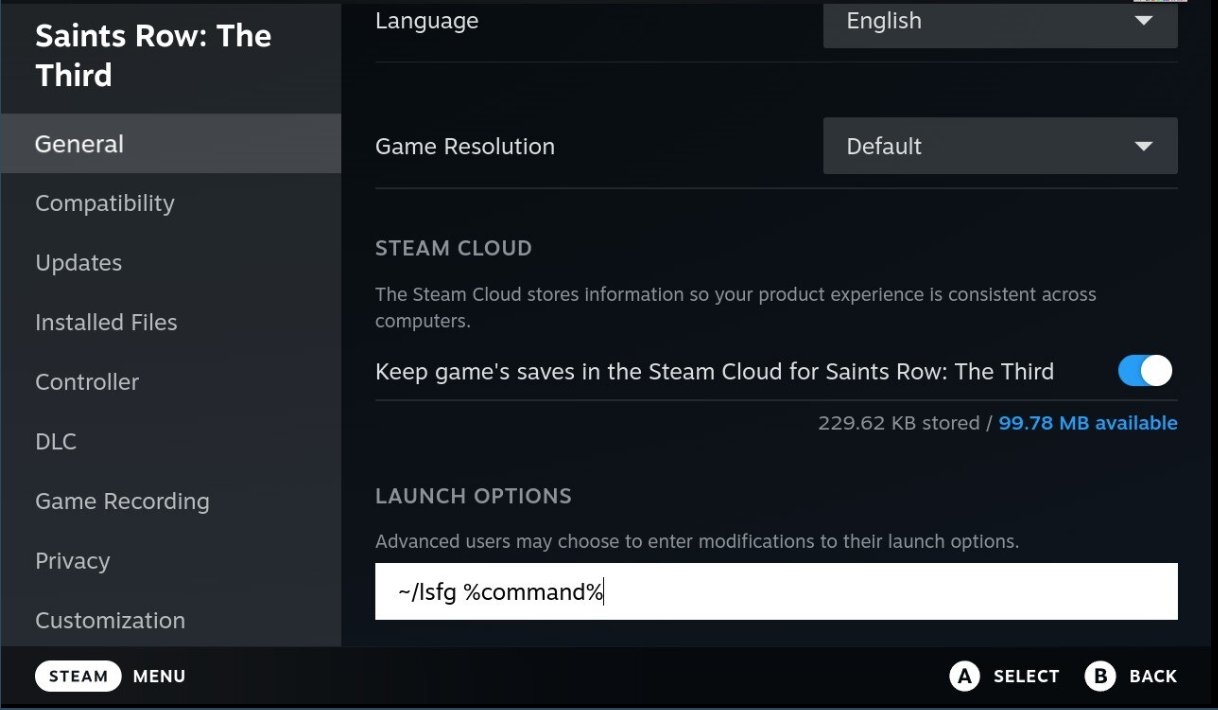
Using the LSFG-VK Plugin
From here on out, everything is going to depend on user preferences and what works best for the title you’d like to run. Here are a few tips to get started.
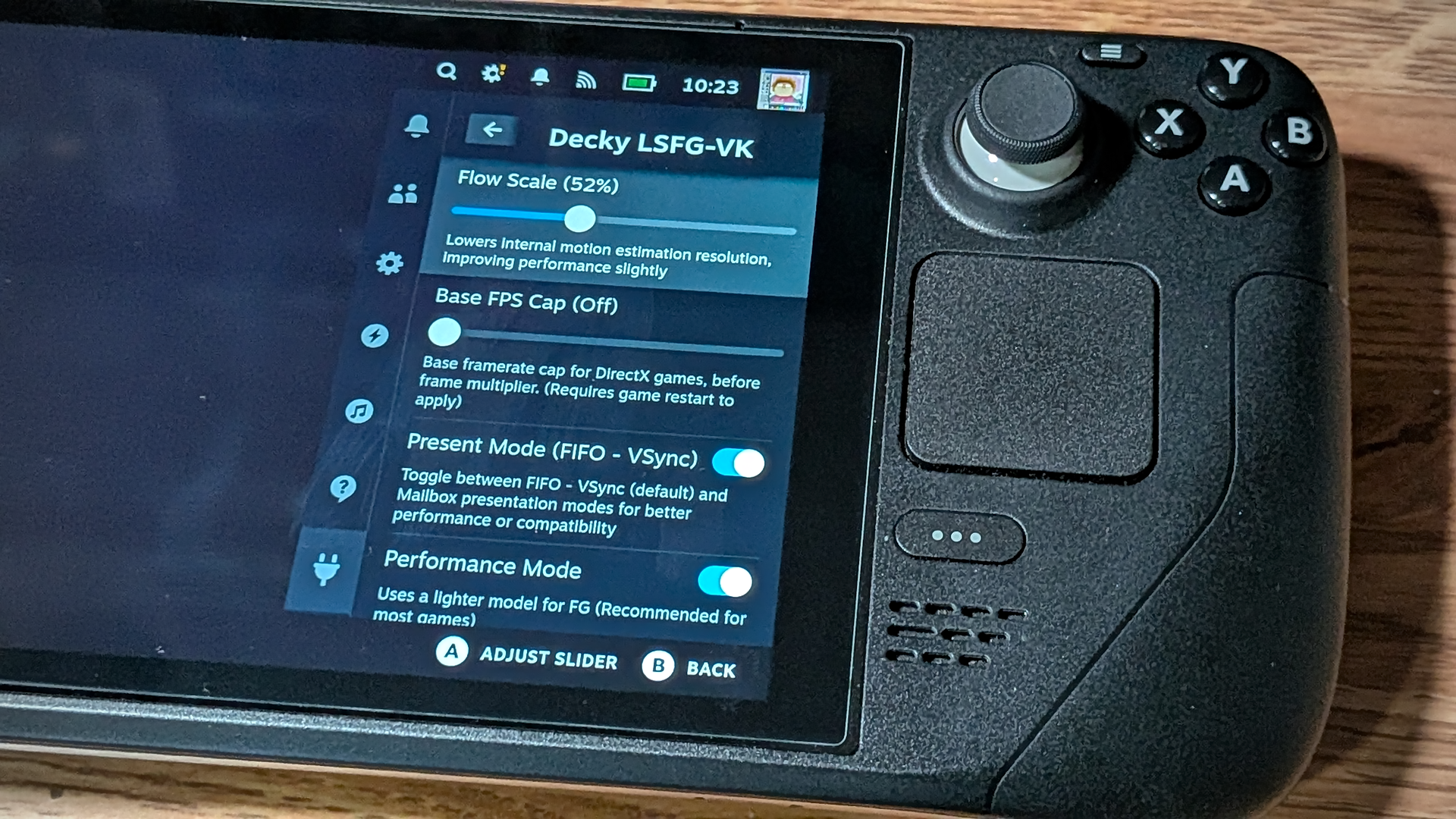
- Enable Performance Mode – this is a lightweight rendering model that can help games run faster on the Steam Deck.
- Start with 2X FPS Multiplier and go from there. The program offers 3x-4x options, but these can get unstable in some titles. Double the frames is usually plenty.
- The Flow Scale meter allows you to adjust “internal motion estimation resolution”. I won’t pretend to understand everything that’s happening under the hood here, but by playing with the slider in-game, you can find the sweet spot for that title. I’ve found that a balance in the middle somewhere is usually best.
- Once you’ve found the best setup for your games, you can save individual profiles for each preferred setup. To be entirely honest, though, I’ve never bothered with this feature, even though I appreciate it being included. The base adjustment tools are so intuitive and useful on the fly that I just end up adjusting the game to my liking on boot. But you don’t have to be silly like me. The devs have you covered.
- Keep Present Mode (FIFO – VSync) turned ON for a smooth visual experience.
- You can set the FPS cap to 30 or 60 if you’d like to focus on improving things elsewhere, but I like keeping it set to 0 (no limit) to see what can be achieved with each title.
- An increasing generation can, in turn, increase input lag. If you’re noticing input delays, scale back a bit.
Decky and LSFG-VK will work on any SteamOS device, so this tutorial should be applicable to anyone with a device like the upcoming Legion Go 2 SteamOS Edition or Windows handhelds running SteamOS like the MSI Claw.
[button link=”https://losslessscaling.com/” color=”red” newwindow=”yes”] Lossless Scaling (Direct)[/button] [button link=”https://store.steampowered.com/app/993090/Lossless_Scaling/” color=”red” newwindow=”yes”] Lossless Scaling (Steam)[/button]
Have you tried Lossless Scaling on your PC or Steam Deck? Let us know in the comments below, and chat with us in our Discord!
This page may contain affiliate links, by purchasing something through a link, Retro Handhelds may earn a small commission on the sale at no additional cost to you.

5 Comments
And to think, all these fake frames will cost you is $7 and a huge increse in latency.
Oh no another maybe 50 extra milliseconds at most!! How on earth will my 40 year old eyes ever deal with such a long wait!?!? Ps. Just because I’m old. Doesn’t mean I can’t see 100+fps. I just don’t feel the latency anywhere near as bad as with my original 720p tv from 2012 when I literally could not win an NHL PS3 face-off to save my life until I switched to a monitor🤣.
A key detail most tutorials miss, even this one, is you must be running the Windows version of the game. If you follow these steps and your game won’t start at all, force the game’s compatibility to some version of Proton, even if a Linux Native version exists. The Windows version will download, and you’ll be off and running. You’ll be frustrated and want a refund bless you remember this critical, somehow rarely mentioned step.
Ahh! Thankyou for this info! I’ve been trying to get dolphin games running at above 30fps and my issue may be this. I’ll give the launch commands another shot and see if this was the problem. The program itself is absolutely worth the money as games with performance demands similar to Helldivers now absolutely sing.
Incidentally, this miracle software took BG3 from barely running at 25 fps in a SD OLED, to a mind-blowing, almost constant 90 fps in chapter one for me. I experience zero latency. If latency matters that much to you then spend the $2500 on a gaming PC.