

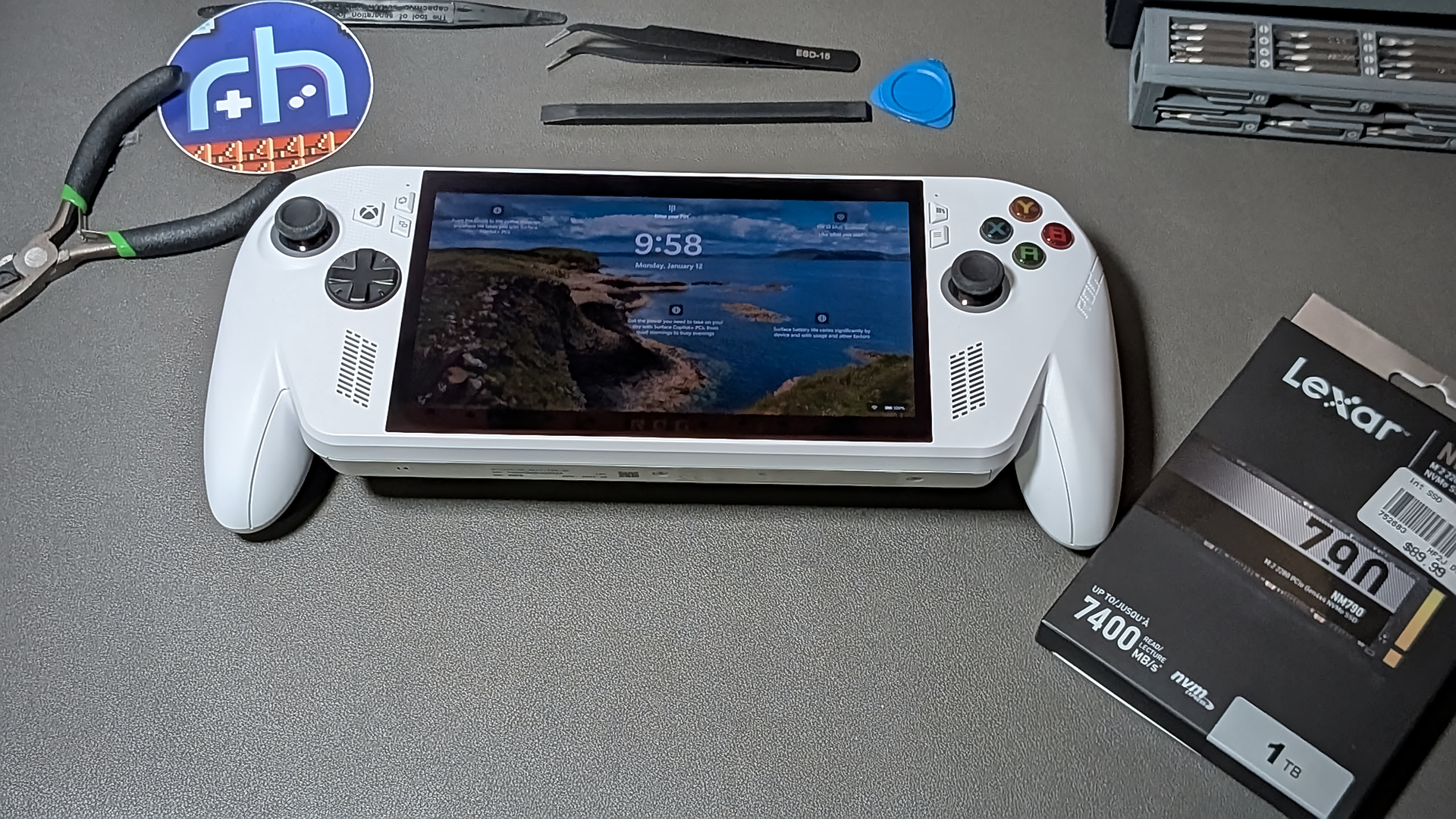
Remember when solid-state storage was getting cheaper all the time? I ‘member. While rummaging through my office desk drawers looking for a cable, I was greeted by the 1TB M2 drive I picked up too cheap not to discount just last year. This was a Lexar drive that Microcenter used as a door-buster promotion for $30. $30!
Given the current depressing state of solid state anything in the PC market, it seems a deal like that may be something of a lost relic (you can see the original $89.99 sticker price in pictures below. But hey, at least I can finally put this packaged drive in a drawer to good use!
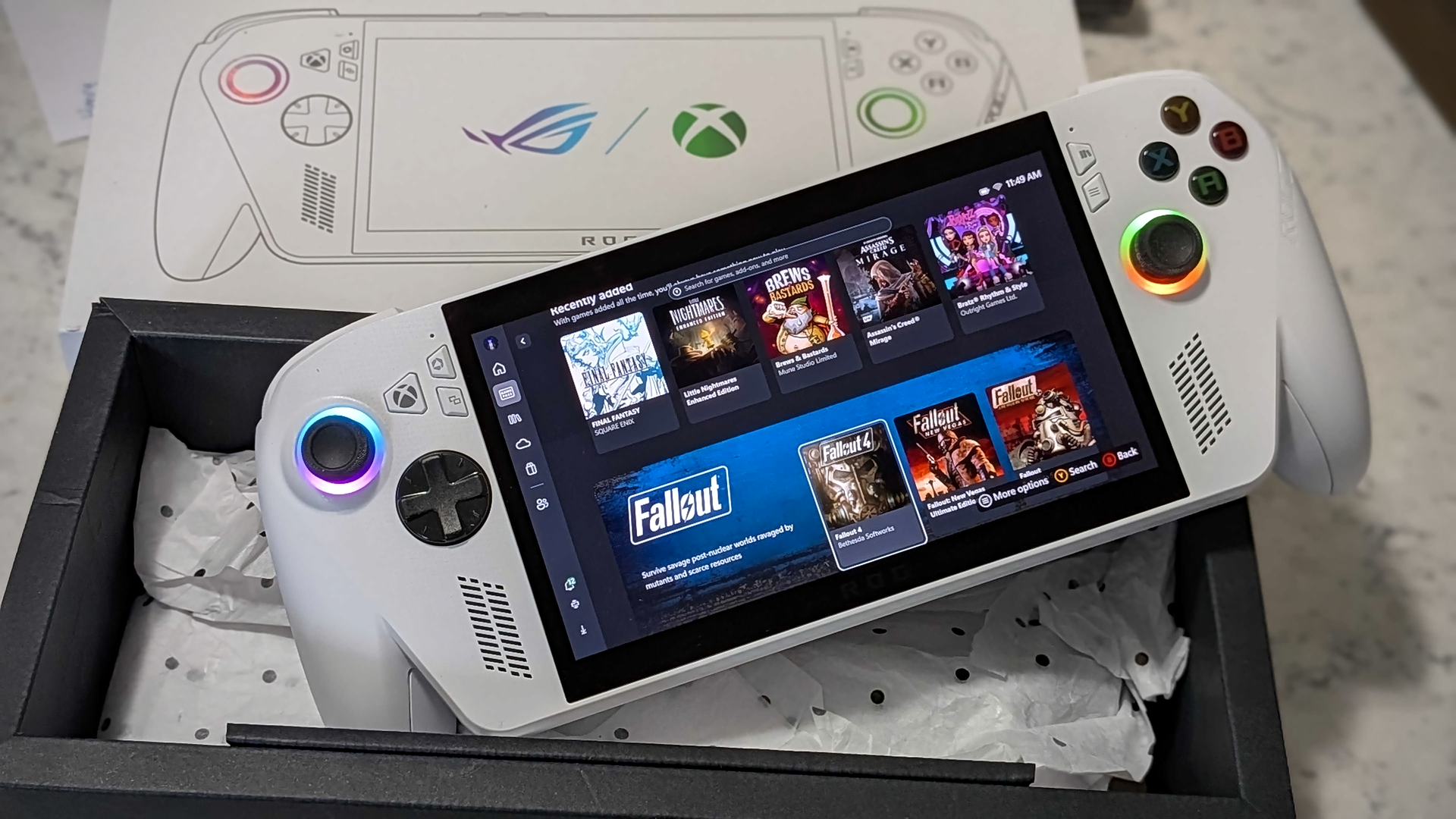
Let’s upgrade the internal storage of the ROG Xbox Ally.
This tutorial should apply just as well to other models of the Ally (Base, X, Xbox X), but this tutorial will focus on the Xbox Ally. Other hardware revisions follow a very similar process, but the internal hardware layouts differ slightly between models. Take care if you’re following this tutorial with a different Asus handheld to make sure you’re hitting the correct steps.
The ROG Xbox Ally X unit comes stock with 1TB of internal storage already (and a $400 increase in asking price). Now, I may not be able to match the RAM and speeds of the X and its AI Z2 Extreme chip, but at least I can match the stock storage levels on the cheap.
What You’ll Need
Ensure you’ve backed up all precious files that may currently live on the handheld. You can, of course, plug the old drive into a compatible PC and extract things at a later time, but for the moment, dump your stuff to the cloud or a local NAS.
A Work Surface
We’re going to be laying the Xbox Ally down screen-side first, so make sure you have a decent work surface for the project. I’ve found that an old desk pad can be the perfect thing for the job. The pad gives a soft place for the screen to rest, and a textured surface that makes it easy to spot any errant screws looking to head off on their own adventures.
A Compatible Drive
- M.2 interfaced drive (2280 or 2230)
- PCIe 3.0 or higher
- Use a drive from a known retailer and reputable manufacturer. The world of solid-state storage is flooded with off-brand knockoffs and counterfeit goods. Use your own best judgment. I have this Lexar. It’s certainly nothing to write home about, but it’ll do the job.
Drivers – A dedicated kit of micro-screwdriver bits and plastic pry tools is always a welcome bit of kit to have in your arsenal, but for our purposes today, you can get away with two basics.
- The smallest Phillips head screwdriver you have
- A guitar pick or other small plastic wedge tool
Entering Surgery
Shut the Xbox Ally down and ensure that any micro SD card you may have been using with the Xbox Ally has been removed from the device and stored safely.
Find the correct bit in your driver set to fit the small Phillips heads on the handheld. It’s actually quite refreshing to see a retail device make itself this accessible. No covered screw ports. No weird proprietary Torx screw heads. In an age where companies often don’t want you working on your own hardware, I thought it was worth noting how refreshing it was to see the Xbox Ally’s simple accessibility.
Start by removing the three screws on the bottom of the device, as seen below. These screws are tiny, so make sure you put them somewhere safe. They have a bad habit of skipping across the room and getting lost forever.
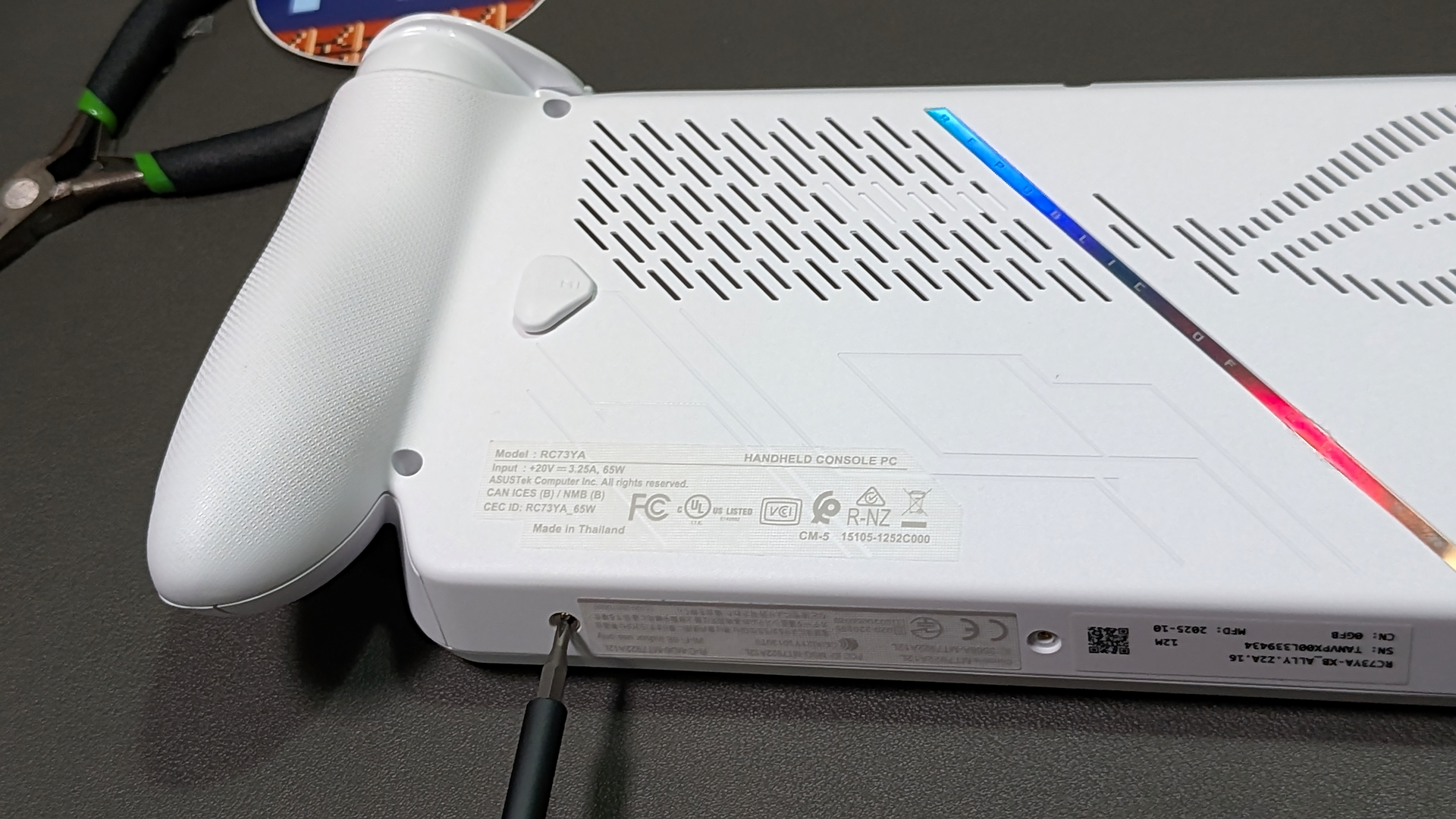
Remove the 4 longer screws from the rear panel of the handheld. The 5th screw sitting at 12 o’clock on the back of the unit does not come fully out. Be aware of this before you get frustrated thinking that it might be stuck.
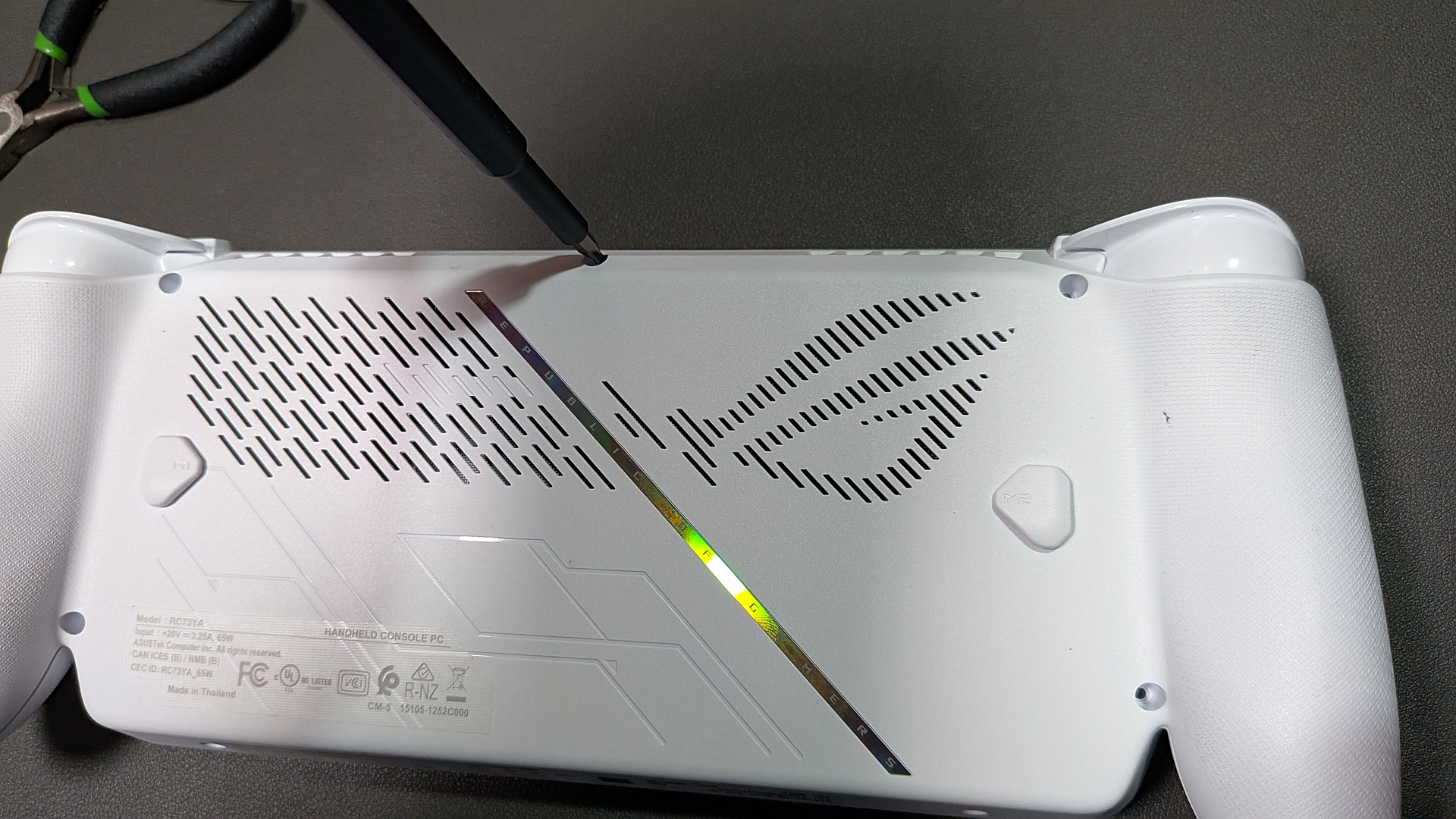
Run your pry tool gently along the seam connecting the handheld’s shell together. The pieces should begin to separate. Be cautious throughout this process, as there are many small clips that we don’t want to force and snap.
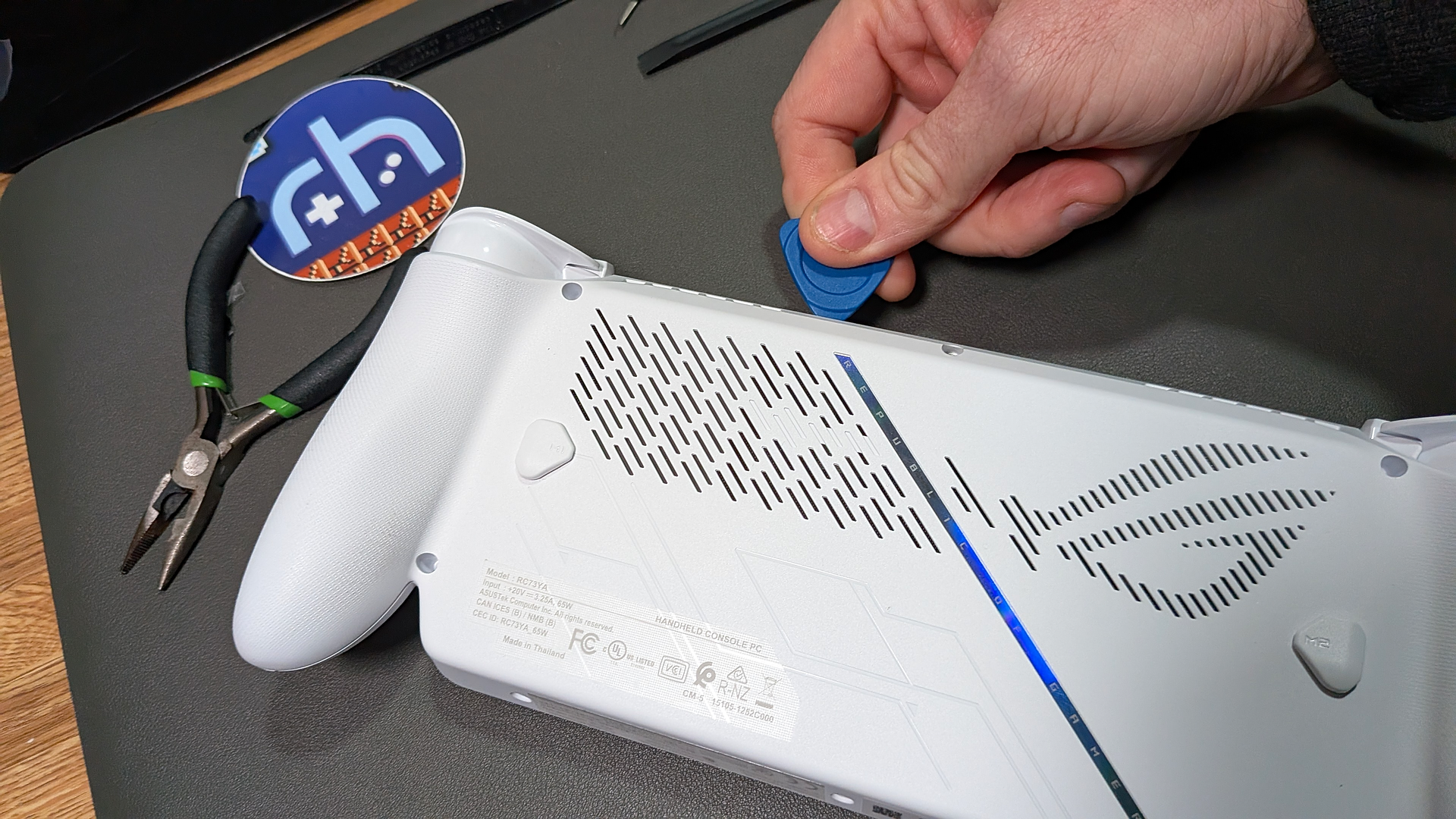
DO NOT – Do what I did and accidentally grip the power button while prying the device apart – powering it on. I didn’t hurt anything, but ya know, best practices ‘n all.
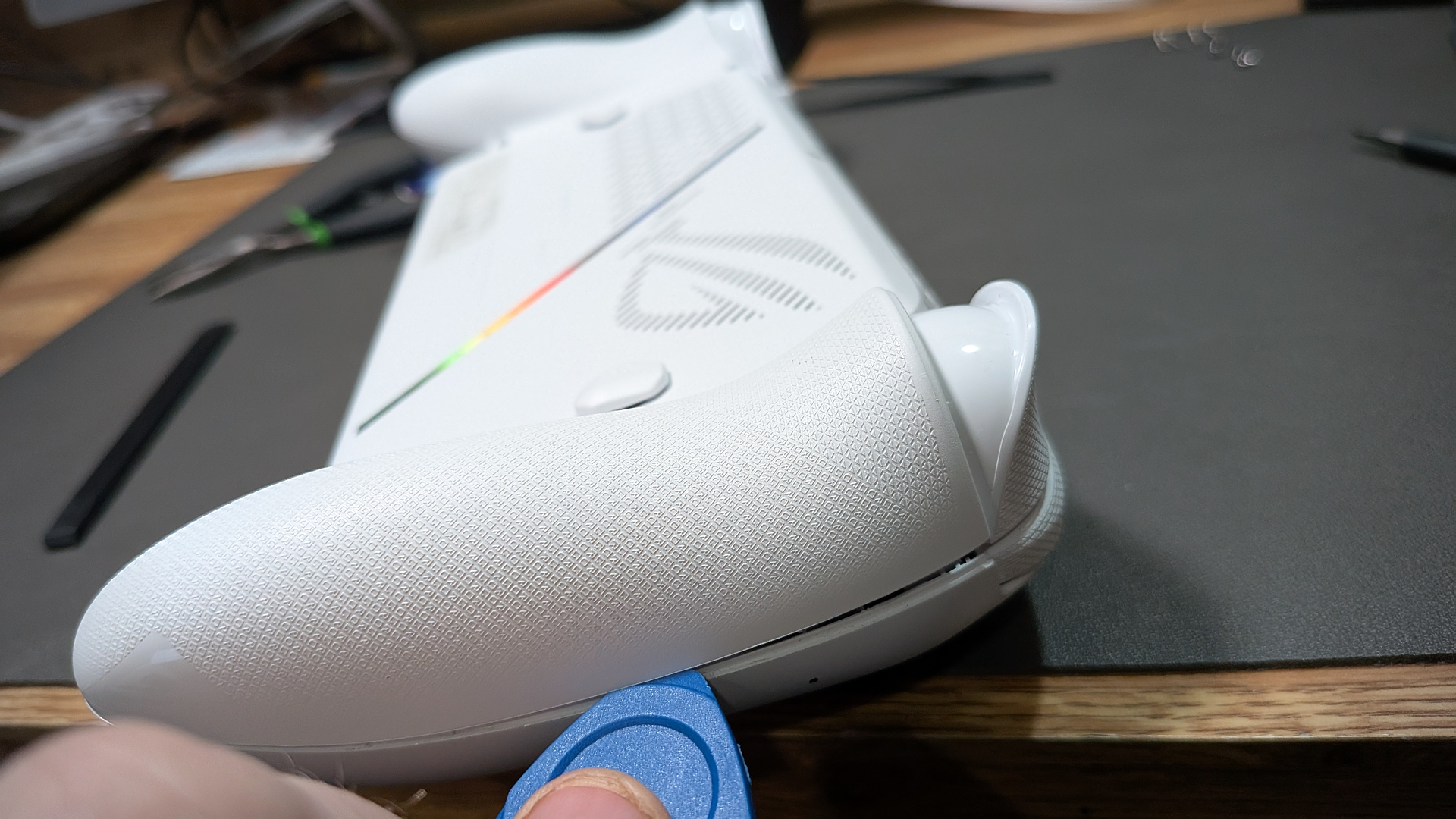
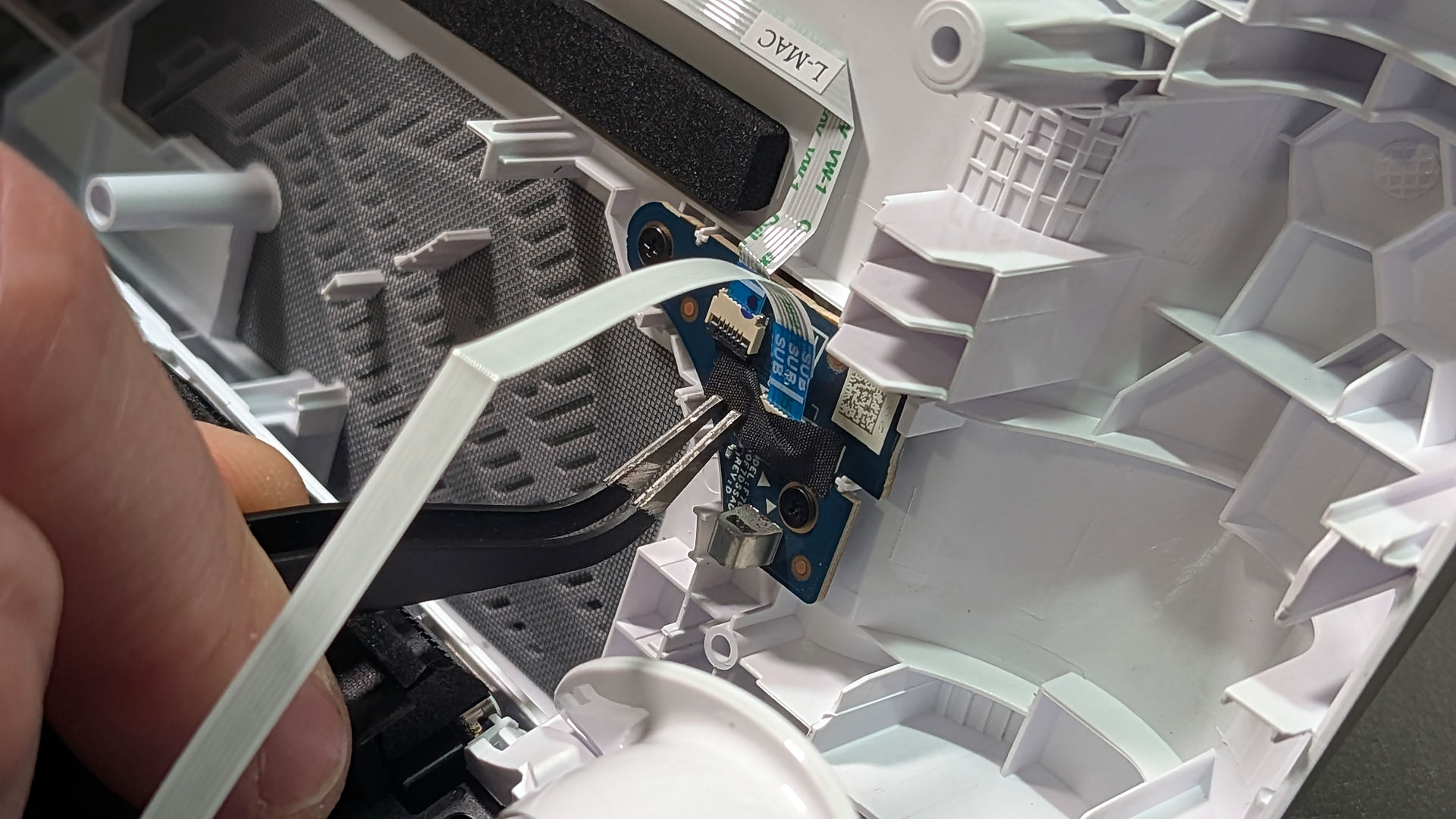
DO – Take care when opening the handheld and separating the two shell panels. There is a long ribbon cable that connects the rear half of the device with the motherboard. Pull too hard, and it will rip away from its housing. It doesn’t take much force at all. Ask me how I found out. If you did manage this like me, don’t panic yet. There is a small piece of tape covering the ribbon port. We will get it reconnected.
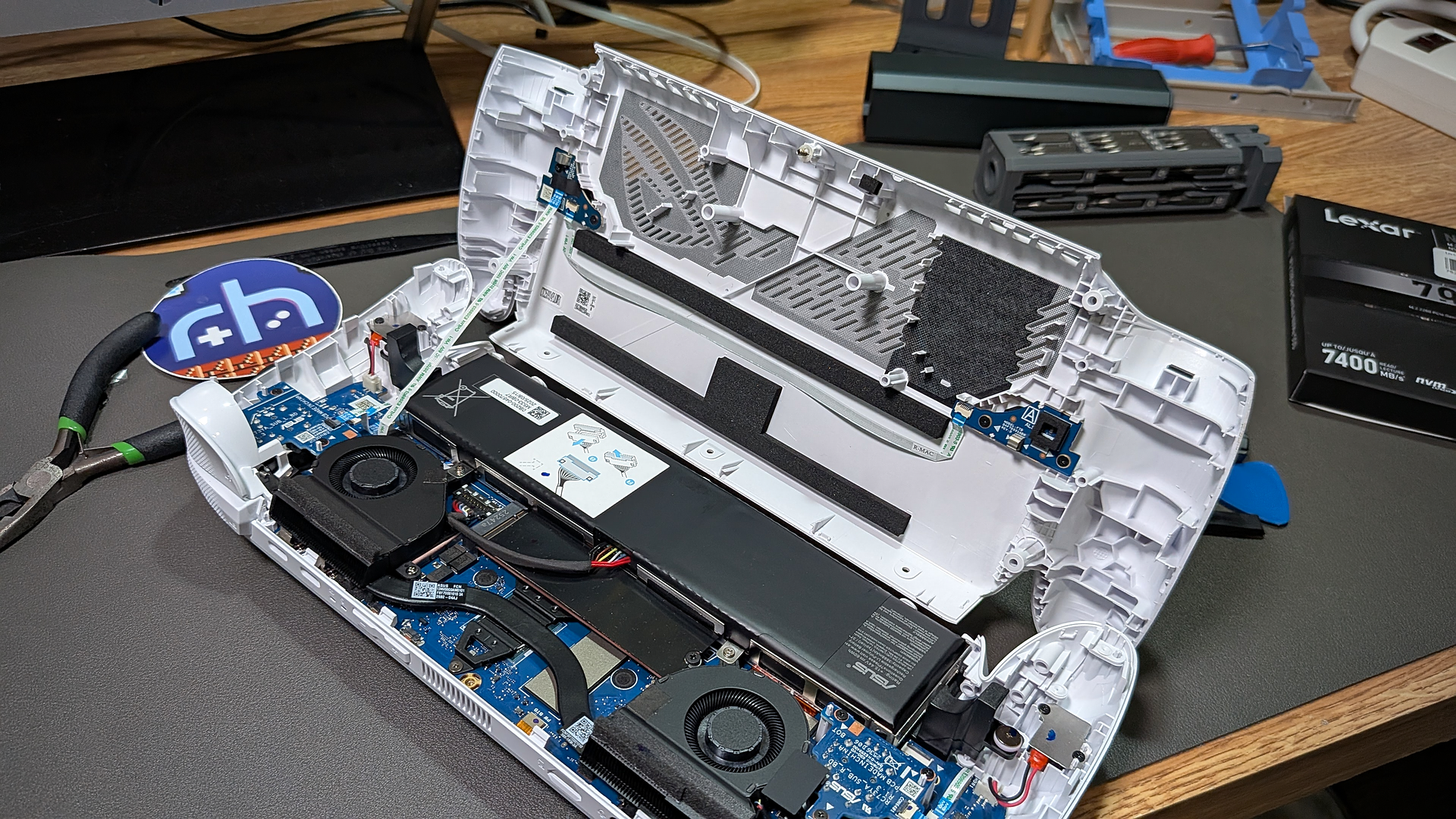
Now, at this point, you might be thinking to yourself that there’s enough room to swap the SSD drives underneath the battery cables, and you’d probably be right, but don’t come crawling back to be when you fry something by doing this with a connected battery terminal.
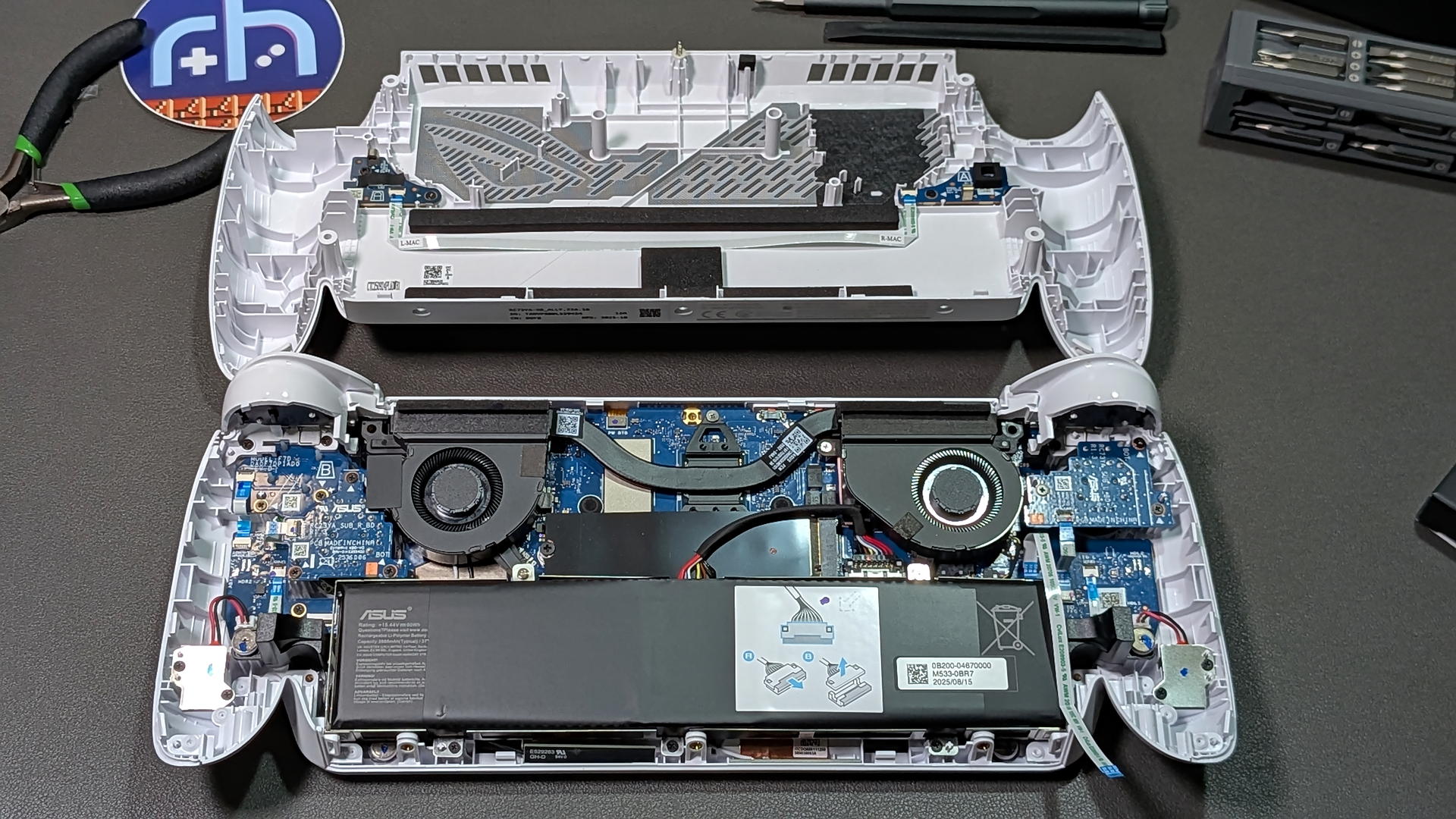
Use your pry tool to pop the retention clip covering the battery connector. The clip slides back, not up, with very little applied pressure, so just take things slow and easy. With the clip pulled back, use your pry tool to gently remove the battery cable UP from the connector. This is illustrated on the battery housing, but take note to disconnect the battery from the terminal by applying force up and out, rather than trying to slide it back. Everything is housed pretty tightly and snug inside, so just be careful.
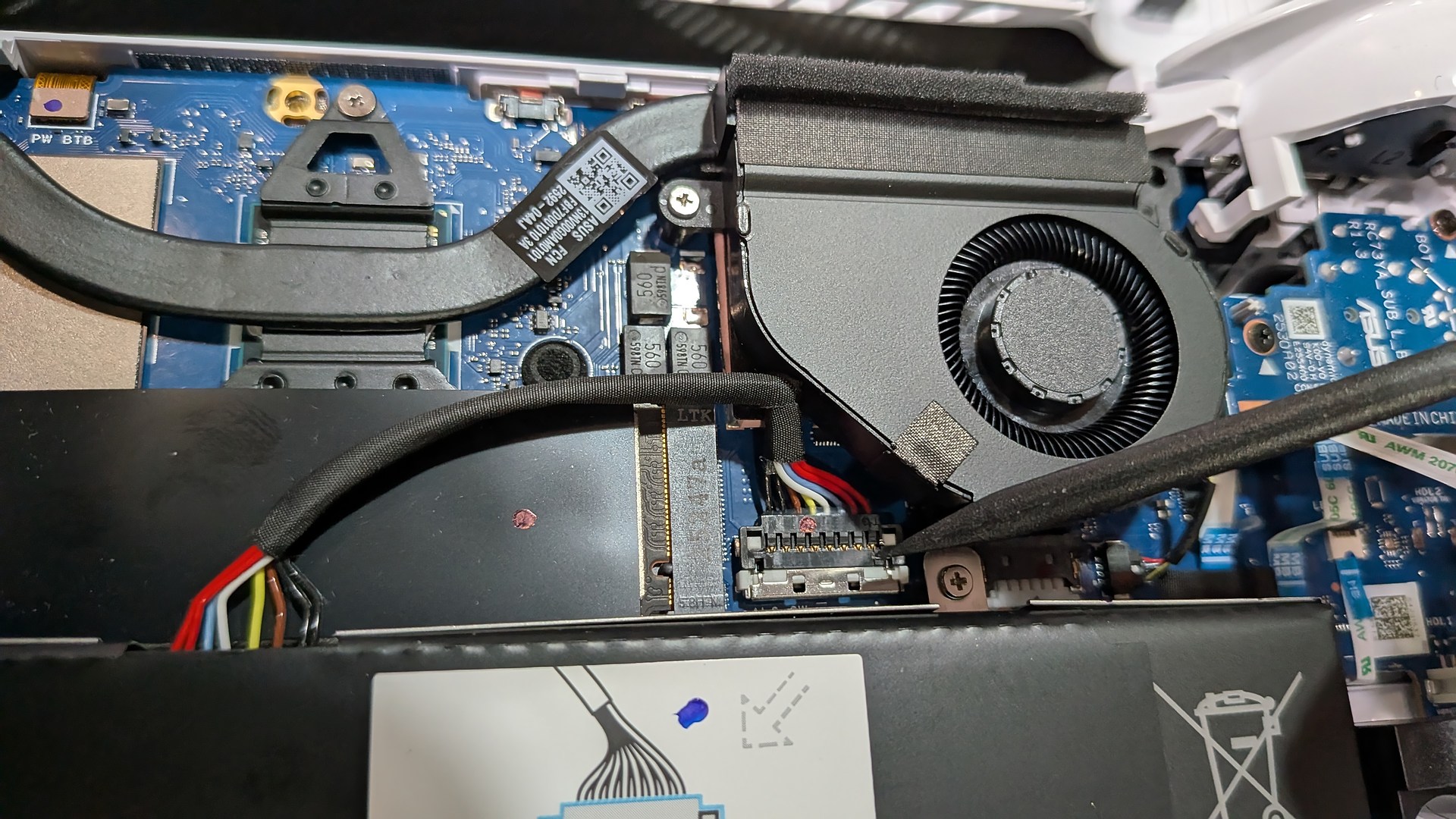
Undo the screw connecting the original M2 to the motherboard and gently remove the drive from the port. Replace the old drive with the new one you have on hand. Make sure to apply any needed thermal tape now.
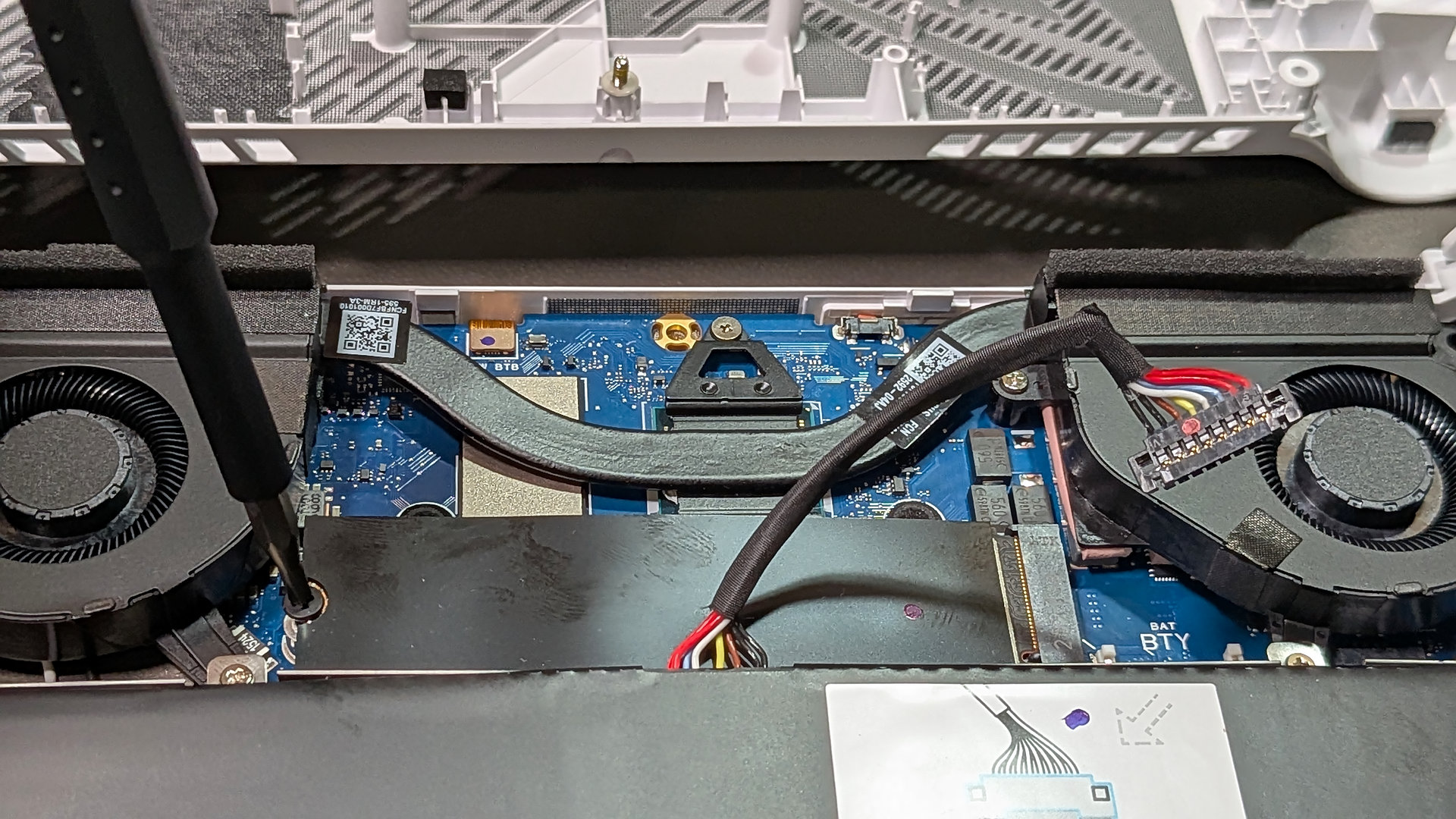
Open up the new drive packaging with the grace and delicate nature that you’re known for.
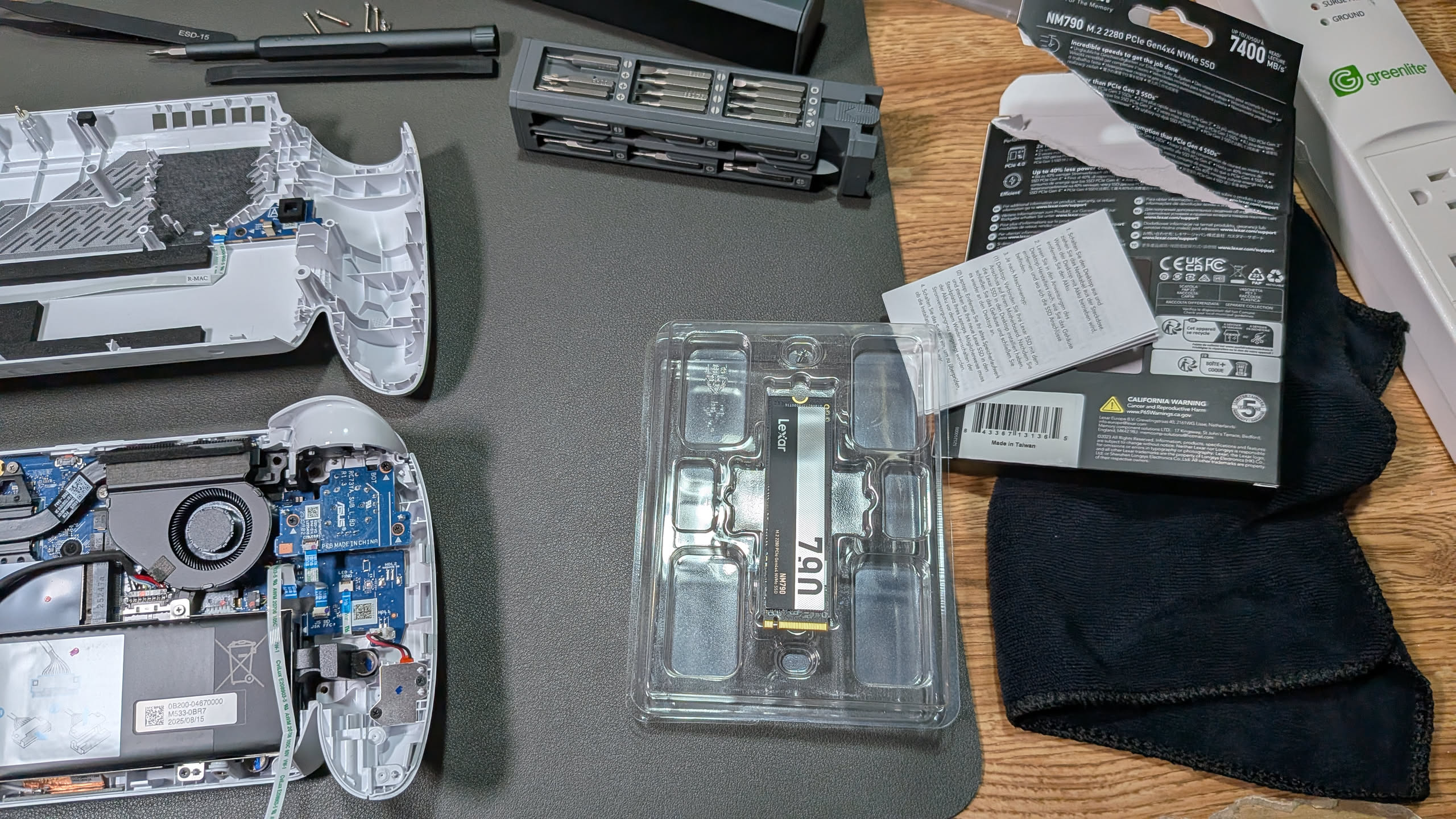
Insert and screw the new drive into place.
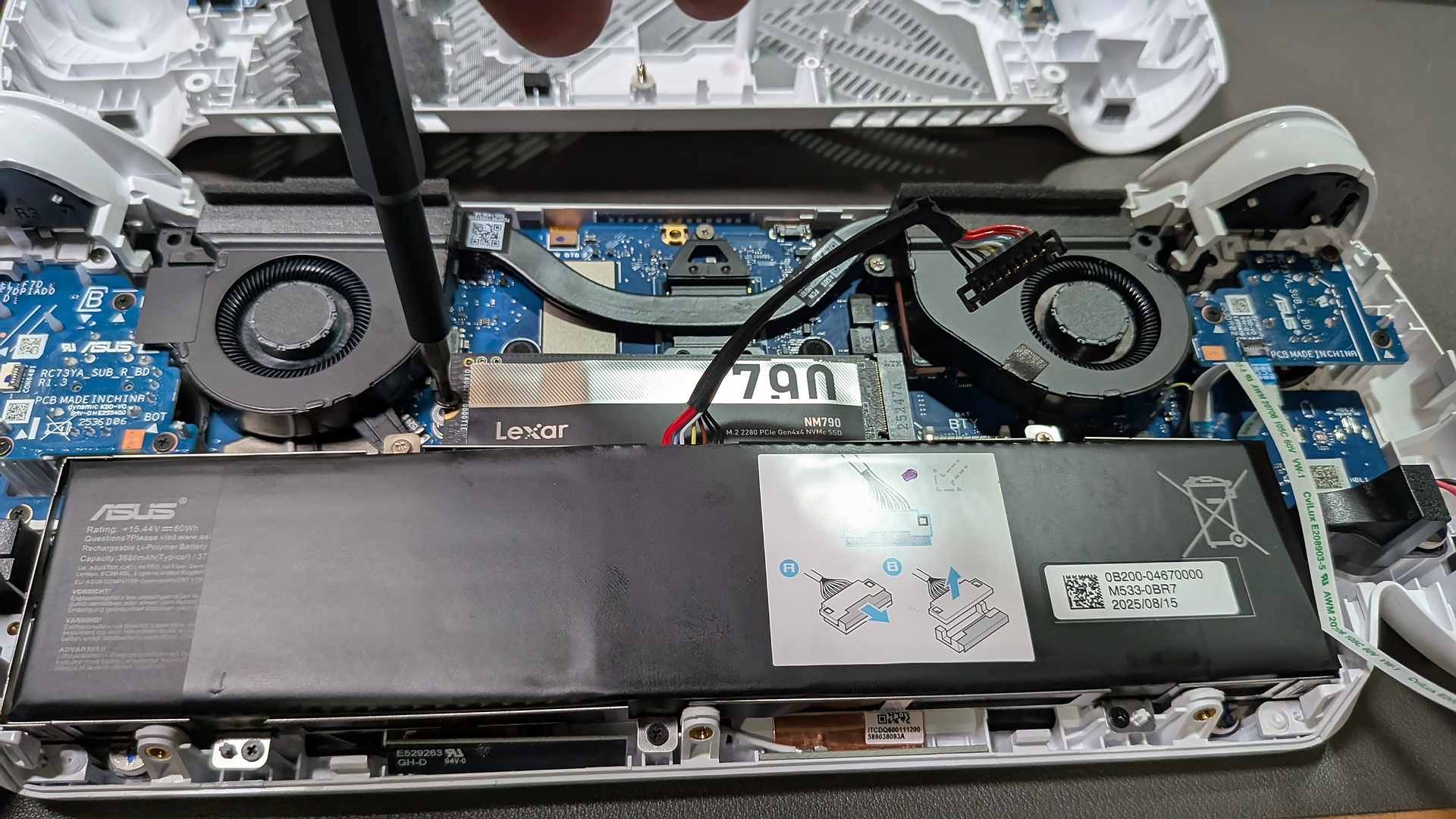
Did You Disconnect the Ribbon Cable?
So you yanked a little too hard when you were taking the shell halves apart, eh? That’s OK. I did it too. Let’s get it back where it needs to be.
Using tweezers, gently peel back the tape covering the connector for the loose ribbon cable.
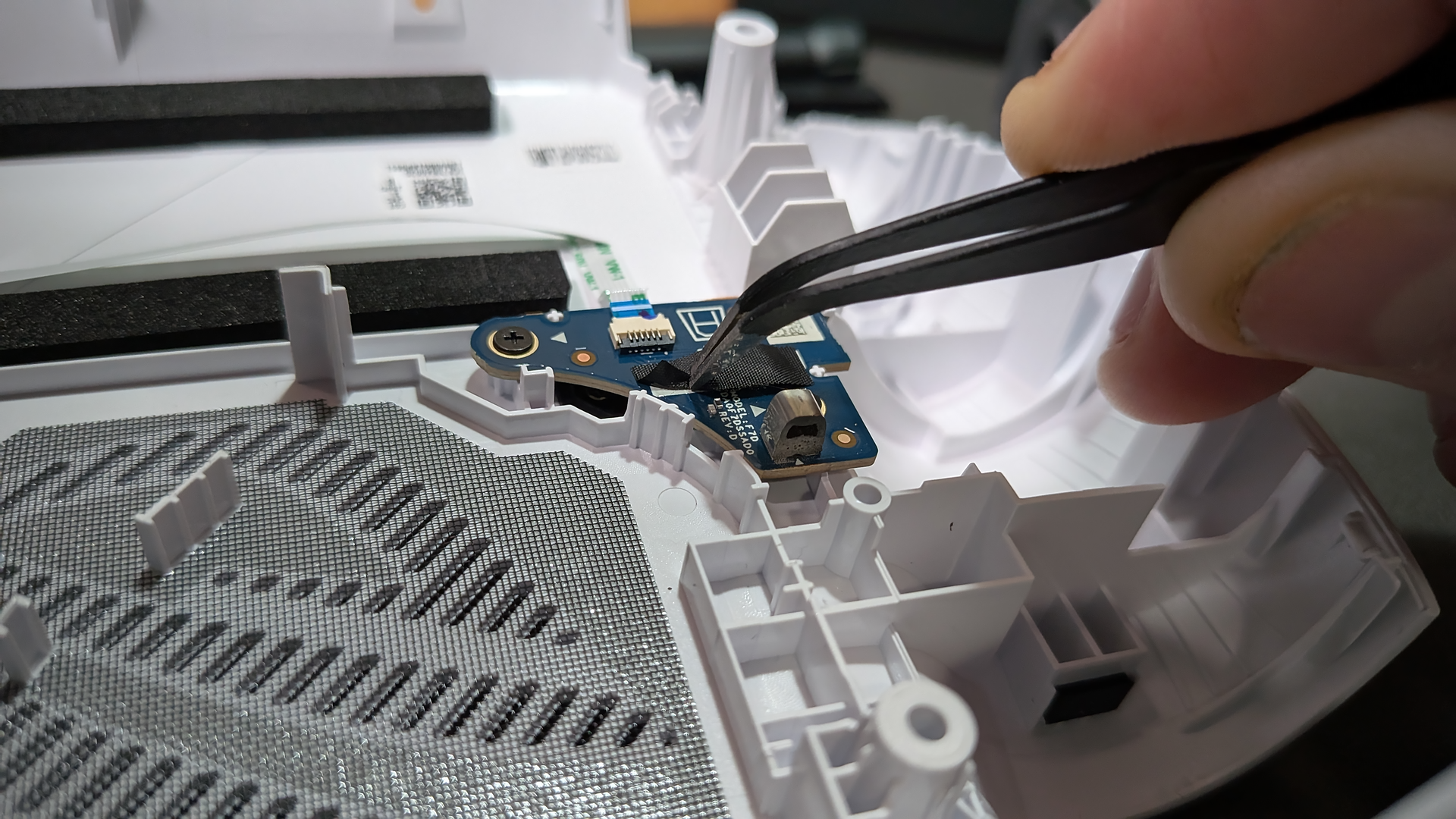
Taking great care, you will want to fold the ribbon cable back over itself so the cable connector is blue side up. Secure it in the now exposed port, and tape it back down with the existing tape (new electrical tape will work fine as well).
Recovery
Now comes the point where you have some decisions to make. You can use the included Asus Cloud Recovery service straight from the device BIOS menu, or you can explore your options. For all its Xbox branding and AMD’s shell game naming conventions, this is a very similar device to a Steam Deck. As such, SteamOS apparently feels right at home on the handheld. Look for a how-to guide from yours truly on OS options like Steam and Bazzite in the future.
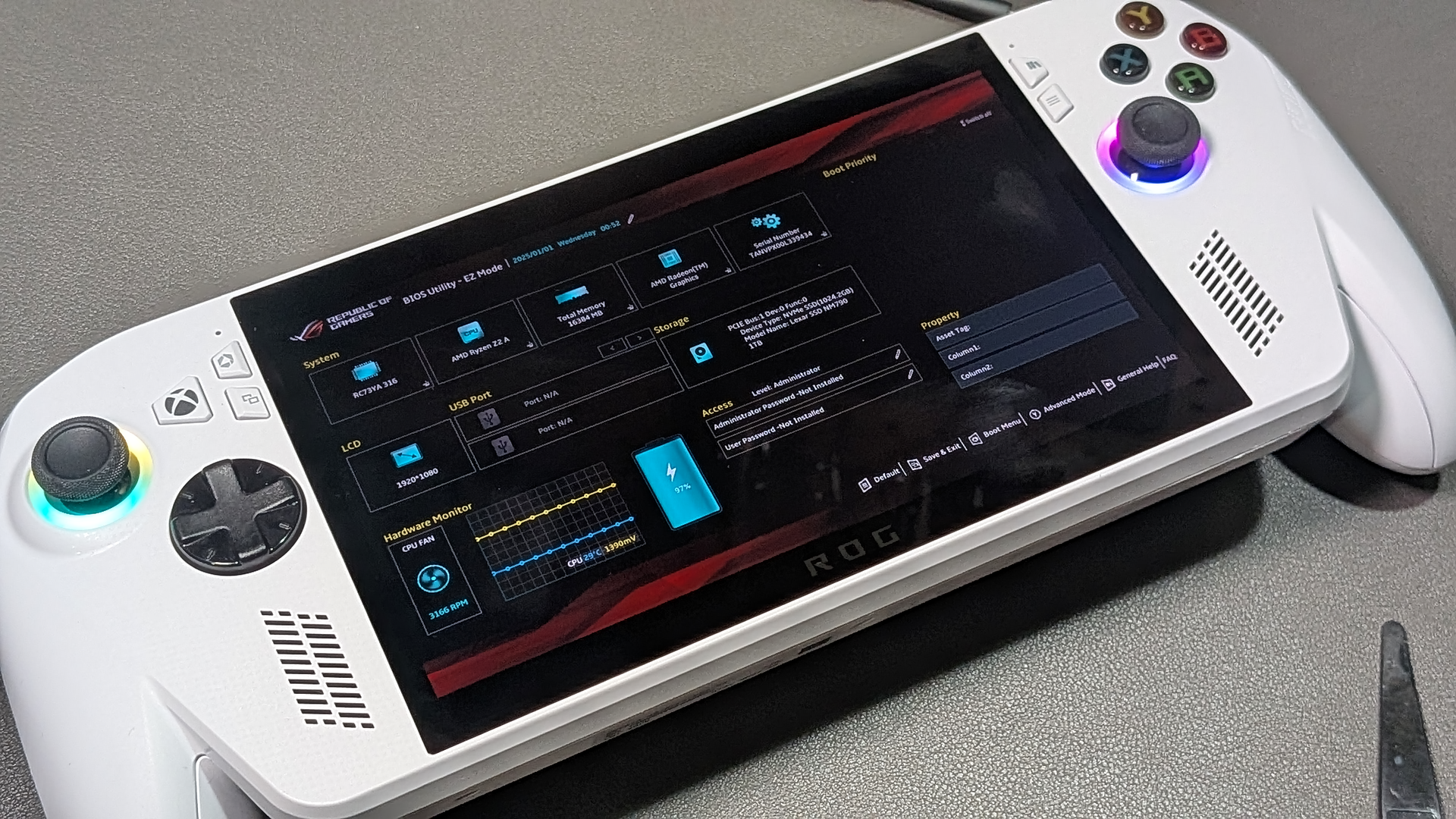
For today’s purposes, though, let’s get the handheld back to its factory state.
- Plug the ROG Xbox Ally into external power using the included AC adapter
- While holding the Volume Down button, press the Power button to turn on the handheld and enter the system BIOS. Continue to hold Volume Down while the device boots until you reach BIOS.
- Navigate to the Advanced Tab of BIOS by pressing the Y button
- Connect to WiFi and follow the on-screen instructions to use the Asus Cloud Recovery tool. You may be prompted to update the recovery tool. Do so. This will reinstall Windows and bring your ROG Xbox Ally back to its factory OEM self. The re-install process will take approximately 40 minutes in total.
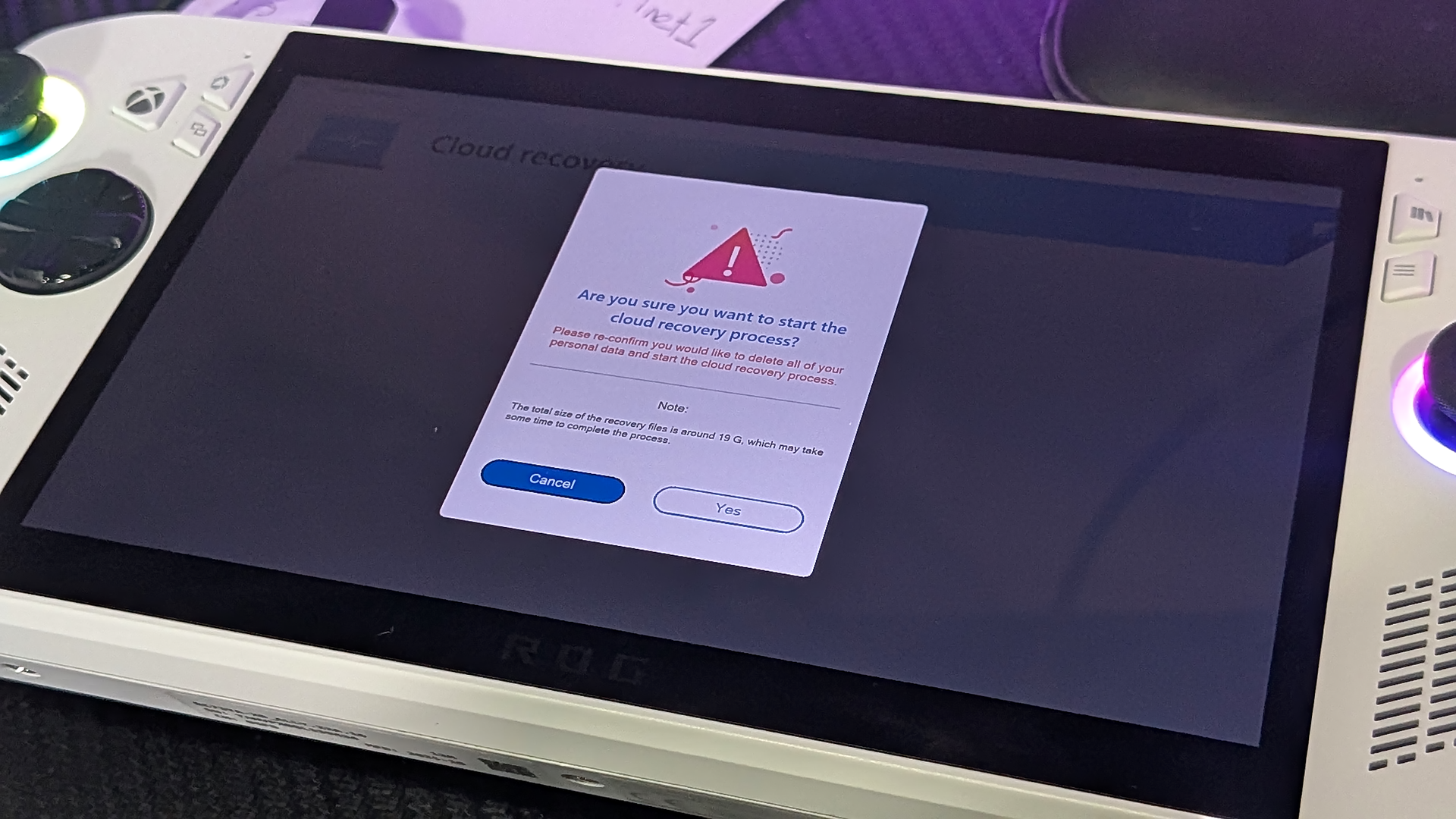
The handheld will reboot a good few times after completing the download and install process. There are a lot of secondary drivers, codecs, and such that will be auto-installed along with Windows, so don’t be alarmed when you keep hearing the Woosh! boot sound repeats itself while the recovery does its thing.
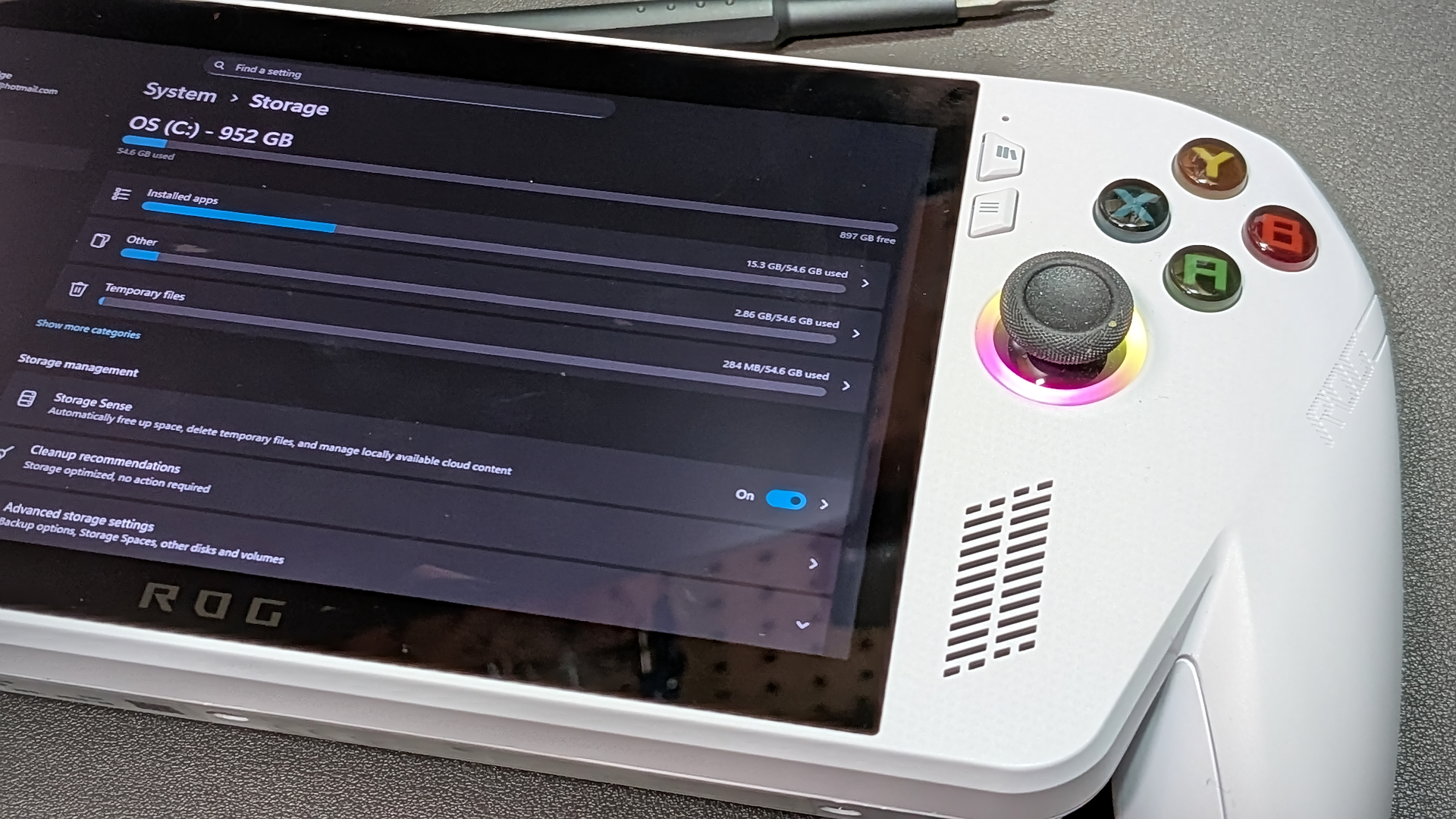
From there, you can set up the handheld as if you’d just brought it home, but now with double (or more) the capacity for games!
If you’re curious about the best ways to get started with your new upgraded Xbox Ally, check out Zu’s Starter Guide for some great tips. You will be starting over from scratch, after all.
Will you be upgrading the storage on your Xbox Ally? Let us know in the comments below, and chat with us in our Discord!
This page may contain affiliate links, by purchasing something through a link, Retro Handhelds may earn a small commission on the sale at no additional cost to you.
