

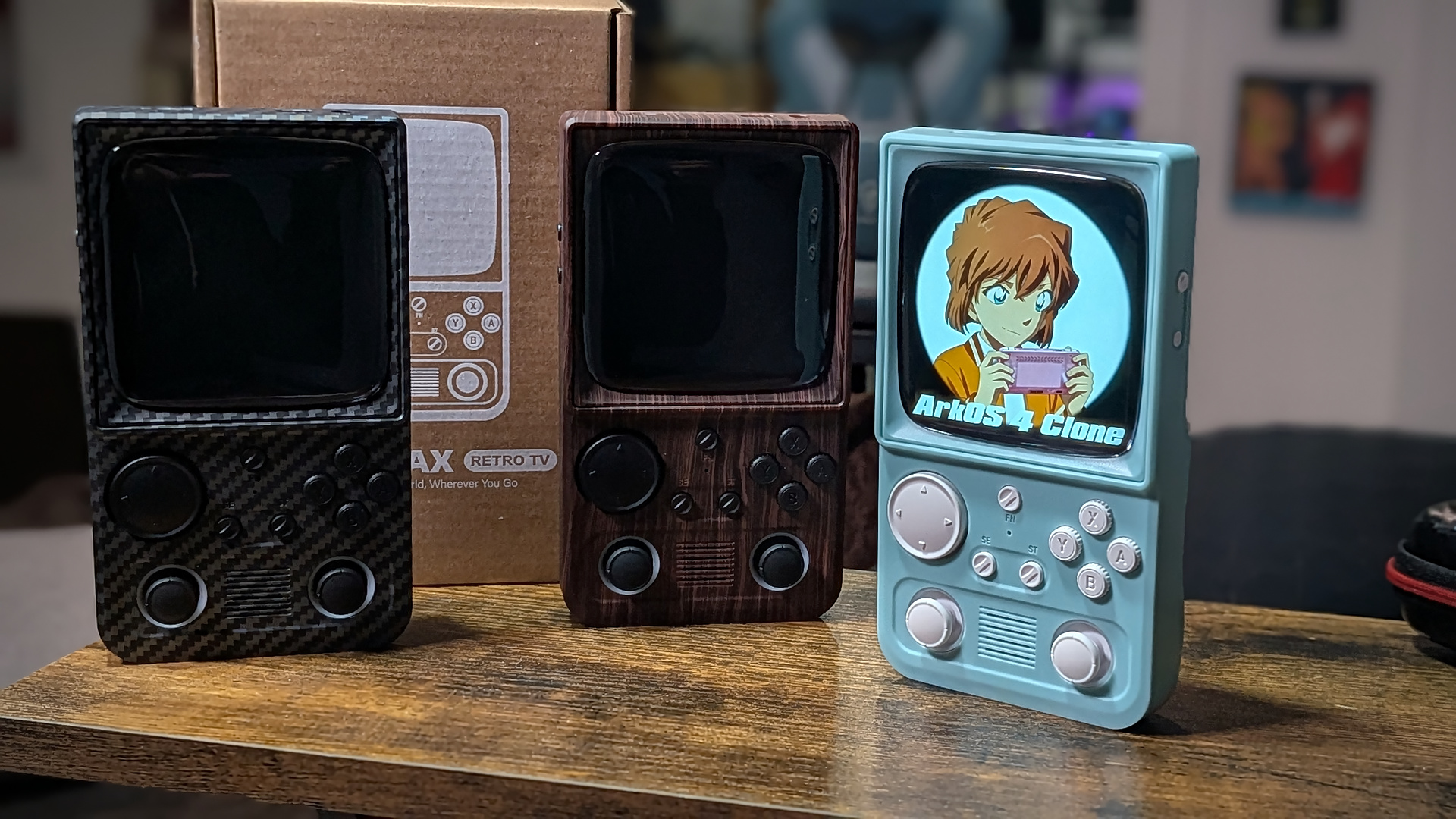
The R36T and R36T Max from AISLPC (pronounced ACE-L-PC per the company rep, for those of you who may have been curious) have made a bit of a budget splash on the scene since their recent debuts. These odes to cathode ray tubes of yesteryear are the love letter nostalgia that anyone with a fondness for retro games can get behind.
But maybe you’re looking just to see what else is out there that can run on these handhelds, or just want something you can build from the ground up as your own.
Here are the steps to install ArkOS4CLone to get the most out of your R36T family of devices.
R36T Max Specs
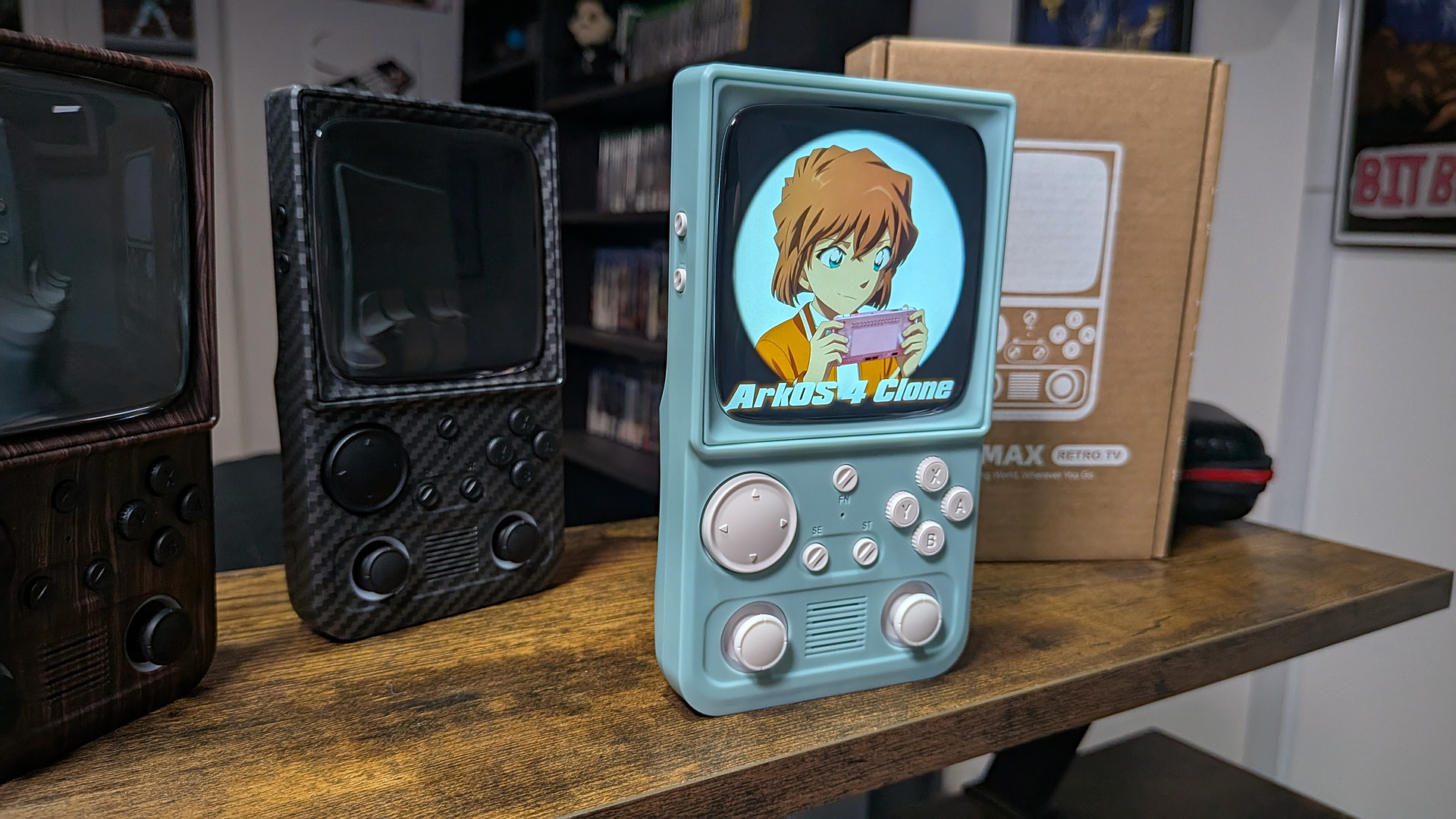
- CPU: Rockchip RK3326
- GPU: Mali-G57 MC1-2EE
- RAM: 1GB
- Screen: 4″ 720×720 IPS Display with CRT bubble cover
- Sound: Single front-firing speaker
- Battery: 4000mAh (per listing)
- Connectivity: USB-C (single), 3.5mm AUX Jack, Micro-SD (single), Wi-Fi
- Operating System: Custom EmuElec Linux OS
- Weight: 221 grams (according to my kitchen scale)
- Colors: Wood Grain, Carbon Fiber, Gray, White, Black, Red, and Blue
Recommended Accessories
- TF1 microSD Cards
- TF2 microSD Cards
What You’ll Need
- A trusted brand of micro SD card (64GB – 128GB recommended, but go nuts if you want to). Cards that come with these devices are of poor quality and prone to failure. If you ordered a loaded card with your device, back it up and chuck the card. It will eventually fail. Don’t say we didn’t warn you!
- An SD Card reader
- A Windows PC (The DTB application is an .exe)
- 7-zip or WinRAR to unpack any downloads
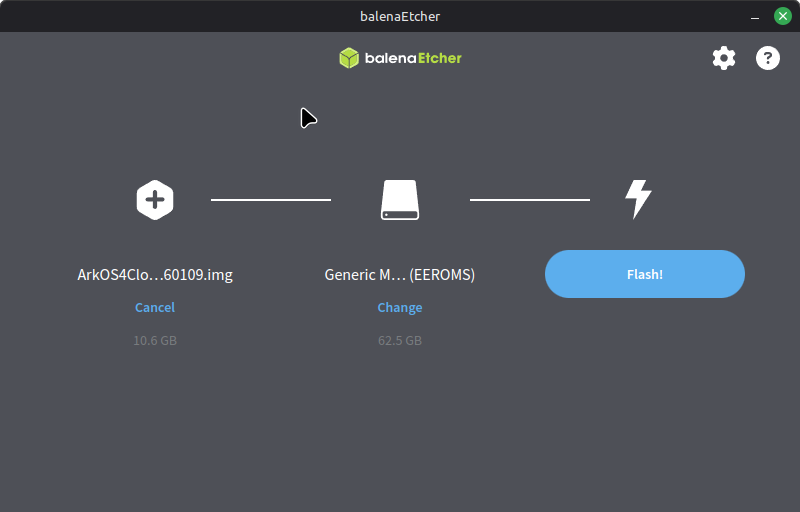
- Rufus or any other Image writing software of choice
- Balena Etcher – Image writing software available for all major Desktop OS’
- Win32DiskImager – An open-source option designed for Windows, but there are many ports.
StockOS (RetromaxOS)
The stock OS setup on these devices is better than most. The custom EmuElec ROM (the manufacturer calls it RetroMax OS) included with these handhelds is specific to this company. By utilizing the onboard WiFi chip and the included downloader program (partake at your own risk)from AISLPC, there isn’t really anything off the table. If the handheld has the ability to run it, chances are you probably have access to it.
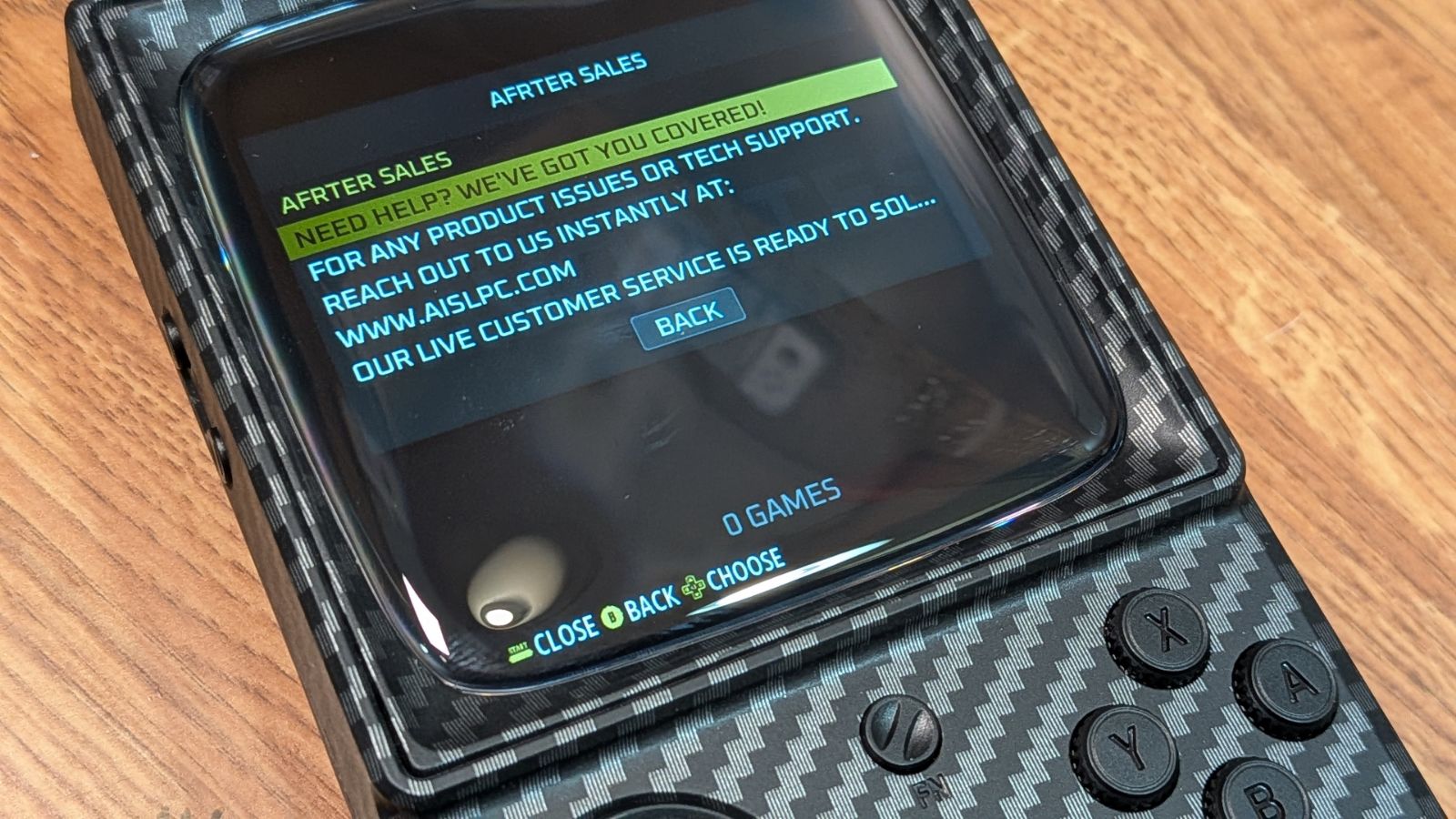
AISLPC has thoughtfully included links to FAQs, guides, and even a support contact. Fairly above and beyond for a company in the budget Linux handheld market, going up against the likes of the R36S it was born from. There are some fun bells and whistles that up the presentation factor, too, like the snow static loading screens.
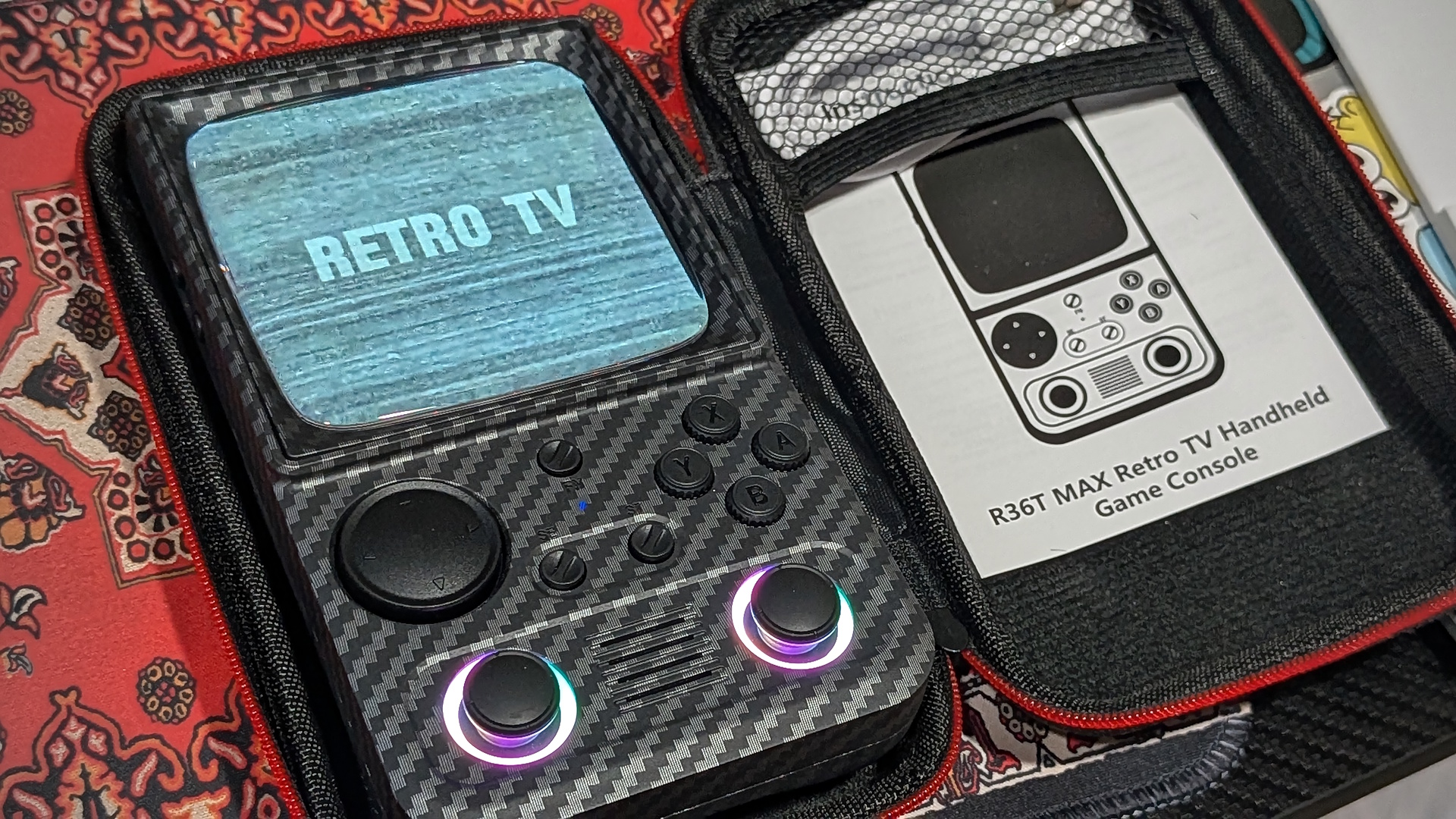
But that’s not to say that the stock experience is perfect. I’ve had a few occasions where the device decides it doesn’t like the WiFi network I just connected it to and crashes when reloading the main menu. Other times, I’ve had issues getting one of these units running stock to see any available networks at all.
In short, it works well out of the box, but there is still some ironing to be done in places.
Note: At the time of writing this article, AISLPC has not made the StockOS image available for download. Should there be updates in the future, we will be sure to include them in developer news.
It also appears that there may be two variants of the StockOS. One with the Downloader application and one without. We’ve asked for clarification from the manufacturer.
ArkOS4Clone
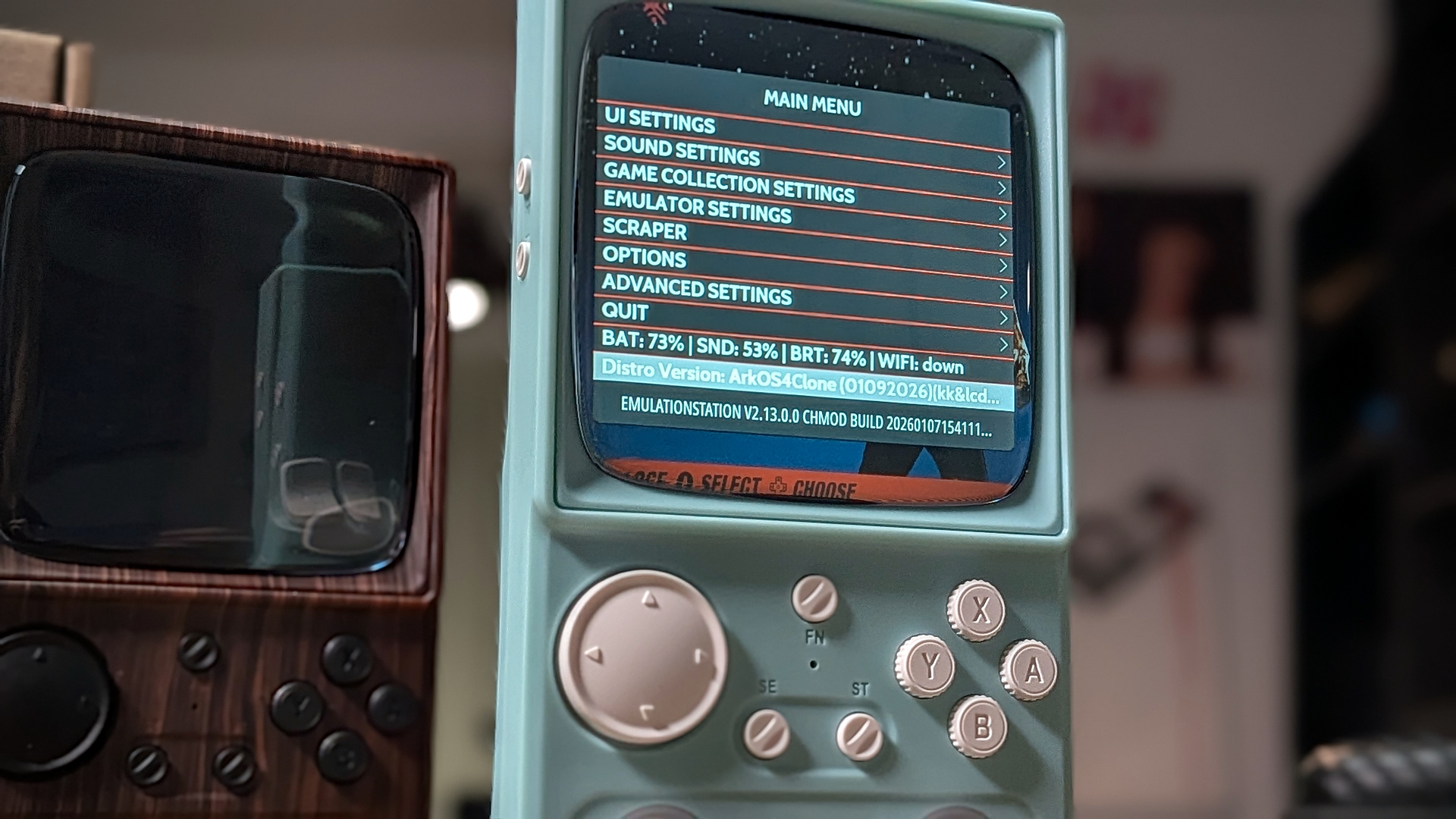
This OS is my standard go-to option for clone devices like this and the R36S (and the best option available right now for the 36T series). Everything has been tuned for max tweaking, leaving all available device options available to the end-user. While we can’t expect miracles, there are some titles that ArkOS can squeeze a little more out of on systems that max out the R36T hardware, like PSP and Dreamcast. This won’t make the unplayable a smooth experience by any stretch, but it may get you over that annoying performance hump to bring games into the playable experience territory.
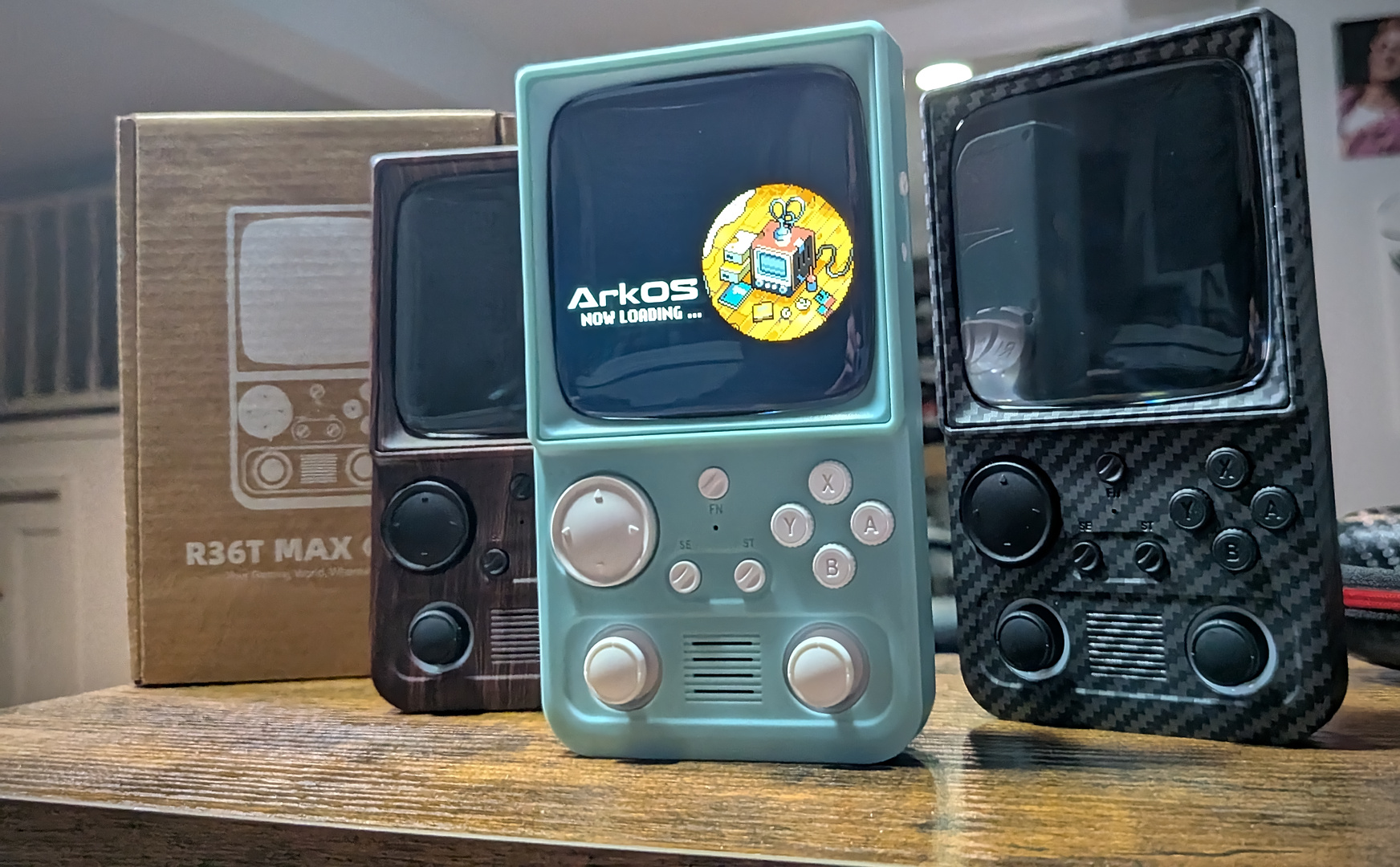
My hope that I could swap in the SD card from the R36 MAX (which I’ve come to appreciate more with time) and have a plug-and-play experience was quickly dashed, despite the two devices sharing hardware and a manufacturer. We’re going to have to do this manually.
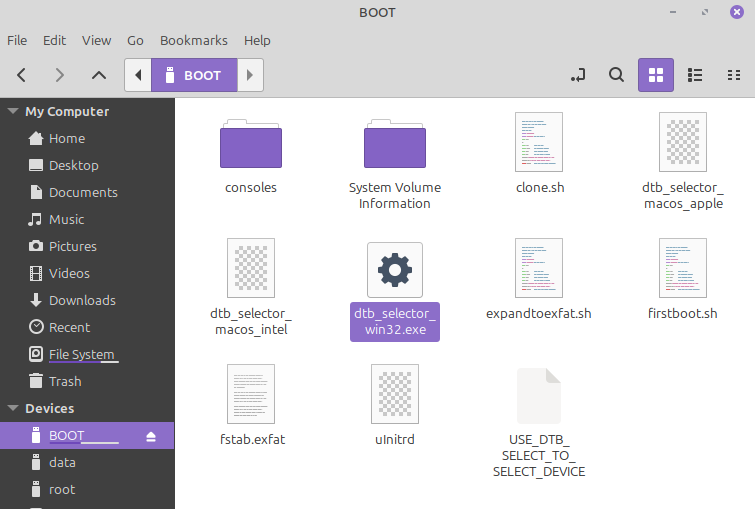
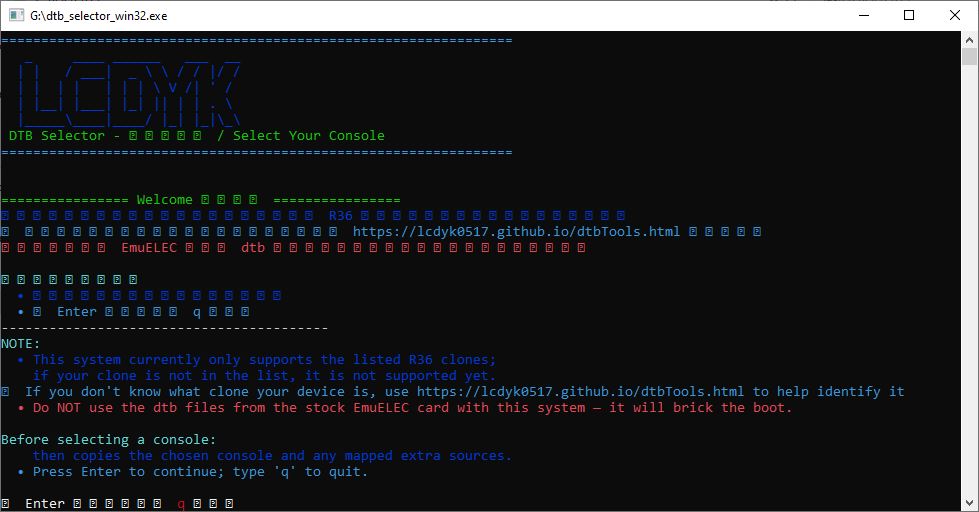
The first thing that we have to do is set the installation package to the correct panel and resolution to go with the R36T/MAX.
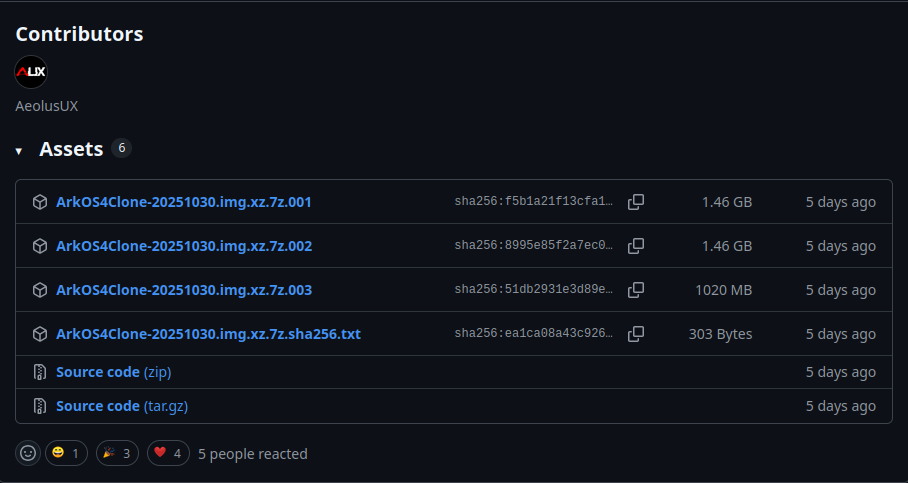
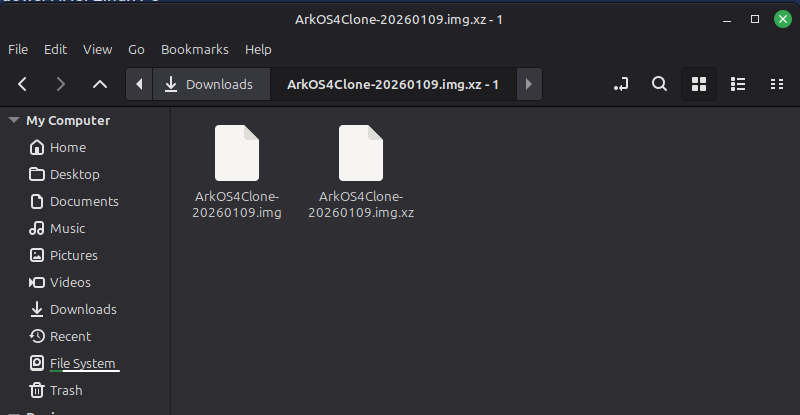
- Download the ArkOS4Clone latest release from the GitHub page. There are three separate compressed archives to grab (or you can download a single 3.9GB archive from linked mirrors)
Loading Games
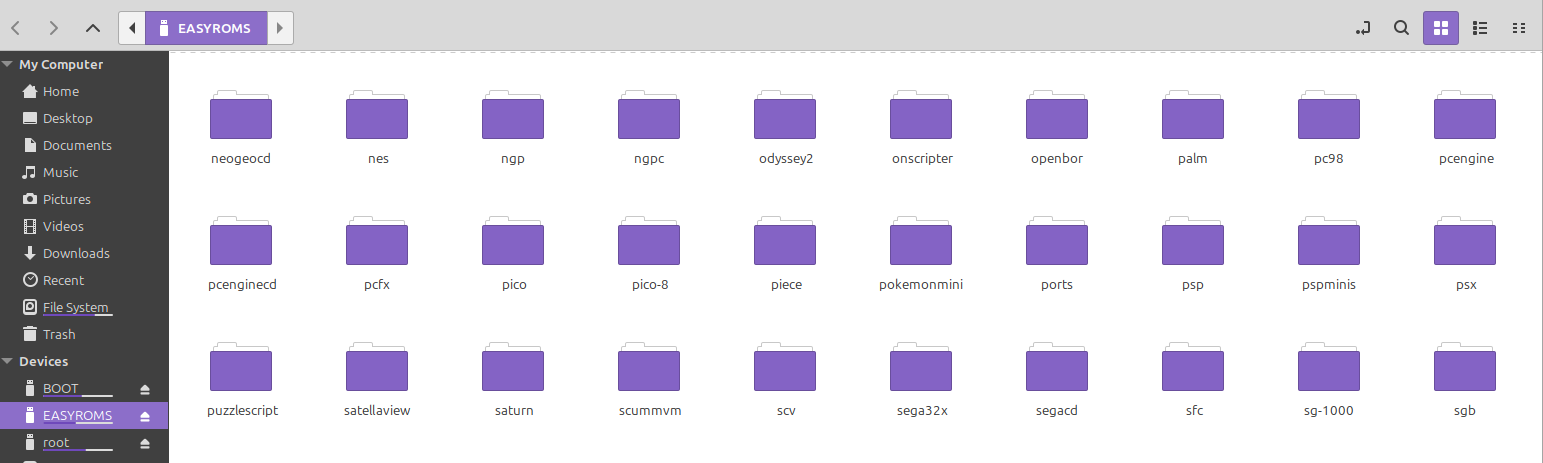
- Navigate to the EASYROMS partition and move your game files into the corresponding console folder that has already been populated on the partition.
- After dropping your ROMS into their respective folders, eject the SD card from your PC and re-insert it into the R36T/MAX. The OS will automatically scan the files now in your games library and populate them in menus.
What did you think of this article? Let us know in the comments below, and chat with us in our Discord!
This page may contain affiliate links, by purchasing something through a link, Retro Handhelds may earn a small commission on the sale at no additional cost to you.

2 Comments
When I was installing ArkOS4Clone for R36 Ultra, antivirus deleted DTB_Selector_Win32.exe file. In order to make it work, I had to reinstall ArkOS4Clone on sd card, turn of antivirus, THEN I could do the selector and THEN it worked as intended.
Hello; Thank you for the excellent content. I’m having problems with the R36T Max. I had a problem with the control settings and had the unfortunate idea of resetting the factory settings. Something went wrong during the reset and the device ended up with a black screen. It seems to have reconfigured to the wrong “dtb” (panel) file. The problem is that this device has internal memory (NAND) and I can’t access it to correct it. OK, I was very happy to find your post and be able to install ArkOS on the R36T Max. However, despite everything working beautifully, there’s no sound coming from the device. It’s completely silent. Could you help me?