

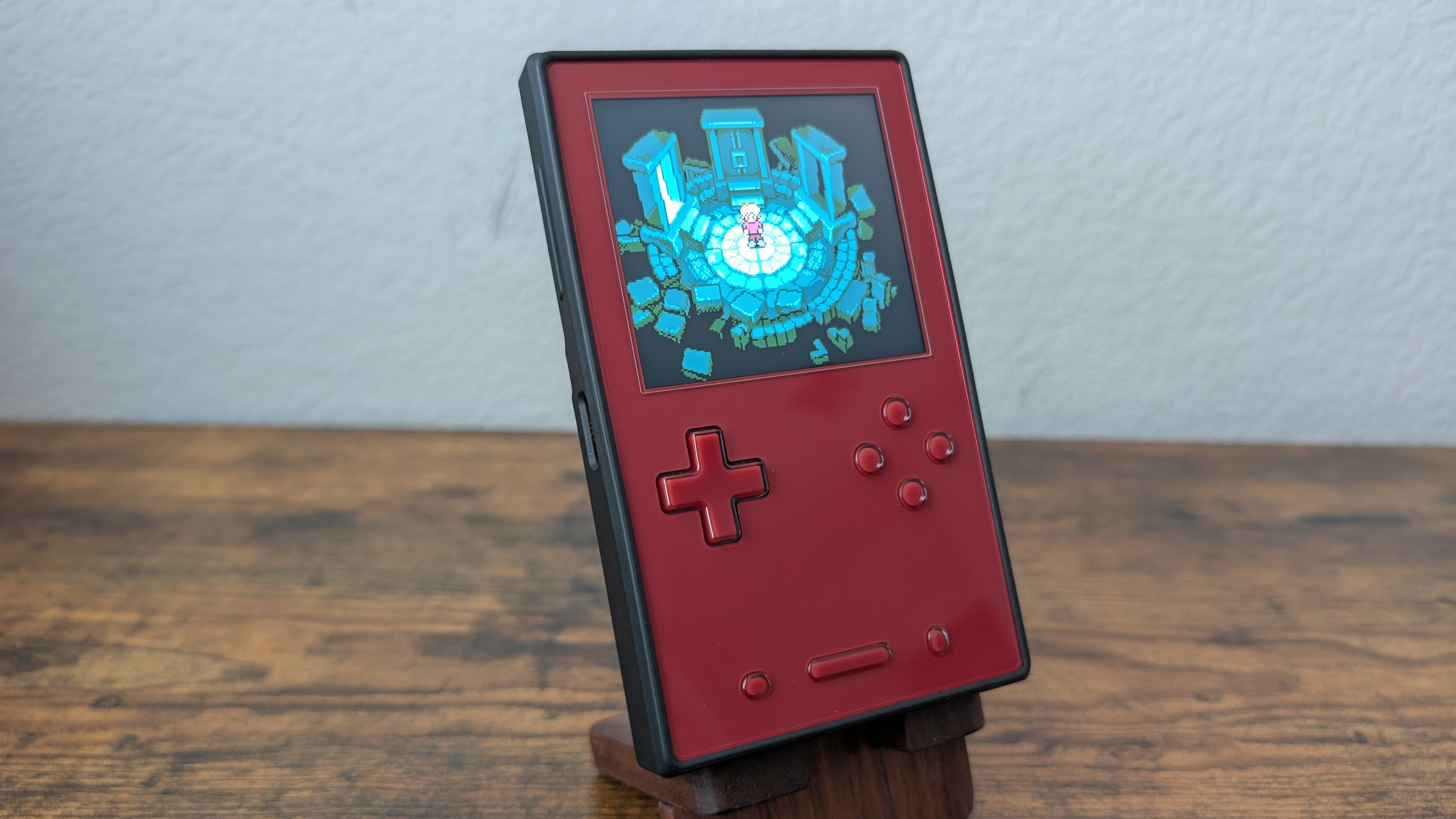
The AYANEO Pocket Vert is a stunning, 10:7 vertical handheld with a premium metal body and no analogue sticks, instead opting for “Magic Touch” digital inputs on the glass face of the device (similar to the AYANEO Pocket DMG). A high-resolution, 3.5-inch screen gives the Pocket Vert incredible pixel density, making retro games pop off the screen. This guide will help you set up your AYANEO Pocket Vert to get the most out of your device.
Table of Contents
AYANEO Pocket Vert Specs
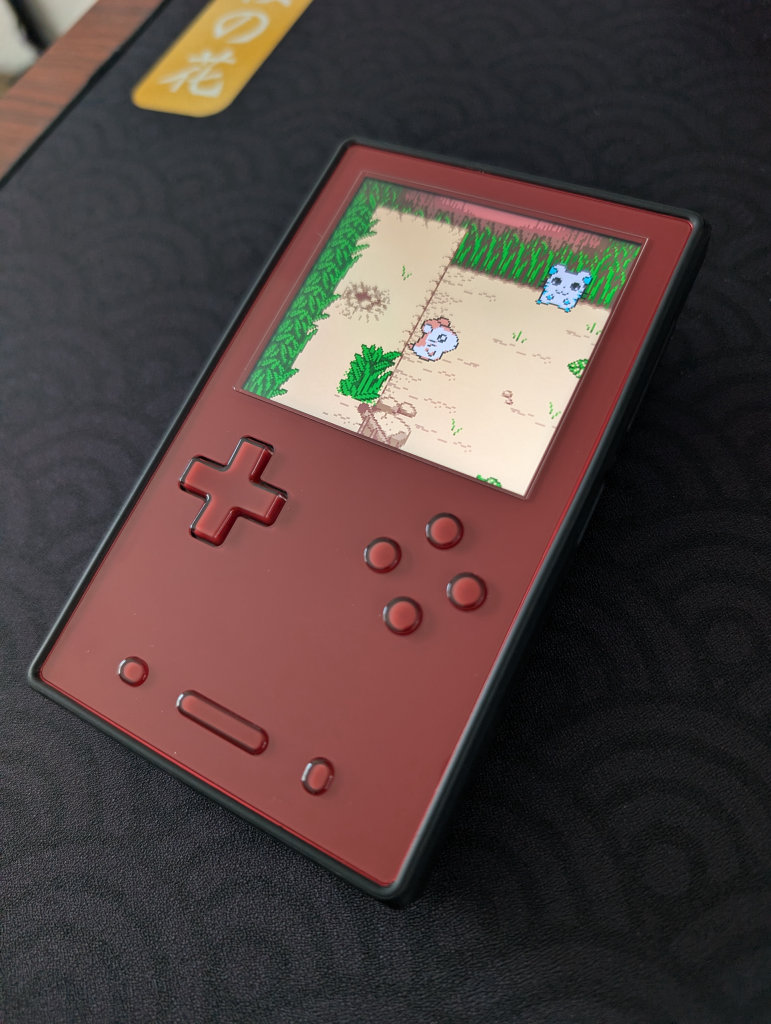
As detailed in our AYANEO Pocket Vert Review, the Pocket Vert comes in three distinct colors (Midnight Black, Moon White, and Lava Red) and two different RAM and storage configurations. As usual, higher RAM and storage options will be beneficial for those looking to dive into PC emulation on Android, but the Pocket Vert is clearly geared towards more early-era retro gaming exploits, and thus tops out at 12GB/256GB.
Under the hood is a Snapdragon 8 Gen 1, powering a 60Hz, 3.5-inch 1600x1440p LCD screen. While smaller than both the AYANEO Pocket DMG and Retroid Pocket Classic, that resolution allows the Pocket Vert to display at a 615ppi pixel density, making games look ultra crisp and bright. The screen is certainly on the smaller side, so while the chip can power PC streaming and emulation, you’re going to spend a lot of time squinting to see any details or text.
| Specifications | |
|---|---|
| Hardware | |
| CPU | Qualcomm Snapdragon 8+ Gen 1 |
| GPU | Qualcomm Adreno 730 |
| RAM | 8GB LPDDR5, 12GB LPDDR5 |
| Cooling | Active Air Cooling System |
| Display | |
| Screen Size | 3.5-inch |
| Resolution | 1600 x 1440 |
| Aspect Ratio | 10:9 |
| Refresh Rate | 60Hz |
| PPI | 615.02 |
| Storage | |
| Internal Storage | 128GB UFS 3.1, 256GB UFS 3.1 |
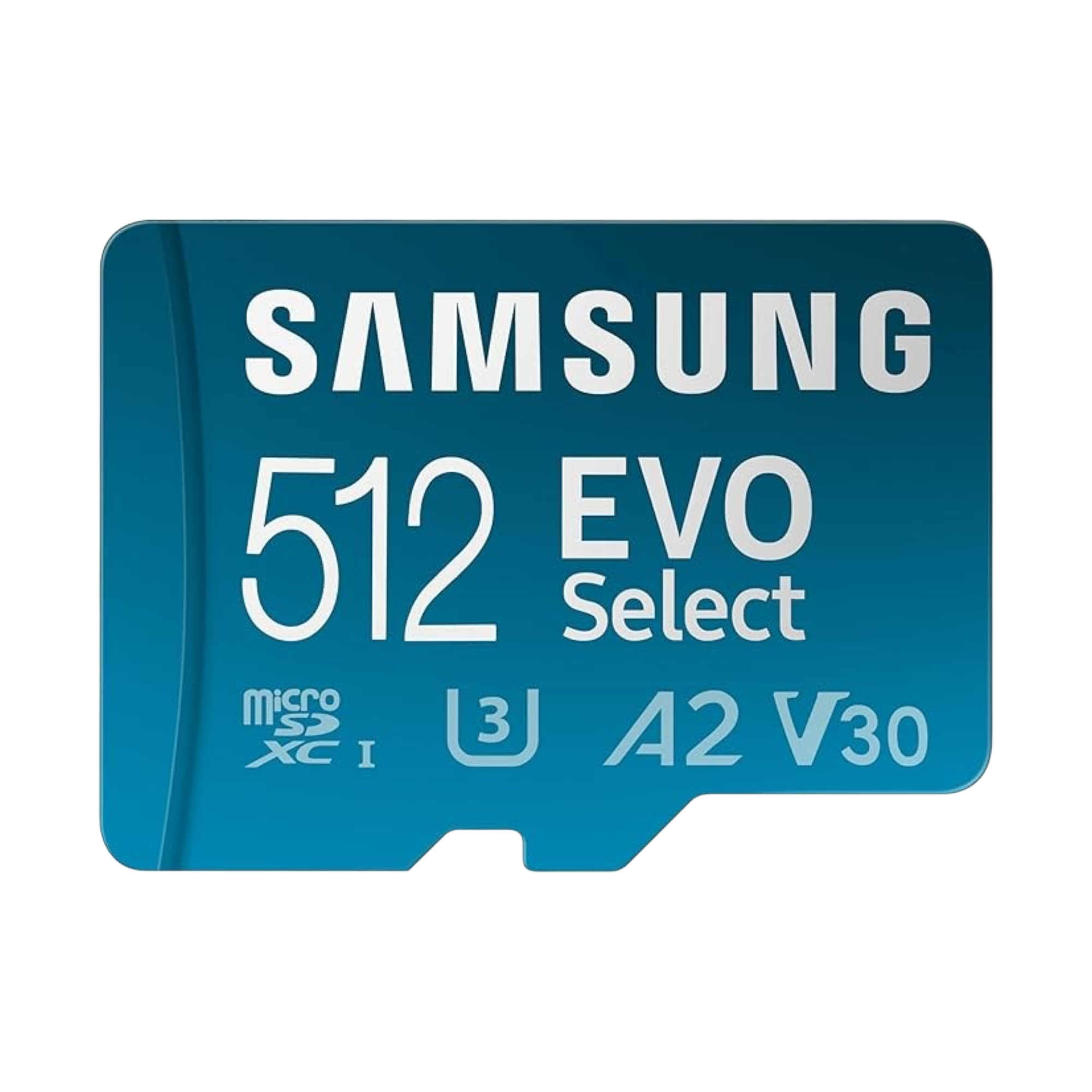
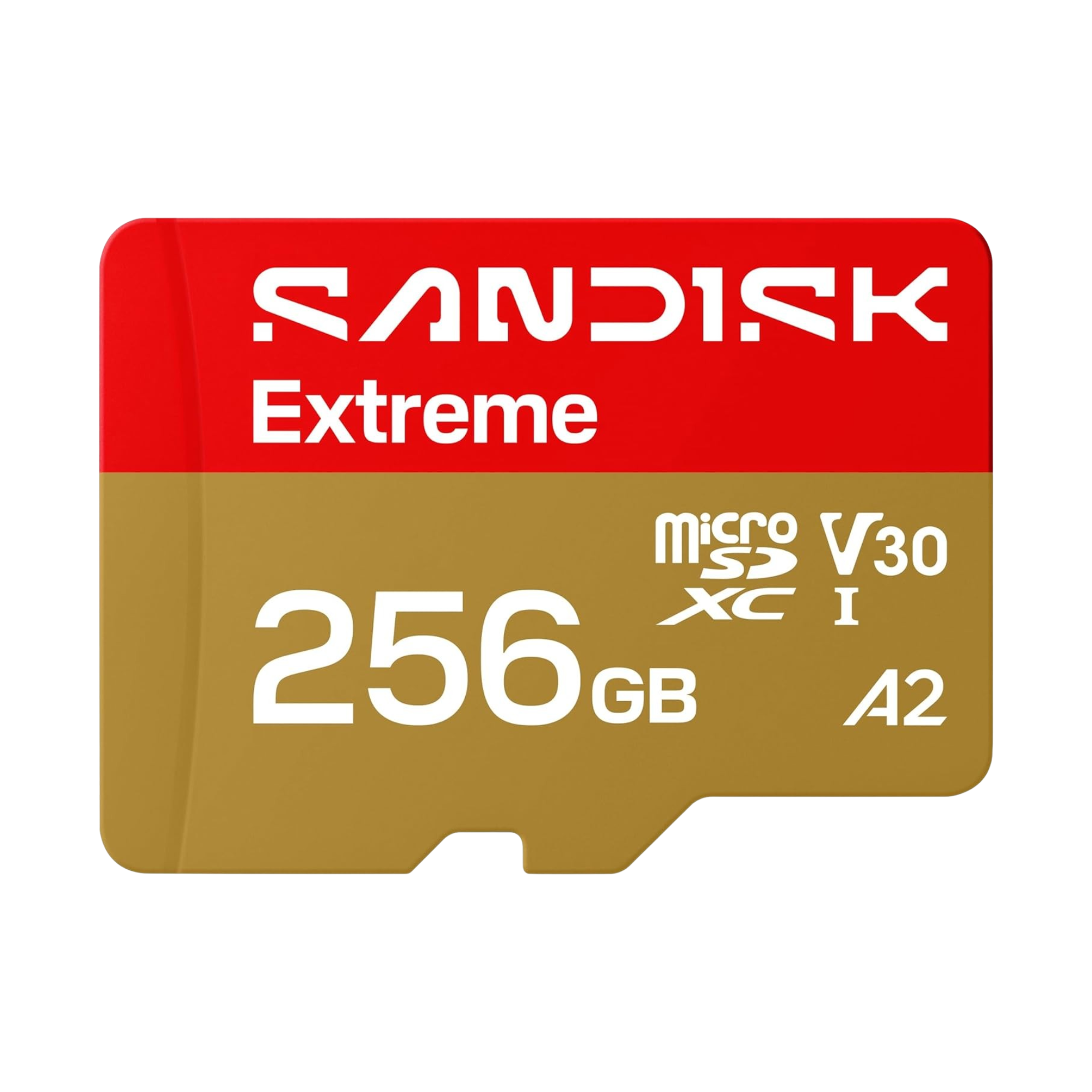
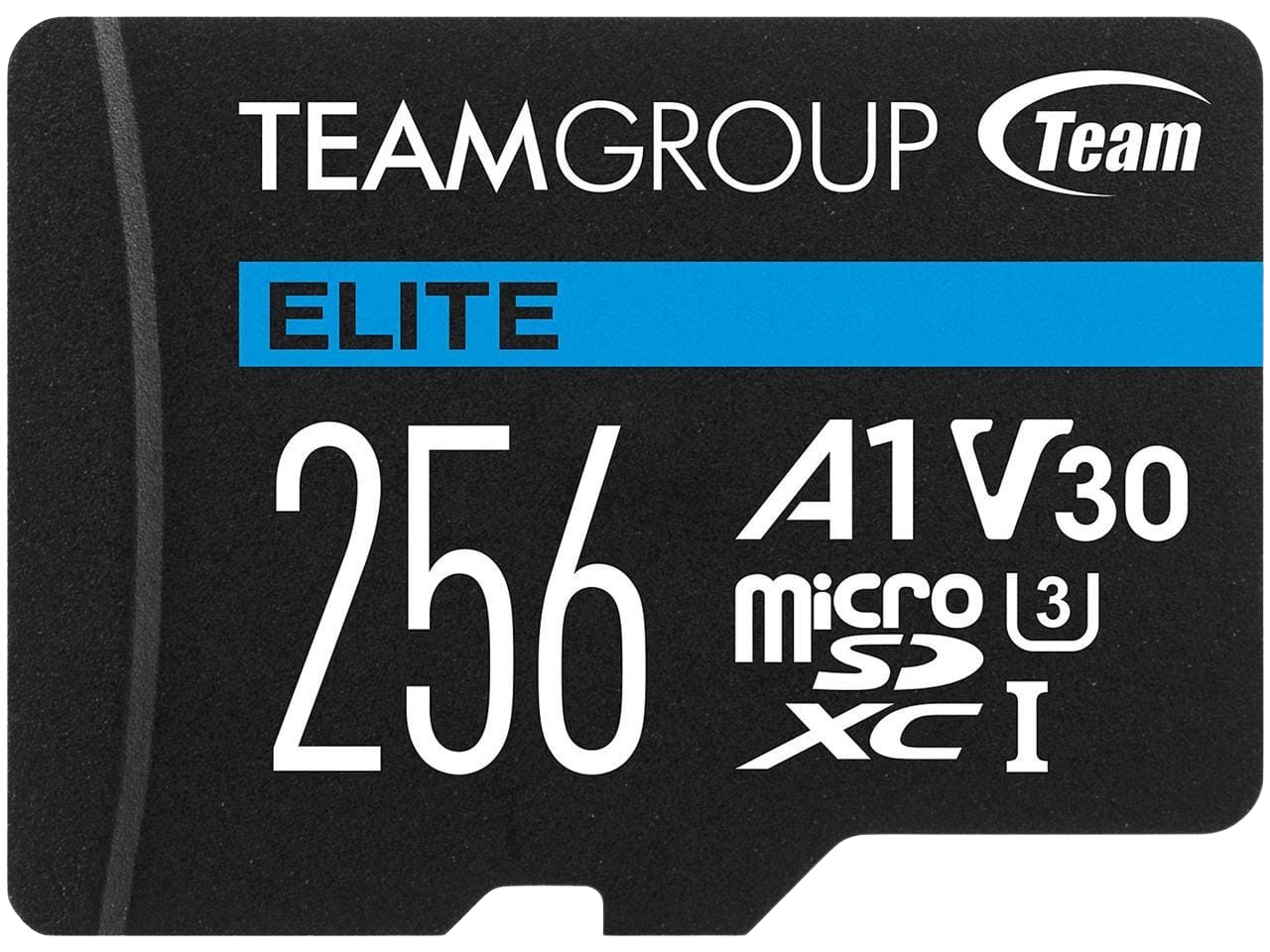
| External Storage | microSD |
| Battery | |
| Battery Capacity | 6000mAh |
| Connectivity | |
| Wi-Fi | Wi-Fi 6E |
| Bluetooth | Bluetooth 5.2 |
| Ports | 3.5mm Audio Jack, microSD, USB-C |
| Video Out | Yes |
| Controls | |
| Sticks | ❌ |
| Triggers | Digital |
| Shoulder Layout | Shelf |
| D-Pad | Top Left |
| Additional Details | Dual-Mode Touchpad |
| Audio | |
| Speakers | Stereo |
| Headphone Jack | Yes |
| Audio Notes | SoundTAPMagic Audio Vibration |
| Physical | |
| Dimensions | 143 x 86.4 x 20.5mm |
| Weight | 318g |
| Form Factor | Vertical |
| Software | |
| Operating System | Android 14 |

Recommended Accessories
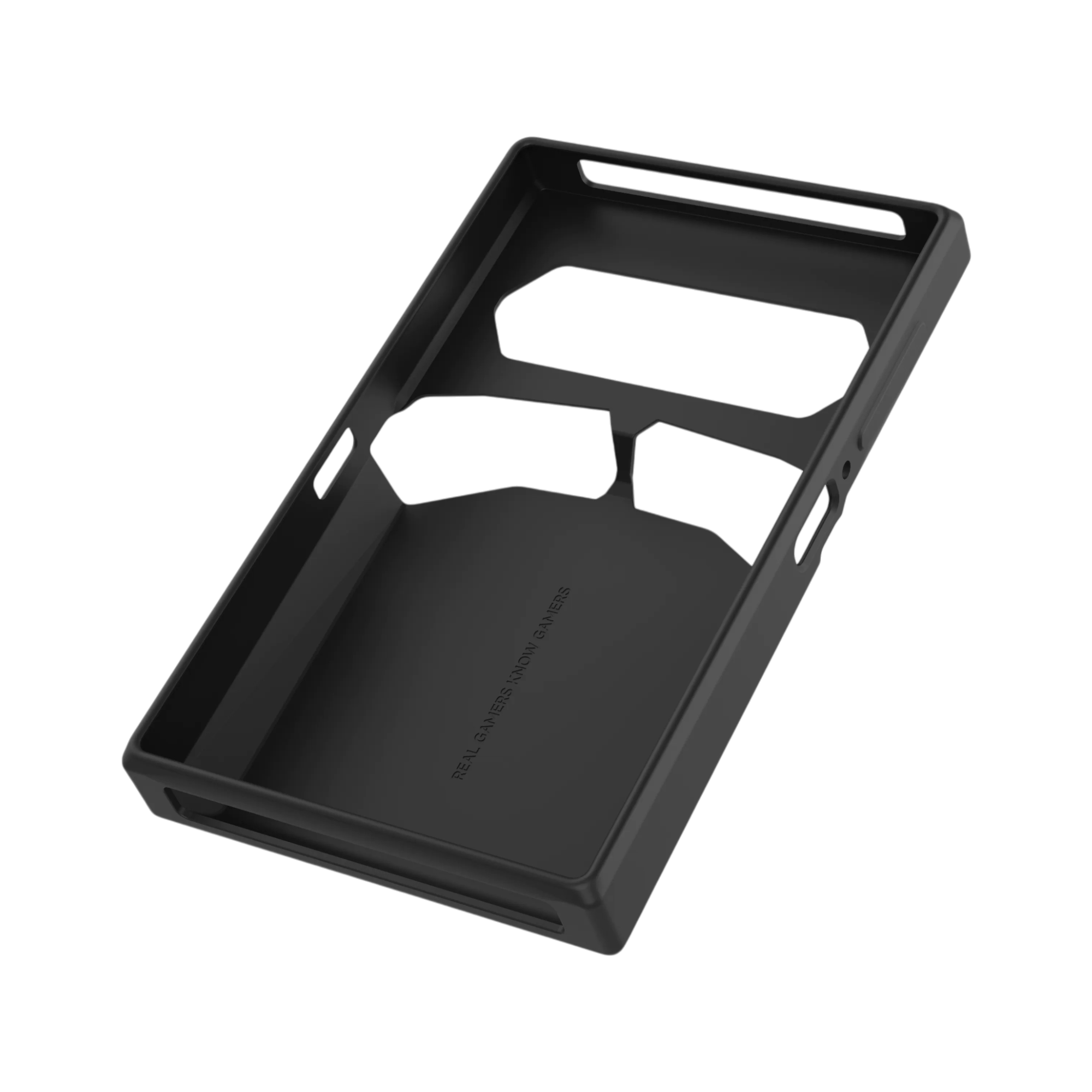
When it comes to official accessories available directly from the AYANEO website, there a few options to consider. We’ve got a hard satchel-style storage bag, screen protector, and an excellent protective case with a textured back. I personally grabbed the protective case for mine, and it has a great fit and feel.
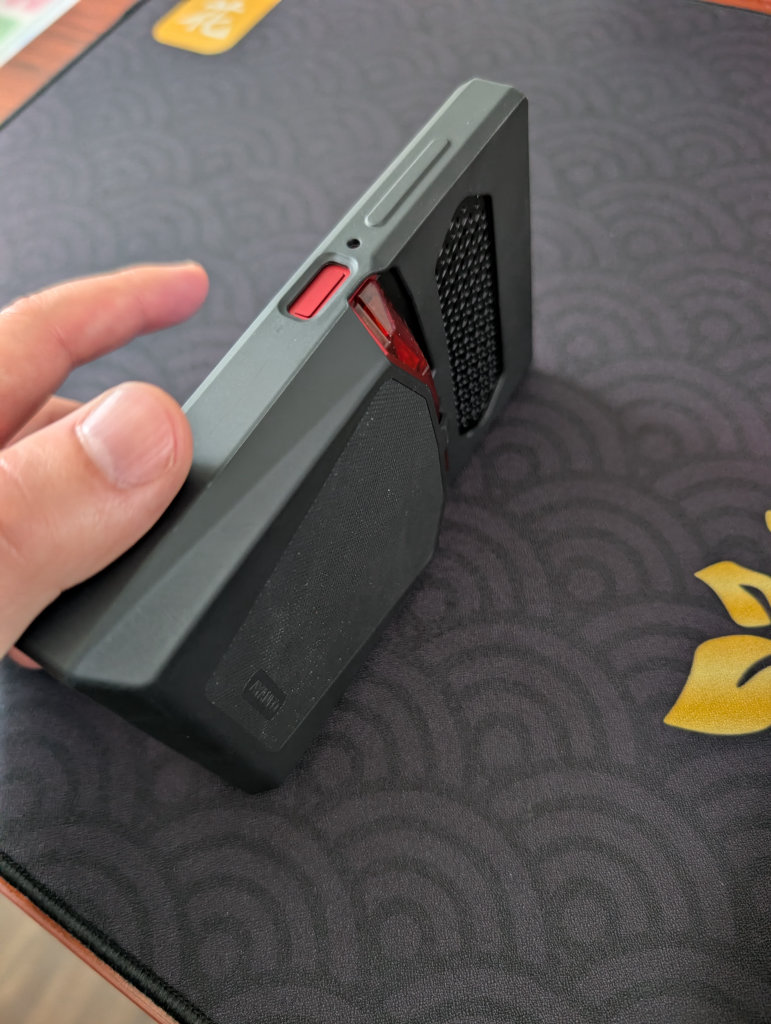

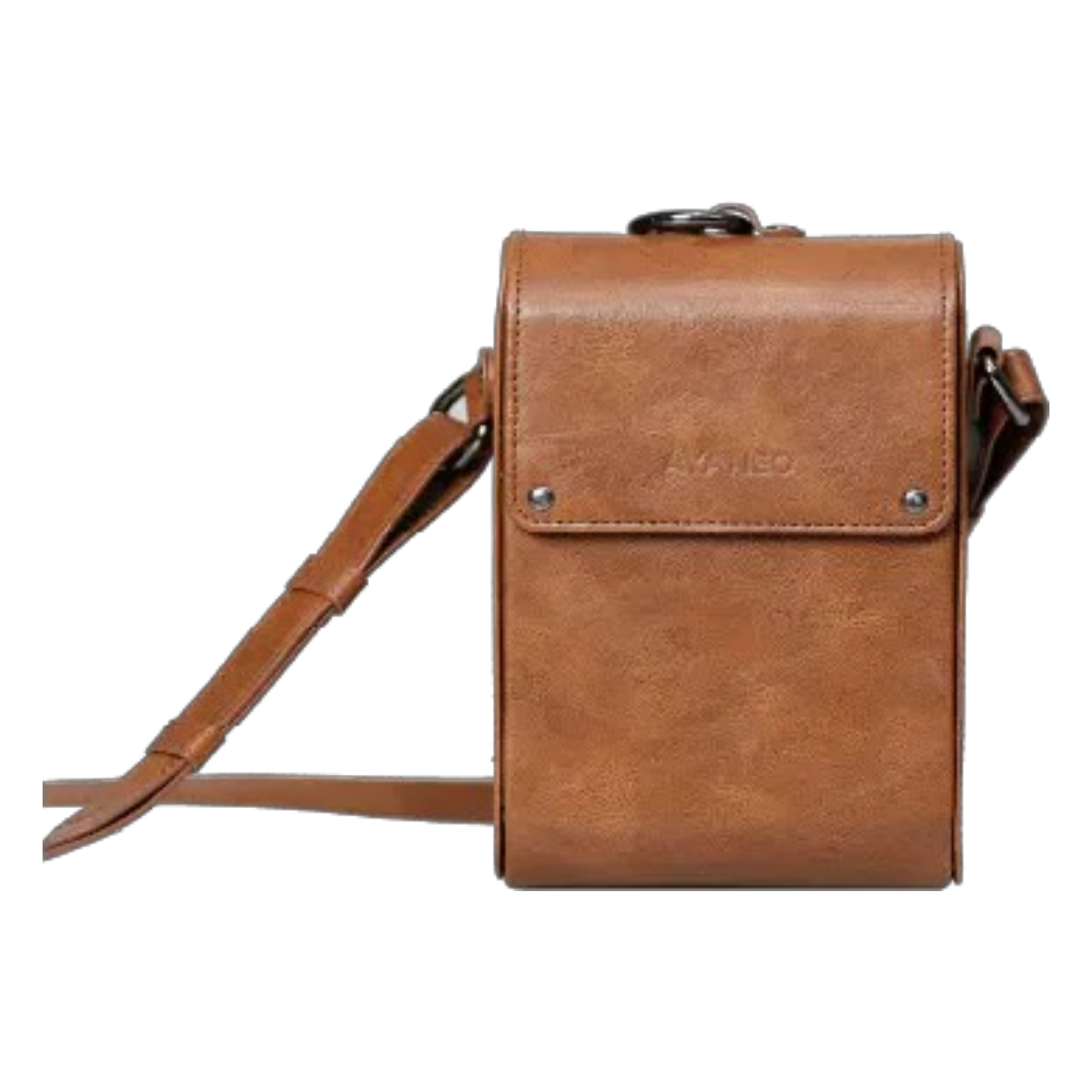
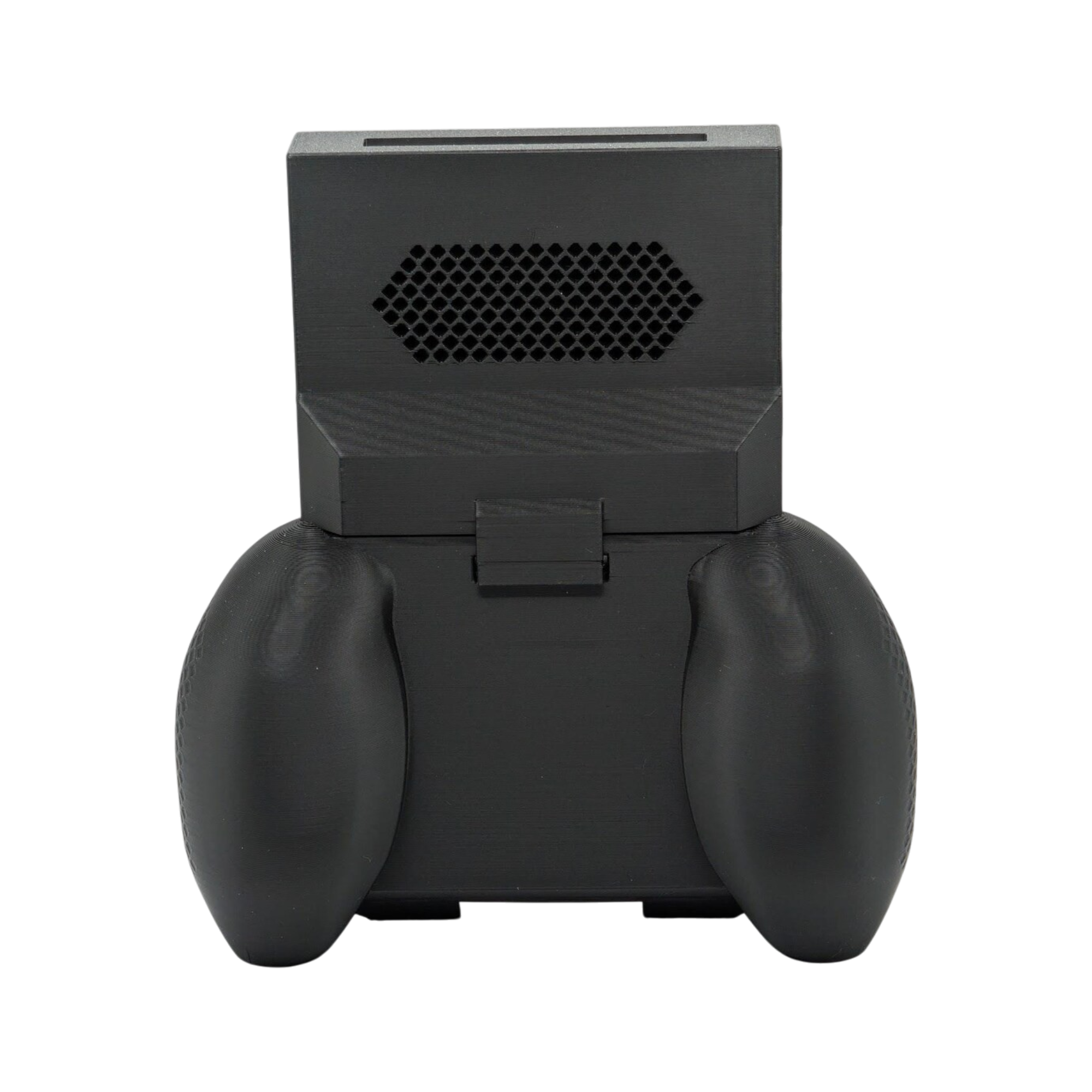
As far as unofficial accessories go, there’s slim pickings. I was able to find one seller on Etsy selling a grip and an optional case for the Pocket Vert.
External Storage
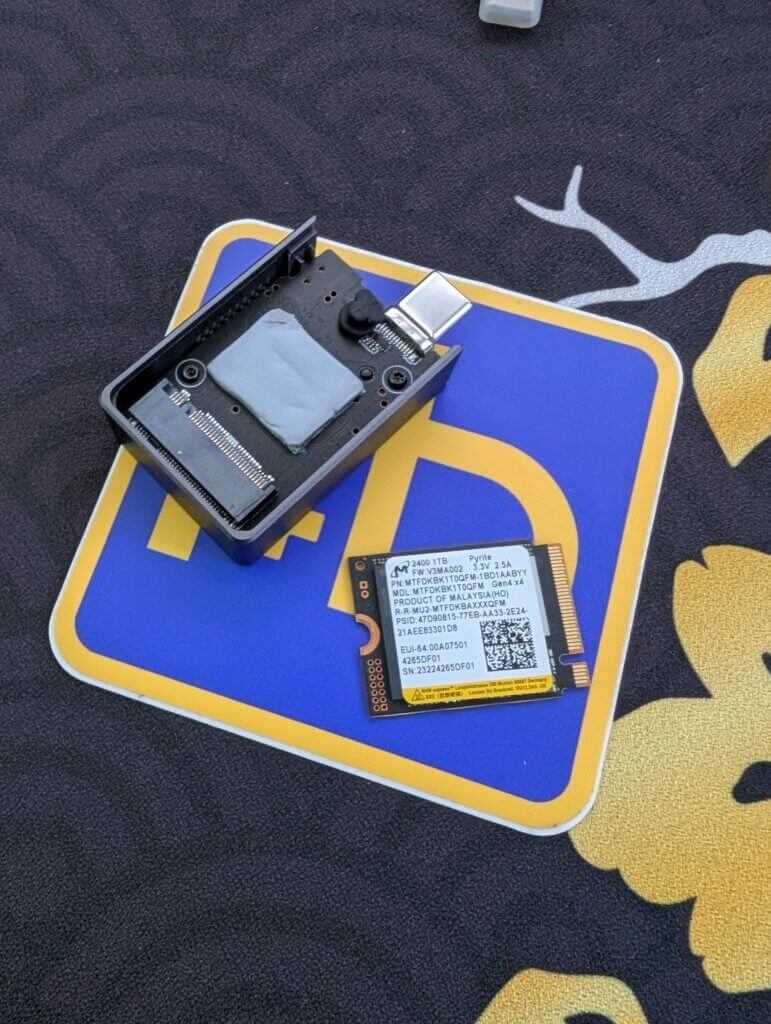
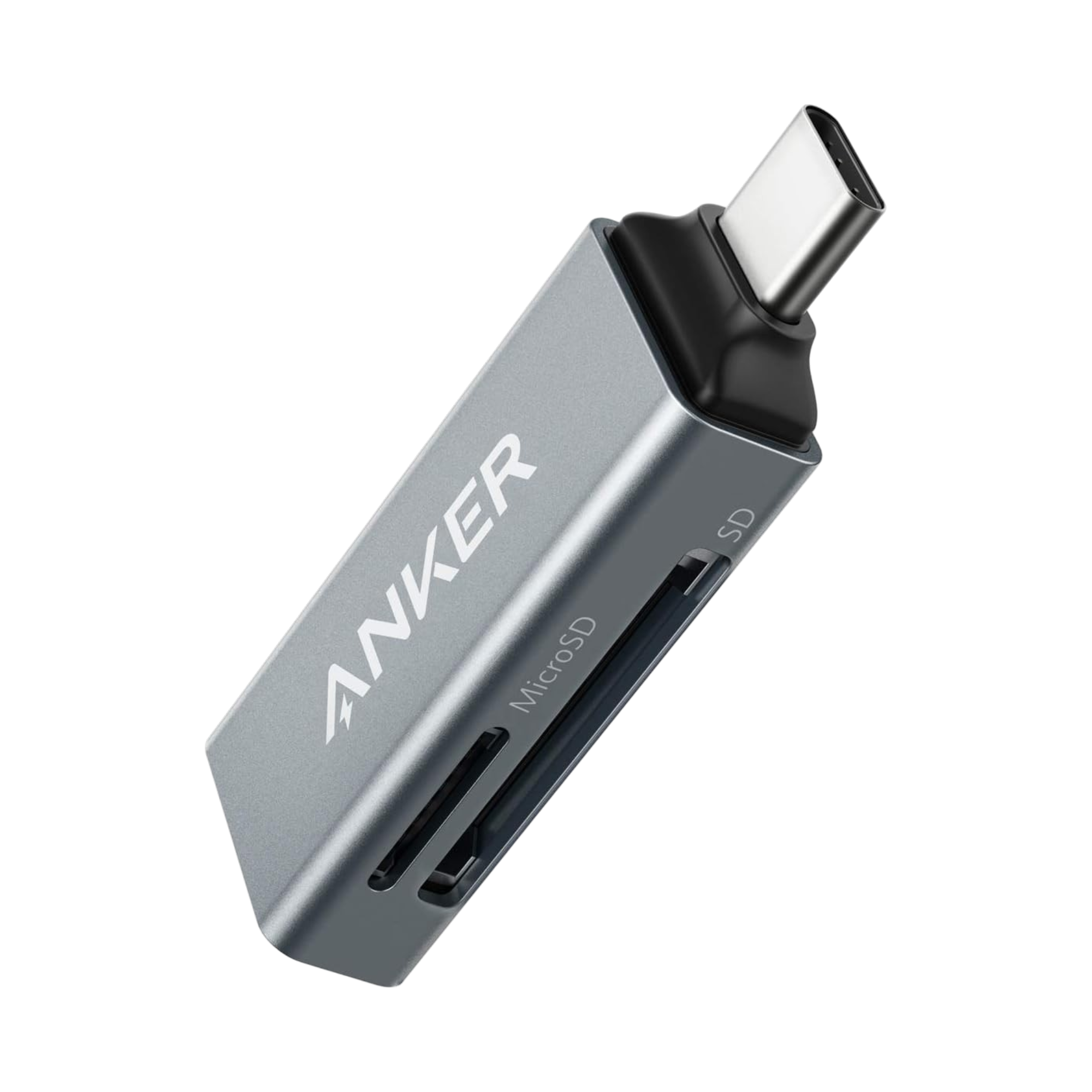
Ah, the age-old question of whether to keep your games and files on the internal storage on the device itself, or external storage in the form of a microSD card or portable SSD? External storage is great for ease of transferring files to and from your device. All my files are kept on a Sharge Disk (external 2230 SSD enclosure), which means I don’t have to constantly involve my computer in the installation process. I can even play games directly from the SSD!
Internal storage is going to be faster and more stable, so plenty of people prefer that option. However, if you’re interested in something like PC emulation through GameNative or GameHub, then you might want to reserve that internal storage for those purposes, as using external storage for PC emulation on Android can cause performance issues and/or crashes.
I personally feel that the screen on the Pocket Vert is way too small for PC emulation and streaming, but don’t let that stop you from trying!


Installing Apps and Emulators
Now, it’s time to focus on getting your emulators set up. Remember when we had to find and install each emulator and system separately? Retro Handhelds remembers. Those days are long gone, unless you prefer that sort of journey.
Obtainium
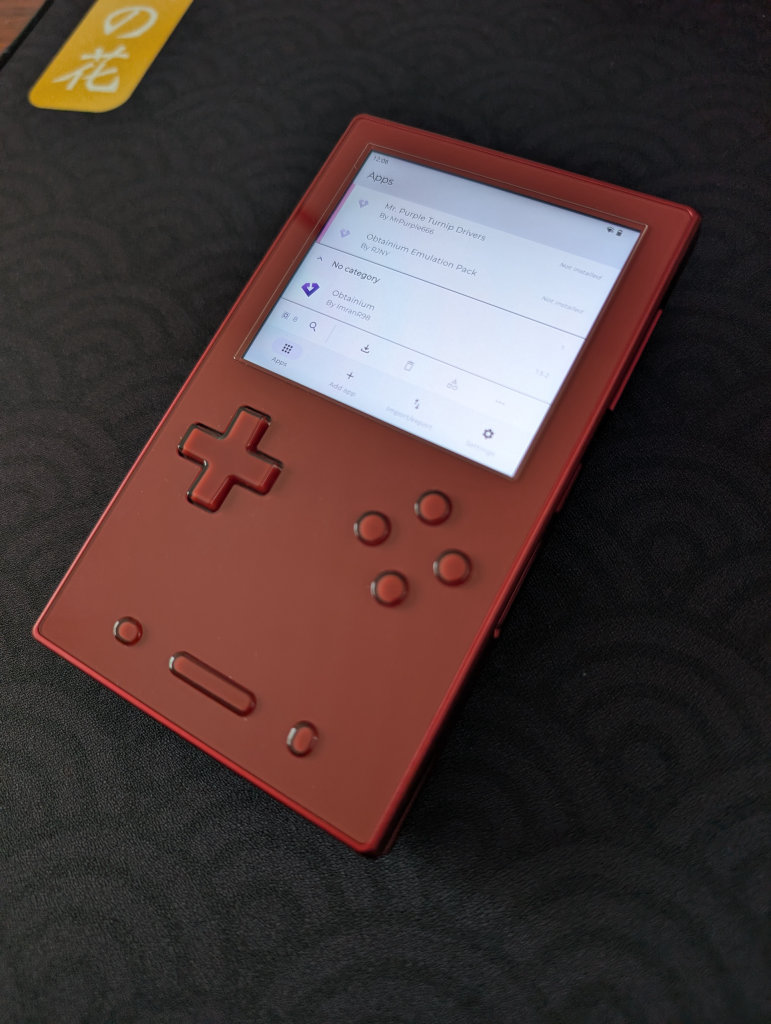
Obtainium has made emulation and gaming software installation on Android an extremely simple process, with the help of the Obtainium Emulation Pack. Obtainium will provide links directly to developer sources and pages, cutting out the need to find and manage them yourself. Additionally, Obtainium will also keep tabs on these programs and alert you of any updates that need to be installed.
For an in-depth guide on Obtainium setup and configuration, please check out our Obtainium guide on our website.
BIOS Files
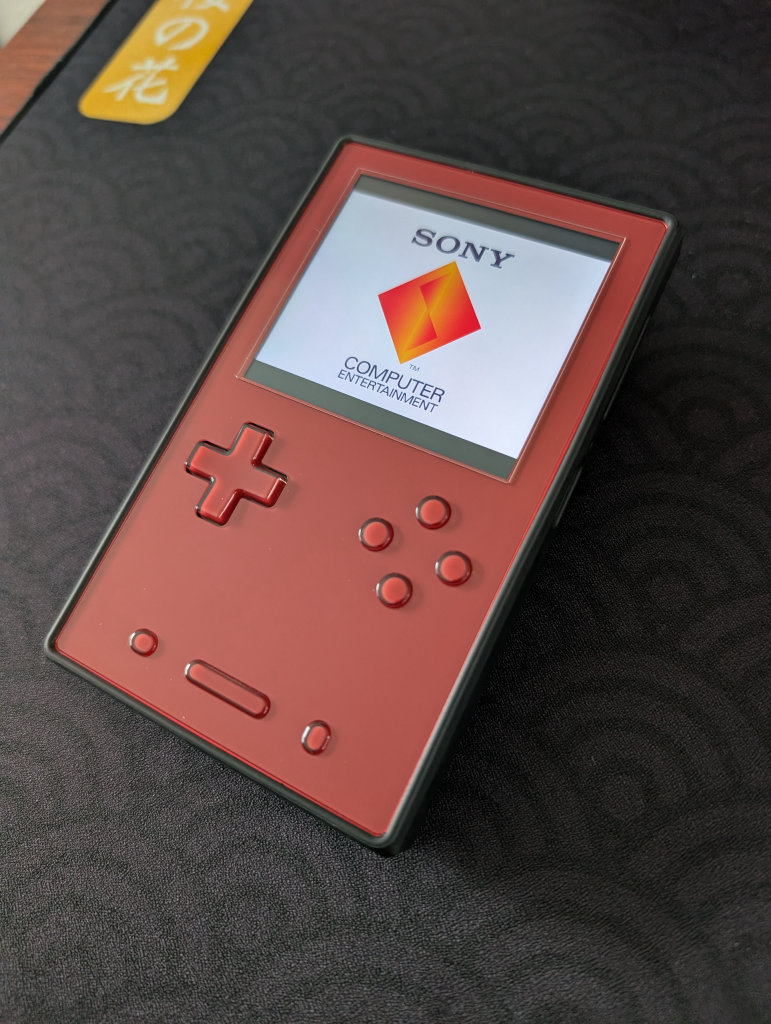
While the installation of emulators on your various handhelds will get you most of the way to your goal of playing games, some systems (most notably disc-based) require a BIOS in order to actually run the games. Systems on RetroArch will be mostly covered, but anything additional (PS2, GameCube, Saturn, Switch) will require some additional file placements.
While copyright law keeps us from telling you where to find these files, you can refer to our Recommended BIOS Files article for examples of BIOS files for each system, along with where they should be placed in your file structure.
Choosing a Launcher or Frontend
Choosing a launcher or frontend ultimately comes down to preference. There are several options to choose from, including the AYASPACE launcher built into the AYANEO Pocket Vert, but it might be best to try a few different options and see what works best for your needs.
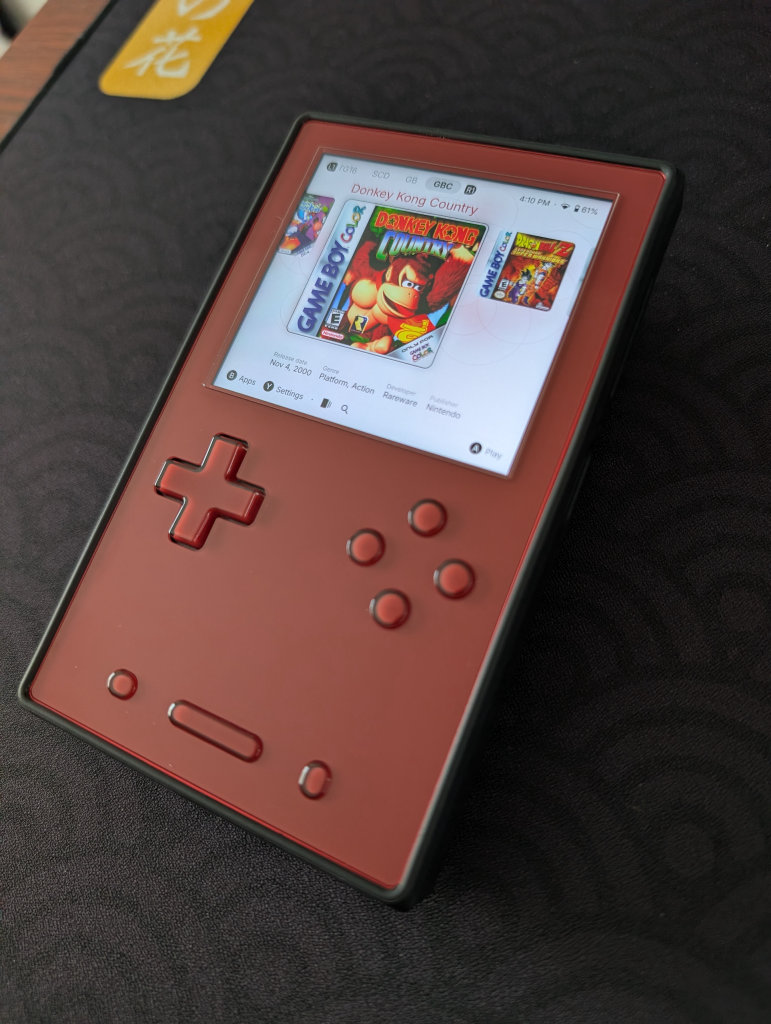
My personal choice for frontend goes to Beacon Game Launcher. While it is a paid app ($2.99), which might turn some people off, it has been the one I consistently install on nearly all my devices. Beacon Game Launcher focuses on a simple, no-fuss setup and configuration, and aesthetically has been my favorite of several options that I’ve explored.
AYASpace Launcher
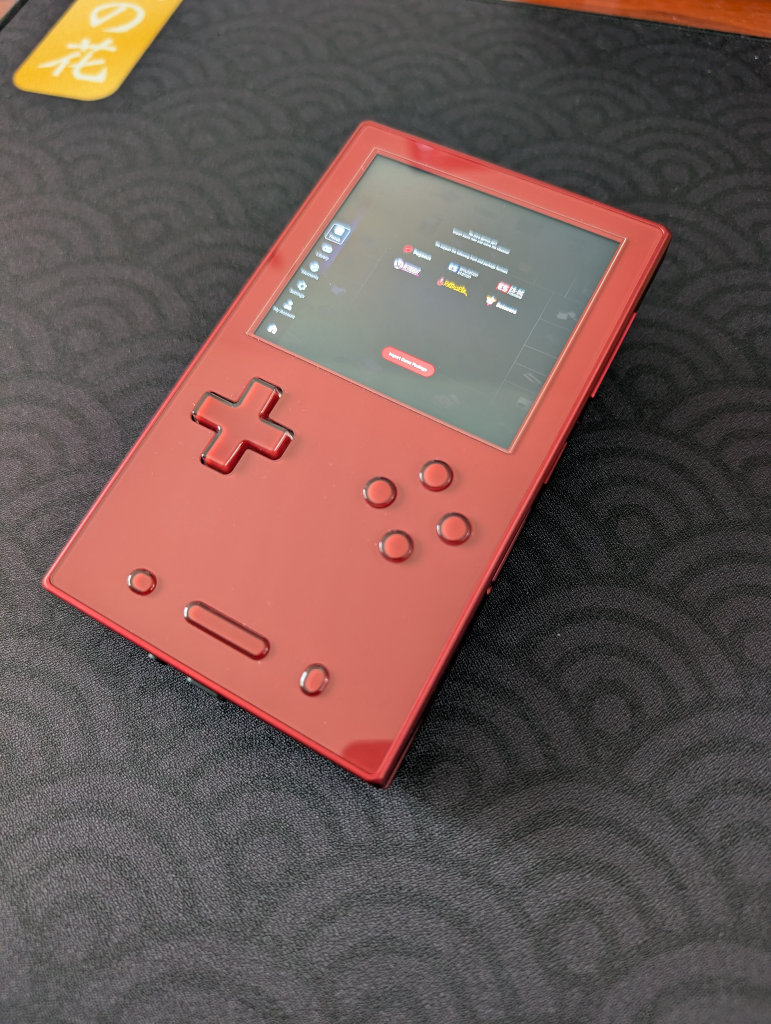
While I don’t personally use or recommend the AYASpace Launcher, it works and provides an option to integrate other frontends and display game libraries. This one feels a bit more DIY than simply choosing a frontend and launching games from that, so know going in that you may be doing a bit more tinkering if you choose this option.




Streaming Apps
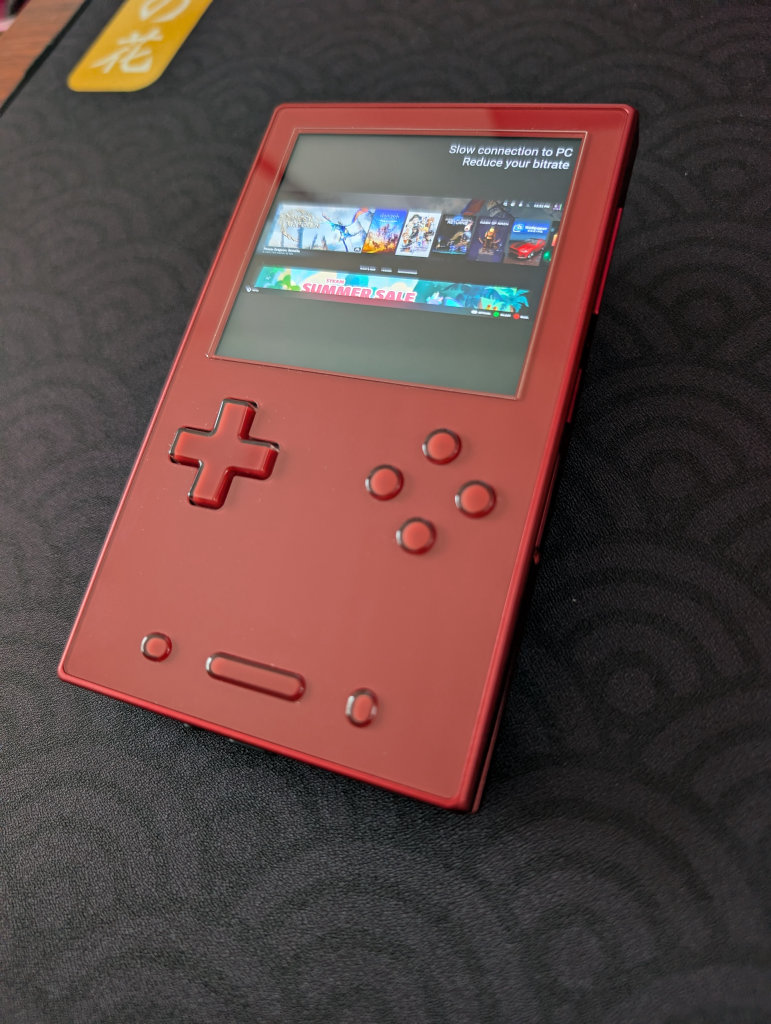
This is going to depend entirely on your personal desktop/gaming PC and your home network, but the one that works the best for me is Artemis. Install Apollo on your streaming PC, and Artemis on your AYANEO Pocket Vert, and follow this guide from Retro Game Corps to get things running. Again, the Pocket Vert screen feels entirely too small for streaming, but it absolutely works with that 8 Gen 1 chip.
Moonlight/Sunshine is also an option, of which Apollo and Artemis are forks, and may work better for you depending on your home network situation. I just prefer and have had better experiences with Apollo and Artemis.
PC Emulation
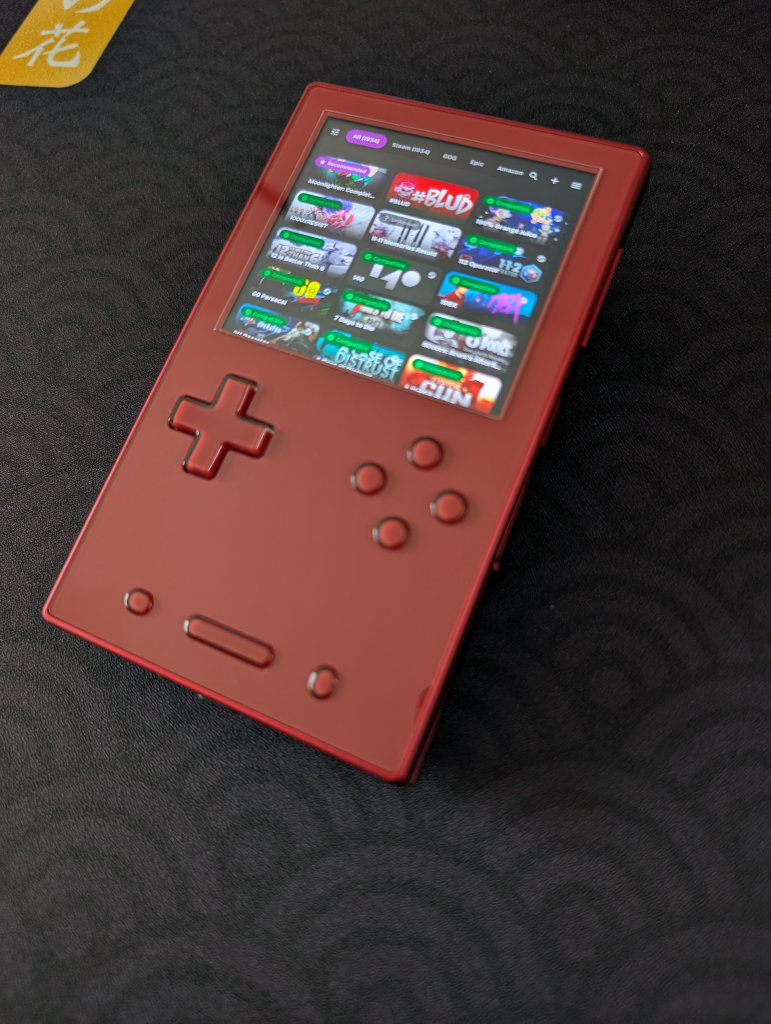
If you followed the previous Obtainium section, you’ll have access to both GameHub Lite and GameNative. These are the two biggest apps in the Android PC Emulation space right now. GameNative, which is my preferred PC emulator, gives you access to your entire Steam library, including cloud saves. Our own Jim has an excellent How to Play Steam Games on Android guide if you want to set up GameNative.
Some people have more success with some games in GameHub Lite than GameNative, and vice versa, so feel free to download both and play around to see what works for you. As mentioned previously, the screen on the Pocket Vert feels way too small for PC gaming, as that text is going to be tiny in many games, but the 8 Gen 1 chip can certainly handle the task!
Additional Recommended Apps
RetroAchievements is a completely community-driven way to earn achievements in retro video games, essentially giving a modern feel to our games of the past. While they can be a little divisive given their need for an always-online connection, it is a fun way to add a little extra layer of engagement to your gaming.
CHDroid allows you to convert ROM files into a compressed .chd format on the AYANEO Pocket Vert itself. Most disc-based games, like PS2, Sega Saturn, Dreamcast, and PC Engine CD, can be converted to .chd and save a ton of space.
Quick Tips and Tricks
AYANEO Buttons
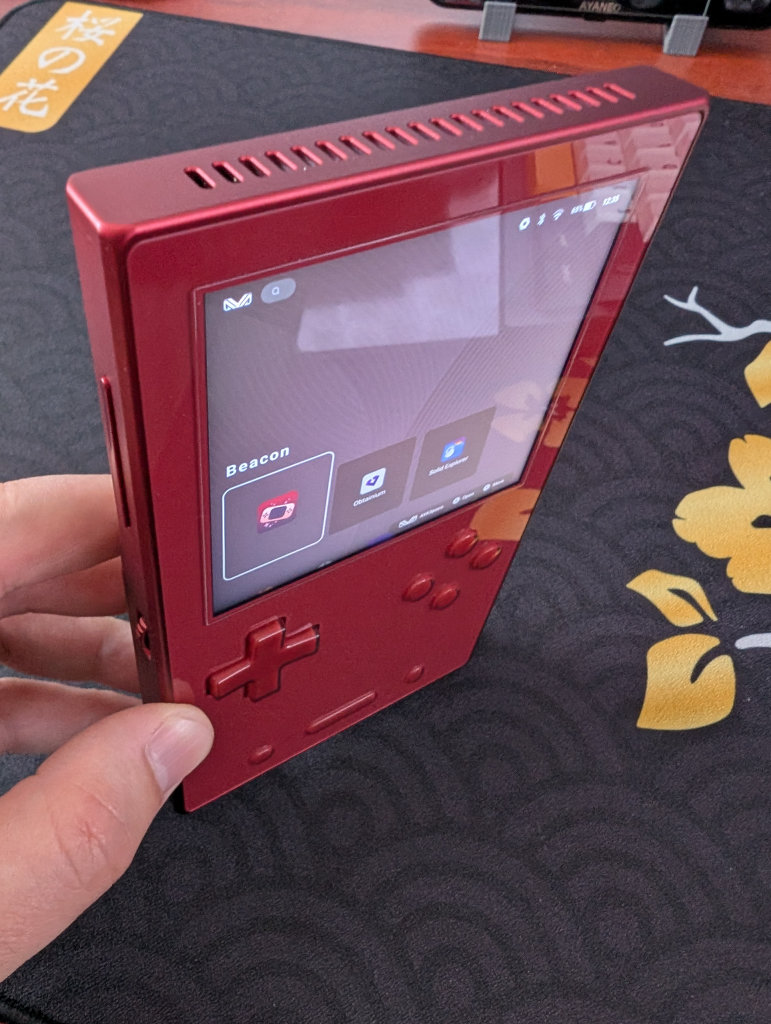
The AYANEO Pocket Vert is quite a bit different when it comes to other AYANEO devices, even the AYANEO Pocket DMG. Since there are so many unique button layouts, I’m going to list them below:
- Unmarked, crystal ABXY face buttons
- Crystal D-Pad
- Crystal, slanted L1/L2 and R1/R2 shoulder buttons
- Function, Start/Select, and AYA buttons along the bottom
- “MagicTouch” responsive touchpad in lieu of analogue sticks
- Four additional function buttons along the upper-left and upper-right side in two rocker bars
- A scroll wheel that both controls volume +/- and can be short or long-pressed for additional functionality
- Power button with fingerprint sensor
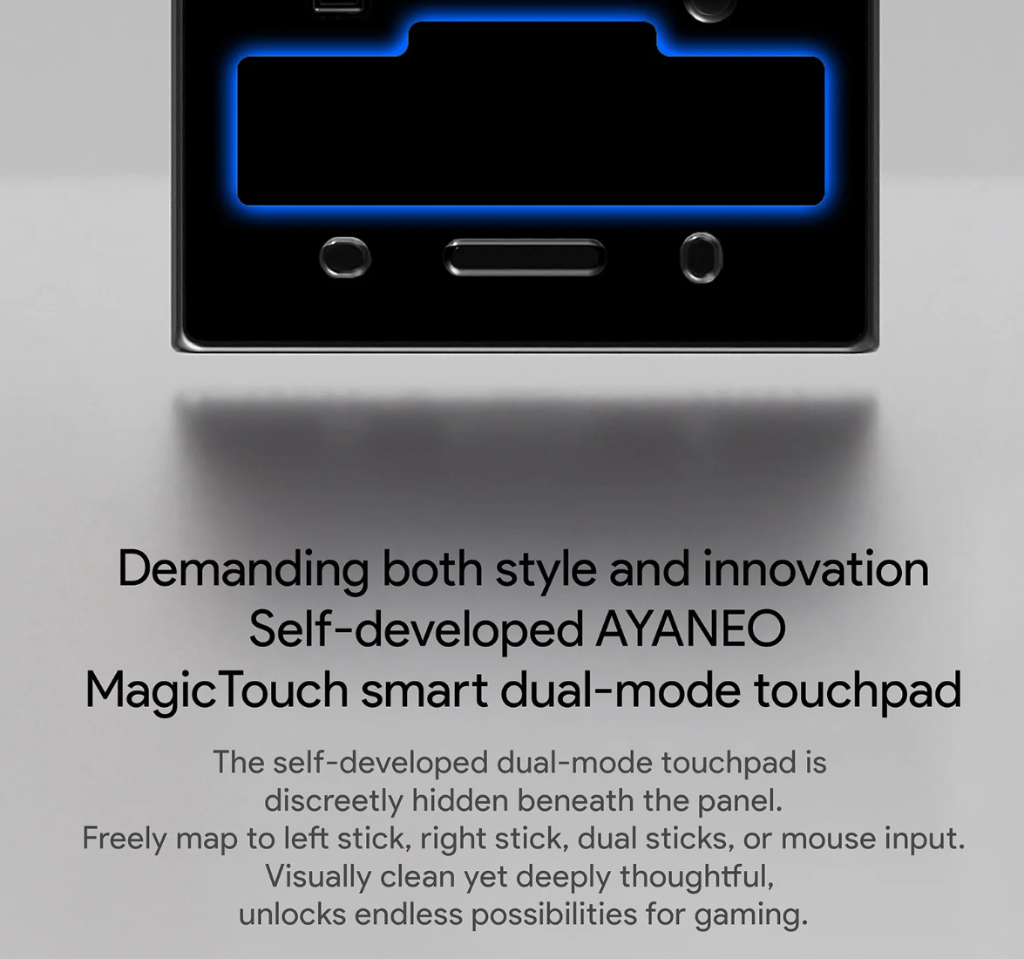
As mentioned previously, there are no sticks to be found anywhere on the device; instead, AYANEO has opted for what they call “MagicTouch” smart touchpads underneath the D-Pad and face buttons. These don’t appear as buttons on the device at all, but instead function as truly digital stick or mouse movement, and can be mapped within the AYANEO System Settings. Essentially, these can work as a sort of trackpad to mimic analogue stick and mouse movement for games that may require them.
For clarification, please reference the graphic from AYANEO’s website below:
AYANEO Menu
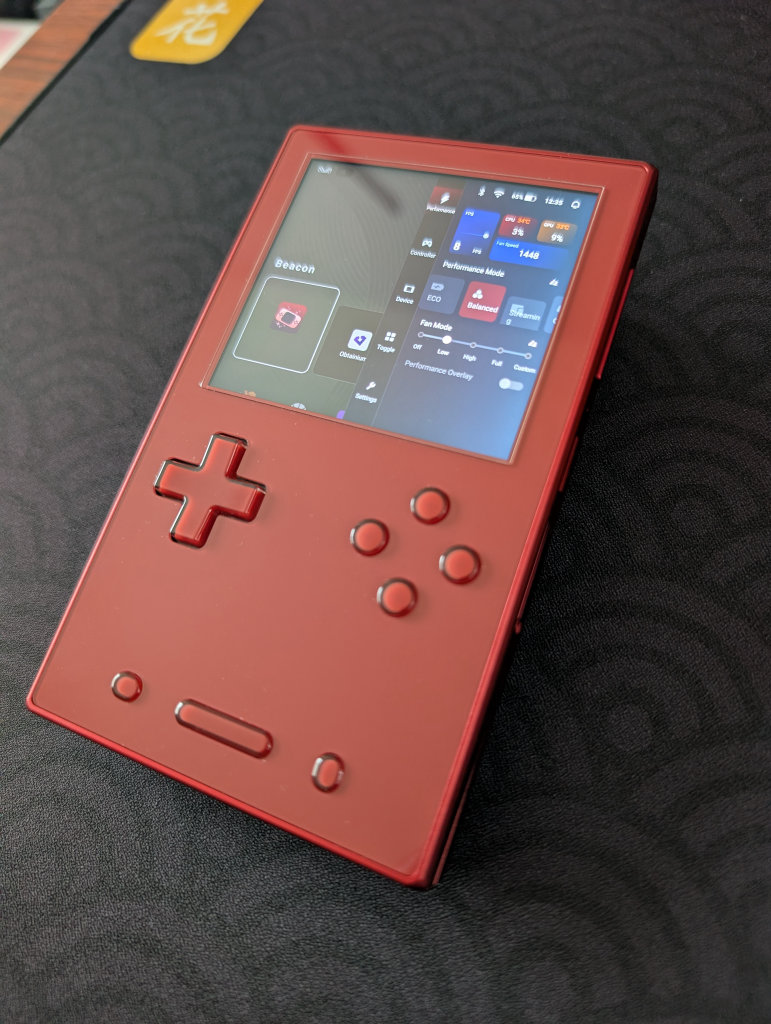
Clicking on the small, vertical oval button on the bottom-left of the Pocket Vert (no AYANEO “M” on this one) will bring up a menu, where you get a mix of a monitoring and performance panel and quick-hit settings and adjustments.
- Performance
- Performance Selection
- Eco
- Balanced
- Streaming
- Gaming
- Max
- FPS Monitor
- CPU Temperature and Usage Percentage
- GPU Temperature and Usage Percentage
- Fan Speed
- Fan Mode
- Off
- Low
- High
- Full
- Custom
- Performance Overlay Toggle (shows minimized metrics on top screen)
- Performance Selection
- Controller
- Key Mapping toggle
- Vibration Adjustment
- Low
- Middle
- High
- Sound Vibration toggle
- Button Vibration toggle
- ABXY Layout
- Standard (Xbox)
- Japanese (Nintendo)
- L1 L2/R1 R2 Mapping
- Normal
- Swap L1 and L2 Only
- Swap R1 and R2 Only
- Swap L1 <> L2 and R1 <> R2
- Turbo Button Mapping
- Device
- Brightness Adjustment
- Volume Adjustment
- Airplane Mode toggle
- Bluetooth Toggle
- Wi-Fi toggle
- Toggle
- Screenshot
- Night Mode
- Bluetooth
- Force Landscape
- Auto-Rotate
- Do Not Disturb
- Airplane Mode
- Screen Recording
- Alarm
- Screen Casting
- Location
- Hotspot
- Data Saver
- Dark Mode
- Wi-Fi
- Settings
- Check for Updates
- Device Settings
- Android System Settings
How to Update Your AYANEO Pocket Vert
To update the software on your AYANEO Pocket Vert, follow these steps:
- Go to your AYANEO System Settings (steps found below)
- Find the System Update
- Any applicable programs that need to be updated will have a red Update icon next to them
- Once you select Update, a percentage icon will appear in red, showing progress
- Once updated, you will likely be booted from the AYANEO System Settings
- Return to the AYANE System Settings to update any subsequent programs
- Once all programs are updated, a No Updates Available message will appear
AYANEO System Settings
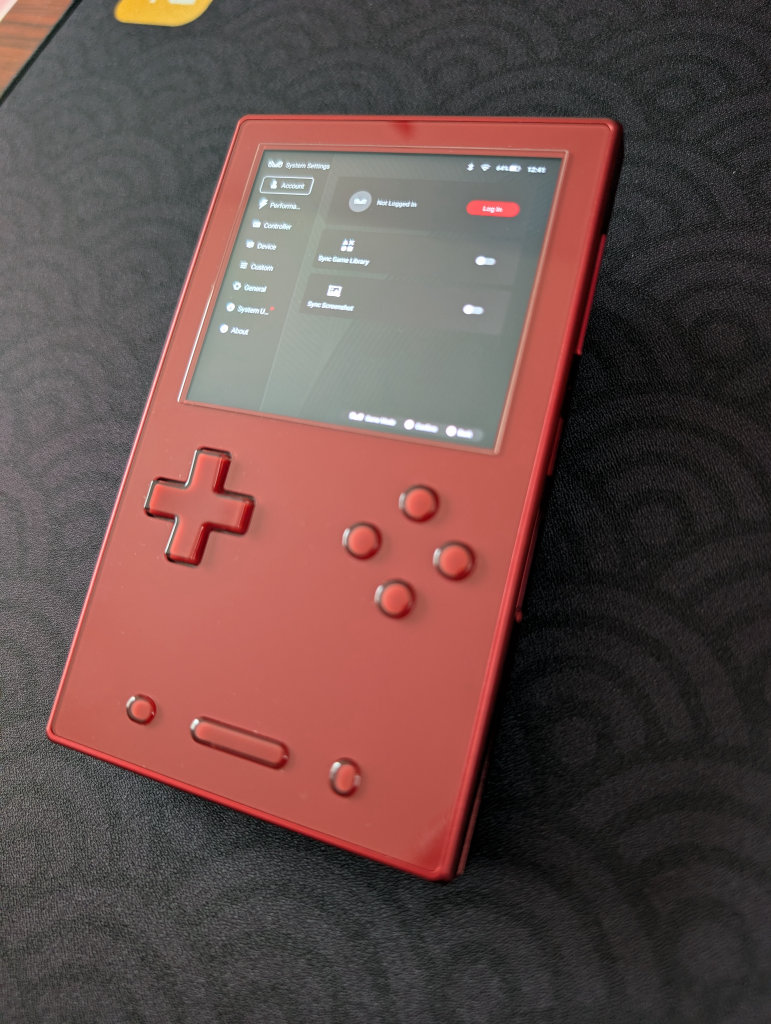
Clicking on the AYASetting icon (it looks like the regular Settings icon, they just threw “AYA” in there) will bring up the AYANEO System Settings. For anyone who’s had an AYANEO device before, you’re likely going to recognize these screens.
- Account
- Log in to your AYANEO account
- Performance
- Adjust performance modes
- Adjust fan modes
- Adjust CPU scheduling modes
- Adjust CPU limit
- Adjust GPU limit
- Lock GPU at max frequency
- Controller
- Joystick calibration (why!?)
- Adjust custom buttons
- Adjust controller mode
- Setup custom keys
- Adjust AYANEO Magic Touch
- Device
- Root script
- Device spoofing
- Screen Settings
- Virtual Memory Management
- Fan Settings
- Casting Settings
- Turn off Wi-Fi while screen is off
- Charging fan speed when screen is off
- Equalizer
- Custom
- Adjust system wallpaper
- Performance mode prompt
- Confirm before returning to desktop
- General
- System language
- Input Method
- Server
- System Update
- About
File Transfer: Solid Explorer
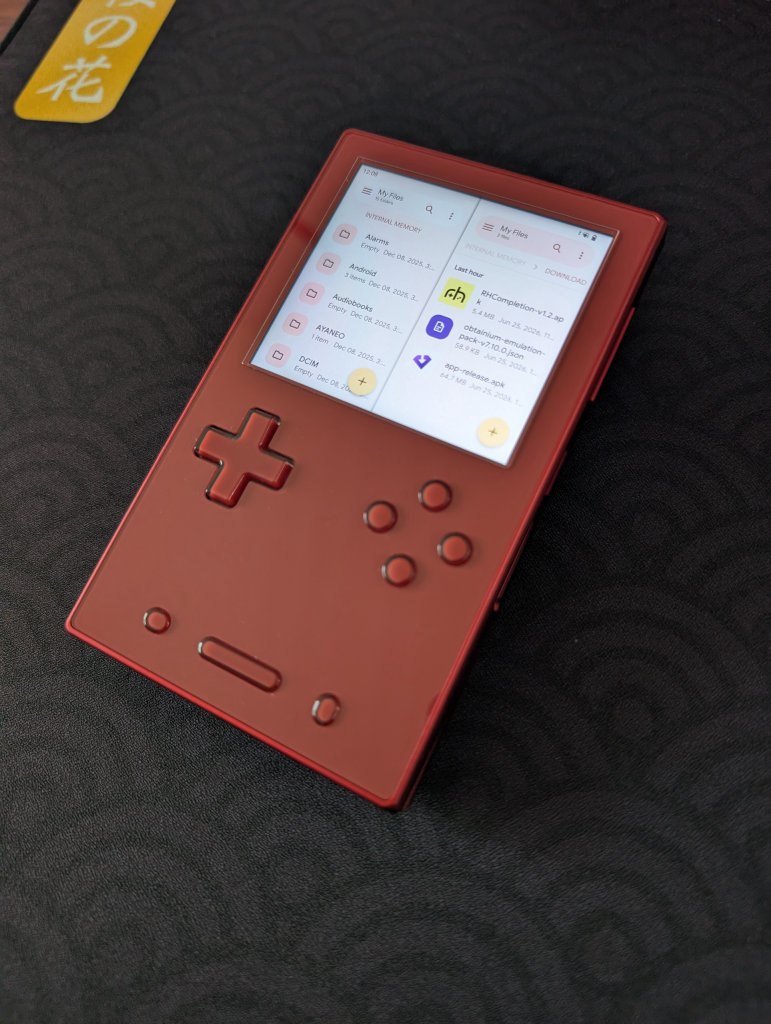
My go-to file transfer program has been Solid Explorer for a long time now. I enjoy the split-screen layout and the ease of copying and moving files. It is worth mentioning that this is a paid app ($5.99, though there is a 14-day free trial), but I’ve simply been unable to go back to other options after using Solid Explorer.
If you prefer a free option, MiXplorer is one that my colleague Nick has recommended before. It’s free, with a premium version called MiX Silver available, and it also works very well.
Conclusion
The AYANEO Pocket Vert is a premium vertical handheld with excellent build quality and a competent Snapdragon chip to power a gorgeous, high-resolution screen. Hopefully, this guide provided you with the tools necessary to enjoy your Pocket Vert to the fullest, and we will continue to update this guide with more fun updates and projects as we come across them.

1 Comment
Can you please do this for the Pocket Ace as well?