

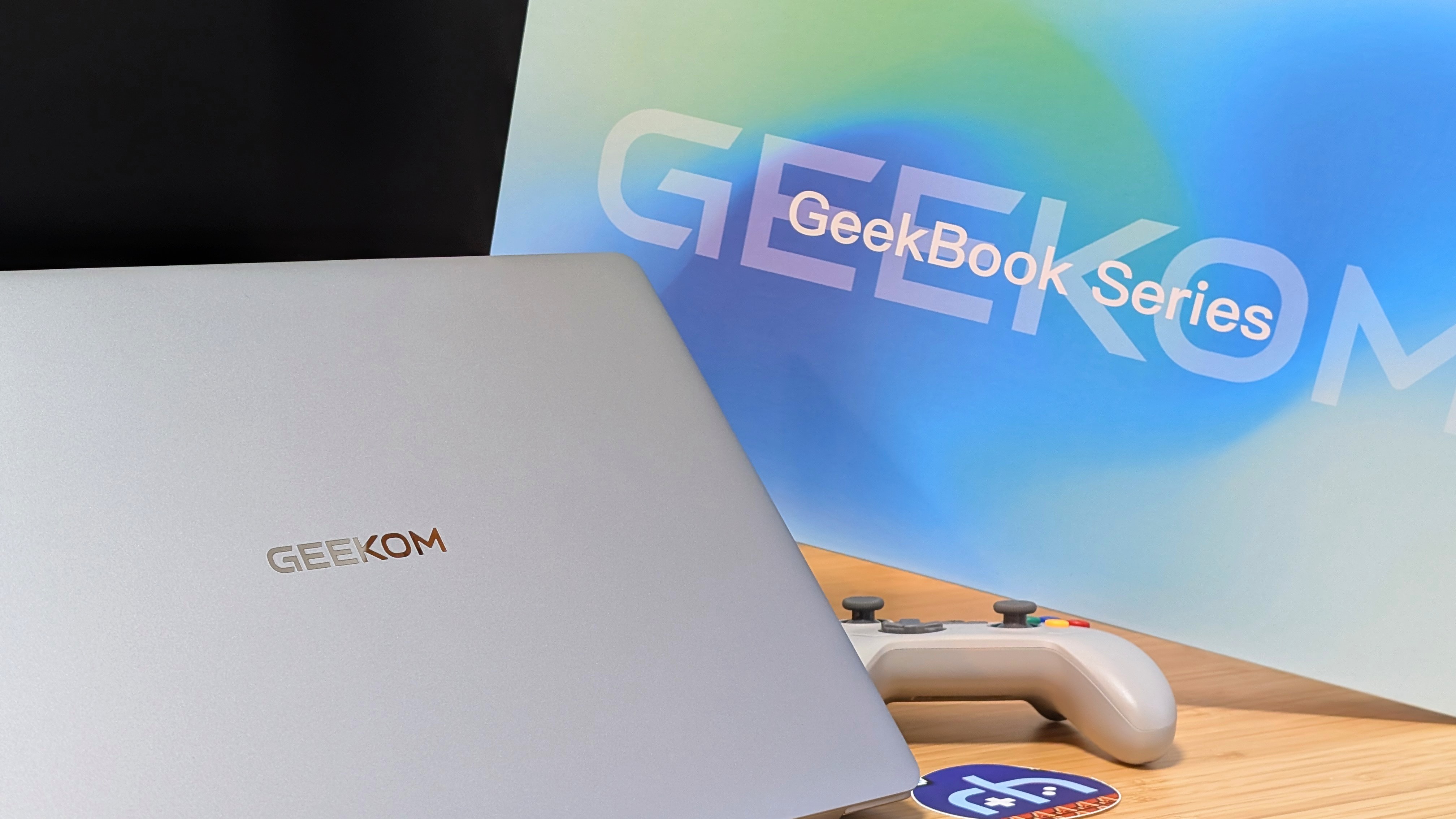
This is going to be a bit of a different review as we’re taking a look at a mini PC that fits a full-sized keyboard, a 16-inch display, and a 77-watt-hour battery all into one sleek, compact chassis. Actually, I think that’s going to be called a “laptop,” whatever that may be.
Geekom is onto its second-ever laptop in the Geekbook series, and this time it’s the big boy, the X16 Pro. At its high price, the question becomes “is it worth grabbing?” but also “is this something you could use daily for who knows how many years?” Well, that’s what I’m here to find out.
Geekom Geekbook X16 Pro Specs
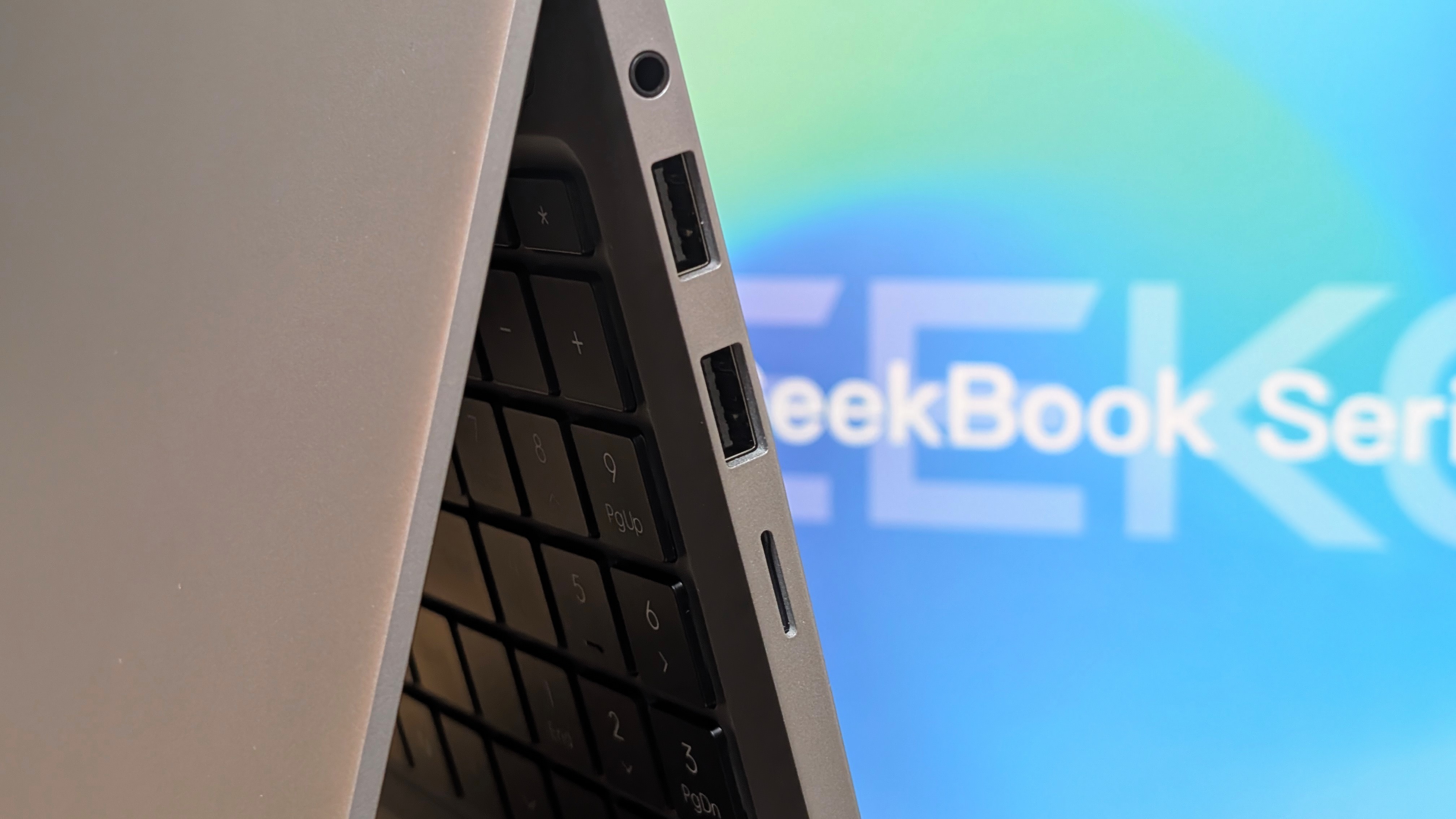
At a starting price of $1,349 with a jump to $1,799 if you want the top-end model, this is not a cheap laptop in the slightest. But packing a high-end Intel Core 5 or 9 processor and a large battery brings a lot to the table. Though will it be worth it for you?
| Display | |
| Size | 16-inch |
|---|---|
| Resolution | 2560 x 1600 (16:10) |
| Refresh Rate | 120Hz |
| Touchscreen | ❌ |
| Hardware | |
| CPU | Intel Core Ultra 5 125H | Ultra 9 185H |
| GPU | Intel ARC Graphics |
| RAM | 32GB DDR5 |
| Storage | |
| Internal | 1TB | 2TB – M.2 2280 NVMe |
| Battery | |
| Size | 77wHr |
| Connectivity | |
| Wi-Fi | Wi-Fi 6E |
| Bluetooth | Bluetooth 5.2 |
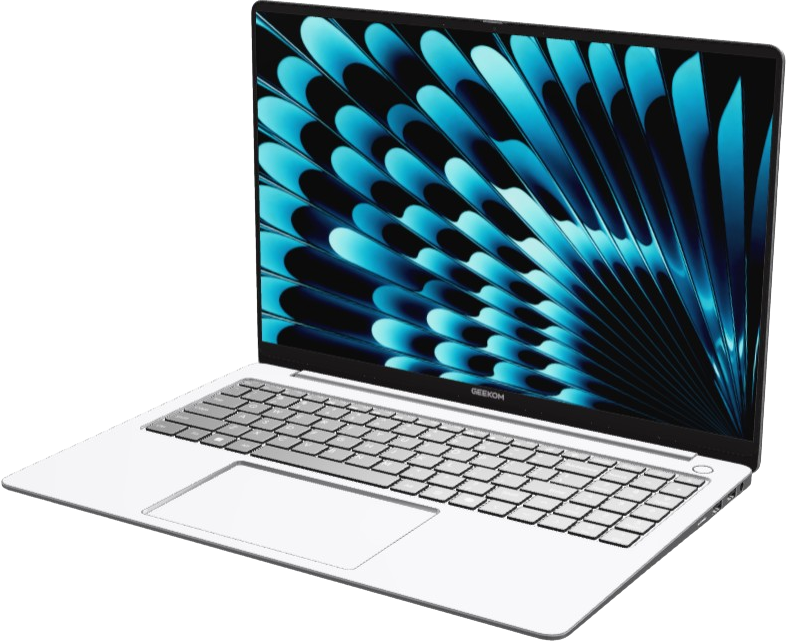
| Ports | 1x USB 3.2 Type C, 1x USB 4 Type C, 2x USB 3.2 Type A, 1x HDMI 2.1, 1x 3.5mm Jack, 1x microSD |
| Physical | |
| Weight | 2.8 pounds |
Build & Expandability
As expected with Geekom, the X16 Pro is exceptionally well built as a Laptop. It’s built using a magnesium alloy that makes carrying this thing around a lot easier than you’d expect, given its gargantuan size. The surface is smooth to the touch, and nothing about the laptop says “cheap”.
The hinge on this has held up well so far in testing. With it almost being able to open with just one hand, it’s a light hinge that still offers plenty of versatility in use. With its clean silver design, the Geekbook is super non-descript without looking bad. Personally, I find that I quite like it.
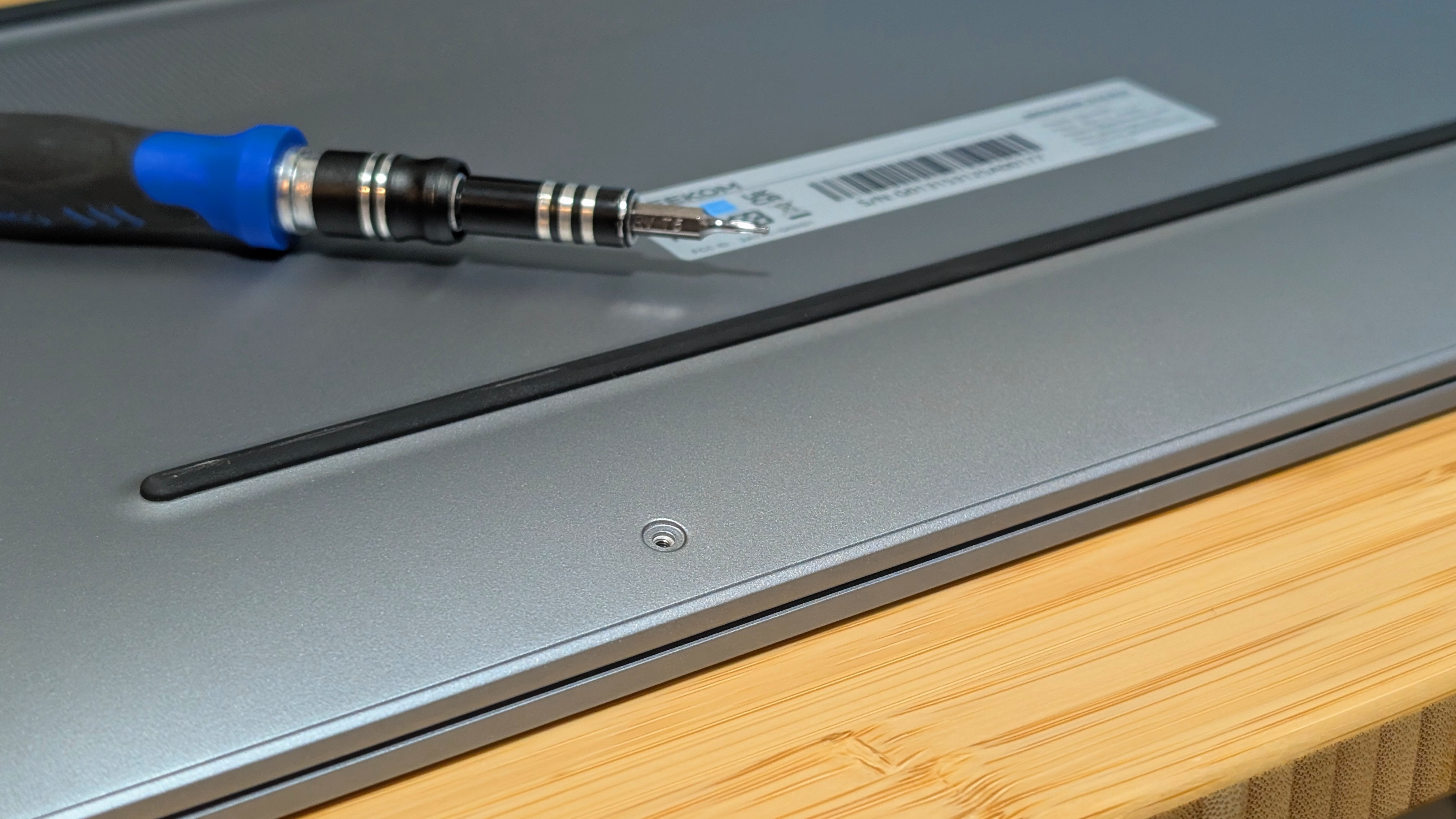
As for expandability, it’s less fully fleshed out. Around back, you have to unscrew a small bundle of screws before popping off the clips to access the underside. Once you’re in there, you can see your SSD slot and your Battery, but unless you feel like replacing the SSD outright, there’s not much in there to change.
Keyboard & Trackpad
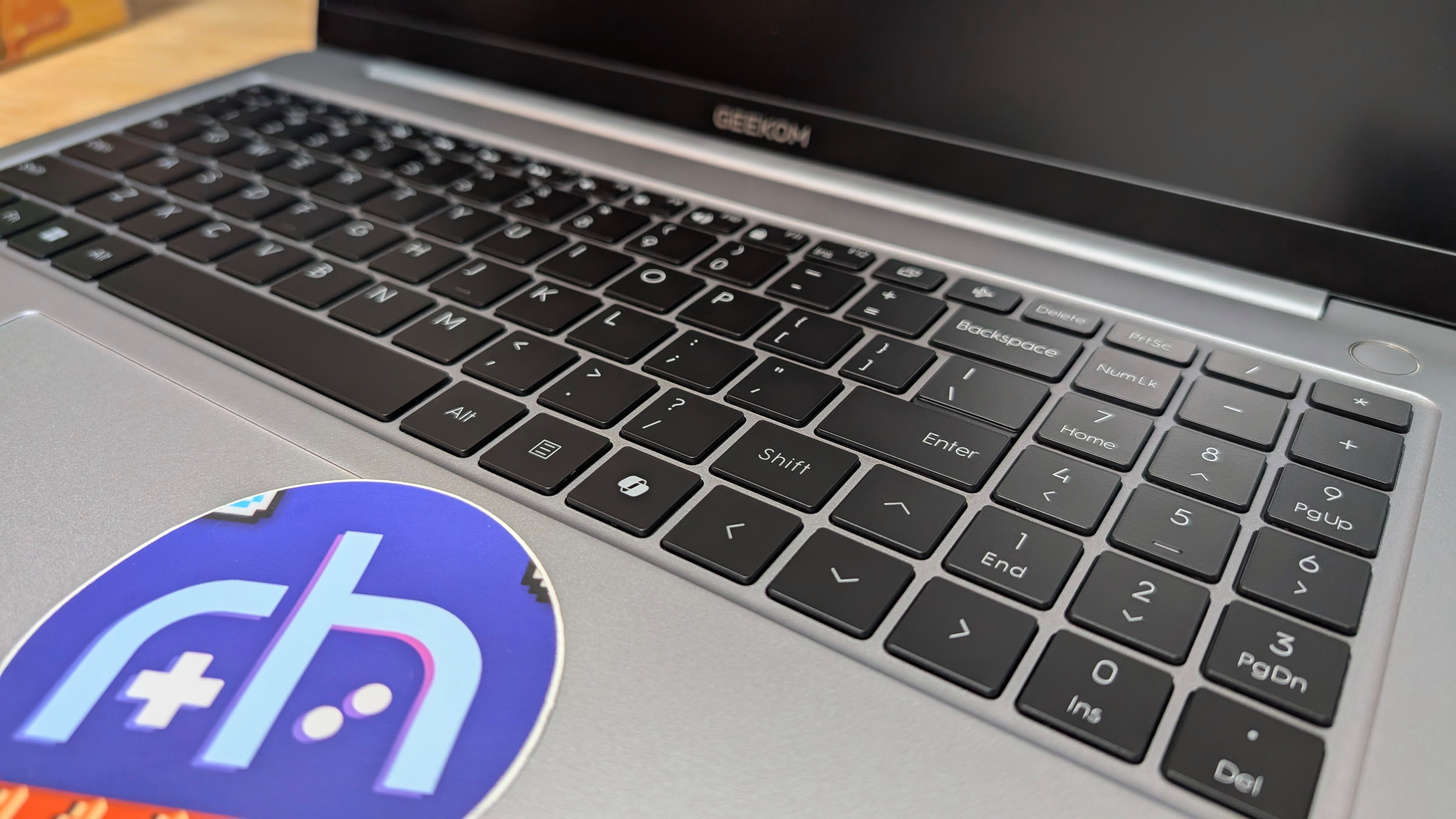
I’m a bit hit and miss with these two here. Starting with the keyboard, the keys have a nice tactile press to them that makes typing quite nice once you get used to it. During my time with it, I eventually managed around 93 words per minute in my MonkeyType testing, which is lower than a normal mechanical keyboard, but pretty close to most laptops that I’ve used.
You’re getting a numpad and some additional function keys at the top left of your keyboard. However, my biggest complaint is the tiny right shift. I managed to hit the up arrow key way too often, and it just became an annoyance over time. If you can manage, though, you’ll be happy.
As for the trackpad, it’s big and smooth, and is completely accurate. It has all the modern features you’d expect, including tap to press. But be aware, the clicks of the trackpad are pretty low down on the left and right sides. Maybe I’m just used to smaller laptops, but the clicks almost feel too small comparatively.
Display & Battery
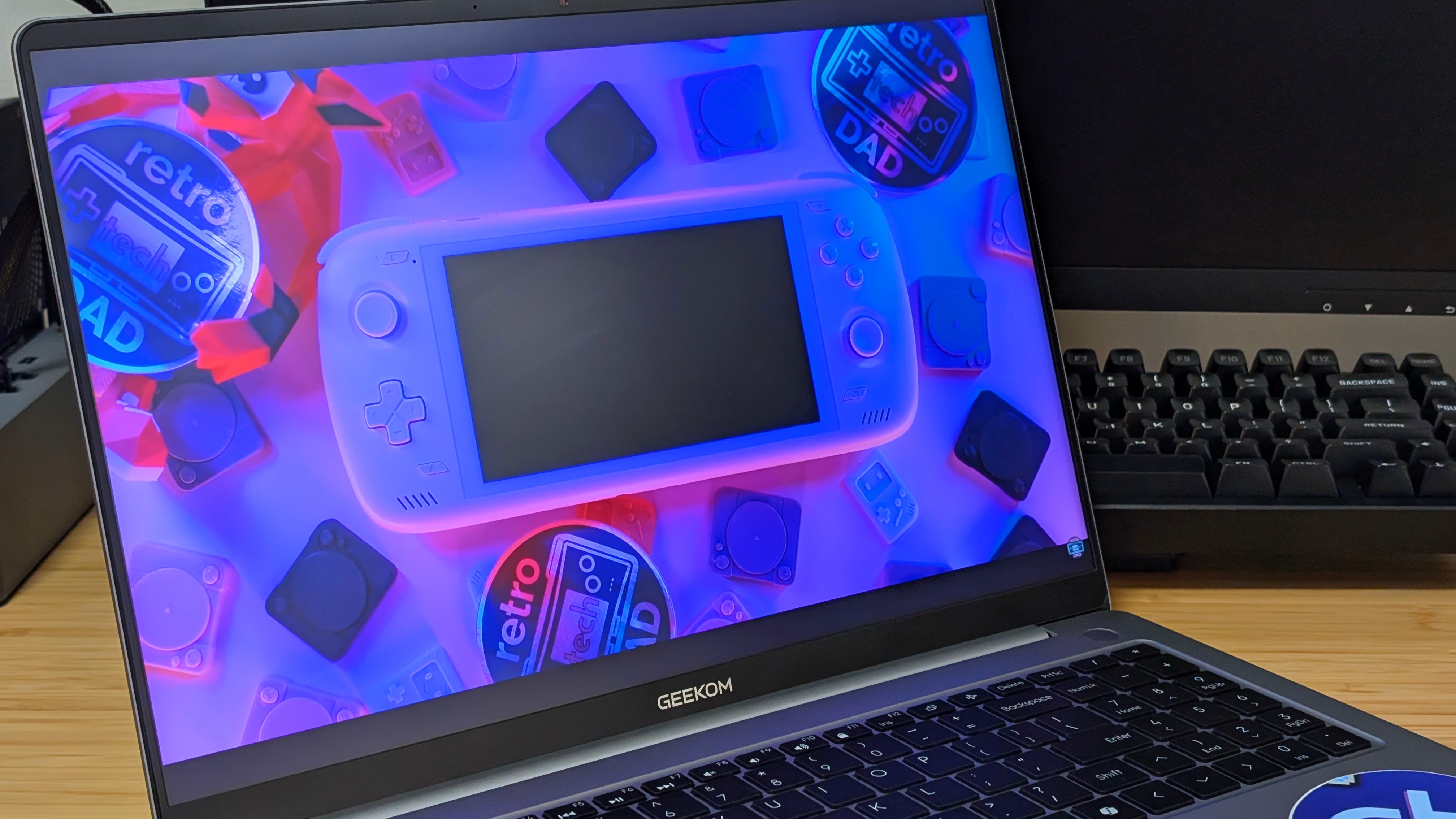
Time for a pair of wins in my book. The display may be IPS and Non-Touch, but it’s great looking, high resolution, and high refresh rate. For what I tend to do on laptops, I think it’s been a great experience, and if you’re looking to watch videos, they’ll all look great on this panel. But, it’s 16:10 for a reason, with the added bits of height being great for spreadsheets if you’re someone insane like me.
As for the 77whr battery, I think it’s great. Geekom advertises up to 17 hours; I’d likely expect to land much lower than that, closer to the 8-10 hour mark for something simple like YouTube. Unfortunately, I haven’t had enough time to fully test out and experiment with the battery through my normal workload, but in use, I haven’t had to charge this more than every few days, based on my lighter-than-normal workload. If you’re gaming or setting the laptop to performance mode, expect it to drop much quicker.
Performance
Synthetics
For judging the performance of the GeekBook in synthetics, I don’t have a bunch of things to compare to, but I am going to compare the GeekBook to my 185H Mini PC, a higher-end AMD Mini Pc, and my current daily driver laptop, the Microsoft Surface Laptop Go 2.
Going off the bat in Geekbench, the CPU in the Geekbook lands slightly ahead of the Beelink GTi14, and the 8845HS with the multicore falling slightly behind the latter as well. Compared to the i5-1035G7, you’re seeing major jumps, and almost 3x multicore performance by comparison.
Going into GPU benchmarks instead, you can see the Arc-XE graphics hold their own against the 780M surprisingly well. And if you’re looking to game, these are leagues better than the older Iris Plus Graphics as well.
Gaming & Emulation
When it comes to proper gaming and emulation, the 185H tells a slightly different story. You won’t be able to do any heavy gaming at the native 1600p resolution, but you could drop your resolution to 1280×800 and find a much smoother experience in games like Forza Horizon 4 or Tomb Raider.
And when you take things over to emulation, you know that you’ll be able to get enough performance out of the 185H to climb all the way up to the edges of Xbox 360 emulation to boot. Just be aware that when you’re really pushing it, you’ll want to be plugged into the wall for maximum performance.
The Add-Ons
Temps & Noise
Under normal load, the fans on the X16 Pro are nice and quiet. However, if you’re going to push it through gaming or heavier editing workloads, you will start to hear that fan. But thanks to those louder fans, the PC never actually got hot to the touch.
Software
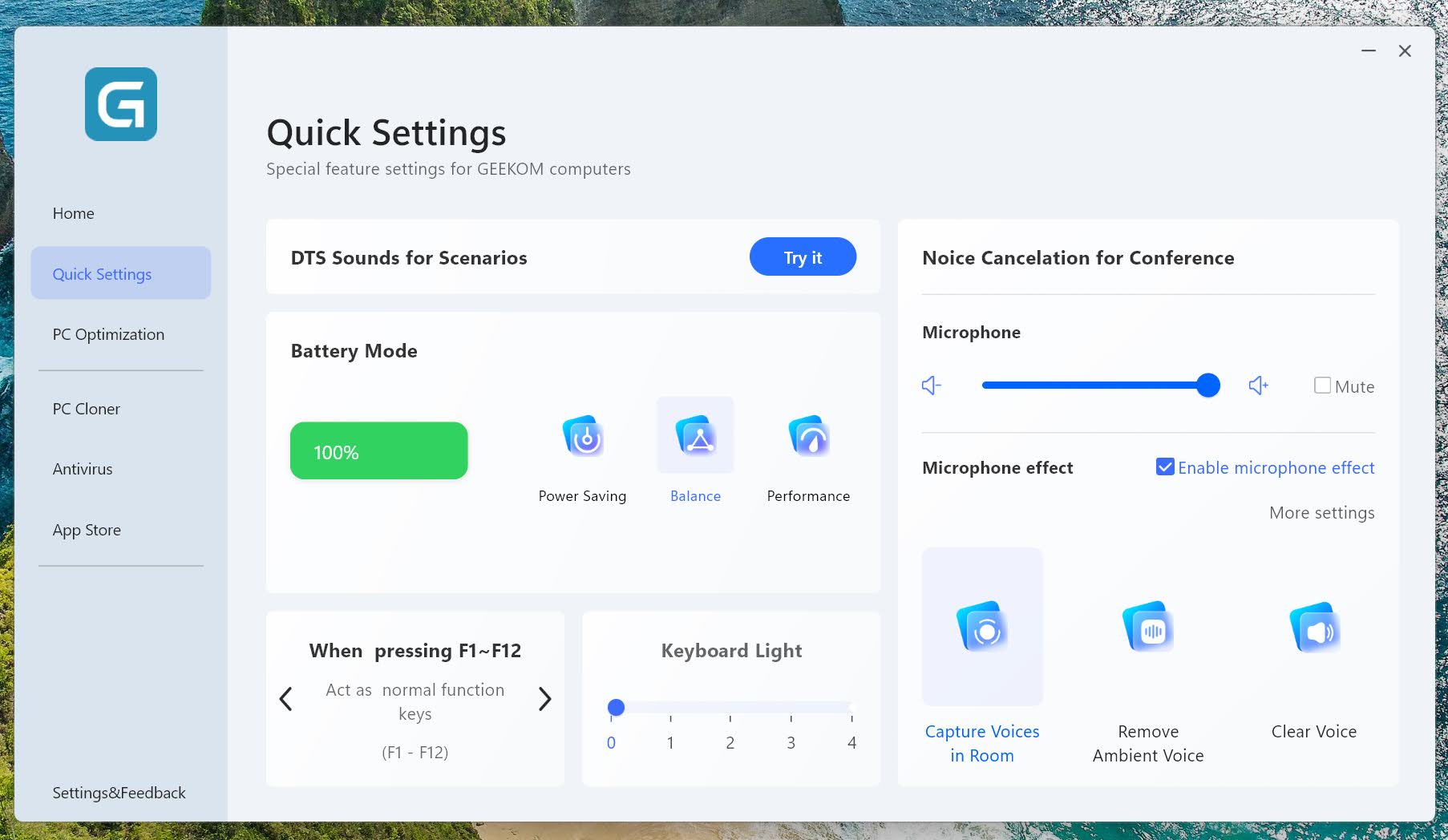
Geekom offers its own software experience called Geekom PC Manager, and I didn’t really touch it outside of exploring what it does. If you’re looking for a good way to clone PC data, or maybe manage certain laptop-specific settings, this will be good. Otherwise, you can just skip it. Alongside that, I was able to use Kei Retro Gaming’s Project Ronin to check the optimization of the X16 Pro, and it received a B-Tier rating, which is good but not perfect.
Also, if you want to try Linux, Zorin OS worked quite well during my testing, but it’s all up to personal preference. Unless you like pain, then get Arch.
Final Thoughts
At a price of up to $1,799, do I think the X16 Pro is worth your money? I think it depends. If you want a premium, lightweight laptop with a lot going for it, including a great big panel. Perhaps. In today’s market ram and storage are expensive, and this has an excess. But let me talk you down from that price ledge for a moment.
The cheaper 125H spec model will do a lot of the daily workload tasks just as well as the 185H, and you only lose 1TB of storage. If you don’t need the power, save the $350 and go for the lower spec. But there’s a catch. If you’re someone who hates huge laptops (like me), the 14” model is cheaper and OLED. The Geekom X14 Pro is the laptop I would absolutely recommend in place of this if you don’t need maximum size.
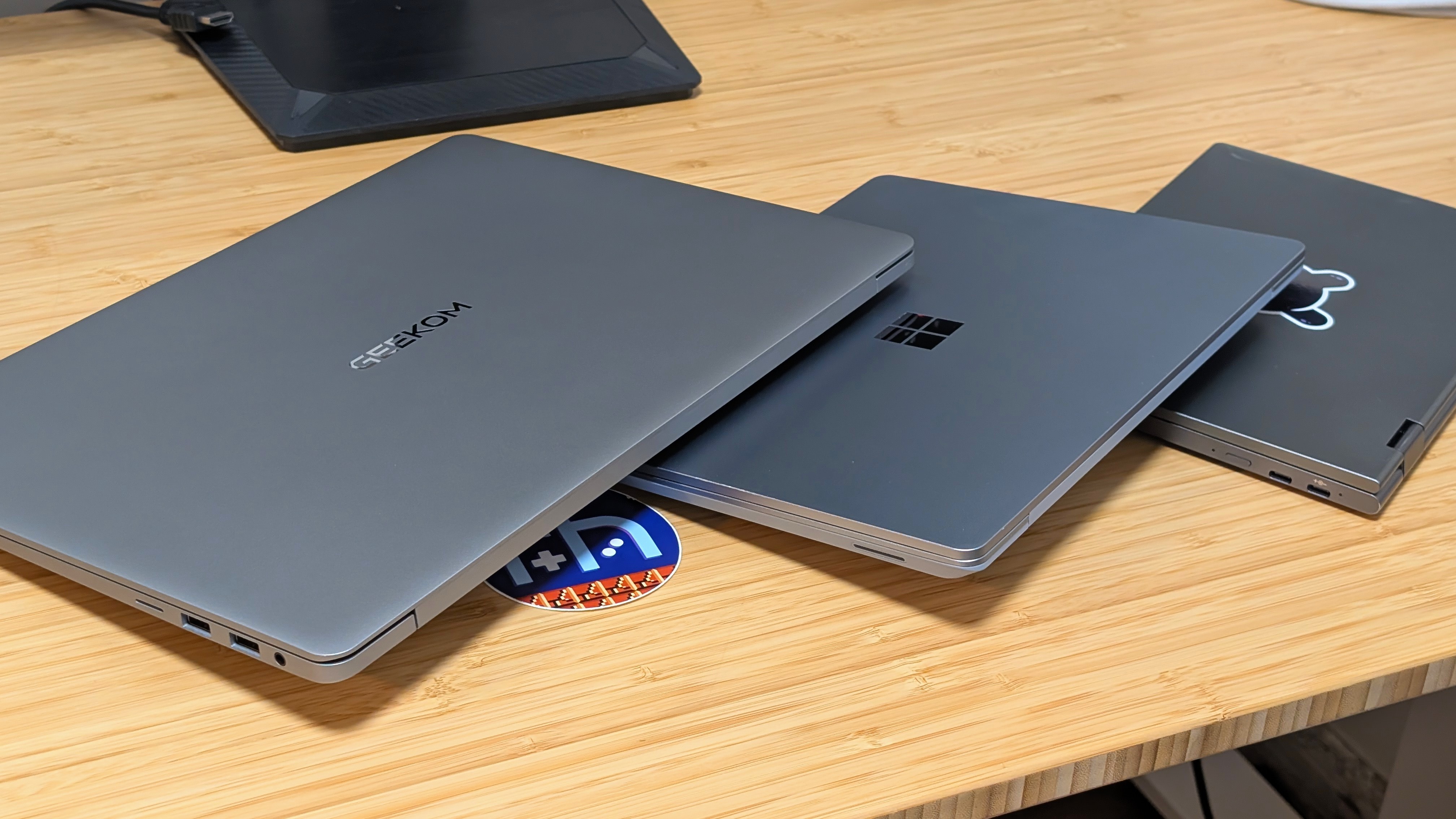
In the end, I’m going to go back to my Surface Laptop Go 2 purely off the back of preferring smaller laptops. That being said, this is a great laptop experience, and I’ll be passing this x16Pro off to my family, as I know one person who’s gone the last few years without a laptop. He’ll be sure to make use of it. Though that’ll likely include a lifetime of Arch Linux, unfortunately. Maybe I’ll find something to move to in the future.
