

The Mangmi Air X is a handheld that caught a lot of folks by surprise. I count myself as one of them. This is one powerful portable given that it sells for under $100 and can play games at a level of quality that eludes many other, more expensive devices. It’s almost perfect. Almost.
Well, thankfully, we of the handheld community have access to TheGammeSqueeze. The latest release of GammaOS Next brings the devs’ polished emulation OS package to the best new mid-budget contender on the block.
Why You Want Gamma OS Next
The reason I love this OS build is that it makes these handhelds feel like complete gaming devices from the time they are powered on. It’s a more elegant approach to Android. Everything about setting up an Android handheld can be painful for the uninitiated. It’s a clunky and disjointed process. Gamma removes all of the headaches and gives you everything you need to live your best gaming life on that device.
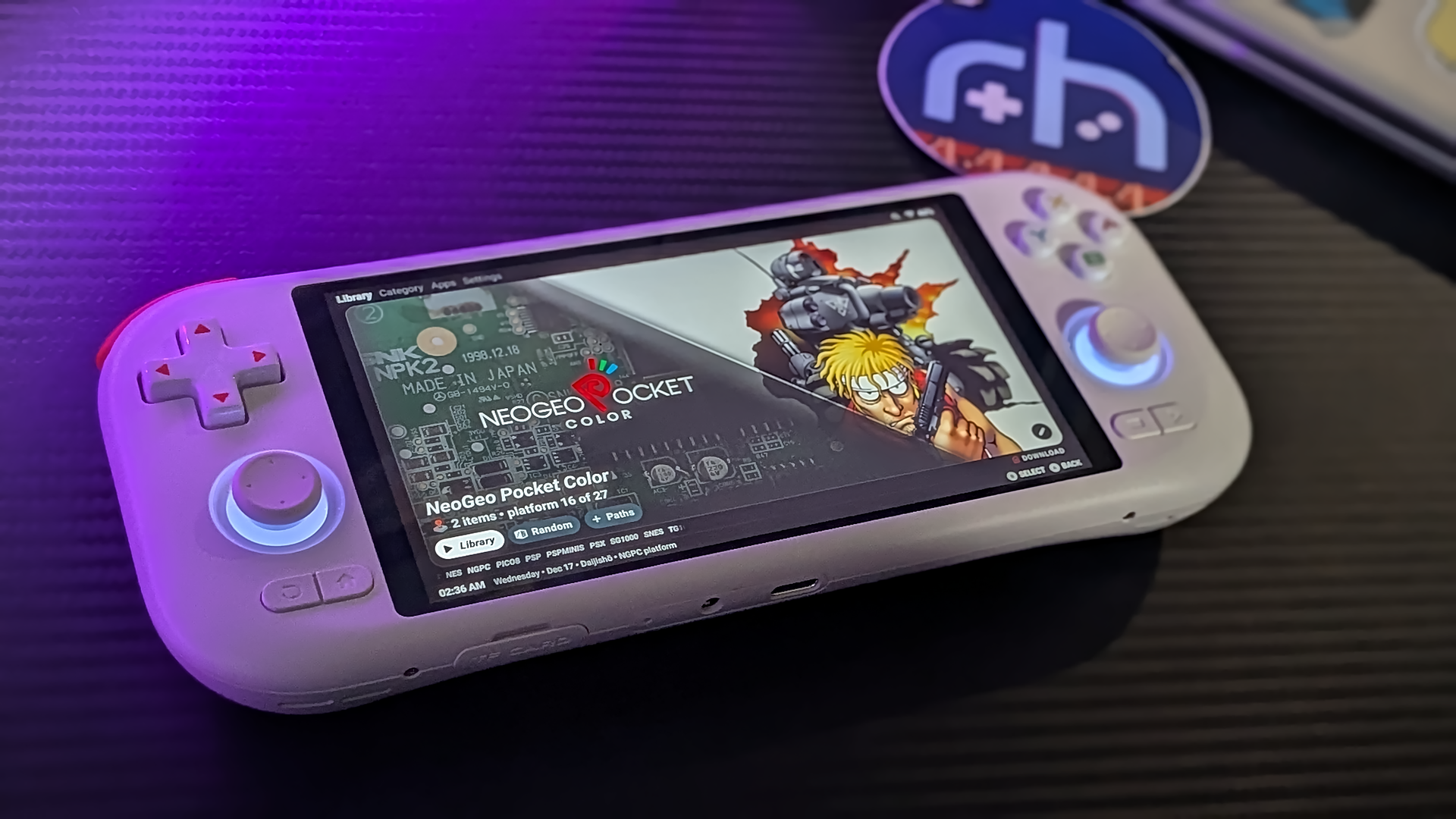
Daijisho is generally my go-to Android launcher anyway, so I’m partial to it, but it just fits so well with the overall package here. Instead of feeling like I’m launching into an Android device that can also play games, I’m launching into a handheld gaming device. Everything just feels more at home. Does that make sense? It’s ok, I rarely do. Check out the full list of features on TheGammaSqueeze GitHub.
A Couple of Notes
This release is still for Patreon supporters only at this time. If you’re patient, you can wait for it to become free down the line, but supporting the awesome dev work being done here nabs you early access.
This guide will walk through the steps of flashing the Mangmi Air X from a stock Android state. If you’re interested in updating from a previous installation of GammaOS, there are instructions on the dev GitHub.
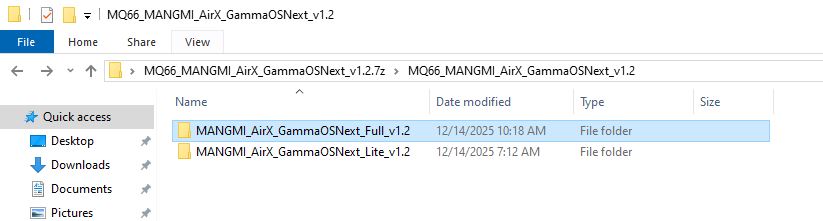
There are Full and Light releases of GammaOS Next. Both releases are contained in each download package. The only difference between the two is that the full release package contains the full Google suite of services, including the Play Store. The light release strips this out to run lean and mean, instead relying on alt-app stores like Aurora.
This process will erase everything on your device. Installing GammaOS on Android devices tends to vary in method slightly per handheld, but it’s generally not as simple as “Write SD card – insert in handheld”. We are writing a new AndroidOS image onto the internal memory of the Air X. Make sure you back up anything on the handheld that you plan to keep.
While I rarely consider any device to truly be bricked, there are risks associated with these installs that could leave your device in a state you didn’t intend. Follow the instructions, and you should be fine, but just know that this is different from your standard handheld SD flash.
If you have any kind of screen lock on the device, such as a PIN or swipe code, disable it before moving forward. There is a risk of not being able to unlock the handheld after GammaOS is installed if the device is left locked.
OK, safety rant over. Onward!
What You’ll Need
- A Windows PC – At the time of writing, this process can only be done from Windows. Who knows what additional methods might come up in the future, but for now, you’re going to need a Windows PC.
- 7-Zip or WinRAR to unpack the release downloads. The files are split into multiple archives, and you will need software capable of unpacking them.
- Qualcomm USB Driver Pack – Installed on your Windows PC
- QPST Software – Installed on your Windows PC
Determine Which Air X Version You Have
There are actually two different GammaOS Next releases for the Air X because there are two different versions of the Air X. The MQ65 version and the MQ66. Due to minor hardware revisions, you need to make sure that you download the correct package for your personal console.
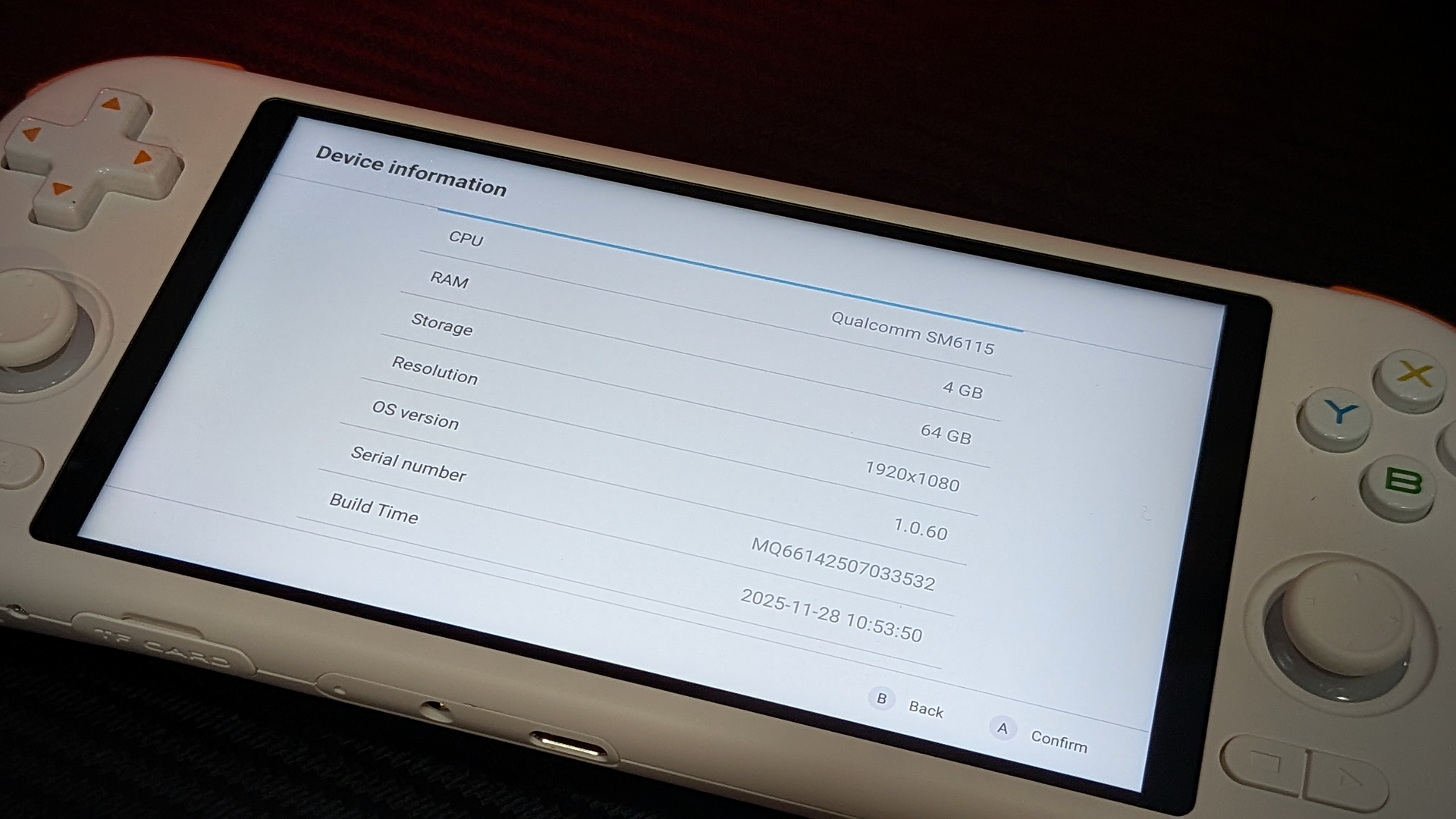
If you head to Settings in Android, then Handheld Settings, About Device, and finally Device Information. The first 4 entries of your listed serial number will correspond with the version you need to download. I have the MQ66 version of the Air X, so I’ll need to make sure that’s the release package that I download.
Before Flashing
- Prepare the Air X for flashing by powering the system OFF. The device should be powered down and have no external connections plugged in at this time. Make sure you’ve installed the Qualcomm drivers and software.
- Put the handheld into EDL mode by holding the Volume + and Volume – buttons down at the same time. While continuing to hold down the buttons, insert the USB-C cable connected to your Windows PC into the Air X.
- Continue to hold the buttons after connecting the USB cable. You should get several connection pings. Keep holding until the device registers in Windows as Qualcomm HS-USB QDLoader 9008. (My Windows showed the device as something else initially, but it reported correctly in QPST Software). If the handheld fails to register with the PC, go back to step 1 and try again.
Install GammaOS Next on the Mangmi Air X
- Launch QFIL from the extracted QPST folder on your PC.
- Click on the Select Port button, and you should see the handheld listed as Qualcomm HS-USB QDLoader 9008. Click OK.
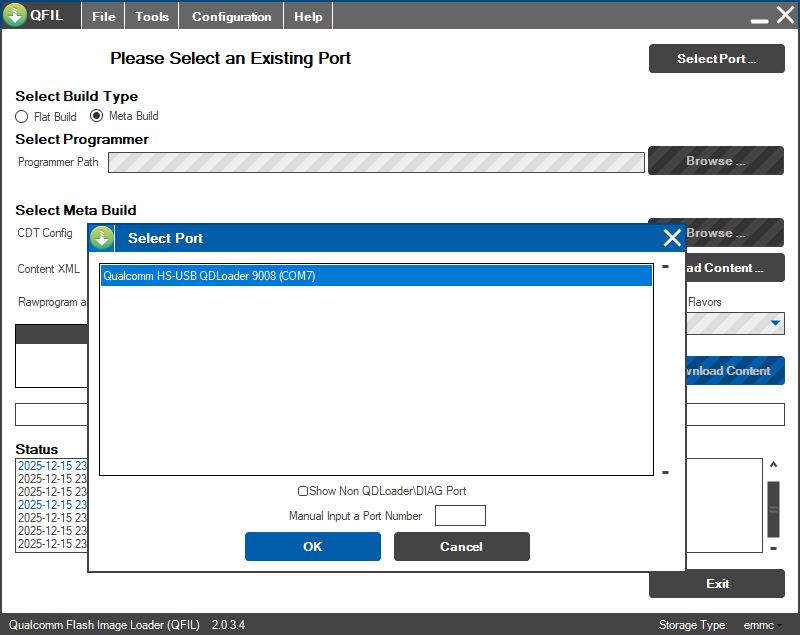
- Now, make sure that FLAT BUILD is selected under Build Type
- Remember where you put the extracted GammaOS Next firmware package for your device. We’re going to need those files to write to the handheld.
- Click on Browse next to the Select Programmer heading, and navigate to the prog_firehose_ddr.elf file (Was there ever an Xmas Dance Dance game? Doesn’t matter) inside your extracted GammaOS release folder.
- Next, click on the Load XML…. button under the Select Flat Build section.
First select rawprogram_unparse0.xml, then patch0.xml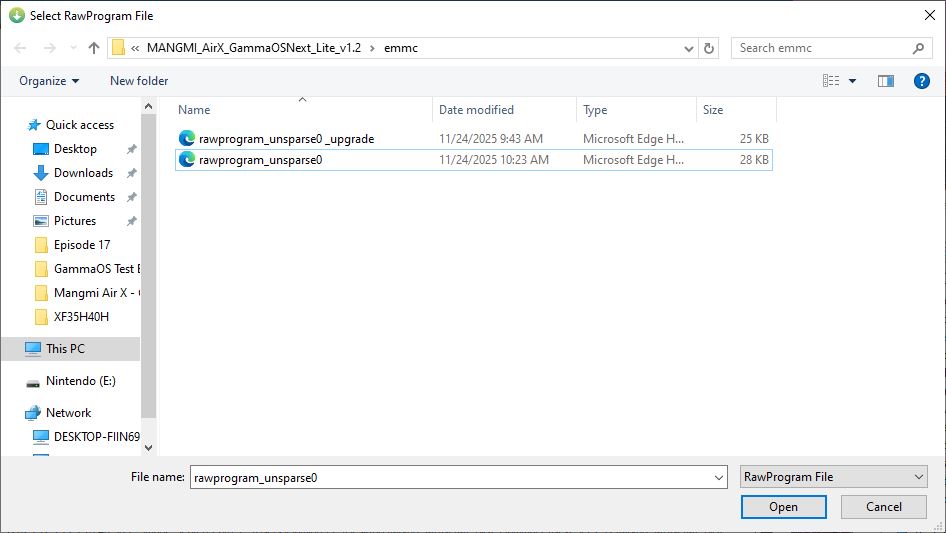
- Click on the blue Configuration button at the top of the QFIL window, and select Firehose Configuration.
Set Device Type: emmc
Validation Mode: 0 – No Validation
Reset After Download – Checked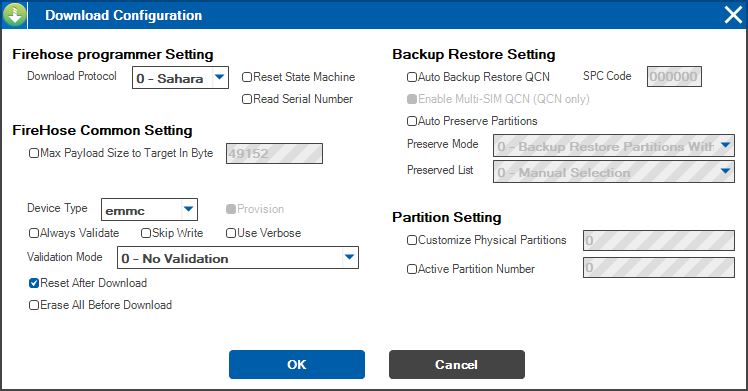
Click OK to return to the main screen of QFIL. Your screen should look as it does below. If it doesn’t, stop now and make sure all your ducks are in a row.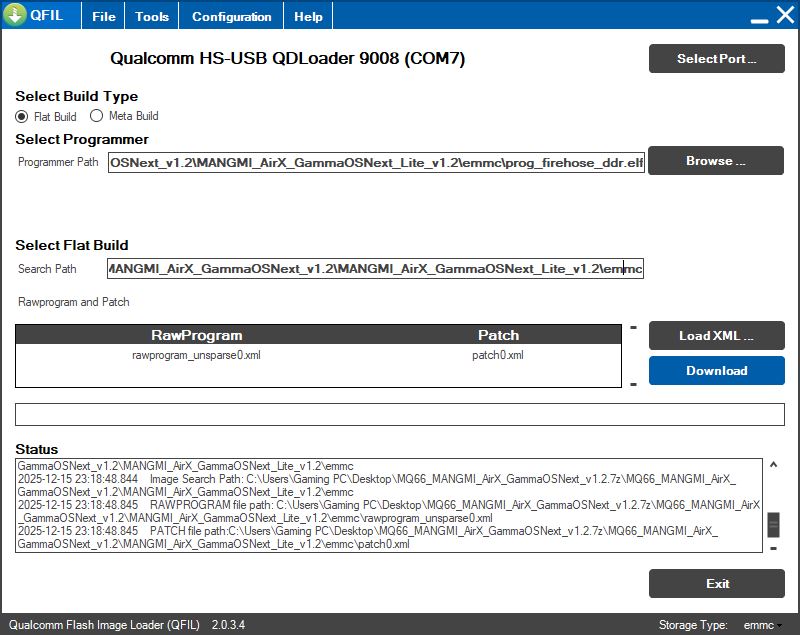
It should look like this before you initiate the FW write - Click DOWNLOAD. You are now writing the new firmware to your Mangmi Air X! Let the process run and do its thing. You’ll be waiting to see a Download Succeeded banner.
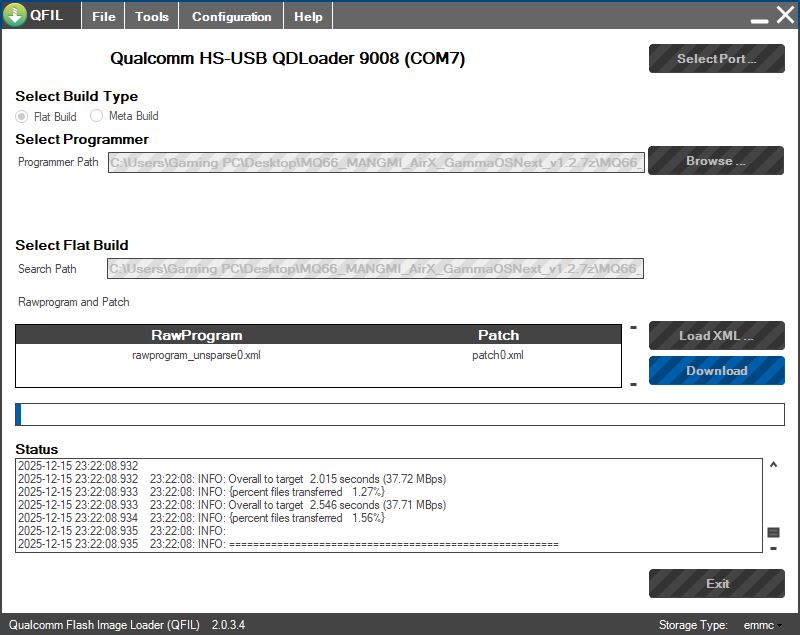
Writing GammaOS Next
Initializing GammaOS Next
After the firmware writing is complete, the Mangmi Air X should reboot itself and post with a screen welcoming you to your new GammaOS handheld.
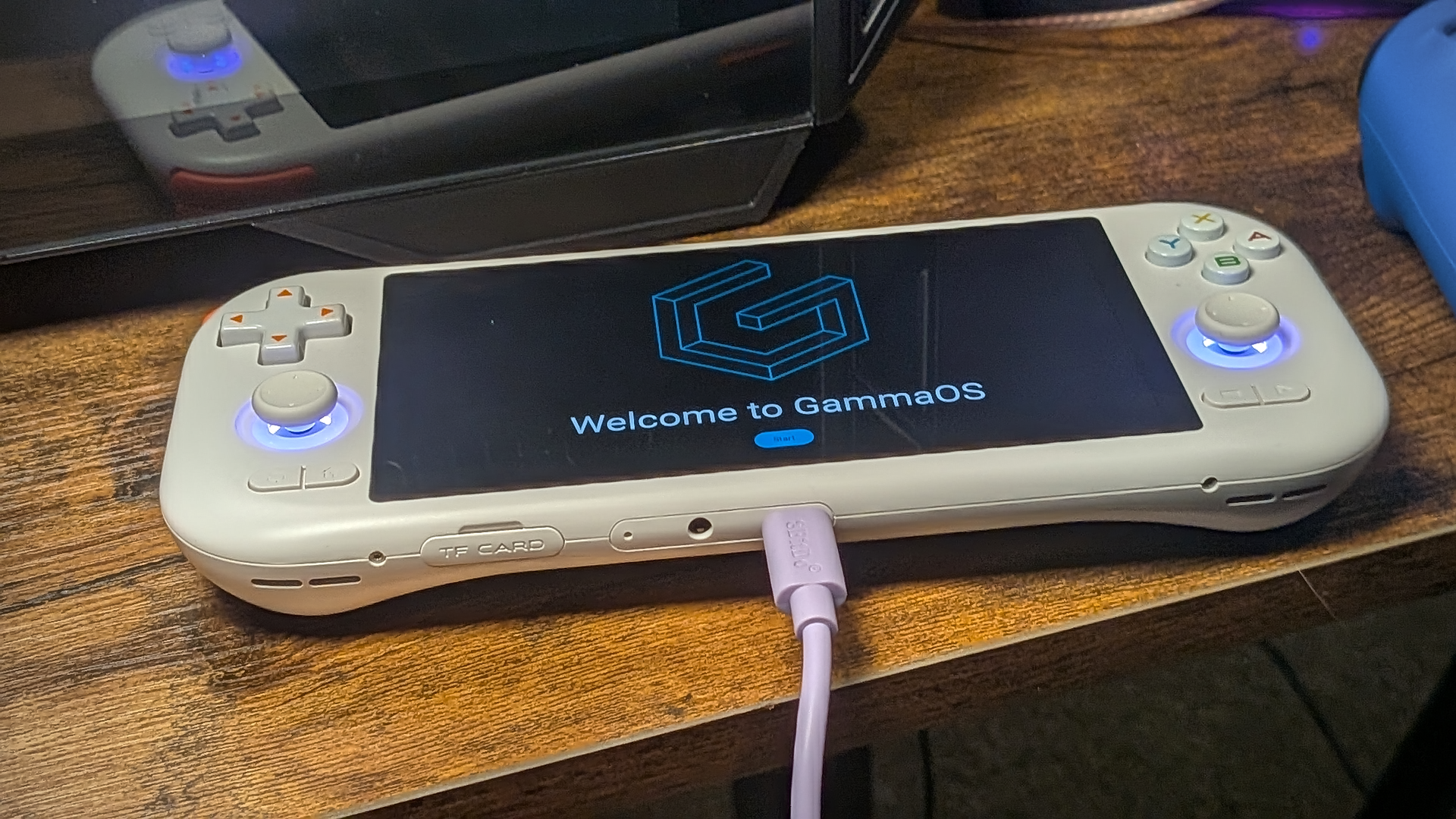
From here, you’ll be walked through some initialization steps like language, connecting the device to your home network, and a quick hardware test. 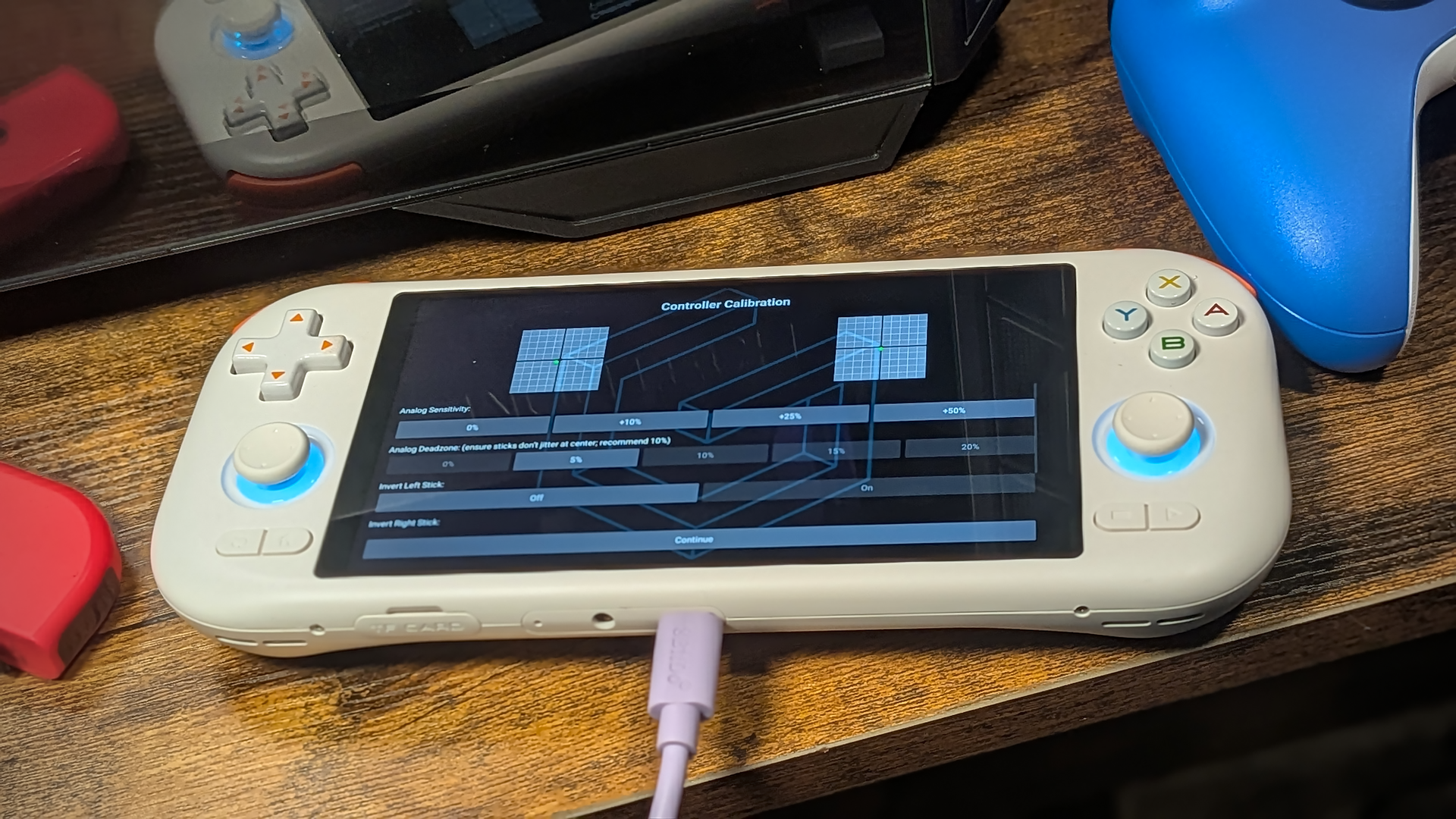
From there, it’s just a matter of letting the install process finish locally on the device.
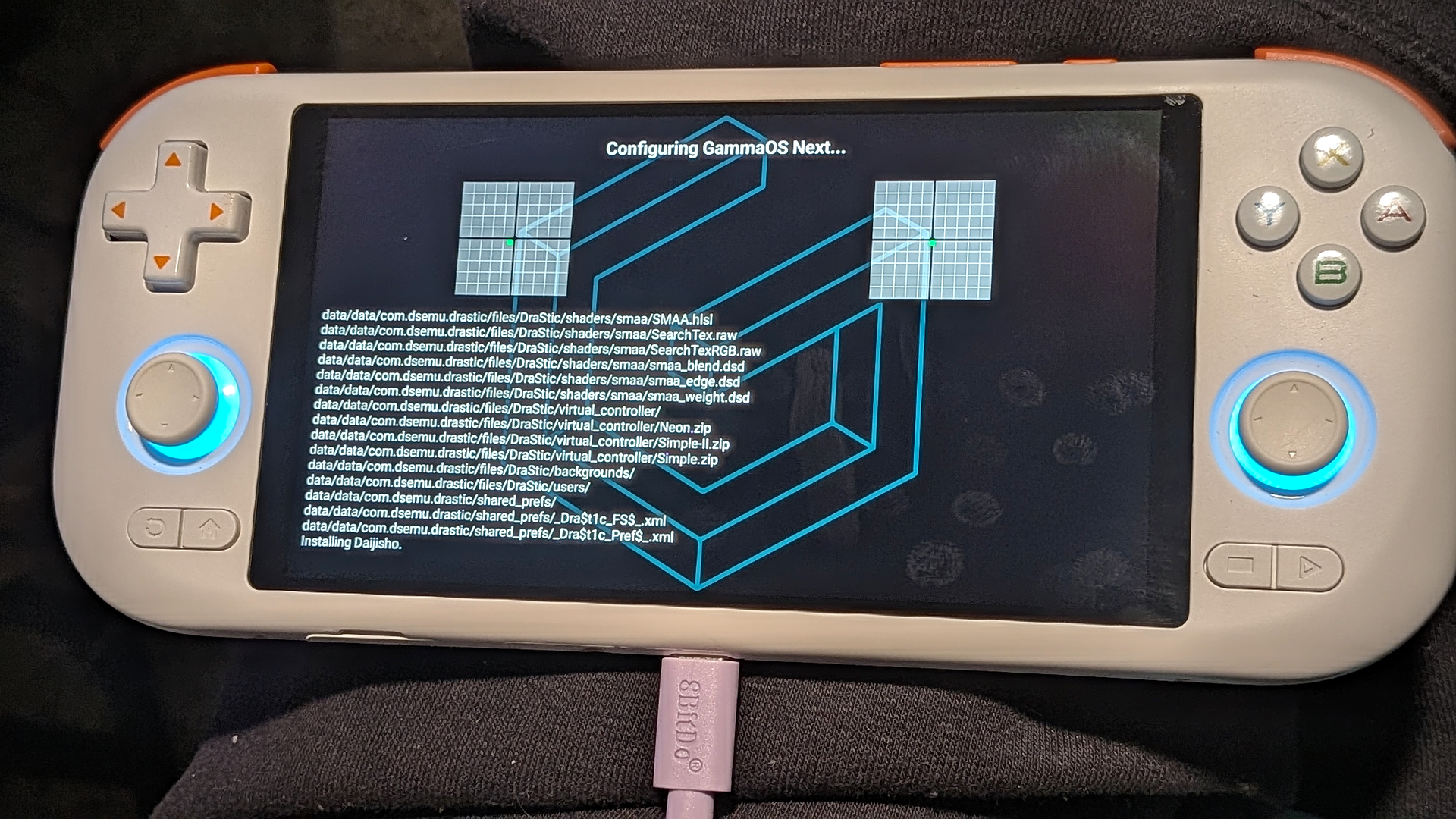
Loading ROMS/BIOS
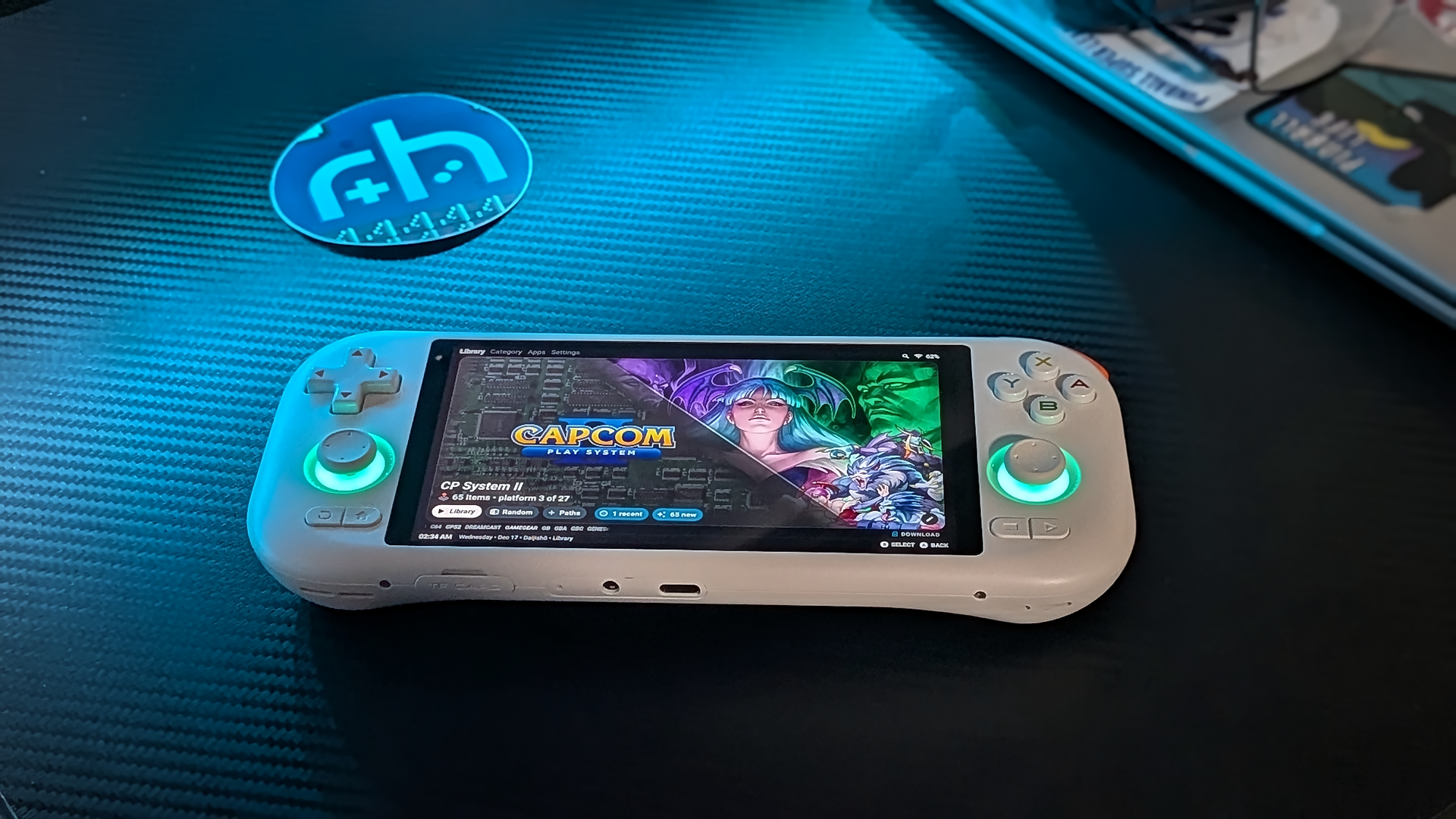
GammaOS Next kindly includes everything an emulation enthusiast could want right out of the box, including the MiXplorer app. MiXplorer is my personal favorite way to load system BIOS and ROMs (the only thing GammaOS can’t include) from my networked storage to the device. System directories are there, ready and waiting to be filled on the device’s internal storage. A simple drag and drop via USB-connection can also do just fine.
Troubleshooting
If you’ve hit a snag somewhere along the line, go back through the steps as listed and see if there’s anything missing anywhere. You can also consult the wonderful GammaOS Next GitHub. And help is usually only a question away on the RH Discord.
This page may contain affiliate links, by purchasing something through a link, Retro Handhelds may earn a small commission on the sale at no additional cost to you.

1 Comment
I want that gaming console screen gadget color black cover hull something awesome , dark and survive the real deadly war fights makes me a real hero.