

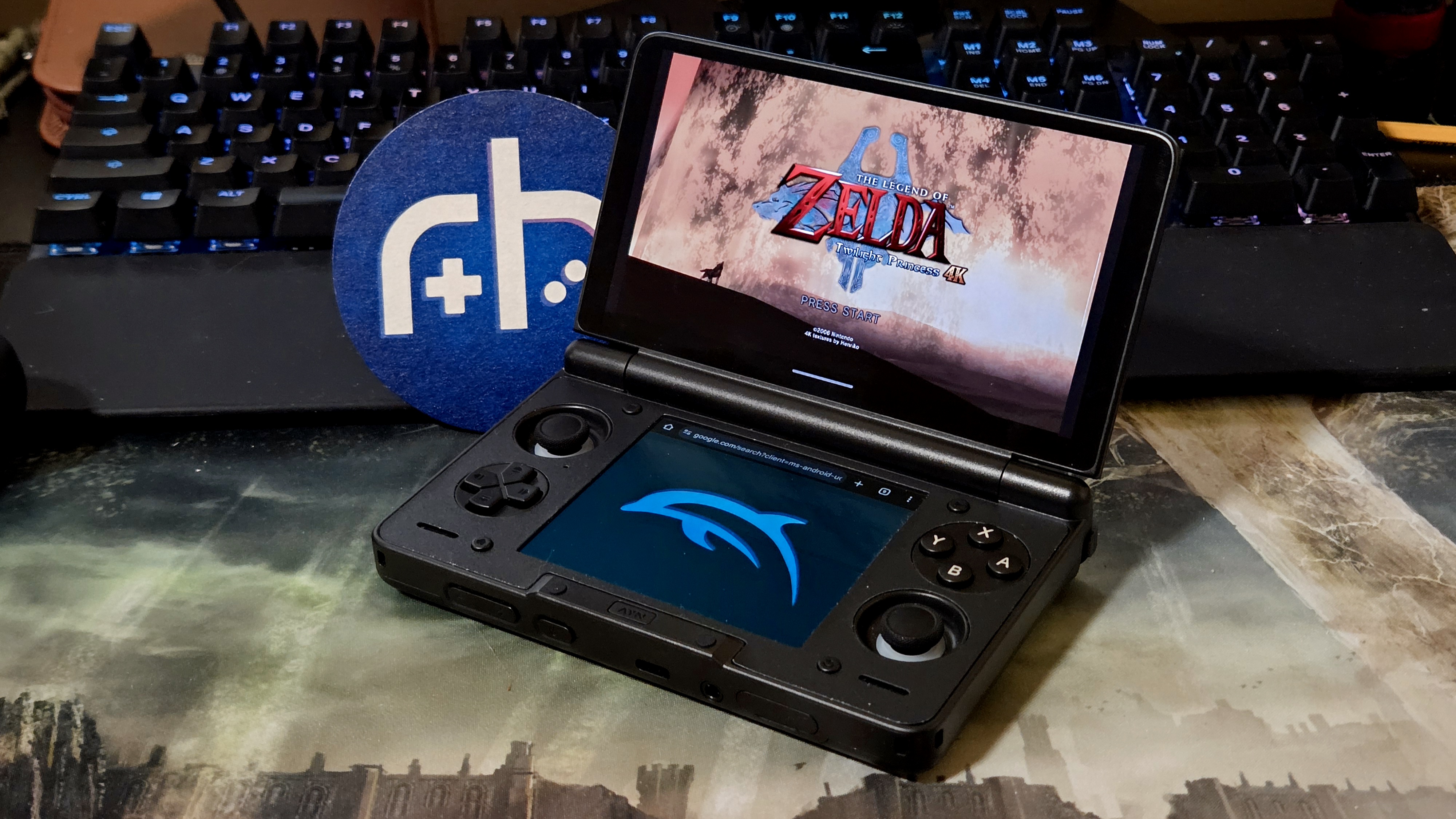
Ever come across a YouTube video titled something to the effect of “WOW Twilight Princess in 4K!? Nintendo HIRE THIS MAN!” accompanied by your quintessential ‘WOW’ face and a super oversaturated screenshot, and wonder how they manage to pull it off? Well, look no further than texture packs, game patches, and an emulated GameCube game on Dolphin Emu.
Texture packs in particular have a rich and complicated history in the space, especially in the Android version of Dolphin, but they really do make the most difference in visually making our 20+ year old titles look like a real remaster job. Game patching (e.g., 60fps, native widescreen, gameplay mods) also has its impact, but the place to start really is in exploring texture packs, lest you be met with terribly upscaled text.
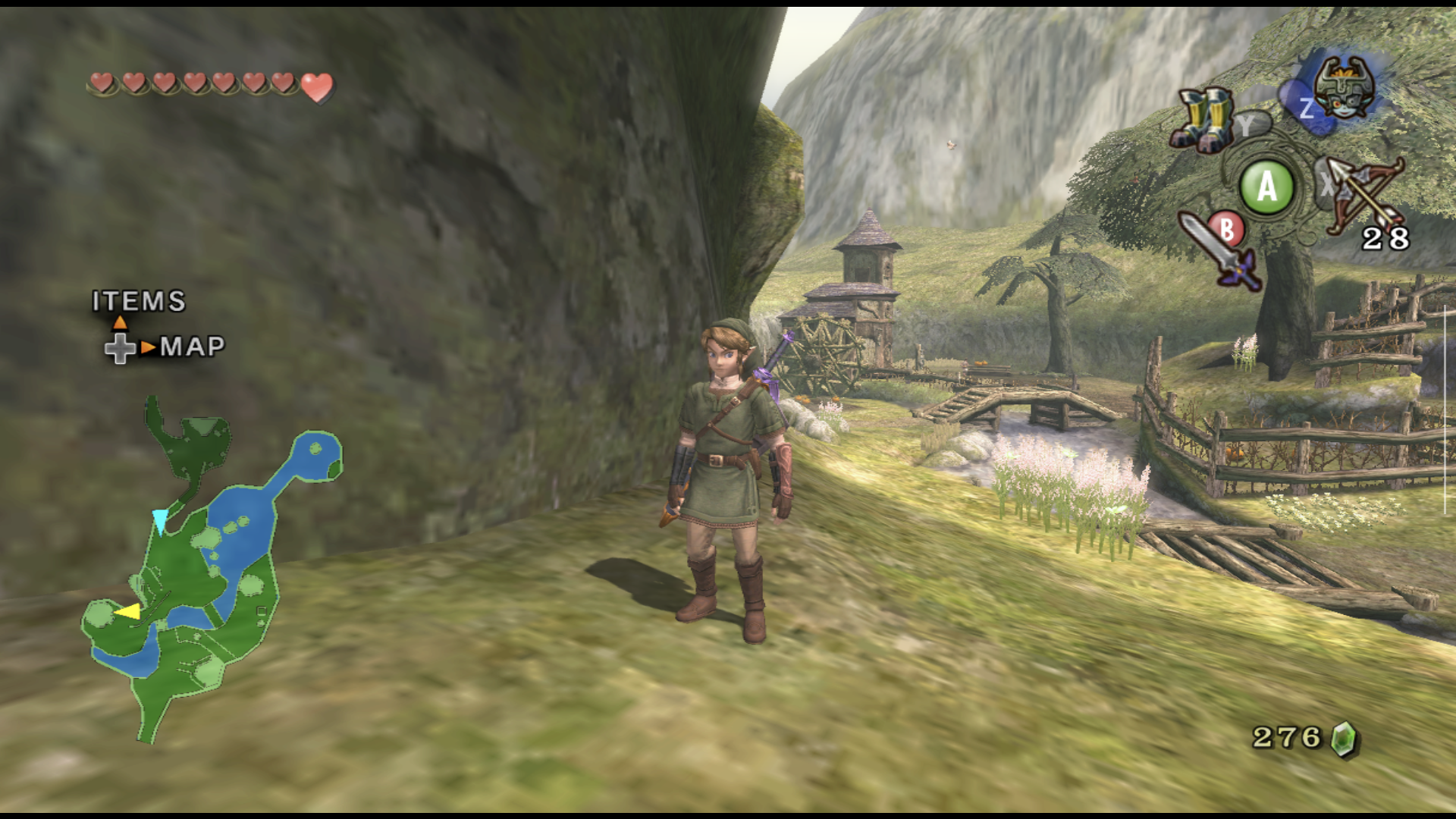
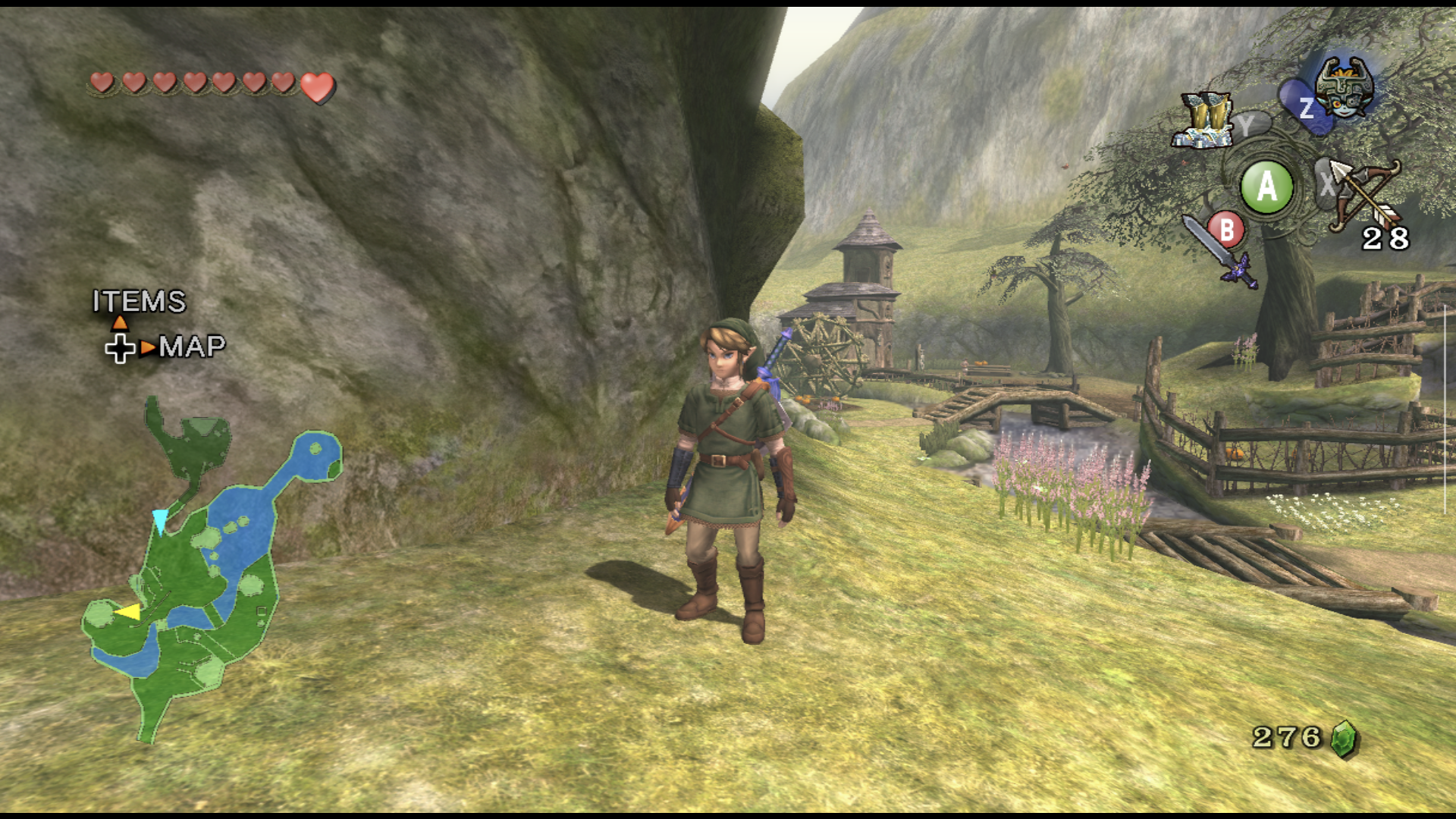
In this guide, we will focus on the Android version of Dolphin because it’s pretty straightforward on PC, but finicky on Android. Plus, who wouldn’t want the newly released HM Twilight Princess 4k 3.0 texture pack on their new Odin 3?
How Textures in Dolphin Work
Textures in games include all 2D assets and every surface with a 2D image on it. For example, a polygon with 8 sides has 8 texture surfaces. Sometimes the texture will be of the entire surface, or of only parts of it. GameCube textures follow this logic, and texture packs work to swap out a games +20 year old texture with new, hopefully high-resolution and stylish ones.
Next, there are two items associated with texture packs: Textures and Shaders. Textures are the raw, no-context image files. Shaders handle how the texture is handled, where they go, and how they behave. Dolphin handles shaders in the application, so shader settings can make a big difference in performance.
Lastly, Dolphin texture packs have two formats: A proprietary compressed ‘.dds’ format and a raw ‘.png’ format. These two formats create the biggest confusion around getting packs to work, whether they require more RAM and make the game crash, or maybe the game doesn’t read them at all.
In fact, .dds formatted textures didn’t work on Android at all until 2023, despite being the most common. Back then, you would have had to take the raw .png textures and compress them like a masochist. Nowadays, we have dedicated Android versions!
Step-By-Step Texture Guide
Broad strokes speaking, this will be the general process for 90% of texture situations on Dolphin and is the bare minimum. You can do this completely from your device of choice, so for this guide, I will use my AYN Thor Pro.
Step 0.5: Things You Will Need
- An Android Handheld with:
- At least 8GB of RAM (+12 is recommended)
- A good amount of internal storage space, since textures will be hosted there and moved around
- At least Android 10
- An internet connection (Duh)
- (Optional) A PC
Step 1: Source Your Game and Texture Pack
Presuming you already have a game of choice you would like to replace the textures of and have it set up with Dolphin, you will need to download a texture pack. There are multiple free ones online, with some being behind paywalls. A great source (that is trusted) of texture packs can be found with Henriko Magnifico, GameBanana, Hypatia, the Dolphin Forums, or just Google it. For this example, I will be using Henriko’s Twilight Princess 4k texture pack.
In selecting a texture pack, you’ll want to find the verbiage for an Android version (if one exists). Android versions will generally be compressed and smaller overall in size, so you can get it working on lower spec devices. Size matters because the larger the file, the larger the RAM requirements.
You’ll also want to make sure the texture pack matches the game’s region and language, but usually, packs will default to English and NTSE. Most downloads will result in a hefty .ZIP file in your folder. For Zelda, I downloaded the 3.0 texture pack from Henriko’s Patreon (3.0 is paid, whereas 2.1 is free) and opted for the ‘Mobile Version’.
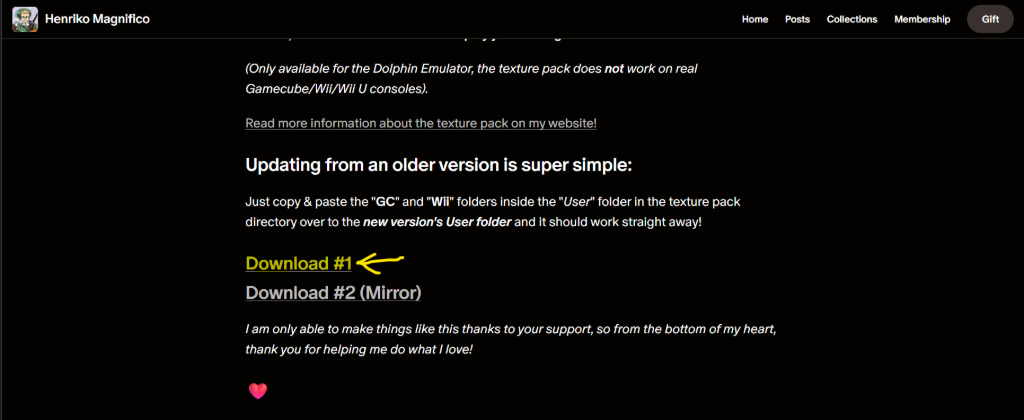
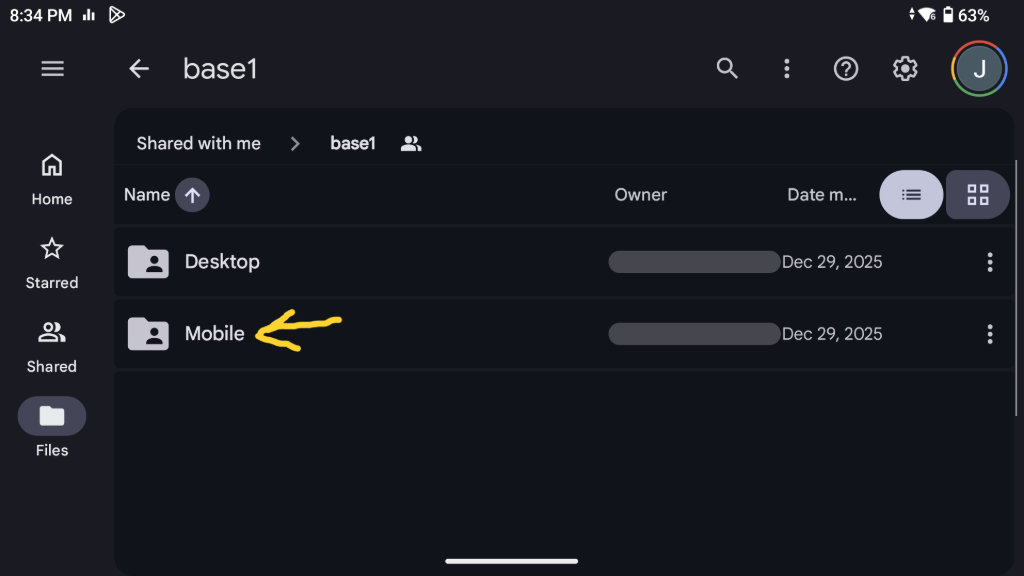
- Find a texture pack for a game you want to play (Henriko Magnifico, GameBanana, Hypatia, the Dolphin Forums, or Google).
- Download the pack for your region, preferred format, and the Android version if applicable.
- Leave the .zip file as it is before moving to the next step
Step 2: Moving Textures Into Dolphin
Most texture packs have a pre-organized folder structure starting with the GameID, but in the instance it doesn’t, you’ll need the GameID for your game. GameIDs are just unique IDs tailored to every version of every GameCube game and can be found when searching for your game on the Dolphin Wiki, or by long-pressing your game in Dolphin to check the details.
For Zelda example, I will create a folder called GZ2 (you only need the first three letters/numbers) in Dolphin’s Texture folder, making our texture directory: Storage > Android > Data > org.dolphinemu.dolphinemu > Files > Load > Textures > GZ2.
One critical step to making sure Dolphin recognizes your textures is to extract the .zip file to its original save location BEFORE moving them into the Dolphin directory (if you downloaded the .zip file into Downloads, extract it to Downloads). For Android, my recommended app is RAR.
RAR is free and has two important features: Supports extraction of multiple compressed file types (.rar, .7zip, .zip, etc.) and bypasses Android’s blocks for writing into certain directories (Up to Android 14, I believe). In RAR, simply navigate to your downloads folder, long-press your .zip file, and select ‘Extract here.’
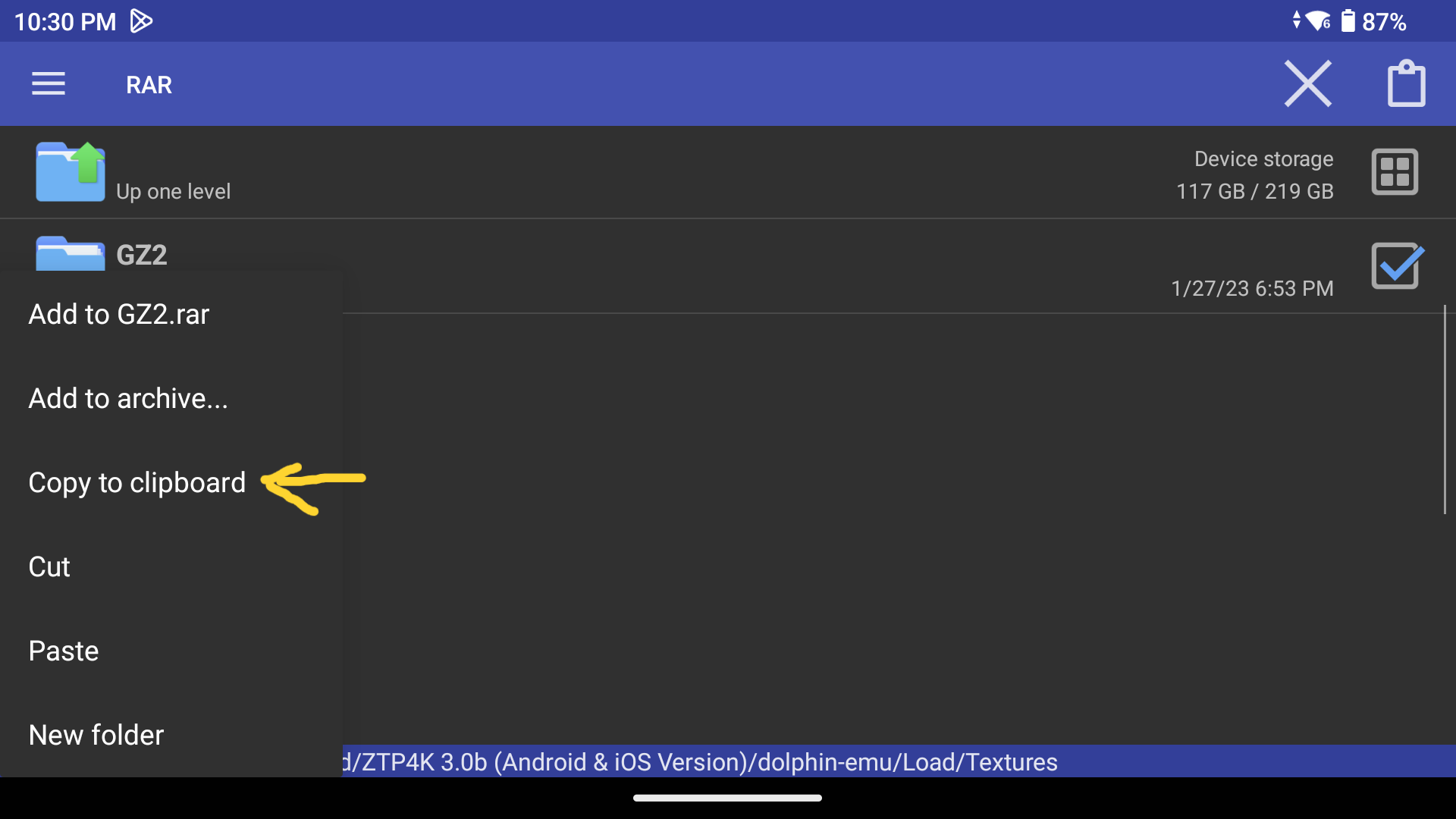
Next, you’ll want to take that newly extracted folder and open it. It will most likely have a preordained file structure to match Dolphin’s ‘System > Load > Textures’ file structure and might include optional assets like custom configurations or ReShade files (just ignore these, it’s for the best). Find a folder called “Textures”, “Load”, or the GameID and copy it (long-press the folder and select Copy to Clipboard in RAR).
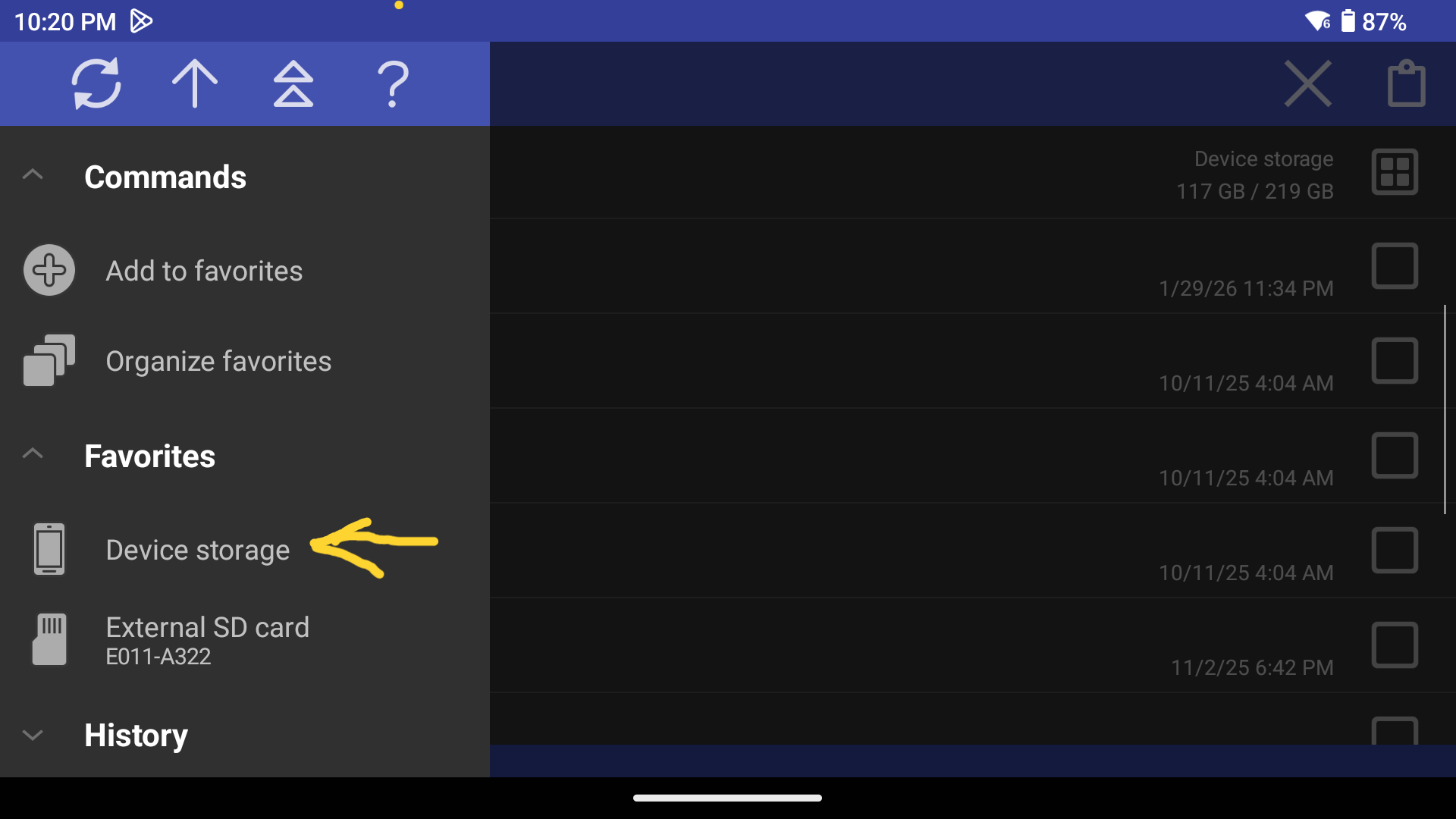
Navigate in RAR to Device Storage > Android > Data > org.dolphinemu.dolphinemu > Files > Load > Textures and paste over the corresponding folder you copied. If you copied the “Load” folder, you’ll paste in the “System” folder.
If you copied the “Textures” folder, you’ll paste in the “Load” folder. If you copied the GameID, you’ll paste it into the “Textures” folder. At the end of this exercise, you’ll have a file structure that looks like: Device Storage > Android > Data > org.dolphinemu.dolphinemu > Files > Load > Textures > GameID
Once this is done, you’ll be ready to finish this up in Dolphin.
- Extract your .zip folder to the same download directory (If using a PC, extract to your desktop and simply move the folder into your console)
- Locate a folder labeled Load, Textures, or the GameID and copy it to your clipboard
- Paste it to the corresponding directory in Dolphin through: Device Storage > Android > Data > org.dolphinemu.dolphinemu > Files > Load > Textures > GameID
Step 3: Setting Up Dolphin
With the hard part over, let’s get to the fun one: Setting up Dolphin. There are some mandatory settings and some highly recommended ones, so let’s start by opening up Dolphin.
Expecting that you have a library of games already set up with your favorite configurations, you might have to change these settings per game, rather than having a global configuration. In any case, here are the settings you need for Dolphin to properly handle Texture Packs:
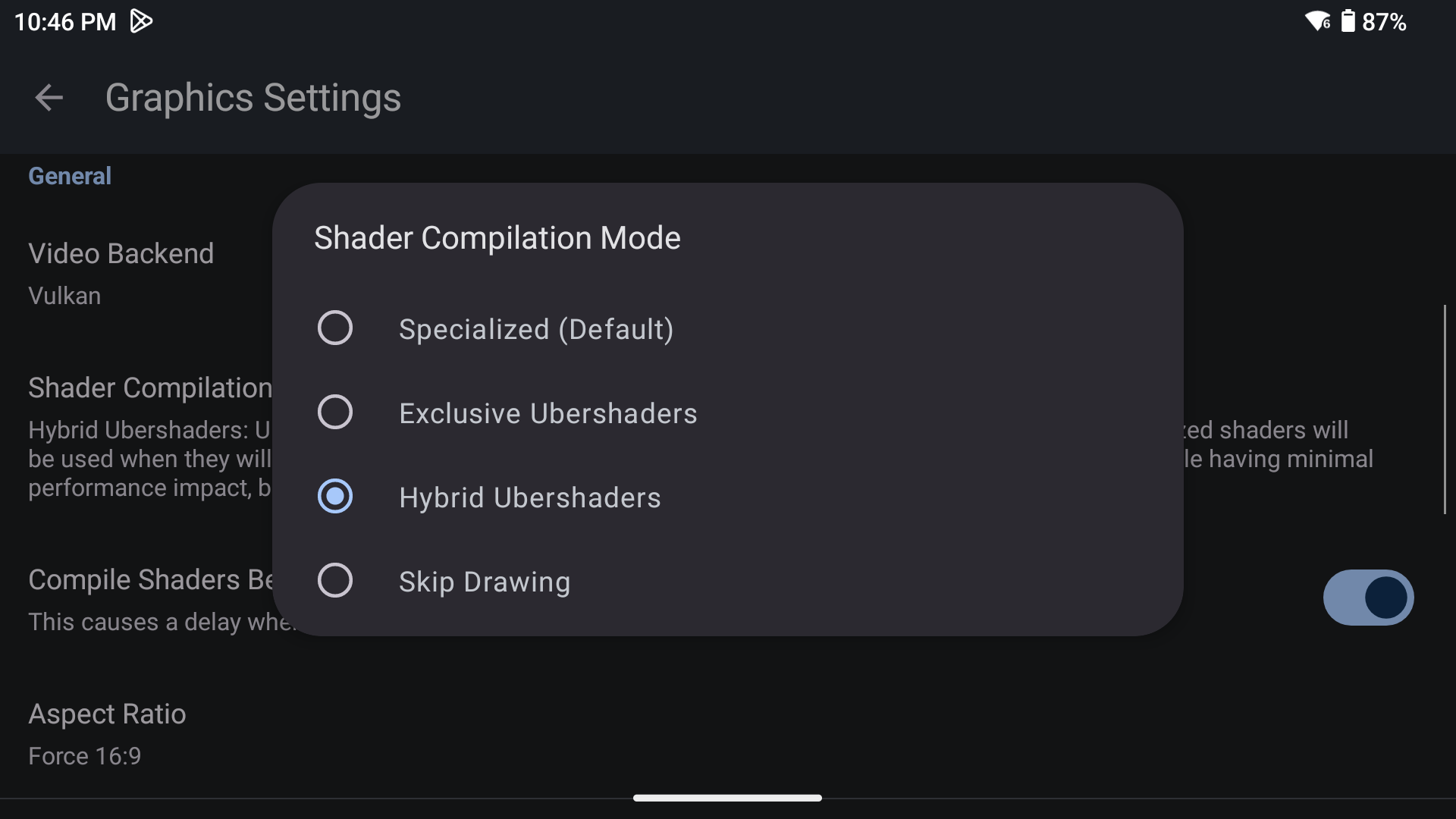
In Settings > Graphic Settings
- Backend: Vulkan. If it’s an option, always use Vulkan for the best texture handling. Less stutter, .dds compatibility, and better performance.
- Shader Compilation Mode: Hybrid Ubershaders. Anything else results in a crash or very bad performance.
- Check Compile Shaders Before Starting for less compilation stutter in gameplay
- Under Advanced:
- Check ‘Load Custom Textures’. Pretty self-explanatory
- Check ‘Prefetch Custom Textures’ : Helps with stutter at the cost of more RAM. Use it if you can.
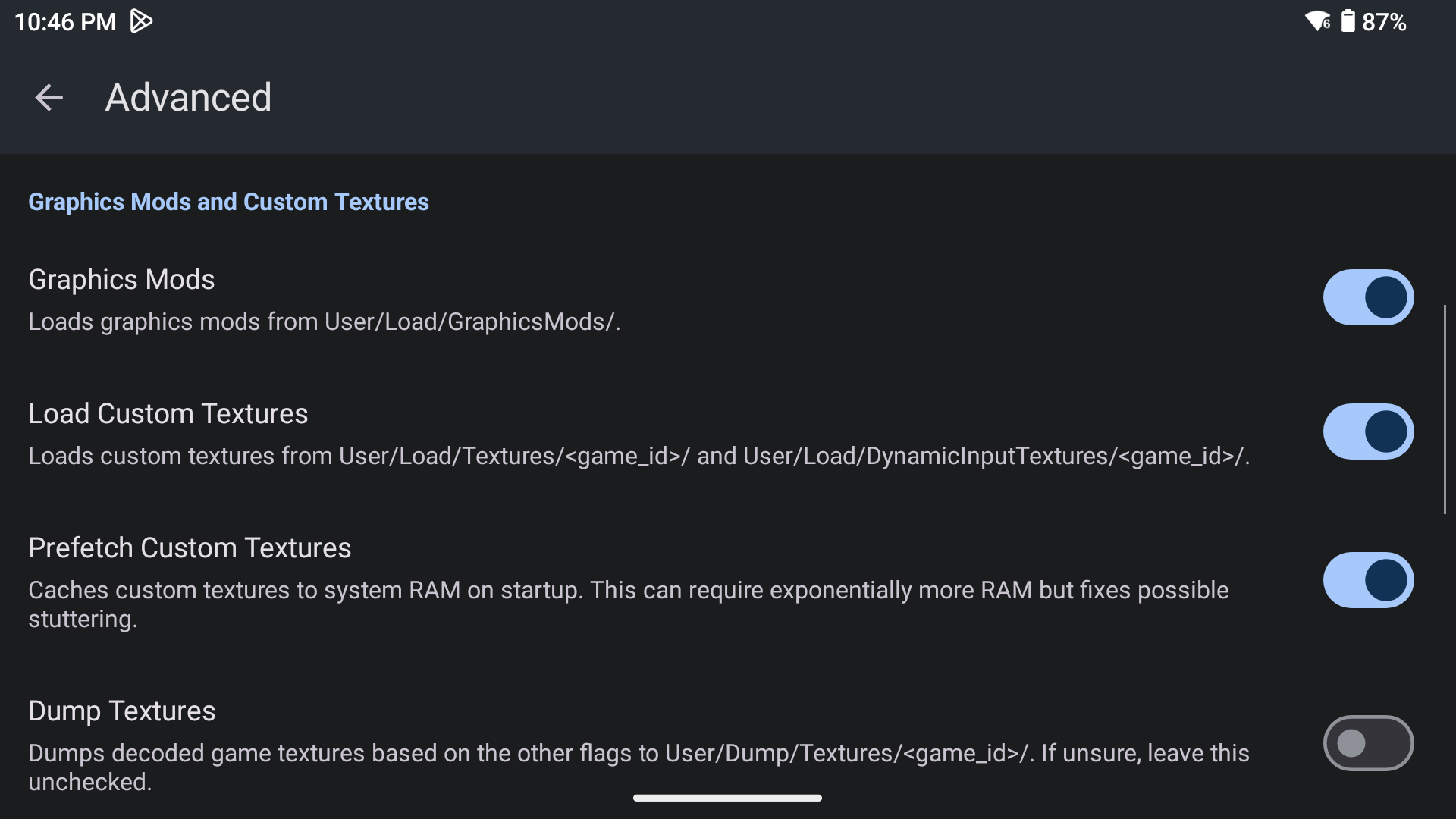
And that should be it! Open up the game, you get up and enjoy higher fidelity graphics and properly upscaled text. You’ll know it works when the top right corner has yellow text saying ‘Prefetching XXXX Textures’ and the starting logo looks great.
Step Æ: Basic Troubleshooting
- Your device’s RAM is too low
- You can mitigate this by turning on 4g swap storage in some Android handhelds
- Be sure to close any open processes
- The texture pack is too big
- Reset your console
- Hybrid Ubershaders isn’t turned on
- You didn’t turn on Vulkan for .dds files
- You didn’t extract the .zip file you downloaded to a local directory
- You downloaded a texture pack for the wrong region
- It’s recommended to turn on ‘Prefetch Custom Textures’ to avoid texture pop-in
- Under Graphics > Hacks, play with texture accuracy settings
- You should stop using your Magmi Air X for texture packs
- Seriously, consider getting something with at least RP5 levels of performance
- Make sure ‘Hybrid Ubershaders’ is turned on
What did you think of this article? Let us know in the comments below, and chat with us in our Discord!
This page may contain affiliate links, by purchasing something through a link, Retro Handhelds may earn a small commission on the sale at no additional cost to you.
